Assign tags to clients
Learn how to create client tags and assign them to client profiles to group clients by type, like VIP, Senior, or Student, so you can filter your clients list more easily.
In this article
How client tags work
Client tags are labels you create and assign to client profiles to group and identify clients, for example, VIP, Senior or Student. Once you've set up your tags, you can assign them individually or in bulk, and use them to filter your client list and report on specific groups - the shorter and more descriptive the tag name, the easier it is to use as a filter.
Create a client tag
-
From the main menu on the left of your screen, go to Settings.
-
Click on Clients to manage your client settings.

-
In the left menu panel, select Client tags to view your tag library.
-
Click the Add button in the top right to create a new client tag.

-
Enter a name for your tag and preview how it'll appear.

-
Click the Add button in the top right to save your tag.
The new tag is added to your library and ready to assign to client profiles.
To reorder tags in your library, click Actions next to any tag and select Move up or Move down. The order you set here is reflected wherever tags appear as filters across your workspace.
Edit or delete a client tag
- From your workspace settings, click on Clients and select Client tags in the left menu panel.
- Click Actions next to the tag you want to update, then select one of the following:
- Edit: Update the tag name, then click Save in the top right to confirm.
- View clients: See all clients with this tag assigned.
- Delete: Remove the tag permanently, then click Delete in the pop-up to confirm.

Any changes will be applied immediately across all client profiles with that tag assigned.
Assign a tag to a client
-
From the main menu on the left of your screen, go to Clients.
-
Select Client list from the menu panel to view all clients.

-
Click on a client to open their profile.
-
Select Client details and click on the Edit button in the right panel of the profile.

-
Under Additional info, click the Tags selector to add a tag from the dropdown.
-
You can also type a new tag name and press Enter to create and add it directly.
-
You can add multiple tags to the same client.

-
-
Click the Save button in the top right to update the profile.
The assigned tags appear on the client's profile and are visible to your team wherever the clients profile appears in your workspace.
You can also assign tags to multiple clients at once. From your clients list, tick the checkboxes next to the clients you want to tag, click Bulk edit and select Add client tags, choose the tags to apply, and click Apply. Tags are added without removing any already assigned to those clients.
Filter clients by tag
-
From your Clients list, click Filters to open the filters panel.

-
Under Client tags, tick the checkbox next to each tag you want to filter by.

-
Click the Apply button.
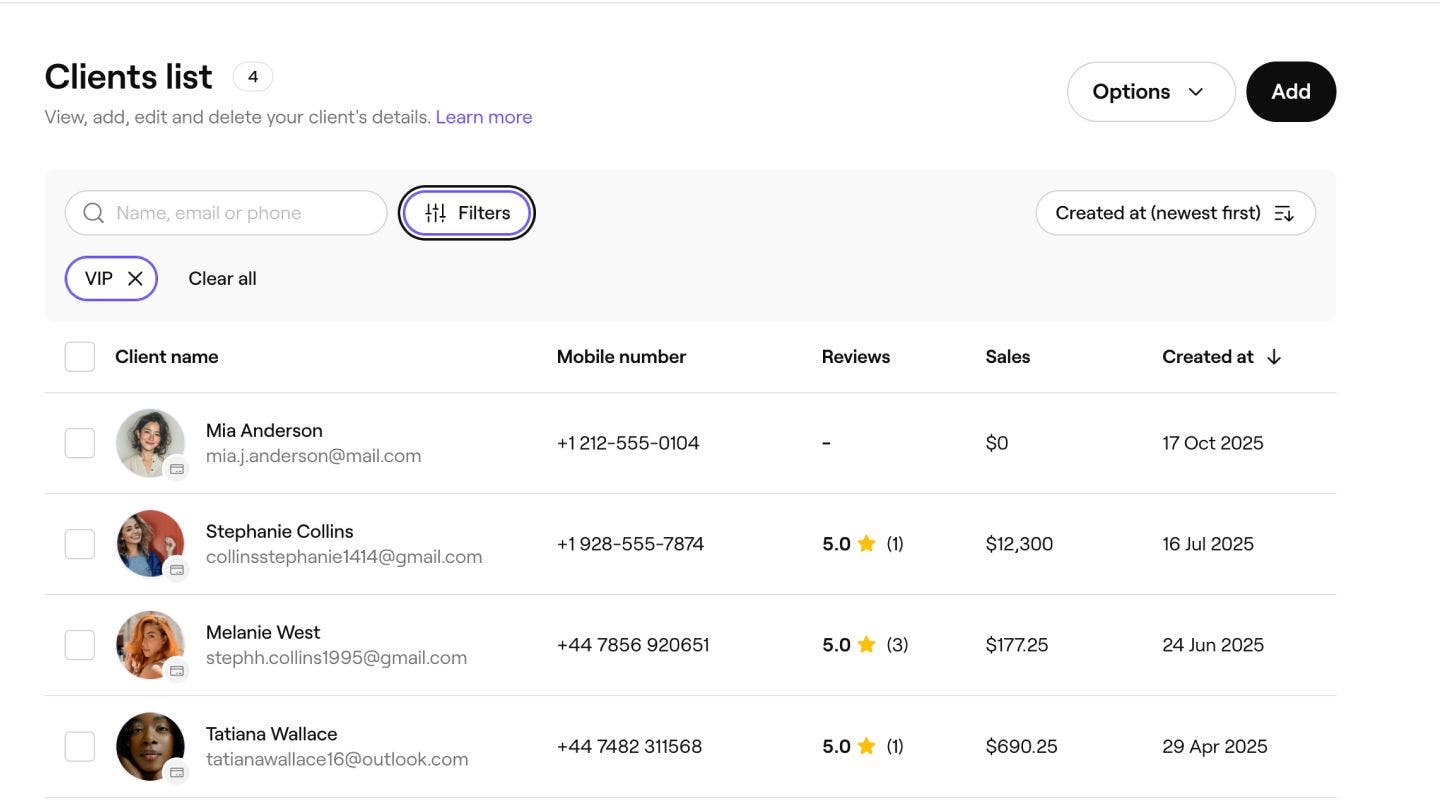
Your clients list updates to show only clients with the selected tags. You can combine Client tags with other filters, like client group or gender, to narrow your results further.
You can also filter by client tags in your client list and client summary reports. Open either report in Reports and click Filters to apply the same tag-based filters.
FAQs
Client tags are only visible to you and your team within your workspace. Clients won't see any tags on their booking confirmation, emails, or marketplace client account.
Yes, you can assign as many tags as you need to a single client. Open the client's profile, click Edit under Client details, and add tags under Additional info. Each tag will appear on their profile and be available as a filter across your workspace.
Deleting a tag removes it from your library and from every client profile it's been assigned to. This can't be undone. If you're not sure, consider leaving the tag in your library and simply not assigning it to new clients, rather than deleting it.
You can also filter your clients list by tag using the Filters option. You can also view tagged clients directly from your tag library. Go to Settings, click on Clients, select Client tags, then click Actions next to a tag and select View clients.
You can create up to 20 client tags in your library.