HomeKnowledge baseFresha academy
Block clients from booking
Back
  1. Knowledge base•
  2. Clients•
  3. Block clients from booking

Block clients from booking

In this guide, you’ll learn how to block clients to manage who can book with your business.

In this article

  • How blocking clients works
  • Block a client

How blocking clients works

Blocking a client prevents them from booking appointments with your business online. If a team member attempts to book an appointment in-store for a blocked client, they’ll see a notification with the block reason and can choose whether to proceed with the booking.

The client remains in your Client list, allowing you to retain their full activity history. Blocked clients aren’t notified of the block, instead, they’ll see a “Something went wrong” message with your business contact details when they try to book.

Block a client

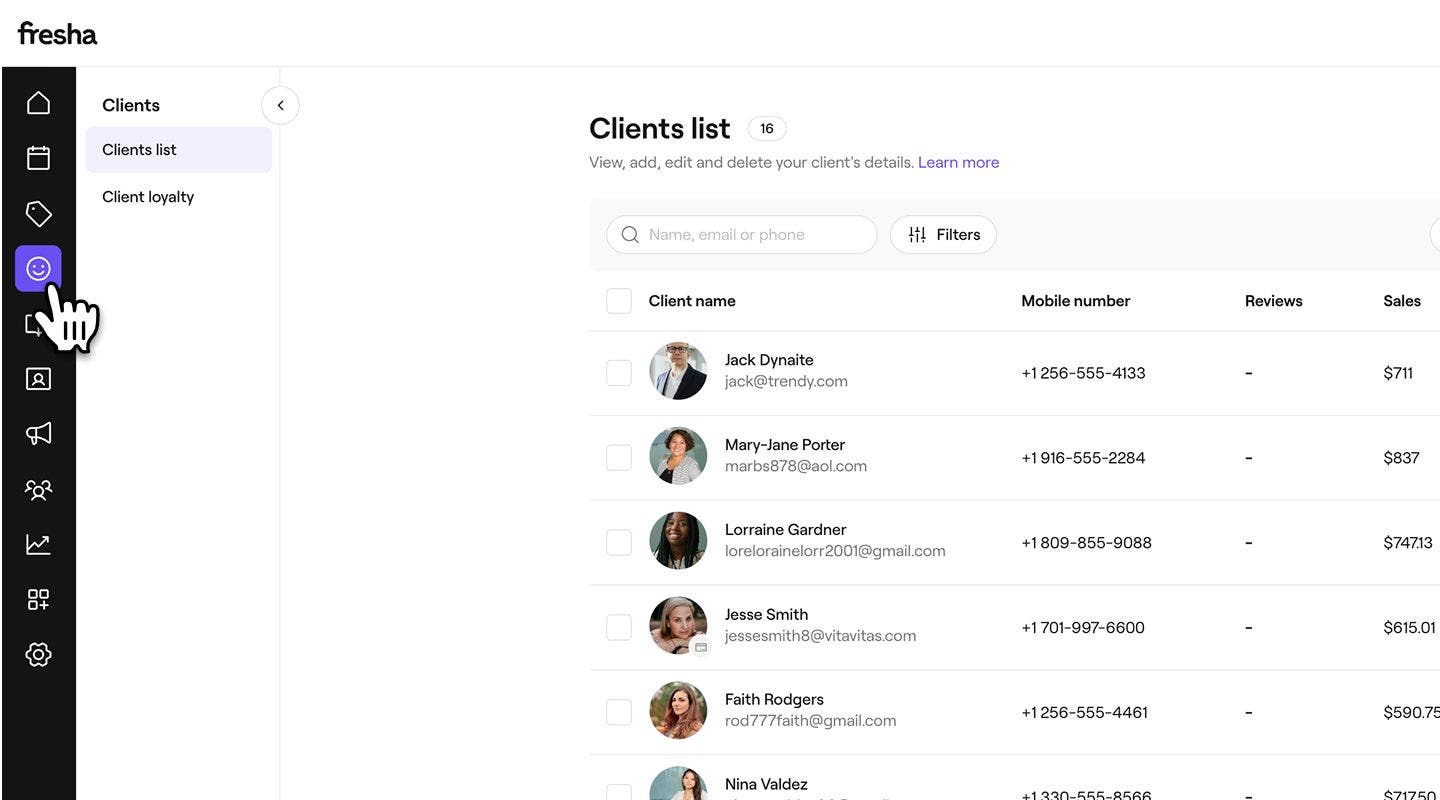
  1. From the main menu on the left of your screen, go to Clients.
  2. Select Clients list from the left menu panel.
    Adjust_client_source_web_1.jpg
  3. Click on a client's profile to view their profile details.
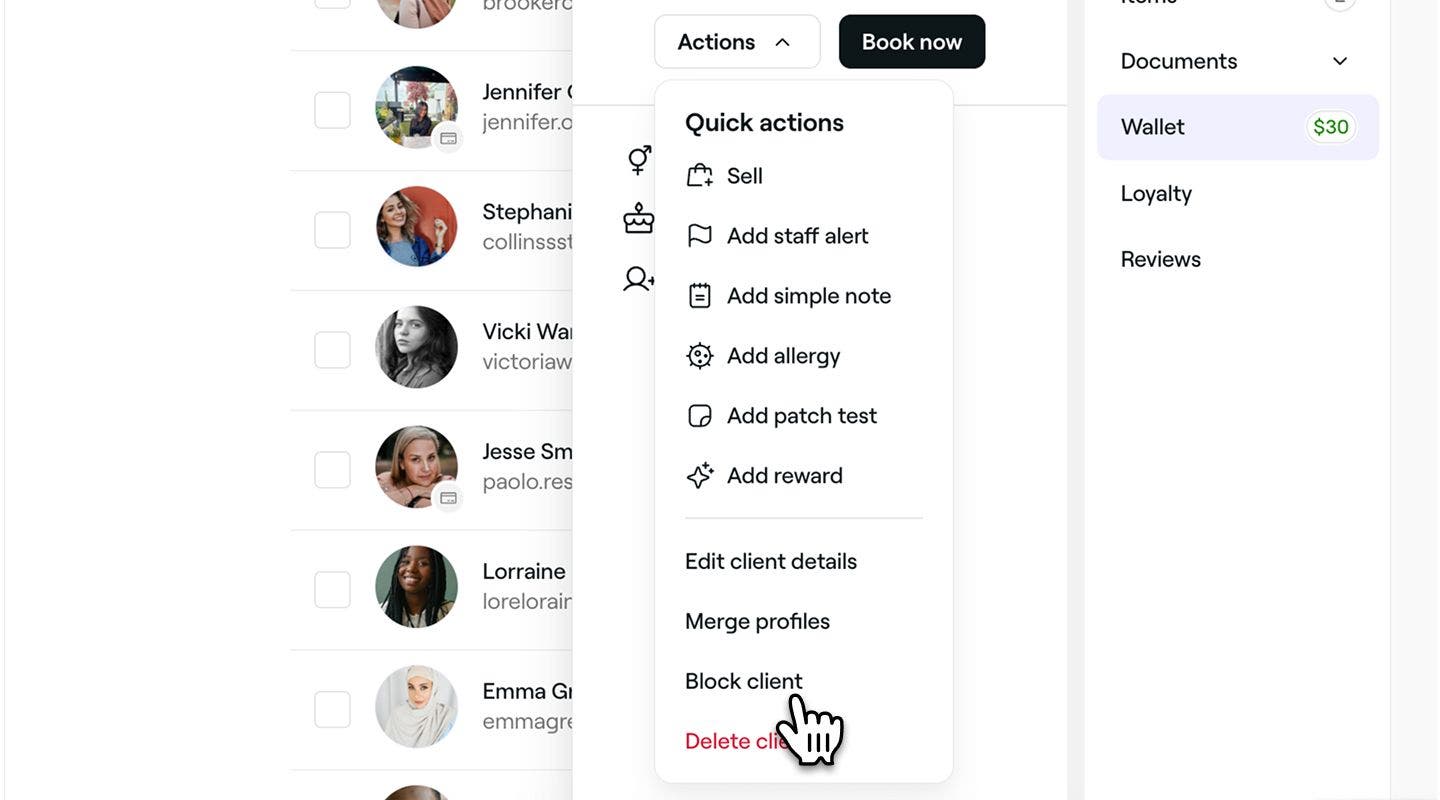
  4. In the client view, click on Actions and select Block client.
    block_single_client_web_2.jpg
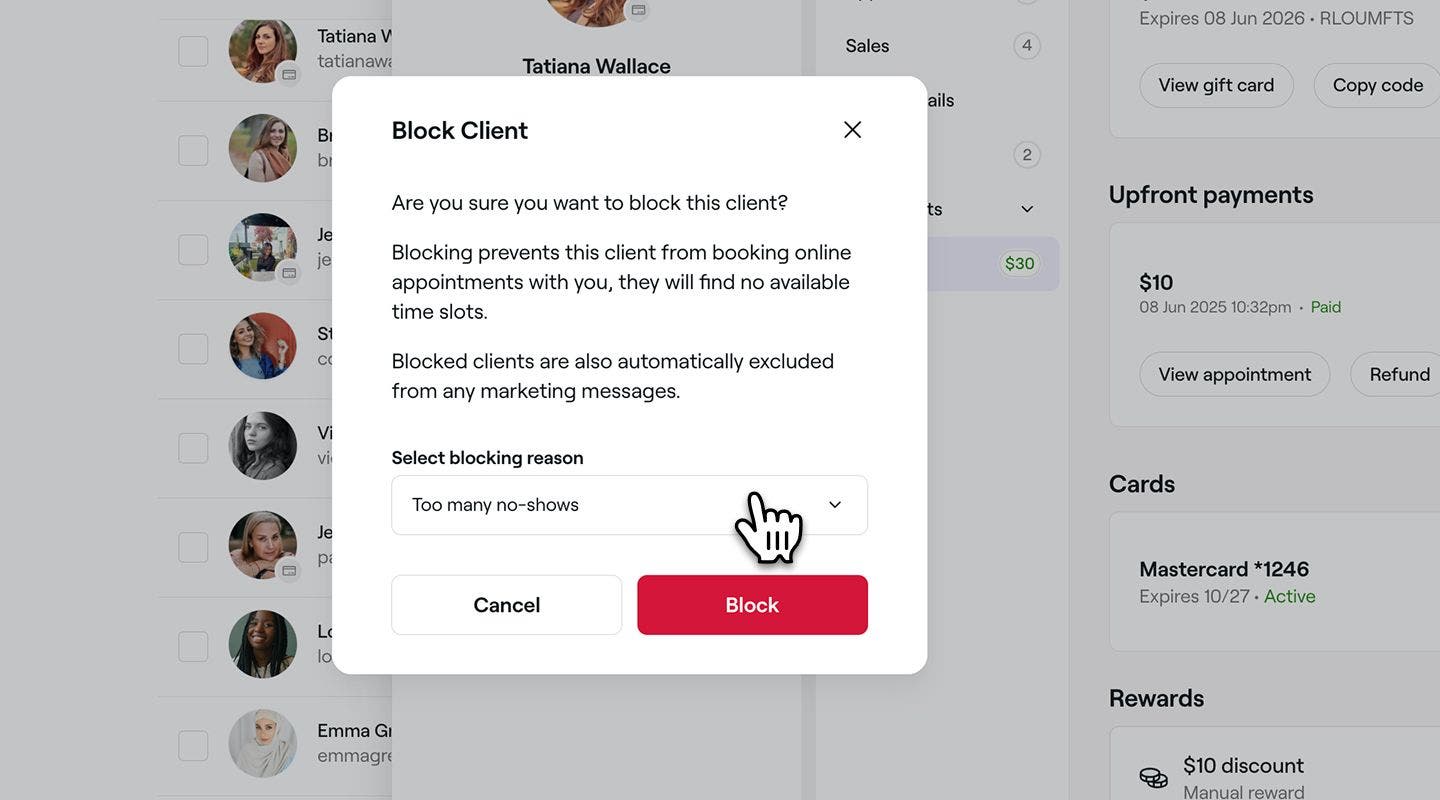
  5. In the Block client pop-up, select a blocking reason.
    block_single_client_web_3.jpg
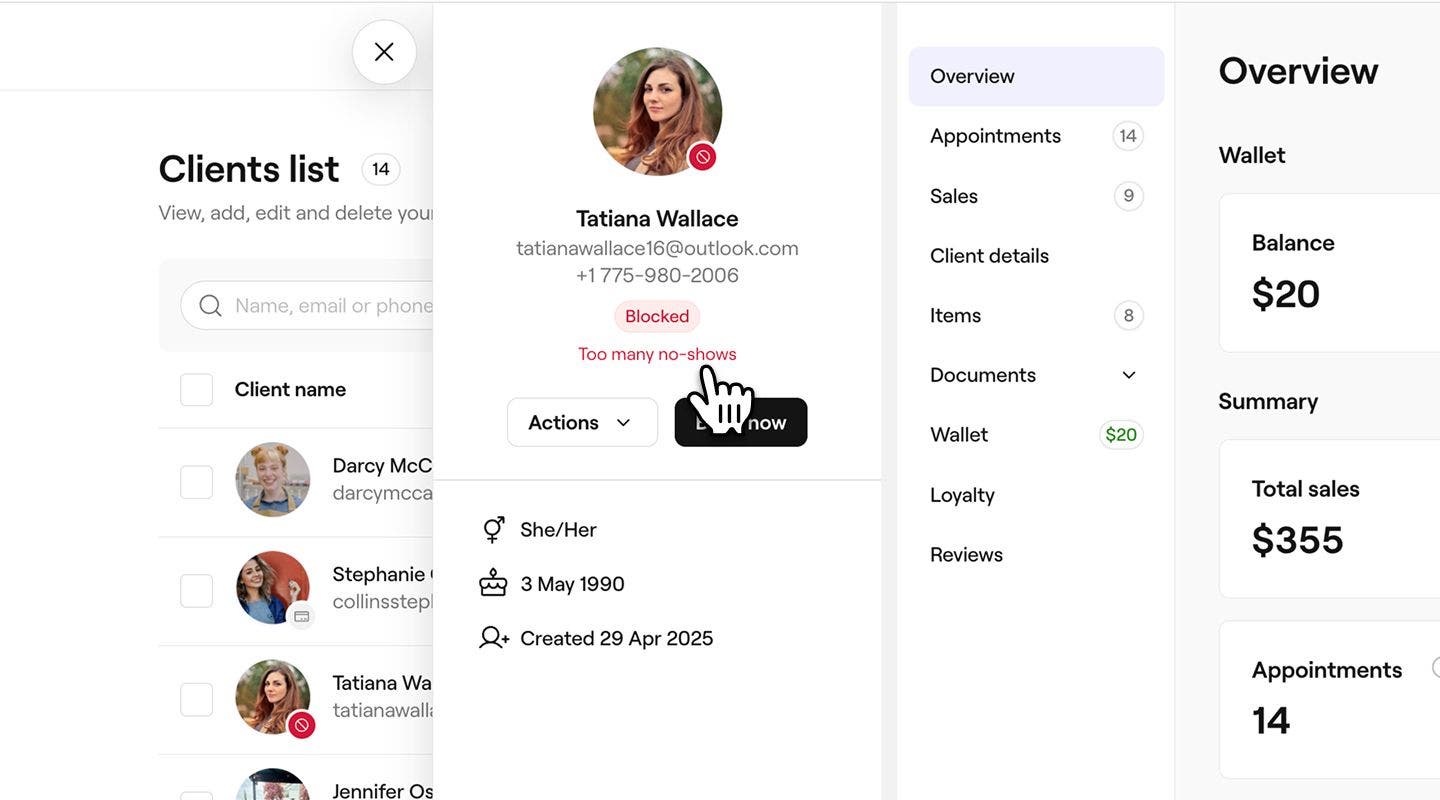
  6. Click on the Block button to confirm. The blocked status will appear on the client profile.
    Block_client_web_4.jpg
  1. Open a client's profile from your Client list. 
  2. In the client view, tap on Actions (three dots) and select Block client.
    Block_client_mob_2.jpg
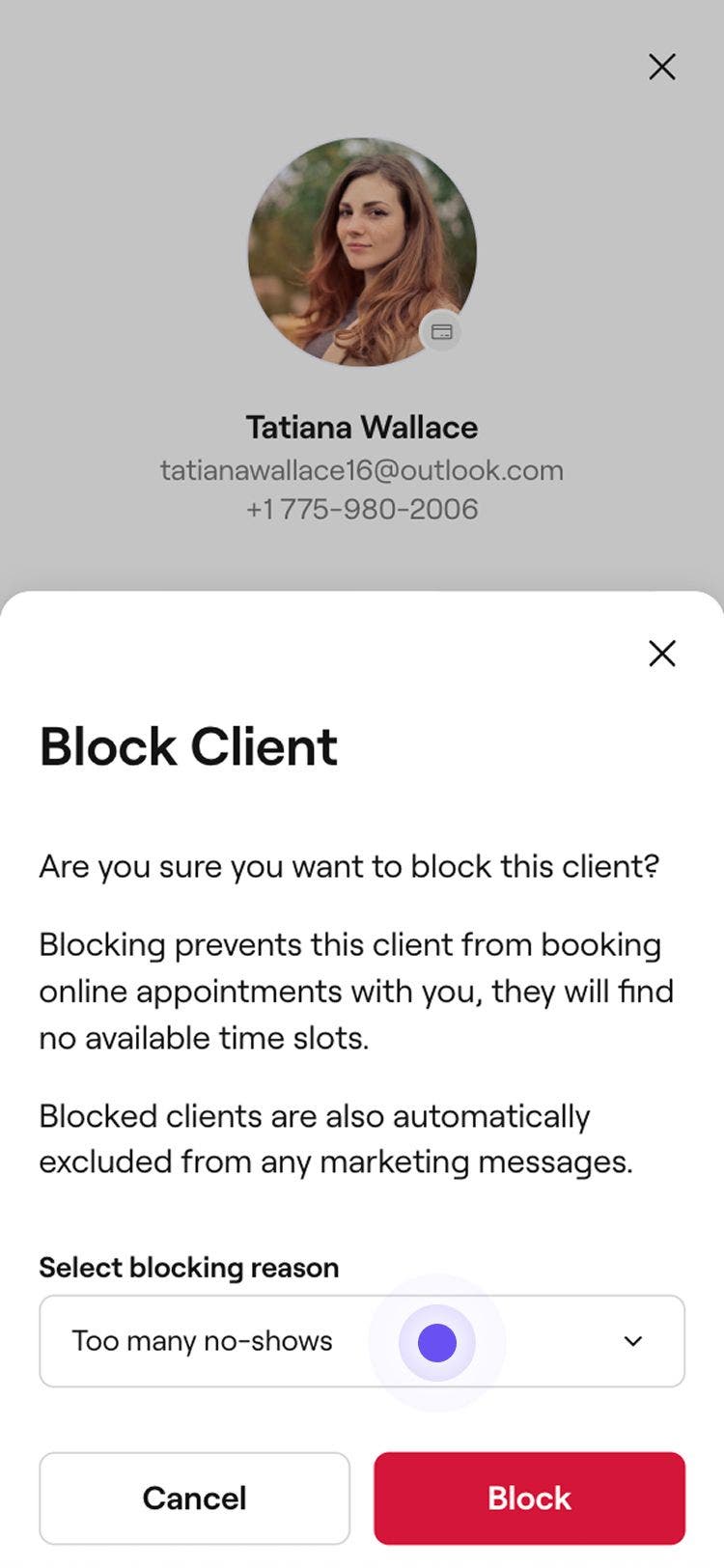
  3. In the Block client pop-up, select a blocking reason.
    Block_client_mob_3.jpg
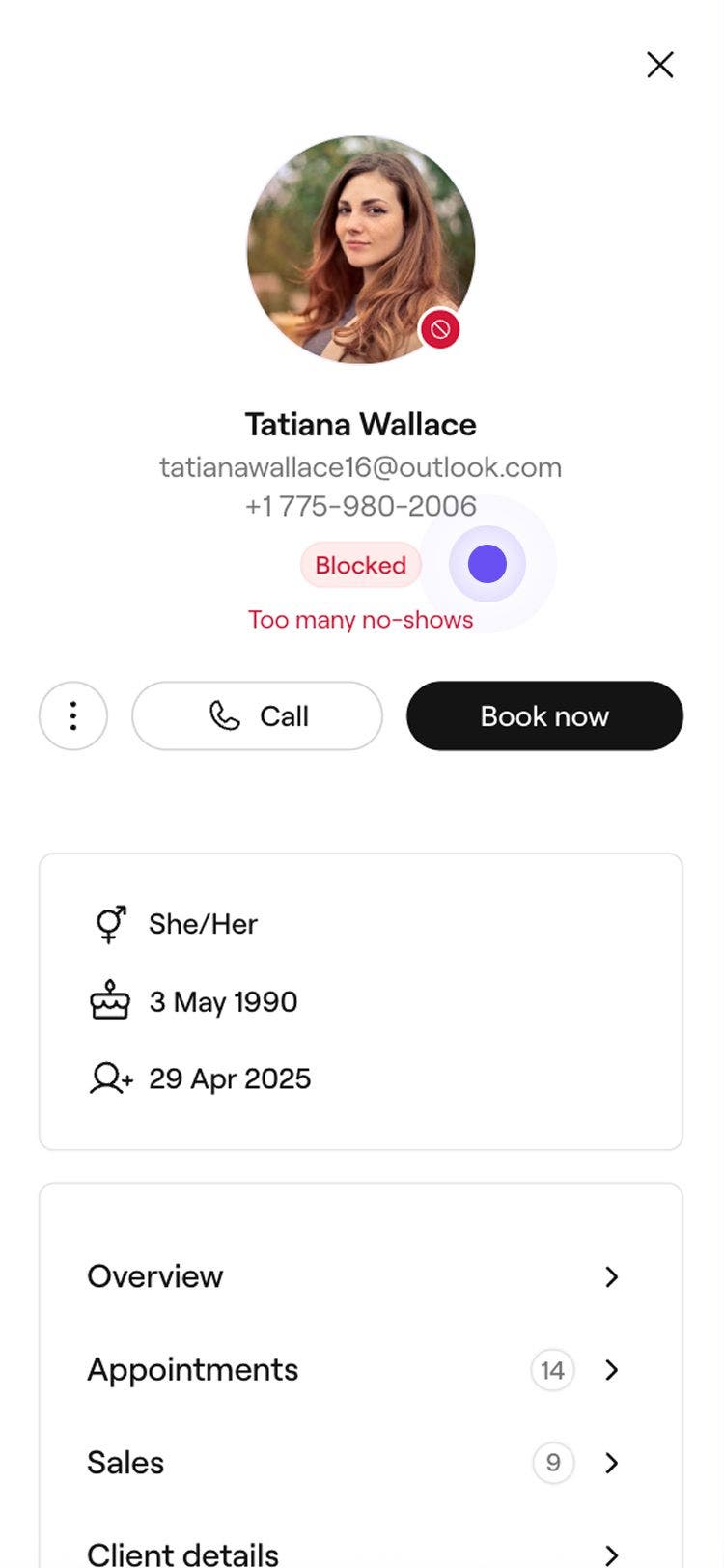
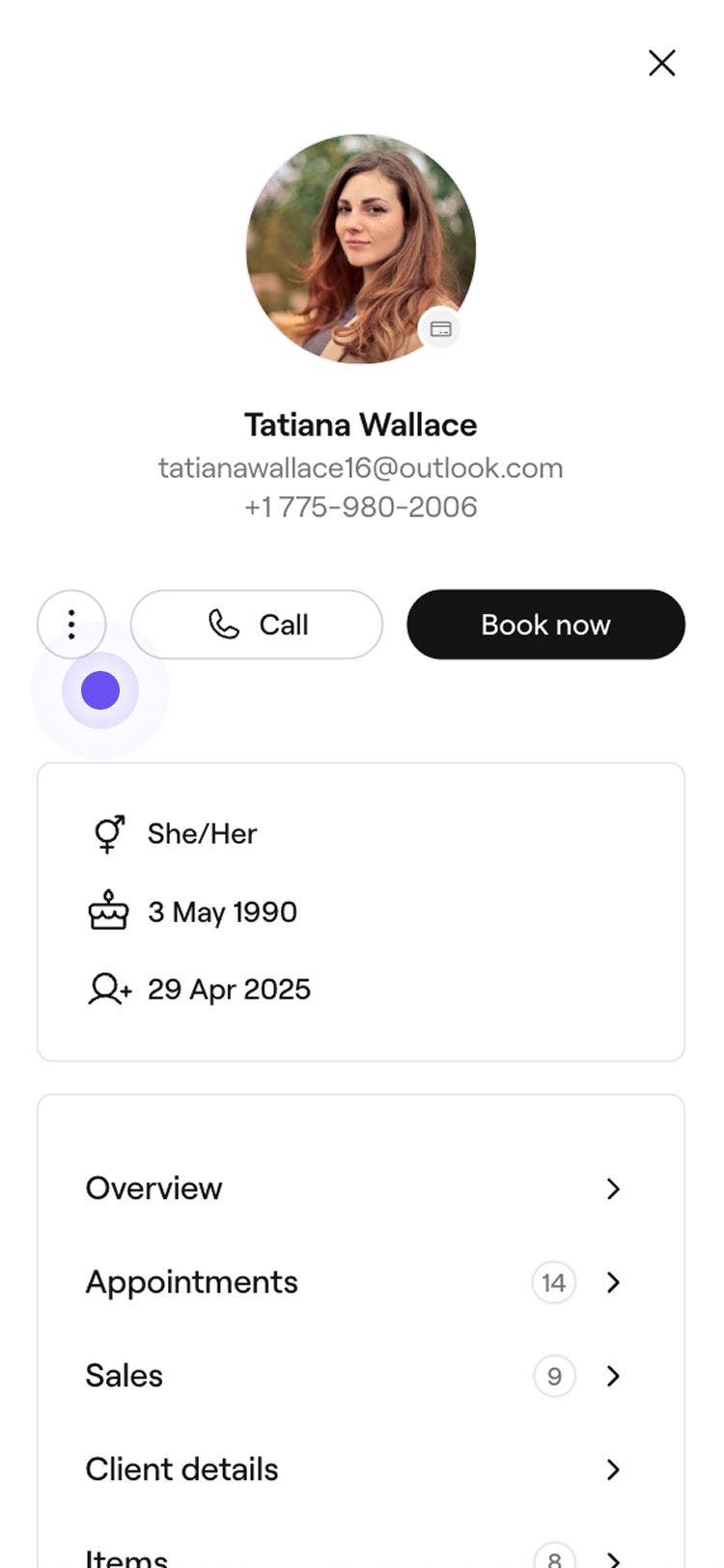
  4. Tap on the Block button to confirm. The blocked status will appear on the client profile.
    Block_client_mob_4.jpg

Once blocked, the client will no longer be able to book with your business. Their profile will remain in your Client list with the block status visible to your team. To unblock the client, follow the same steps and select Unblock from the Actions menu.

FAQs

    • Yes, you can block or unblock a client directly from their appointment in your calendar. Open the appointment and click on the client's name to view their profile. From there, select Actions and choose Block client.

      Instead of blocking, consider upgrading to our payment processing solution and enabling no-show and late cancellation protection. This can help to reduce no-shows by up to 90%.

      Yes, the blocked status and reason will be visible to all team members with access to the client’s profile.

      Yes, blocked clients can still be booked in manually by your team.


Client profiles


Related articles

Was this guide helpful?

Client profiles

Create client profiles

Add new clients to your business and keep their information organized in one place.

Update client details

Update client information for accurate records and improved service.

Assign tags to clients

Create tags and assign them to clients to identify and target key client groups.

Add notes to client profiles

Keep important client information organized by storing notes in their profiles.

Add files to client profiles

Store documents and images directly in client profiles.

Add staff alerts to client profiles

Enhance client management by adding staff alerts to highlight key information.

Record an allergy

Store client allergy information and keep your team informed for safety.

Record client patch tests

Incorporating patch tests for certain services to detect potential allergies.

View client history

Track client activity with ease by viewing a client's appointments, sales, and purchased items.

Manage client wallets

View a client's wallet balance and transaction history for better financial management.

Manage client rewards

Set up rewards that clients can earn with points, reach through tiers, or receive manually.

Add client referrals manually

Manually add client referrals in client profiles, so you always know who’s bringing new clients to your business.

Block clients from booking

Restrict online booking for clients who have missed multiple appointments.

Delete client profiles

Manage your client list by permanently deleting clients who no longer book with you.

Related articles

Add staff alerts to client profiles

Enhance client management by adding staff alerts to highlight key information.

Add notes to client profiles

Keep important client information organized by storing notes in their profiles.

Track how clients discover your business

Distinguish appointment types by assigning them colors based on service, team or status.

Fresha
Get the app

About Fresha

Careers

Help and support

Blog

Sitemap

For business

For partners

Pricing

Features

Scheduling

Point of sale

Payments

Capital

Marketplace

Support

Status

Legal

Privacy Policy

Terms of service

Terms of use

Find us on social

Facebook
Linkedin
Instagram

© 2026 Fresha.com SV Ltd