Create email Blast campaigns
Learn how to create and send email campaigns that drive bookings, promote special offers, and reconnect with inactive clients.
In this article
About email Blast campaigns
Email Blast campaigns let you send one-time marketing emails to selected groups of clients to promote special offers, share important updates, and reconnect with inactive clients.
Built directly into your workspace, email Blast campaigns work alongside your services, Deals, and client groups, so you can manage your marketing from one place. Customize your email design, choose who receives it, and decide whether to send it immediately or schedule it for later.
Create an email Blast campaign
-
From the main menu on the left of your screen, go to Marketing.
-
In the left menu panel, select Blast campaigns.

-
In the top right, click on the Add button and choose Email from channel options.

-
Choose an existing template or select Start from scratch, then click Continue.

-
Design your email to suit your campaign, then click Continue.
- Learn how to customize your email with content blocks, images and a theme.

- Learn how to customize your email with content blocks, images and a theme.
-
Under Campaign details in the left panel, enter a campaign name
- This is for internal labeling and won't be visible to clients
-
Under Email details, customize how the email appears in your client's inbox before clicking Continue.
- Enter the Subject line and Preview text.
- Click the mention icon (@) to insert client-specific details into either field.
- Click Enhance to write your content with AI.
- Update the Sender name and Reply-to email address if needed.

-
Select which clients receive your email, then click Continue:
- All clients: Send to your entire client list.
- Standard client groups: Send to a specific group of clients determined by existing groupings.
- Custom client segments: Send to clients based on unique groupings that you have created using client segments. You can add a new custom client segment when sending a Blast email by clicking Add new.

-
Choose whether to send the email Now or set it as Scheduled and click Continue.
- When scheduling a Blast campaign, select the time and date.
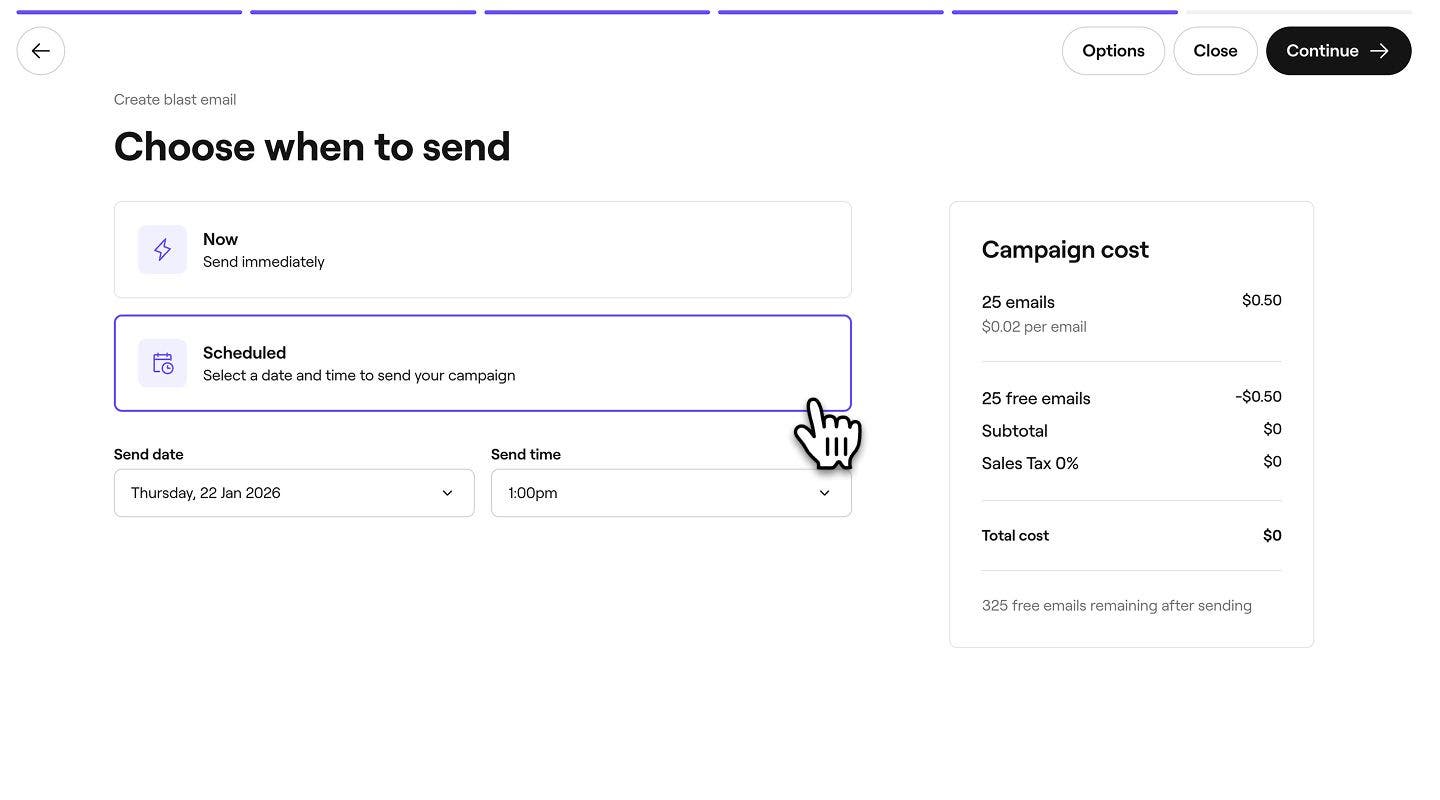
- When scheduling a Blast campaign, select the time and date.
-
Review the total campaign cost and your selected payment method, then tap Send now or Schedule to launch your campaign.


Once launched, your campaign will appear in your Blast campaigns list as either Scheduled or Sent depending on your setup. All campaigns go through a review process, during which they will show as Pending.
You can also send both email and text message campaigns at the same time by selecting Multichannel when setting up a campaign.
FAQs
To deactivate a deal, go to Deals from the main menu on the left of your screen, click the Actions (three dots) next to the deal, and select Deactivate. This will prevent clients from using the offer.
Yes, you can edit or delete both email and text message draft Blast campaigns before they are sent. Click Actions (three dots) next to the draft and select Edit to update it, or Delete message to remove it. Sent campaigns stay in your list as a record of what went out to clients and cannot be edited or deleted.
The cost depends on the number of emails and text messages sent. You can see the total cost in the right panel before you confirm your campaign. To see full details, check the pricing page.
Each time you use Enhance or Generate with AI, you can only undo once to return to the most recent version.
Yes, team members with access to Marketing permissions can create email and text message blast campaigns.
To send a test email, click on the Options button in the top right and select Send test email from the panel. Enter your email address in the pop-up and click Send to preview the campaign.
Yes, when selecting your audience for email and text message campaigns, click Edit next to the client group you want to adjust. Change the conditions or remove individual clients then click Apply.
All email and text message Blast campaigns go through a review process, usually within 12 hours. If your campaign is still under review when it’s scheduled to go out, it will be sent immediately once approved.
You can promote Promotions, Flash sales and Last-minute offers in your campaigns. Promotions can be added directly when creating a standard Blast campaign to provide clients with a discount code they can redeem. To create a campaign for a Flash sale or Last-minute offer, go to your Deals overview page. Then click on Actions (three dots) next to the deal and select Create a campaign. This creates a campaign linked to that specific deal, which you can then customize and send.
Campaigns are sent to the email address or mobile number saved in each client's profile.