Set up wages for team members
In this guide, you’ll learn how to set up wages that are automatically calculated, and update timesheet settings to track your team’s working hours, including breaks, and overtime.
In this article
How wages and timesheets work
Fresha’s wage and timesheet tracking is best designed for team members who earn hourly, such as freelancers and shift-based staff. It automatically calculates wages and records timesheets in real-time based on their scheduled shifts or when they clock in and clock out of shifts.
If you have salaried team members, you can still include their pay by adding a positive adjustment during the pay run.
All wages flow into the pay run and are paid directly from your business wallet to your team’s personal Fresha wallet or linked bank account.
Set up wages and enable timesheet tracking for team members
-
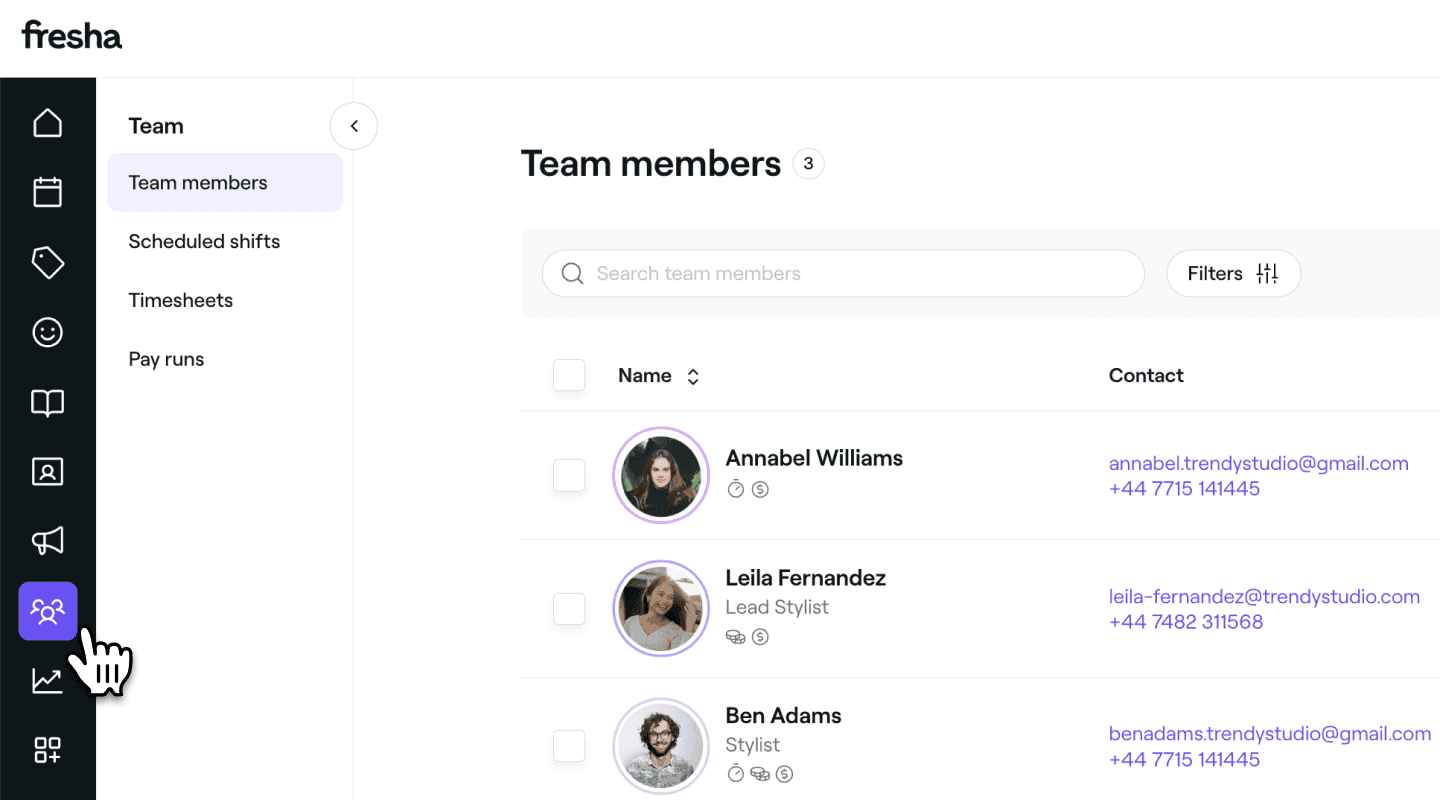
From the main menu on the left of your screen, go to Team.
-
Select Team members from the left menu panel.
-
In the team member list, click on a team member to view their details.
-
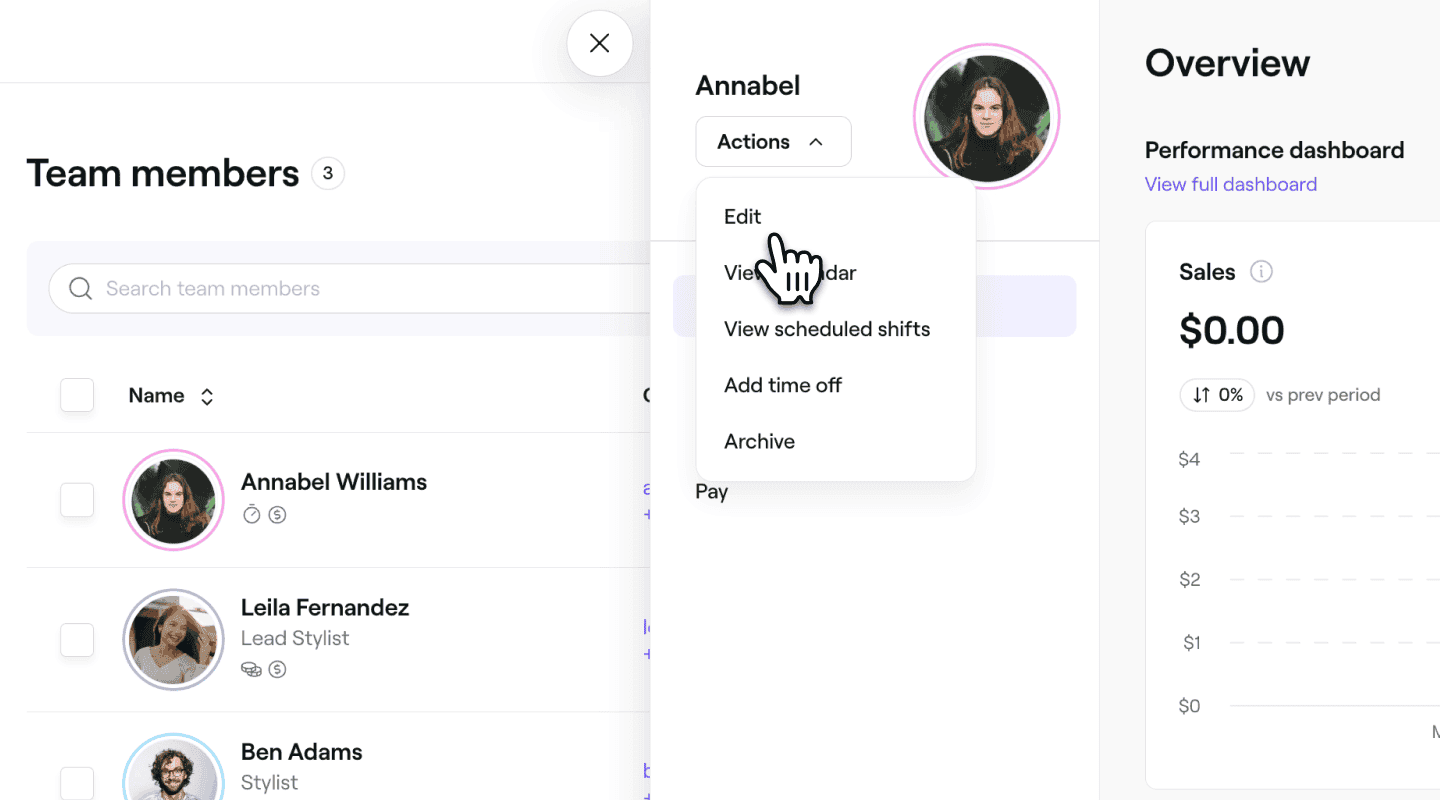
From the team member view, click on Actions on the left and select Edit from the panel.
-
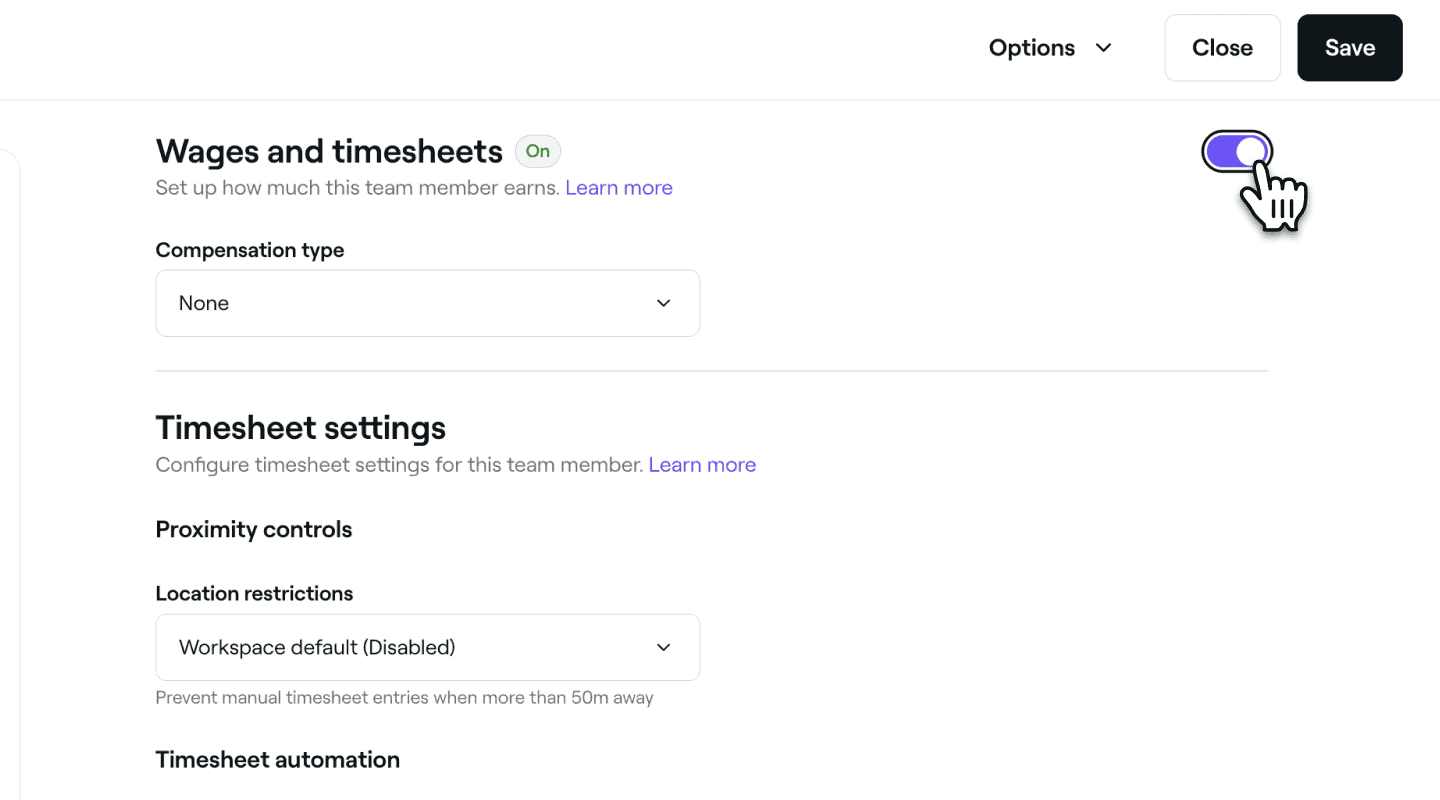
In the Edit team member view, select Wages and timesheets from the left menu panel.
-
Enable Wages and timesheets to allow the team members working hours to be automatically tracked through timesheets and to set up their wages.
- Click Save in the top right to start automatically tracking the team member’s hours based on your default timesheet settings.
- Click Save in the top right to start automatically tracking the team member’s hours based on your default timesheet settings.
-
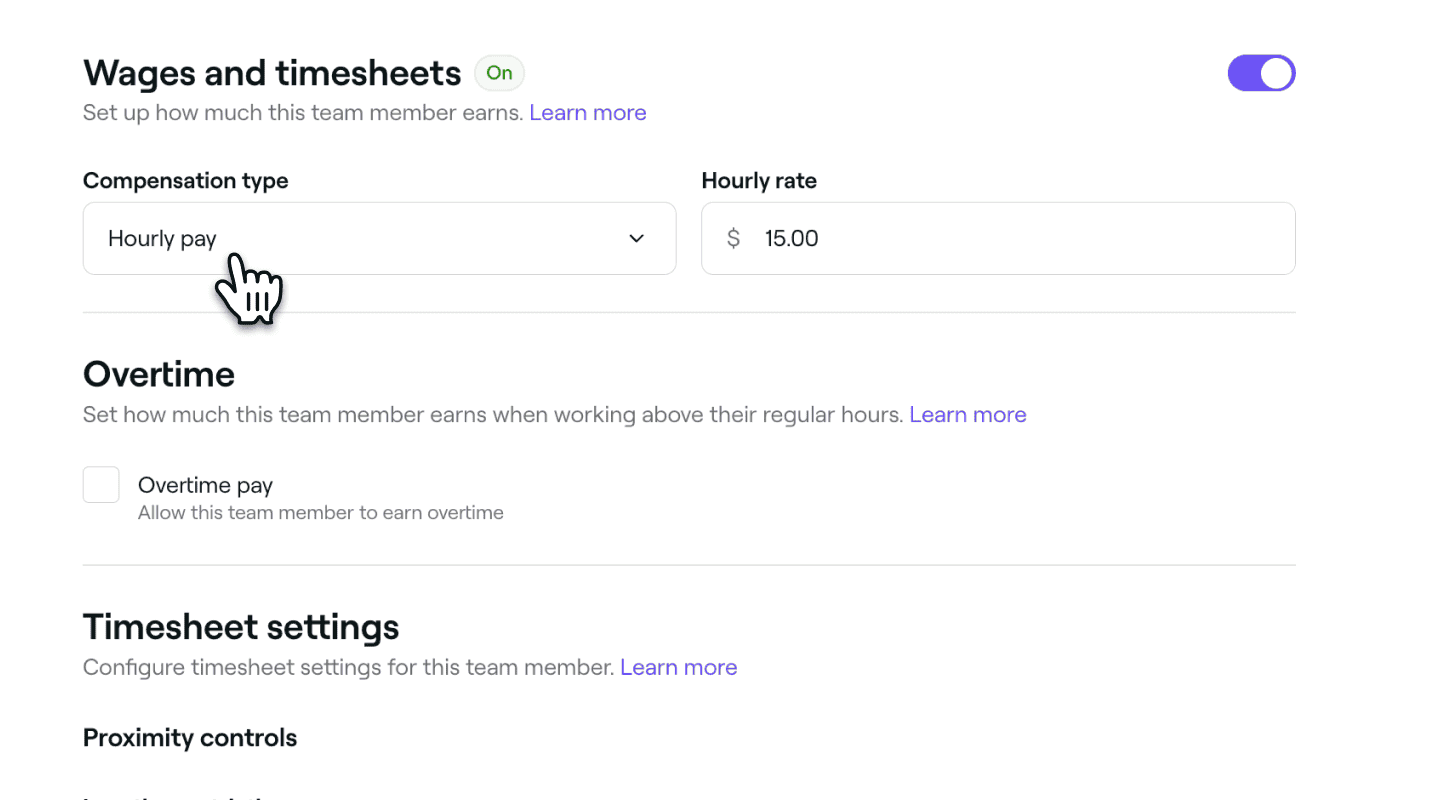
Under the enabled Wages and timesheets setting, set the Compensation type to Hourly pay and enter the Hourly rate for the team member.
-
Click on the Save button in the top right to apply your changes.
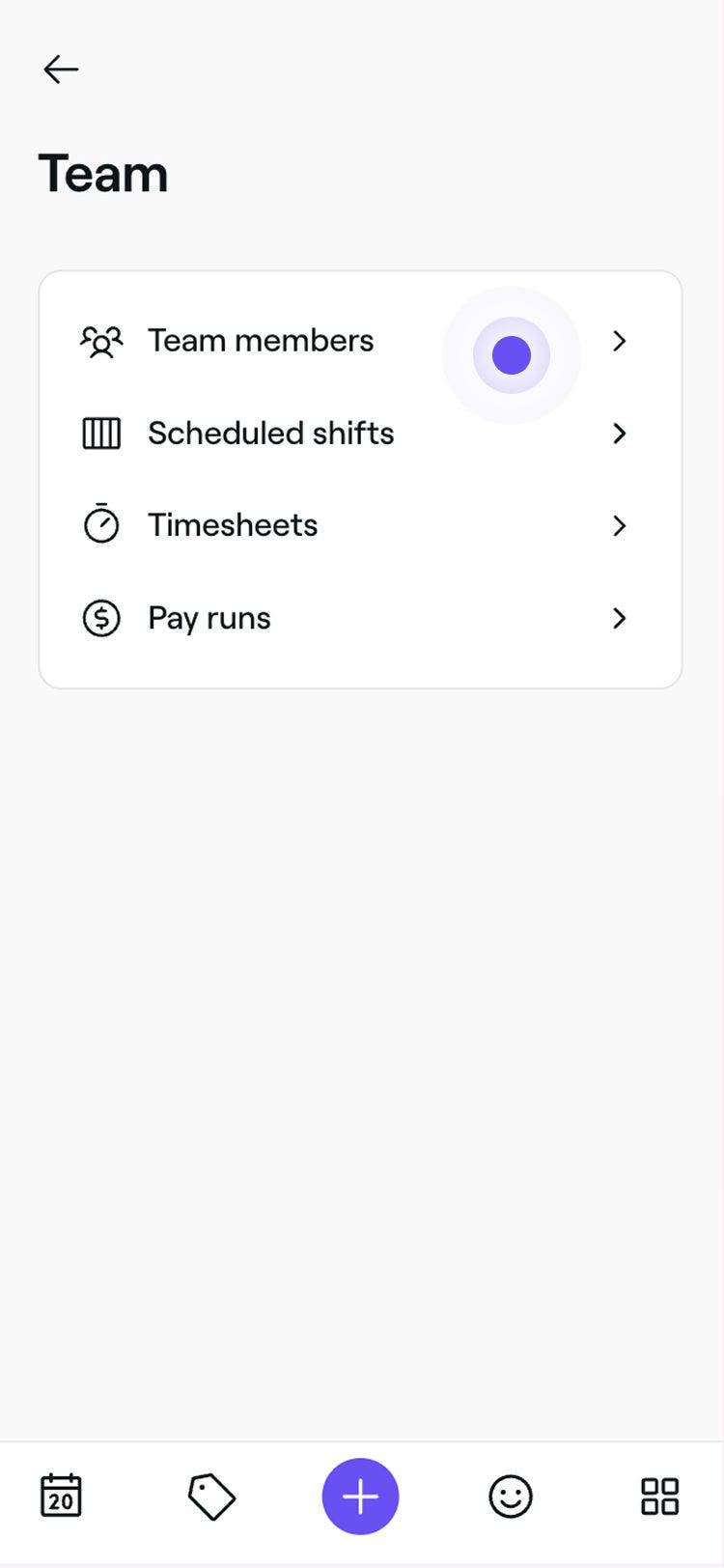

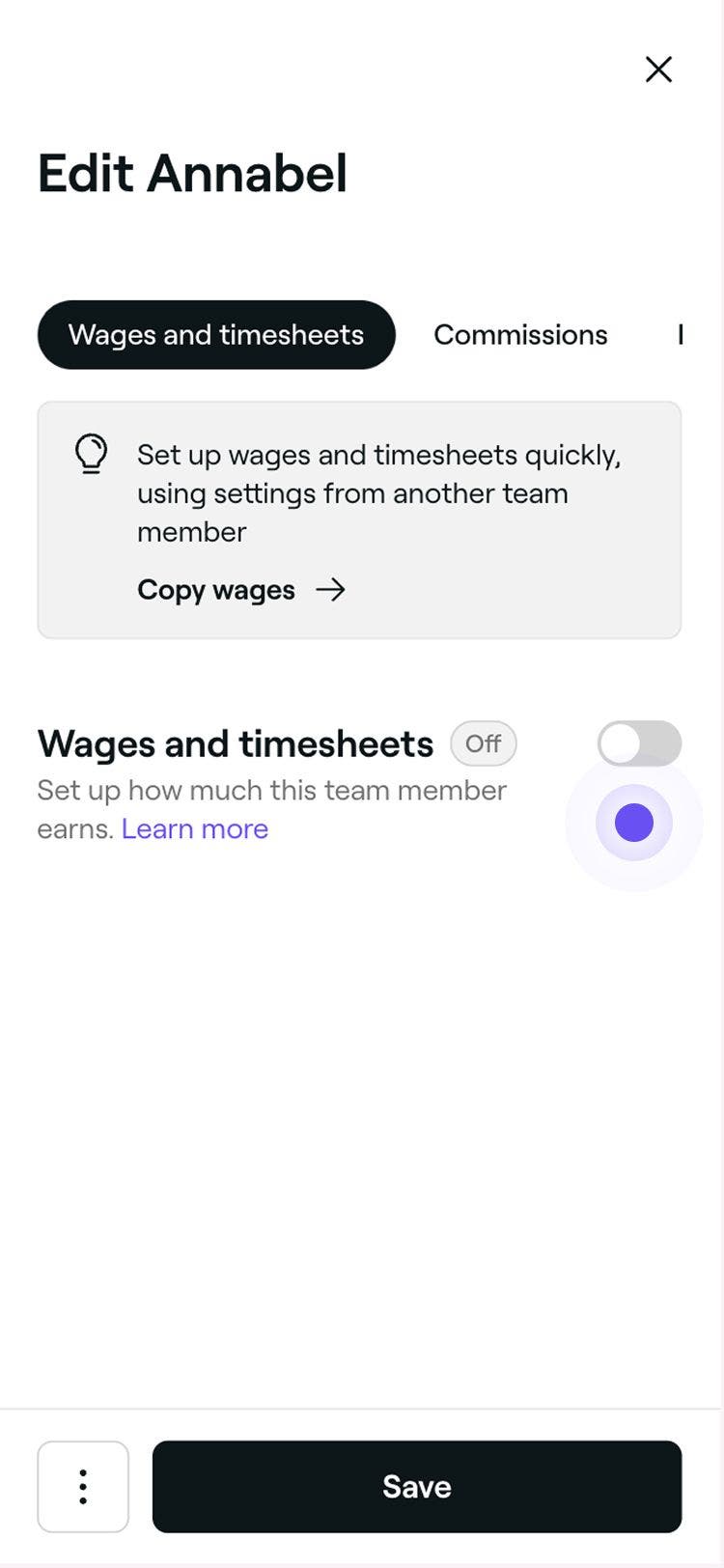
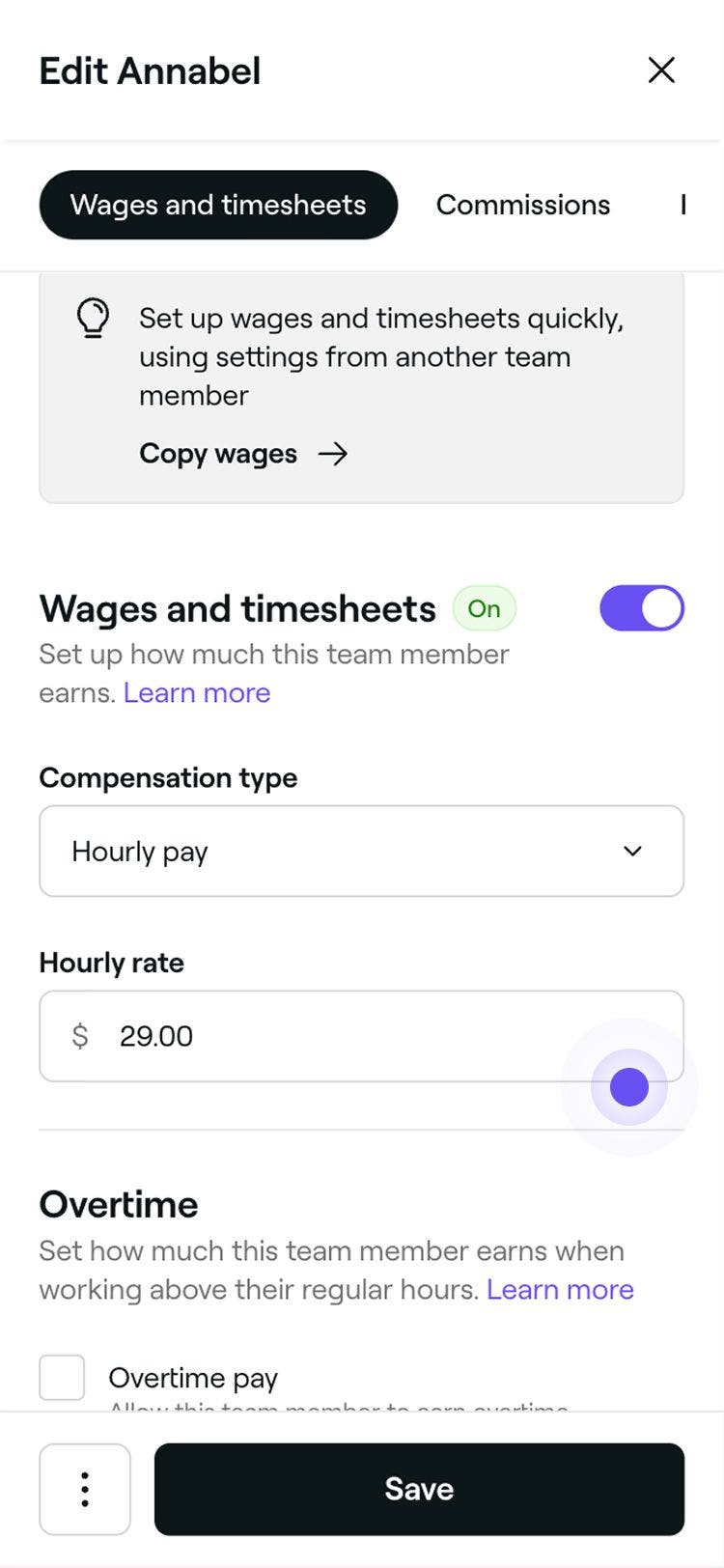
Changing a team member’s compensation type from None to Hourly pay means their wages will be calculated based on their hours worked. These earnings will be automatically calculated and displayed in their timesheets.
You can speed up this process by copying the wages and timesheet setup from another team member. Click Copy wages at the top of the Timesheets and wages settings choose a team member with existing settings, review the details, and click Apply.
Set overtime rates for team members
Overtime tracking and pay is available for team members with hourly pay wage enabled.
-
In the Edit team member view, select Wages and timesheets from the left menu panel.
-
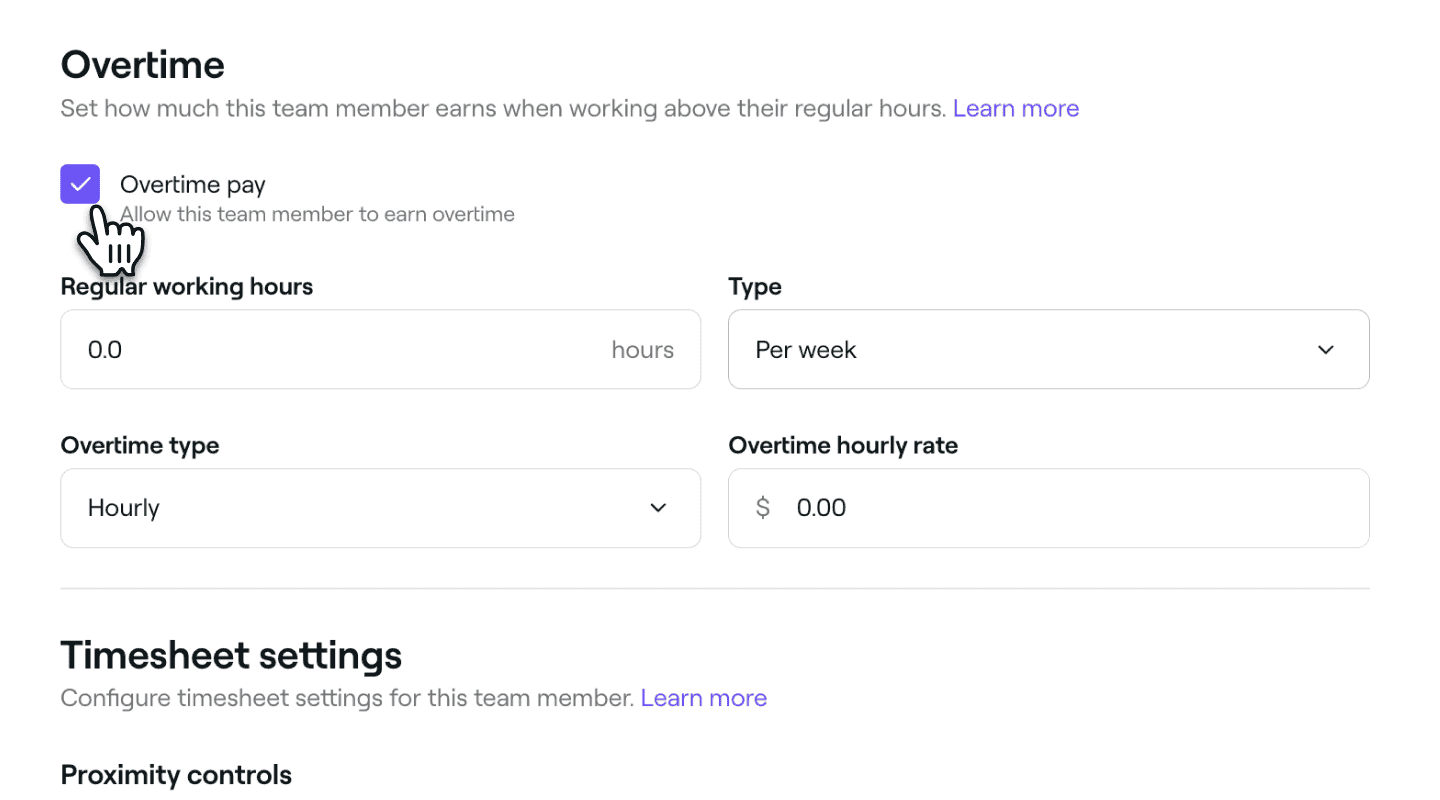
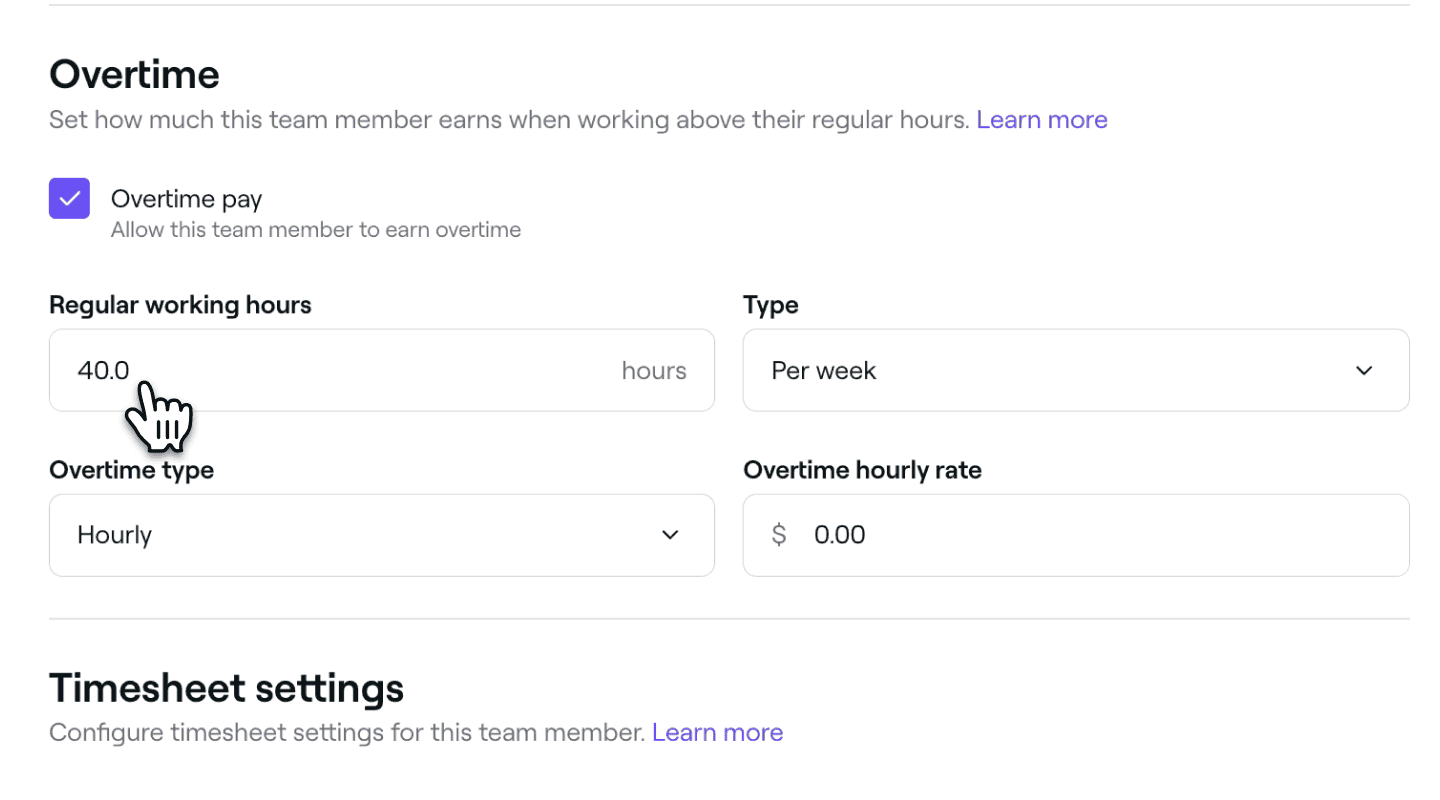
Under the enabled Wages and timesheets settings, tick the checkbox next to Overtime pay to allow the team member to earn different rate for any hours worked beyond their scheduled shifts.
-
Under Regular hours, enter the number of hours the team member is scheduled to work, and use the Type dropdown to specify whether this applies per day or per week.
-
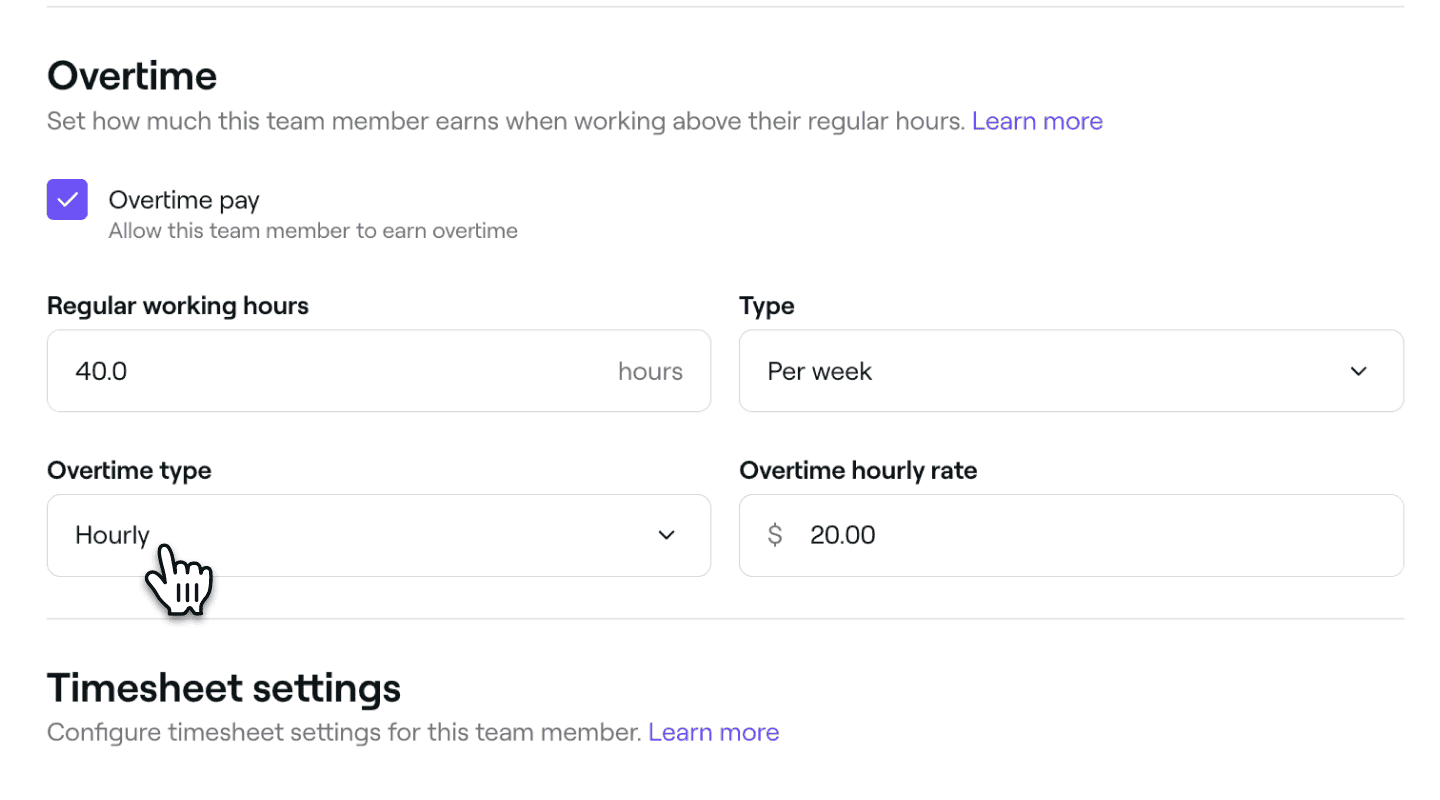
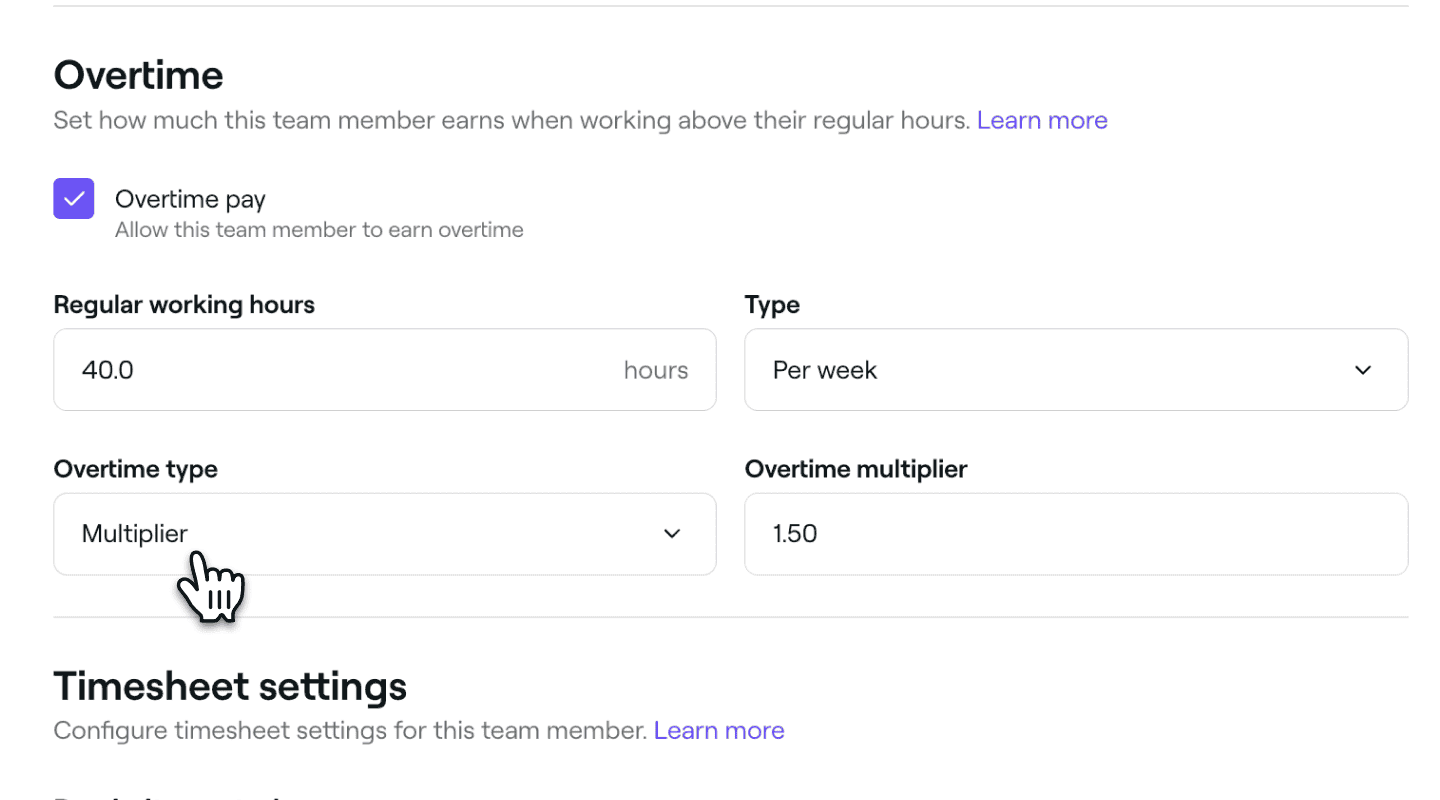
Under Overtime type, choose how the overtime rate is calculated:
- Hourly rate: Set a fixed rate for overtime hours. For example, $20.00 per hour.
- Multiplier: Multiply the standard hourly rate by a chosen value. For example, a value of 1.5 will mean the team member is paid time-and-a-half.
- Hourly rate: Set a fixed rate for overtime hours. For example, $20.00 per hour.
-
Click the Save button in the top right to update your settings.
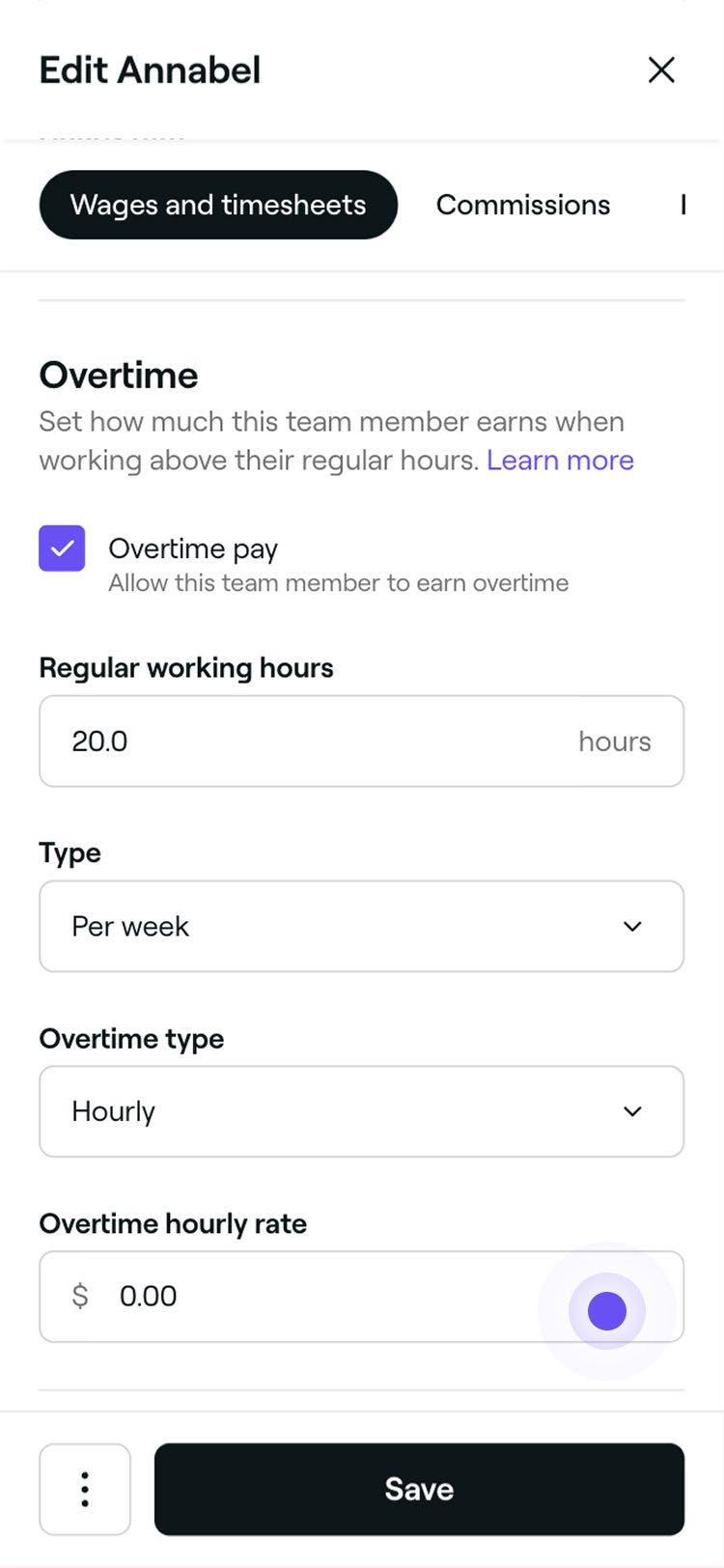
Once overtime is set up, any hours worked beyond the team member’s scheduled shifts, based on their clock in and clock out times, will be paid at the overtime rate. Regular hours are paid at the standard rate.
Update timesheet settings for team members
You can customize how a team member’s hours are tracked by updating their timesheet settings. Choose between manual clock in and clock out or automatic tracking based on scheduled shifts.
-
In the Edit team member view, select Wages and timesheets from the left menu panel.
-
Under the enabled Wages and timesheets settings, update the timesheet settings based on your preference:
-
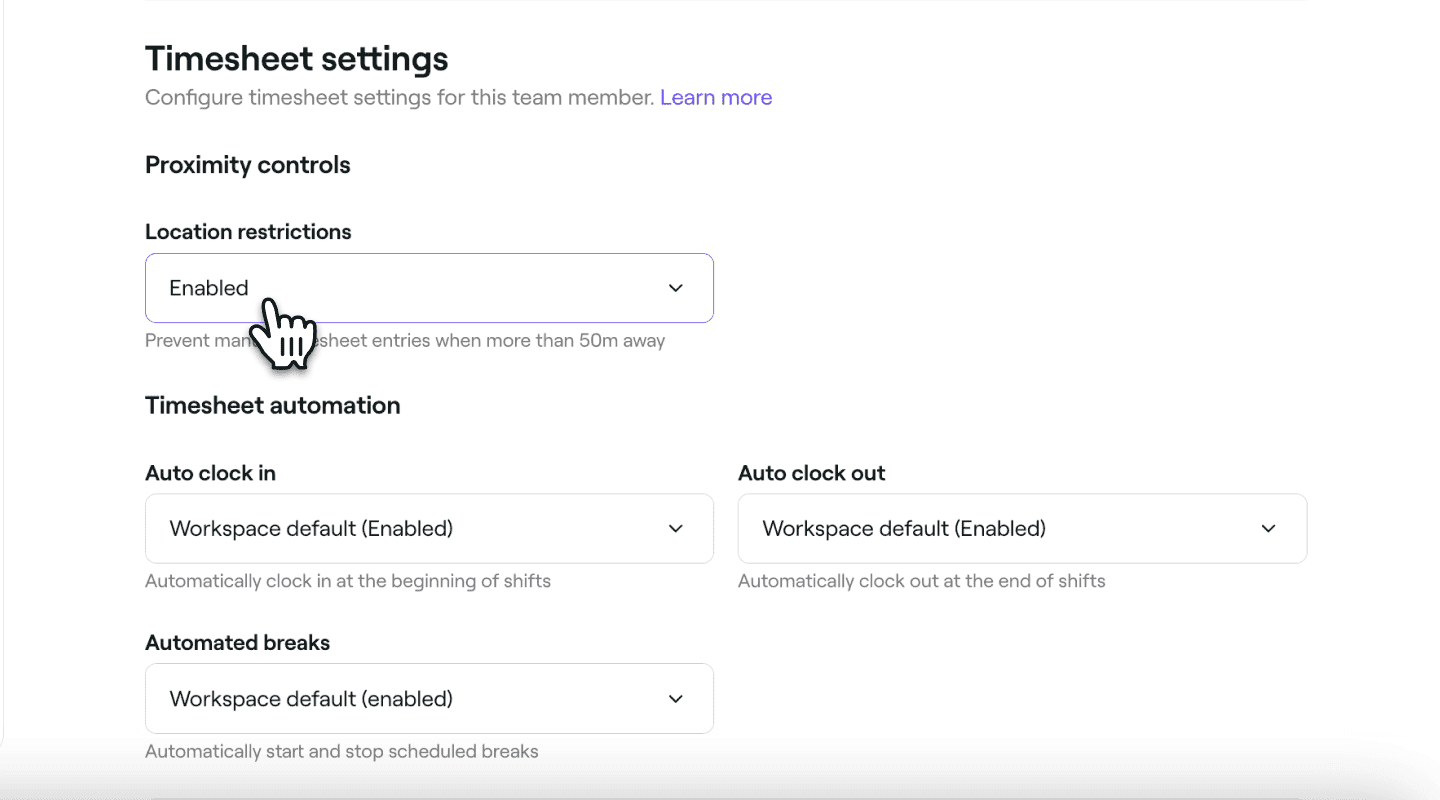
If you require team members to manually clock in and clock out, you can enable Location restrictions under Proximity controls. When this is Enabled, the team member must be physically near your business location to clock in or clock out of shifts.
-
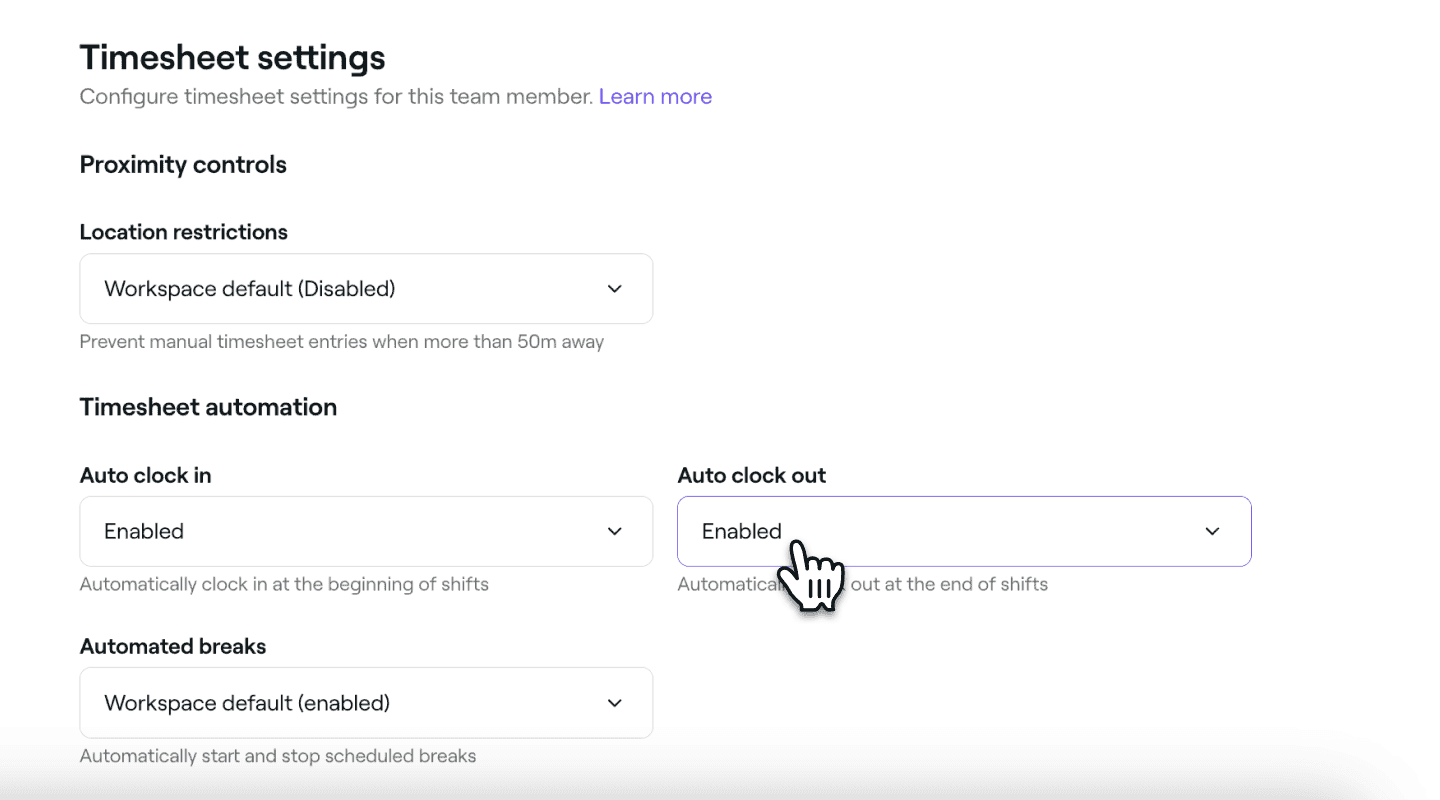
To automatically track a team member’s worked hours, you can enable options for Auto clock in, Auto clock out, and Auto start and end breaks based on their scheduled shifts. Each setting can be turned on or off individually. When enabled, timesheets are updated automatically, and the team member doesn’t need to take any action.
-
-
Click on the Save button in the top right to apply your changes.
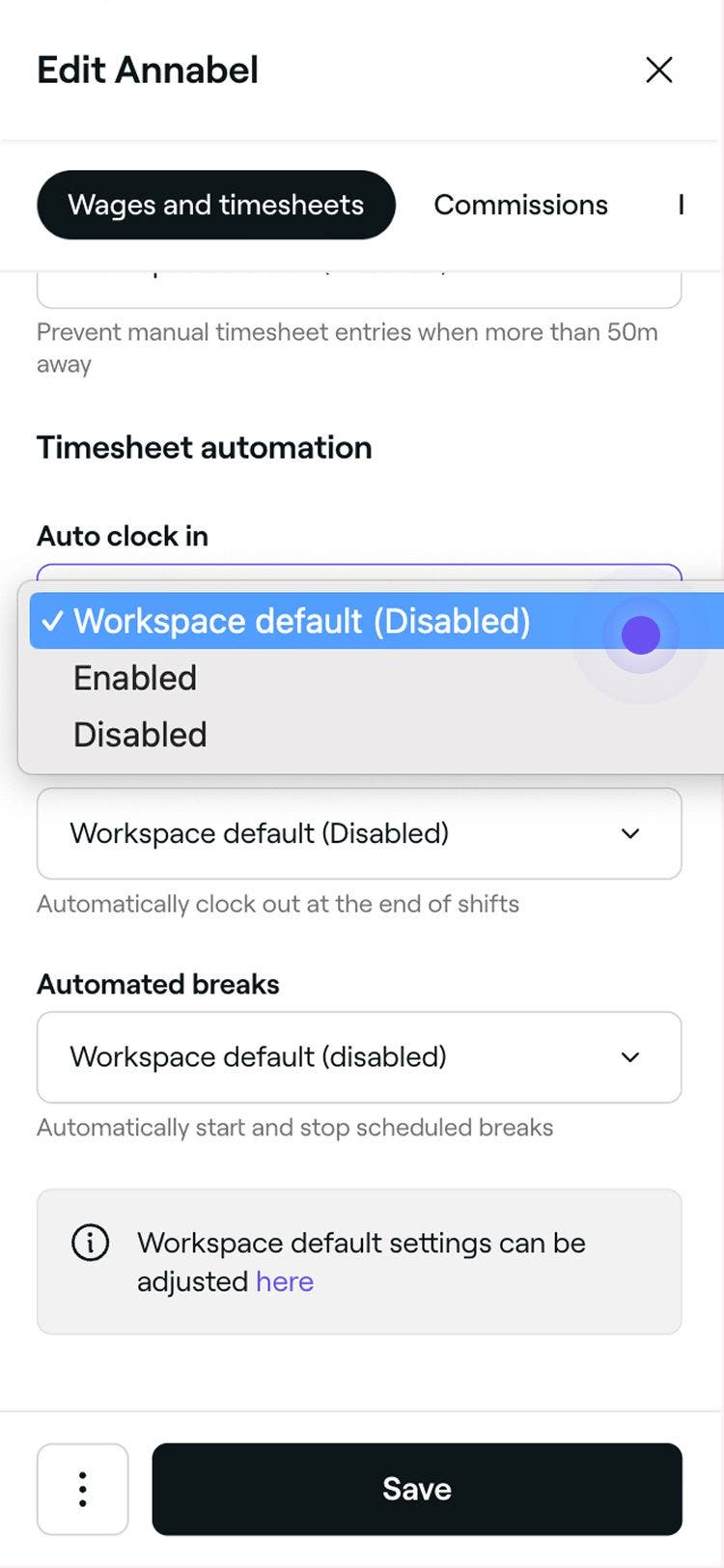
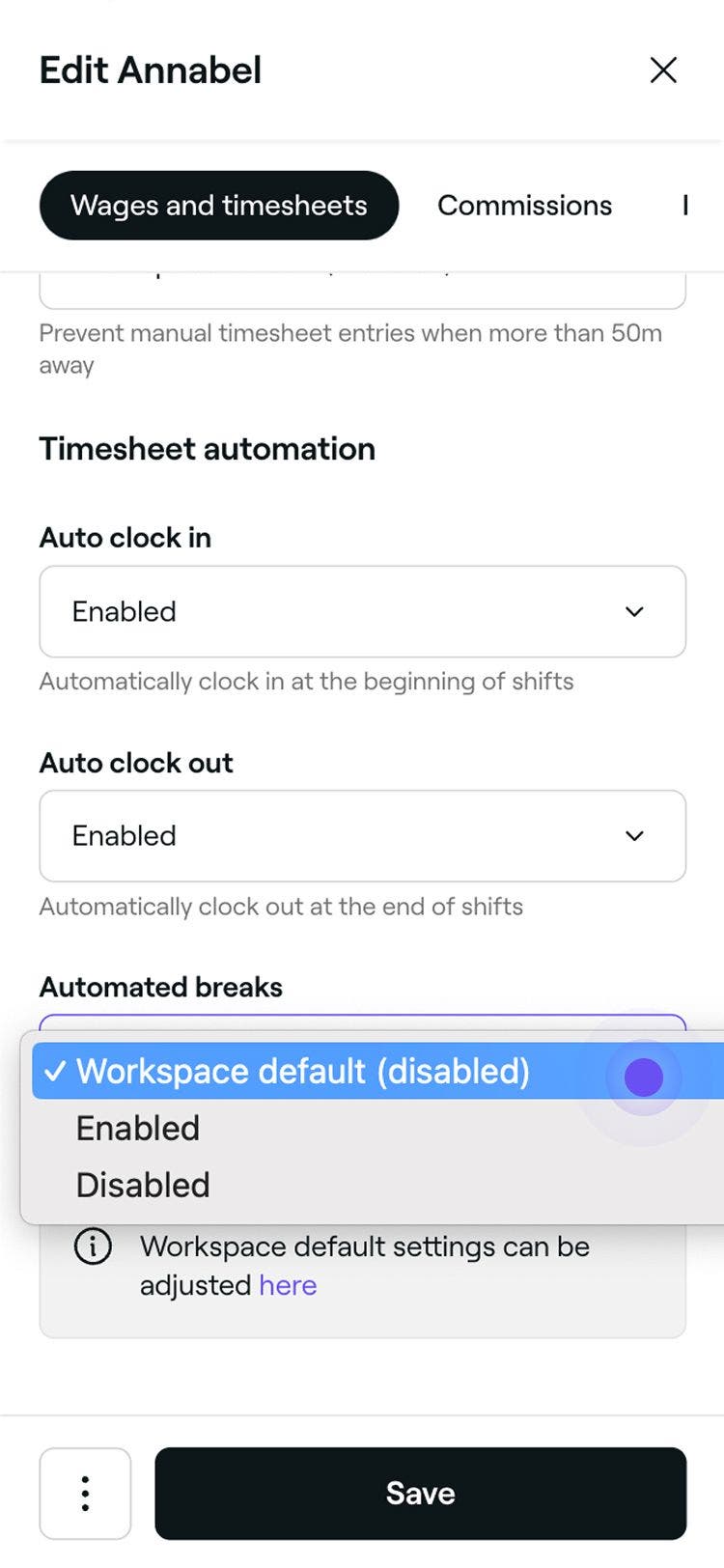
Once timesheet settings are updated for a team member, their working hours will be recorded according to those individual settings. If they clock in or clock out outside of their scheduled shift hours, their timesheet will automatically reflect the actual times worked.
Proximity controls do not apply when Auto clock in, Auto clock out, or Auto break tracking is enabled, or if your business does not have a fixed location.
Update default timesheet settings for team members
-
From the main menu on the left of your screen, go to Settings.
-
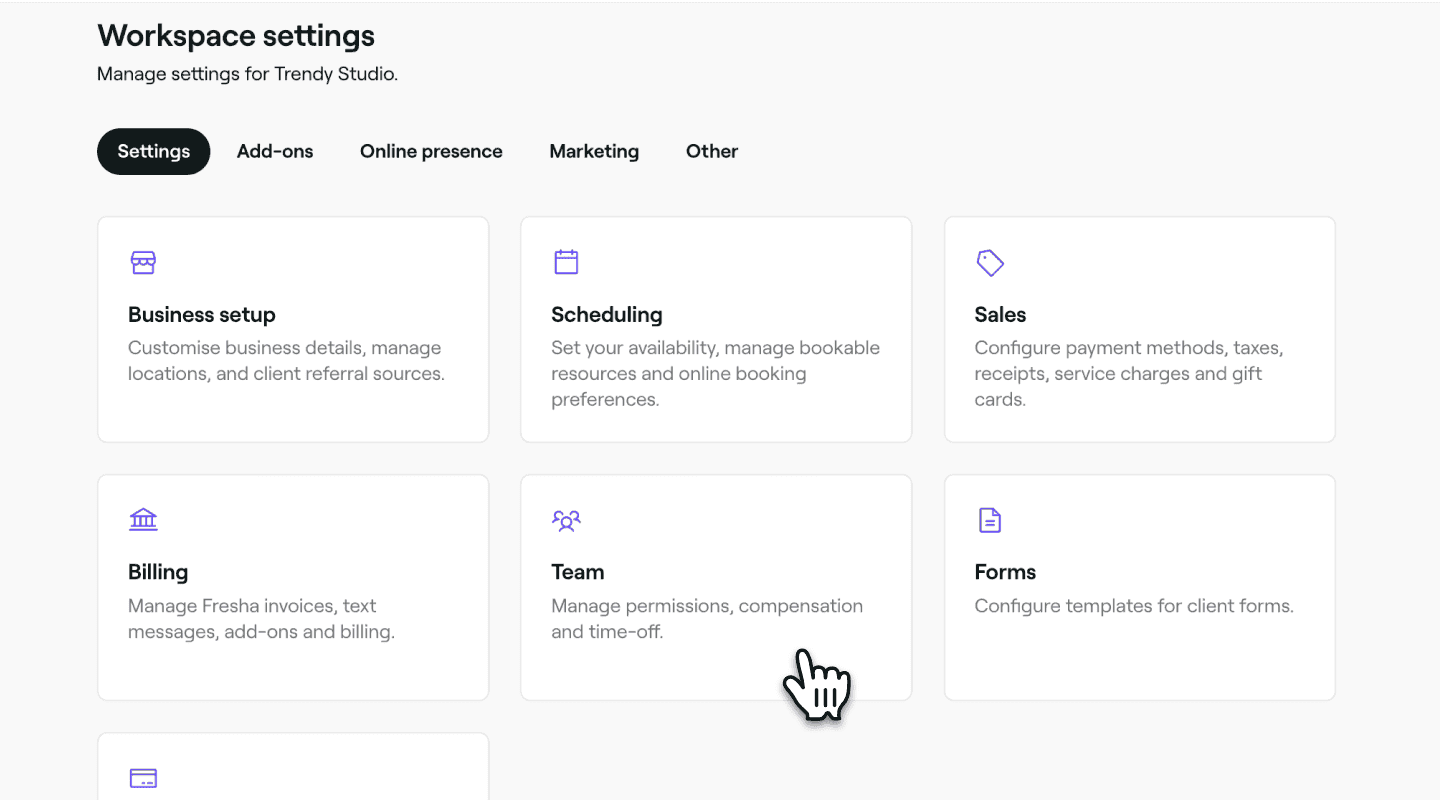
Click on the Team category to access commission settings.
-
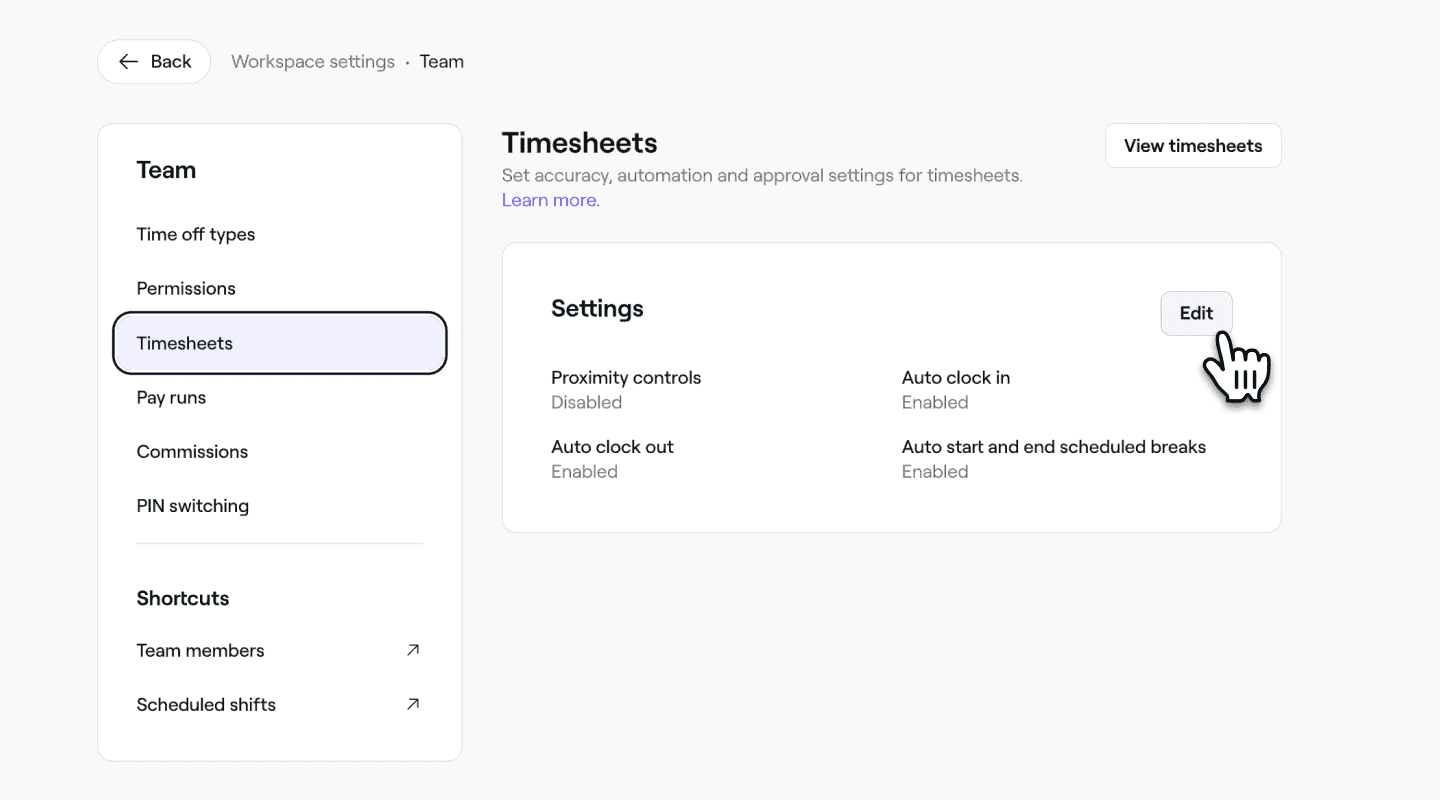
In the left menu panel, select Timesheets to update the default timesheet settings for your team.
-
Next to Timesheets settings click on the Edit button.
-
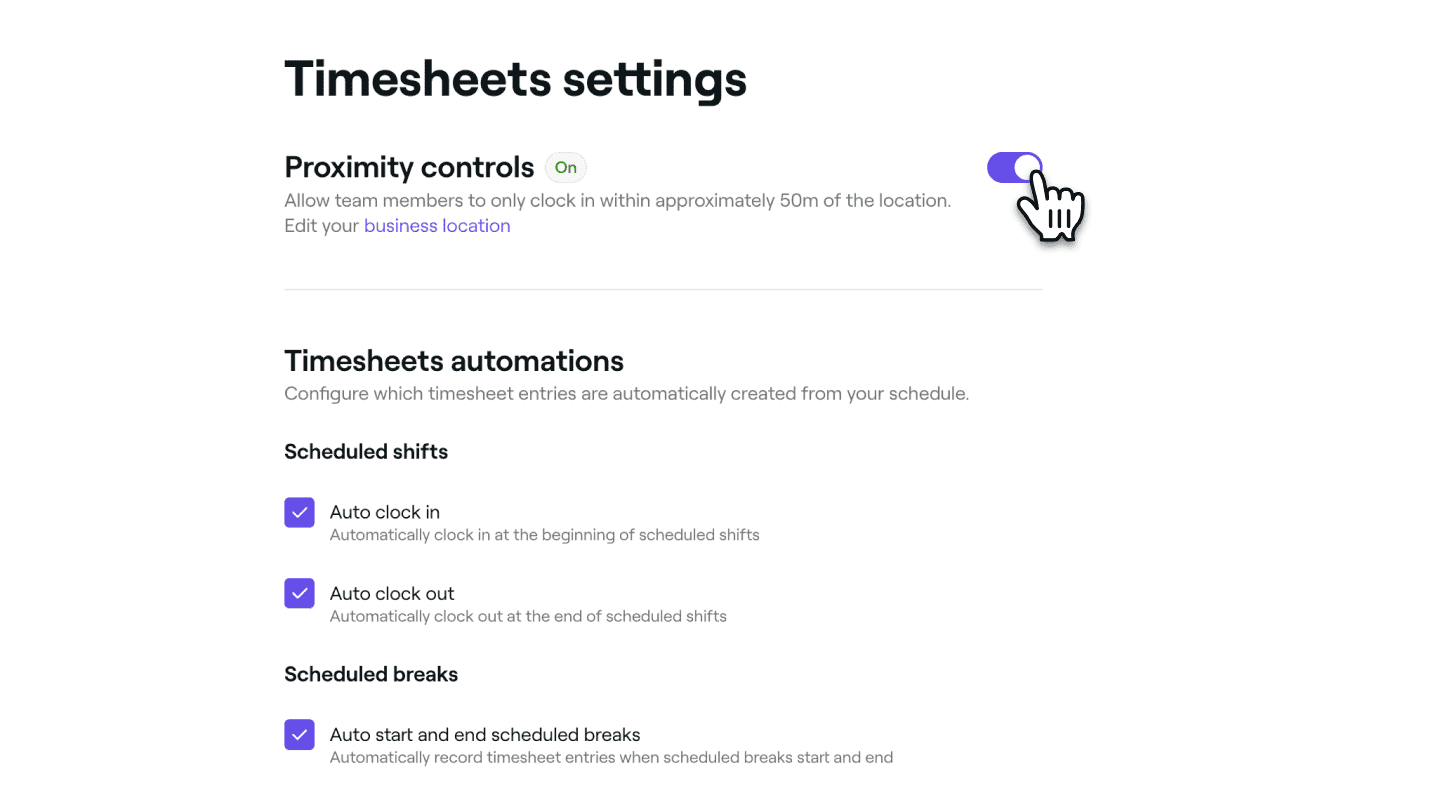
In the Timesheets settings view, make the following update:
-
If you require team members to manually clock in and clock out, enable Proximity controls. When this is Enabled, team members must be physically near your business location to clock in or clock out of shifts.
-
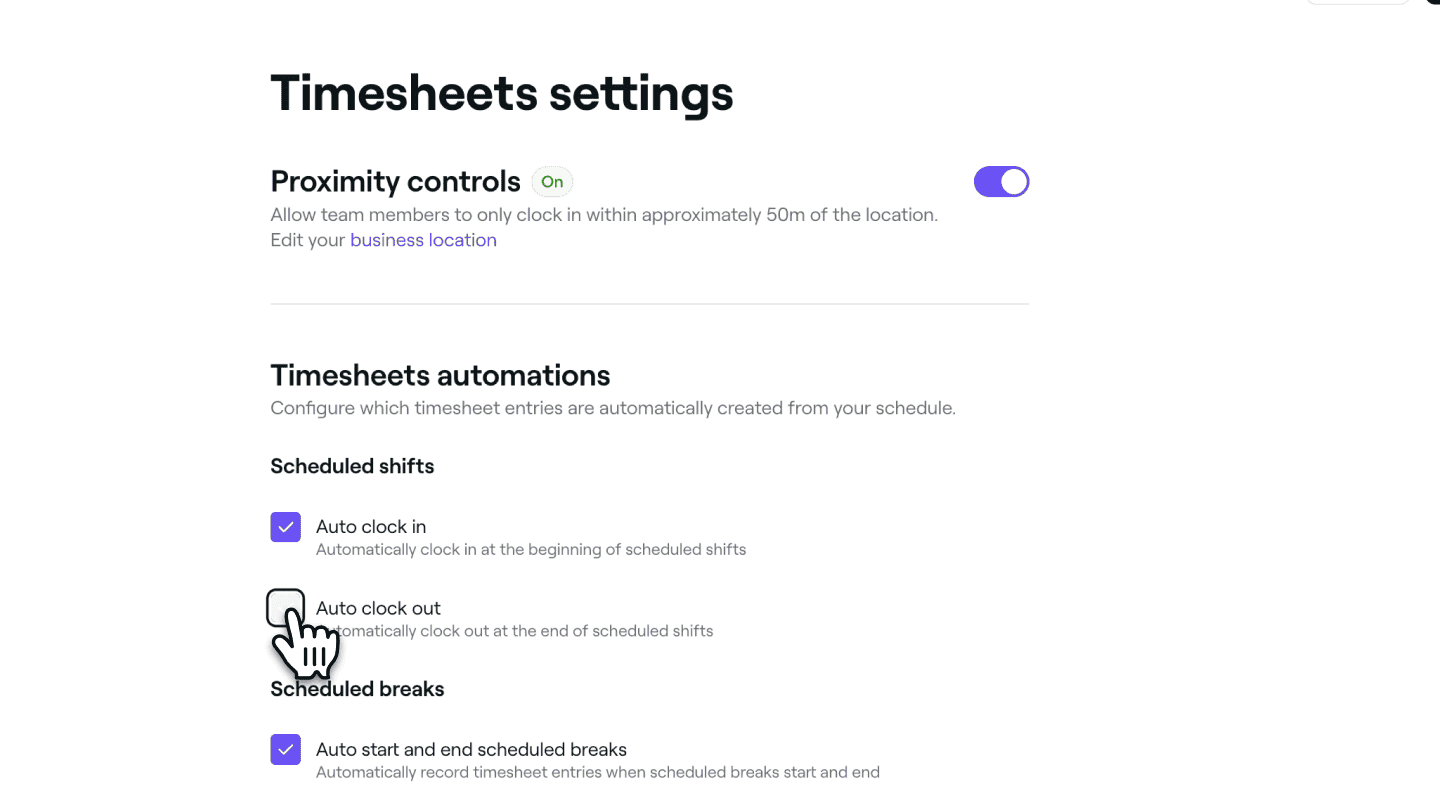
To automatically track team member worked hours, you can enable options for Auto clock in, Auto clock out, and Auto start and end breaks based on scheduled shifts. Each setting can be turned on or off individually. When enabled, timesheets are updated automatically, and the team member doesn’t need to take any action.
-
-
Click on the Save button in the top-right to save the default settings.
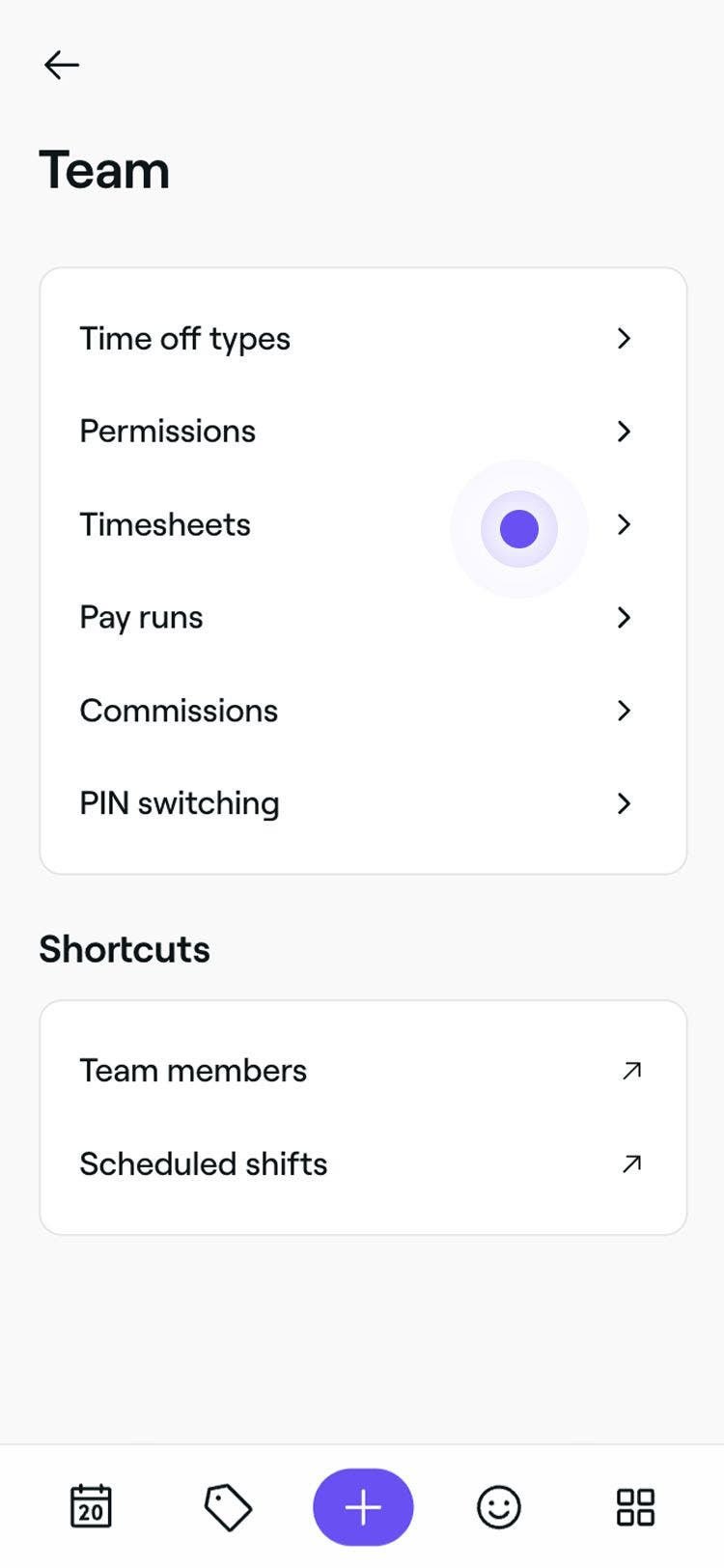
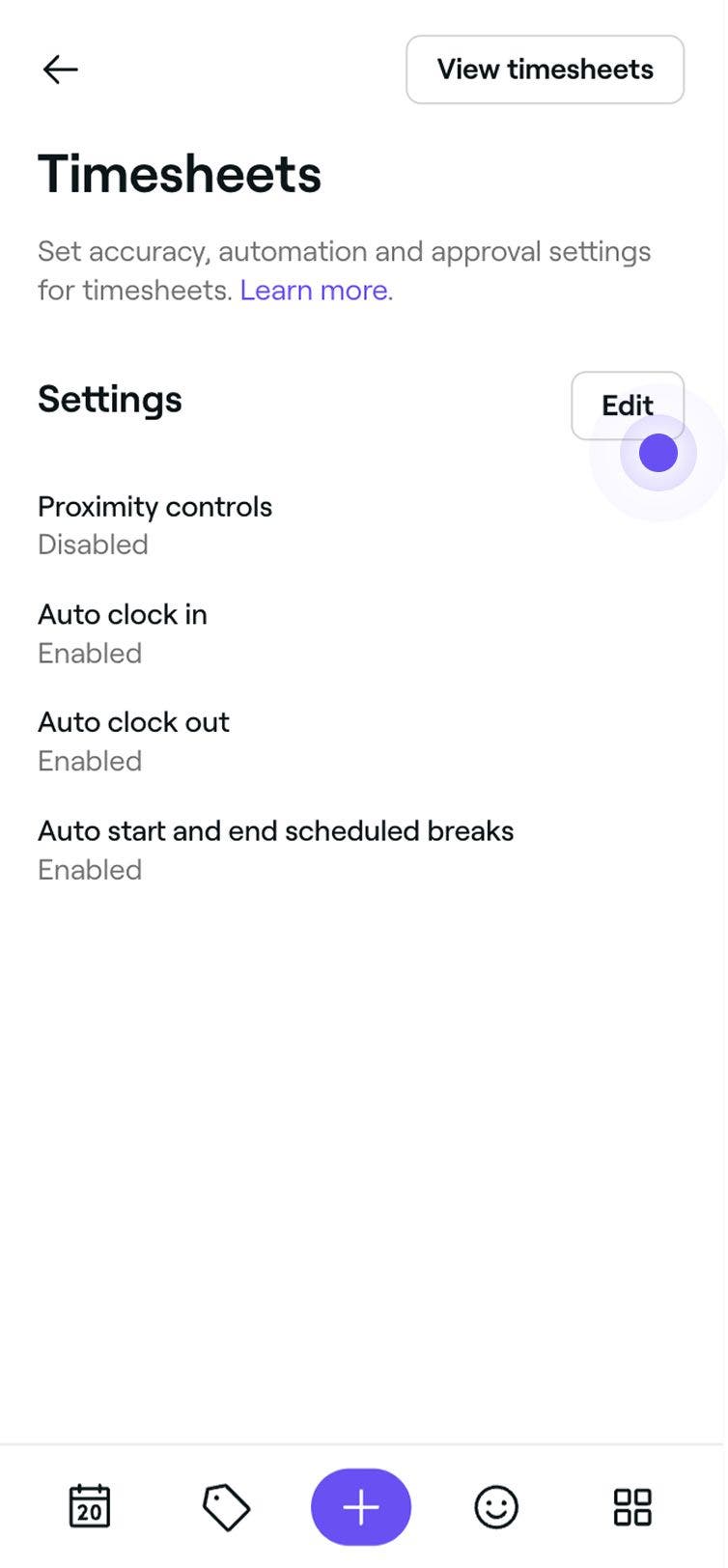

Once you’ve set the default timesheet settings, they’ll automatically apply to any team member with timesheets enabled, unless you choose to customize their settings individually in their profile.
Wages and timesheet tracking is included in the Team Plan subscription. Learn more about the Team Plan.
FAQs
To edit a team member’s timesheet, go to Team from the left menu on your screen and select Timesheets from the left menu panel. From the list of timesheets, click on the timesheet you’d like to edit to open the timesheet view. The, click on Actions (three dots) and select Edit. You can adjust the clock-in and clock-out times as needed, and once you're done, click Save to apply the changes.
Yes, you can customize wage and timesheet settings for each team member. This includes setting individual hourly rates, enabling or disabling overtime, and adjusting timesheet preferences, giving you full flexibility to tailor settings to each team member’s role and working hours.
Wages are calculated based on the hourly rate set at the time the shift was worked. If you update a team member’s hourly rate, it will only apply to future shifts from that point forward. Past shifts and their associated timesheets will remain unchanged to preserve an accurate payroll history.
You can disable overtime pay for team members. Open the team member profile, select Pay and click Edit. Under Wages, uncheck the Overtime pay checkbox and Save the changes. Any wages earned while the setting is disabled will be calculated at the regular hourly rate and included in both timesheets and pay runs.
Changes to a team member's wage settings are not logged within your business account. The new settings will automatically apply to any timesheets created after the wage settings are changed. We recommend carefully reviewing your pay runs and team member settings to ensure the balance is correct before paying your team.