Prepare a pay run
Learn how to prepare accurate and automated pay runs for your team, whether they earn hourly wages, commissions, tips, or collect cash advances.
In this article
How preparing pay runs work
Once you’ve set up wages and timesheets, tips, and commissions, all earnings are automatically calculated and pulled into the team member’s pay run. Each pay run is automatically calculated and summarized, so you can review and make changes before sending payments. You can:
- Pass on Fresha fees, like payment processing or Marketplace New Client Fees
- Add manual adjustments, including taxes, deductions, or monthly pay for salaried team members.
- Log cash collected by team members as advances, so payouts stay accurate
Once everything’s ready, you can continue to complete the pay run.
Pass fees on to team members
You can choose to deduct specific Fresha fees from a team member’s pay run before processing their payouts through pay runs.
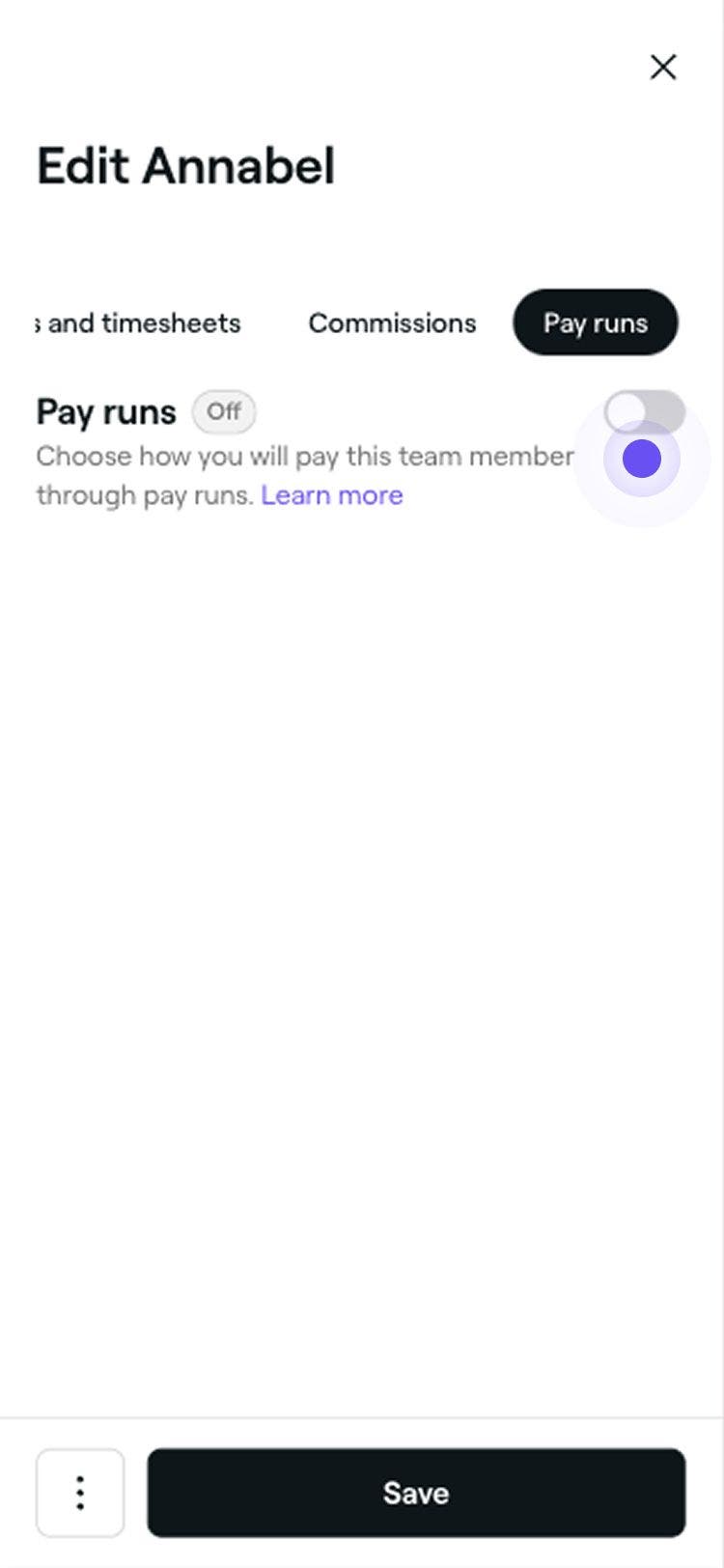
- In the Edit team member view, select Pay runs from the left menu panel.
- Under the enabled Pay runs setting, tick the checkboxes under Pay run deductions to automatically share fees Fresha fees with the team member:
- Payment processing fees: Deduct fees based on the services they performed and how the sale was processed.
- Fresha new client fees: Choose to deduct a percentage of the Marketplace New Client Fee when a new client books with the team member.
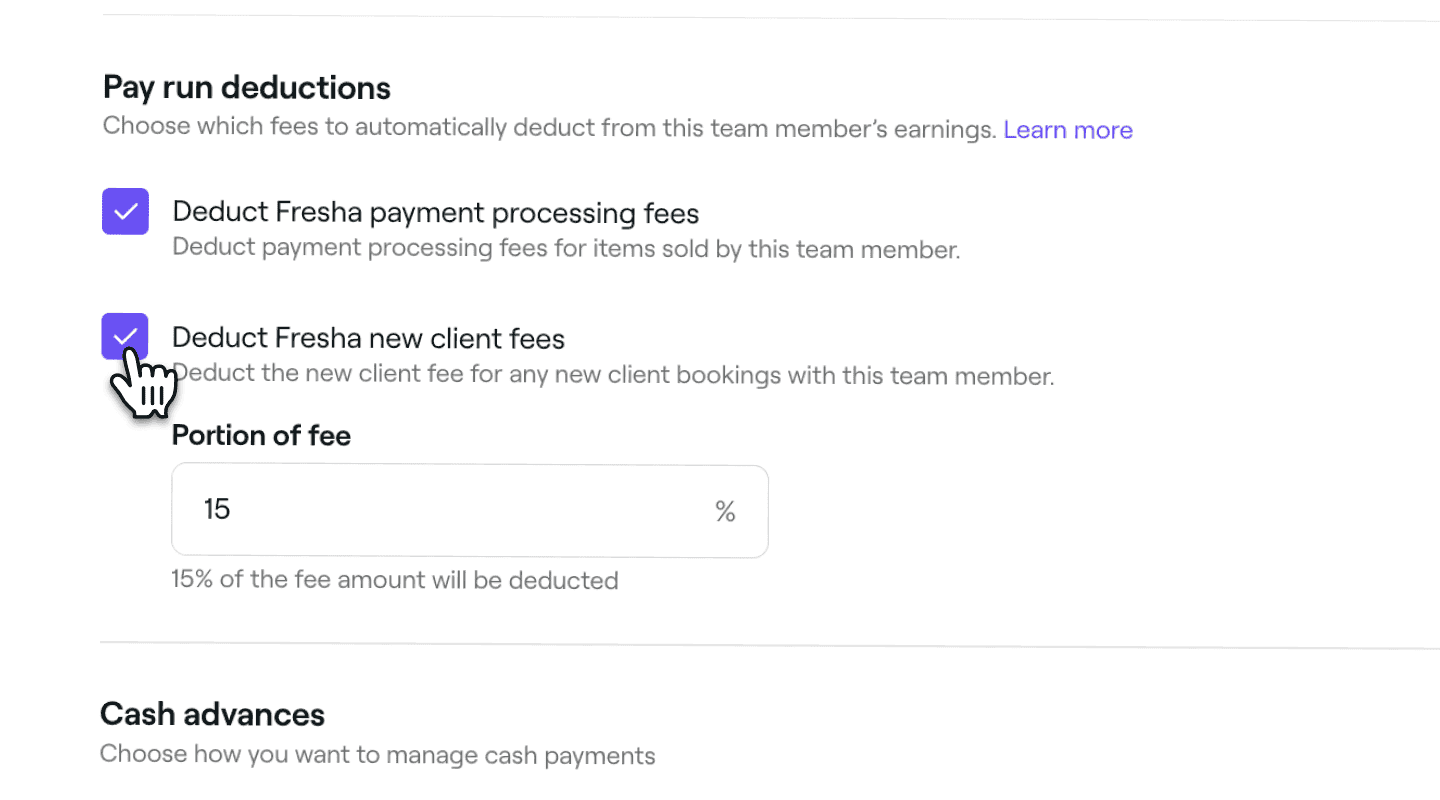
- Click on the Save button in the top right to apply the settings.
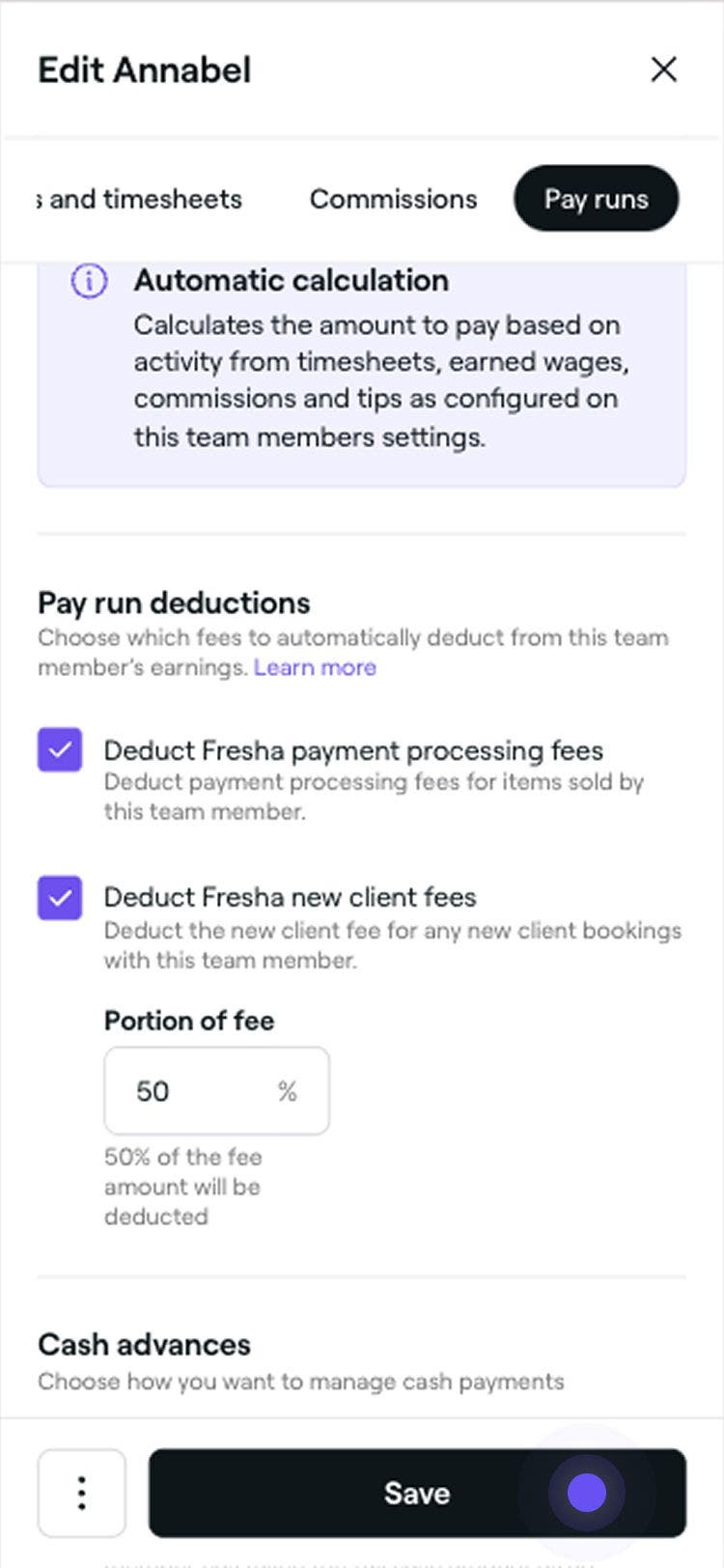
Once fee deductions have been set, they will be automatically calculated and applied to the team members pay run. For appointments involving multiple team members, fees will be split based on the value of the services each team member performed.
Make balance adjustments to a pay run
You can adjust a team member’s pay before completing the pay run, whether you need to add a tip, apply a deduction like tax, or include a fixed salary as a positive adjustment for salaried team members.
-
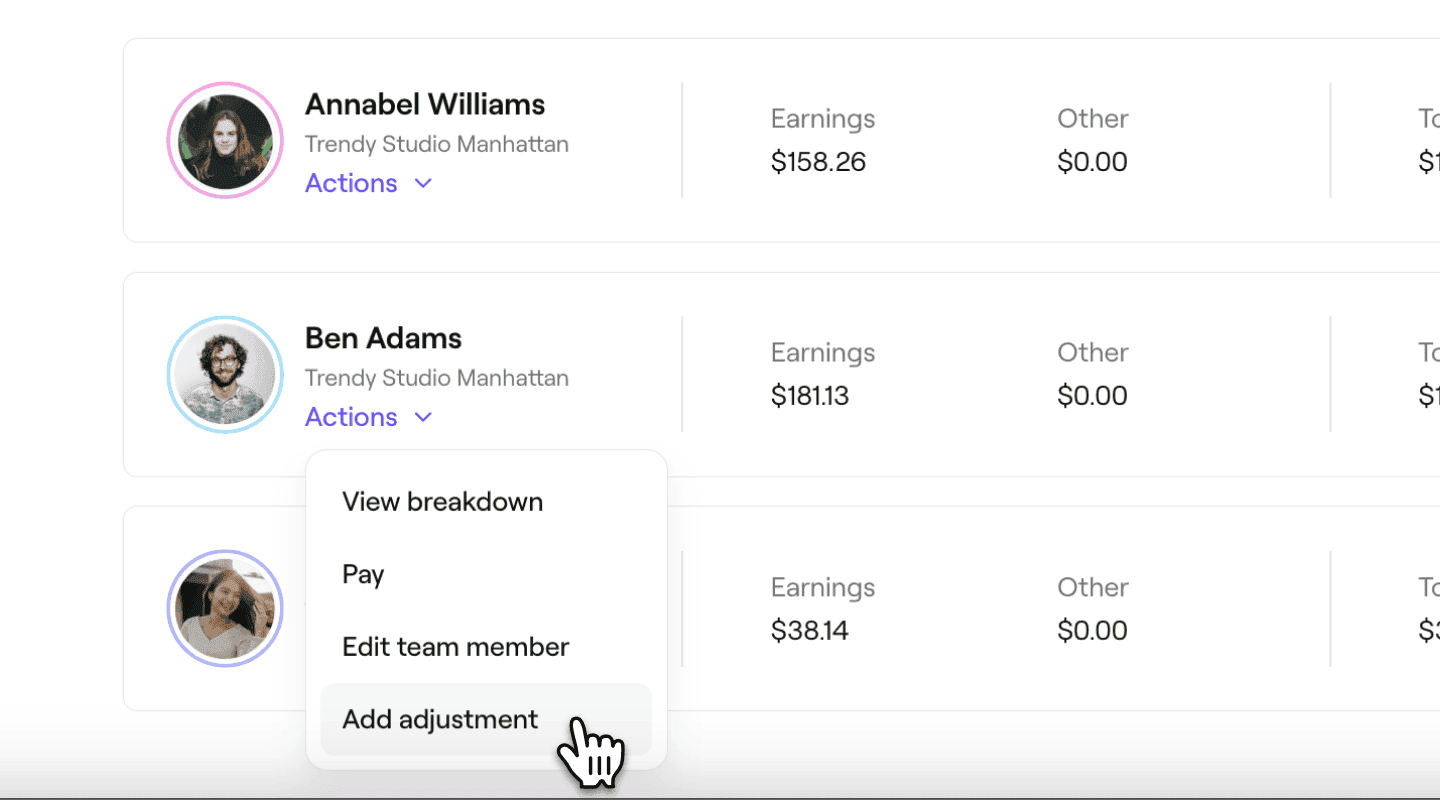
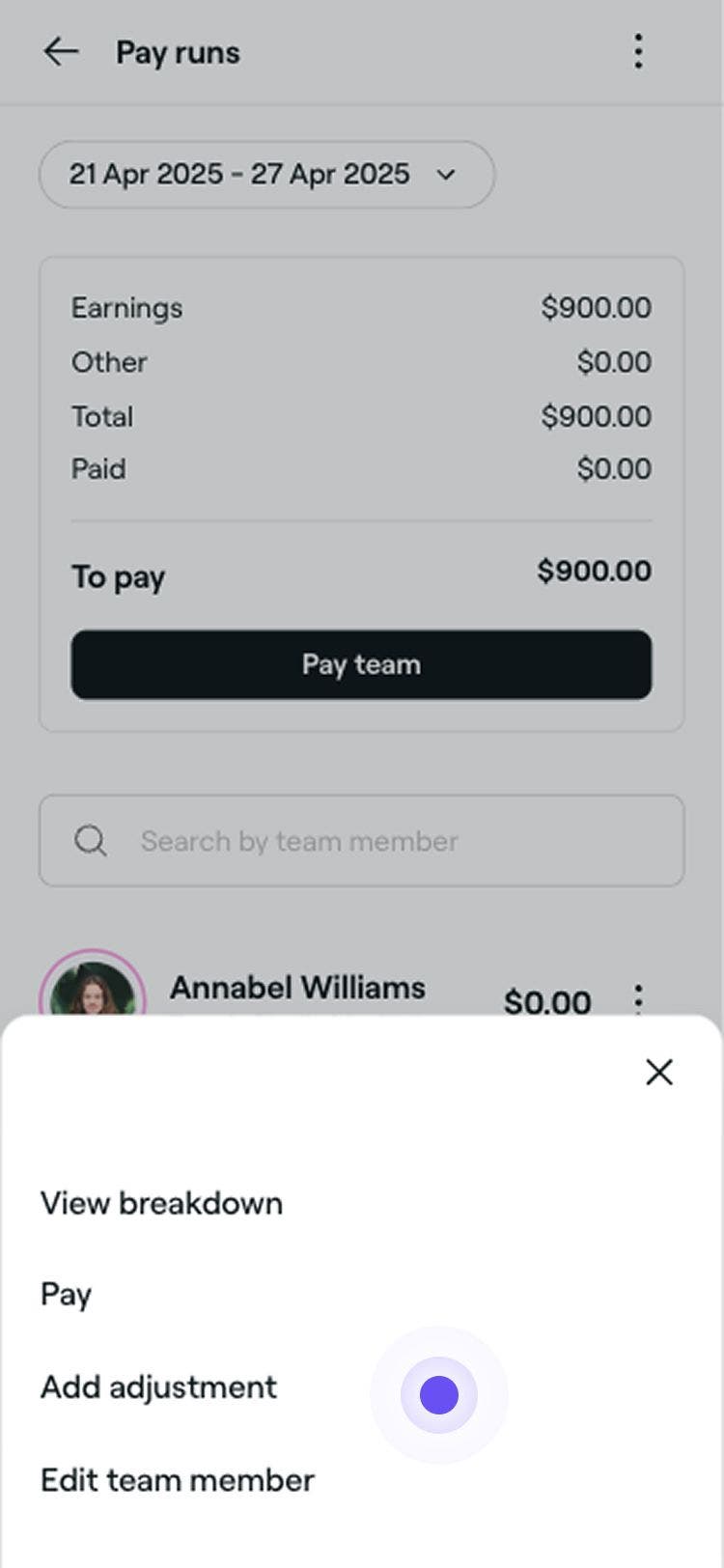
From the Pay runs view, click on Actions under the team member you want to add an adjustment for and select Add adjustment.
-
In the Adjustments pop-up, use the tabs at the top to select the type of compensation you'd like to adjust, choose from Wages, Commissions, Tips, or Other.
-
Under Amount, enter the value you want to adjust, then select whether to + Add or – Deduct the amount from the balance.
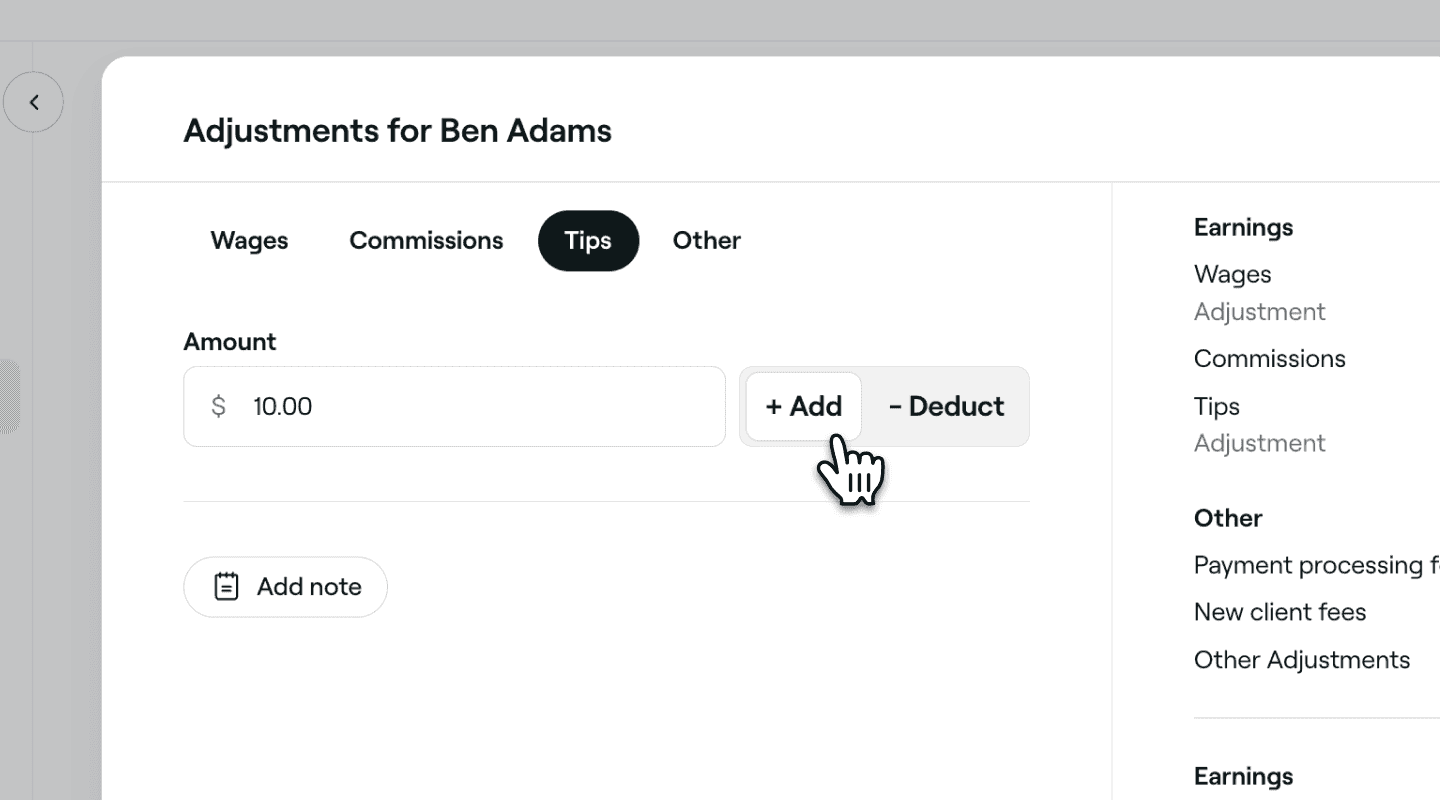
-
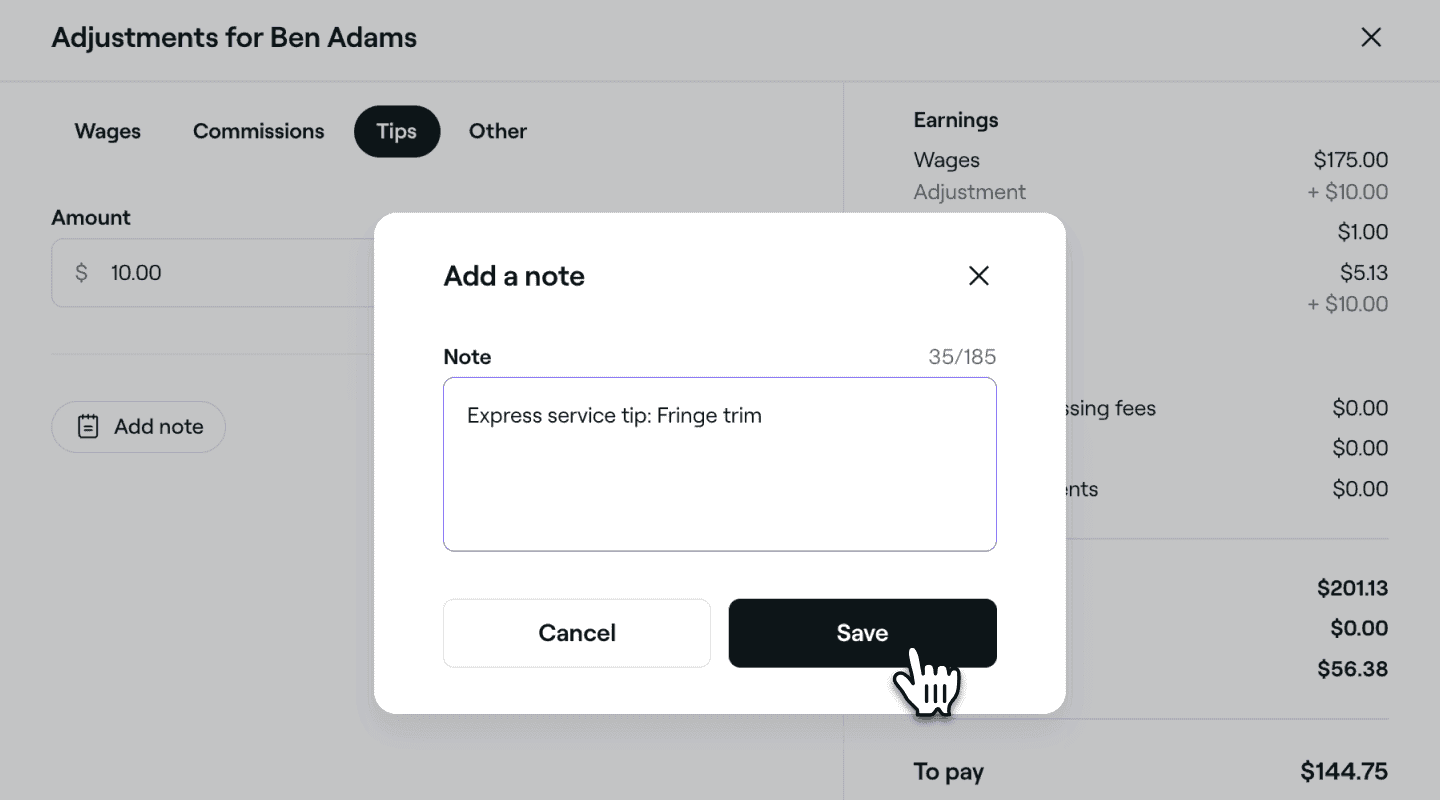
Click on the Add note button to add extra information. This will be visible to you and the team member in the Breakdown.
-
Click on the Apply button on the bottom right of the pop-up to add the adjustment.
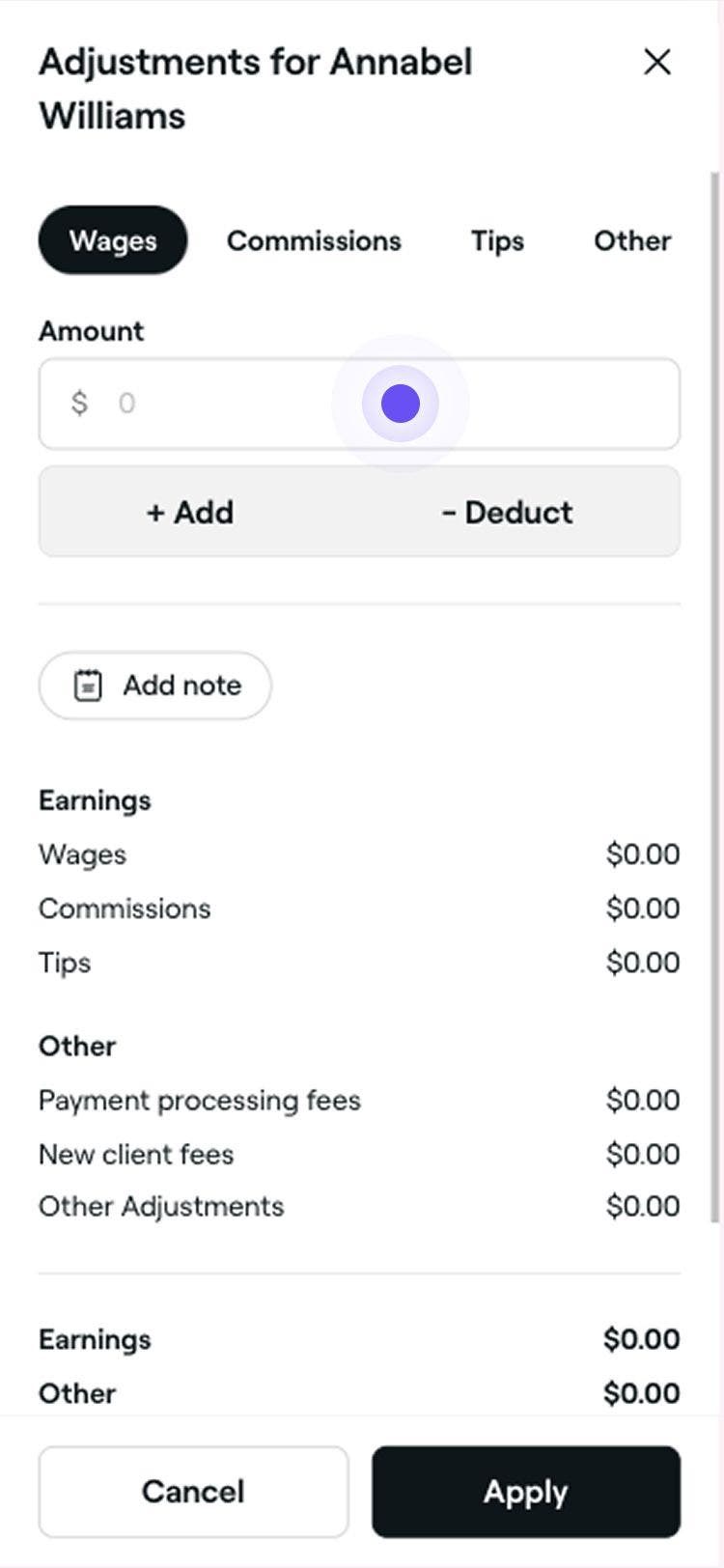
The team member’s pay run will update automatically to reflect any adjustments. You can also make changes during the pay run by clicking the compensation amount highlighted in purple.
Compensation balances update automatically when an appointment is canceled or edited. If a refund happens after a payout, the adjustment is added to the current pay run period.
Allow cash advances for team member pay runs
If a team member collects a cash payment from a client, whether in full or in part, it can be recorded as a cash advance, so it’s calculated and accounted for in their pay run.
- In the Edit team member view, select Pay runs from the left menu panel.
- Under the enabled Pay runs setting, tick the checkbox under Cash advances to record full cash payments received by the team member as an advance for 'paid' sales within the pay run.
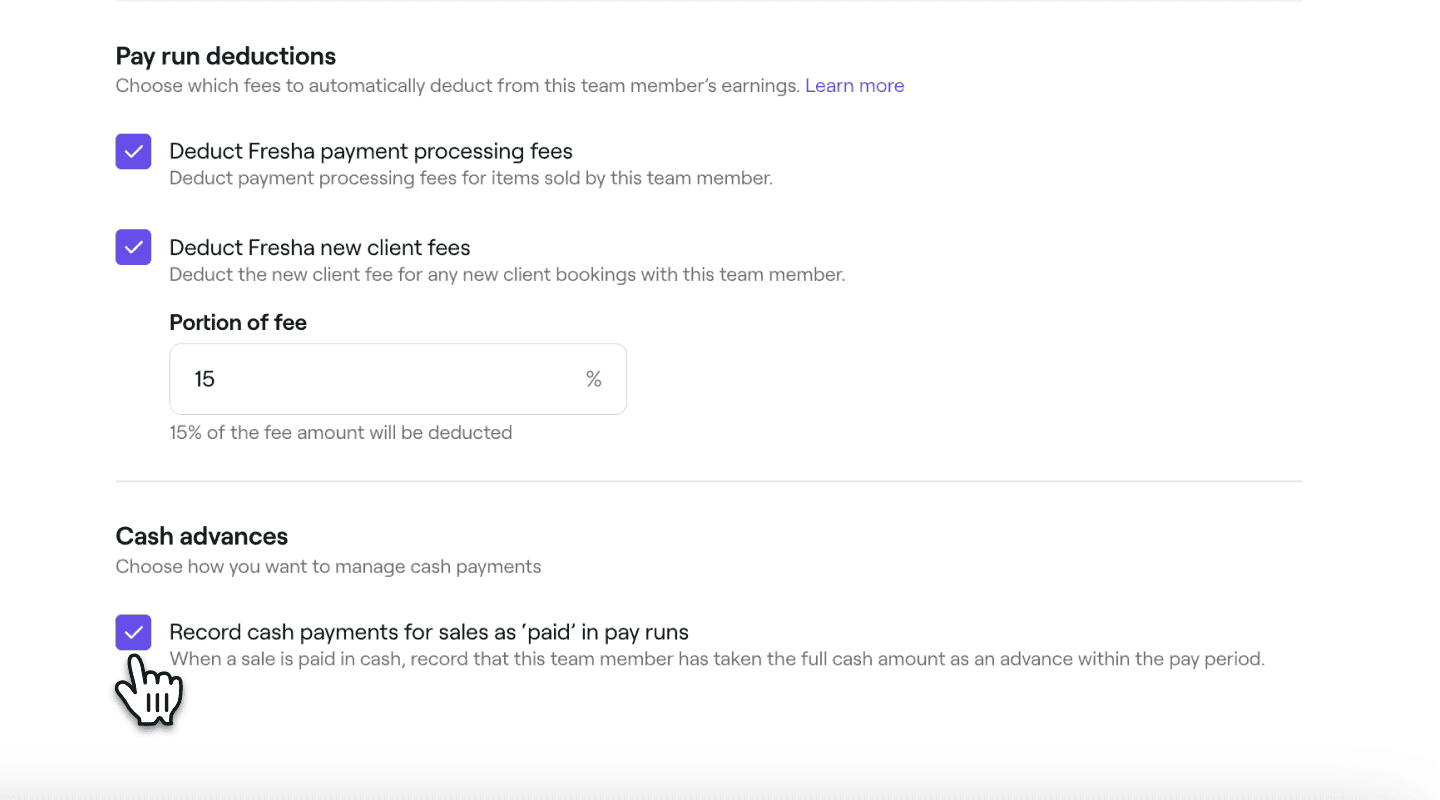
- Click on the Save button in the top right to enable cash advances for this team member.
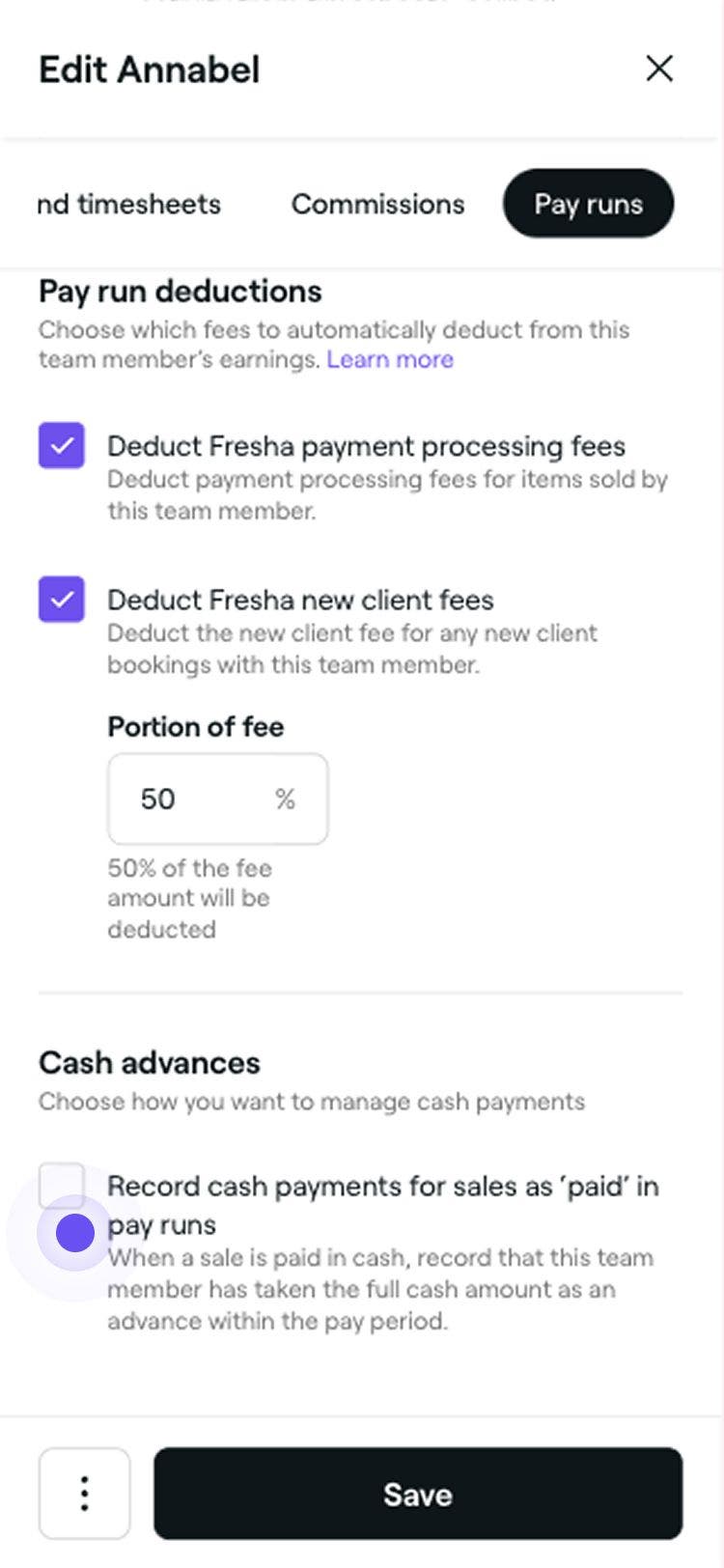
By default, cash advance settings will be disabled and can be enabled for individual team members as needed. Any time a team member takes payment in cash at the checkout, this will be automatically recorded in their pay run.
Pay runs are available with a Team Plan subscription. Learn more about the Team Plan.
Enable automatic pay runs for individual team members
Choose which team members are included in automatic pay runs by managing their individual pay settings.
- In the Edit team member view, select Pay runs from the left menu panel.
- Under Pay automations, select the checkbox to enable automatic pay runs for the team member.

- Click Save in the top-right corner to apply your changes.
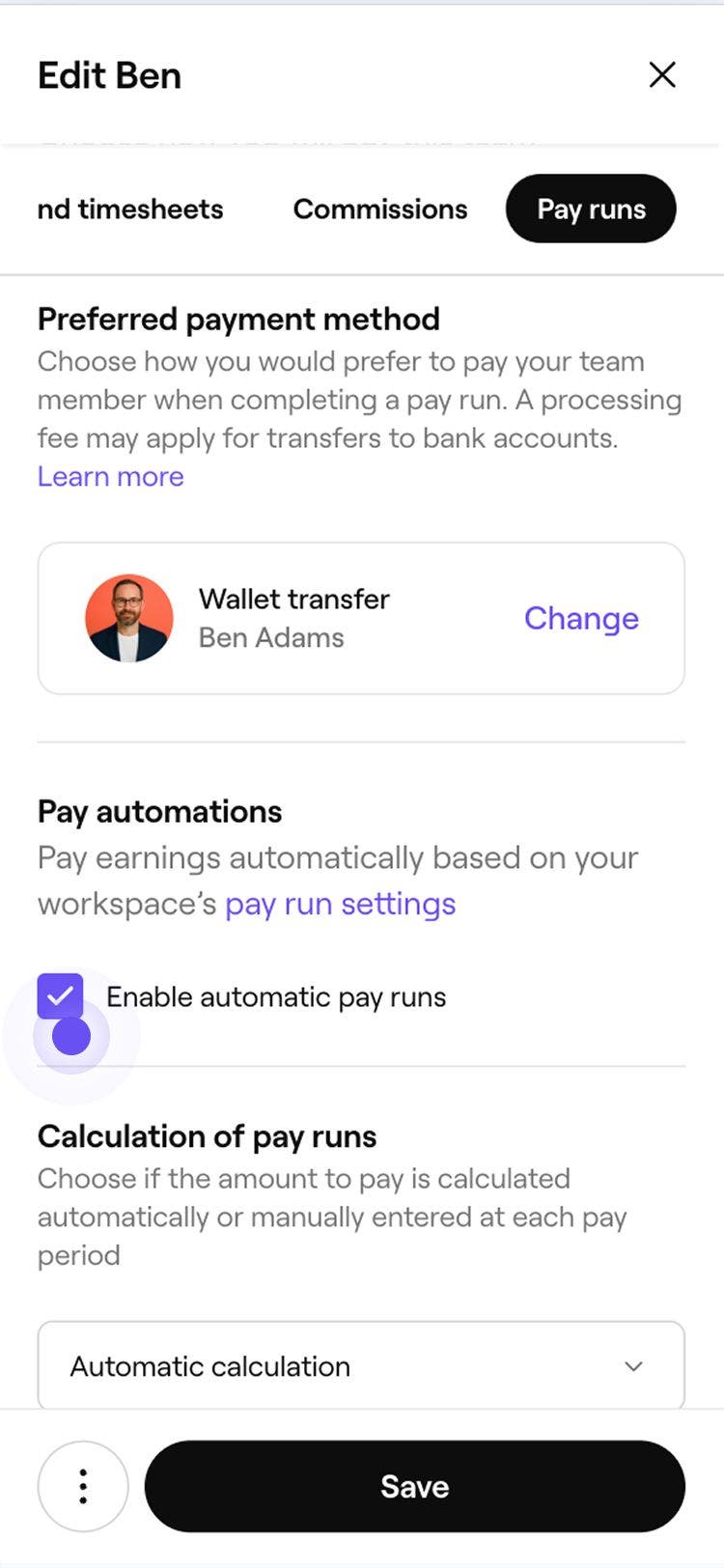
Automatic pay runs are now enabled for the team member. Follow the same steps and clear the checkbox at any time to disable automatic pay runs.
FAQs
- Earnings:
Total earned from sales. - Paid:
Total cash collected for paid sales as an advance, with a daily record of cash collected during the pay period. - To pay:
Any outstanding amounts accumulated through cash advances that the team member needs to settle manually.
If an appointment assigned to a team member has a deposit taken, any fees related to that deposit are only deducted from the team member’s pay run once the appointment is completed.
This ensures that the team member’s commissions, tips, and deductions are all processed together in one go after the appointment.
A separate invoice will not be generated for any fees passed on to a team member. The fee is still charged to your business but will be automatically deducted from the team member's pay run.
Fees are split based on the value of services provided by each team member.
For example, in a $100 appointment, if Team Member A performed a $60 service and Team Member B performed a $40 service, the fees will be divided 60% to Team Member A and 40% to Team Member B.
To review a cash advance for a team member, open Pay runs and click on the team member’s pay run to view a breakdown of the following:
Yes, tracking when and who created a compensation balance adjustment/deduction is available, just click on Adjustment highlighted on the team member’s pay run Breakdown.
In some businesses, when a client pays in cash, the team member completing the sale will keep the cash payment instead of putting it in the central business till. This is seen as a cash advance (getting paid early). [Turning on cash advances](Allow cash advances for team member pay runs) for these team members allows the cash payments to be tracked in their pay runs. It also automatically calculates how much they've earned (like any commissions) while keeping tabs on how much they've already been paid upfront through cash collection.
To remove a pay run adjustment, open Pay runs, click Actions next to the team member and select View breakdown. Click on the Adjustment and select Delete adjustment.
To check a team member’s payout status, go to Team from the main menu on the left and select Pay runs. Under the relevant team member’s name, click Actions and select View breakdown. You can see their payment status under the Paid header.
Tips are processed with the standard payment processing fee before being paid out to the team member.
- Earnings: