HomeKnowledge baseFresha academy
Enable pay runs and set your pay period
Back
  1. Knowledge base•
  2. Team•
  3. Enable pay runs and set your pay period

Enable pay runs and set your pay period

Learn how to enable pay runs for team members and choose how often your team is paid by setting up pay periods.

In this article

  • About pay periods
  • Enable pay runs for team members
  • Schedule pay periods
  • Enable automatic pay runs

About pay periods

Once pay runs are enabled, Fresha automatically calculates your team’s pay based on their earnings. You can choose whether to pay team members through their personal Fresha wallet, bank account, or record payments as manual.

Pay runs are grouped into pay periods, which you can schedule to match your pay out cycle. Each pay run includes all tracked earnings and deductions for that period, ready to pay out from your business wallet.

Enable pay runs for team members

  1. From the main menu on the left of your screen, go to Team. 

  2. Select Team members from the left menu panel.
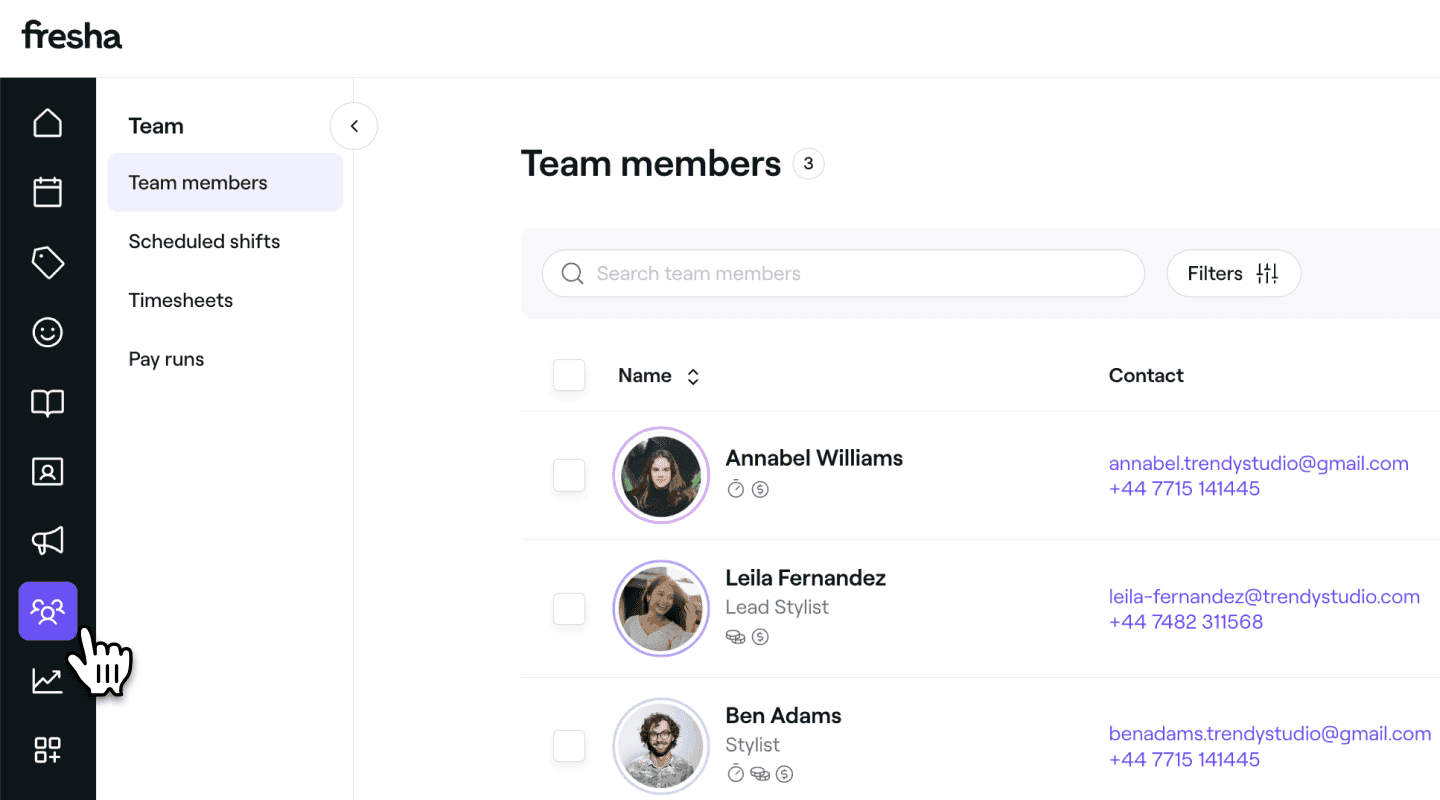
    Team members main menu Fresha.png

  3. From the team member list, click on a team member to view their details.

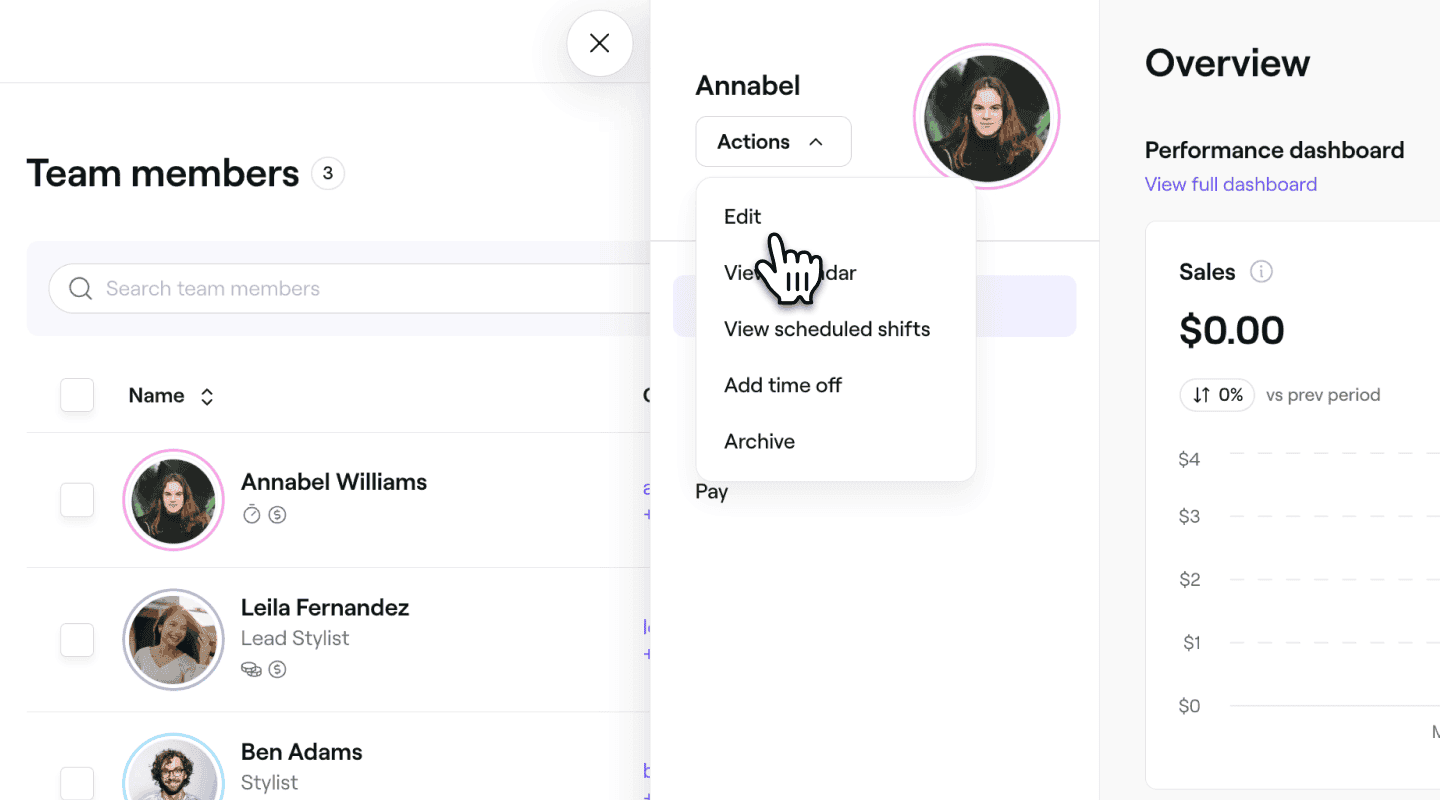
  4. In the team member view, click on Actions on the left and select Edit from the panel.
    Team member profile edit (1).png

  5. In the Edit team member view, select Pay runs from the left menu panel.

  6. Enable Pay runs to start paying the team member through Fresha.Screenshot 2025-04-23 at 08.35.03 1.jpg

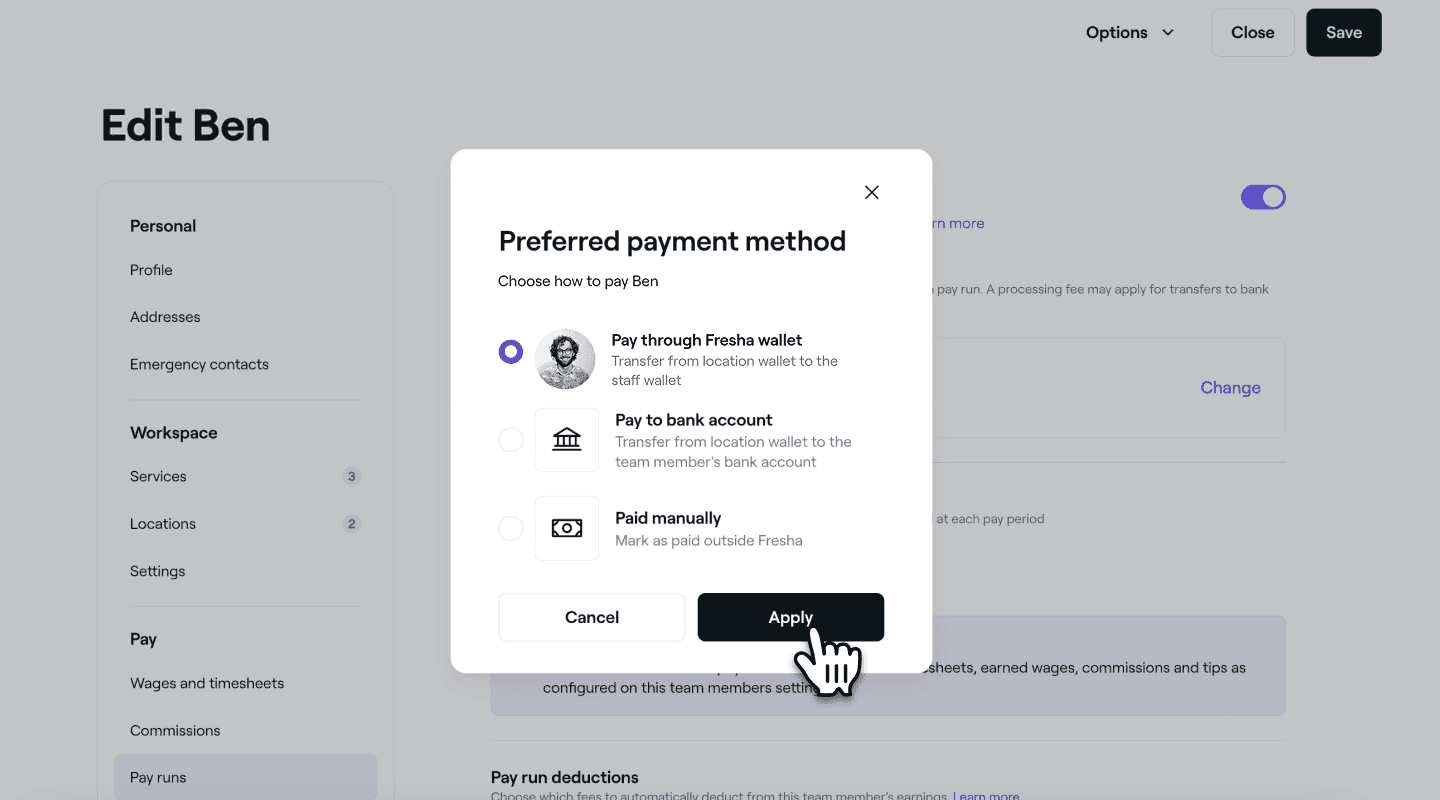
  7. To choose how a team member will be paid, click Change under Preferred payment method, then select one of the following:

    1. Pay through Fresha wallet: Payments are automatically transferred from the business wallet to the team member’s personal Fresha Wallet. Once the team member has completed payment verification, they can transfer funds to their own bank account.

    2. Pay to bank account: If the team member has verified their bank details for payment processing, funds can be transferred directly from the business wallet to their bank account.

    3. Paid manually: Use this option to mark the team member as paid outside of Fresha. No funds are transferred through Fresha, and the payment will not be recorded in the system.

    4. Calculation of pay runs will be set to Automatic calculation so that pay is calculated based on tracked hours from timesheets, earned wages and commissions and tips.
      pay runs preferred payment method Fresha.png

  8. Click on the Save button in the top right to save update the team member's pay run settings.
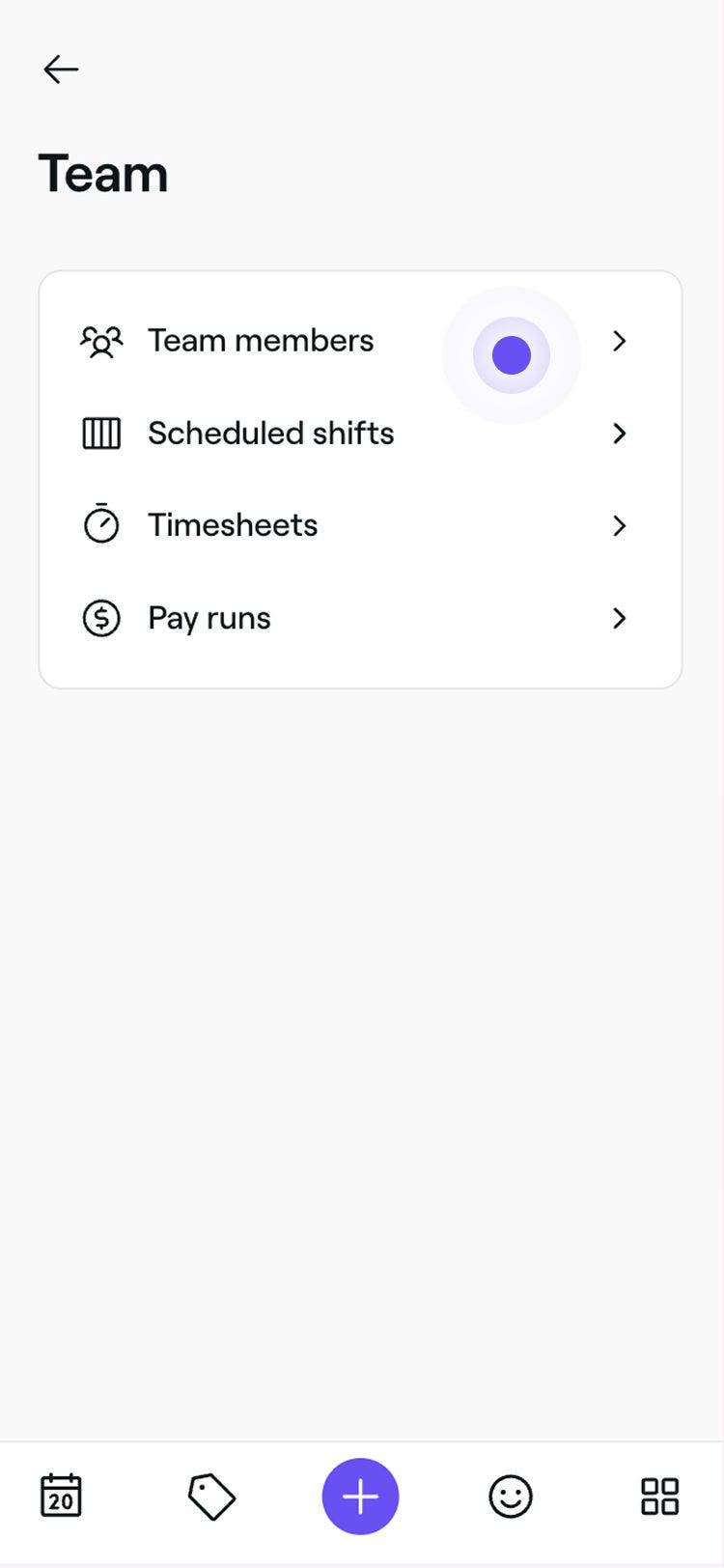
  1. From the main menu at the bottom of your device, tap on More (grid icon) and open Team.
  2. Under the Team menu, select Team members.team_members_mobile.jpg
  3. Tap on a team member to view their details.
  4. In the team member view, tap on the Actions button and then select Edit from the panel.Group 97.jpg
  5. From the Edit team member view, scroll along the menu bar at the top and open the Pay runs tab.
  6. Use the toggle next to Pay runs to enable for this team member.
  7. Customize the team member's pay run settings as follows:Screenshot 2025-04-23 at 08.51.52 1.jpg
    1. Preferred payment method: choose how you would prefer to pay your team member when completing a pay run by tapping Change and selecting between Paid manually and Pay through Fresha Wallet. The team member will need to be verified for payment processing in order to process payments through Fresha.
    2. Calculation of pay runs: choose if the amount to pay is calculated automatically or manually entered at each pay period.
  8. Tap on the Save button at the bottom to save changes to the team member's pay run details.

Once pay runs are enabled, the team members commissions, wages and timesheets will all contribute to the calculation of how but the team member will be paid in their next pay run.

Schedule pay periods

Your team's earnings and deductions are organized into the pay periods you set up. By default, the pay period currently in progress will be displayed. If a team member works at two locations you will see a pay run entry for each location that they work at. You can change your pay period anytime and changes won't affect previous periods.

  1. From the main menu on the left of your screen, go to Settings. 

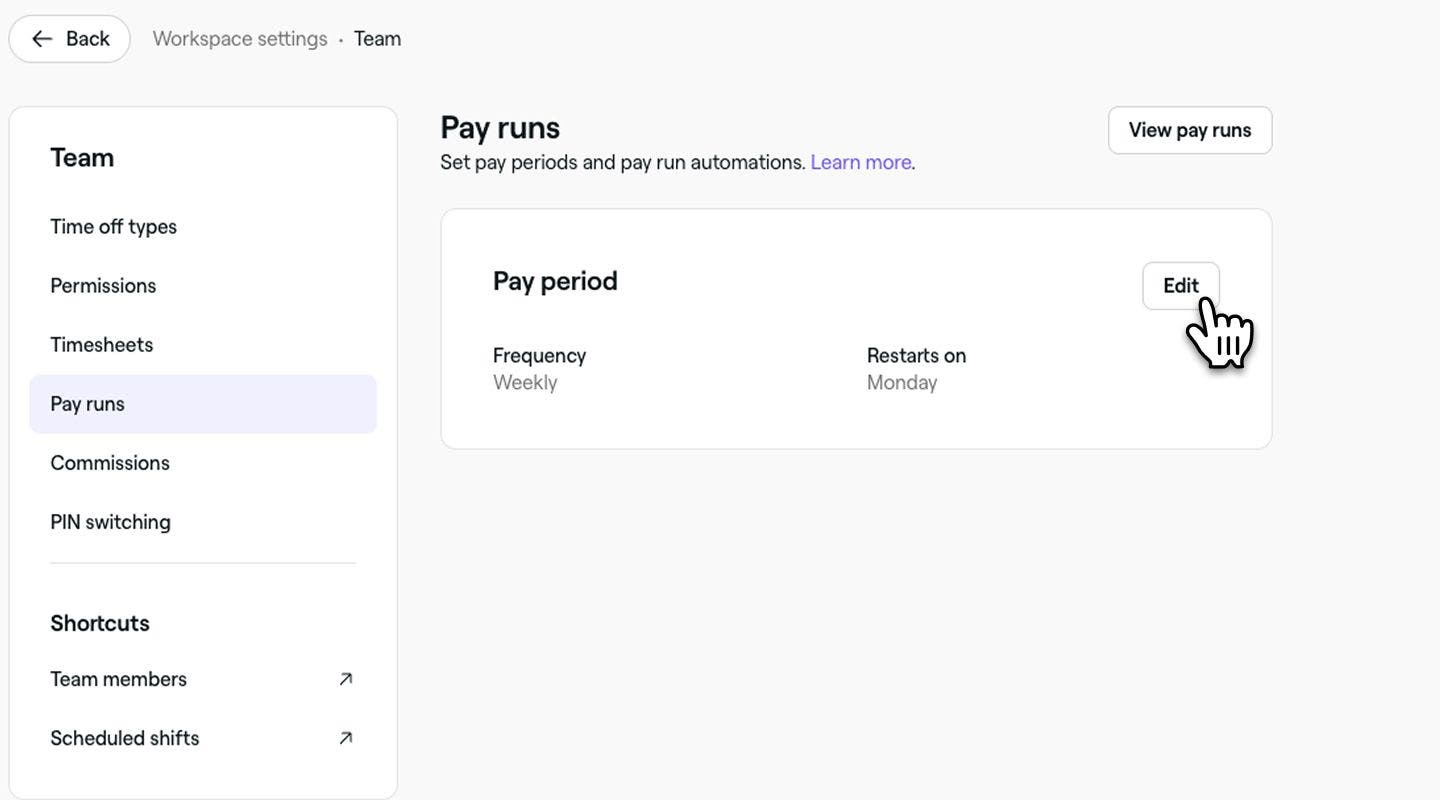
  2. Click on Team and select Pay runs from left menu panel to open your pay run settings.

    Settings team Fresha.png

  3. In the Pay runs view, click on the Edit button next to the Pay period to update the pay run frequency.Group 83 (1).jpg

  4. In the Pay period view, use the dropdown under Frequency to choose the length of your pay runs:

    1. Daily: No restart day is needed as pay periods restart every day.
    2. Weekly (including every 2 or 4 weeks): Choose the day of the week to restart the pay period.
    3. Semi-monthly: Pay team members twice a month. The month will be split into two pay periods.
    4. Monthly: Select the day of the month for the pay period to restart.
    5. Quarterly: No restart day is needed as pay periods restart every quarter within the year. schedule_pay_run_web_4.jpg
  5. Use the Starts from dropdown to choose when the new schedule takes effect, either from the Next billing cycle or a Custom date in the future.

  6. Review the Pay period schedule preview to see your current period and the upcoming schedule. schedule_pay_run_web_7.jpg

  7. Click on the Save button on the top right to apply changes to your pay period.

  1. From the main menu at the bottom of your device, tap on More (grid icon) and open Settings.

  2. Under Workspace settings, open Team.Group 86.jpg

  3. Tap on Pay runs to view your pay run settings.

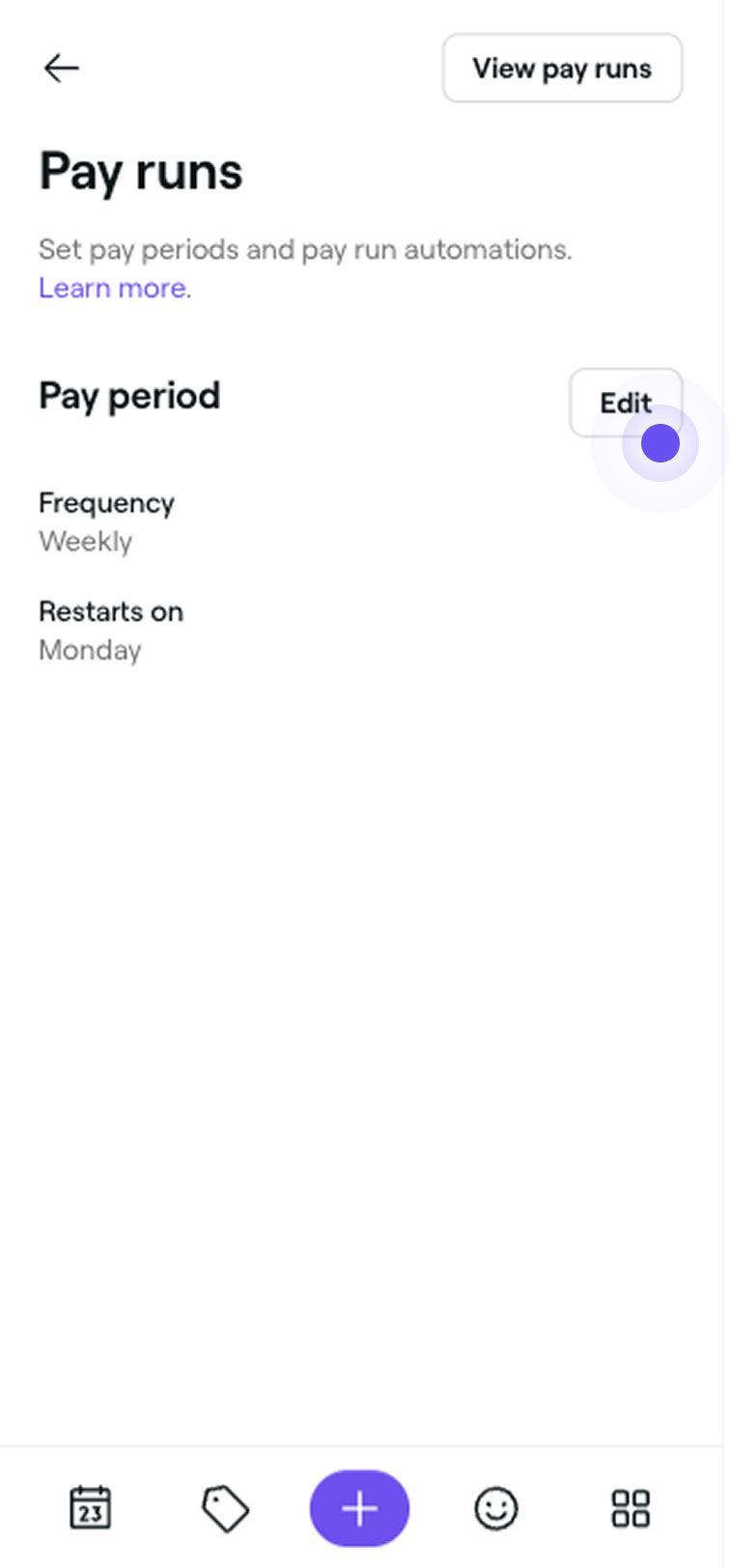
  4. On the Pay runs page, tap on the Edit button next to Pay period to edit the pay period frequency.Group 85.jpg

  5. In the Pay period view, use the dropdown under Frequency to choose the length of your pay runs:

    1. Daily: No restart day is needed as pay periods restart every day.
    2. Weekly (including every 2 or 4 weeks): Choose the day of the week to restart the pay period.
    3. Semi-monthly: Pay team members twice a month. The month will be split into two pay periods.
    4. Monthly: Select the day of the month for the pay period to restart.
    5. Quarterly: No restart day is needed as pay periods restart every quarter within the year. schedule_pay_run_mob_4.jpg
  6. Use the Starts from dropdown to choose when the new schedule takes effect, either from the Next billing cycle or a Custom date in the future.

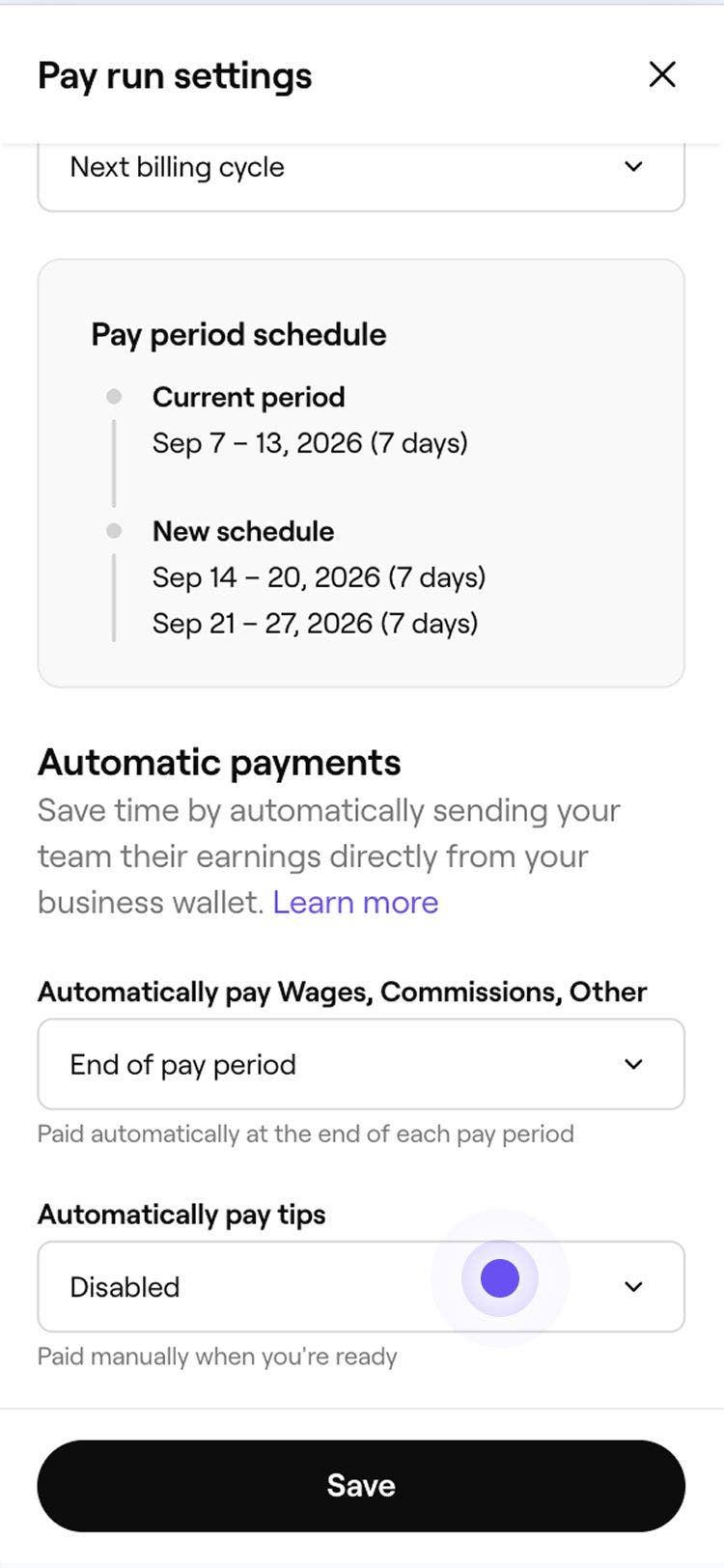
  7. Review the Pay period schedule preview to see your current period and the upcoming schedule. schedule_pay_run_mob_7.jpg

  8. Tap on the Save button at the bottom to apply changes to your pay period.

Scheduling pay runs for team members is included in the Team Plan subscription. Learn more about the Team Plan.

Enable automatic pay runs

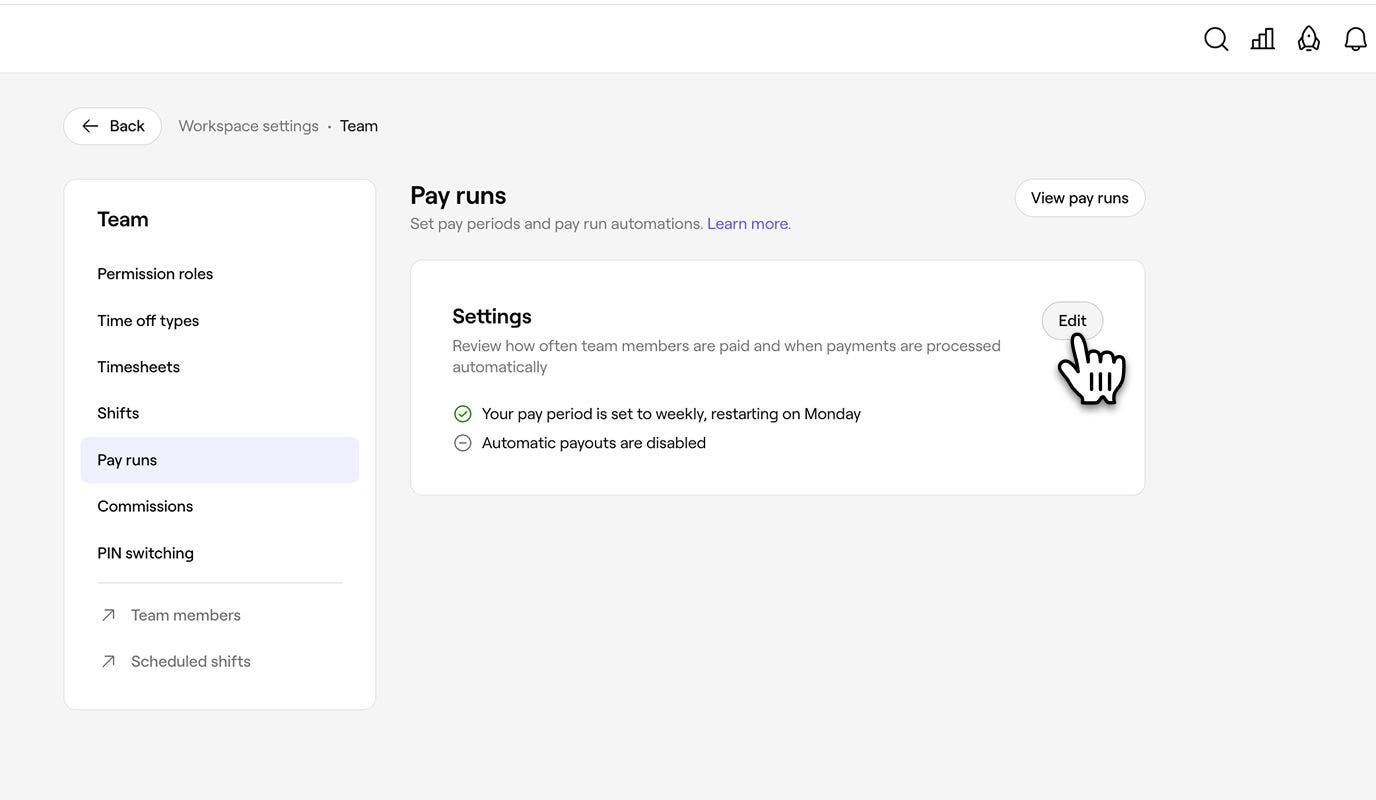
  1. Open Pay runs from your Team workspace settings. 

  2. Click on the Edit button next to Pay period to open your pay run settings. Team settings page with Pay runs selected and Edit button highlighted.
  3. Under Automatic payments, use the drop-down under Automatically pay Wages, Commissions, Other to choose when these should be paid:

    1. End of pay period: Payments are sent automatically as soon as the pay period you set up.
    2. Daily: Payments are sent automatically at the end of every weekday. Pay run settings panel with Automatic payments dropdowns and Save button.
  4. Use the drop-down under Automatically pay tips to choose when tips should be paid, using the same options.

  5. Click on the Save button in the top right to apply changes to your pay runs.
  1. Open Pay runs from your Team workspace settings. 

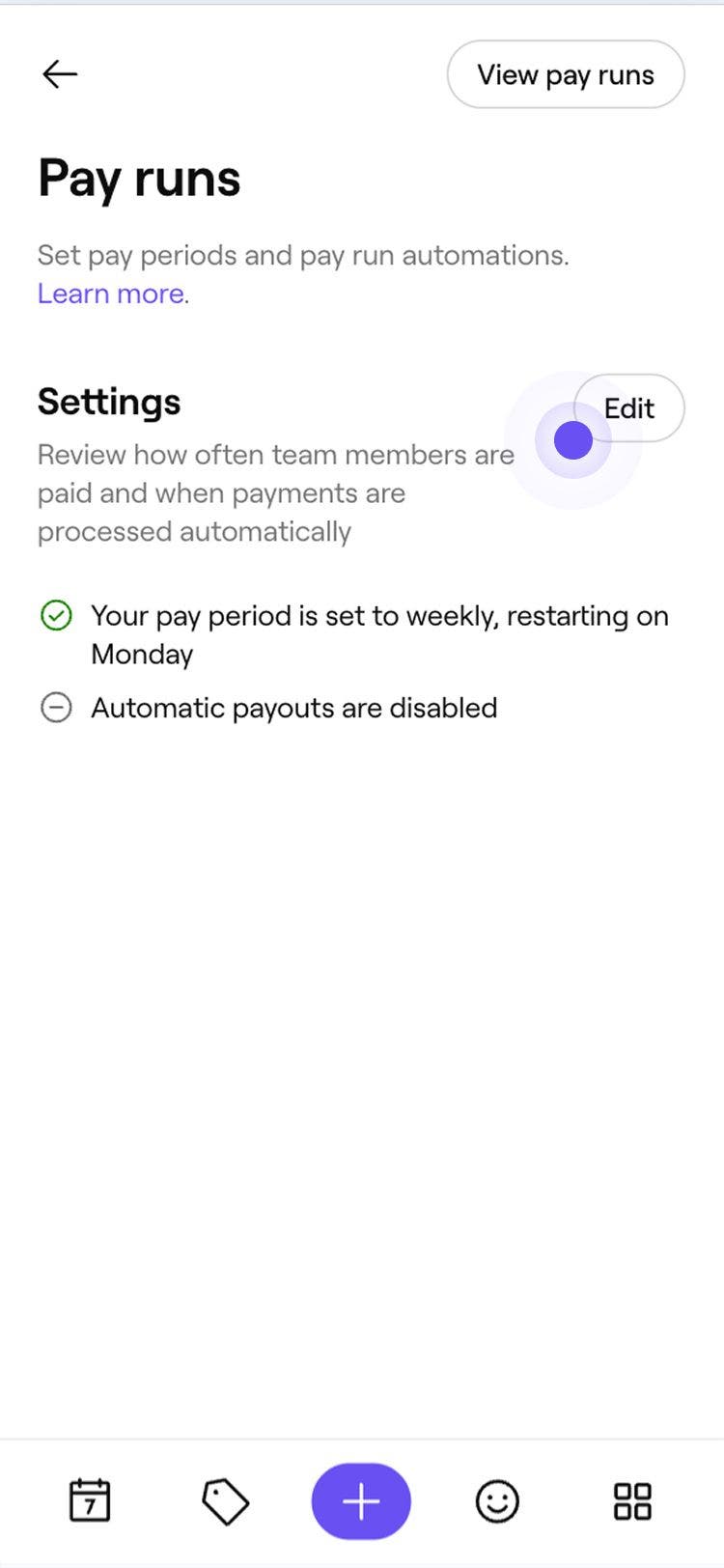
  2. Tap on the Edit button next to Pay period to open your pay run settings. Team settings page with Pay runs selected and Edit button highlighted.

  3. Under Automatic payments, use the drop-down under Automatically pay Wages, Commissions, Other to choose when these should be paid:

    1. End of pay period: Payments are sent automatically as soon as the pay period you set up.
    2. Daily: Payments are sent automatically at the end of every weekday. Pay runs screen with Settings card, pay period set to weekly, automatic payouts disabled.
  4. Use the drop-down under Automatically pay tips to choose when tips should be paid, using the same options.

  5. Tap on the Save button at the bottom to apply changes to your pay runs.

FAQs

    • Your team receives automatic payments early the next morning after each scheduled payment date. If you select Daily, earnings from each day are paid early the following morning.

      Changes to your automatic payment schedule apply from the next scheduled payment, even if your current pay period is still in progress. For example, if your team is paid weekly on Mondays and you change tips to daily payments on Wednesday, the next tips payment is sent early on Thursday.

      Automatic pay runs can be enabled or disabled for each team member individually, giving you control over who is paid automatically.


Paying your team

Fresha academy courses
Course video preview

Track team working hours

6 lessons•11 mins

Course video preview

Pay your team

5 lessons•8 mins

See all courses

Was this guide helpful?

Paying your team

Paying your team overview

Save time and reduces manual errors by paying your team directly through Fresha, giving your team faster access to their pay.

Set up wages for team members

Automate wage calculations and track your team's hours, breaks, and attendance with timesheets.

Set up commissions for team members

Motivate your team by setting up customized commissions for services, products, gift cards, and memberships.

Add tips to a pay run

Add a tip to a team member’s pay run if a tip wasn’t added during checkout or needs to be corrected.

Manage team timesheets

Track your team’s working hours with real-time timesheets, including breaks and shift updates.

Enable pay runs and set your pay period

Enable pay runs for team members and choose how often your team is paid by setting up pay periods.

Prepare a pay run

Customize pay runs for team members and manage any cash advances and fees.

Complete a pay run

Streamline paying your team with pay runs that automatically calculate and transfer earnings from your wallet.

Fresha academy courses
Course video preview

Track team working hours

6 lessons•11 mins

Course video preview

Pay your team

5 lessons•8 mins

See all courses
Fresha
Get the app

About Fresha

Careers

Help and support

Blog

Sitemap

For business

For partners

Pricing

Features

Scheduling

Point of sale

Payments

Capital

Marketplace

Support

Status

Legal

Privacy Policy

Terms of service

Terms of use

Find us on social

Facebook
Linkedin
Instagram

© 2026 Fresha.com SV Ltd