Complete a pay run
In this guide, you’ll learn how to pay your team using pay runs, including how to enable pay runs for your team members, set pay periods and send money directly to their Fresha wallet or bank account.
How paying your team works
Once team members have wages and timesheets, commissions and tips set up, everything they’ve earned flows directly into the team member's pay run, ready for payout.
This is the final step in the pay run process. You’ll review each team member’s total earnings, apply any adjustments, and complete the pay run. Funds are transferred from your business wallet straight to your team’s personal Fresha wallet or linked bank account. Both you and your team will receive a full breakdown of pay.
Pay your team
-
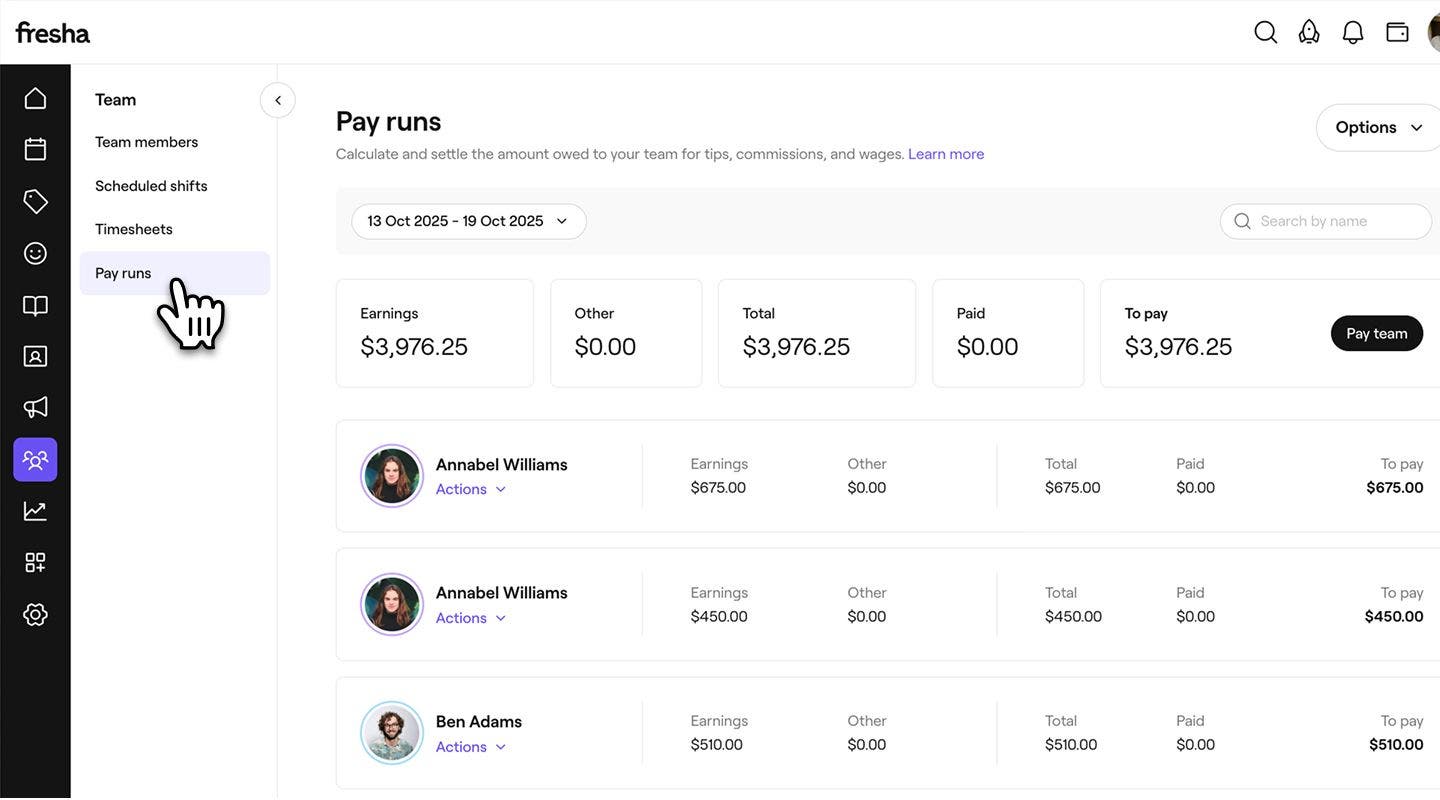
From the main menu on the left of your screen, go to Team.
-
In the left menu panel, select Pay runs.
-
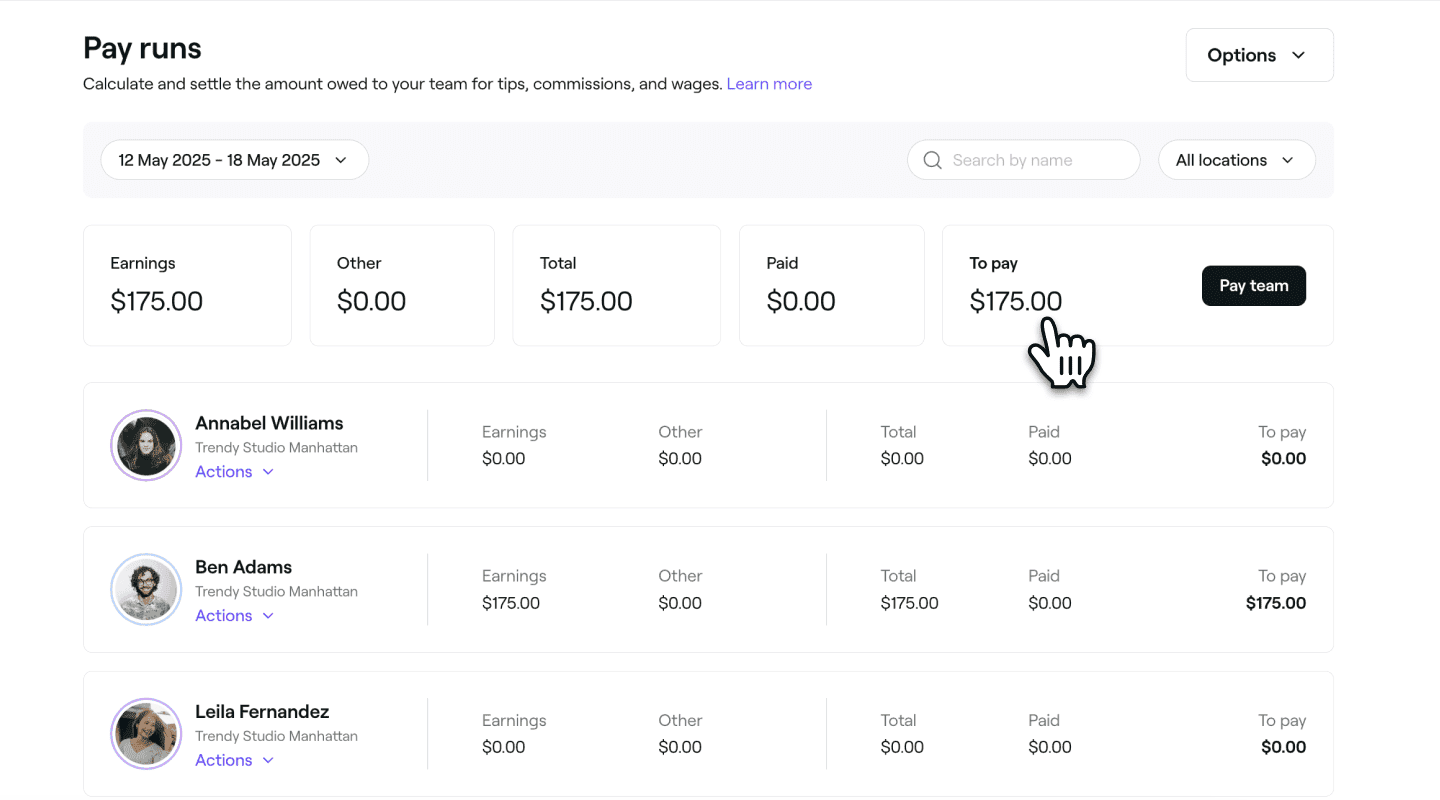
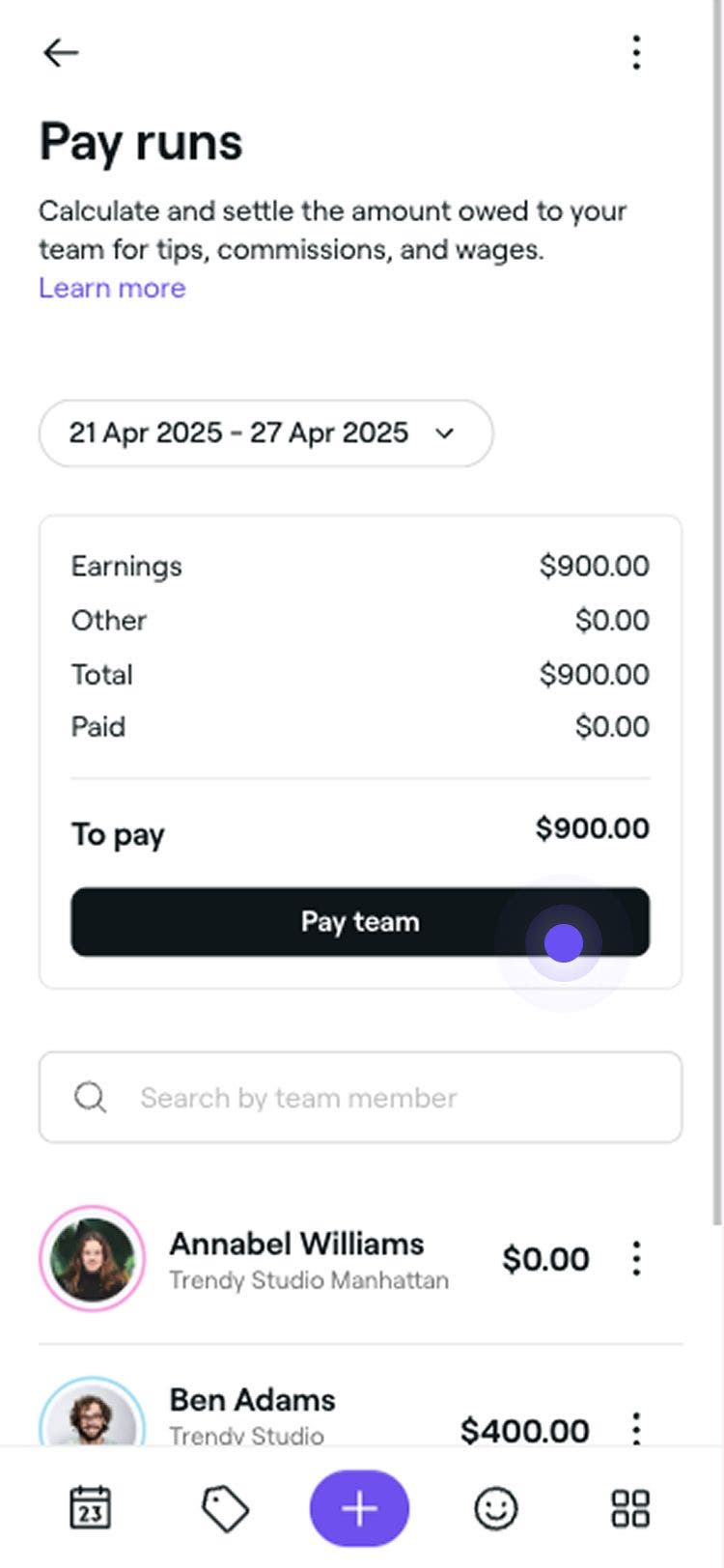
You’ll see a list of pay periods with a summary of earnings, deductions, and outstanding balances.
-
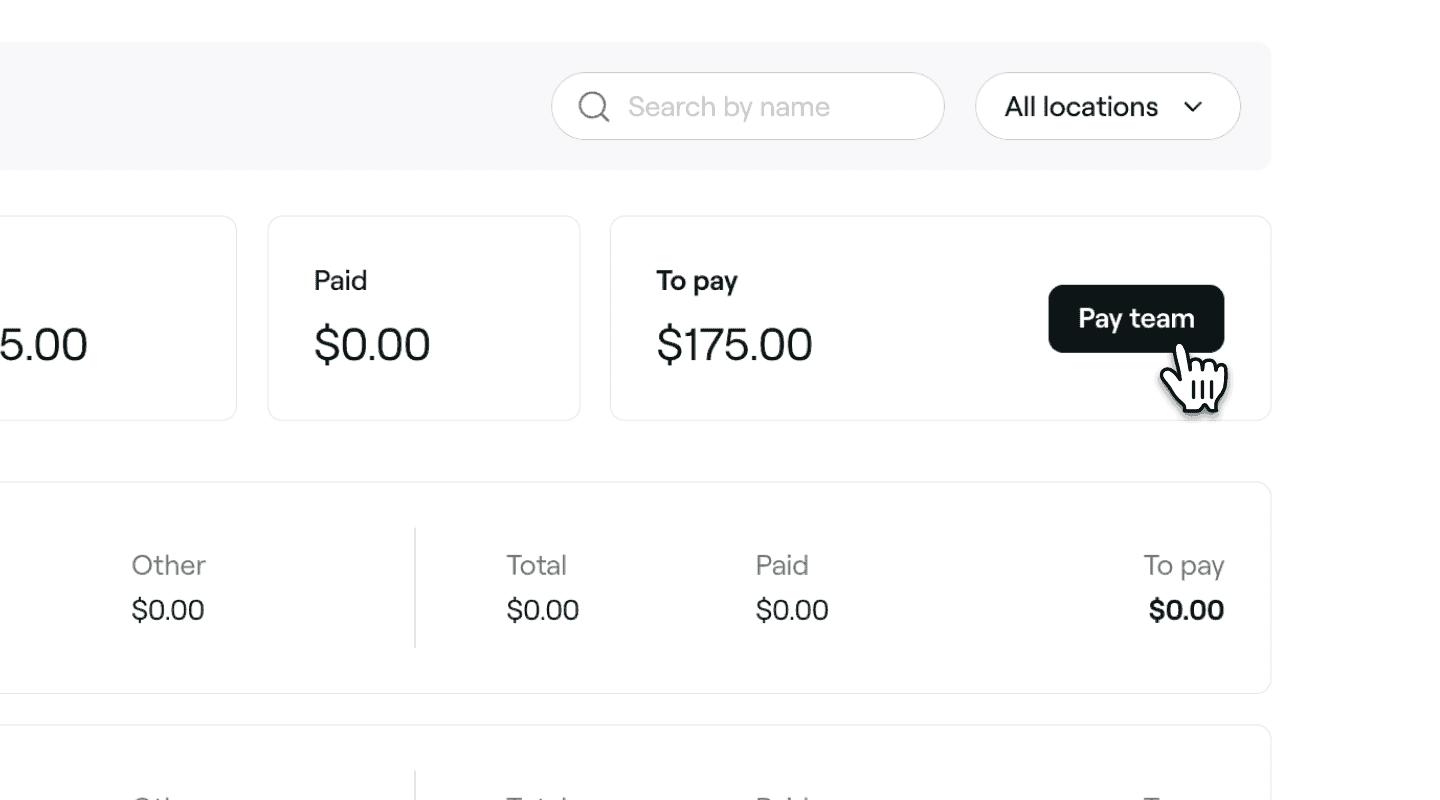
Click on the Pay team button in the top right above the team member list.
-
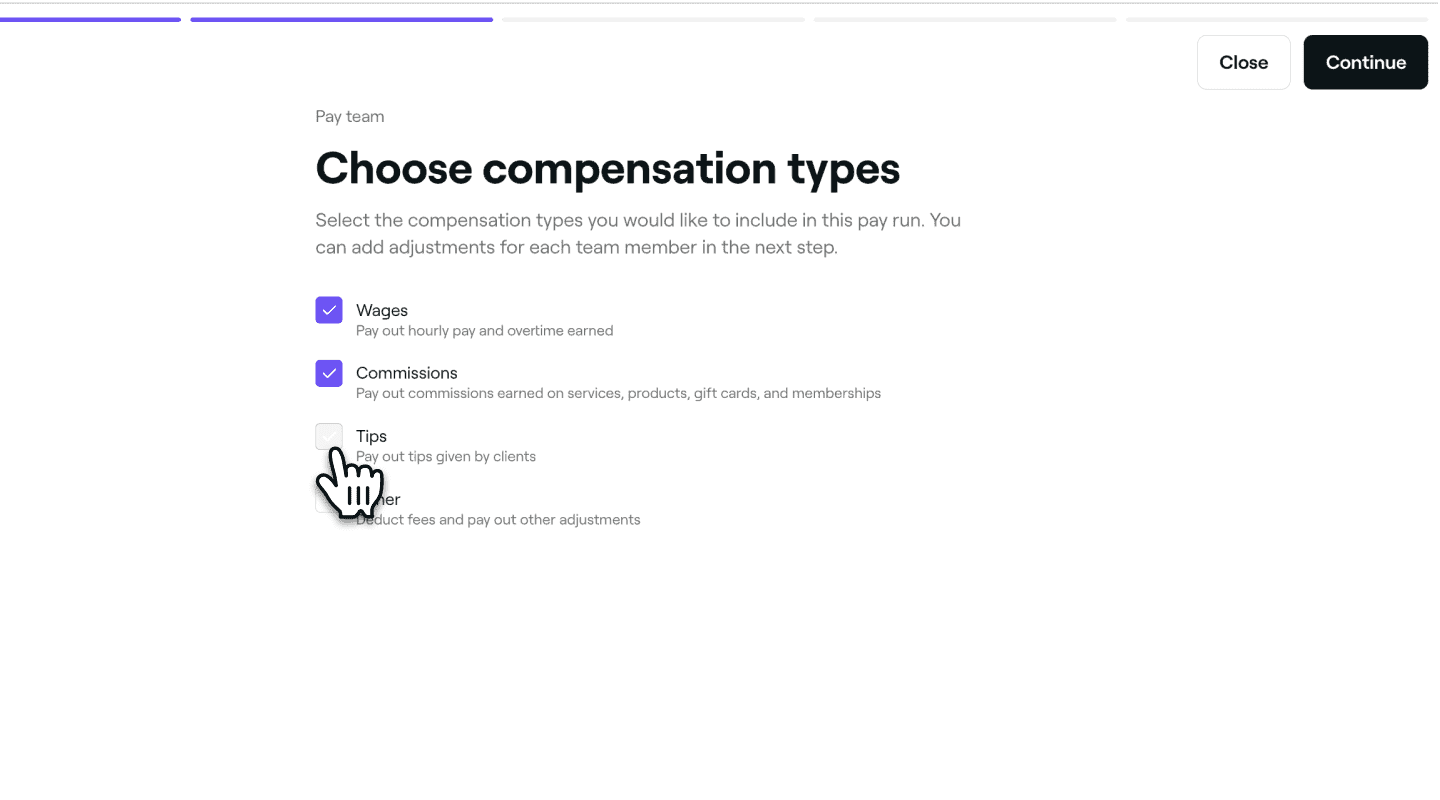
On the Choose compensation types step, tick the checkbox next to the earning types your want to include, like wages or commissions, then click on the Continue button in the top right to proceed with the pay run.
-
On the Team members pay run summary step, tick or untick the checkbox next to the team members you want to pay and click on the Continue button in the top right.

-
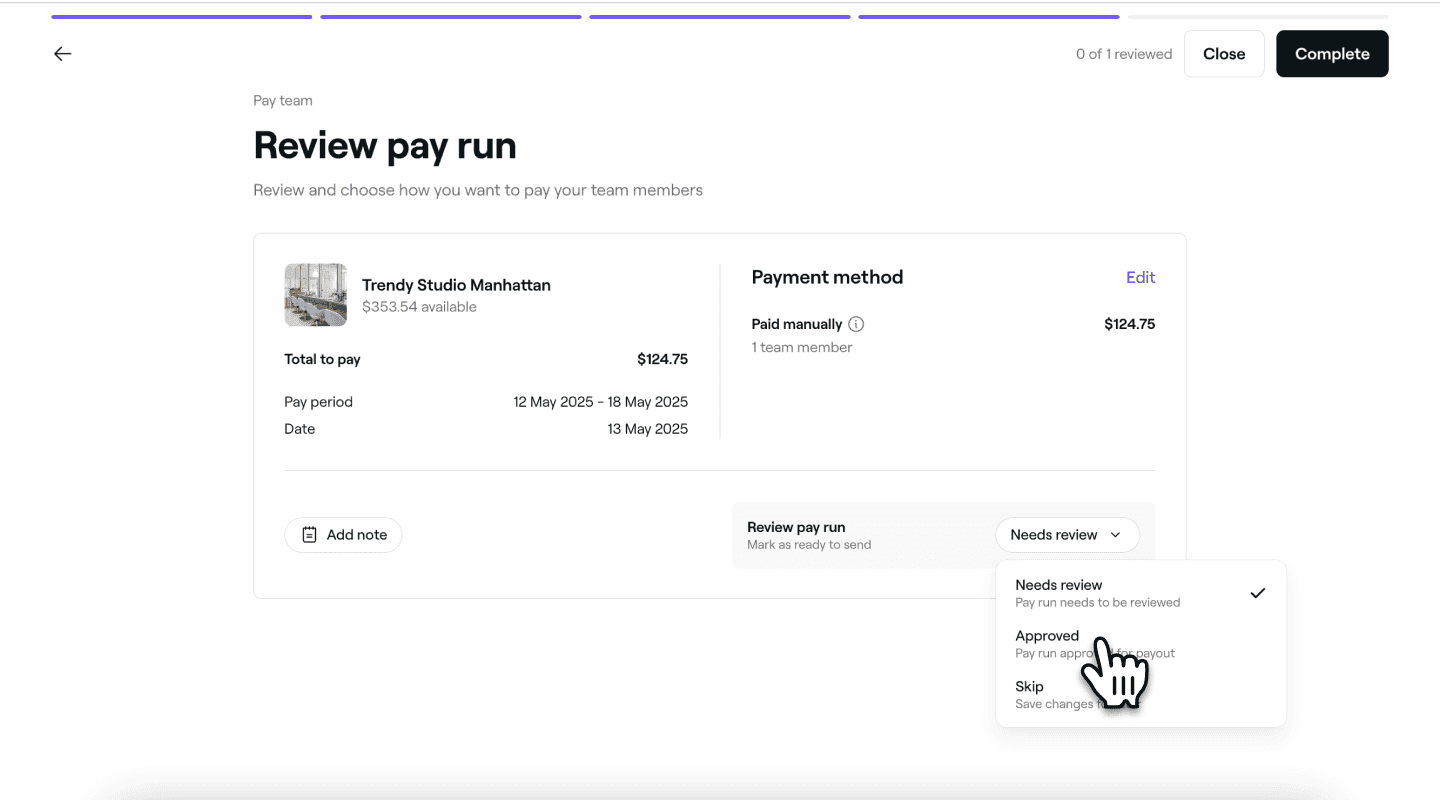
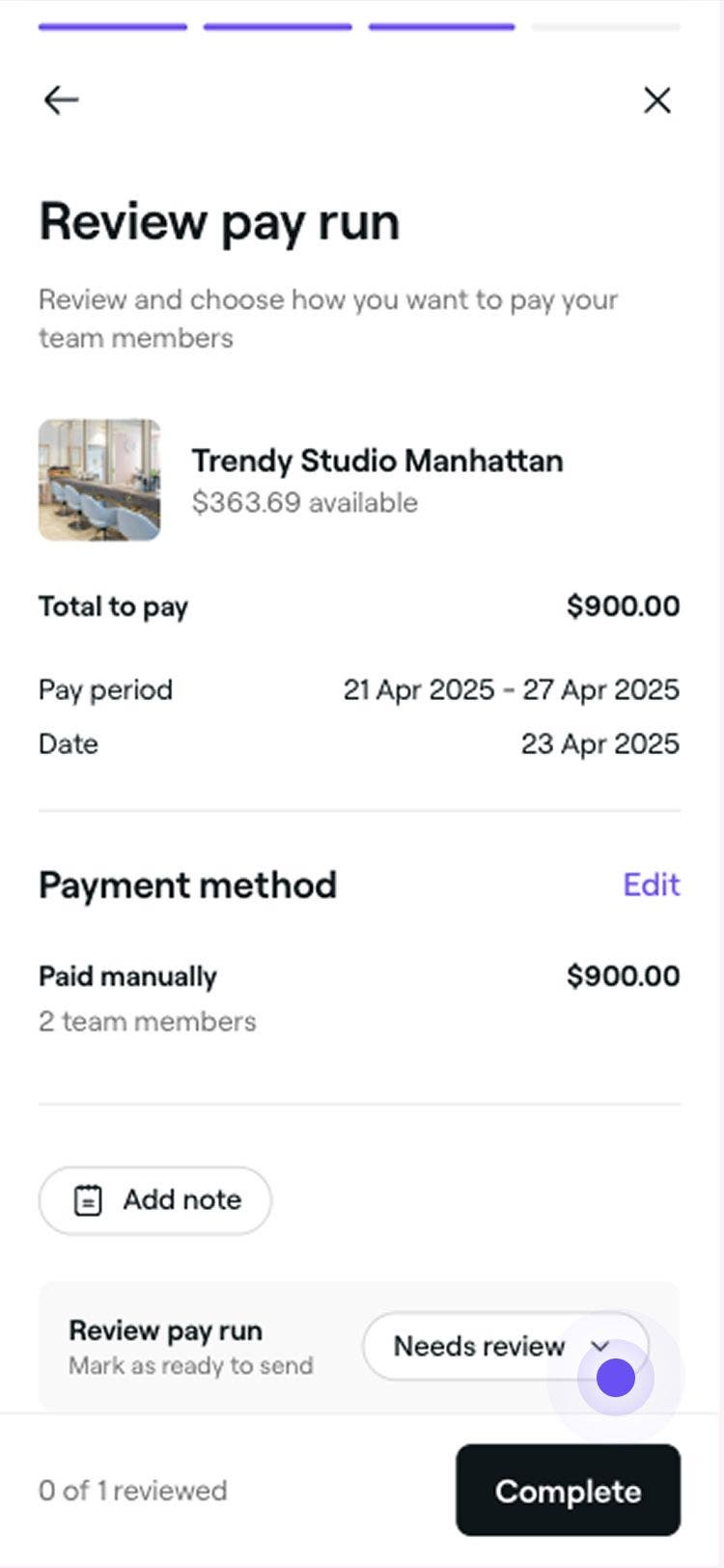
On the Review pay run step, review the pay details and make any adjustments to the pay run:
-
Edit payment method: Click Edit to change how a team member will be paid.
-
Add notes: Include any relevant notes for the pay run if needed.
-
Outstanding balances: Any unpaid amounts will appear in red under Requested manually.
-
Update review status: Click the Needs review button and use the dropdown to set the pay run status. To proceed, change the status to Approved.
-
-
Click on the Complete button in the top right to complete the pay run.

Once completed, team members receive an email summary and will be prompted to settle any outstanding balance if required.
View a pay run breakdown
You can see a detailed breakdown of payments made to your team through pay runs.
- From the main menu on the left of your screen, go to Team.
- In the left menu panel, select Pay runs and use the date filter to view past pay periods.
- Click on Actions next to a team member's name and select View breakdown to see an overview of the pay run in detail.
- In the breakdown view, open the Activity tab to see all individual transactions that contributed to their pay.
- Click on the Done button in the top right to close the view.
You can also pay, edit, or adjust a team member’s earnings, through the Actions button under their name.
Scheduling pay runs for team members is included in the Team Plan subscription. Learn more about the Team Plan.
FAQs
Canceling or reversing a completed pay run is not possible. To complete a pay run, you must review and update the status to Approved before being able to send and complete.
If a bank rejects a payout, the amount will be credited back to your business wallet and the status will show as to pay. This will be added to the next pay period for release again.
Yes, including all compensation types in each pay run is optional. You can select the specific compensation types to include when actioning a pay run.
There are no fees for pay runs made between your business wallet and team member wallets. However, a processing fee will be applied for transactions made from a team member's wallet to a bank account.
All team members can view an individual breakdown of their pay for each period. You can grant a team member permission to action pay runs by updating their permission levels.
For summaries of payments made to your team, go to Reports, select Team and click on the Pay summary report. You’ll see each team member’s total pay for any date range you choose, as well as the combined total for your team. The report breaks down wages, tips, commissions, deductions, and adjustments line by line, making it ideal for accounting and financial planning.
Go to Pay runs and use the date filter to view past pay periods. You can also click on an individual team member to see a detailed breakdown of their pay. As funds are transferred directly from your business wallet to team members, every transaction appears in your Wallet activity too.
Team members marked as “manually paid” during a pay run need to be paid outside the system. The payment won’t be reflected in your business wallet, so you’re responsible for completing it manually, either in cash or by bank transfer.