Manage scheduled shifts for team members
In this guide, you’ll learn how to manage scheduled shifts for your team members, including setting repeating shifts and updating or removing individual shifts.
How Scheduled shifts work
Scheduling shifts helps you manage when each team member is working, so you always know who’s available for appointments. Shifts appear on your calendar, making it easy to schedule bookings manually or for clients to book online.
Add scheduled shifts
- From the main menu on the left of your screen, go to Team.
- In the left menu panel, select Scheduled shifts to manage your team's shifts.
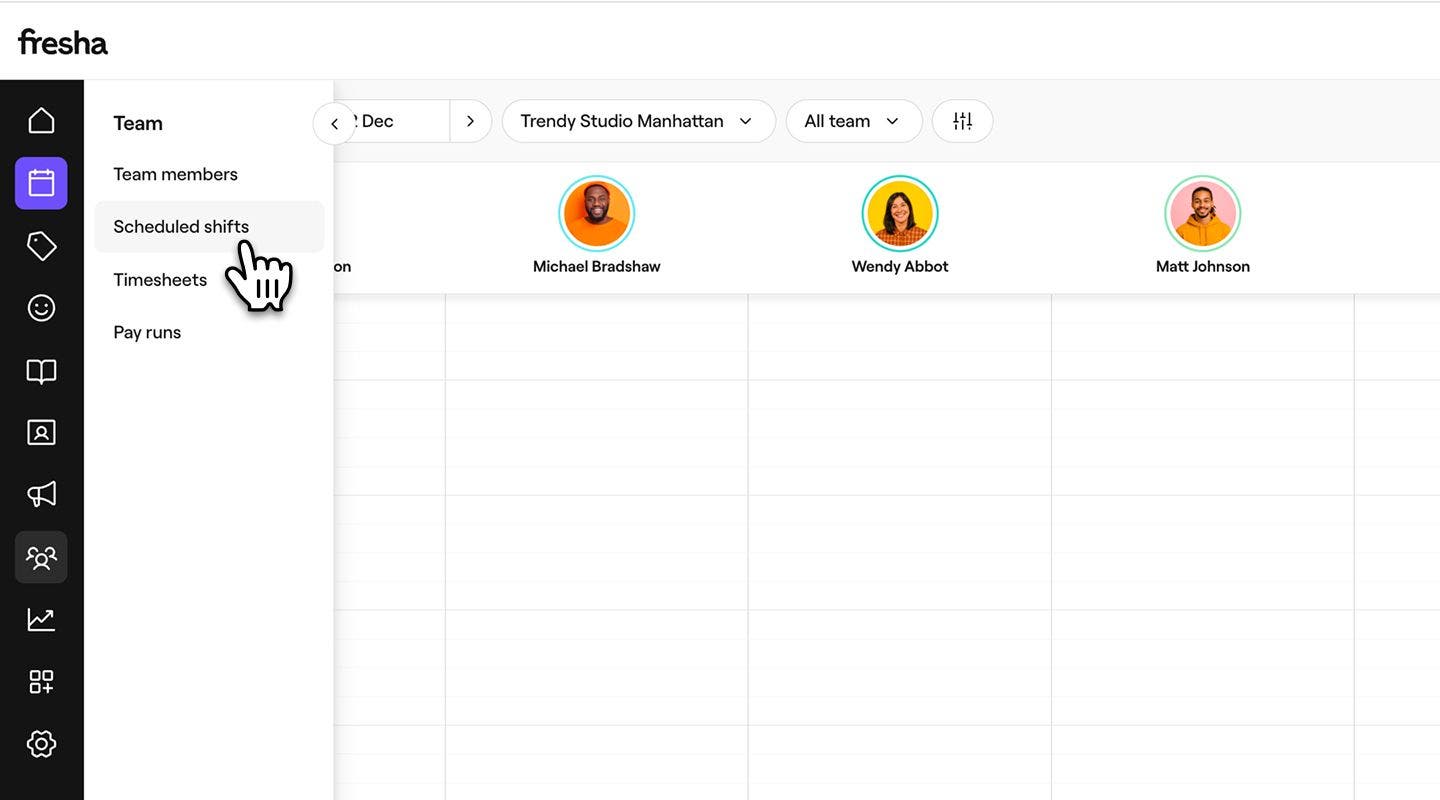
- Click on the Edit icon next to a team member's name and select Set repeating shifts to open their shift view.

- On the left panel of the repeating shift page, under Schedule type, choose how regularly you want the shift pattern to repeat. You can choose from Every week, Every 2 weeks, Every 3 weeks, and Every 4 weeks.
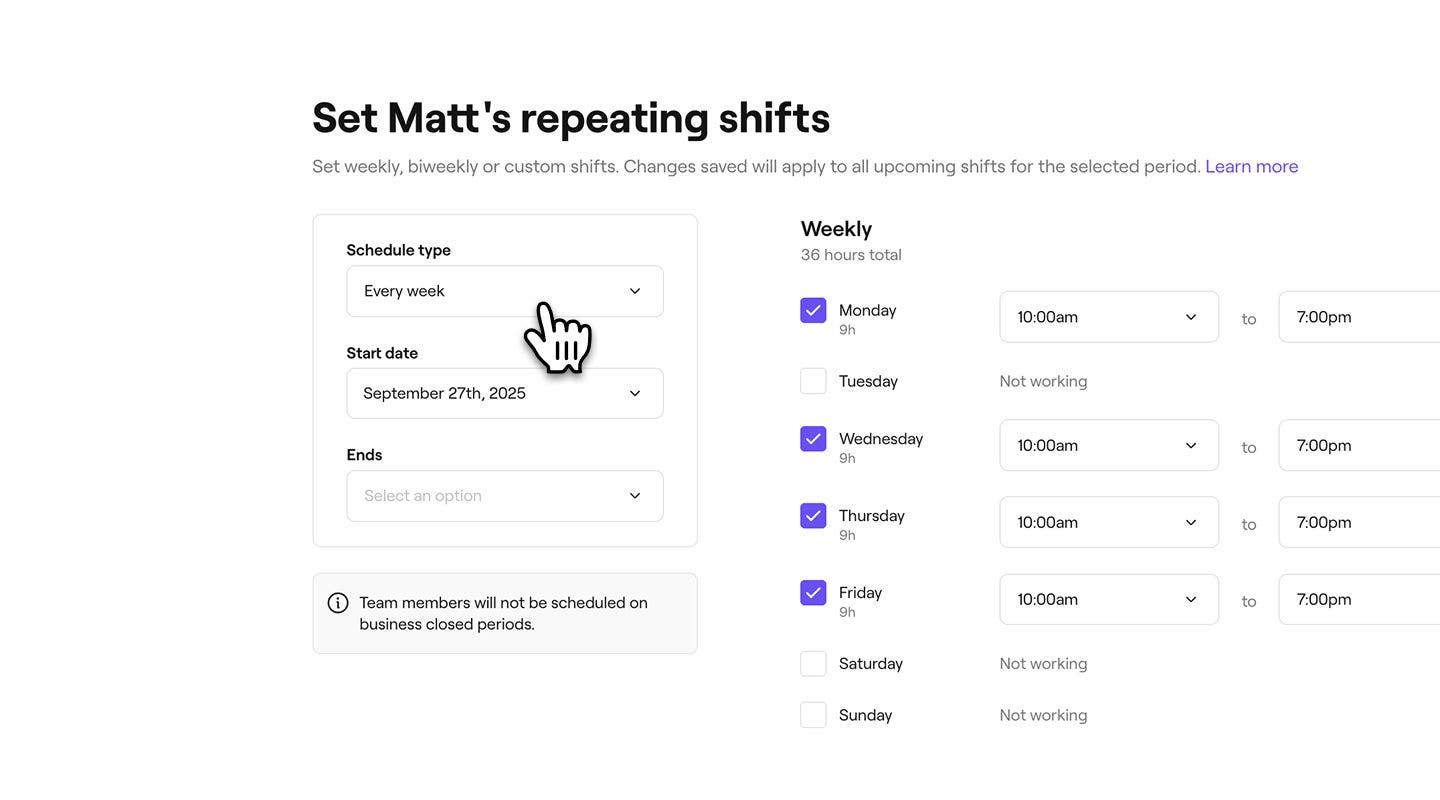
- Set the Start and end dates for these shifts:
- You can select Never to keep an ongoing schedule or choose a Specific date for the schedule to end.
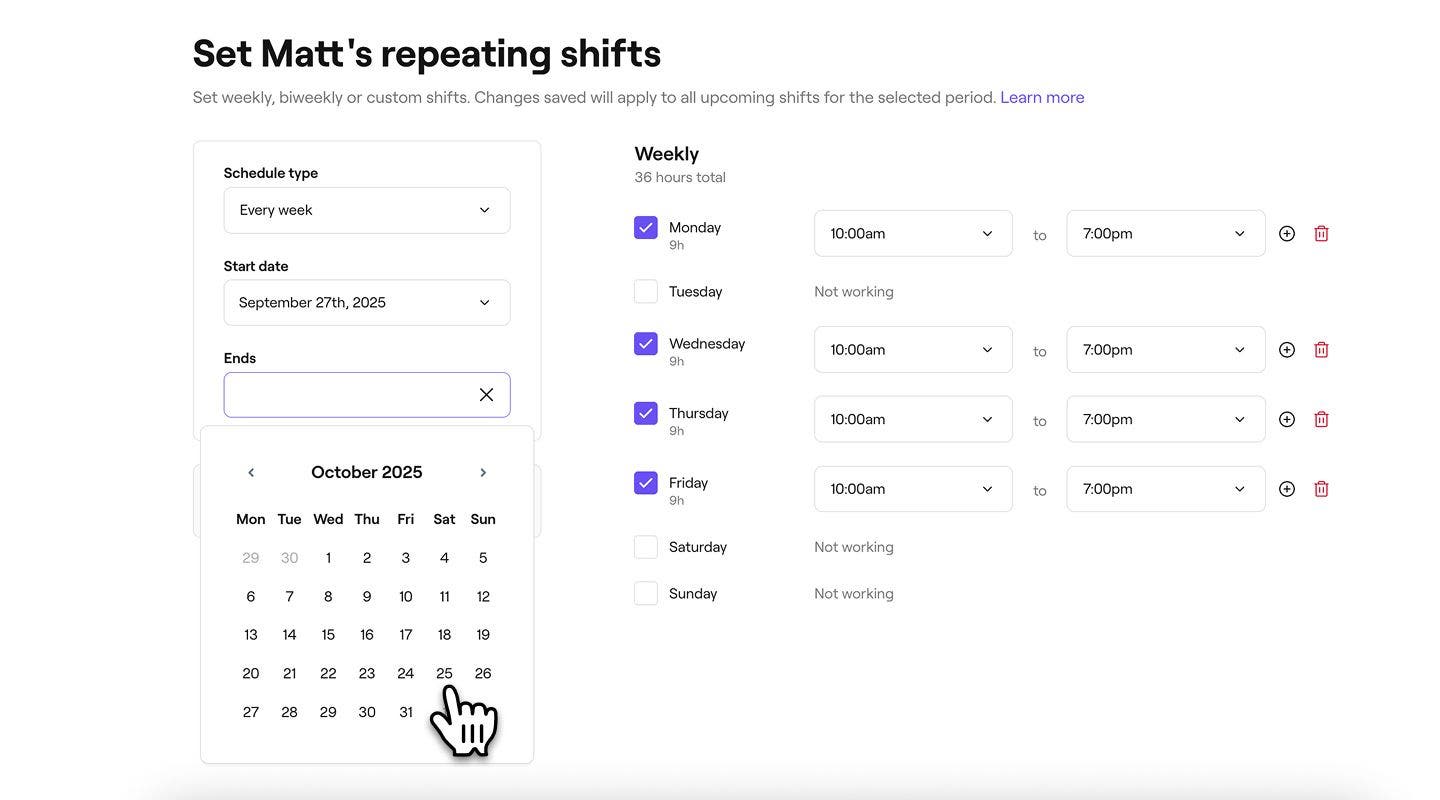
- You can select Never to keep an ongoing schedule or choose a Specific date for the schedule to end.
- On the right side of the repeating shift page, tick the checkbox next to each day of the week the team member will work.
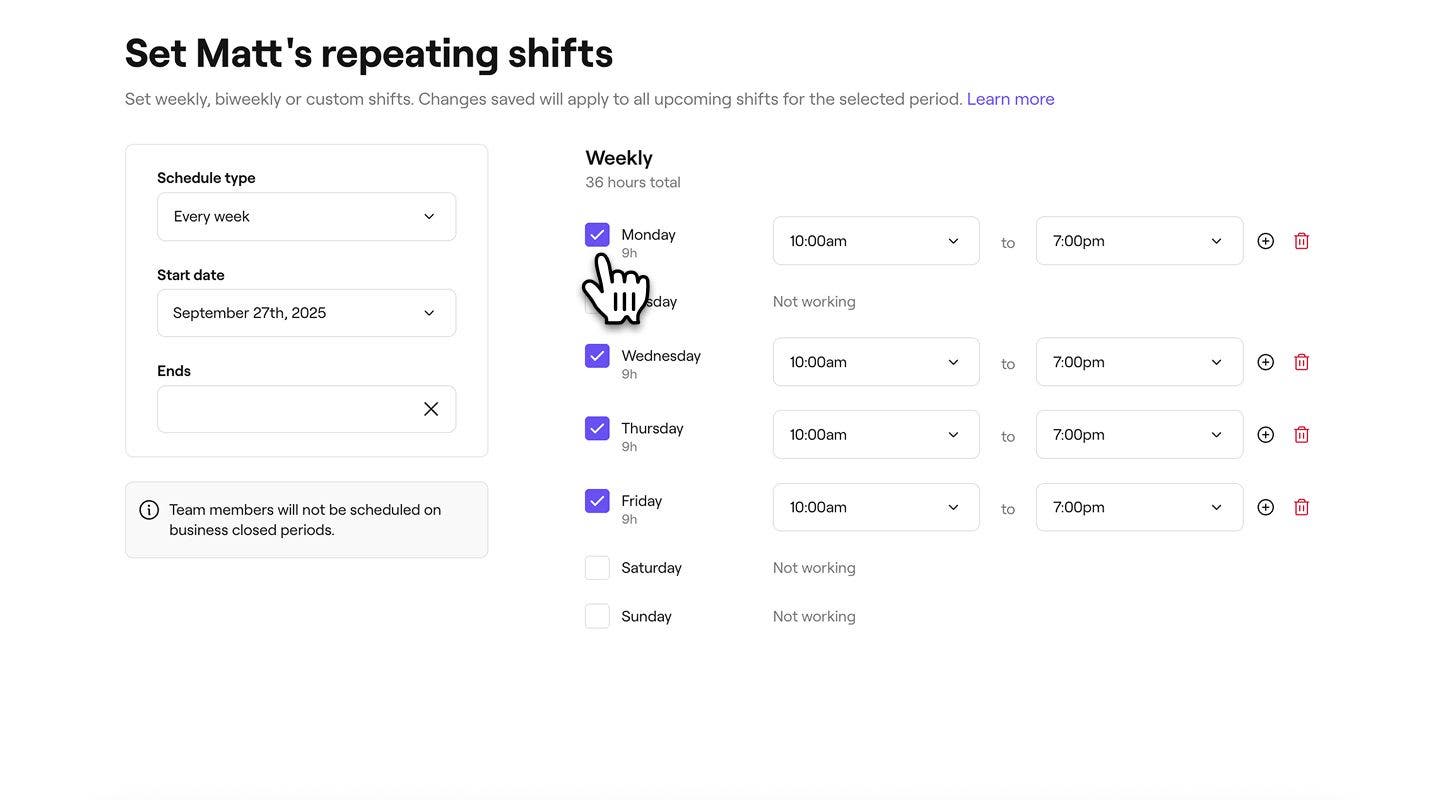
- For each scheduled day, adjust the shift start and end times.
- Select the Add button next to the end time to incorporate breaks, and add another shift on the same day.
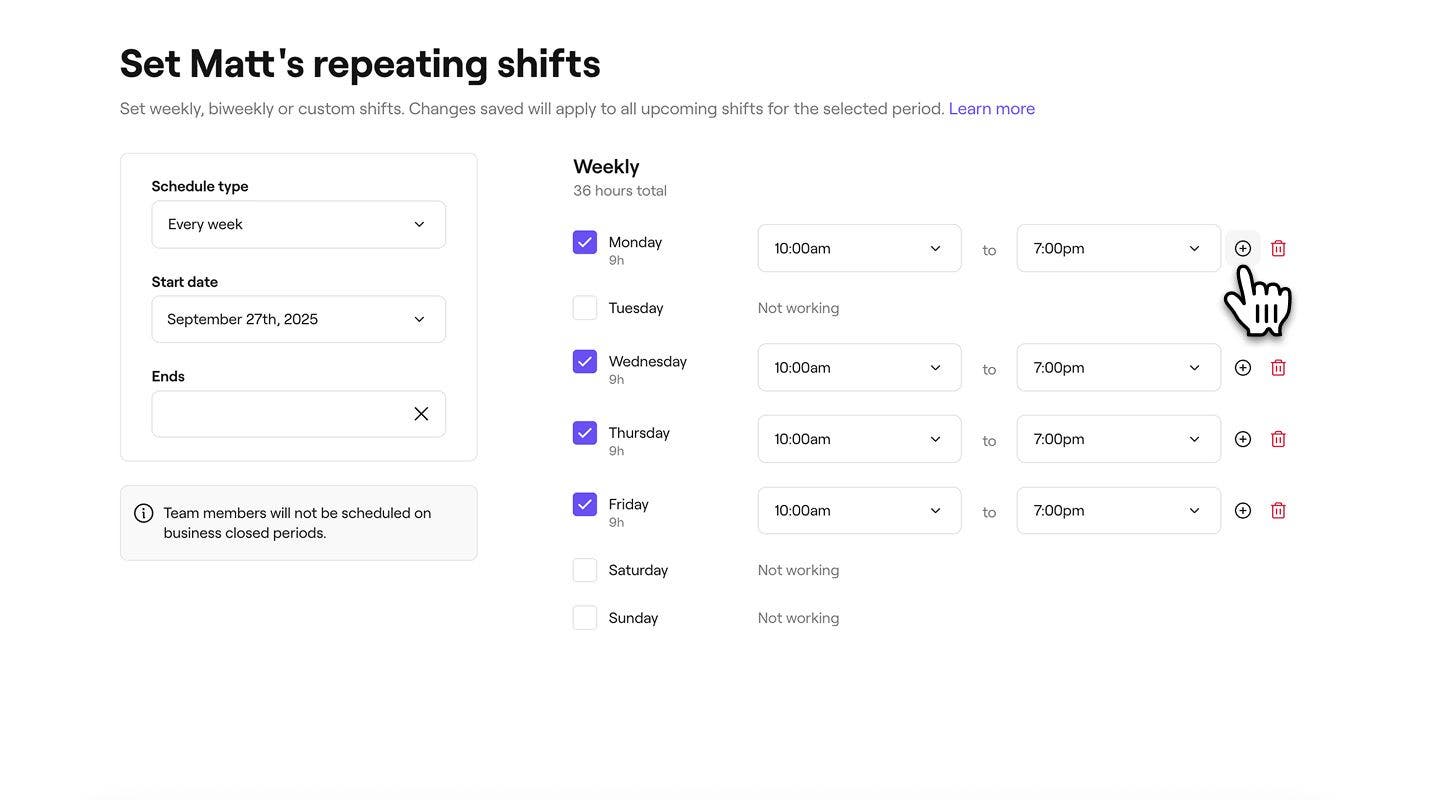
- Select the Add button next to the end time to incorporate breaks, and add another shift on the same day.
- Click on the Save button in the top right to set the team member's shift.
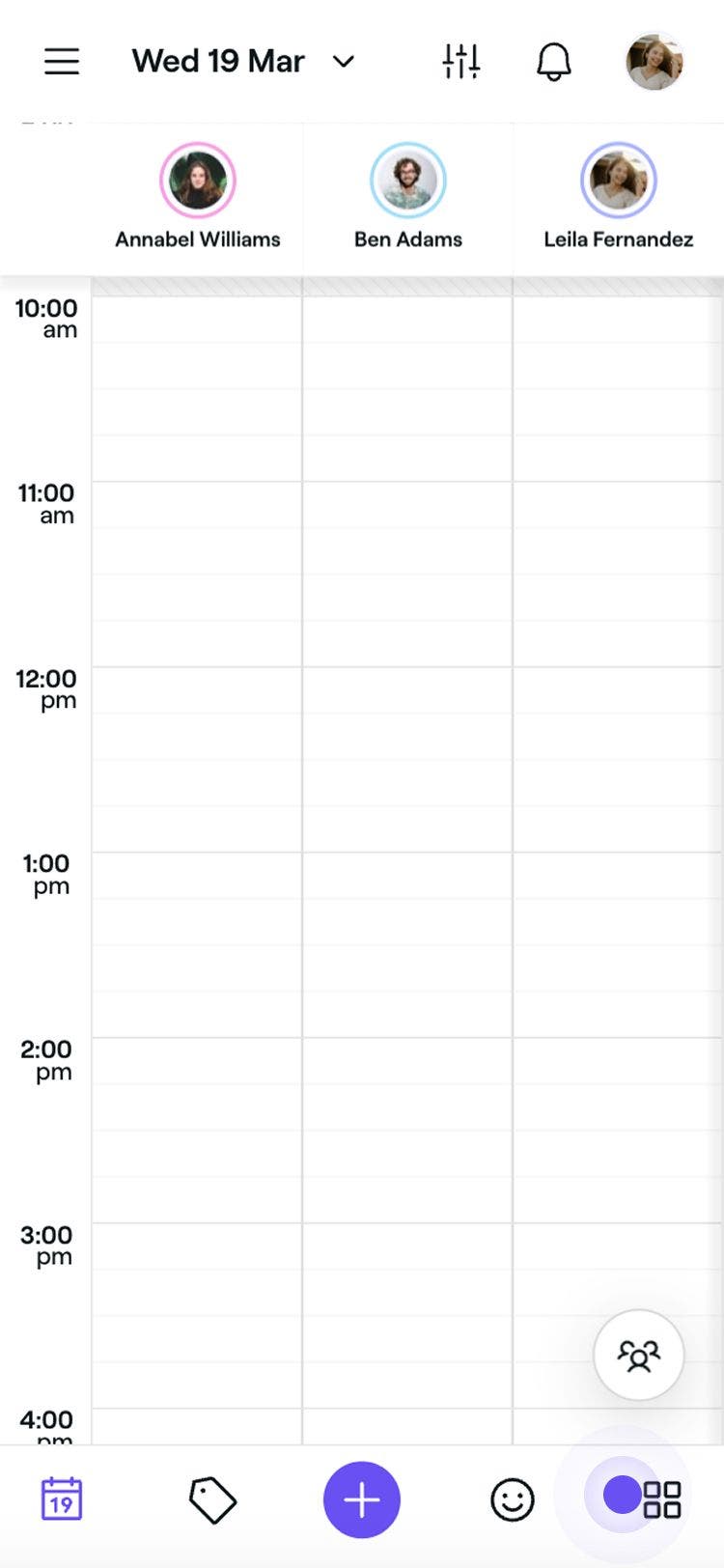


The team member’s repeating shift pattern will now be updated based on your changes, and their availability will be reflected in the calendar. You can follow the same steps to make further updates to their shift schedules.
When a team member works at more than one of your locations, any bookings they have at other locations appear on the calendar as a greyed-out block labeled with the location name. You can manage this in your Calendar settings.
Update or remove a single shift
-
Open Scheduled shifts from Team.
-
Click on a team member's shift and choose one of the following options from the panel:
- Edit this day: Update the start and end time of the shift in the pop-up. Click on the Save button to apply the changes.
- Delete this shift: Permanently remove the shift from the team member's schedule. A confirmation pop-up will appear, asking you to confirm the deletion.


You can also edit a shift by selecting the team member in your calendar and selecting Edit shift.
FAQs
Scheduled shifts are edited individually for each team member, giving you full control over each person’s availability.
Fresha prevents double bookings by automatically blocking out unavailable times across all locations to prevent conflicts. However, you can override this in-store, and you'll receive a warning if the team member is already booked at that time. If your locations are far apart, we recommend setting fixed scheduled shifts to avoid overlap and ensure travel time between appointments.
Business opening hours and team member shifts are managed separately, giving you flexibility to set general opening times while tailoring availability for each team member. Clients can only book during a team member’s scheduled shift, ensuring appointments match real availability.
If your scheduled shifts start before or extend beyond your opening hours, you can use blocked time to ensure clients only book when you're available for appointments.
If an employee is leaving and you want to stop future online bookings, you can remove their scheduled shifts from a specific date onward. Go to the scheduled shifts page, click the pencil icon next to their name, select Delete all shifts, and choose the date from which they should no longer be available for bookings.
You can add up to 10 shifts per day for each team member, giving you plenty of flexibility to customize shifts.
To stop team members appearing as booked when they’re scheduled at another location, Open the Scheduling category from Settings, then select Time and Calendar. Under Calendar settings, select Edit, then untick Show when team members are booked at another location.