HomeKnowledge baseFresha academy
Collect payments using self checkout
Back
  1. Knowledge base•
  2. Payments•
  3. Collect payments using self checkout

Collect payments using self checkout

Learn how to collect payments by sending clients a secure payment link, using self-checkout.

In this article

  • How self-checkout works
  • Collecting  a payment using self-checkout

How self-checkout works

With self-checkout, clients can pay from their phone through a secure link you send after their appointment. The link is valid for 12 hours, supports tipping, and saves their card details for future use.

Collecting  a payment using self-checkout

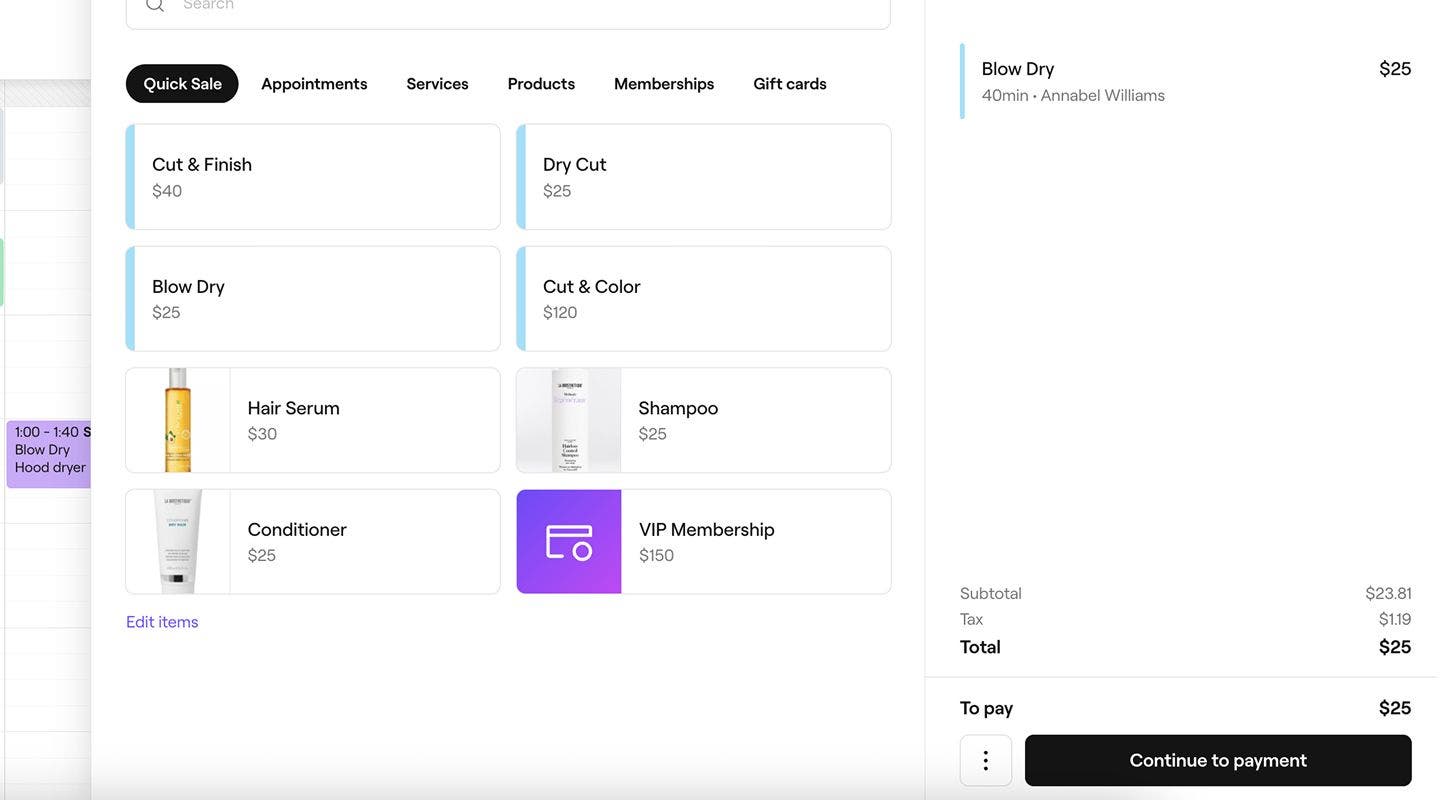
  1. To create a new sale, you can either raise a new sale or select Checkout from an appointment and make any adjustments to the cart. 
  2. In the right panel of the cart view, click on the Continue to payment button at the bottom.
    self_checkout_web_1.jpg
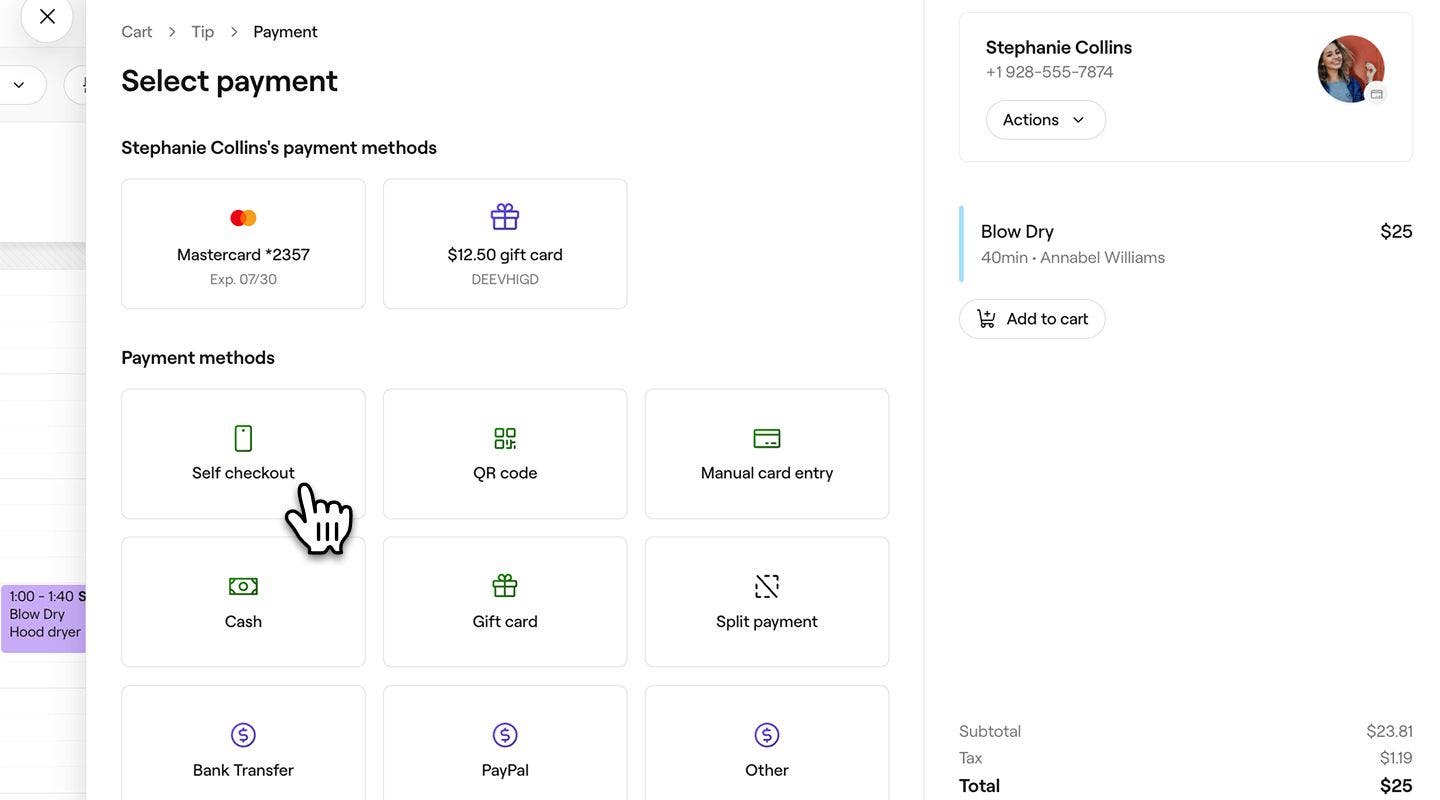
  3. In the left panel, under Payment methods, select Self checkout from the options.
    self_checkout_web_3.jpg
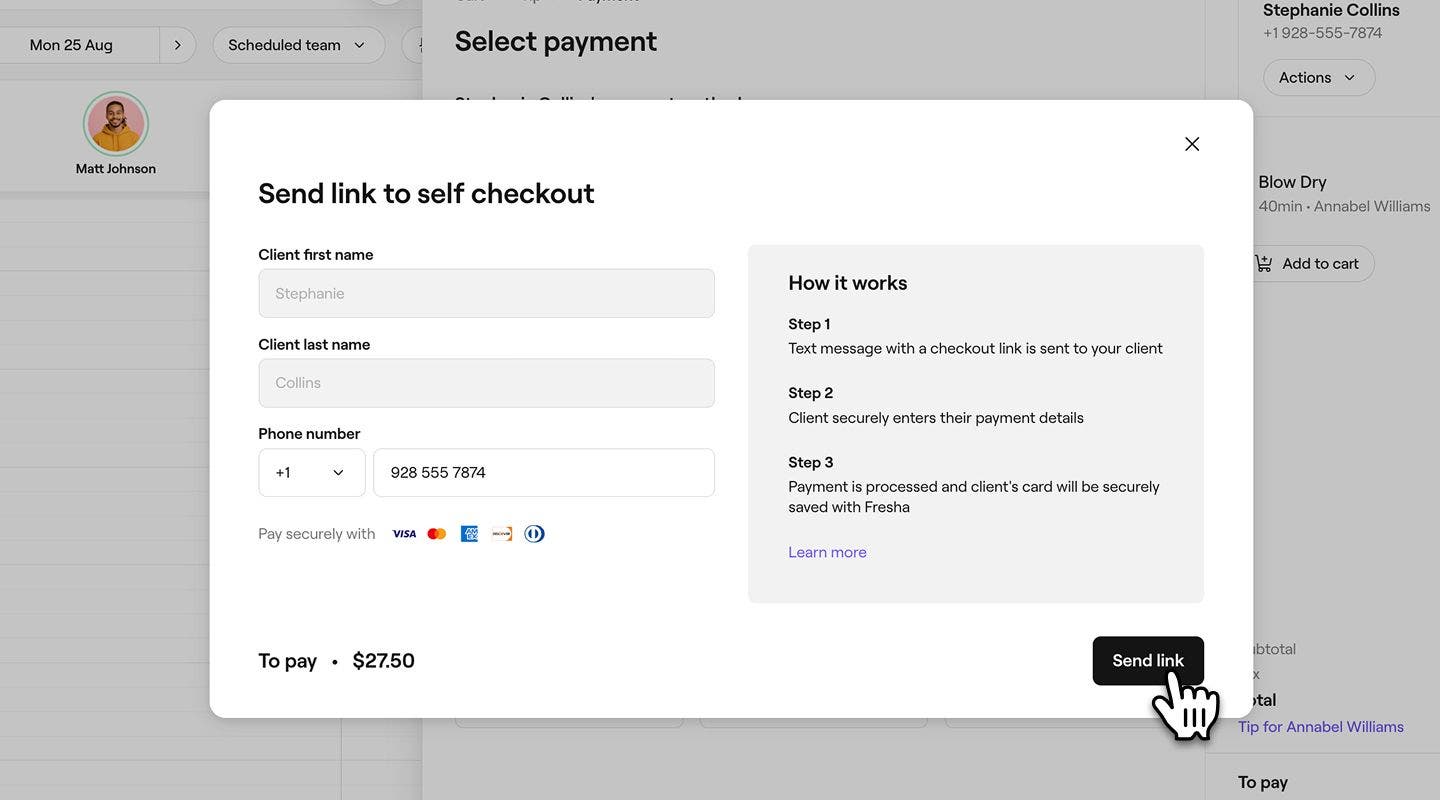
  4. In the pop-up, review the client's phone number or add one if it's empty. Click on the Send Link button to send the client a text message with a payment link.
    self_checkout_web_4.jpg
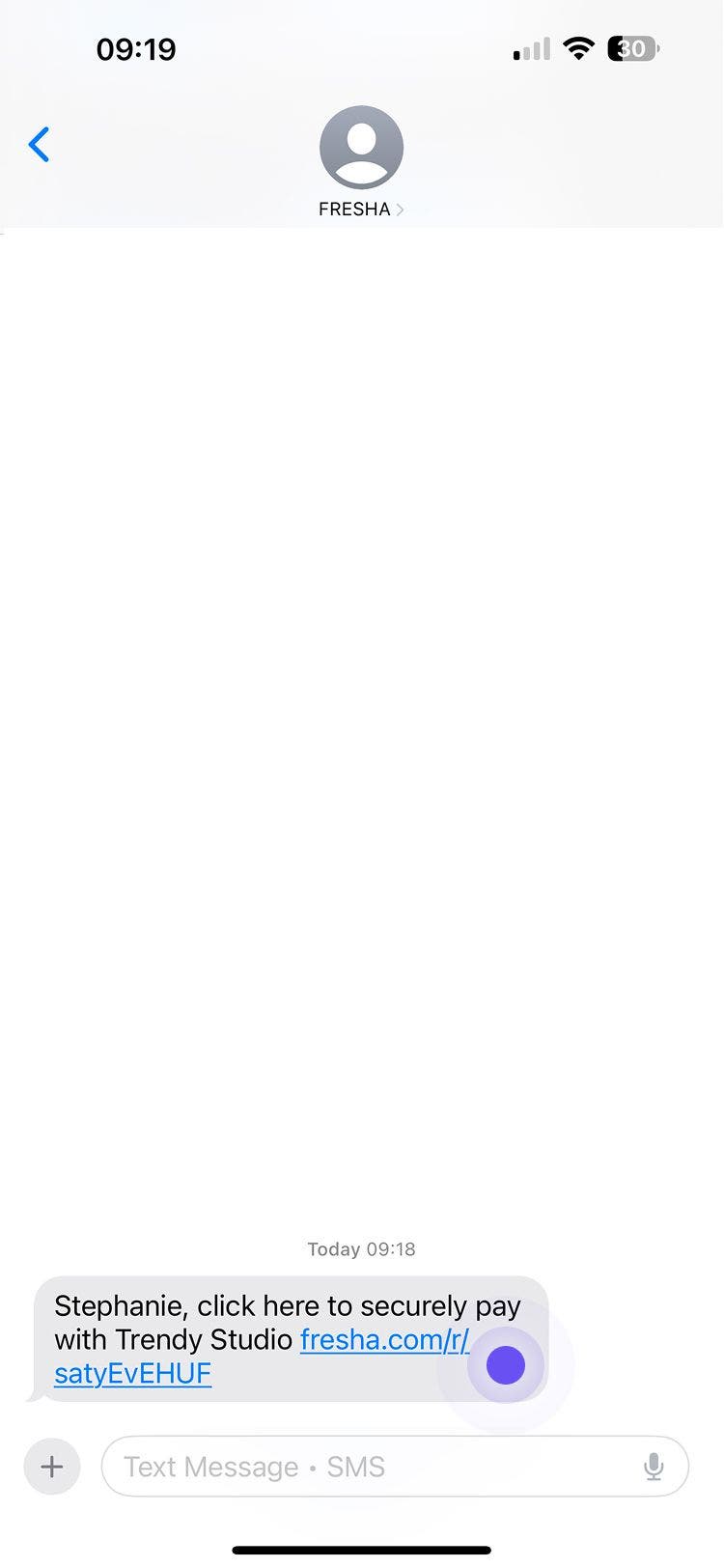
  5. The client receives a text message with the link for them to add their card and pay. 
    self_checkout_web_5.jpg
  6. When the client has made a payment, your page will refresh with the completed sale.
    self_checkout_web_6.jpg
  1. To create a new sale, you can either raise a new sale or select Checkout from an appointment and make any adjustments to the cart. 
  2. In the cart view, tap on the Continue to payment button at the bottom.
    self_checkout_mob_1.jpg  
  3. Under Payment methods, select Self checkout from the options.
    self_checkout_mob_3.jpg
  4. In the pop-up, review the client's phone number or add one if it's empty. Tap on the Send Link button to send the client a text message with a payment link.
    self_checkout_mob_4.jpg
  5. The client receives a text message with the link for them to add their card and pay. 
    self_checkout_mob_5 (1).jpg
  6. They can review their payment method and tap on the Pay button to complete the payment. 
    self_checkout_mob_6.jpg
  7. When the client has made a payment, your page will refresh with the completed sale.
    self_checkout_mob_7.jpg

The completed sale will generate a receipt, which you can share with the client by email or print.

FAQs

    • Standard online payment processing fees is applied to each payment made through self-checkout. You can view all fees on our pricing page.

      You can help a client who can’t access the payment link by selecting Options in the loading screen, then Cancel payment. Once the payment is cancelled, select another payment method.

      If a client pays using self-checkout and and they have a Fresha marketplace account, or create one during the process, their card is saved in the account for future use, such as collecting payments using the saved card.

Client payment methods


Related articles


Recommended articles

Fresha academy courses
Course video preview

Set up and explore payments

8 lessons•14 mins

See all courses

Was this guide helpful?

Client payment methods

Collect payments using client's saved cards

Speed up appointment checkouts by using client-saved cards for payments.

Activate Tap to Pay

Activate contactless payments on your phone with Fresha.

Collect payments using Tap to Pay

Accept contactless payments on your phone with Fresha—no extra hardware needed.

Collect payments using self checkout

Offer clients a convenient way to pay for their appointments remotely using self-checkout links.

Collect payments with a QR code

Simplify payments with QR codes, enabling clients to pay quickly and securely via their mobile devices.

Collect payments using manual card entry

Process one-off payments by manually entering customer card details at the point of sale.

Collect payments through Fresha gift cards

Take payments with Fresha gift cards at checkout.

Collect payments through a business gift card

Take payments from clients using gift cards issued by your business.

Collect payments using multiple cards

Collect a single sale using multiple cards.

Collect payments using Pay now

Collect payment instantly from an appointment using your preferred method of payment.

Let clients pay later with Klarna

Grow sales with flexible payment options like Klarna, allowing clients to spread the cost of purchases while you get paid in full.

Let clients spread payments with Afterpay

Boost sales with flexible payment options like Afterpay, so clients can spread the cost while you get paid in full.

Related articles

Raise a sale

Efficiently manage sales transactions for products, services, memberships, and gift cards.

Complete appointments

Check out appointments to mark them as completed for accurate reporting, marketing and more.

Recommended articles

Automated messages overview

Keep clients engaged with messaging automations that send reminders, updates, and offers.

Fresha academy courses
Course video preview

Set up and explore payments

8 lessons•14 mins

See all courses
Fresha
Get the app

About Fresha

Careers

Help and support

Blog

Sitemap

For business

For partners

Pricing

Features

Scheduling

Point of sale

Payments

Capital

Marketplace

Support

Status

Legal

Privacy Policy

Terms of service

Terms of use

Find us on social

Facebook
Linkedin
Instagram

© 2026 Fresha.com SV Ltd