HomeKnowledge baseFresha academy
Collect payments using Pay now
Back
  1. Knowledge base•
  2. Payments•
  3. Collect payments using Pay now

Collect payments using Pay now

Learn how to charge clients in a single action directly within an appointment view, using Fresha Payments.

In this article

  • How Pay now works
  • Set up Pay now
  • Take a payment with Pay now

How Pay now works

Pay now lets you collect payment directly within an appointment without going through the standard checkout flow. It supports Client card on file, Card terminal, and Tap to pay. 

You set a primary and secondary payment method for your workspace. Pay now uses the primary whenever it's available, falling back to the secondary if it isn't. When neither method is available, your team can always complete the appointment through standard checkout instead.

Set up Pay now

  1. From the main menu on the left of your screen, go to Settings.
  2. Click on the Sales category to manage your settings.  set_up_pay_now_web_2.jpg
  3. Select Pay now from the left menu panel.
  4. Click on the Edit button to choose your preferred payment method.  set_up_pay_now_web_4.jpg
  5. In the Pay now priority view, under the Primary method, choose the method that should be used first at checkout.
  6. Under Secondary method choose the method that should be used if the primary method isn't available for the client or appointment. set_up_pay_now_web_6.jpg
  7. Click on the Save button in the top right to apply your changes.
  1. From the main menu at the bottom of your screen, tap on More (grid icon) and open Settings. Mobile_more options Fresha.jpg
  2. Under the Workspace settings list, tap on Sales, then Pay now. set_up_pay_now_mob_2.jpg
  3. Tap on the Edit button to choose your preferred payment method.  set_up_pay_now_mob_3.jpg
  4. In the Pay now priority view, under the Primary method, choose the method that should be used first at checkout.
  5. Under Secondary method choose the method that should be used if the primary method isn't available for the client or appointment. set_up_pay_now_mob_5.jpg
  6. Tap on the Save button at the bottom to apply your changes.

Once saved, your selected payment methods will appear in the appointment view when available for an appointment. Follow the same steps to edit your Pay now payment methods.

Take a payment with Pay now

  1. Open an existing appointment from your Calendar. take_payment_web_1.jpg
  2. In the right panel of the appointment view, click on the Pay now button to collect a payment using your preferred method. take_payment_web_2.jpg
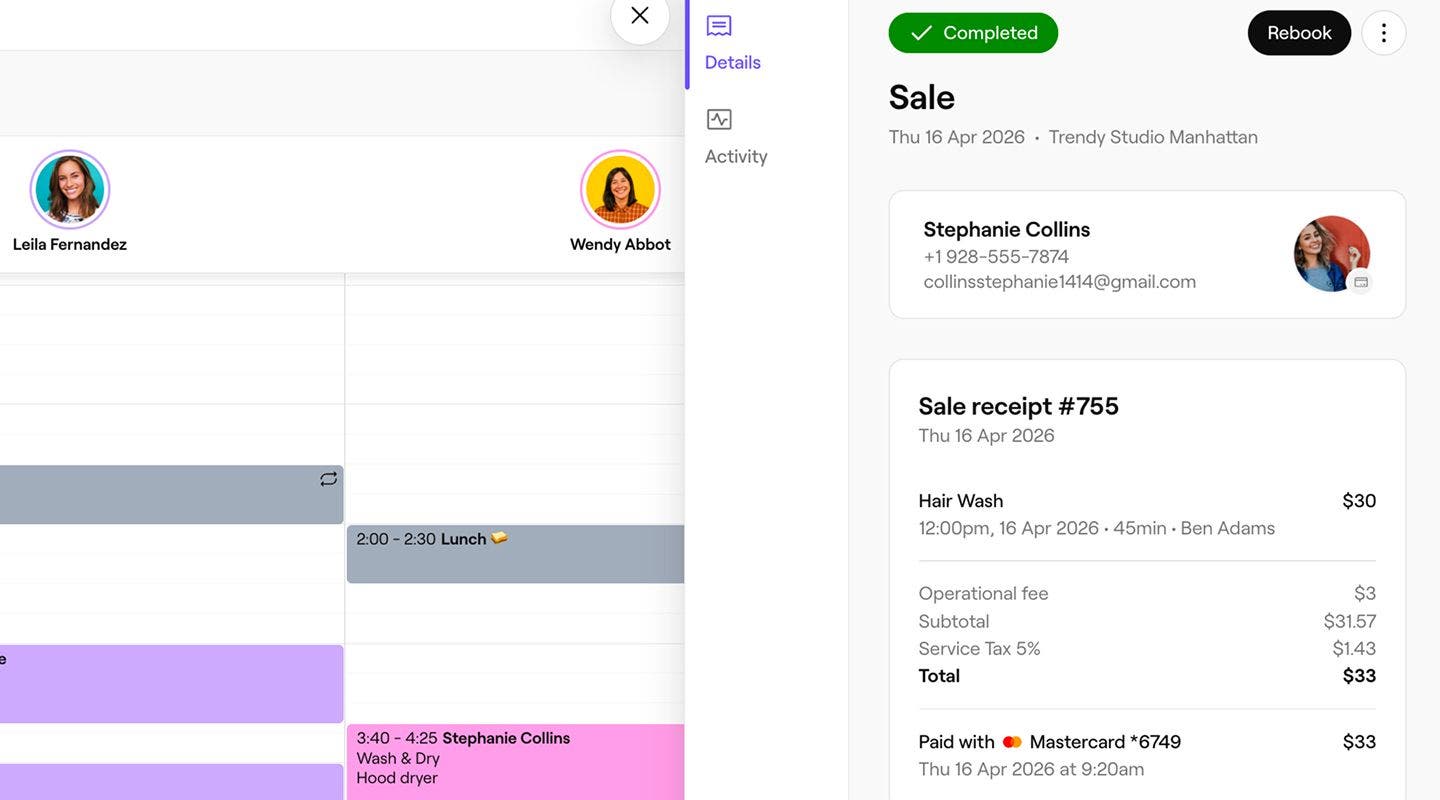
  1. Open an existing appointment from your Calendar. take_payment_mob_1.jpg
  2. In the appointment view, tap on the Pay now button to collect a payment using your preferred method. take_payment_mob_2.jpg

Once the payment is processed, a sale receipt is created, which you can share with the client by email or print.

FAQs

    • Standard online payment processing fees are applied to each payment made through Pay now. You can view all fees on our pricing page

      Pay now payment methods are set at the workspace level. Different methods can be used for each workspace if you manage multiple locations separately.


Client payment methods

Was this guide helpful?

Client payment methods

Collect payments using client's saved cards

Speed up appointment checkouts by using client-saved cards for payments.

Activate Tap to Pay

Activate contactless payments on your phone with Fresha.

Collect payments using Tap to Pay

Accept contactless payments on your phone with Fresha—no extra hardware needed.

Collect payments using self checkout

Offer clients a convenient way to pay for their appointments remotely using self-checkout links.

Collect payments with a QR code

Simplify payments with QR codes, enabling clients to pay quickly and securely via their mobile devices.

Collect payments using manual card entry

Process one-off payments by manually entering customer card details at the point of sale.

Collect payments through Fresha gift cards

Take payments with Fresha gift cards at checkout.

Collect payments through a business gift card

Take payments from clients using gift cards issued by your business.

Collect payments using multiple cards

Collect a single sale using multiple cards.

Collect payments using Pay now

Collect payment instantly from an appointment using your preferred method of payment.

Let clients pay later with Klarna

Grow sales with flexible payment options like Klarna, allowing clients to spread the cost of purchases while you get paid in full.

Let clients spread payments with Afterpay

Boost sales with flexible payment options like Afterpay, so clients can spread the cost while you get paid in full.

Fresha
Get the app

About Fresha

Careers

Help and support

Blog

Sitemap

For business

For partners

Pricing

Features

Scheduling

Point of sale

Payments

Capital

Marketplace

Support

Status

Legal

Privacy Policy

Terms of service

Terms of use

Find us on social

Facebook
Linkedin
Instagram

© 2026 Fresha.com SV Ltd