Activate Tap to Pay
Learn how to activate Tap to Pay to take contactless payments from clients, directly on your iPhone or Android.
In this article
How tap to pay works
Using Tap to Pay, you can take in-person, contactless payments directly on your iPhone or Android phone using the Fresha Partner app. Your phone displays a prompt at checkout for the client to tap their contactless card, mobile wallet, or wearable device against your phone. The payment is authorized instantly, and you’ll see a confirmation on your screen.
Requirements
To set up Tap to Pay, you’ll need the latest version of the Fresha Partner app installed, along with the following device-specific requirements:
iPhone
- iPhone XS or newer
- iOS 18.4 or later
- Apple ID linked to Tap to Pay (can differ from your device's Apple ID)
Android
- Android device running Android 12 or later with a security patch dated 5 March 2022 or newer
- NFC reader enabled
- Google-certified device with hardware key attestation support
Activate Tap to Pay
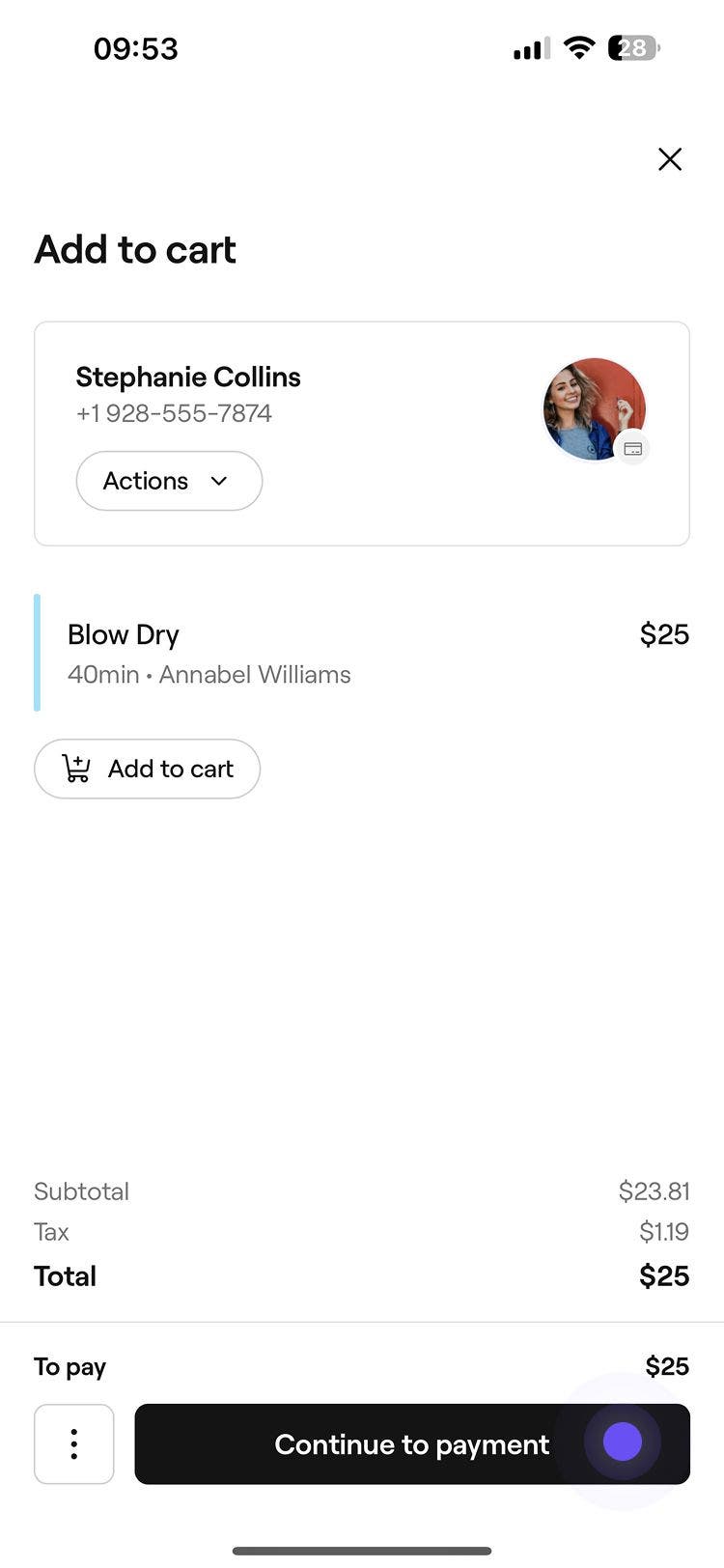
- To activate tap to pay, you can either raise a new sale or select Checkout from an appointment and make any adjustments to the cart.
- In the cart view, click on the Continue to payment button at the bottom.
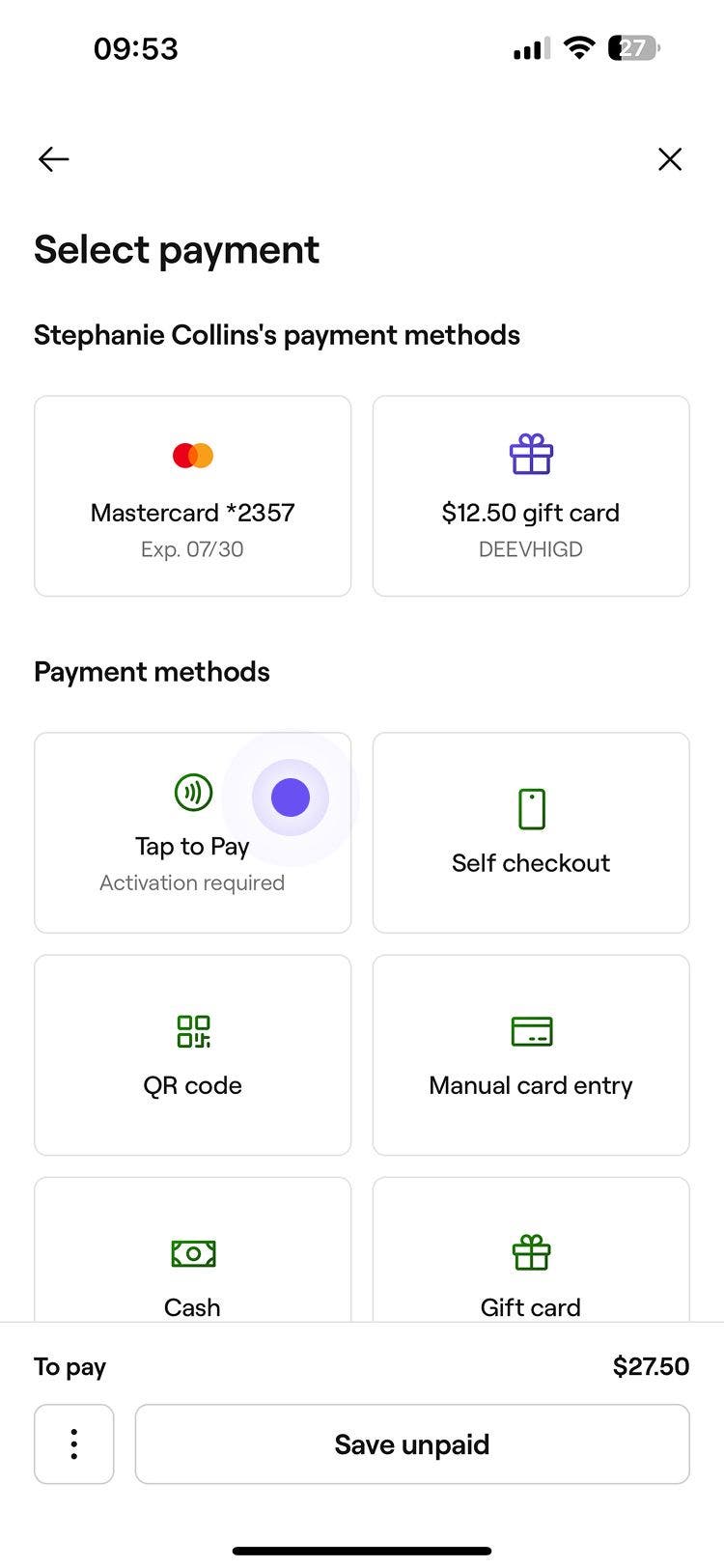
- Under Payment methods, select Tap to pay from the options, then Continue to Payment.
- Click on the Pay now button to continue with the payment.

- On iPhone: The first time you do this, you’ll be prompted to link any valid Apple ID to your Fresha account to activate Tap to Pay. You can choose to Continue with this Apple ID or Use a different Apple account to accept Apple's terms and conditions.

- On iPhone: The first time you do this, you’ll be prompted to link any valid Apple ID to your Fresha account to activate Tap to Pay. You can choose to Continue with this Apple ID or Use a different Apple account to accept Apple's terms and conditions.
- Ask your client to tap their contactless card, mobile wallet, or wearable device against your phone:
- On iPhone: You’ll see 'Hold here to pay', where clients can tap their card or device at the top of your phone.
- On Android: You’ll see 'Tap card behind the screen', where clients can tap their card or device against the back of your phone.
Once the payment has been processed, a transaction receipt is generated, which can be shared with the client.
FAQs
The tap to pay fee is made up of the online processing fee, along with an additional tap to pay fee. You can view all fees for paid features, including Tap to Pay on Android, on our pricing page.
Team members can process sales using Tap to Pay on iPhone or Android, as long as they are logged into the workspace with the correct permissions and are using a supported phone operating system.
Tap to Pay is available on iPhone in the following countries: United Kingdom, United States, Australia, the Netherlands, Canada, France, Italy, Germany, Ireland, Czech Republic, Sweden, Romania, New Zealand, Finland, Hungary, Poland, Slovakia, Portugal, Switzerland, Liechtenstein, and Singapore.
Tap to Pay is available on Android in the following countries: United Kingdom, France, Germany, Netherlands, Finland, Norway, Sweden, Poland, Austria, Bulgaria, Cyprus, Czechia, The Baltics, Hungary, Iceland, Ireland, Italy, Latvia, Liechtenstein, Lithuania, Portugal, Romania, Slovakia, Slovenia, Switzerland, United States, Canada, Singapore, Australia, New Zealand and Portugal.
You can use both your terminal and Tap to Pay to process payments. Tap to Pay is a convenient option for contactless transactions on supported devices, while keeping your terminal as a backup helps you accommodate clients.
Afterpay is currently not supported with Tap to Pay on iPhone or Android.