HomeKnowledge baseFresha academy
Let clients pay later with Klarna
Back
  1. Knowledge base•
  2. Payments•
  3. Let clients pay later with Klarna

Let clients pay later with Klarna

Learn how to offer clients the option to pay later with Klarna, helping clients spread the cost of purchases while you increase sales with no additional payment management.
In this article

  • Power bigger client purchases
  • Enable Klarna as a client payment method

Power bigger client purchases

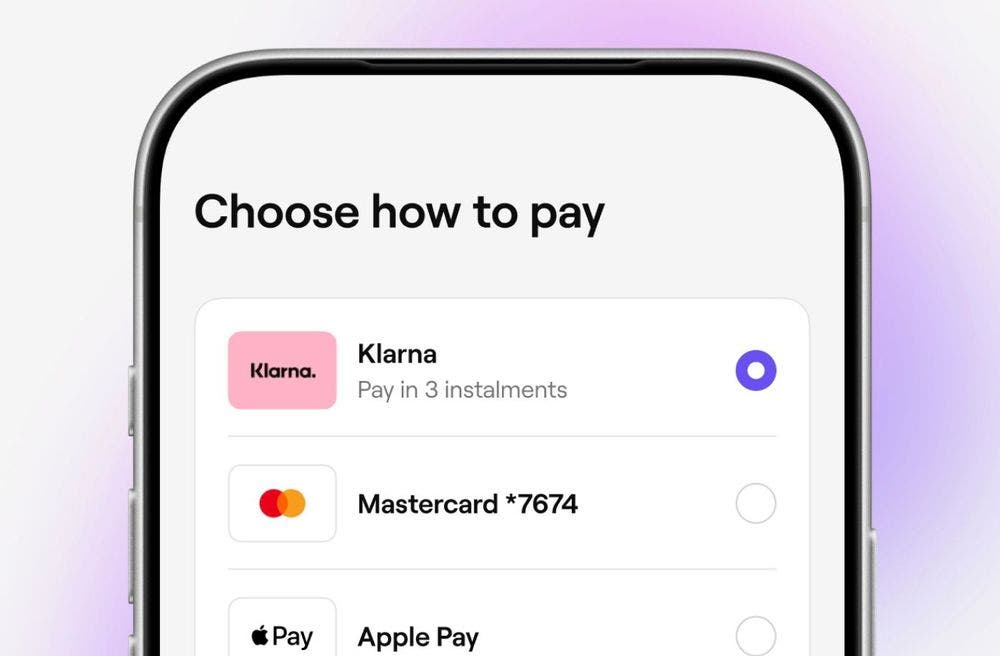
Offer clients flexible ways to pay with Klarna,. When booking online, clients can choose Klarna to spread the cost of their purchase over time, while you receive the full payment in your Fresha Wallet straight away. 

Klarna handles installment payments directly with your clients, so there's no additional admin, payment collection, or tracking from your side.

  • Increase sales and average spend
    • Give clients the flexibility to spread the cost of higher-value services and products with buy now, pay later options. By reducing the upfront cost at checkout, you can encourage more bookings, larger purchases, and higher average transaction values.  
  • Offer more ways to pay
    • Meet client expectations with flexible payment options that fit their budget. With Klarna payment options available through Fresha Payments, clients can choose how they want to pay while enjoying a seamless checkout experience online.  
  • Upfront payments without admin
    • Offer buy now, pay later options without changing how you manage payments. Clients can pay over time, while payments are processed through Fresha Payments, helping you deliver a smooth payment experience without additional admin.

Enable Klarna as a client payment method

  1. From the main menu on the left of your screen, go to Settings
  2. Click on the Payments category to manage your payment details.Group 31365.jpg
  3. In the left menu panel, click on Payment methods to view your options. 
  4. Click on the Enable button next to Klarna to enable this payment method for clients.Group 31366.jpg
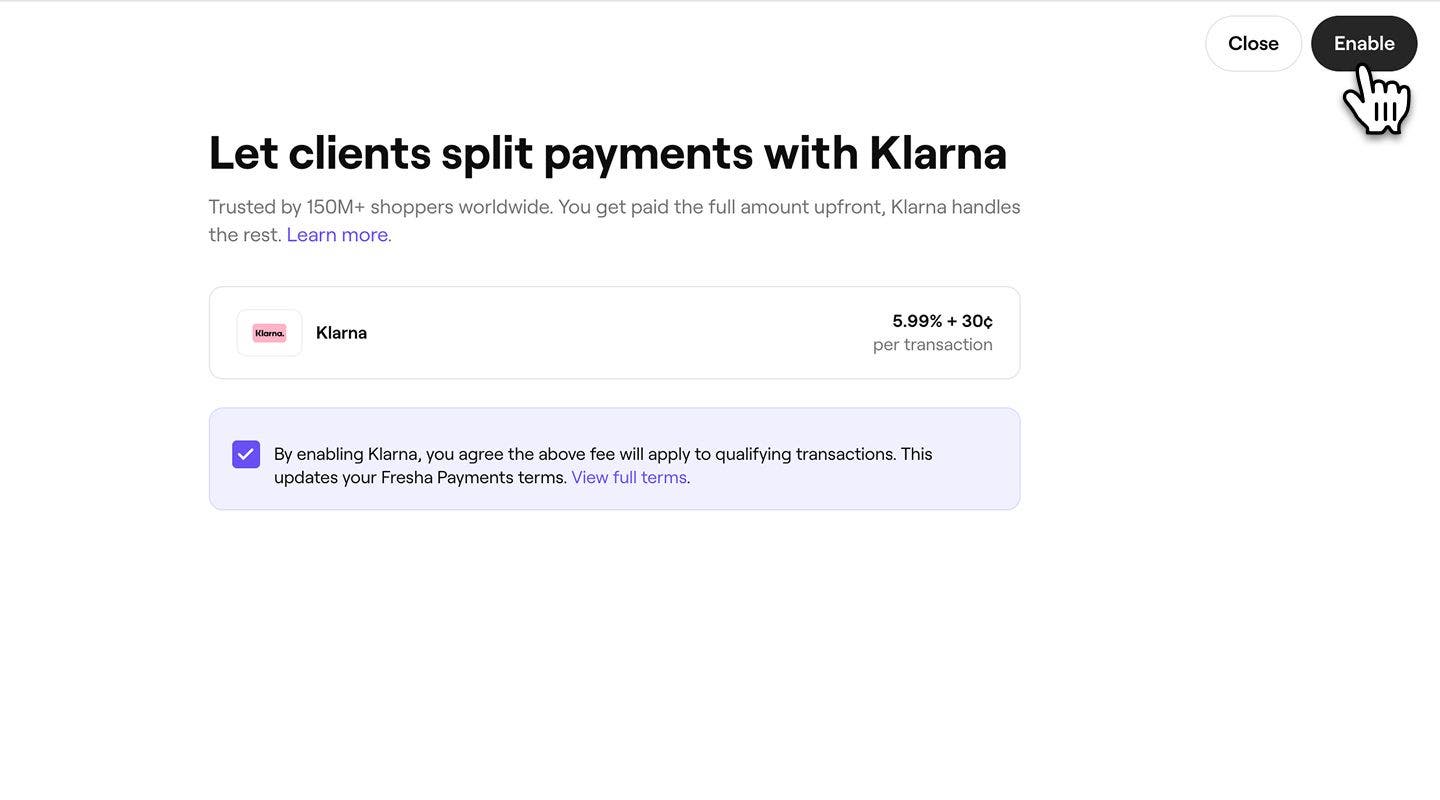
  5. Tick the checkbox to accept Klarma Terms and Conditions.Group 31367.jpg
  6. Click Enable in the top right corner to update your changes.Group 31368.jpg
  1. From the main menu at the bottom of your screen, tap on More (grid icon) and open Settings.Group 31370.jpg
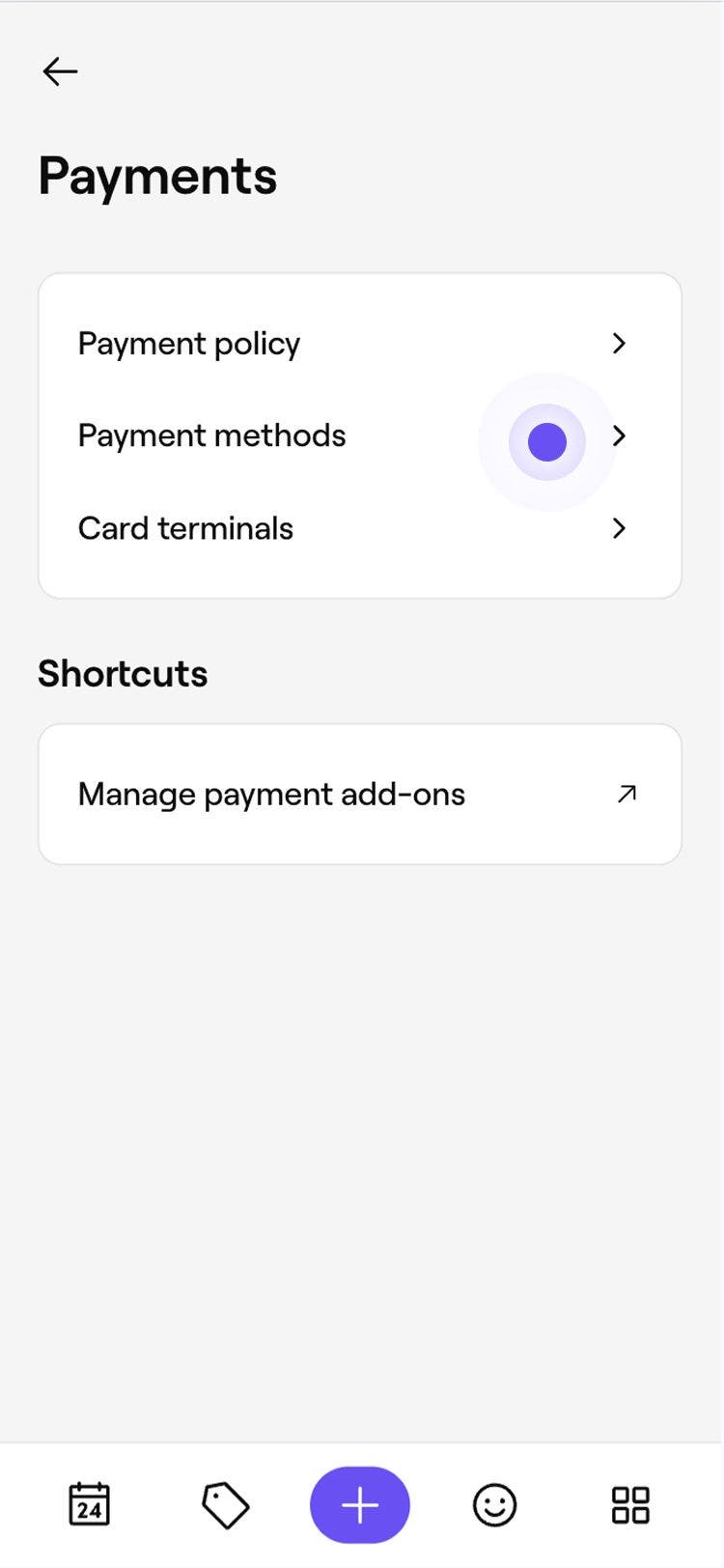
  2. Tap on Payments and then select Payment methods to view your client payment methods.Group 31372.jpg
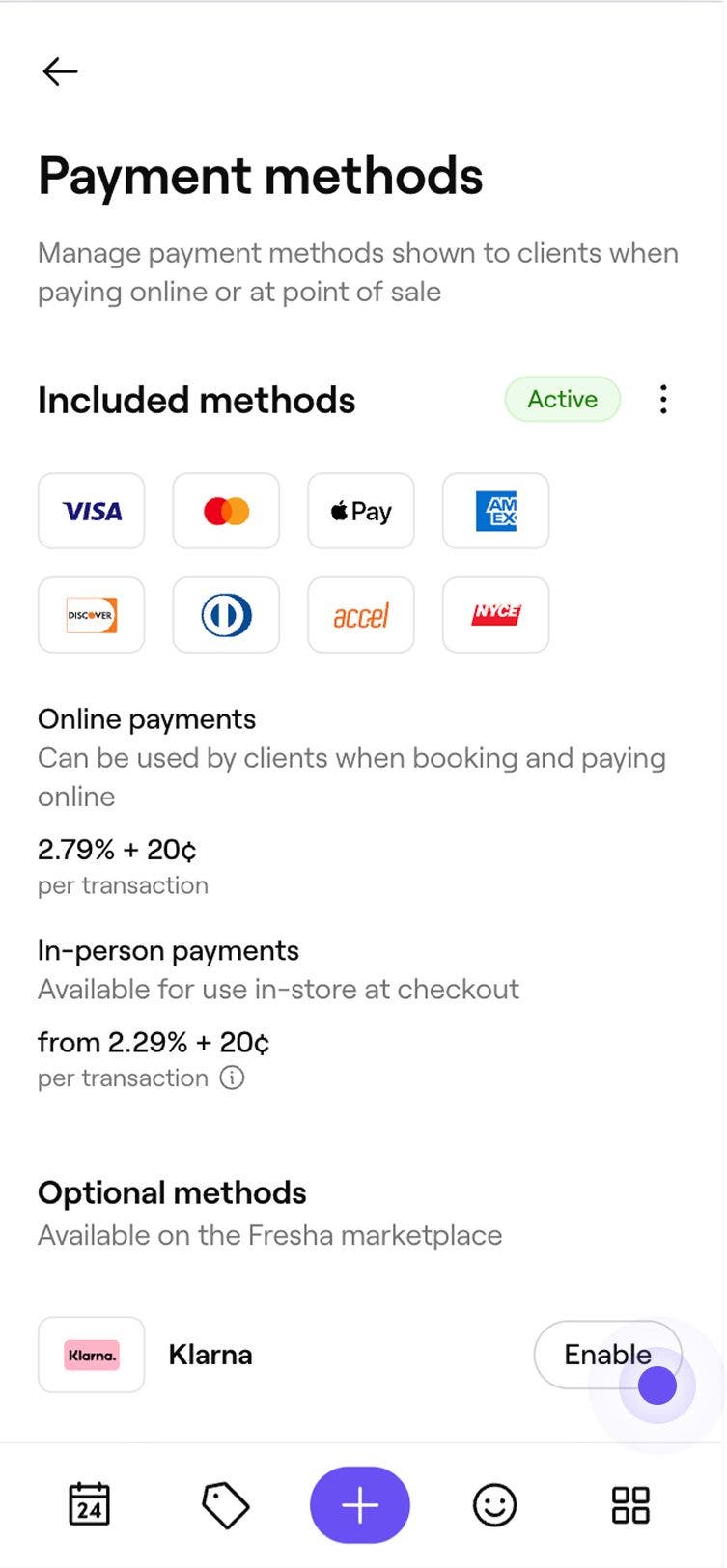
  3. Next to Klarna, tap on Enable to enable this option for clients.Group 31375.jpg
  4. Tick the checkbox next agree to Klarna's Terms and Conditions.
  5. Tap on the Enable button on the bottom of your screen to enable Klarna as a payment method.Group 31374.jpg

Once enabled, clients will be able to select Klarna as a payment option when booking online.

FAQs

    • Klarna is for partners who available in over 19 countries:

      • Austria, Canada, Czech Republic, Denmark, Finland, France, Germany, Greece, Ireland, Italy, Norway, Poland, Portugal, Romania, Spain, Sweden, The Netherlands, United Kingdom, United States

      Klarna transactions have a separate processing fee. You can find the transaction fee for your region on our pricing page.

      To disable Klarna as a payment method, open your Payment methods tab, click on Actions (three dots) next to Klarna and select Disable.


Client payment methods

Was this guide helpful?

Client payment methods

Collect payments using client's saved cards

Speed up appointment checkouts by using client-saved cards for payments.

Activate Tap to Pay

Activate contactless payments on your phone with Fresha.

Collect payments using Tap to Pay

Accept contactless payments on your phone with Fresha—no extra hardware needed.

Collect payments using self checkout

Offer clients a convenient way to pay for their appointments remotely using self-checkout links.

Collect payments with a QR code

Simplify payments with QR codes, enabling clients to pay quickly and securely via their mobile devices.

Collect payments using manual card entry

Process one-off payments by manually entering customer card details at the point of sale.

Collect payments through Fresha gift cards

Take payments with Fresha gift cards at checkout.

Collect payments through a business gift card

Take payments from clients using gift cards issued by your business.

Collect payments using multiple cards

Collect a single sale using multiple cards.

Collect payments using Pay now

Collect payment instantly from an appointment using your preferred method of payment.

Let clients pay later with Klarna

Grow sales with flexible payment options like Klarna, allowing clients to spread the cost of purchases while you get paid in full.

Let clients spread payments with Afterpay

Boost sales with flexible payment options like Afterpay, so clients can spread the cost while you get paid in full.

Accept client payments with TWINT

Give clients a faster, easier way to pay with TWINT, their trusted local mobile payment method.

Fresha
Get the app

About Fresha

Careers

Help and support

Blog

Sitemap

For business

For partners

Pricing

Features

Scheduling

Point of sale

Payments

Capital

Marketplace

Support

Status

Legal

Privacy Policy

Terms of service

Terms of use

Find us on social

Facebook
Linkedin
Instagram

© 2026 Fresha.com SV Ltd