HomeKnowledge baseFresha academy
Set up and manage tips
Back
  1. Knowledge base•
  2. Sales and checkout•
  3. Set up and manage tips

Set up and manage tips

Learn how to set up tipping options, adjust default values, and choose how tips are calculated.

In this article

  • About tips
  • Set tipping options for clients
  • Edit default tip values
  • Edit default tip calculation method
  • Edit tip options for a location

About tips 

Tips are optional amounts that clients can add to a sale as a thank you to team members for great service. Clients can add a tip during payment in person, as well as after checkout, by enabling the Thank you for visiting automated message. Once an appointment is completed, clients receive a notification to leave a review and add a tip.

When using a Fresha card terminal, tip options are shown directly on the terminal screen, making it easy for clients to add a tip during payment. You can control how tipping works by customising the default tip options shown at checkout.

Set tipping options for clients

  1. From the menu on the left of your screen, go to Settings. add_tax_group_web_1.jpg

  2. Click on the Sales category to manage your tipping settings.  edit_tip_options_web_2.jpg

  3. In the left menu panel, select Tipping to manage your tipping options, values, and calculations. 

  4. Under Tipping options, use the toggles to enable when you want to ask clients for a tip from the following:

    1. Display a tip option screen at the point of sale: During checkout, a tip screen appears with preset percentages and a custom amount option, so you can show it to the client and let them choose before continuing to payment.
    2. Display tip options on card terminals and self checkout: Tip options appear on your card terminal during payment, or on the self-checkout payment page that opens when clients tap the link sent to their phone, and they can choose an appointment before paying.
    3. Allow client to leave a tip online: A Leave a tip option appears within the completed appointment in the client's Fresha account, where they can choose an amount or set a custom tip. edit_tip_options_web_4.jpg
  1. From the main menu along the bottom of your device, tap on More (grid icon) and open Settings.

  2. Tap on Sales and then select Tipping to manage your tipping options, values, and calculations. 

  3. Under Tipping options, use the toggles to enable when you want to ask clients for a tip from the following:

    1. Display a tip option screen at the point of sale: During checkout, a tip screen appears with preset percentages and a custom amount option, so you can show it to the client and let them choose before continuing to payment.
    2. Display tip options on card terminals and self checkout: Tip options appear on your card terminal during payment, or on the self-checkout payment page that opens when clients tap the link sent to their phone, and they can choose an appointment before paying.
    3. Allow client to leave a tip online: A Leave a tip option appears within the completed appointment in the client's Fresha account, where they can choose an amount or set a custom tip.

Once set up your selected tipping options, they will now be applied at checkout.

Edit default tip values

  1. Open Tipping from your Sales workspace settings.
  2. Next to Default values, click on the Edit button to update your tip settings.  deafult_tip_values_web_2.jpg
  3. On the Tip value view, enter the default percentages you want to offer at checkout. These appear as preset options for clients, who can also add a custom amount. To encourage more tipping, we recommend offering no more than three values. edit_default_web_3.jpg
  4. Click on the Save button in the top right to confirm your changes.
  1. Open Tipping from your Sales workspace settings.
  2. Next to Default values, tap the Edit button to update your tip settings. 
  3. On the Tip value view, enter the default percentages you want to offer at checkout. These appear as preset options for clients, who can also add a custom amount. To encourage more tipping, we recommend offering no more than three values.
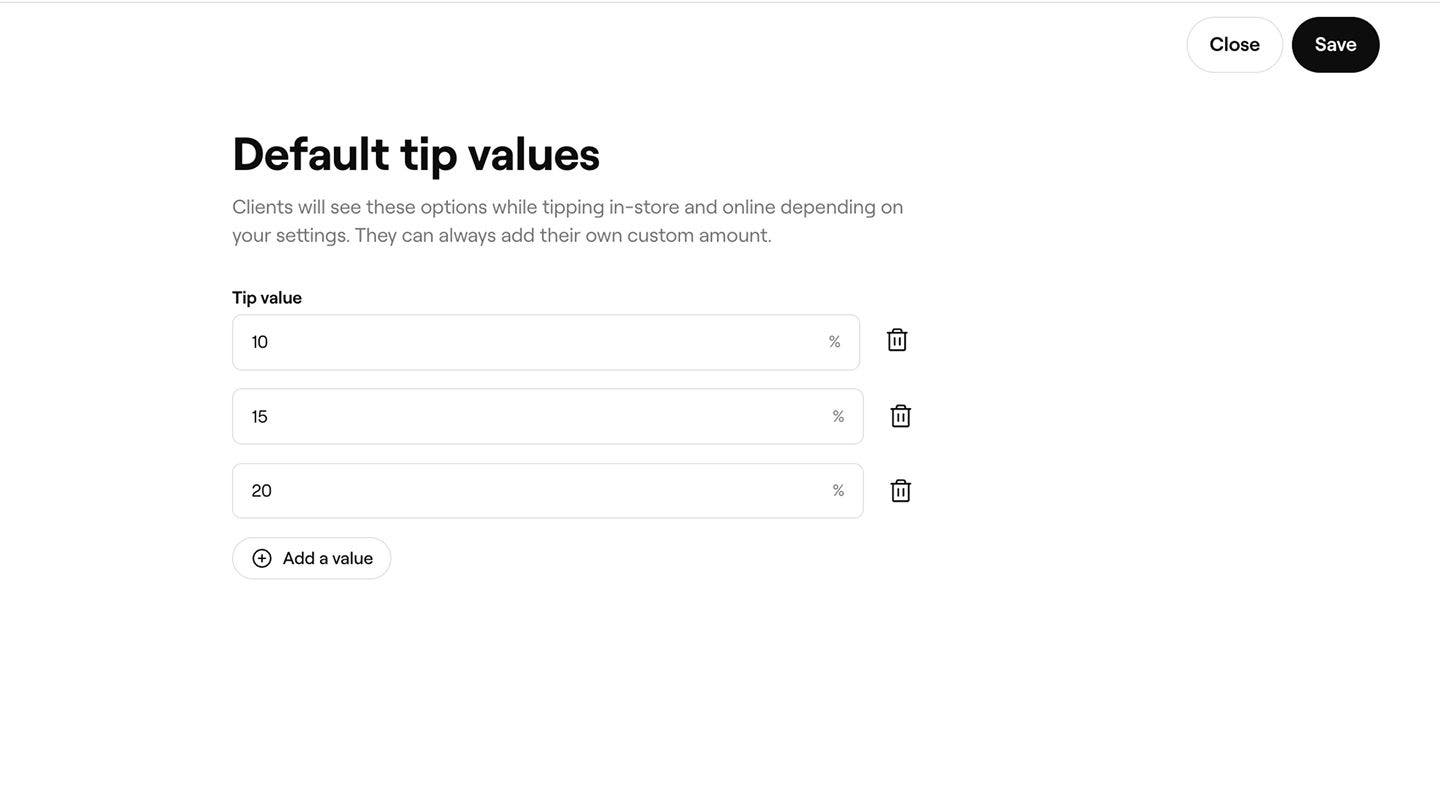
  4. Tap the Save button in the top right to confirm your changes.

Once updated, the tip values will automatically appear based on your tipping options for clients.

Edit default tip calculation method

  1. Open Tipping from your Sales workspace settings.
  2. Next to Tip calculation, click Edit to adjust how tips are calculated at checkout.
    tip_calculation_method_web_2.jpg
  3. On the Tip calculation view under Cart items, select the item types you want to include when calculating tips. 
  4. Choose whether Service charges, Discounts, and Taxes are Included or Excluded when calculating tips.tip_calculation_method_web_4.jpg
  5. Click on the Save button in the top right to apply your updated tip calculation settings.
  1. Open Tipping from your Sales workspace settings.
  2. Next to Tip calculation, tap Edit to adjust how tips are calculated at checkout.
  3. Under Cart items, select the item types you want to include when calculating tips. 
    • Untick any item types you don’t want to contribute to the tip calculation.
  4. Choose whether the following are Included or Excluded when calculating tips:
    • Service charges
    • Discounts
    • Taxes
  5. Tap the Save button in the top right to apply your updated tip calculation settings.

Once updated, your tip calculation preferences will be applied at checkout based on the item types and charges you’ve chosen.

Edit tip options for a location

  1. Open Tipping from your Sales workspace settings.
  2. Under Tip calculation, click on Advanced options to edit tip options, values, and calculations for your locations. tip_options_location_web_2.jpg
  3. In the Advanced tipping options view, adjust the settings per location 
  4. Click on the Save button in the top right to adjust your tip settings for a location.
  1. Open Tipping from your Sales workspace settings.
  2. Under Tip calculation, tap on Advanced options to edit tip options, values, and calculations for your locations.
  3. In the Advanced tipping options view, adjust the settings per location 
  4. Tap on the Save button in the top right to adjust your tip settings for a location.

Once updated, the tip values and calculation method for the locations will be applied at checkout.

To bulk edit tip options for multiple locations, select the checkbox next to each location and select the Bulk edit button from the toolbar.

FAQs

    • Tips are split proportionally based on the value of the services each team member provided during the sale. For example, if one service accounts for one-third of the sale and another for two-thirds, the tip is distributed in the same ratio. You can update the ratio of a split during checkout or by editing the sale after checkout.

      Tips can be reviewed in the Finance summary report, which shows a breakdown of all charges applied across your sales.


Tips, taxes and charges


Related articles

Fresha academy courses
Course video preview

Record a sale

6 lessons•9 mins

See all courses

Was this guide helpful?

Tips, taxes and charges

Set up and manage taxes

Automatically calculate and manage tax contributions for your business with Fresha.

Adjust taxes for individual services and products

Apply tax rates to individual services and products.

Set up and manage service charges

Simplify checkout by setting up service charges to cover additional costs automatically.

Set up and manage tips

Set up tipping options to manage how tips are collected in your business.

How clients can leave tips

Understand how clients can leave tips for your business.

Related articles

Set up and manage taxes

Automatically calculate and manage tax contributions for your business with Fresha.

Set up and manage service charges

Simplify checkout by setting up service charges to cover additional costs automatically.

Manage manual payment types

Simplify the checkout process by offering clients multiple payment options.

Fresha academy courses
Course video preview

Record a sale

6 lessons•9 mins

See all courses
Fresha
Get the app

About Fresha

Careers

Help and support

Blog

Sitemap

For business

For partners

Pricing

Features

Scheduling

Point of sale

Payments

Capital

Marketplace

Support

Status

Legal

Privacy Policy

Terms of service

Terms of use

Find us on social

Facebook
Linkedin
Instagram

© 2026 Fresha.com SV Ltd