Set up payment policies
Learn how to secure bookings and reduce no-shows by setting up payment policies.
How payment policies work
When you set up a payment policy in Fresha, it automatically applies to all appointments booked by default. Clients must meet the policy requirements to confirm their appointment with you.
You can also create custom payment rules for specific services, client groups, or appointment values. This flexibility allows you to decide when upfront payments are required and how they’re applied.
Set up upfront deposits
- From the main menu on the left of your screen, go to Settings.
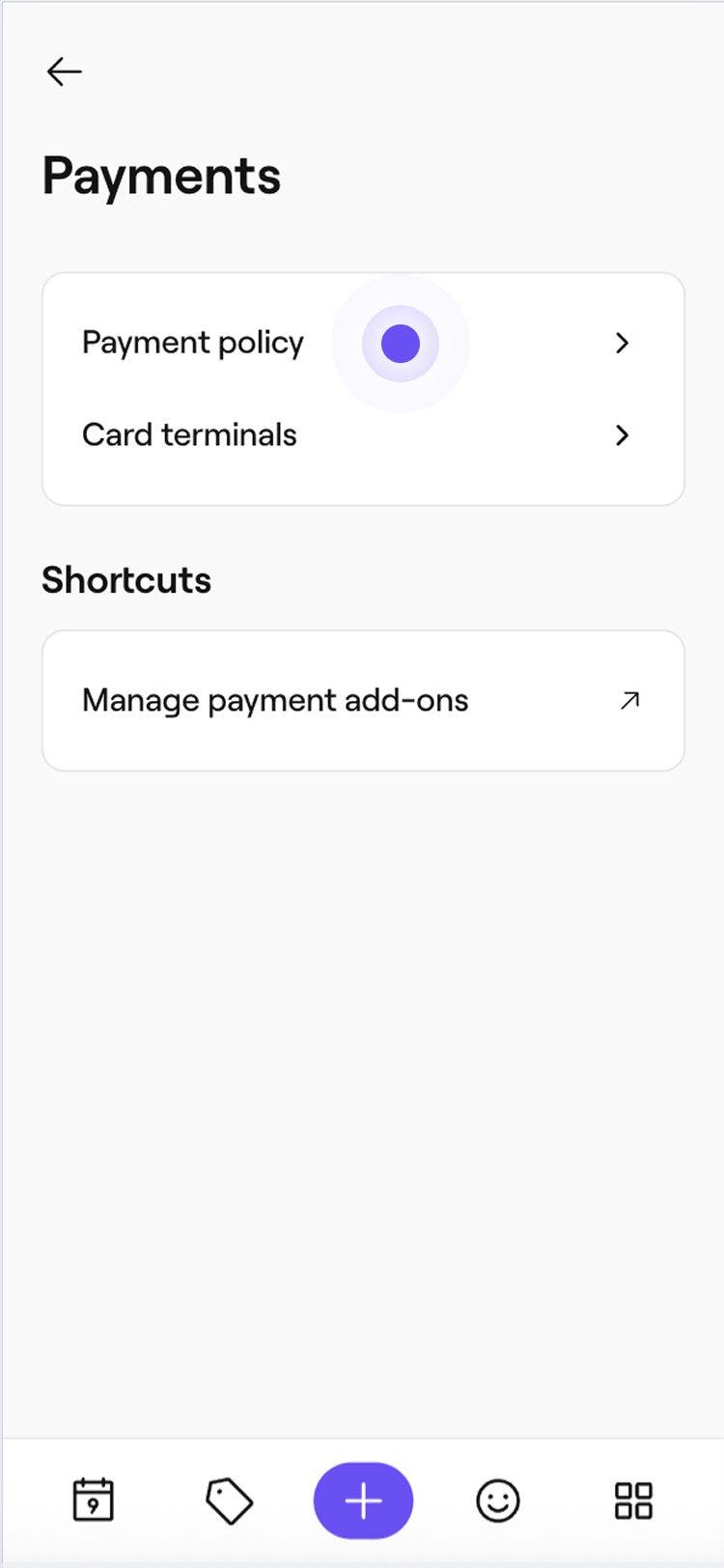
- Click on the Payments category to manage your payment policy.

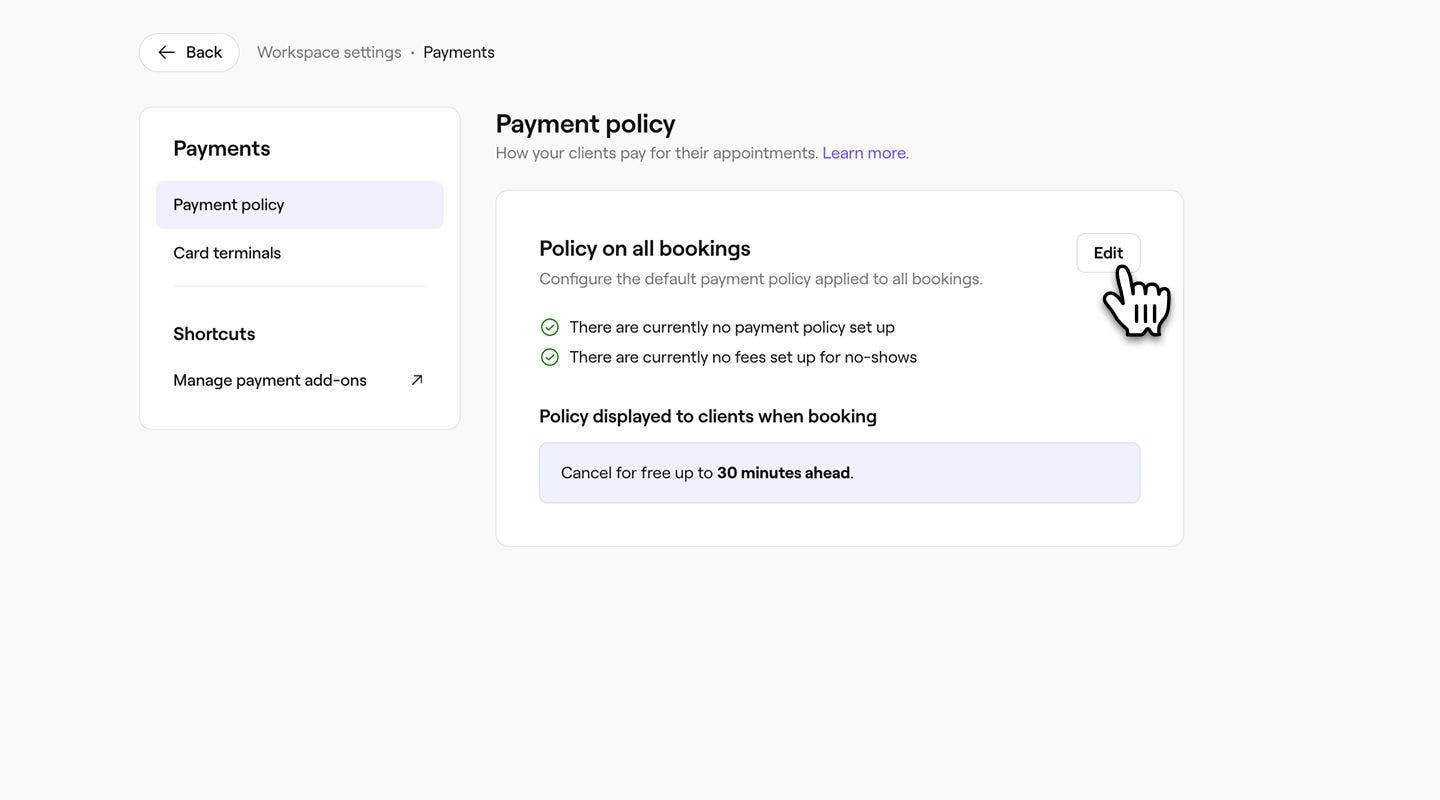
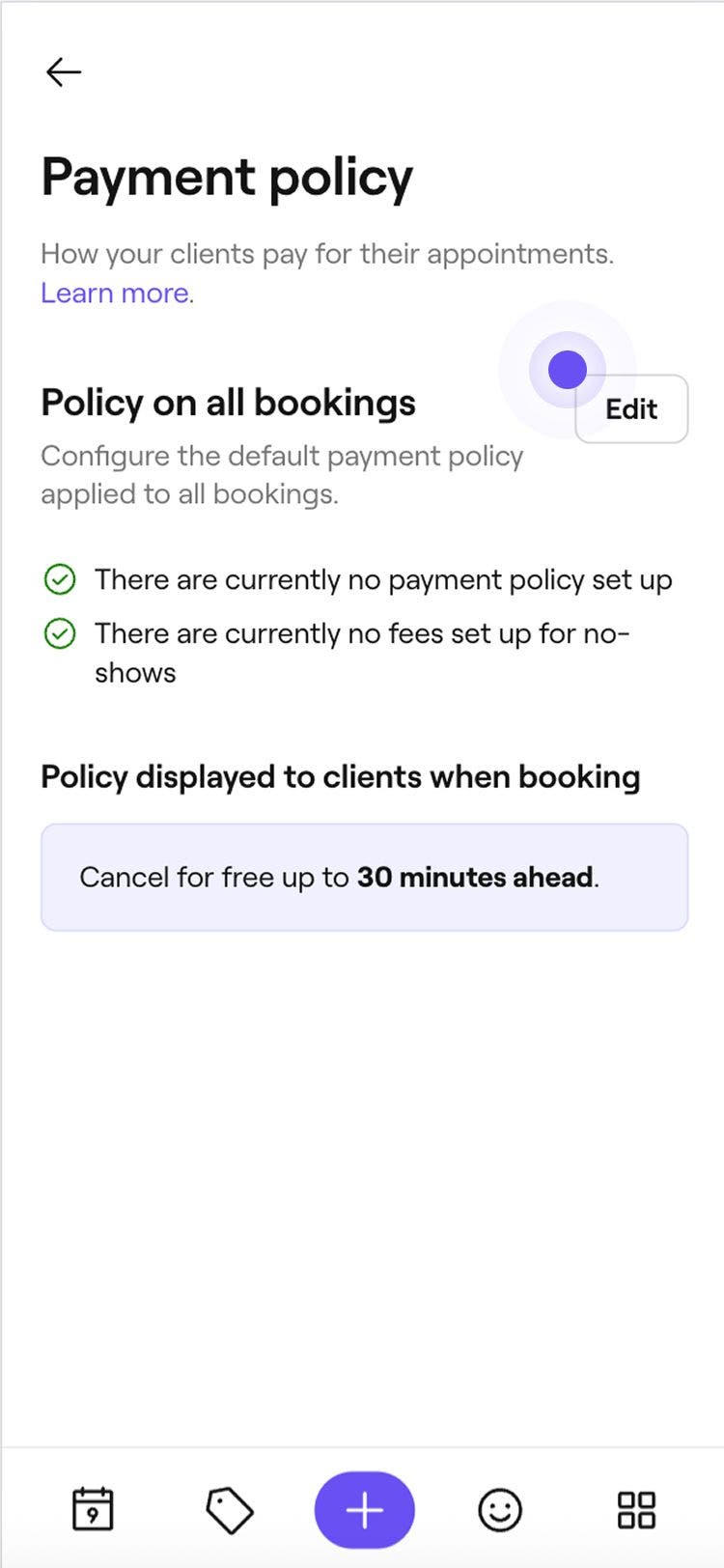
- Next to Policy on all bookings, select the Edit button.

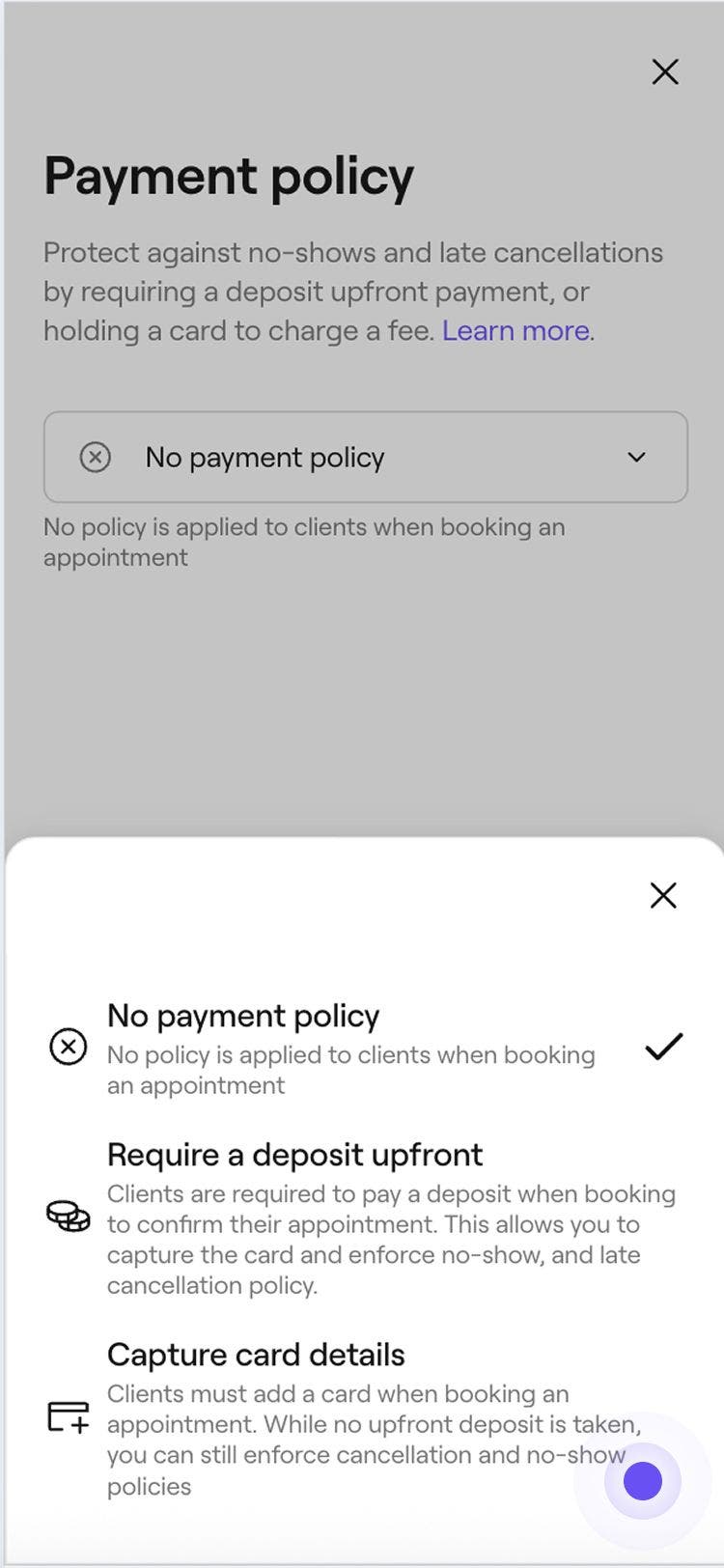
- In the Payment policy view, select Require a deposit upfront.

- Under Deposit amount, choose to collect a percentage or fixed amount of the total appointment value, then enter the amount.

- Under Refundable until, choose whether the deposit is non-refundable or set a time frame during which clients can cancel and receive a refund.

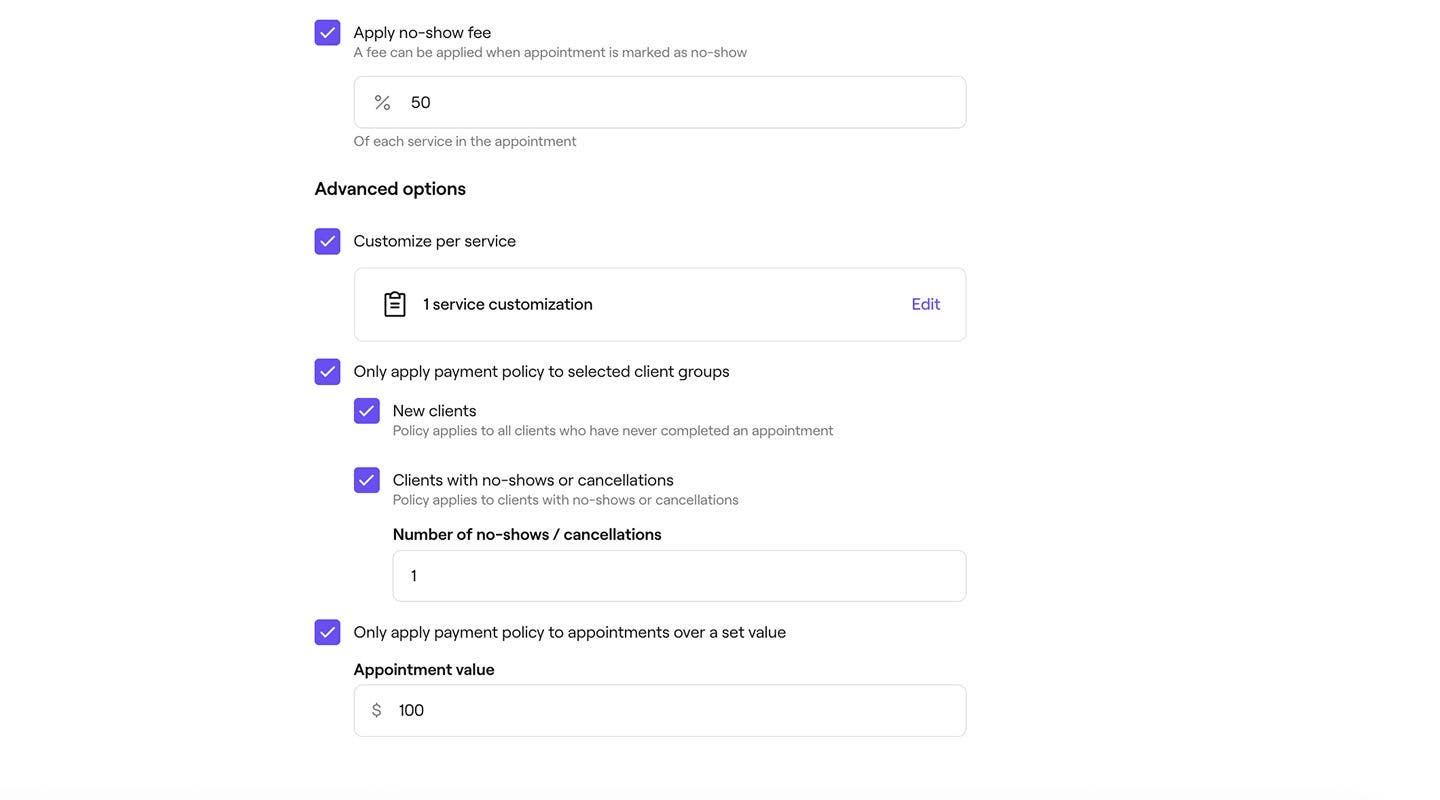
- To protect against no-shows, tick the checkbox next to Apply no-show fee, then enter the percentage of the total appointment value you want to charge the client. This allows you to keep the money if the client doesn't show.

- Tick the checkbox next to Automatically cancel appointments for clients that did not pay a deposit to cancel appointments booked by team members when the deposit isn’t paid on time.
- Use the first dropdown under If not paid within to choose how long clients have to pay the deposit (1-72 hours).
- Use the dropdown on the right to choose whether the time counts after booking the appointment or before the appointment start time.
- Under Advanced options, tick the checkboxes to tailor how your payment policy applies to specific services, clients, or appointment values. If no advanced options are selected, the policy will apply to all bookings by default:
- Customize per service by clicking Edit to apply a custom deposit or no-show fee to specific services, then select Apply to save your changes. Once your payment policy is active, you can also manage whether a service requires a deposit and a custom deposit amount directly from the individual service's settings.

- Apply the policy to selected client groups, such as new clients or those with previous no-shows or cancellations. To control whether an individual client is required to pay a deposit, update their profile settings.
- Apply the policy to appointments over a set value by entering the minimum amount.
- Customize per service by clicking Edit to apply a custom deposit or no-show fee to specific services, then select Apply to save your changes. Once your payment policy is active, you can also manage whether a service requires a deposit and a custom deposit amount directly from the individual service's settings.
- Click on the Save button in the top right to update your payment policy.


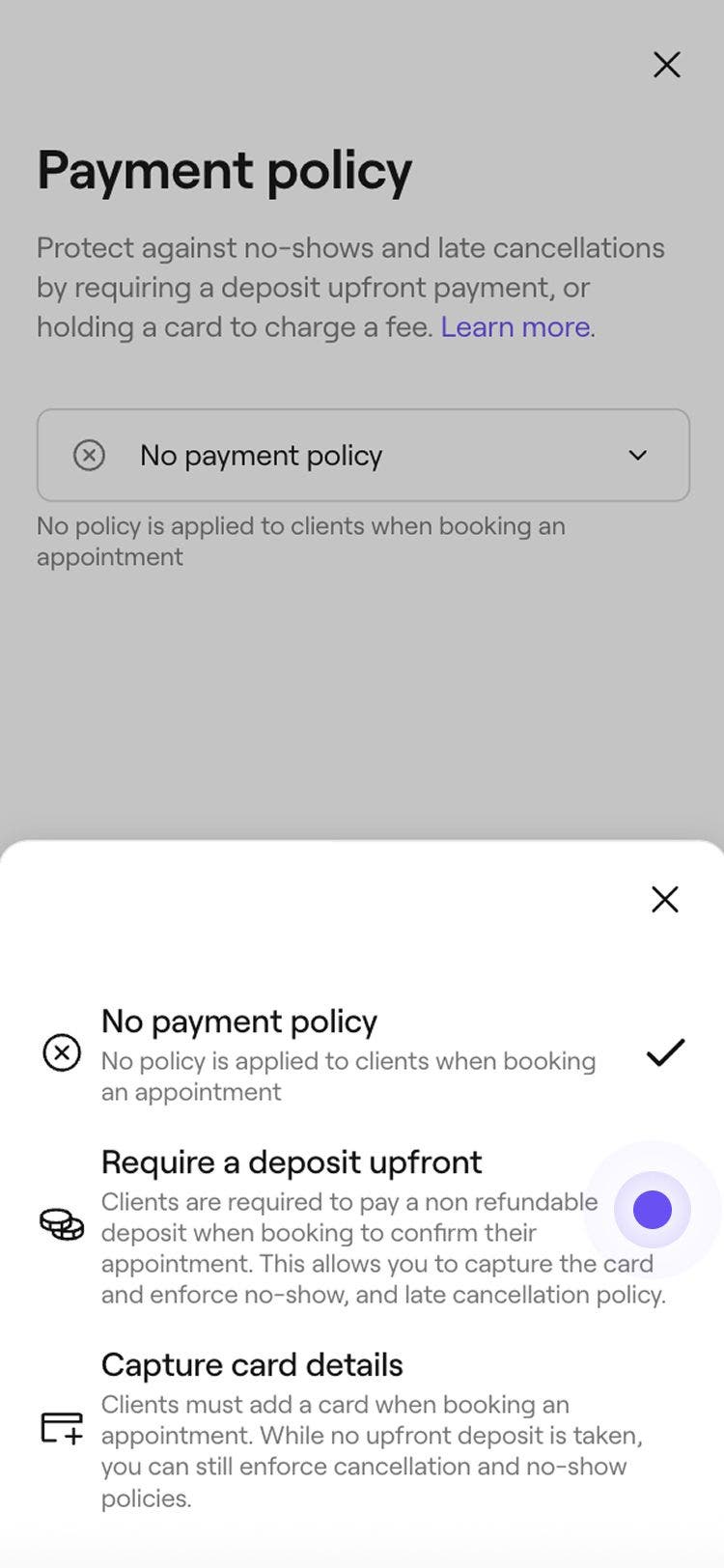
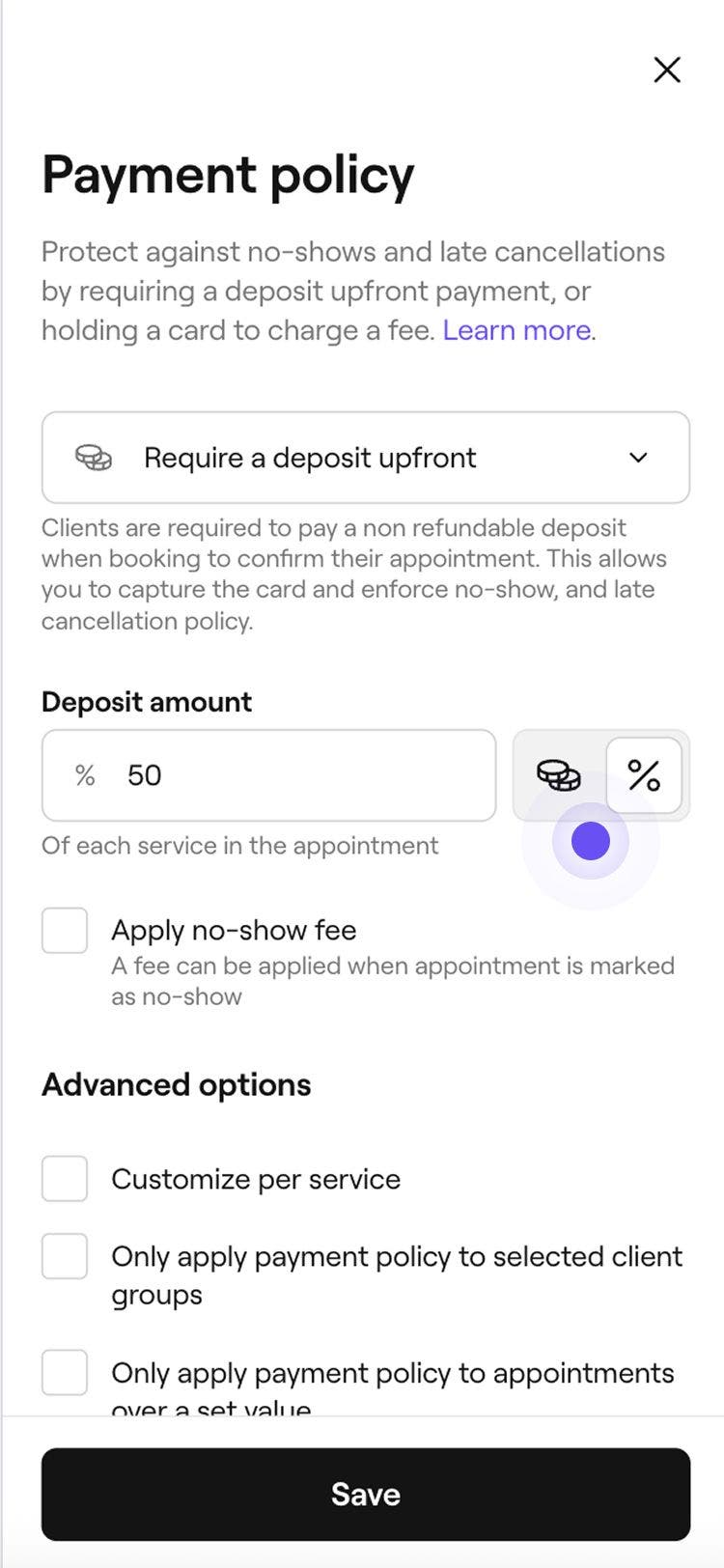


Once deposits are enabled, clients will need to pay a deposit to confirm their booking, securely saving their card to their wallet. At checkout, they can easily pay the remaining balance using their saved card.
Set up capture card details
- From the main menu on the left of your screen, go to Settings.
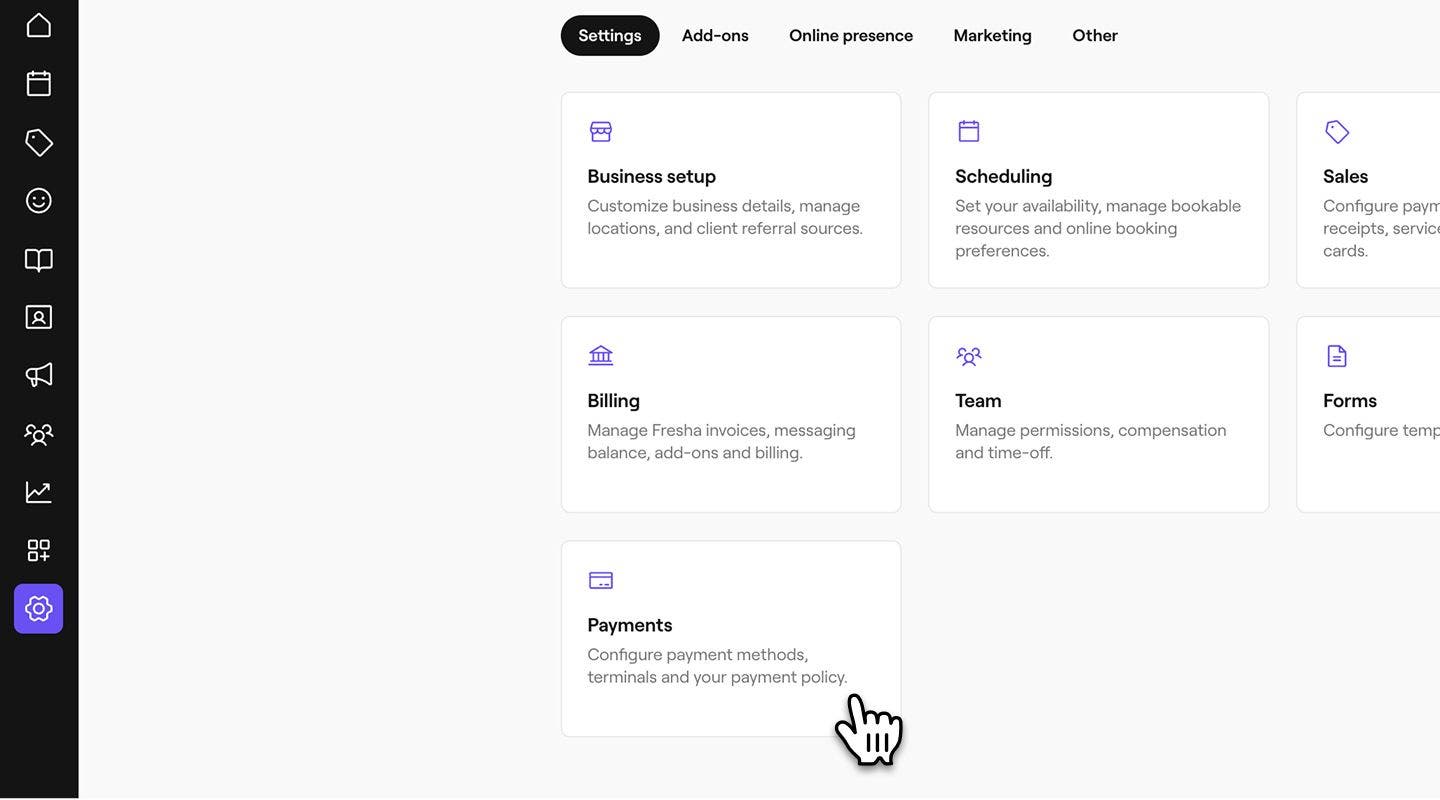
- Next to Policy on all bookings, select the Edit button.
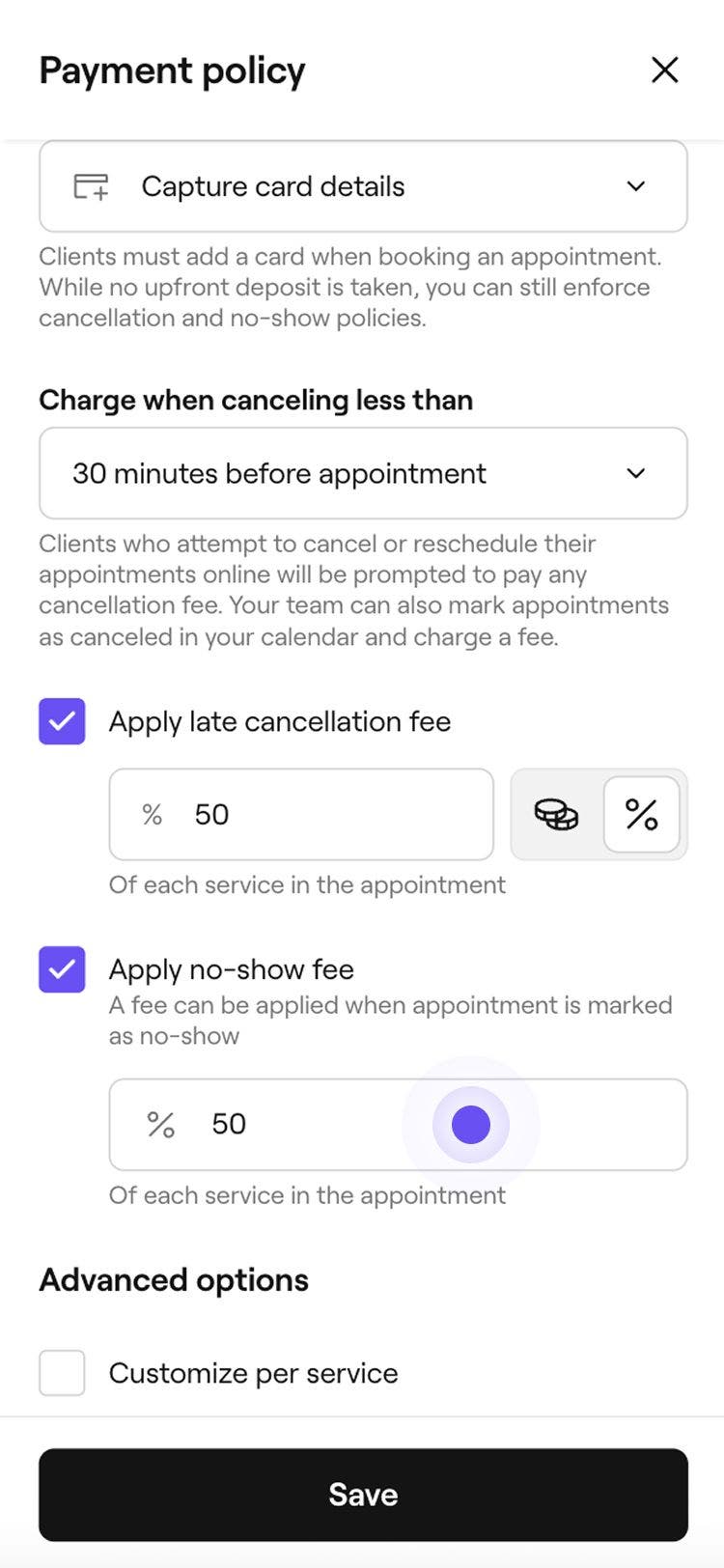
- In the Payment policy view, select Capture card details.
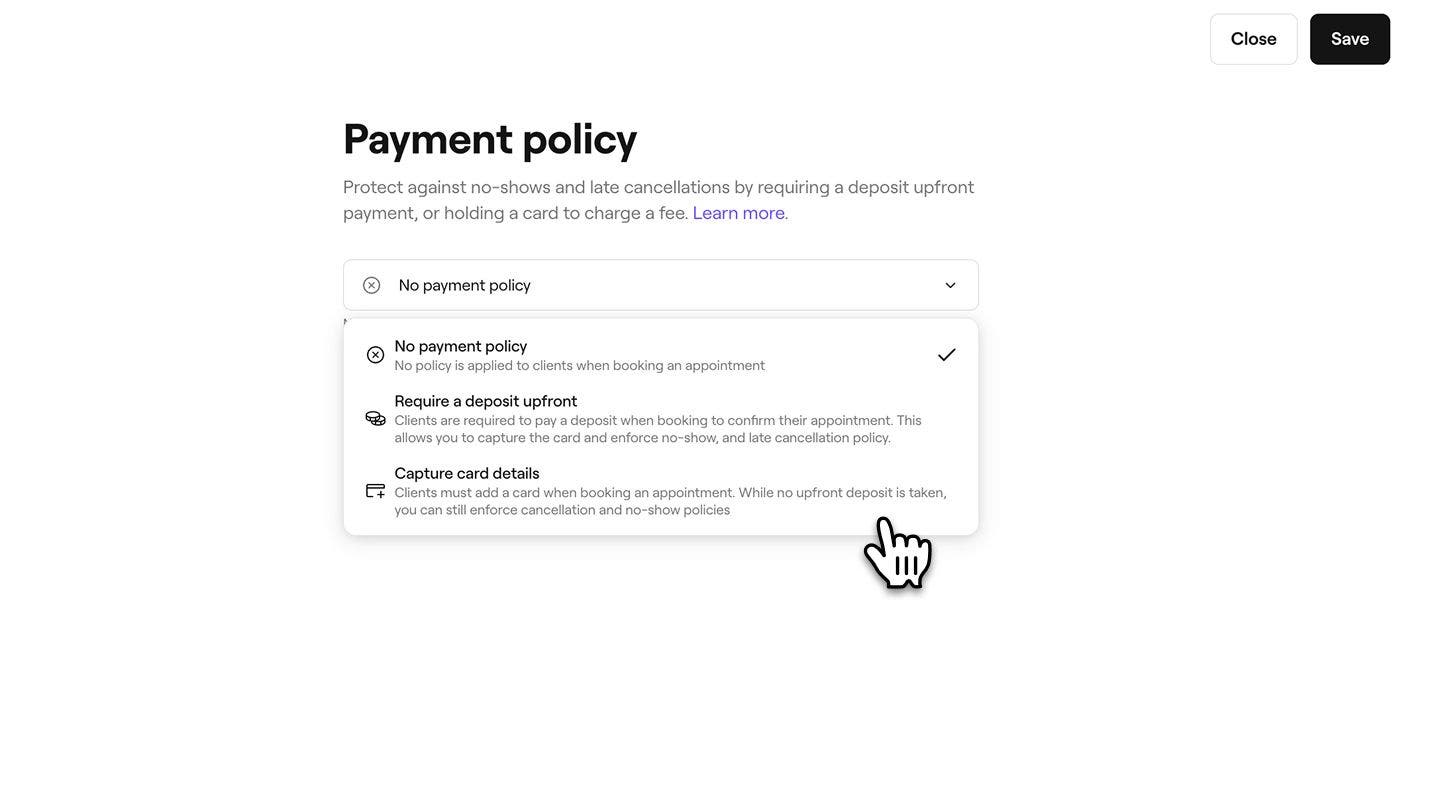
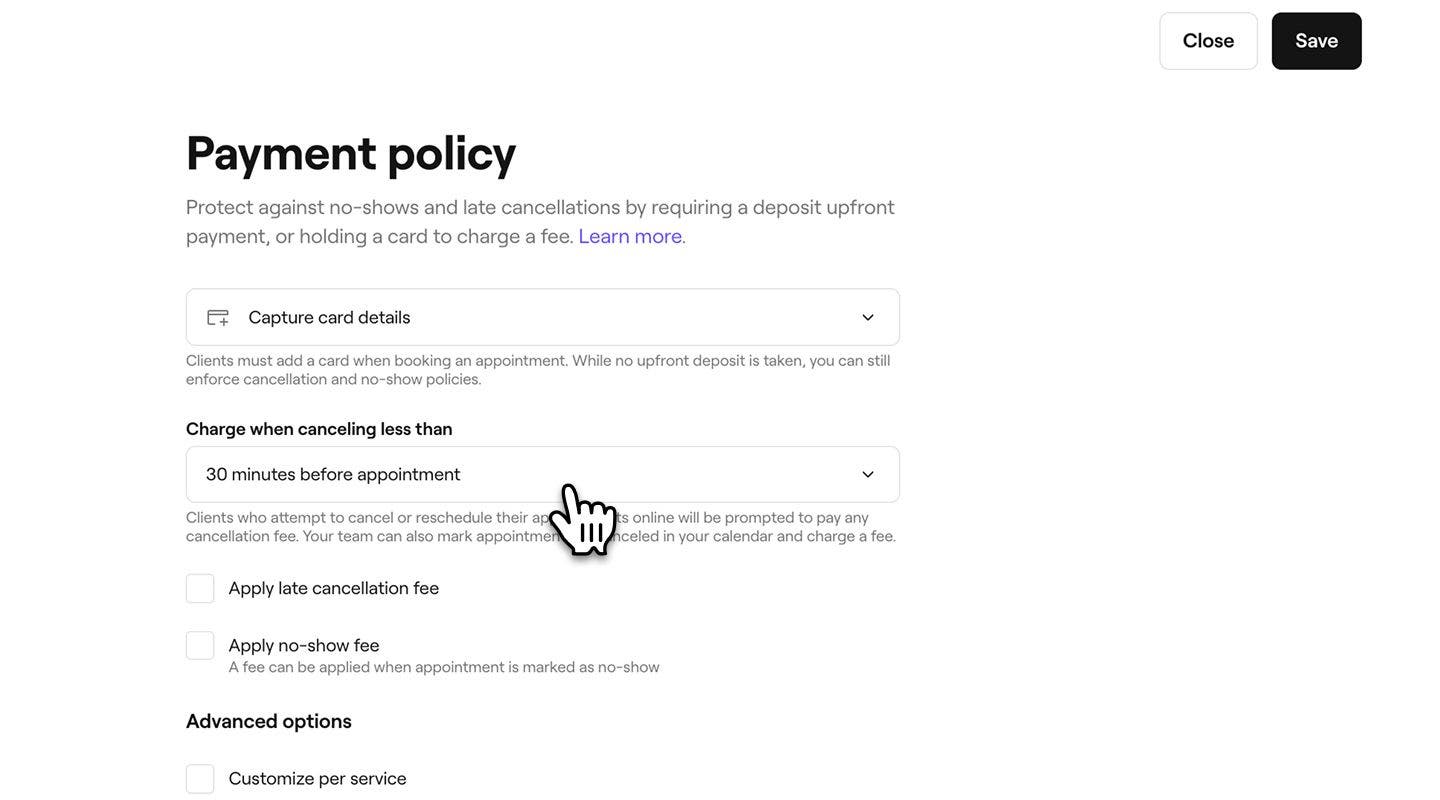
- Under Charge when cancelling less than, set the timeframe clients can cancel without being charged a cancellation fee.
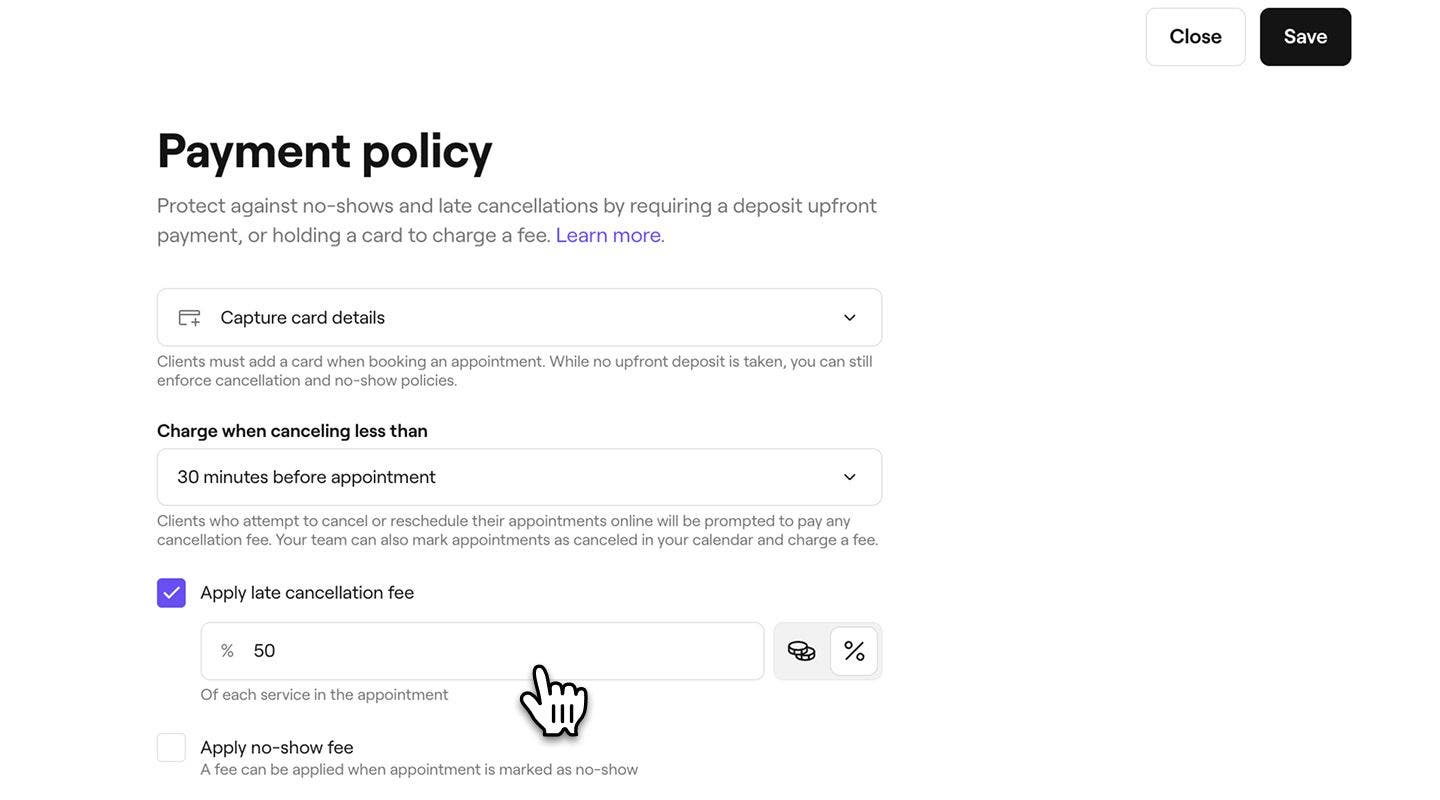
- To protect against late cancellations, tick the check box next to Apply late cancellation fee. Choose to collect a percentage or fixed amount of the total appointment value, then enter the amount.
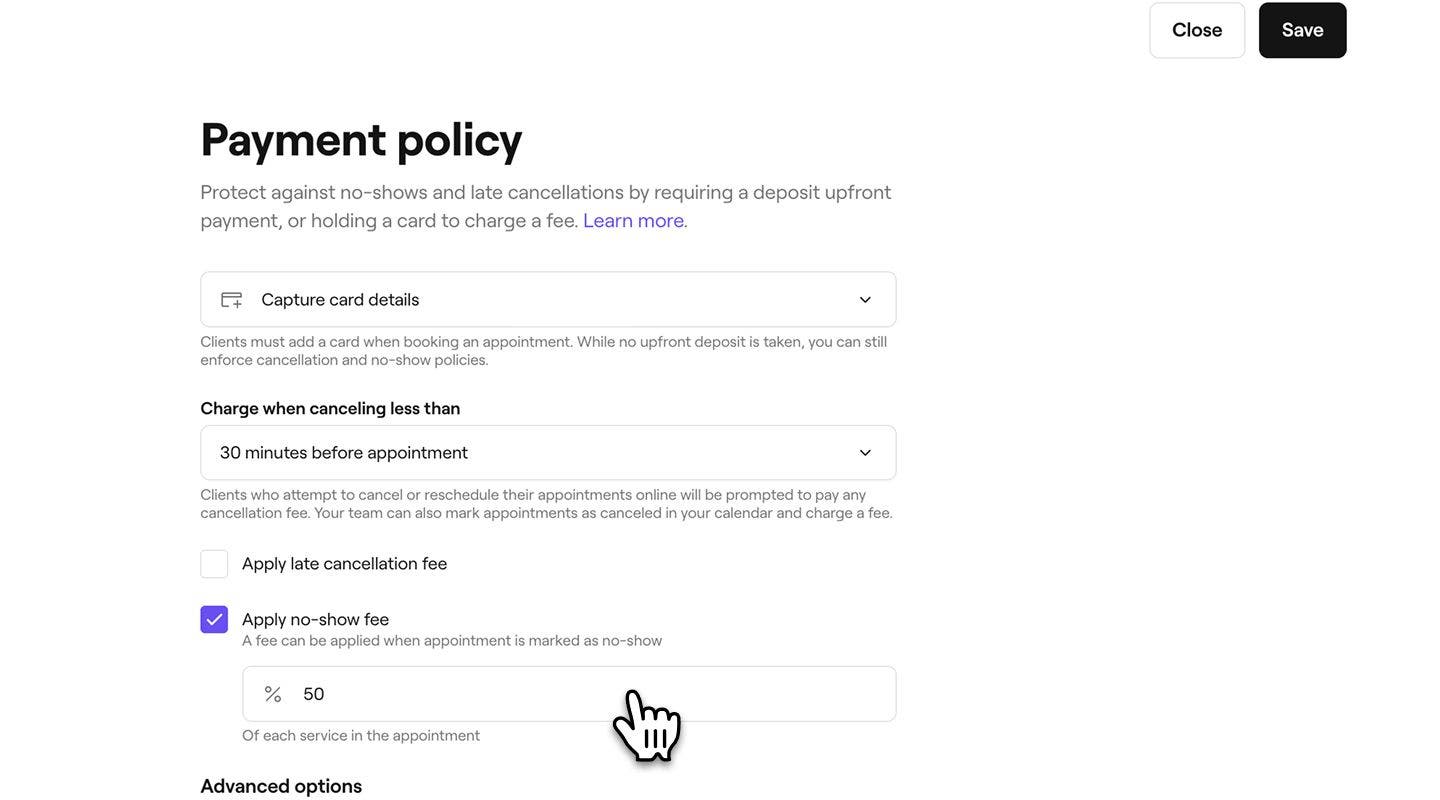
- To protect against no-shows, tick the checkbox next to Apply no-show fee, then enter the percentage of the total appointment value you want to charge the client, if they don't show.
- Tick the checkbox next to Automatically cancel appointments for clients that did not pay a deposit to cancel appointments booked by team members when the deposit isn’t paid within the set timeframe.
- Use the dropdown on the left, under If not paid within, to choose how long clients have to pay the deposit (1-72 hours).
- Use the dropdown on the right to choose whether the time counts after booking the appointment or before the appointment start time.
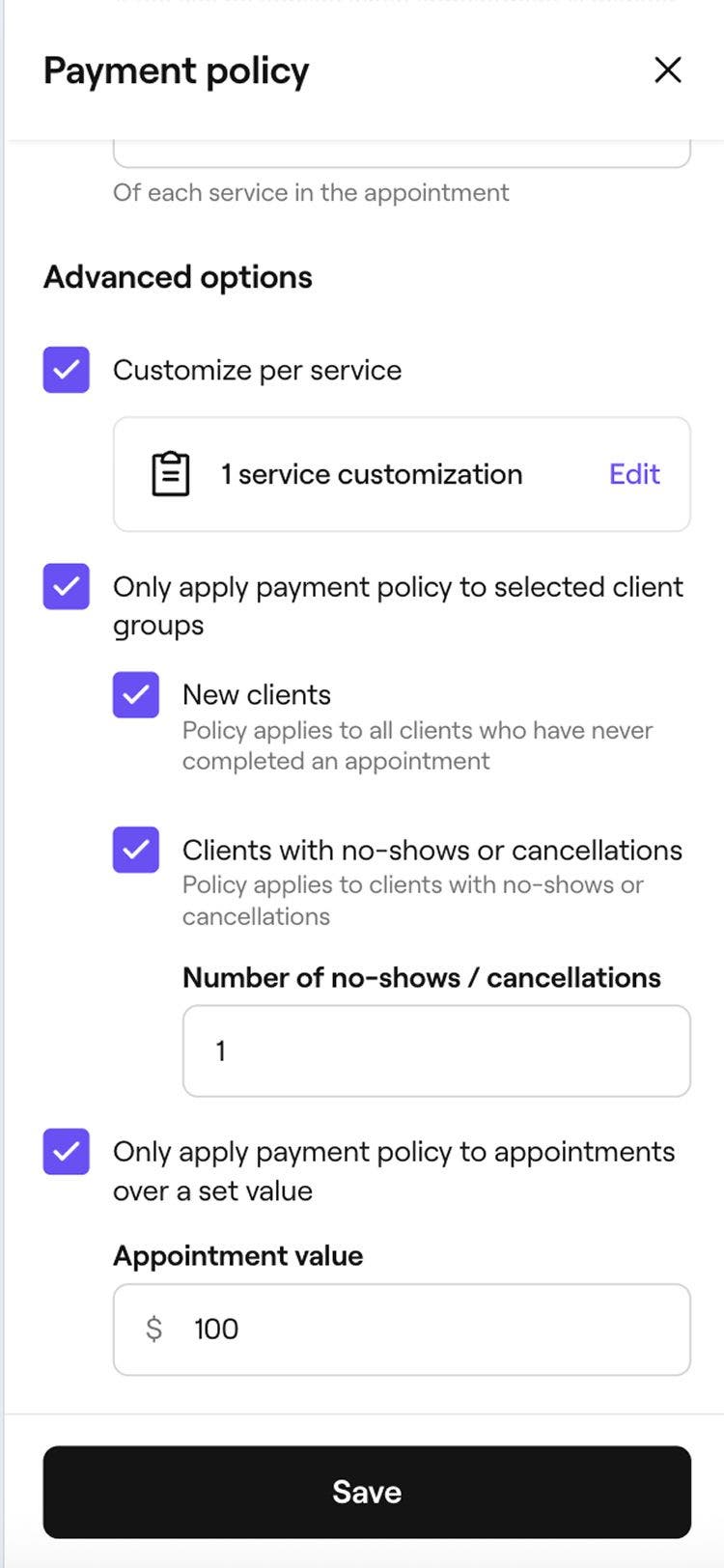
- Under Advanced options, tick the checkboxes to set the limits of your policy:
- Customize per service: Click Edit to apply a custom cancellation or no-show fee to specific services, then select Apply to save your changes. Once your payment policy is active, you can also manage whether a service requires capture card details and a custom cancellation fee directly from the individual service's settings.
- Apply the policy to specific client groups, such as new clients or those with previous no-shows or cancellations. To control whether an individual client is required to confirm their appointment with a card update their profile settings.
- Apply the policy to appointments over a set value by entering the minimum amount.
- Click on the Save button in the top right to update your payment policy.


Once card capture is enabled, clients will need to add their card details to confirm their booking, securely saving their card to their wallet. At checkout, they can easily pay their balance using their saved card.
When a client confirms a booking using their card, a card capture fee applies for that appointment. If you complete checkout using Fresha Payments, the standard transaction fee plus VAT applies. If the appointment isn't checked out, or another payment method is used, the flat transaction fee plus VAT applies. The fee applies per appointment and helps protect your bookings.
FAQs
- Save as unpaid so you can return later to retry the saved card or take payment another way.
- Go back and edit the payment method, then either reattempt the same card or collect the payment in cash.
Deposits and payments charged to a client’s saved card are processed just like any other payment. This means that standard payment processing fees apply, based on the method used. For example, if a deposit is collected in-store, your regular in-store payment fees will apply. You can view the full list of rates on our pricing page.
The Marketplace new client fee is calculated on the full appointment value, regardless of how the client pays. This means the fee is the same whether the client pays in full upfront, pays a deposit, or settles the balance at checkout.
Clients may be asked to complete two-step verification (3D Secure) when booking online, as some banks require this extra step to keep payments secure. Clients may need to approve the payment in their banking app, by text message, or by phone call. Once verification is completed, the booking is confirmed.
For existing appointments booked before the policy was updated, the new default payment policy does not apply automatically. You can manually add add a payment policy to these bookings by click on Actions (three dots) within the appointment and selecting Add payment policy.
If there are insufficient funds on the saved card, the payment will decline when charging a cancellation or no-show fee. When this happens, you’ll have a few options:
This ensures you can still collect the payment, even if the initial card charge fails. You can choose to or set up deposits to collect a payment upfront for future bookings, to reduce the risk of declined payments.
Standard Fresha payment fees apply when you confirm an appointment by capturing card details. A fixed‑rate fee is charged for each appointment confirmed with a card, even if the appointment is not completed. If the appointment is checked out using Fresha payments, the percentage‑based fee also applies. You can view all fees on our pricing page.
Clients can pay a deposit using iDeal, with the payment taken securely at the time of booking. As iDeal card details are not stored, the card cannot be charged again for no-show or cancellation fees. Deposits can also be paid with supported cards such as Visa or Mastercard, which can be stored and later used to collect these fees.
Currently, only whole percentages can be entered when setting up payment policies with no-show fees, you can choose the nearest whole percentage.
Clients will receive an automated cancellation notification if their appointment is cancelled because the deposit was not paid within the required timeframe.
Cancellation and no-show terms are created automatically from the payment policy you set up for your business, rather than being written manually. These terms are shown to clients in a standardised format during the booking process, helping keep information consistent and ensuring clients understand what applies before confirming an appointment.
If you manually book an appointment for a client, the default policy for that booking will be No policy applied, which disables auto-cancellation.
If you disable the auto cancellation setting, appointments that were already booked with this setting enabled will still be cancelled as scheduled.
The change will only apply to new appointments booked after the setting is turned off. Existing bookings made while the setting was enabled will not be affected.