HomeKnowledge baseFresha academy
Order a card terminal from Fresha
Back
  1. Knowledge base•
  2. Payments•
  3. Order a card terminal from Fresha

Order a card terminal from Fresha

Learn how to order your card terminal and offer quick, secure, and seamless in-store payments for your clients.

In this article

  • How ordering a card terminal from Fresha works

How ordering a card terminal from Fresha works 

Ordering a Fresha card terminal is simple and done directly through your Fresha account. Before ordering a Fresha card terminal, you’ll first need to set up payment processing. Once you place your order, we’ll review and approve it before sending you a payment link. 

After your card terminal arrives, activate and set it up, and you’ll be ready to start accepting payments right away.

Order a card terminal from Fresha

  1. From the main menu on the left of your screen, go to Settings. 
  2. Click on the Payments category to view your payment settings.
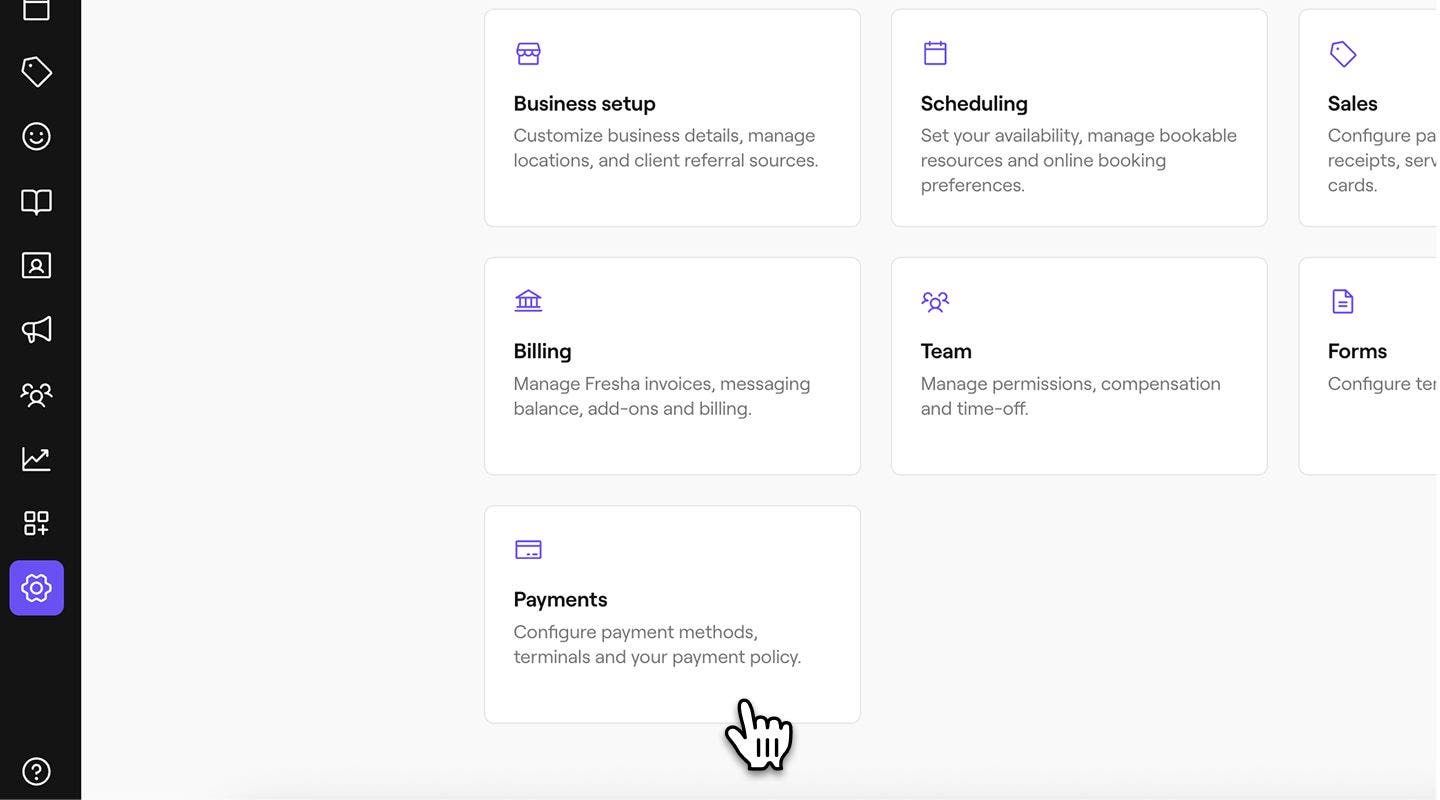
    order_a_terminal_web_2.jpg
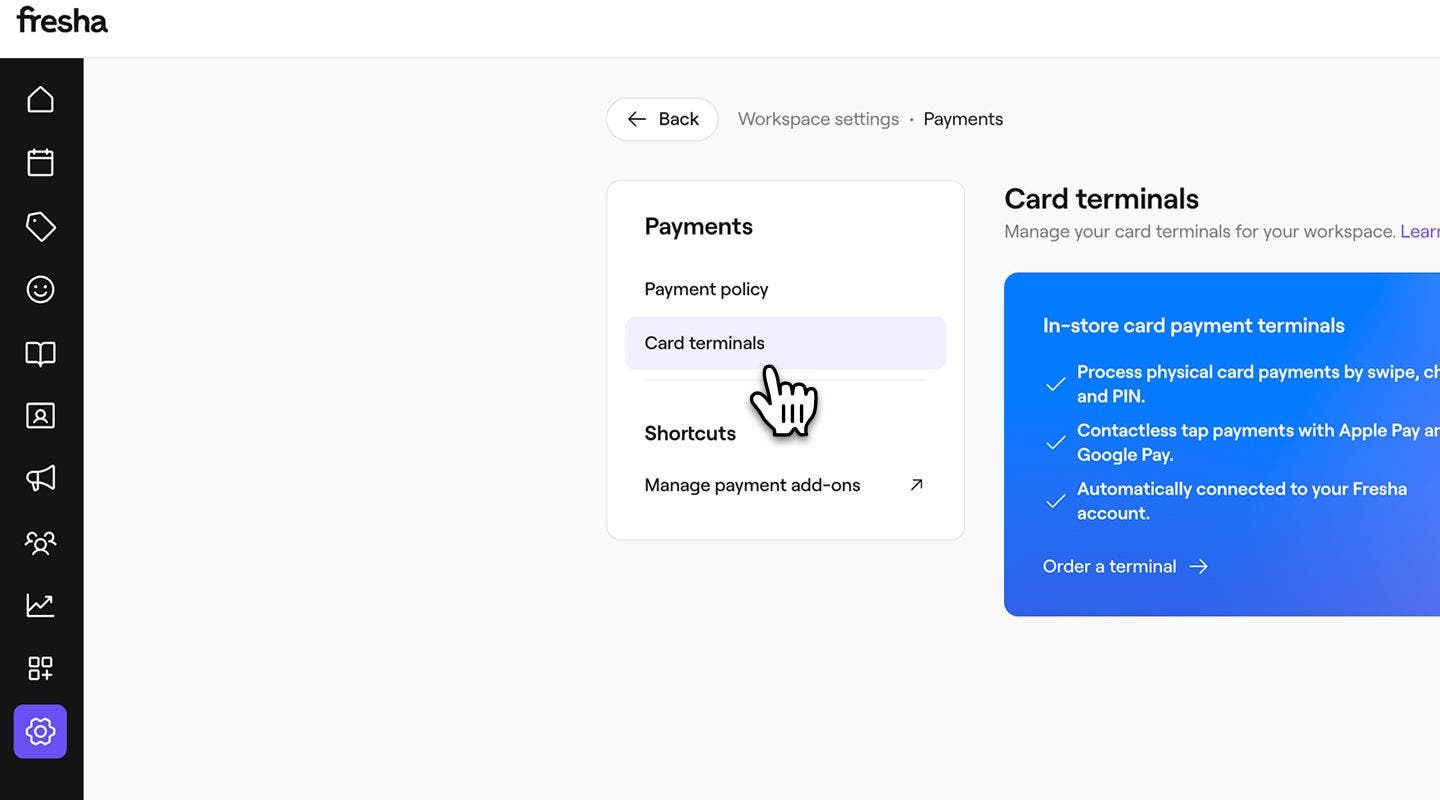
  3. In the left menu, select Card terminals to open the terminal request page. 
    order_a_terminal_web_3.jpg
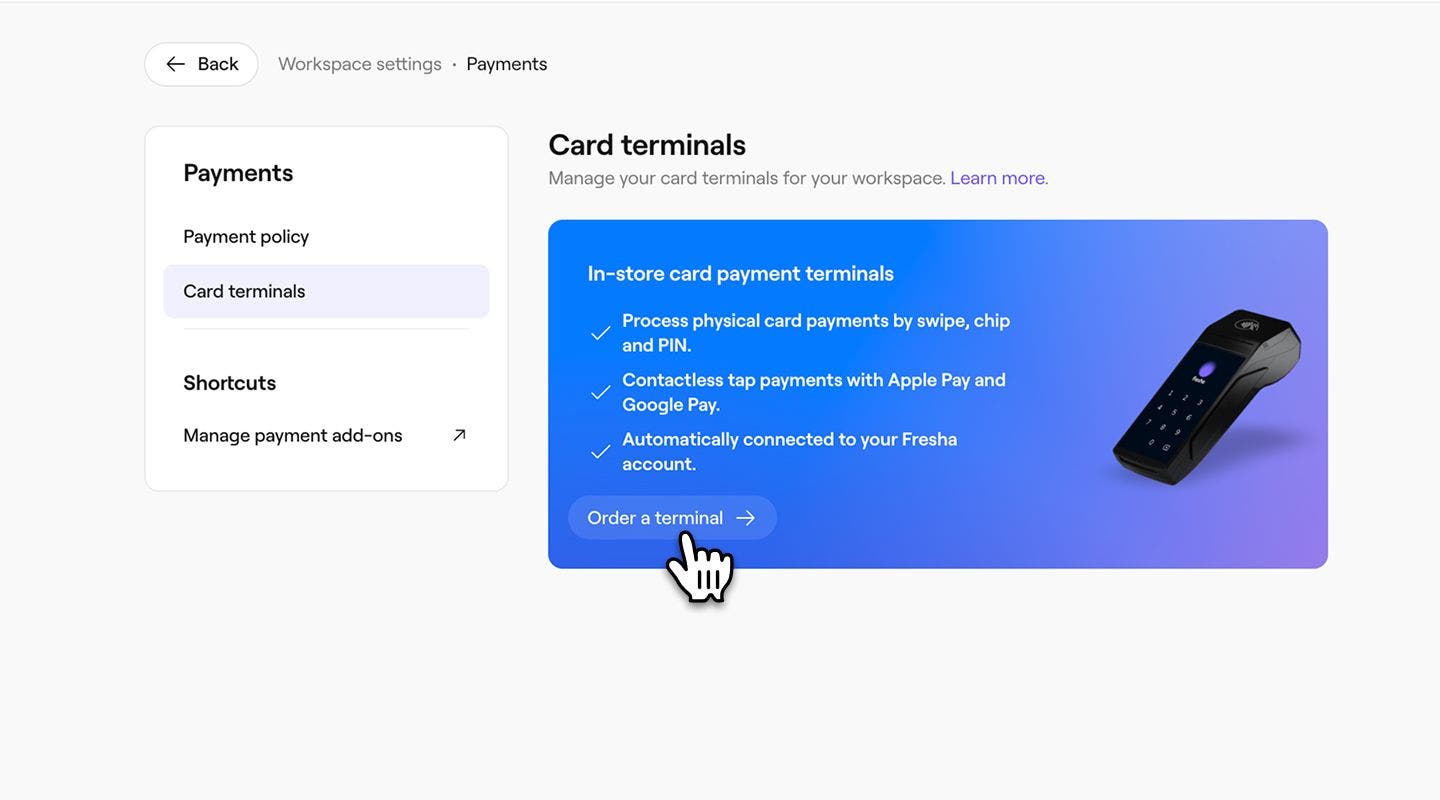
  4. Click on Order a terminal and enter the requested details about your business.
    order_a_terminal_web_4.jpg
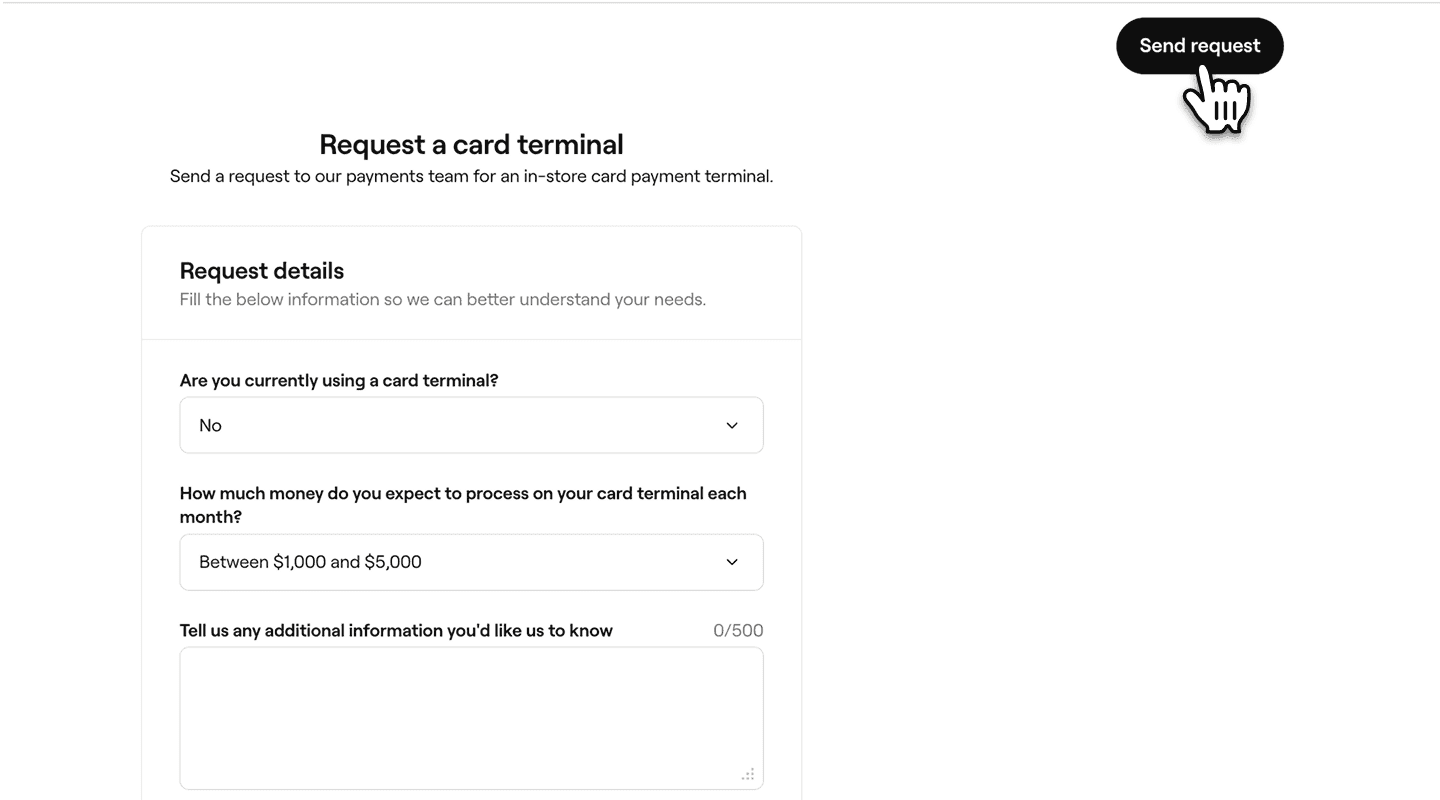
  5. Select the Send request button in the top right to submit your request to our payments team.
    order_a_terminal_web_5.png
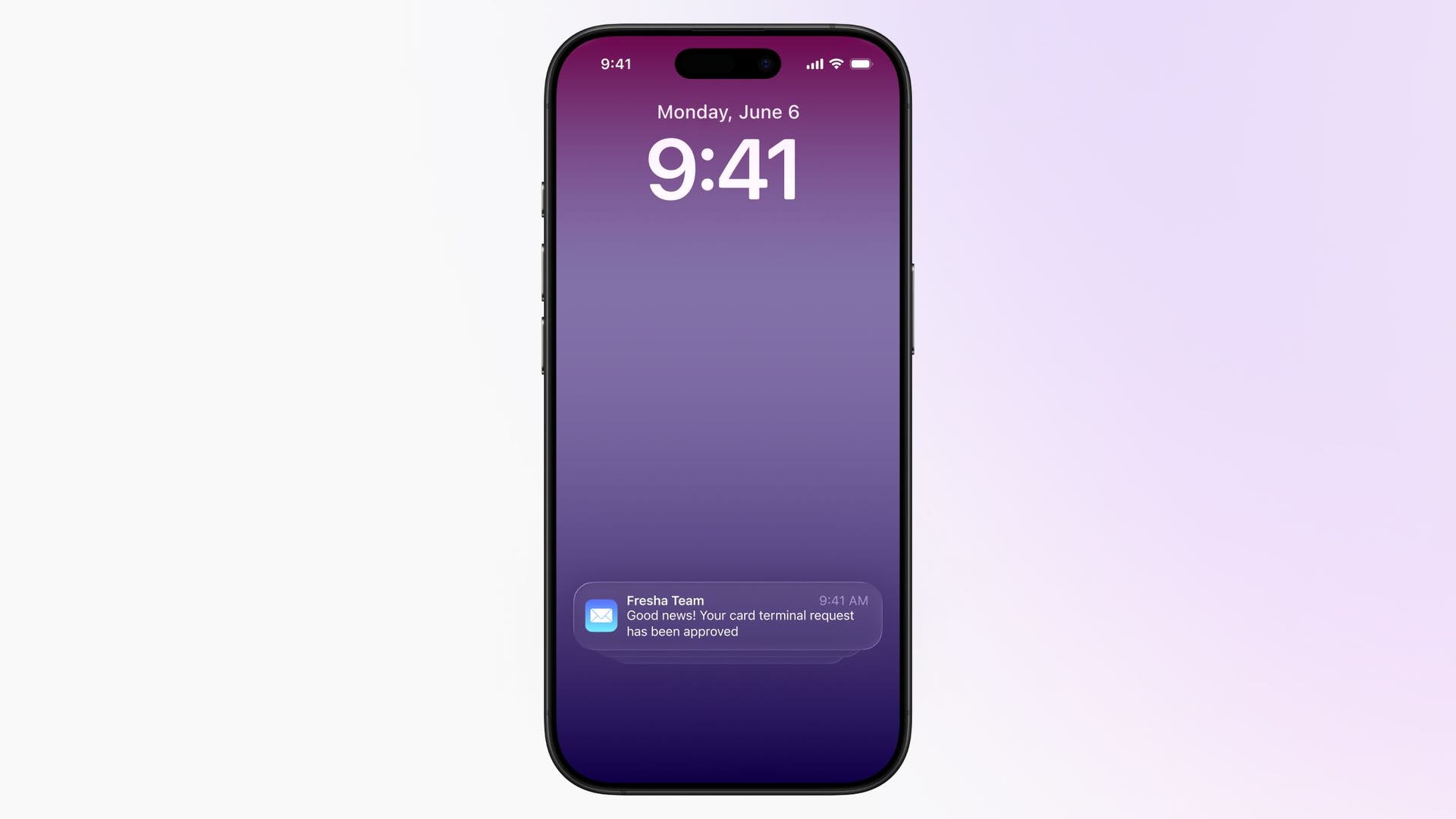
  6. Once your request is reviewed and approved, you’ll receive a confirmation email.
    Terminal_notification.jpg
  7. Open the approval email, review your offer, then click on the Pay now button. 
  8. Review your Payment method and Delivery details, then click on the Pay now button to complete your purchase.
  1. From the main menu at the bottom of your screen, tap on More (grid icon) and open Settings.
    Mobile_more options Fresha.jpg
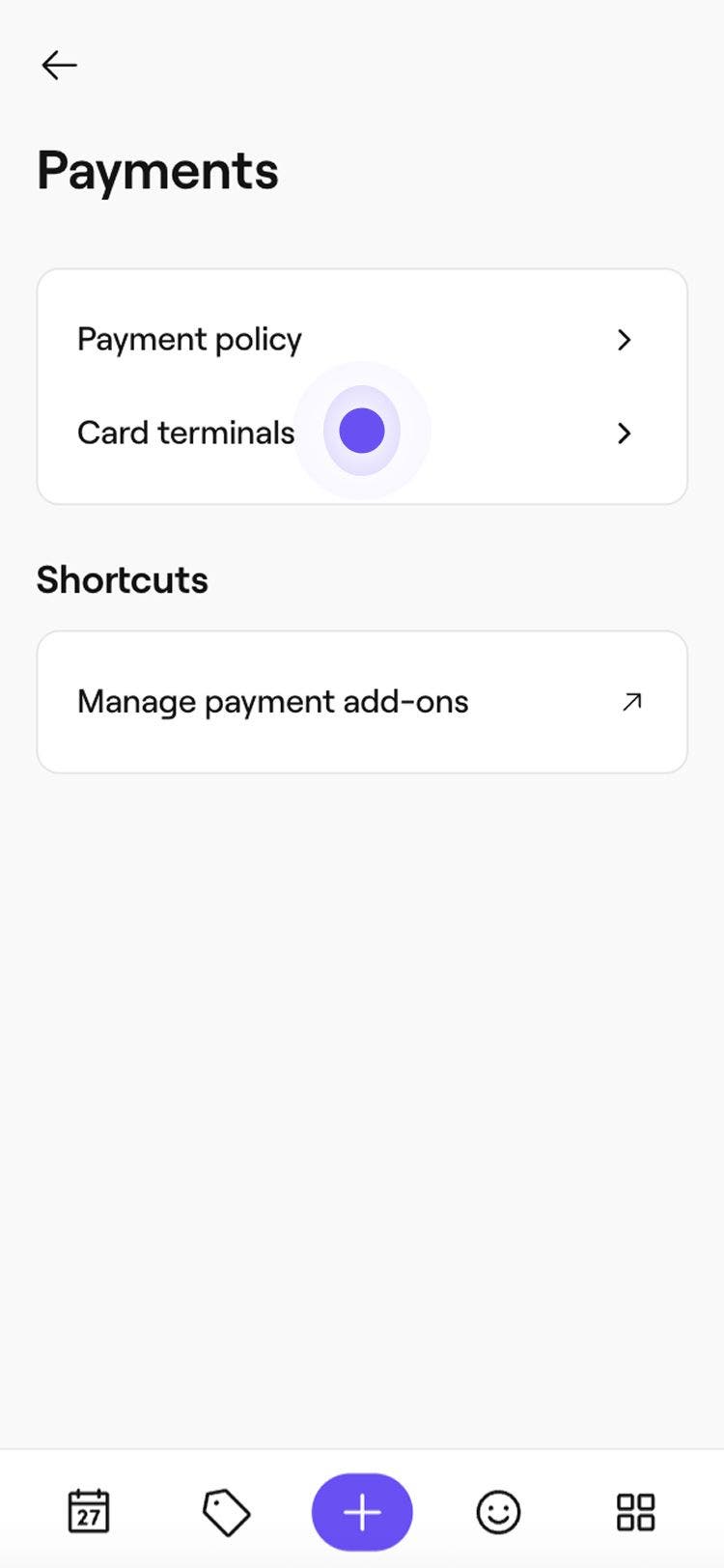
  2. Under the Workspace settings list, tap on Payments, then Card terminals. 
    Payments screen with options for Payment policy and Card terminals settings
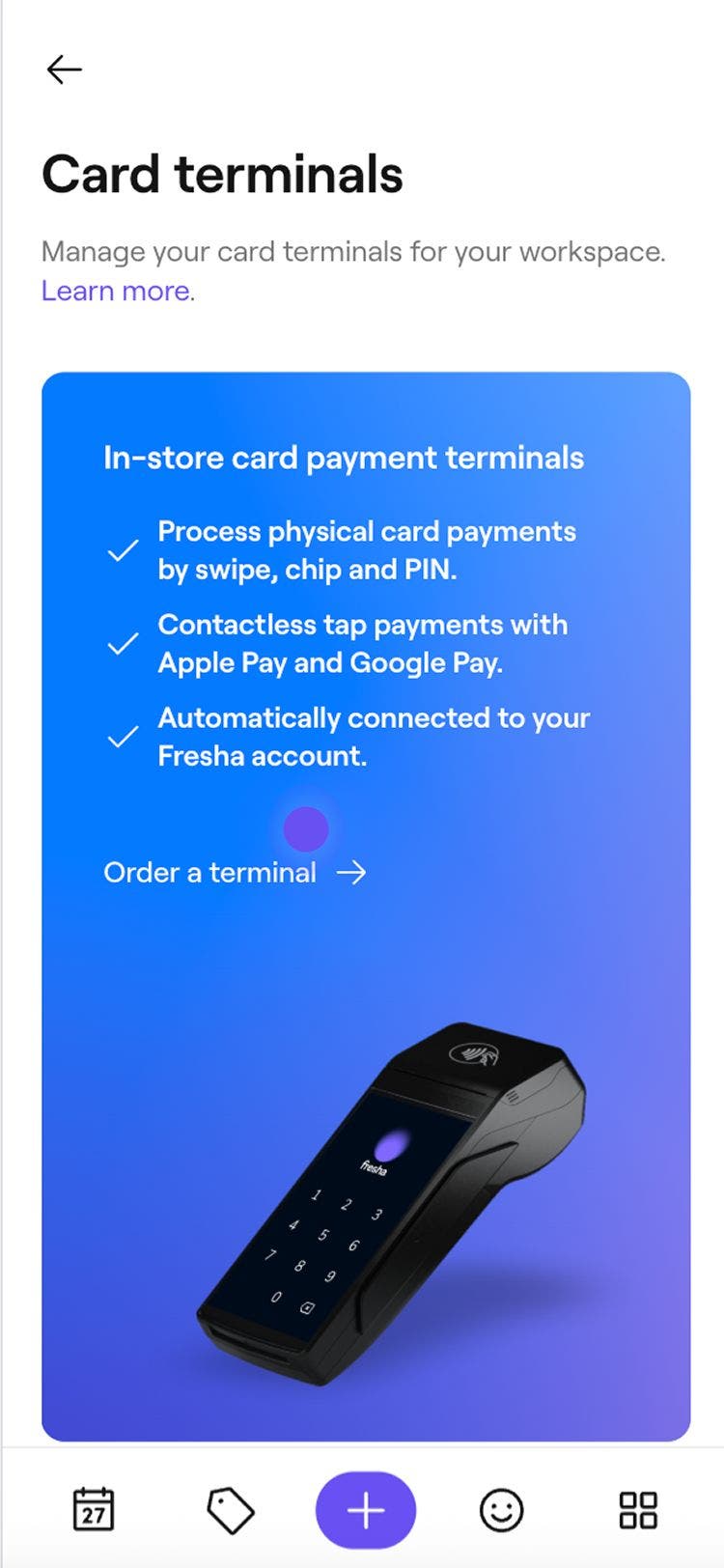
  3. Tap on the Request a terminal button.
    Card terminals screen showing terminal features and the Order a terminal button.
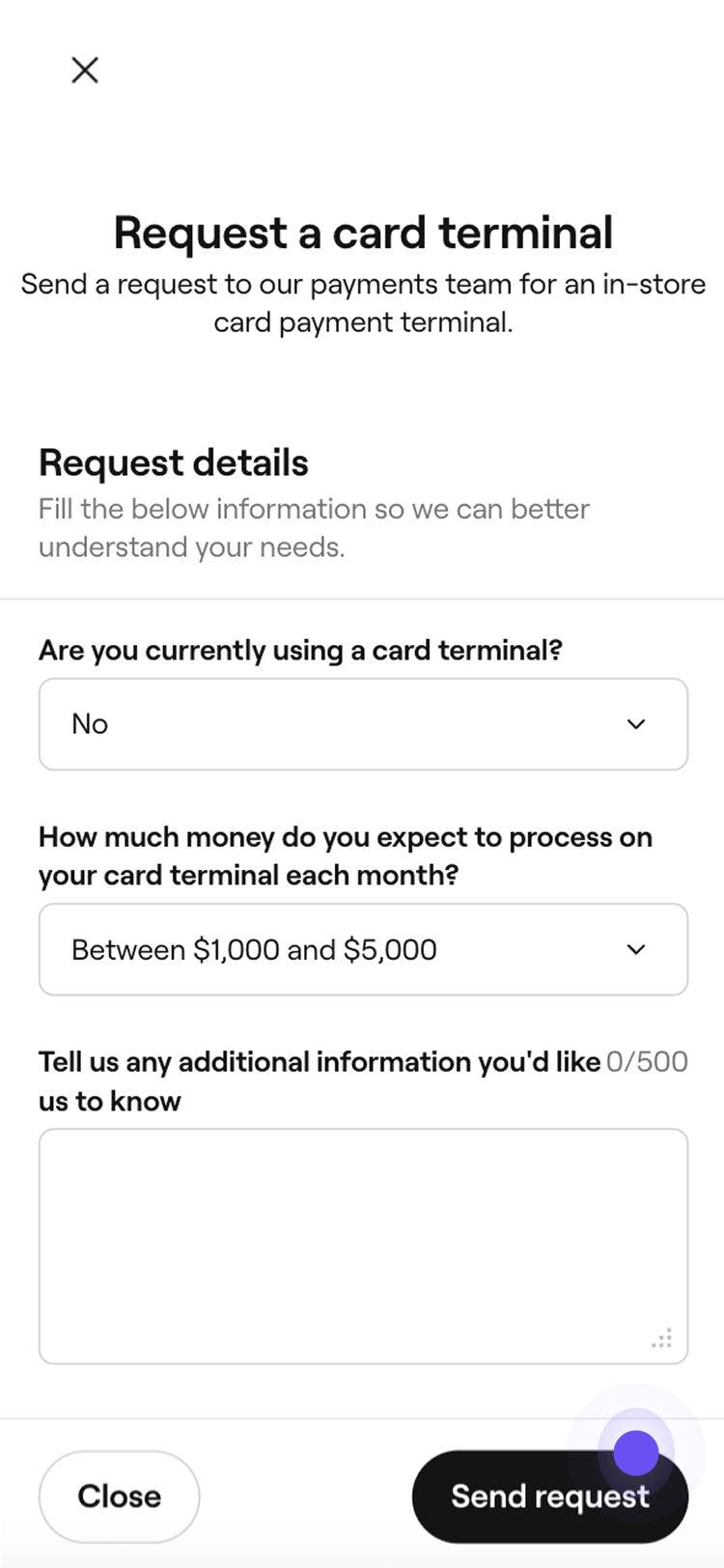
  4. Enter the requested details about your business, then tap on the Send request button at the bottom. 
    Request a card terminal form with input fields and Send request button.
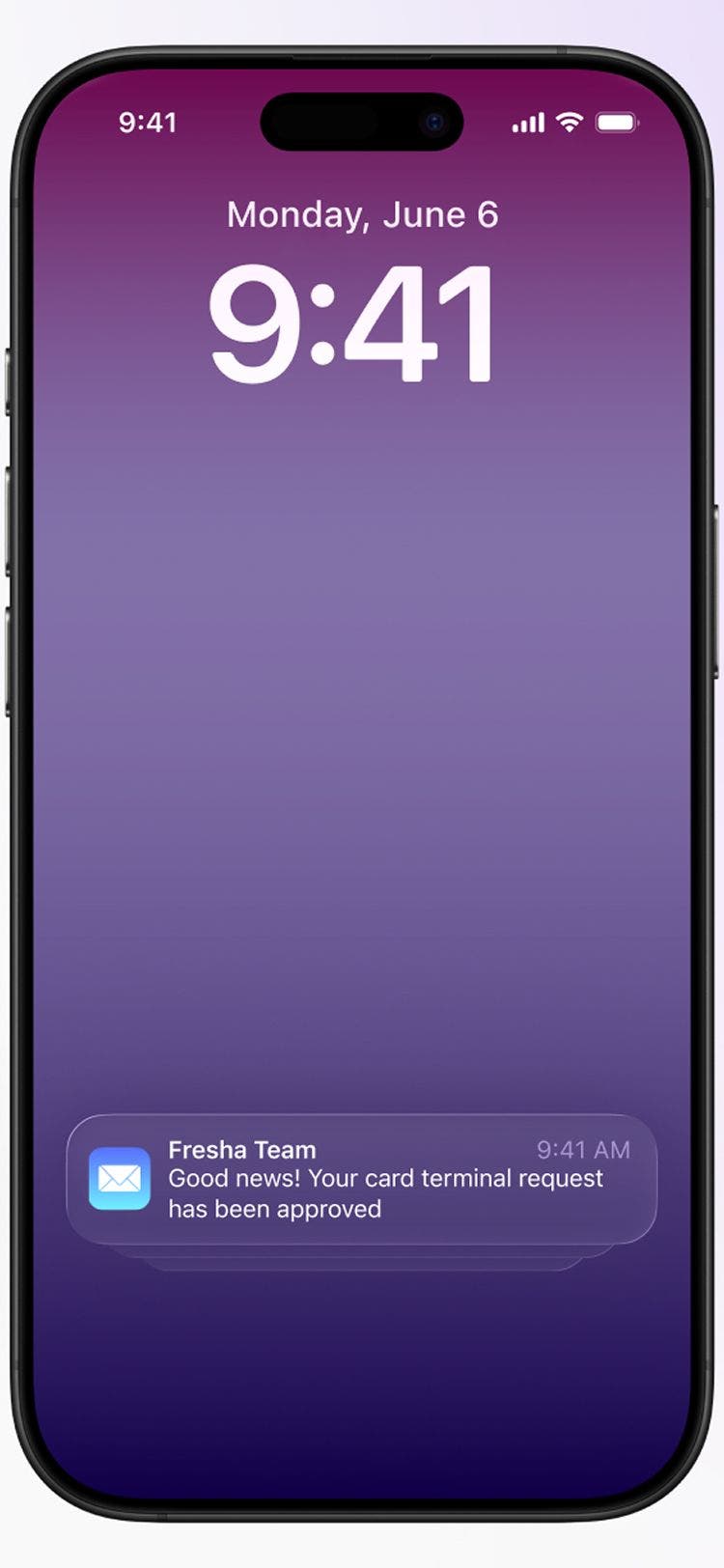
  5. Once your request is reviewed and approved, you’ll receive a confirmation email.
    Terminal_notification_mob1.jpg
  6. Open the approval email, review your offer, then click on the Pay now button. 
  7. Review your Payment method and Delivery details, then click on the Pay now button to complete your purchase.
After payment, our team will prepare and ship your card terminal, usually within three working days. You’ll receive an email with a tracking link once it’s dispatched, and you can track your request status anytime under Card terminals in your account.

FAQs

    • You can order multiple card terminals for your business, allowing team members to check out several appointments at the same time.

      Card terminals feature the Fresha logo to create a consistent and professional checkout experience across all businesses.

      There are no monthly rental fees for a Fresha card terminal. After purchasing your card terminal, you’ll only pay a low transaction fee for each processed payment.

      If you receive an approval email, you can choose not to complete the purchase by ignoring or discarding the email. The request will automatically expire if it’s not completed.

      A Fresha card terminal functions as an EFTPOS (Electronic Funds Transfer at Point of Sale) device, allowing you to accept in-store payments for appointments connected to your account.

      Card terminal pricing varies depending on your region. When you submit a request through your Fresha workspace, you’ll receive a quote in your approval email with the cost.


Card terminals


Related articles

Was this guide helpful?

Card terminals

Card terminal overview

Accept in-person payments quickly and securely with Fresha card terminals, fully connected to your account.

Order a card terminal from Fresha

Upgrade your business with a card terminal for fast, secure in-store payments.

Activate and get started with a Fresha card terminal

Get your card terminal up and running to streamline payment processing.

Enable wifi on a card terminal

Ensure reliable in-store payment processing by connecting your Fresha card terminal to WiFi.

Collect payments using a card terminal

Effortlessly process in-store payments with your Fresha card terminal.

Re-print receipts from a card terminal

Re-print receipts from your Fresha terminal for clients and records.

Collect manual payments using a card terminal

Manually enter amounts to process one-off payments on your Fresha S1 terminal.

Update your card terminal's software

Keep your card terminal running smoothly by updating its software regularly.

V400m card terminals

Manage your legacy V400m card terminal.

Troubleshoot your card terminal

Follow simple checks to resolve card terminal connection, power, receipt printing, and payment issues.

Related articles

Collect payments using a card terminal

Effortlessly process in-store payments with your Fresha card terminal.

Fresha
Get the app

About Fresha

Careers

Help and support

Blog

Sitemap

For business

For partners

Pricing

Features

Scheduling

Point of sale

Payments

Capital

Marketplace

Support

Status

Legal

Privacy Policy

Terms of service

Terms of use

Find us on social

Facebook
Linkedin
Instagram

© 2026 Fresha.com SV Ltd