HomeKnowledge baseFresha academy
Collect payments using a card terminal
Back
  1. Knowledge base•
  2. Payments•
  3. Collect payments using a card terminal

Collect payments using a card terminal

Learn how to take in-person payments quickly and securely using a card terminal.

In this article

  • How using a card terminal works
  • Collect payment at checkout using a card terminal

How using a card terminal works

Fresha card terminals let you collect in-person payments directly at checkout. The terminal automatically connects to your workspace and displays the total amount due at checkout. Clients can tap, insert their card, or use a digital wallet like Apple Pay or Google Pay to complete the payment. 

Once the transaction is approved, the payment syncs instantly with your account, ensuring all records are accurate in real time.

Collect payment at checkout using a card terminal

  1. To create a new sale, you can either raise a new sale or select Checkout from an appointment and make any adjustments to the cart. 
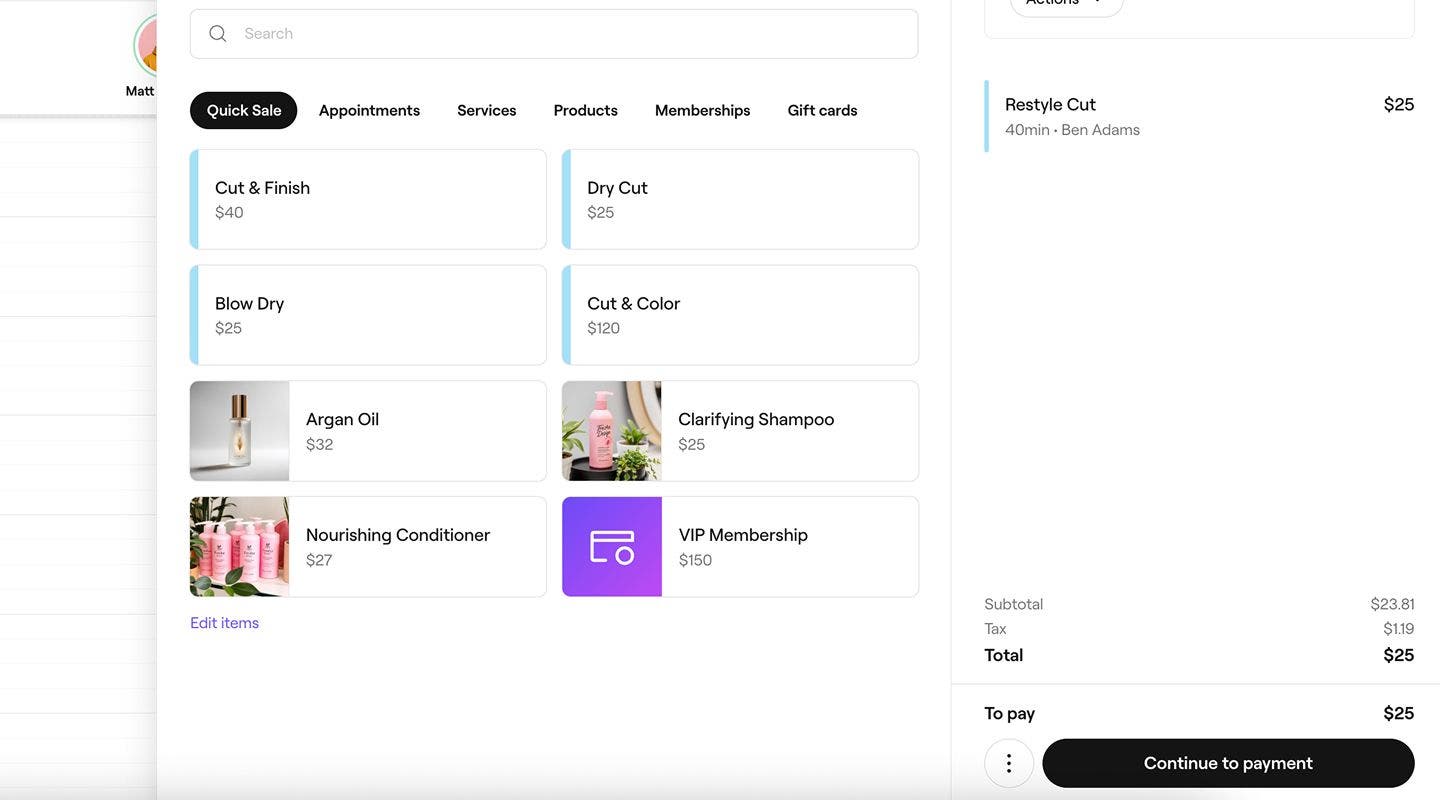
  2. In the right panel of the cart view, click on the Continue to payment button at the bottom.
    collect_a_payment_using_a_terminal_web_2.jpg
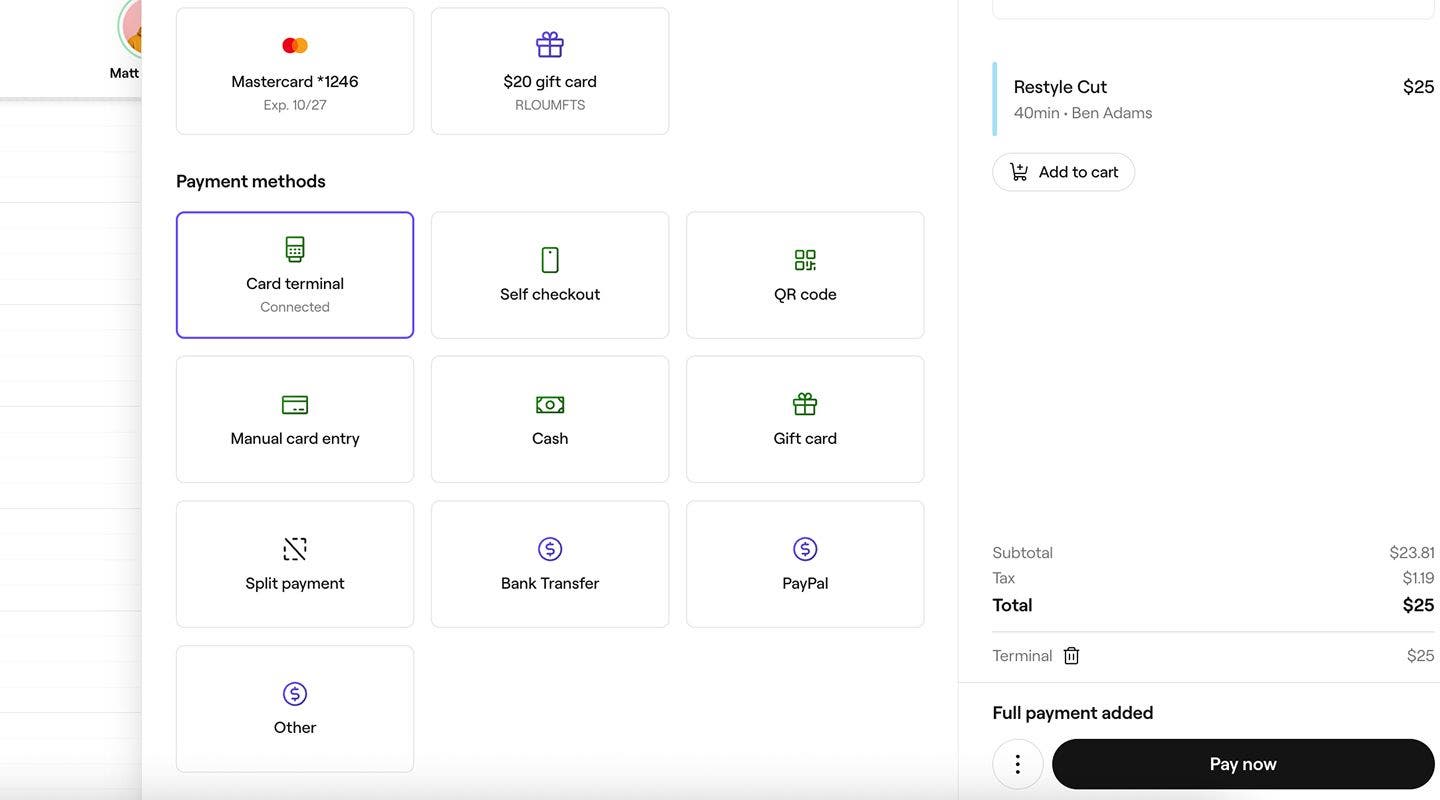
  3. In the left panel, under Payment methods, select Card terminal.
    collect_a_payment_using_a_terminal_web_3.jpg
  4. Select Pay now at the bottom, then the payment amount appears on the card terminal. Ask the client to insert, tap, or use their digital wallet to complete the payment.
  5. After the payment is successfully collected, your page will refresh with the completed sale.
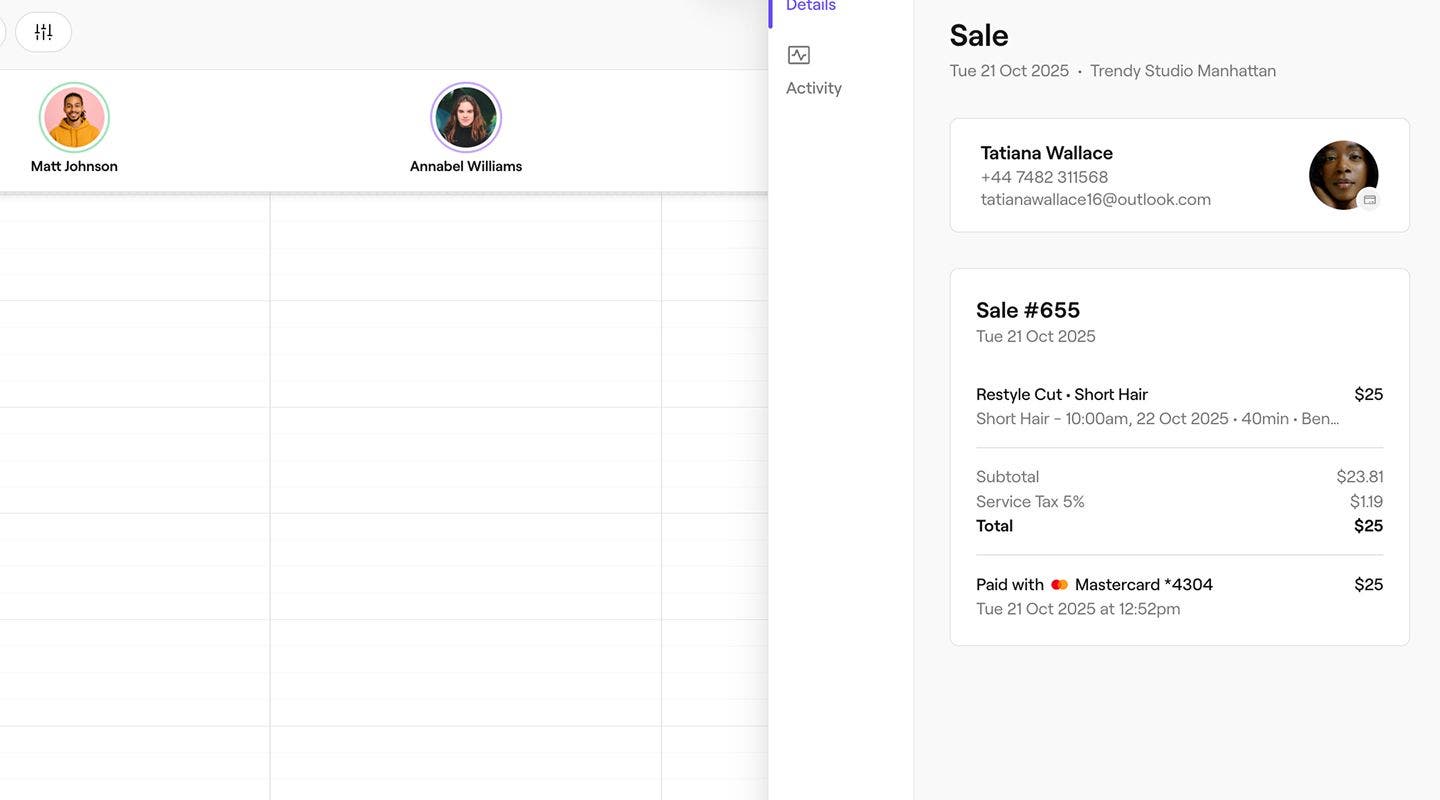
    collect_a_payment_using_a_terminal_web_5.jpg
  1. To create a new sale, you can either raise a new sale or select Checkout from an appointment and make any adjustments to the cart. 
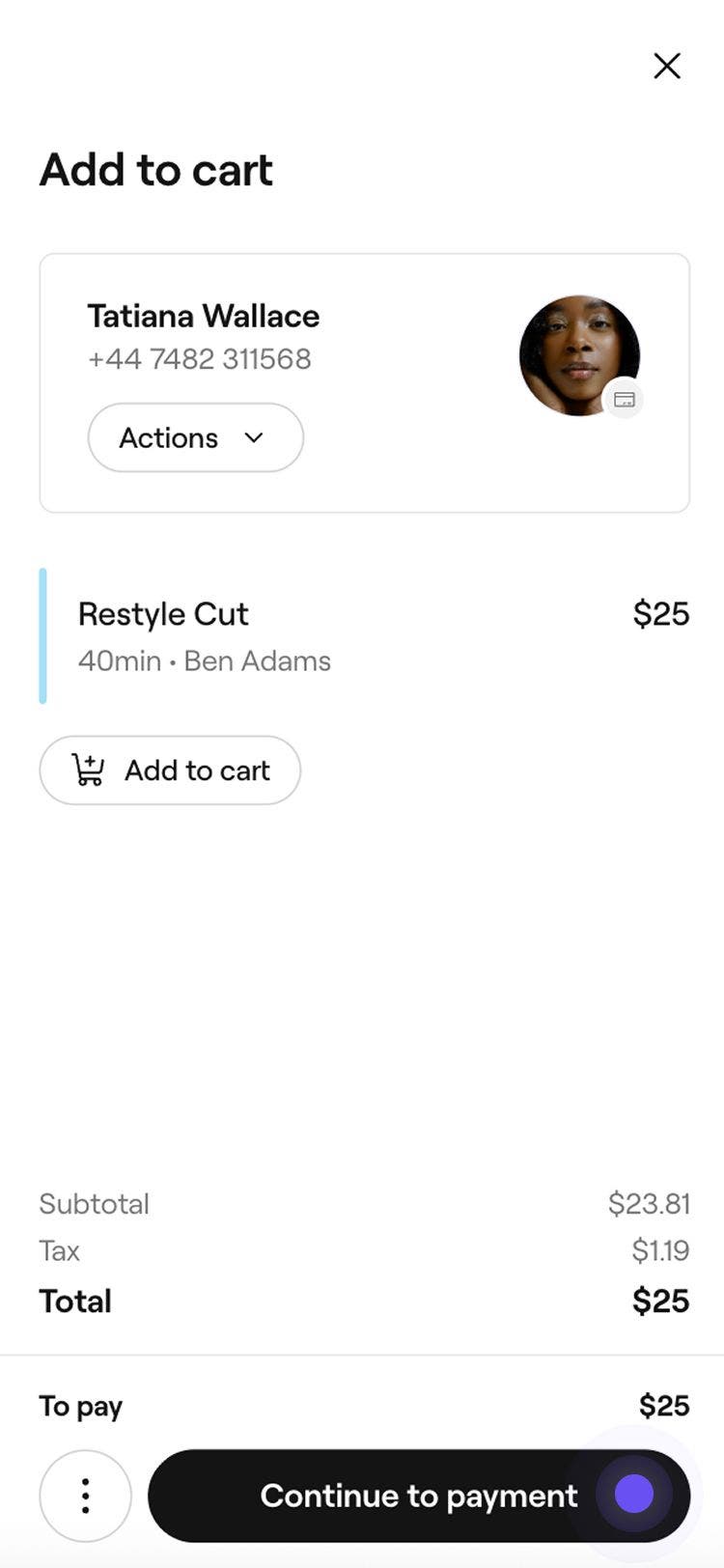
  2. In the cart view, tap on the Continue to payment button at the bottom.
    collect_a_payment_using_a_terminal_mob_2.jpg
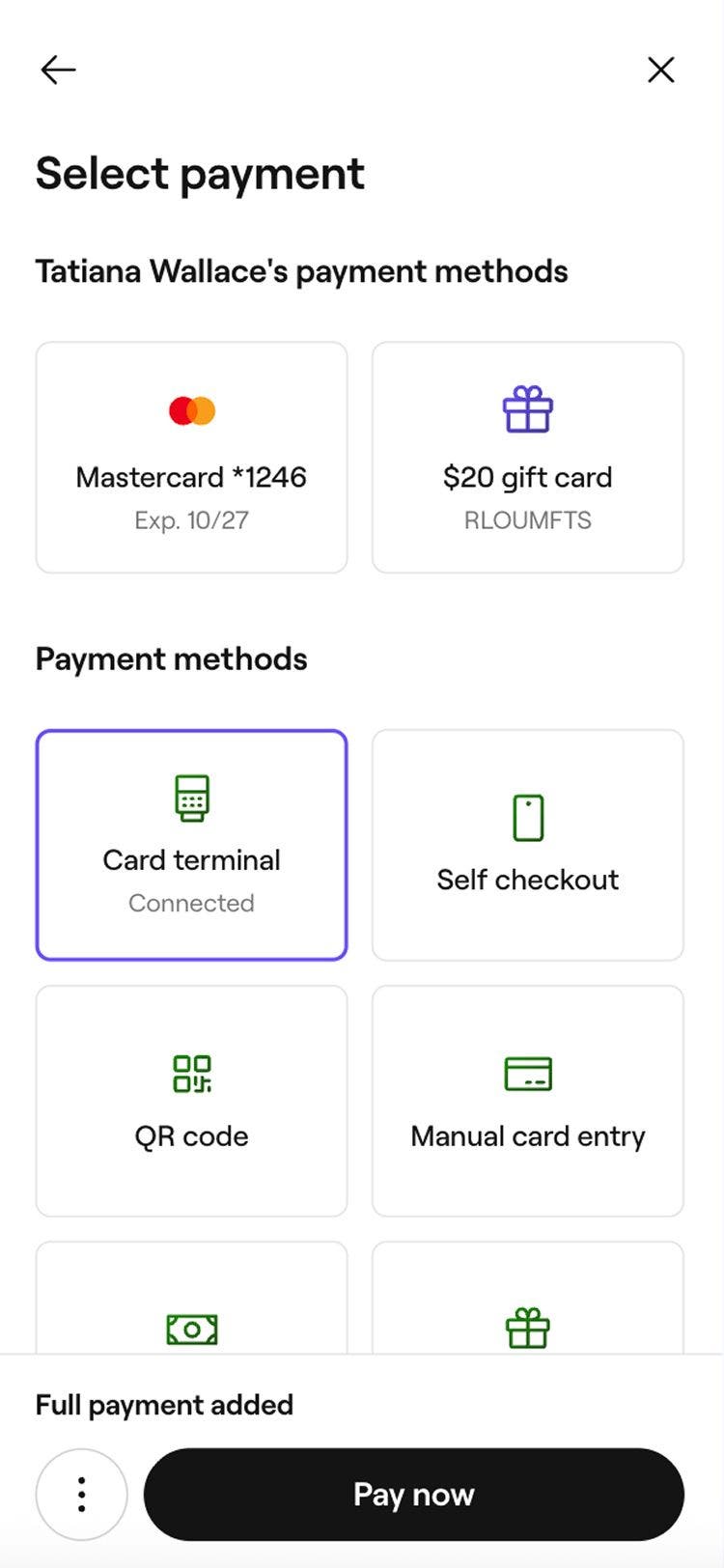
  3. Under Payment methods, select Card terminal.
    collect_a_payment_using_a_terminal_mob_3.jpg
  4. Select Pay now at the bottom, then the payment amount appears on the card terminal. Ask the client to insert, tap, or use their digital wallet to complete the payment.
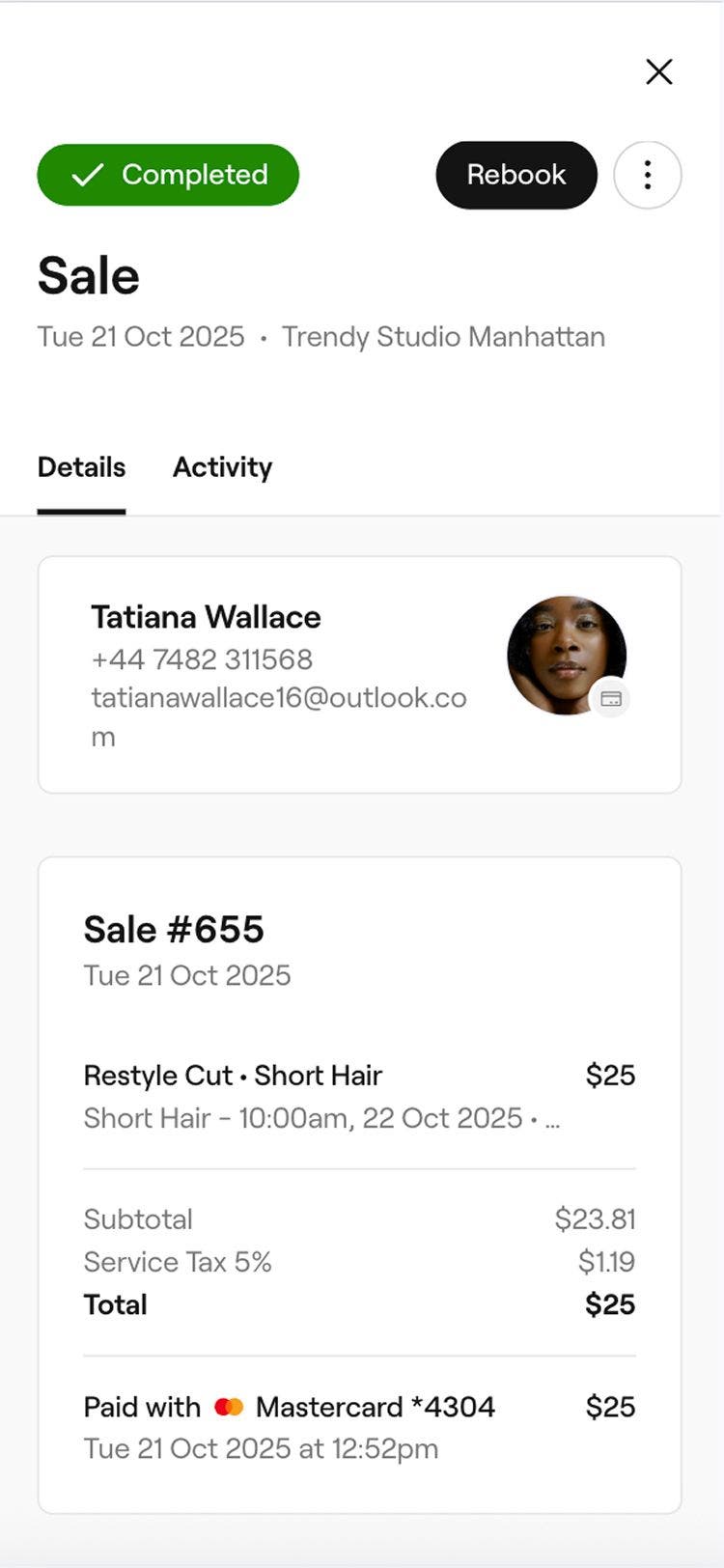
  5. After the payment is successfully collected, your page will refresh with the completed sale.
    collect_a_payment_using_a_terminal_mob_5.jpg

If your card terminal supports receipt printing, the completed sale will generate a receipt automatically.

As a shortcut, the Pay now button when checking out same-day appointments will show the Terminal option during checkout.

FAQs

    • Fresha card terminals are designed for in-person payments, where clients insert their card, tap for contactless, or use a digital wallet to complete the transaction securely. However, client card details can be entered manually using manual card entry.

      An in-person processing fee applies to each payment made using a card terminal at the point of sale. You can review all payment processing fees on our pricing page.

      Payments collected through your card terminal can be viewed in your Payments transaction, Payments summary, and Finance summary reports, as well as your Wallet.

      Clients can leave a tip when paying by card terminal, as long as tipping is enabled in your settings. You can adjust or update this in your tip settings at any time.

      Service charges can be added to the appointment directly from your workspace before checkout. Once added, the charge is automatically included in the total cost when you process the payment using your Fresha card terminal.

      If a payment fails or a terminal payment is cancelled during checkout, the sale will automatically be saved as Draft. This allows you to reopen the draft and choose another payment method.


Card terminals


Related articles

Fresha academy courses
Course video preview

Set up and explore payments

8 lessons•14 mins

See all courses

Was this guide helpful?

Card terminals

Card terminal overview

Accept in-person payments quickly and securely with Fresha card terminals, fully connected to your account.

Order a card terminal from Fresha

Upgrade your business with a card terminal for fast, secure in-store payments.

Activate and get started with a Fresha card terminal

Get your card terminal up and running to streamline payment processing.

Enable wifi on a card terminal

Ensure reliable in-store payment processing by connecting your Fresha card terminal to WiFi.

Collect payments using a card terminal

Effortlessly process in-store payments with your Fresha card terminal.

Re-print receipts from a card terminal

Re-print receipts from your Fresha terminal for clients and records.

Collect manual payments using a card terminal

Manually enter amounts to process one-off payments on your Fresha S1 terminal.

Update your card terminal's software

Keep your card terminal running smoothly by updating its software regularly.

V400m card terminals

Manage your legacy V400m card terminal.

Troubleshoot your card terminal

Follow simple checks to resolve card terminal connection, power, receipt printing, and payment issues.

Related articles

Order a card terminal from Fresha

Upgrade your business with a card terminal for fast, secure in-store payments.

Enable wifi on a card terminal

Ensure reliable in-store payment processing by connecting your Fresha card terminal to WiFi.

Fresha academy courses
Course video preview

Set up and explore payments

8 lessons•14 mins

See all courses
Fresha
Get the app

About Fresha

Careers

Help and support

Blog

Sitemap

For business

For partners

Pricing

Features

Scheduling

Point of sale

Payments

Capital

Marketplace

Support

Status

Legal

Privacy Policy

Terms of service

Terms of use

Find us on social

Facebook
Linkedin
Instagram

© 2026 Fresha.com SV Ltd