HomeKnowledge baseFresha academy
Activate and get started with a Fresha card terminal
Back
  1. Knowledge base•
  2. Payments•
  3. Activate and get started with a Fresha card terminal

Activate and get started with a Fresha card terminal

Learn how to activate your card terminal so you can start processing payments with Fresha.

In this article

  • Activate a card terminal

How activating a card terminal works

Fresha card terminals are ready to use as soon as they’re powered on, automatically connecting to 4G without any setup required. Activation is completed directly from your Fresha account, enabling the card terminal to process in-store payments.

Activate a card terminal

During setup, keep your terminal charged to ensure it has sufficient battery.

  1. On your card terminal, press and hold the power button until the display turns on. It may take a few minutes for the Fresha logo to appear.
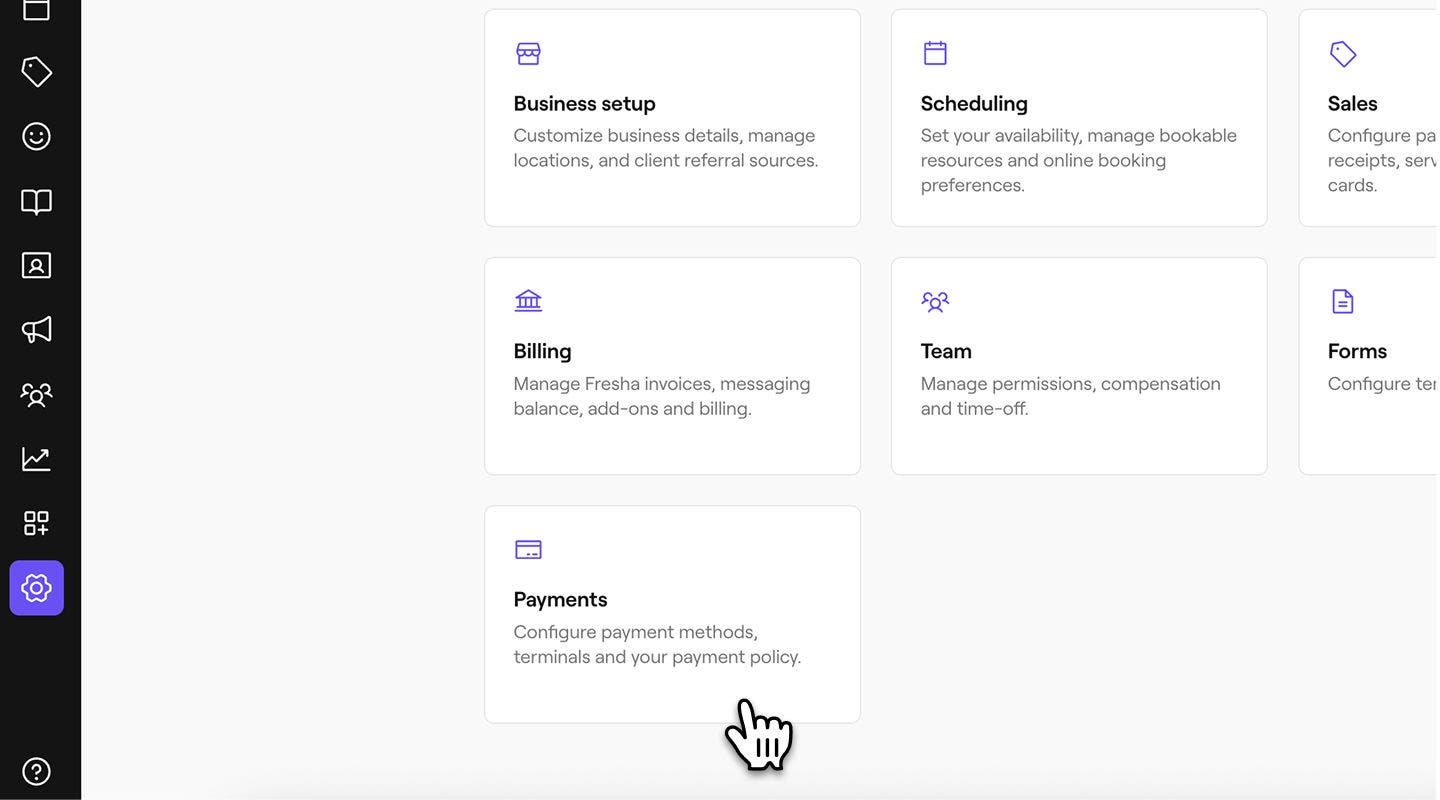
  2. In your workspace, go to Settings from the main menu on the left of your screen.
  3. Click on the Payments category to manage your card terminals. 
    activate_terminal_web_3.jpg
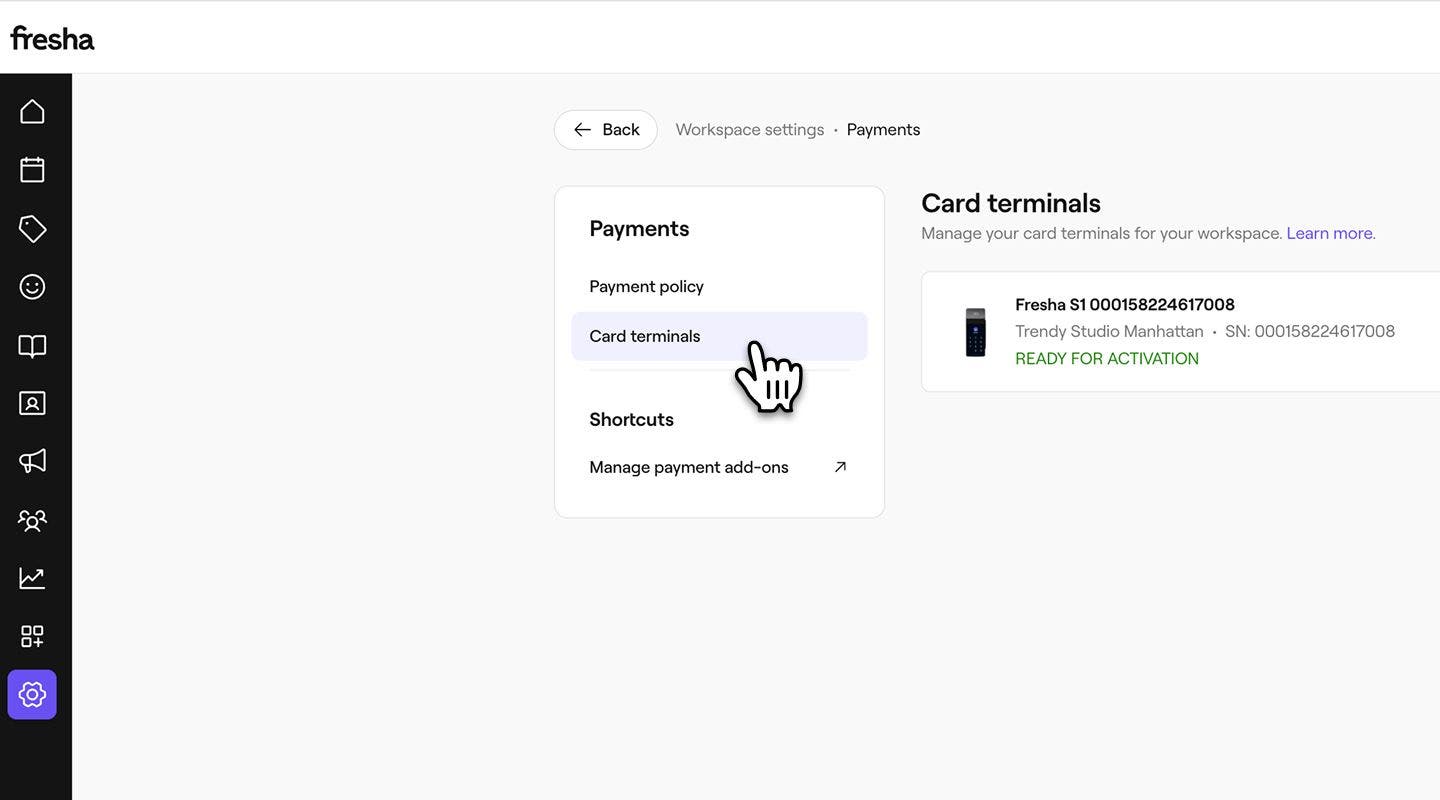
  4. In the left menu, select Card terminals to view devices connected to your account. 
    activate_terminal_web_4.jpg
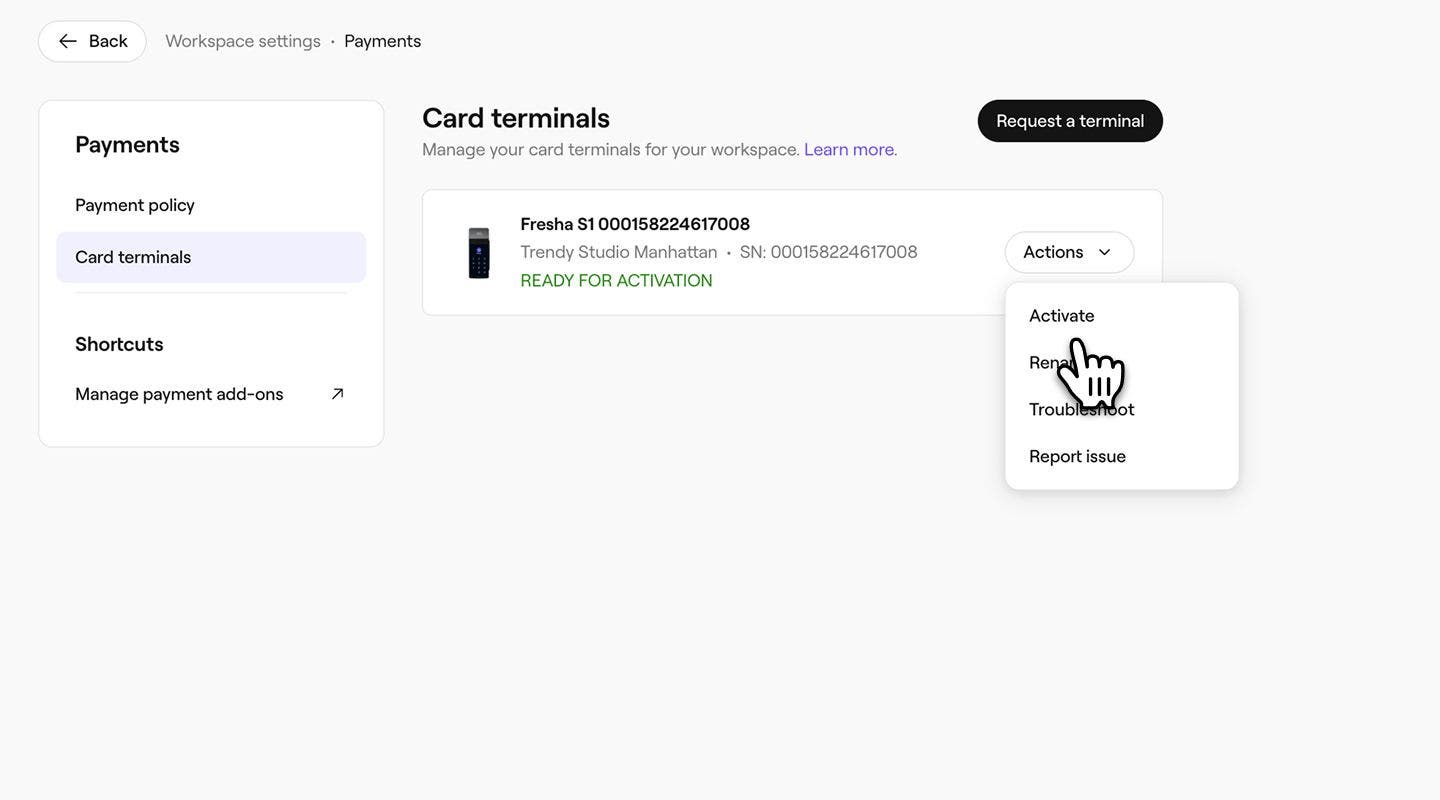
  5. Next to your newly ordered card terminal, click on Actions and select Activate.
    activate_terminal_web_5.jpg
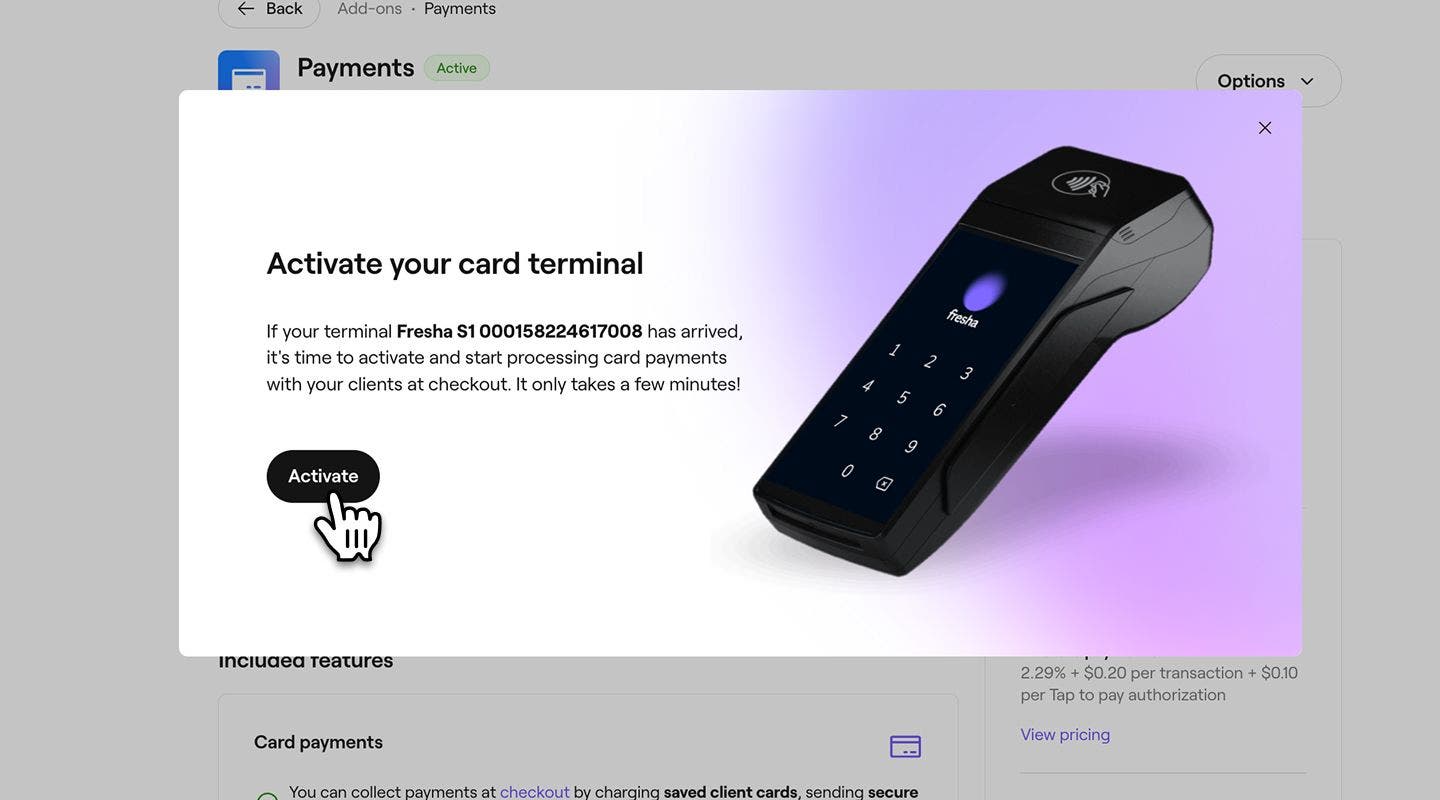
  6. In the pop-up, click on the Activate button and continue through the setup. A loading screen appears as your terminal connects. Your card terminal automatically connects to 4G, and you can skip connecting to Wi-Fi unless you don’t have cellular network coverage.
    activate_terminal_web_6.jpg
  1. Press and hold the power button on your card terminal until the display turns on. It may take a few minutes for the Fresha logo to appear.
  2. Place your card terminal on charge to ensure it has sufficient battery.
  3. From the main menu at the bottom of your screen, tap on More (grid icon) and open Settings.
  4. Under the Workspace settings list, tap on Payments, then Card terminals. 
  5. Next to your newly ordered card terminal, select Actions (three dots) and then Activate.
  6. In the pop-up, tap on the Activate button, then select the Continue button. 
  7. Your card terminal connects to 4G automatically. A loading screen appears as your terminal connects. Your card terminal automatically connects to 4G, and you can skip connecting to Wi-Fi unless you don’t have cellular network coverage.
  8. Click on the  Continue button to finish activating your card terminal.

Once your card terminal is activated, it’s ready to take payments. Run a test sale to see how processing a payment through a card terminal works.

FAQs

    • Fresha card terminals accept contactless, chip and PIN, and signature payments from major debit and credit cards, including Visa, Mastercard, and American Express. Clients can also pay using Apple Pay or Google Pay.

      A Fresha card terminal connects to one workspace at a time, but it can be assigned to different locations within that workspace as needed. For help assigning your card terminal to another location, contact our support team.

      To change your card terminal’s language, contact our support team, who will update the terminal for you.

      Your Fresha card terminal doesn’t need to stay plugged in at all times, but keeping it connected overnight helps ensure it stays charged and receives automatic software updates for smooth daily use.

      When powered on, the card terminal screen does not turn off completely but dims automatically when not in use.

      To activate and use your card terminal, you need an internet connection through cellular connection or WifI.


Card terminals


Related articles

Was this guide helpful?

Card terminals

Card terminal overview

Accept in-person payments quickly and securely with Fresha card terminals, fully connected to your account.

Order a card terminal from Fresha

Upgrade your business with a card terminal for fast, secure in-store payments.

Activate and get started with a Fresha card terminal

Get your card terminal up and running to streamline payment processing.

Enable wifi on a card terminal

Ensure reliable in-store payment processing by connecting your Fresha card terminal to WiFi.

Collect payments using a card terminal

Effortlessly process in-store payments with your Fresha card terminal.

Re-print receipts from a card terminal

Re-print receipts from your Fresha terminal for clients and records.

Collect manual payments using a card terminal

Manually enter amounts to process one-off payments on your Fresha S1 terminal.

Update your card terminal's software

Keep your card terminal running smoothly by updating its software regularly.

V400m card terminals

Manage your legacy V400m card terminal.

Troubleshoot your card terminal

Follow simple checks to resolve card terminal connection, power, receipt printing, and payment issues.

Related articles

Order a card terminal from Fresha

Upgrade your business with a card terminal for fast, secure in-store payments.

Collect payments using a card terminal

Effortlessly process in-store payments with your Fresha card terminal.

Fresha
Get the app

About Fresha

Careers

Help and support

Blog

Sitemap

For business

For partners

Pricing

Features

Scheduling

Point of sale

Payments

Capital

Marketplace

Support

Status

Legal

Privacy Policy

Terms of service

Terms of use

Find us on social

Facebook
Linkedin
Instagram

© 2026 Fresha.com SV Ltd