HomeKnowledge baseFresha academy
Create repeat appointments
Back
  1. Knowledge base•
  2. Calendar and schedule•
  3. Create repeat appointments

Create repeat appointments

In this guide, you’ll learn how to set up repeat appointments for your regular clients, so they always get their favorite time slots.

  1. You can start by Creating a new appointment or opening an existing one.

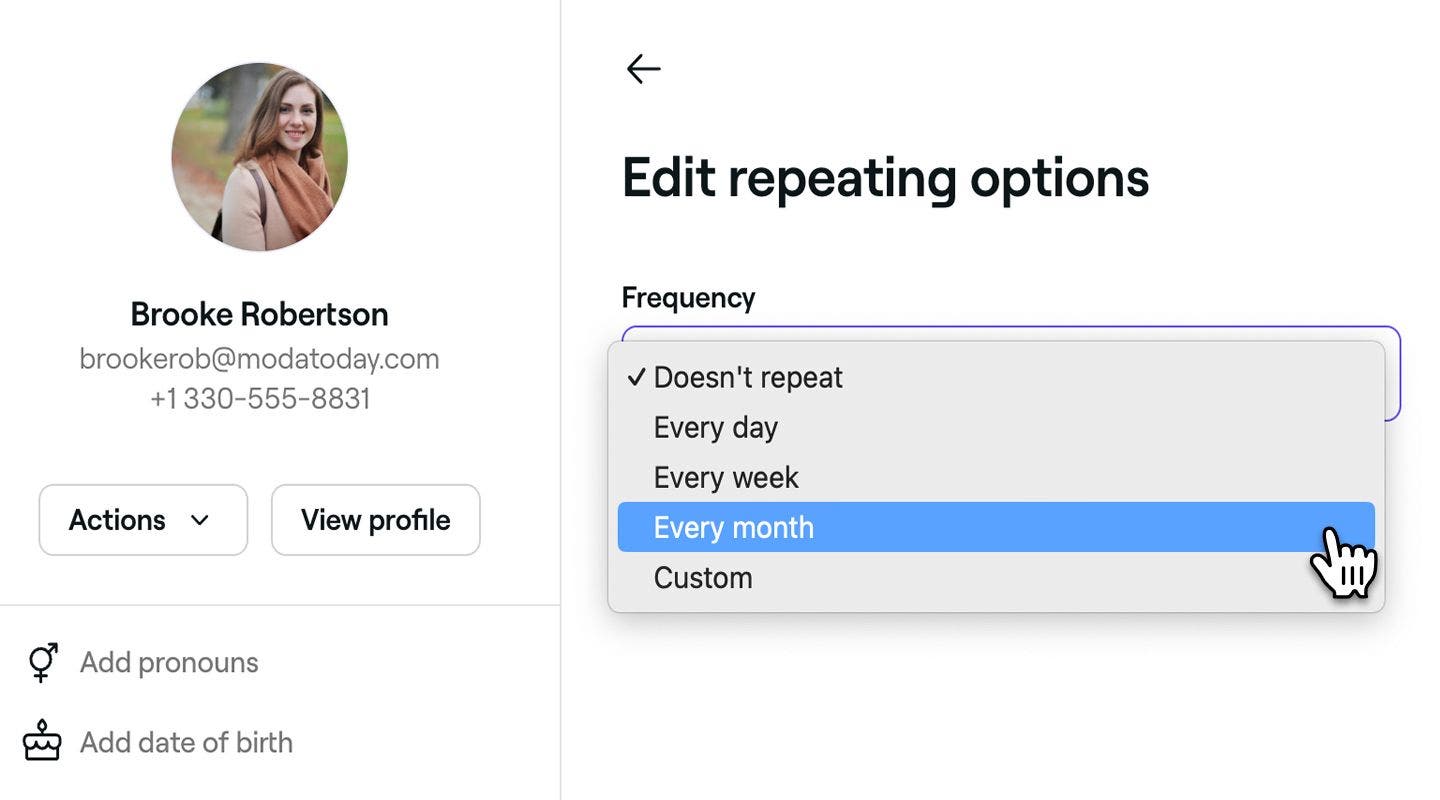
  2. In the right panel of the appointment view, click Doesn’t repeat below the date to open the Repeating options.

  3. Under the Repeating options, update the following details: 

    1. Frequency: Choose how often the appointment should repeat.
    2. End date: Set an end date or choose Never to keep the sequence ongoing.
    web_create_group_appointments_lesson_3.jpg

  4. Click on Apply changes to confirm.

  5. Click on the Save button at the bottom of the appointment view.

  1. You can start by creating a new appointment or opening an existing one.

  2. Below the date and time in the appointment view, tap Doesn’t repeat to open the Repeating options. 

    app_create_repeat_appointment_lesson_2.jpg

  3. Under the Repeating options, update the following details: 

    1. Frequency: Choose how often the appointment should repeat.
    2. End date: Set an end date or choose Never to keep the sequence ongoing.

    app_create_repeat_appointment_lesson_3.jpg

  4. Tap on Apply changes to confirm.

  5. Tap on the Save button at the bottom of the appointment view.

Once saved, the series of repeat appointments will be added to your calendar. Clients will receive a single confirmation for their next upcoming appointment and a reminder before each appointment in the series.

Repeat appointments are marked with a repeating icon in the calendar and are automatically scheduled up to 12 months in advance.

FAQs

    • Payment policies apply to each appointment individually. When a series of repeat appointment is created, the client will receive a notification prompting them to confirm their first appointment in the series with a card or by paying an upfront payment.

      Appointment notes are specific to an appointment, meaning they must be added to each appointment individually. If the same note applies to all future appointments and you want your team members to see it, consider adding a staff alert to the client’s profile. This alert will appear on their profile and will be visible when viewing all of their appointments.

      Yes, when updating or cancelling a repeating appointment, you’ll be asked whether to apply the changes to just that appointment or the entire series.

      When you create a repeated appointment with no end date, these will automatically generate for up to one year in advance. This helps manage your calendar's performance and prevents excessive future appointments from being created all at once. However, if the appointments are checked out daily, new appointments will continue to populate, ensuring the series remains ongoing without overwhelming your schedule.

      Yes, if an appointment is part of a repeat series, you can cancel, update, or reschedule it as usual. When making changes, you'll have the option to apply them to just that appointment or the entire series.


Appointments


Related articles

Fresha academy courses
Course video preview

Schedule appointments

6 lessons•6 mins

See all courses

Was this guide helpful?

Appointments

Create appointments

Start scheduling appointments with detailed client and service information.

Create repeat appointments

Schedule repeating appointments for regular clients to secure specific slots every time.

Create and manage group appointments

Schedule and manage group bookings, allowing multiple clients to attend together.

Update appointments

Edit appointment details to keep your calendar accurate and up to date.

Update appointment statuses

Track appointments in your calendar at a glance using appointment statuses.

Reschedule appointments

Move appointments to a different slots while keeping all other details unchanged.

Cancel appointments

Remove unwanted or accidental bookings from your calendar to free up availability.

Mark appointments as no-shows

Track missed appointments by marking clients as no-shows when they don't attend after the scheduled time.

Complete appointments

Check out appointments to mark them as completed for accurate reporting, marketing and more.

Apply Deals and discounts to appointments

Offer clients the best discounts by applying deals directly at checkout.

Related articles

Create appointments

Start scheduling appointments with detailed client and service information.

Manage scheduled shifts for team members

Learn how to use advanced scheduling to create manageable team shifts.

Fresha academy courses
Course video preview

Schedule appointments

6 lessons•6 mins

See all courses
Fresha
Get the app

About Fresha

Careers

Help and support

Blog

Sitemap

For business

For partners

Pricing

Features

Scheduling

Point of sale

Payments

Capital

Marketplace

Support

Status

Legal

Privacy Policy

Terms of service

Terms of use

Find us on social

Facebook
Linkedin
Instagram

© 2026 Fresha.com SV Ltd