Cancel appointments
In this guide, you’ll learn how to cancel appointments and where to find a record of these.
- Open an appointment.
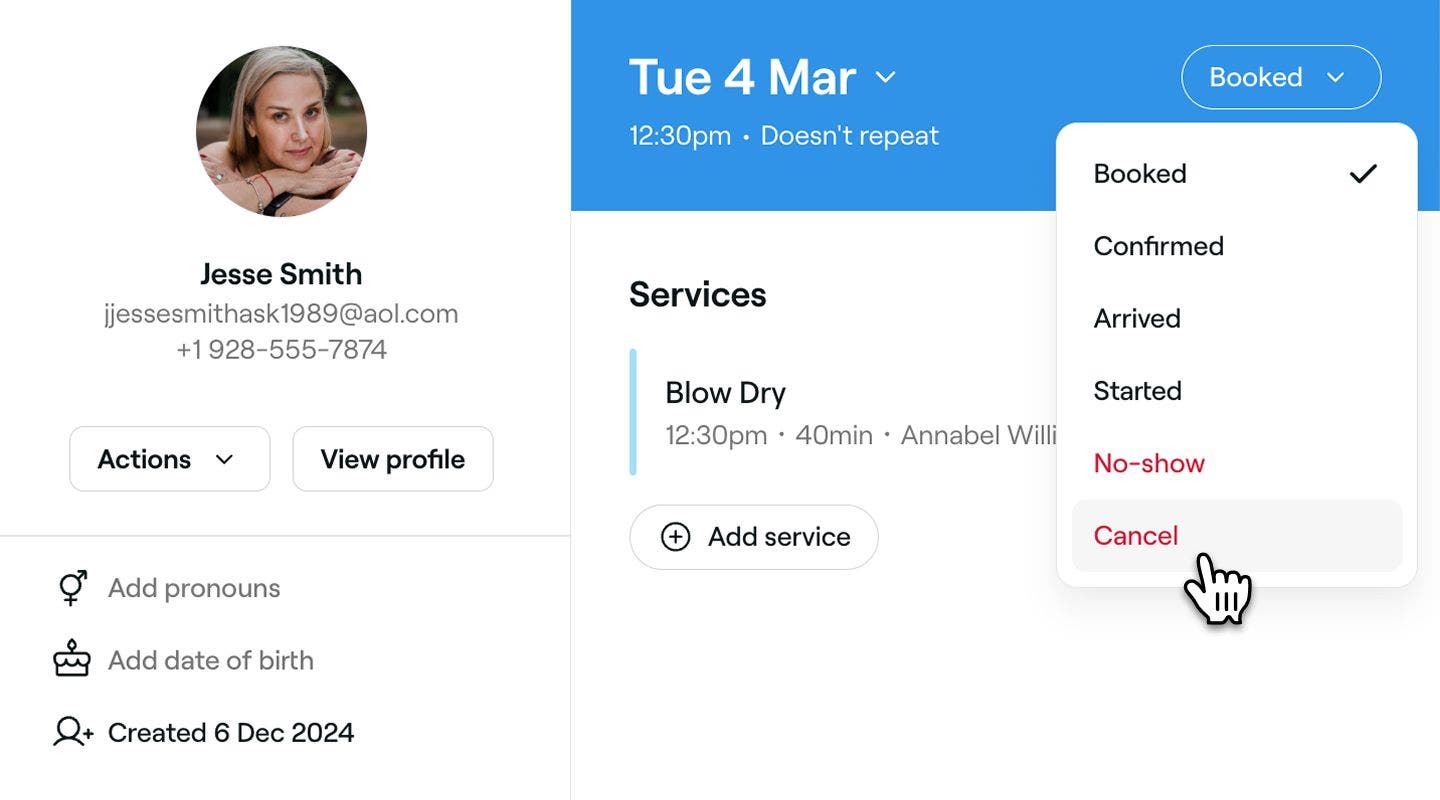
- In the right panel of the appointment view, click the Appointment status in the top-right and select Cancel.
- A confirmation window will appear, where you can:
- Select a Cancellation reason.
- Manage the Payment policies applied to the appointment.
- Send a Notification to update the client.
- Click on the Cancel appointment button to confirm.
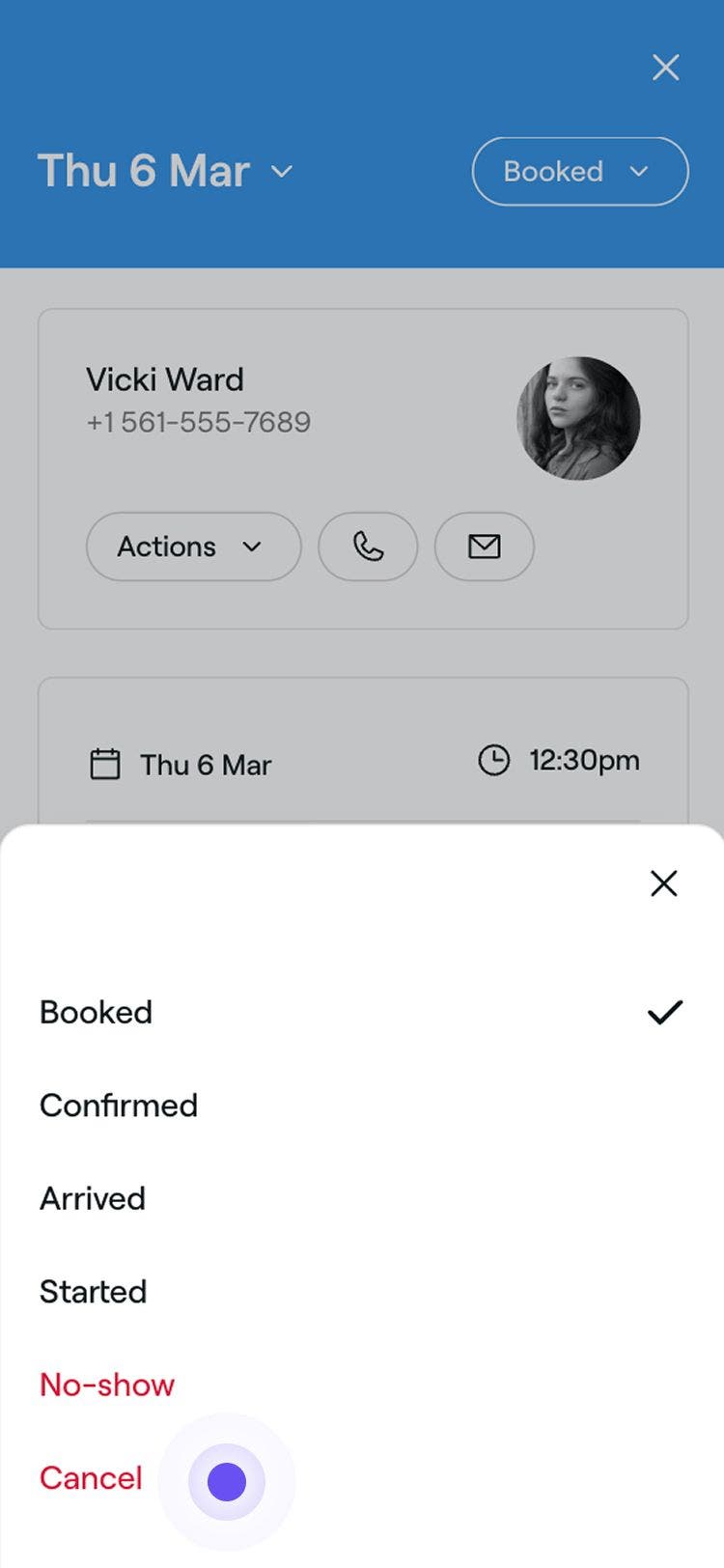
When an appointment is canceled, the client will be notified, and the appointment will be removed from your calendar to free up availability. A record of the cancellation will be saved in your Appointment list and the client’s profile.
You can also cancel an appointment by clicking Actions (three dots) at the bottom of the appointment view, and selecting Cancel.
FAQs
- For appointments confirmed with a card: Clients can cancel online, but they must pay the applicable fee to proceed with the cancellation. You’ll have the option to apply a late cancellation fee if you are cancelling the appointment in-store.
- For appointments with an upfront payment: Clients won’t be able to cancel the appointment themselves online. Instead, they’ll need to contact you directly so you can cancel it on their behalf. When canceling, you can choose to refund or keep the deposit, depending on whether it qualifies as a late cancellation. If you cancel the booking, you won’t be charged a Marketplace New Client Fee.
Yes, if the appointment was created as a repeat appointment, you can cancel the single appointment or the entire series in one go. When cancelling any appointment in the series, you'll be given the option to cancel just that appointment or all future appointments in the series.
No, appointments are only able to be cancelled if they are scheduled for the current date or in the future. Appointments in the past must be marked as no-show to ensure accuracy of reporting and calendar visibility.
Yes, appointments can be rescheduled to a different date and time if needed.
You can track client cancellations using the Appointments cancellations & no-show summary report. This report provides an overview of canceled appointments and no-shows, helping you monitor trends and manage your booking policies effectively.
Clients with prepaid or card-confirmed appointments will be notified of cancellations, and payment adjustments will follow your policy settings. If the cancellation occurs within your cancellation policy:
Yes. If your business isn’t listed on the Fresha marketplace, clients who have a Fresha account can still cancel their appointments, as long as it’s within your set cancellation window. However, client's won’t be able to reschedule the appointment through their account.