Reschedule appointments
In this guide, you’ll learn how to reschedule appointments by adjusting the time, date, or team member while keeping all other appointment details unchanged.
In this article
There are two ways to reschedule an appointment, you can drag and drop within the calendar to move it to a new time or team member on the same day, or reschedule from the appointment view to select a different date.
Reschedule appointments within the same day
- From the main menu on the left, go to Calendar and set it to Day view in the top-right.
- Click and hold an appointment, then drag and drop it into a new time slot or team member.
- A confirmation window may appear, showing any schedule conflicts and client notification options. Tick the relevant checkboxes and click Update or Reschedule to confirm.
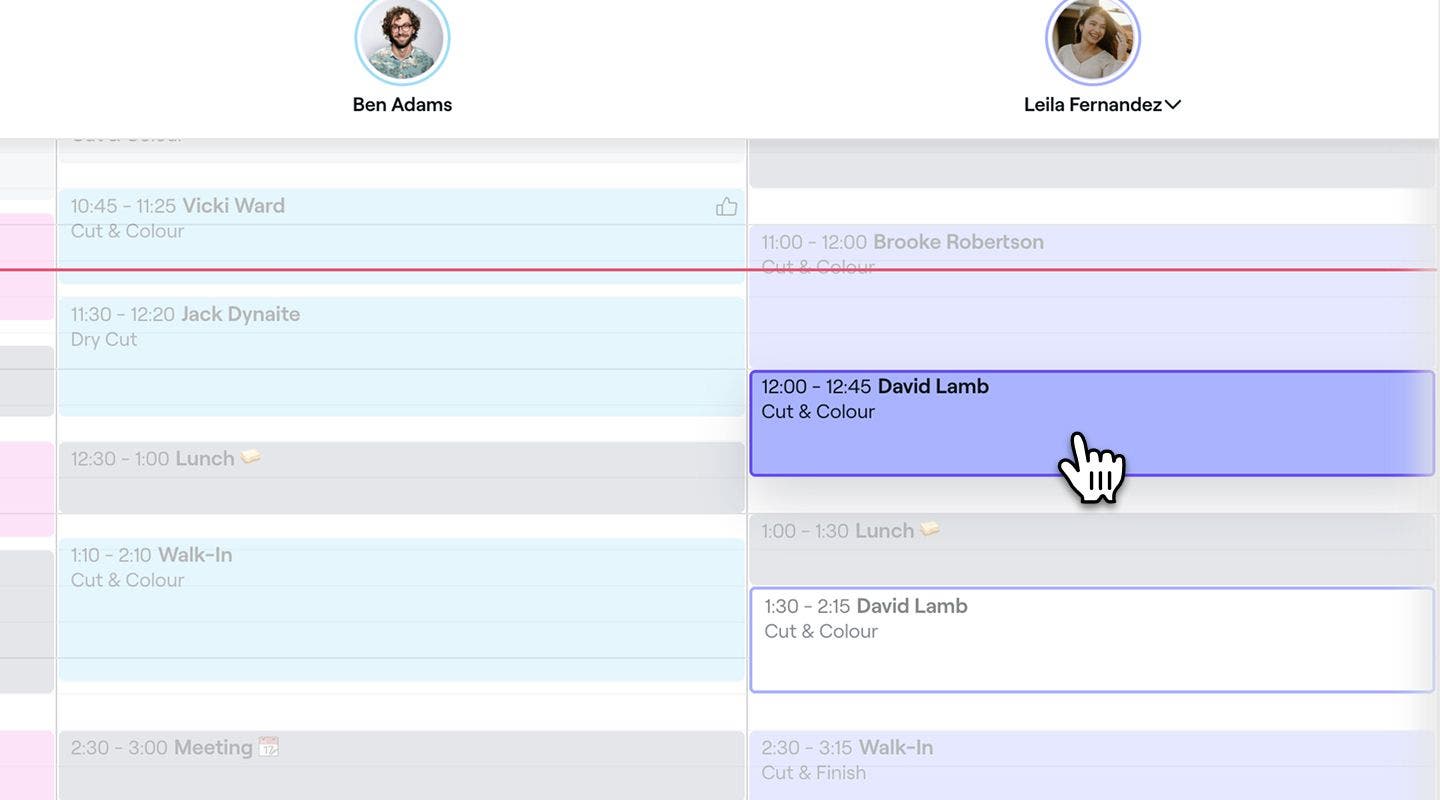
- A confirmation window may appear, showing any schedule conflicts and client notification options. Tick the relevant checkboxes and click Update or Reschedule to confirm.

You can also drag the appointment directly on the calendar to adjust its time. Grab the bottom edge of the appointment to extend or shorten its duration. This applies to scheduled appointments only, not when creating new ones.
Reschedule an appointment to a different date and time
- Open an appointment.
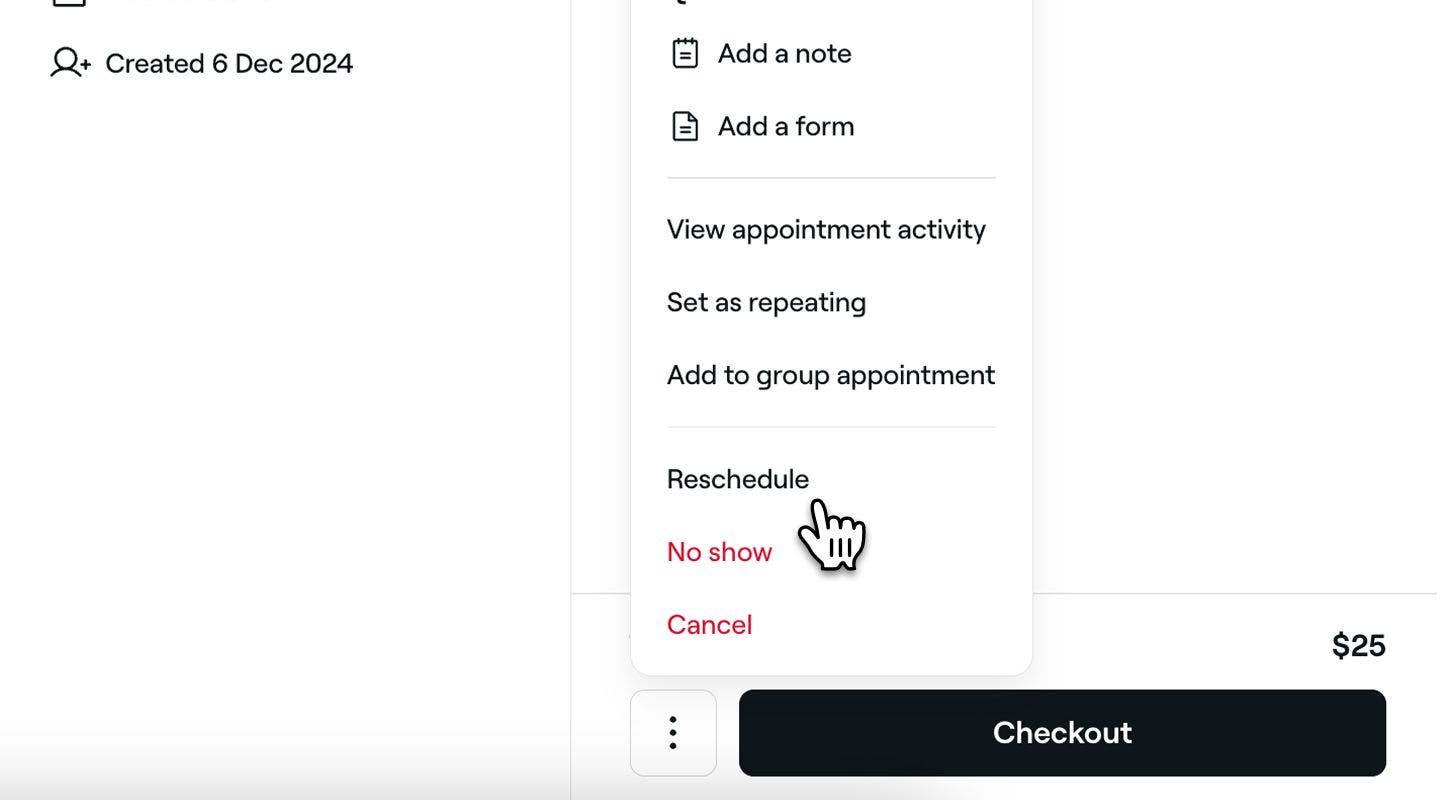
- In the right panel of the appointment view, click Actions (three dots) at the bottom and select Reschedule to view availability on your calendar.
- Browse the calendar as normal to find and select a new time slot.
- A confirmation window may appear, showing any schedule conflicts and client notification options. Tick the relevant checkboxes and click Update or Reschedule to confirm.
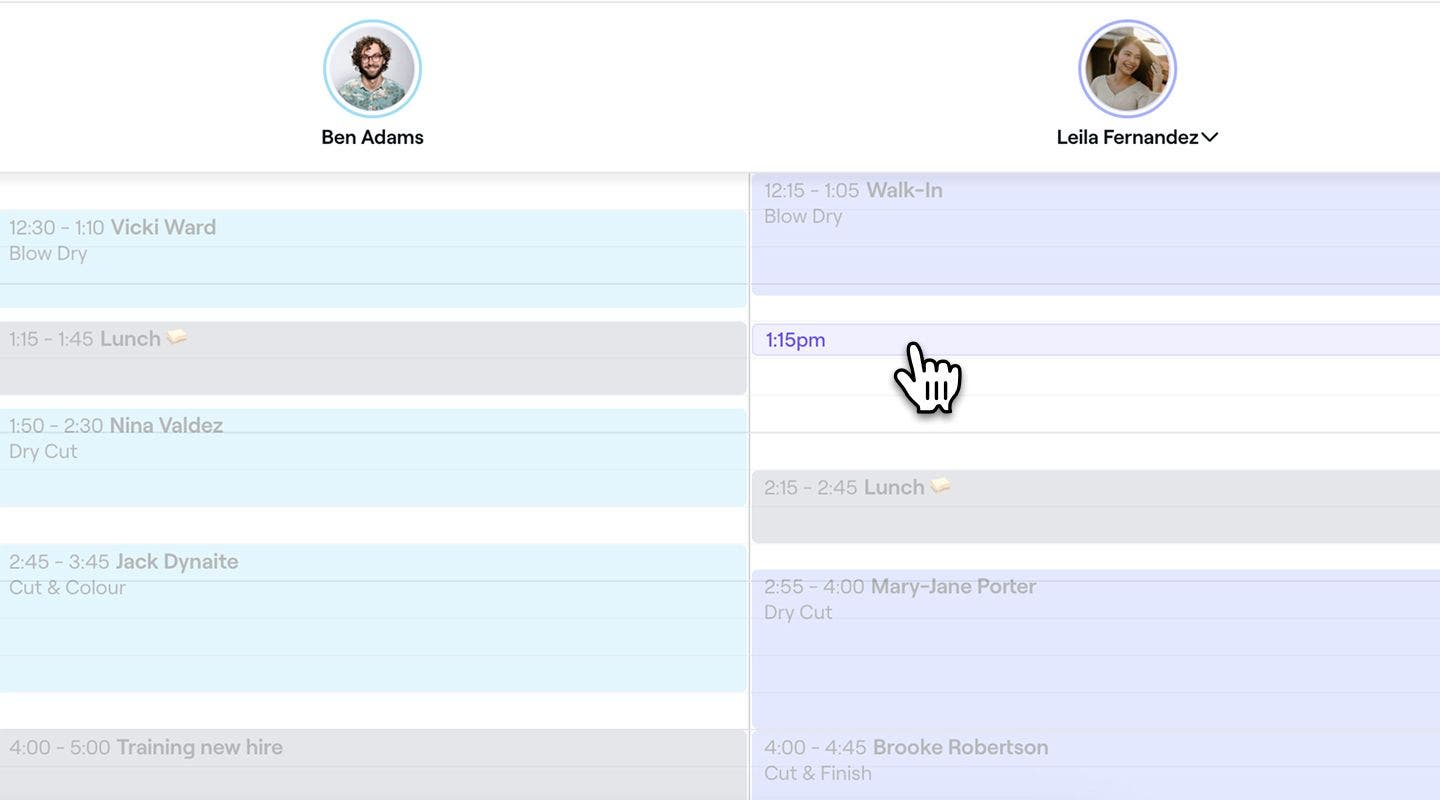
- A confirmation window may appear, showing any schedule conflicts and client notification options. Tick the relevant checkboxes and click Update or Reschedule to confirm.


After rescheduling, the client may receive a notification depending on your notification settings. Notifications won’t be sent if the appointment’s start date and time remain unchanged.
FAQS
When rescheduling an appointment with a payment policy, the policy will remain linked to the new date and time. Clients will not need to pay again.
The system will notify you if the selected time is outside their availability, but you can manually override it.
The deadline only applies to clients attempting to reschedule or cancel their appointments online. You are always able to cancel or reschedule appointments manually in the calendar regardless of the deadline.
Yes, the system will check resource availability to prevent conflicts. If the resource is not available at the new time you will see a warning which you can manually override.
All notes and forms remain linked to the rescheduled appointment.
No, to reschedule an appointment at a different location, you'll need to cancel the current appointment and rebook it at the new location.
Yes, if the appointment is part of a repeat series, you can update the entire series in one go. When rescheduling or adjusting the time and date of any appointment in the series, you'll be given the option to apply the changes to just that appointment or all future appointments.
Yes, clients can reschedule their appointment online within the allowed rescheduling period, even if they’ve already paid an upfront payment. The payment will stay linked to the updated booking.
If the original service has been removed from online booking, the client won’t be able to reschedule the appointment themselves, even if they’re still within the allowed rescheduling window. In this case, they’ll need to reach out to you directly so you can reschedule it for them from your calendar.
Clients can reschedule their own appointments, even if they were booked in-store, as long as they meet the requirements of your cancellation policy.