Paying for your subscription and add-ons
In this guide, you'll learn how to easily pay for your Fresha subscription and add-on fees directly through your Fresha wallet.
In this article
Pay subscription and add-on fees using your Fresha wallet balance
To keep your payments consistent and avoid any interruptions to your business, you can now choose to have your Fresha plan subscription and any active add-ons fees automatically withdrawn from your Fresha wallet balance.
By default, these fees are usually charged to the payment method linked to your Fresha account, but you now have the option to make your Fresha wallet the primary payment method. If your wallet balance is lower than the amount due, the card on file will be charged instead.
You can enable Fresha wallet deductions for add ons when you activate an add on in your account. The add ons that support wallet deductions include:
Client Loyalty
Insights reporting
Google Rating Boost
Data Connector
By enabling Fresha wallet deductions for one add on, you apply this setting to all active add ons in your account, including your Fresha plan subscription.
Enable charges to your Fresha wallet
Allow your subscription and add-on fees to be automatically charged to your Fresha wallet balance.
- From the main menu on the left of your screen, go to Settings.
- Under the Settings tab, select Billing.
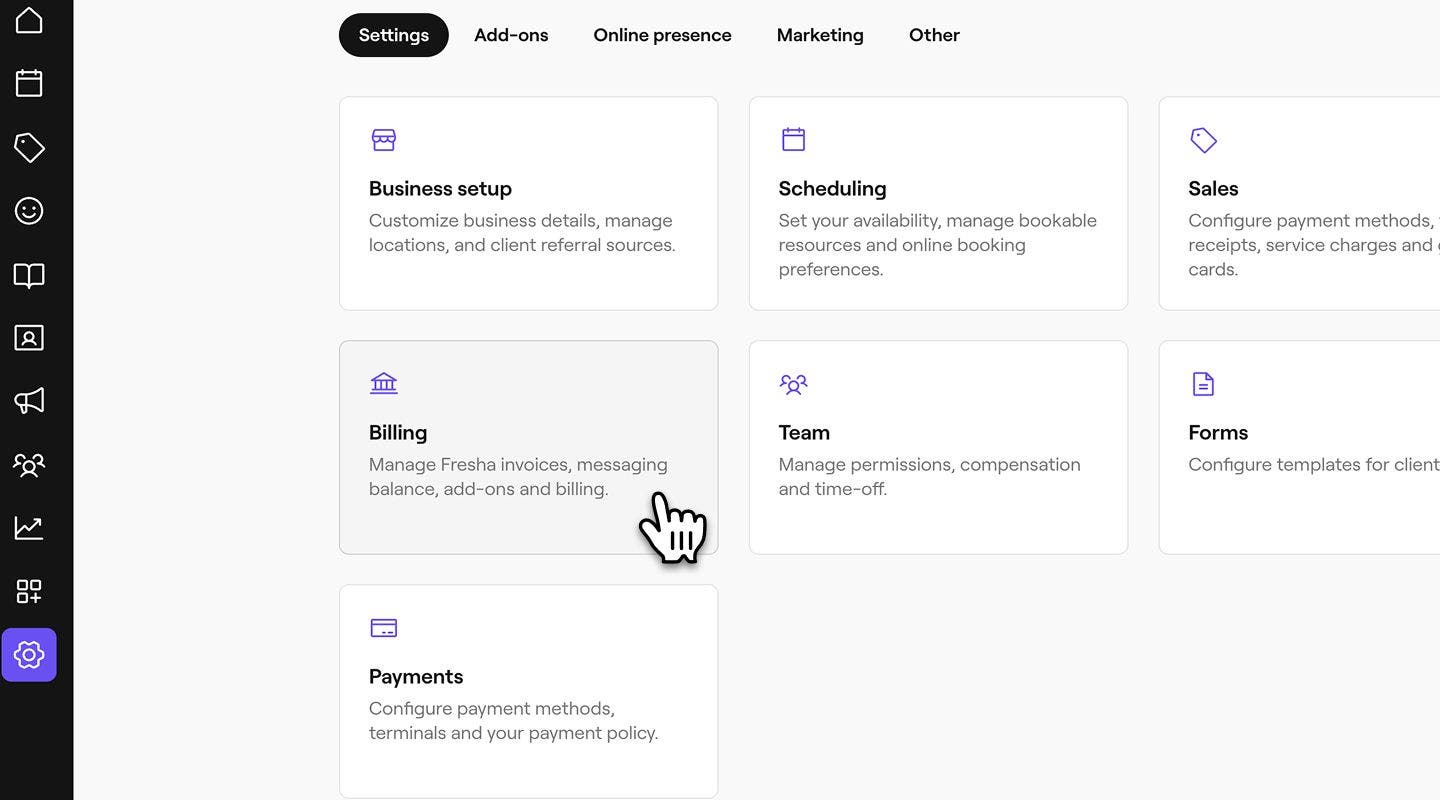
- From the left menu panel, select Billing details to view your billing information.

- Click on Manage next to Payment methods to update your payment details.

- Next, select Use wallet balance to enable your wallet balance to be charged your subscription and add-on fees.
- If you have multiple locations, click Change to choose which location’s wallet balance you want to use by default.
- Click on the Save button in the top right of your screen to update your changes.
Once enabled, your Fresha wallet balance will be charged your Fresha plan subscription and add-on fees in the next billing cyle.
Disable charges to your Fresha wallet
Stop charging add-on and subscription fees to your Fresha wallet and switch back to the default card saved in your Payment methods.
- From the main menu on the left of your screen, go to Settings.
- Under the Settings tab, select Billing.
- From the left menu panel, select Billing details to view your billing information.
- Click on Manage next to Payment methods to update your payment details.
- Next, unselect Use wallet balance to disable your wallet balance being charged your subscription and add-on fees.
- Click on the Save button in the top right of your screen to update your changes.
Once you disable Fresha wallet deductions for your subscription and add-on fees, those fees will be charged to the card on file by default in your next billing period.
FAQs
Payments must be completed using a single method. If you want to use your Fresha wallet balance to pay for an add-on fee, make sure the full amount is available in your wallet balance. Otherwise, the payment will be processed using the payment method saved in your Payments method tab for your Fresha fees.
If your Fresha wallet balance is lower than the fee amount, the payment will automatically be taken from the card saved on file in your Billing details tab.
When you enable wallet payments in your Payment methods tab, the setting applies to all active add-ons on your account, including your Fresha plan subscription fee. If you disable wallet payments for one add-on, all add-on and subscription fees will stop being charged to your wallet and will be charged to your card on file instead.
When you enable wallet payments in your Payment methods tab, the setting applies to all active add-ons as well as your Fresha plan subscription.