Set up automatic payouts
Receive your funds processed via Fresha consistently by choosing how often you get paid out. Learn how to set up automatic payouts and take charge of your cash flow.
Getting started
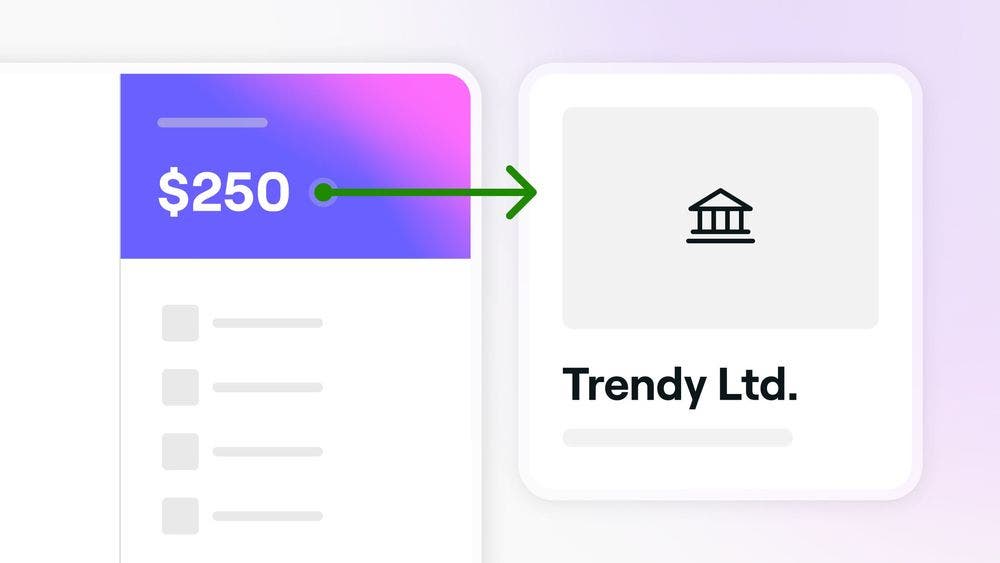
Fresha will automatically transfer scheduled payouts from your business wallet to your designated bank account, deducting any Fresha fees.
Before setting up automatic payouts you will need to:
- Enable payment processing through Fresha to collect payments from clients and schedule payouts to your bank account.
- Reaching out to the account owner to request permission to access Wallet and card processing.
How do payouts work?
You can set up a payout schedule to decide how often you receive payouts. The four options are:
- Daily: The default setting, where funds collected before midnight are sent to your bank account by the next working day if the daily balance exceeds 50. If below 50, payment will be made in full the following Monday or the next working day.
- Weekly: Funds accumulate from Monday to Sunday, with the total balance sent to your bank account the following Monday or the next working day.
- Monthly: This will allow funds to accumulate throughout the calendar month, with the total balance sent to your bank account on the first working day of the next month.
- Never: Funds remain in your business wallet, and you can manually transfer money to your team members and locations at any time.
Payments processed on the same day will typically be paid out the next day. However, some payments may not have fully settled and could be delayed until the day after.
Setting up automatic payouts
To set up automatic payouts:
- Open your Wallet, and select Fresha accounts.
- For multiple business locations, use the drop-down arrow next to the balance to select the relevant one.
- Select Manage to update the verified bank account’s location where funds will be sent.
- Next to Send, click Change to change to a verified bank account.
- Under Frequency, set how often you would like funds to be transferred from Daily, Weekly, Monthly, or Never.
- Click Save.
As banks do not process payments on weekends and bank holidays, all funds collected on these days will be released the next working day.
You can send money from your wallet to your bank account anytime outside of your automatic payout schedule, as long as the funds are settled (around 24 hours after the payment is processed).
FAQs
To set up automatic payouts, payment processing must be enabled and verified. Fresha Payment processing is available in a few countries, and we are working to introduce this feature in more countries.