Manage business wallet transfers
Learn to manage your wallet transfers and move money from your business wallet whenever you need.
In this article
How wallet transfers work
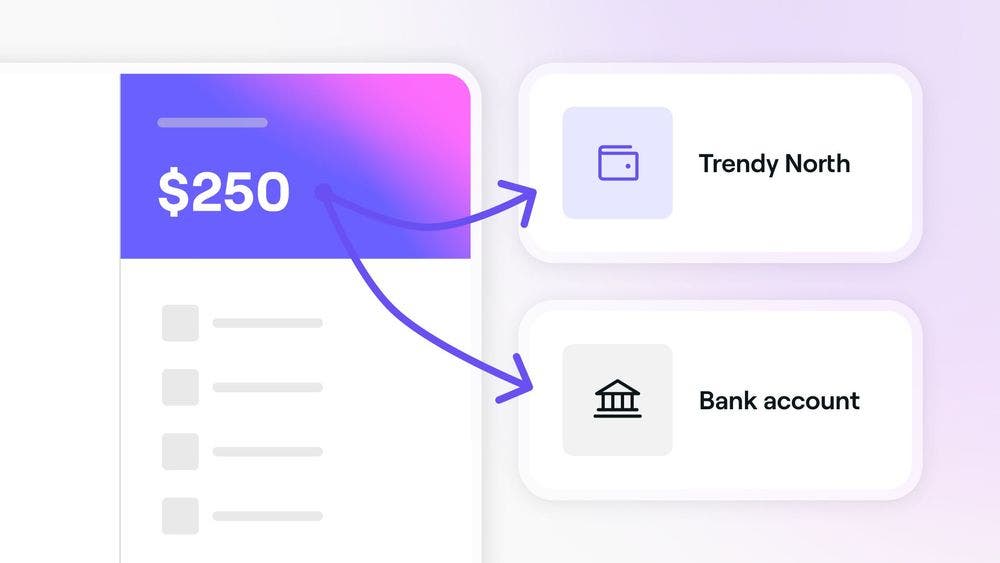
You can send funds to team members, transfer money between locations, or send money to merchants. You can also send funds directly to your bank account, without waiting for your scheduled payout.
Transfers are completed within your workspace, making it easy to manage payments and balances in one place.
Send money to team members
- From the toolbar at the top of your screen, click on the Wallet icon to access your business wallet.

- Click on the Send money button in the right panel.

- Select a location with an available balance to send money from.
- On the Send money view, click on Send to team members, then select the team member you want to send money to.

- Under Amount, enter the amount you wish to transfer. To send the full wallet balance, click on Max.

- To add a reference note, click on the Add note button.
- Select Review in the top right to check the transaction details.
- On the Review transfers view, click on the Send money button in the top right.

- A verification code will be sent to you via SMS. To complete the transfer, enter the 4-digit code into the boxes provided.

- Once verified, you’ll see a confirmation screenshot showing you the wallet transfer is complete.
The fund will be available instantly in the team member's wallet, and the transaction will show as a Payout release under account activity in your business wallet
Send money to a merchant or location
- From the toolbar at the top of your screen, click on the Wallet icon to access your business wallet.

- Click on the Send money button in the right panel.

- Select a location with an available balance to send money from.
- On the Send money view, click on Transfer to a Fresha business account, then select the Location or Merchant you want to send money to.

- Under Amount, enter the amount you wish to transfer. To send the full wallet balance, click on Max.

- To add a reference note, click on the Add note button.
- Select Review in the top right to check the transaction details.
- On the Review transfers view, click on the Send money button in the top right.

- A verification code will be sent to you via SMS. To complete the transfer, enter the 4-digit code into the boxes provided.

- Once verified, you’ll see a confirmation screenshot showing you the wallet transfer is complete.
The fund will be available instantly in the merchant or location wallet, and the transaction will show as a Payout release under account activity in your business wallet
Payout to a bank account
Choose to payout a specific amount of money from your business wallet to your bank account, outside of your payout schedule.
- From the toolbar at the top of your screen, click on the Wallet icon to access your business wallet.
- Click on the Send money button in the right panel.
- Select a location with an available balance to send money from.
- On the Send money view, click on Transfer to a Fresha business account, then select the Bank account you want to send money to.
- Under Amount, enter the amount you wish to transfer. To send the full wallet balance, click on Max.
- To add a reference note, click on the Add note button.
- Select Review in the top right to check the transaction details.
- On the Review transfers view, click on the Send money button in the top right.
- A verification code will be sent to you via SMS. To complete the transfer, enter the 4-digit code into the boxes provided.
- Once verified, you’ll see a confirmation screenshot showing you the wallet transfer is complete.
The transaction will show as a Payout release under account activity in your business wallet. It may take up to two days for the payout funds to arrive in your account.
A small processing fee applies for each wallet transfer to a bank account, with the amount detailed in your transactions and varying by region.
FAQs
Funds can only be transferred from your personal wallet to verified team members or locations.
Transfer fees vary depending on your region and other factors. You can review the exact fee before confirming your transfer in the Review transfer step.