Update your payment method
In this guide, you'll learn how to update your payment method, to ensure your monthly and one-time service payments are processed without interruption.
When you subscribe to a Fresha plan subscription, your details are collected to keep your account active and to process any fees charged by Fresha. You can update your payment method at any time to ensure your payments continue without interruption.
Update your payment method
If you have a single location with one set of billing details, you can update your payment method directly from Billing details.
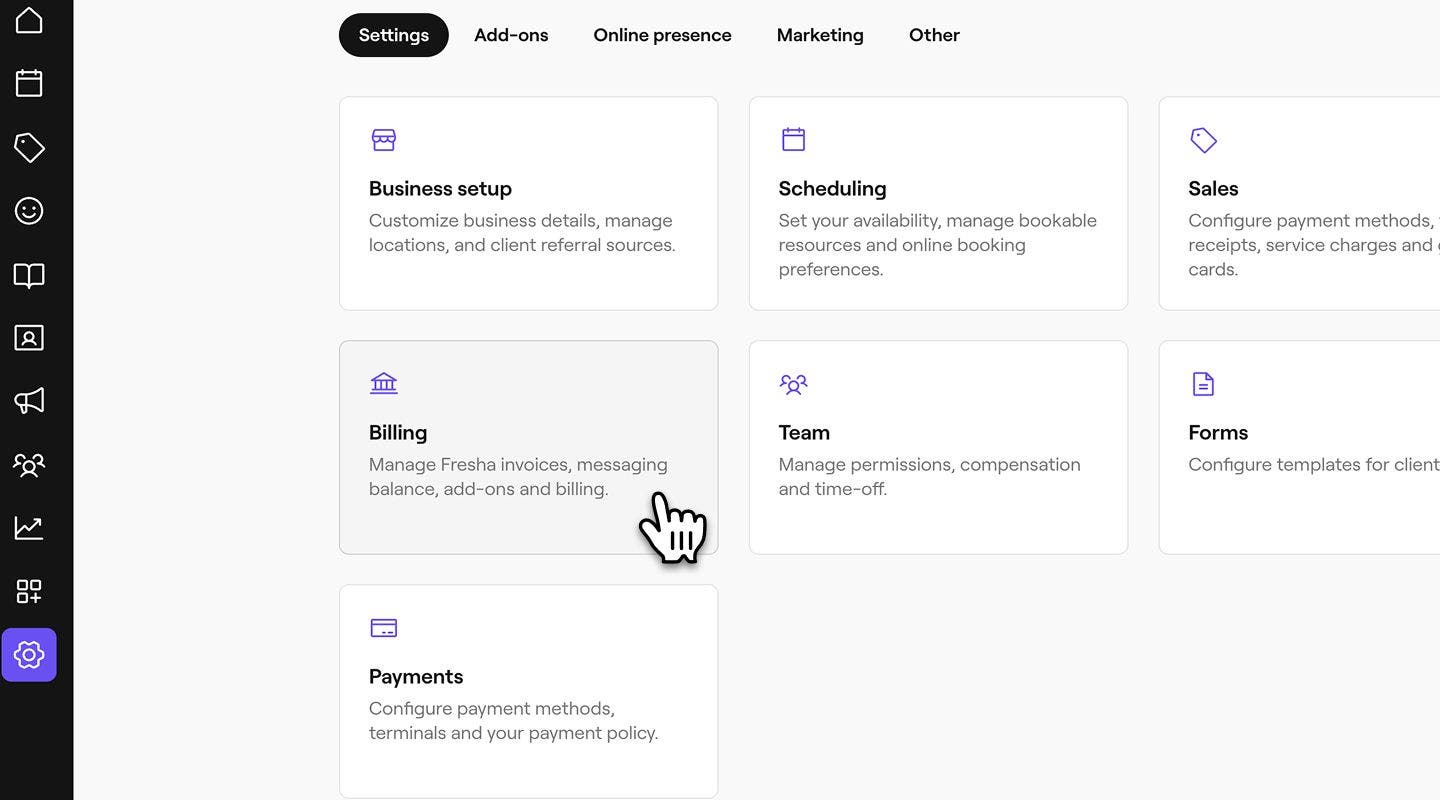
- From the main menu on the left of your screen, go to Settings.
- Under the Settings tab, select Billing.
- From the left menu panel, select Billing details to view your billing information.

- Click on Manage next to Payment methods to update your payment details.

- Click on Manage next to Payment methods to update your card.
- Next, click on the Add credit/debit card option to update your payment method.
- Click on the Save button in the top right of your screen to update your changes.


Once you update your card, Fresha will use this payment method to charge any monthly subscriptions and activated add-ons.
You can also add or update your payment method by clicking on your business wallet icon, selecting Payment methods and Add now.
Update the payment method for a billing profile
If you have multiple billing profiles, you can update the payment method for each one separately.
- From the main menu on the left of your screen, go to Settings.
- Under the Settings tab, select Billing.
- From the left menu panel, select Billing profiles to view your profiles.
- Click on a billing profile to see more details.
- From the left menu panel, click on Payment methods to view your card details.
- Next to the payment method, click on Actions (three dots) and select Update payment method.
- In the next step, select the Add credit/debid card option and enter your card details.
- Select Save in the top right of your screen to update your changes.
Once you've updated the payment method for a billing profile, any location and team member fees, including subscriptions and add-ons, will be charged to the payment method saved to that profile.
FAQs
- cardholder name
- card type (Visa, Mastercard, AMEX, etc)
- last 4 digits only of the card you’d like to use (do not share your CVV)
- the name of the bank the card is registered with
If you are experiencing issues updating payment method, reach out to us via the contact us form, using your registered email, and provide us with the following details so we can look into it further:
Never share your full card number, CVV, or image of your payment card when contacting us with your billing details.
To keep your Fresha account active, you must have a valid card on file. Once a payment method has been added, it cannot be removed. However, you can update or replace your existing payment details at any time.
Fresha accepts all major credit and debit cards, including Visa, Mastercard, American Express (Amex), Discover, and Diners Club International.
If your workspace uses multiple billing profiles, Payment methods and Bank accounts are managed within each billing profile, instead of the Wallet.
To find your Payment methods, go to Billing and open Billing profiles, then open the relevant profile to manage its payment methods and bank accounts.