HomeKnowledge baseFresha academy
Access business wallet statements
Back
  1. Knowledge base•
  2. Wallets•
  3. Access business wallet statements

Access business wallet statements

Monitor all payments and fees through Fresha for accurate financial tracking and reporting. Learn how to access and download statements to manage everything in one place.
In this article

  • Getting started
  • Downloading your statement
  • Understanding your statement

Getting started

In your wallet statement, you'll find your most recent payments made via Fresha and any associated fees. Before viewing your business wallet activity, if you are a team member, we recommend:

  • Reaching out to the account owner to request permission to access Wallet and card processing.

Downloading your statement

To download your wallet statement:

  1. Open your Wallet, select Fresha account, then More below your account balance.
  2. Click on Download statement.
  3. Filter start and end date you would like to download the wallet statement.
  4. Select the Statement format.
  5. Click Download.

Understanding your statement

Understanding wallet activities is crucial for managing your business finances.

Here are the types of activities you'll find in your wallet statement:

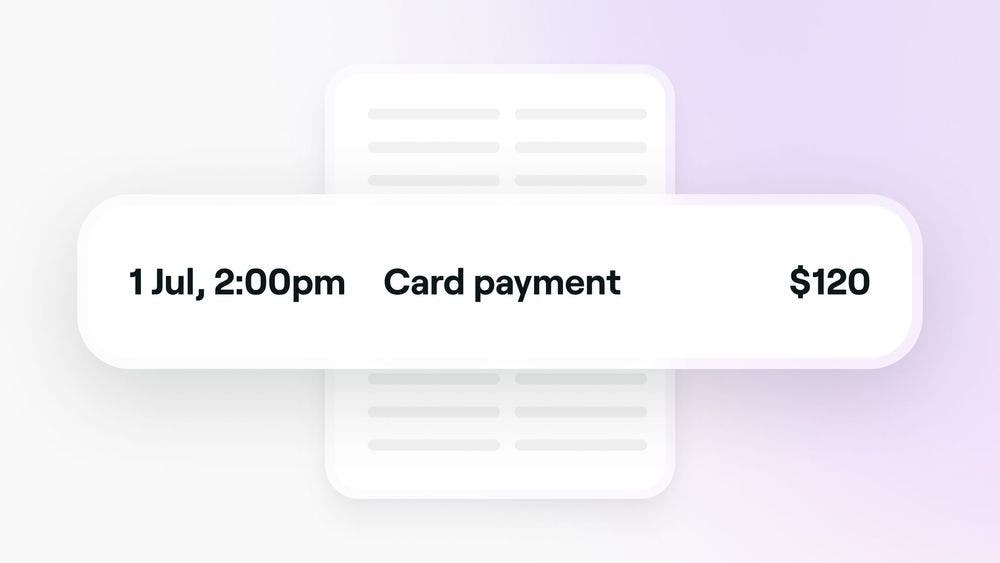
  • Card payment: 
    Payments made through Fresha using a saved card, a send link to self-checkout, a QR code, or a terminal.
  • Deposit: 
    An upfront payment made either online or in-store.
  • Card payment refund:
    A refund issued to a client for a payment made through Fresha.
  • Credits redeemed:
    Indicates when Fresha-specific credits have been used for a paid feature.
  • Blast email:
    A targeted email sent to your clients.
  • Blast text message:
    A targeted text message sent to your clients.
  • Payout release: 
    Indicates when settled funds collected via Fresha are released to your selected account.
  • Paid text message:
    Reminders and quick updates automations sent to clients via text message.

Click on each activity within your wallet to view a more detailed breakdown of each fee.

FAQs

    • Currently, the primary supported formats for waller statements are CSV, Excel or PDF. These formats are widely used and compatible with most spreadsheet applications and tools for further data analysis.


Business wallet activity


Related articles

Was this guide helpful?

Business wallet activity

Business wallet overview

Get a clear view of your finances with Fresha's business wallet.

Access business wallet statements

Track and manage your finances with Fresha by downloading your business wallet statements.

Top-up your business wallet

Easily add funds to your Fresha wallet when your balance is low or during payouts.

Set up automatic payouts

Simplify cash flow with automatic payouts from your Fresha wallet to your bank.

Manage business wallet transfers

Manage your finances by transferring funds within your Fresha wallet.

Set up separate bank accounts for multiple locations

Set up separate bank accounts in Fresha for better financial management and tracking.

Manage chargebacks

Handle client transaction disputes smoothly by managing chargebacks.

Paying for your subscription and add-ons

Make your Fresha subscription and add-on payments seamless by using your Fresha wallet balance.

Related articles

Top-up your business wallet

Easily add funds to your Fresha wallet when your balance is low or during payouts.

Business wallet overview

Get a clear view of your finances with Fresha's business wallet.

Refer a friend to Fresha

Earn rewards by referring friends, family, and other businesses to join Fresha.

Fresha
Get the app

About Fresha

Careers

Help and support

Blog

Sitemap

For business

For partners

Pricing

Features

Scheduling

Point of sale

Payments

Capital

Marketplace

Support

Status

Legal

Privacy Policy

Terms of service

Terms of use

Find us on social

Facebook
Linkedin
Instagram

© 2026 Fresha.com SV Ltd