Explore your client messages inbox
Learn where to find your client messages in Fresha Connect and how to keep your inbox organized, so you can stay on top of every conversation.
In this article
About your Client messages inbox
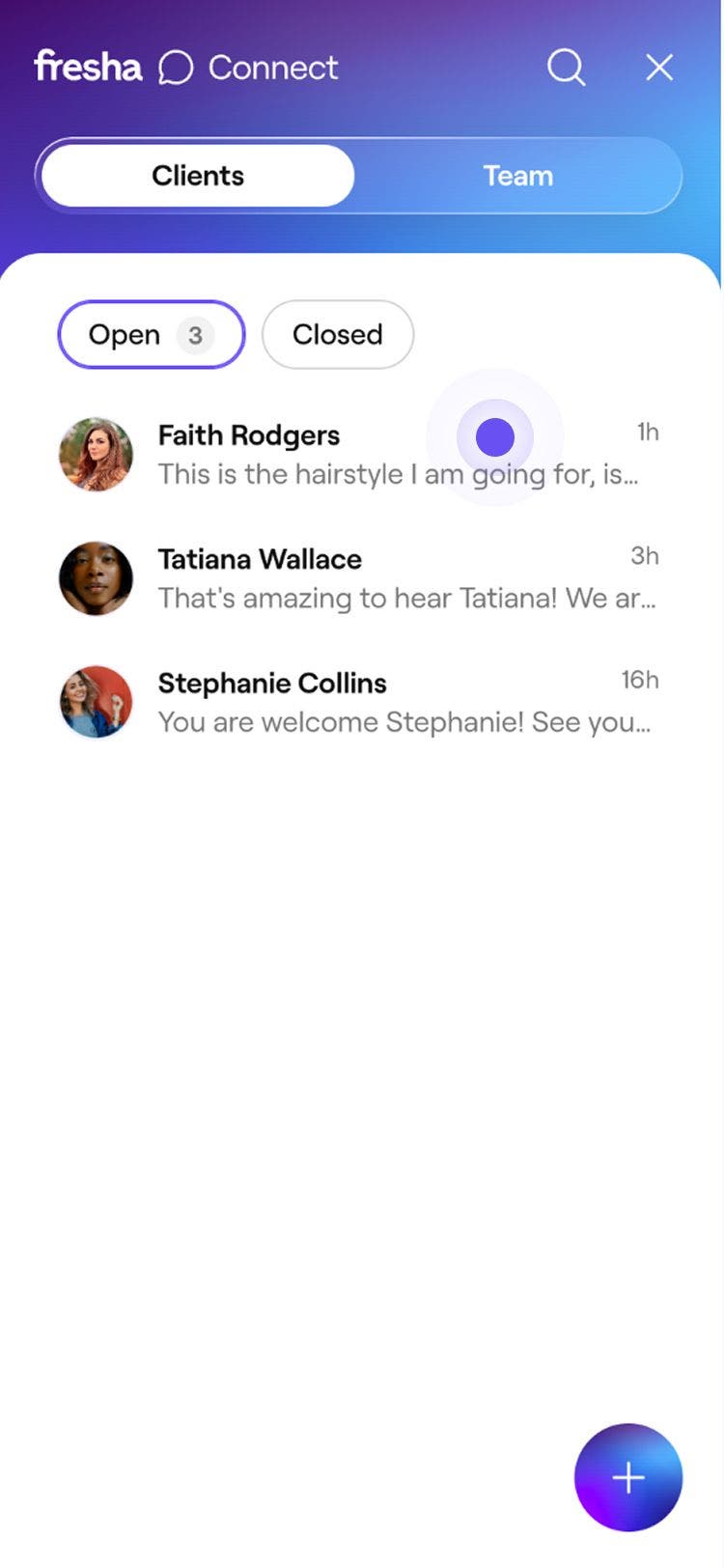
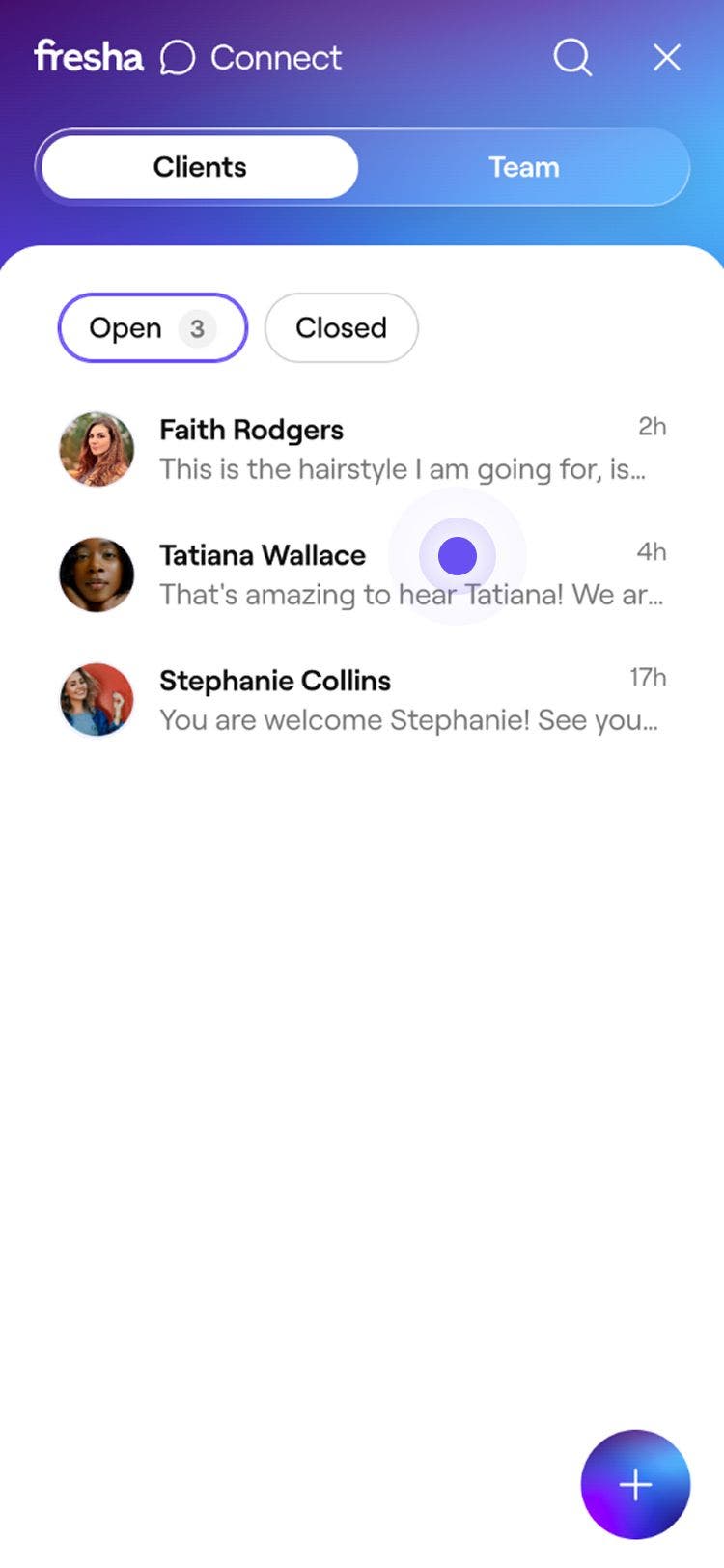
Your Client messages inbox is where all chats with clients are managed in Fresha Connect.
When a client sends you a message, it appears in your inbox instantly alongside their profile details and recent appointment activity. New messages are marked as unread, helping you quickly see which chats need your attention.
You’ll also see a notification badge on the Messages icon in the toolbar whenever you have new, unread client messages.
From your Client messages inbox, you can:
- Send and reply to client messages
- View shared attachments and booking activity
- Manage open and closed chats
- Mark messages as unread
- Block or unblock clients
- Pin key messages
- Add internal notes for your team
Access your Client messages inbox
-
From the toolbar at the top right of your screen, click the Messages icon to open Fresha Connect.

-
Under Client messages in the left panel, view your inbox and chats.


Use quick replies to answer common questions
Create and use quick replies to answer your most asked questions. Your quick replies library is shared across your business, so you can respond quickly and accurately.
- Open Messages from your Client settings.
- In the message area, click the quick replies icon (lightning bolt). Click Manage quick replies.
- On the Manage quick replies page, click Add quick reply.
- In the Add quick reply pop-up, click the icon next to the Quick reply name field to choose an icon, then enter a title for the quick reply so it's easy to find.
- In the Message field, enter the reply text you want to reply to clients (up to 500 characters), then click Save.
- Click Close to return to your conversation.
- To use your quick reply, click the quick replies icon (lightning bolt) again.
- Select the quick reply, or use the search bar to find your saved reply, then click it to add its message to the composer.
- Edit the message if needed, then send it.
Close completed client chats
Each chat in your Client messages inbox is marked as either Open or Closed. When a conversation no longer needs a reply, you can close the chat to keep your inbox focused on active chats.
- Open Fresha Connect.
- Under Client messages in the left panel, select the chat you want to close.
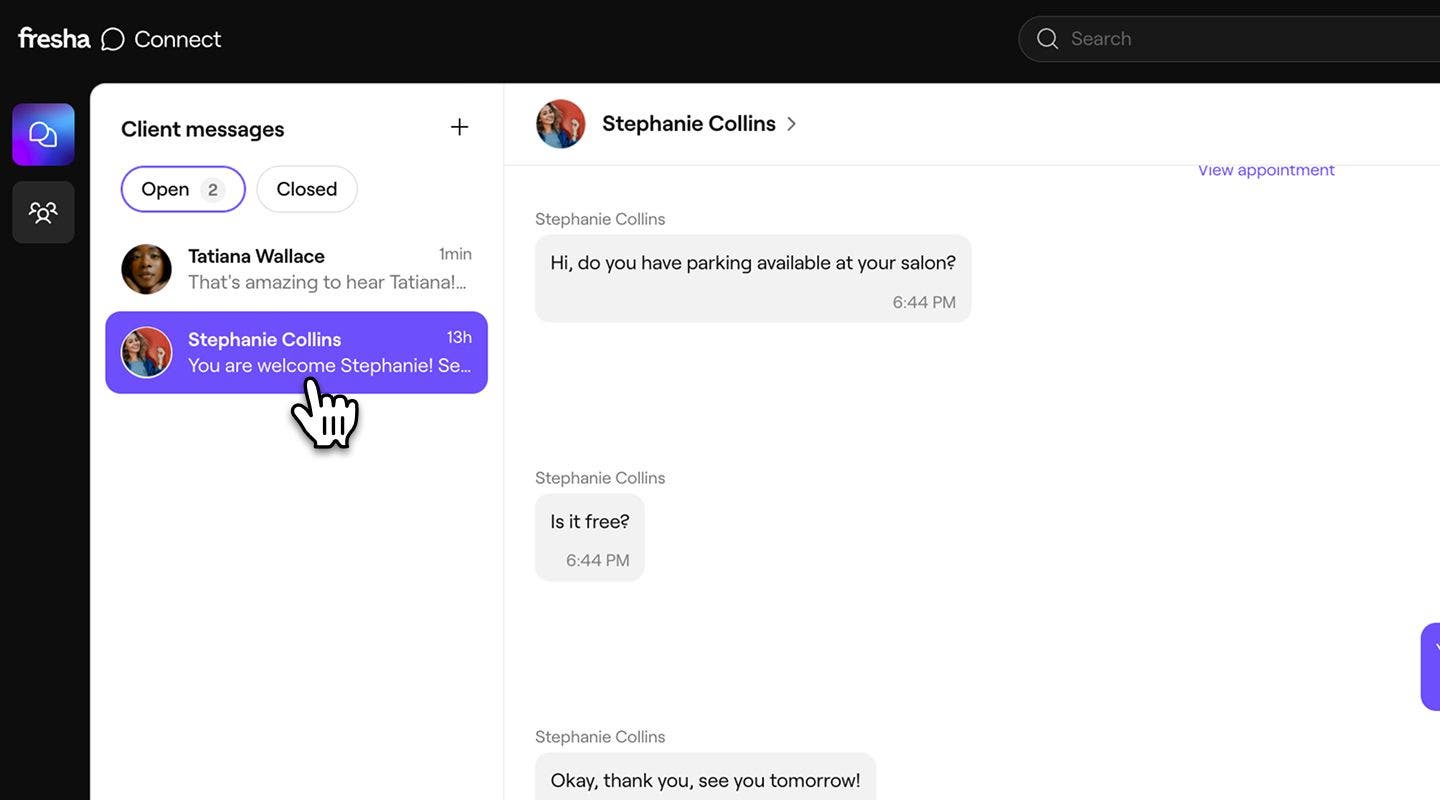
- Click on the Complete button (tick icon) at the top of the chat.

- The client chat moves from your Open list to the Closed list.


Closing a chat does not delete the message history. If the client sends a new message, or you message them again, the chat automatically reopens.
To reopen a closed chat yourself, click on Actions (three dots) above the chat and select Reopen conversation. Alternatively, sending the client a new message also reopens the chat automatically and moves back to your Open list.
Mark conversations as unread
Mark a chat as unread if you want to come back to it later. This only applies to your own inbox view and does not affect other team members or clients.
- Open Fresha Connect.
- Under Client messages in the left panel, select the chat you want to update.

- Click on Actions (three dots) at the top of the chat, then select Mark as unread.


The chat will remain highlighted as unread in your inbox until you open it again.
Pin an important message
- Within the client conversation, click on Actions (three dots) next to the message you want to pin.
- Select Pin message.
- To see pinned messages, click on the Pin icon at the top of the conversation.
Only you and your team will be able to see which messages you have pinned, the client will not be able to see this.
Block a client
If you need to stop a client from booking with you online or sending messages, block them directly from the conversation in your Client messages.
- Open Fresha Connect.
- Under Client messages in the left panel, select the chat of the client you want to block
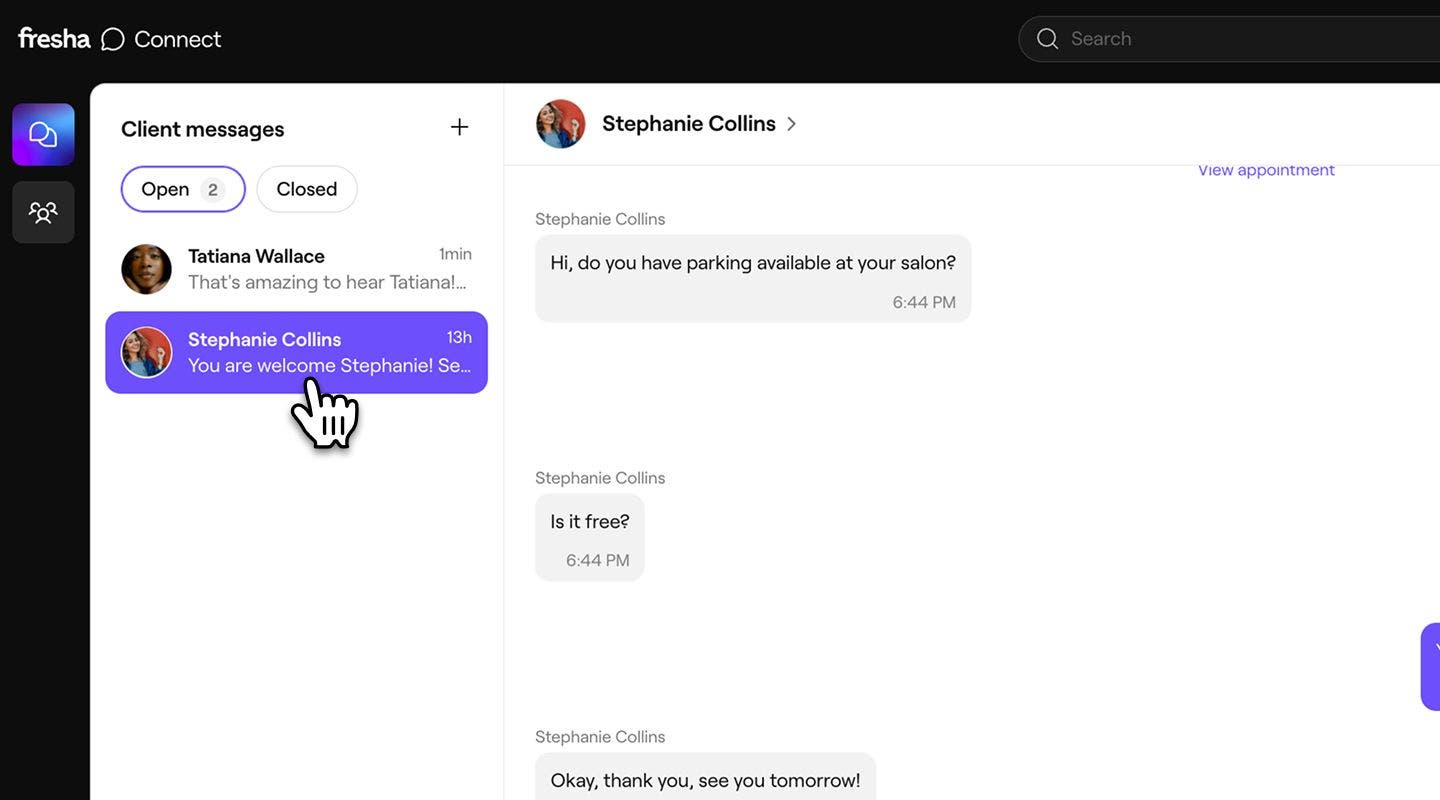
- Click on Actions (three dots) at the top of the chat and select Block client.

- In the pop-up, select a Reason and click on the Block button to confirm.
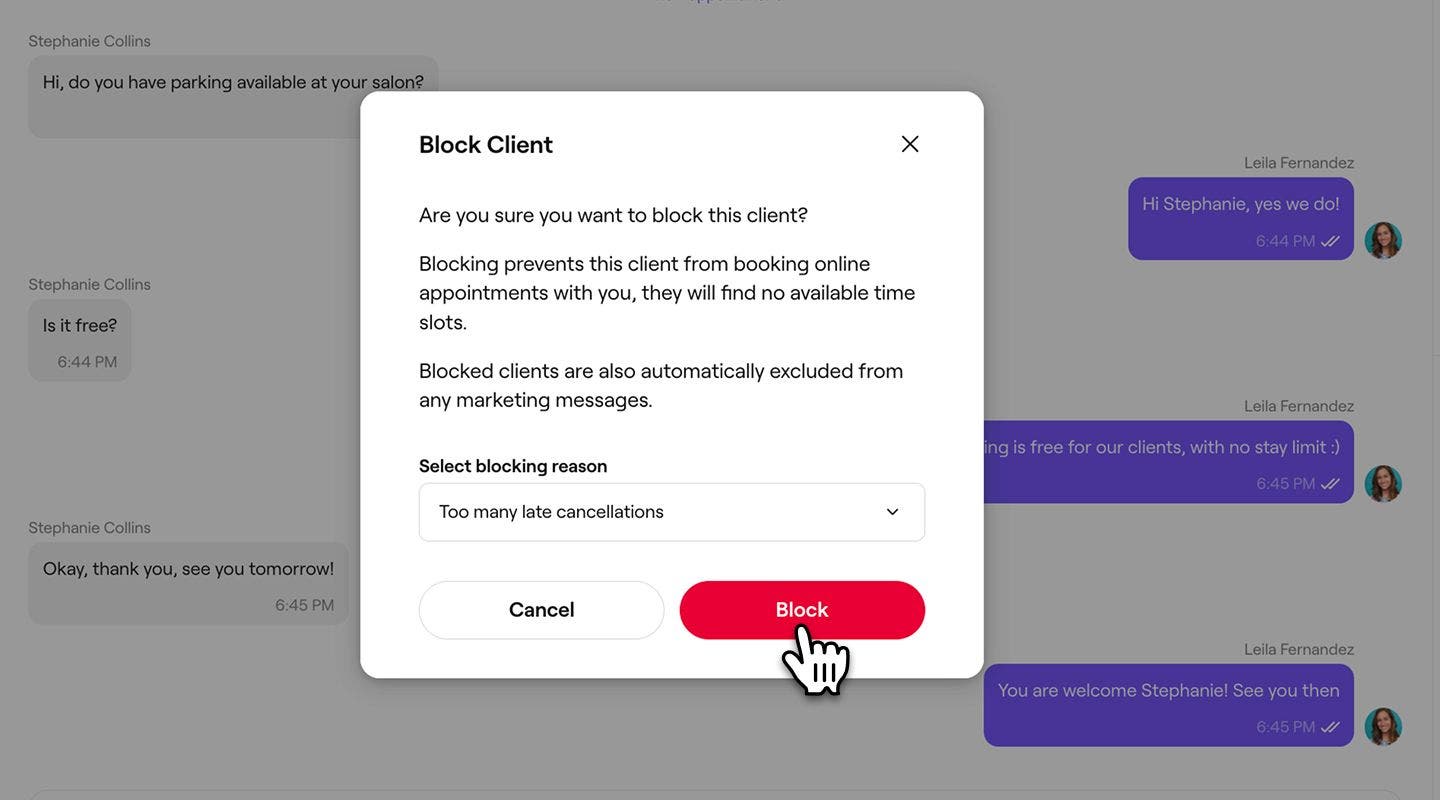


The client is blocked immediately, and a banner appears in the chat confirming the client is blocked. Blocked clients cannot book appointments online or send messages through Client Connect. To unblock the client, follow the same steps and select Unblock from Actions.
Blocking a client in Client Connect also blocks them across your workspace.
FAQs
Closing a chat is for your Client messages inbox only. The client doesn't get a notification, and they can still send a follow-up message that reopens the chat automatically and brings it back to your Open list.
The full conversation history stays saved. Blocking only stops new messages and bookings. Past messages and attachments remain visible in the chat for your reference.
You can view closed conversations anytime from the Closed list in your Client messages inbox and read the full message history. To continue the conversation, reopen the chat or send a new message, it will automatically move back to your Open list.