Message clients using Client Connect
Learn how to have conversations with clients directly in Fresha using Client Connect. Reply to messages, start new chats, and keep all your client chats in one place.
In this article
About Client Connect
Client Connect is one of the powerful features included in Fresha Connect, bringing seamless two-way messaging between you and your clients directly into Fresha.
With client messaging built right into Fresha, you have a dedicated space to manage one-to-one conversations with clients.
Clients can message your business from their appointment in their Fresha account, and each chat is linked to their client profile and booking details. This helps you quickly understand who is contacting you and what appointment they’re messaging about.
Within the chat, you also see helpful booking activity updates, like new appointments, cancellations, reschedules, and no-shows, so you always have the full picture.
Reply to a client message
When a client sends you a message, it appears in your Client messages inbox in Fresha Connect. You'll also receive a notification to let you know you have an unread message.
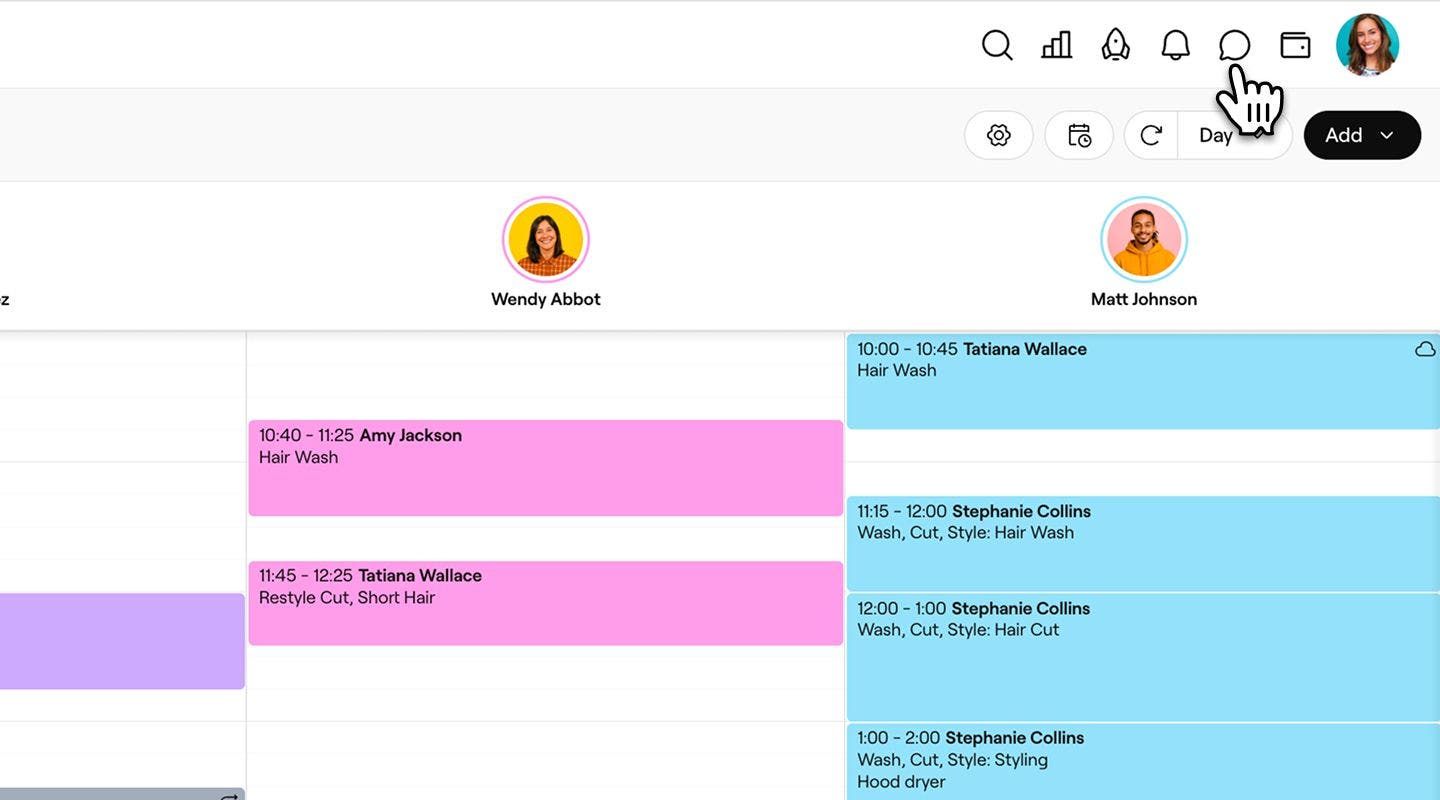
- From the toolbar on the top right of your screen, click on the Messages icon to open Fresha Connect.
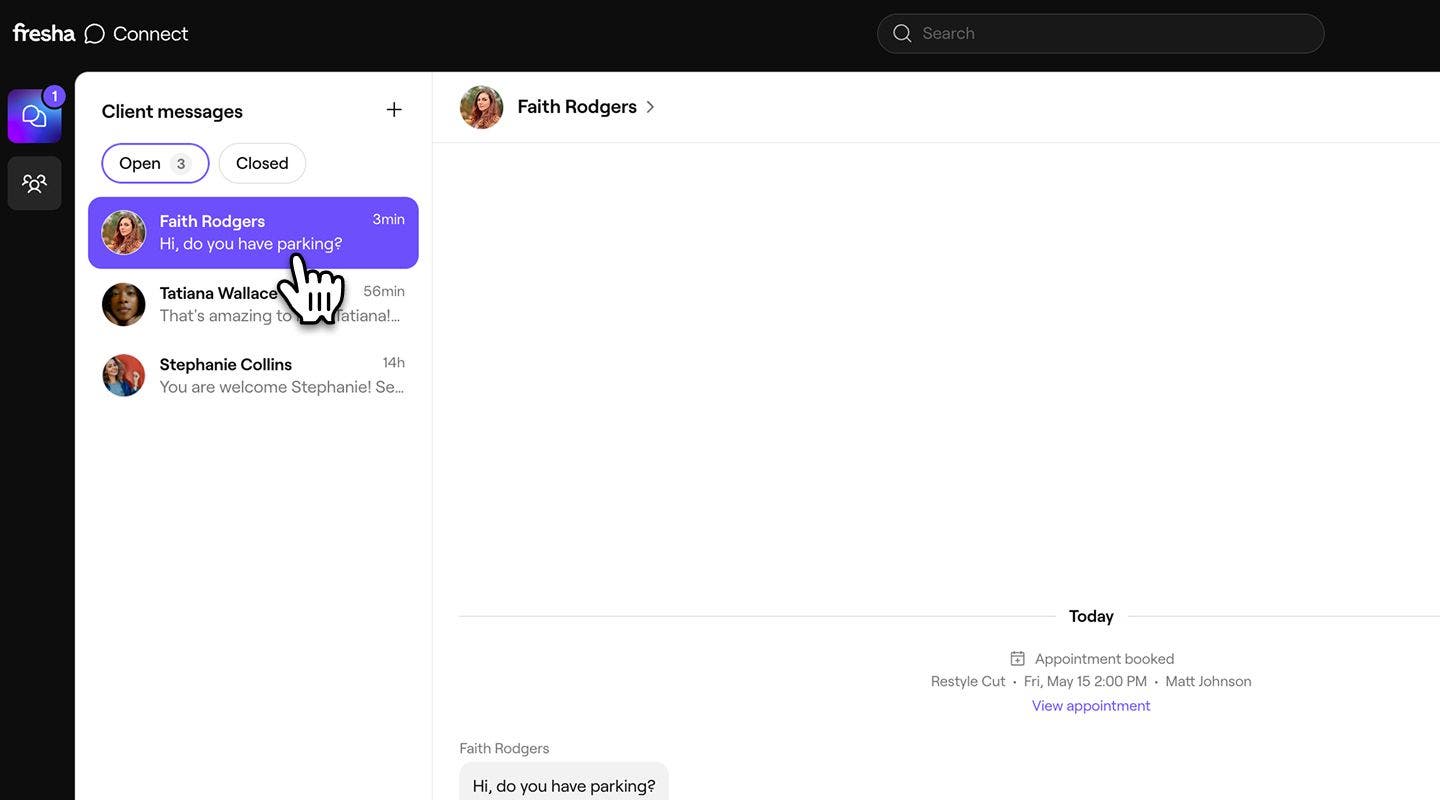
- Under Client messages, click on the chat you want to reply to.
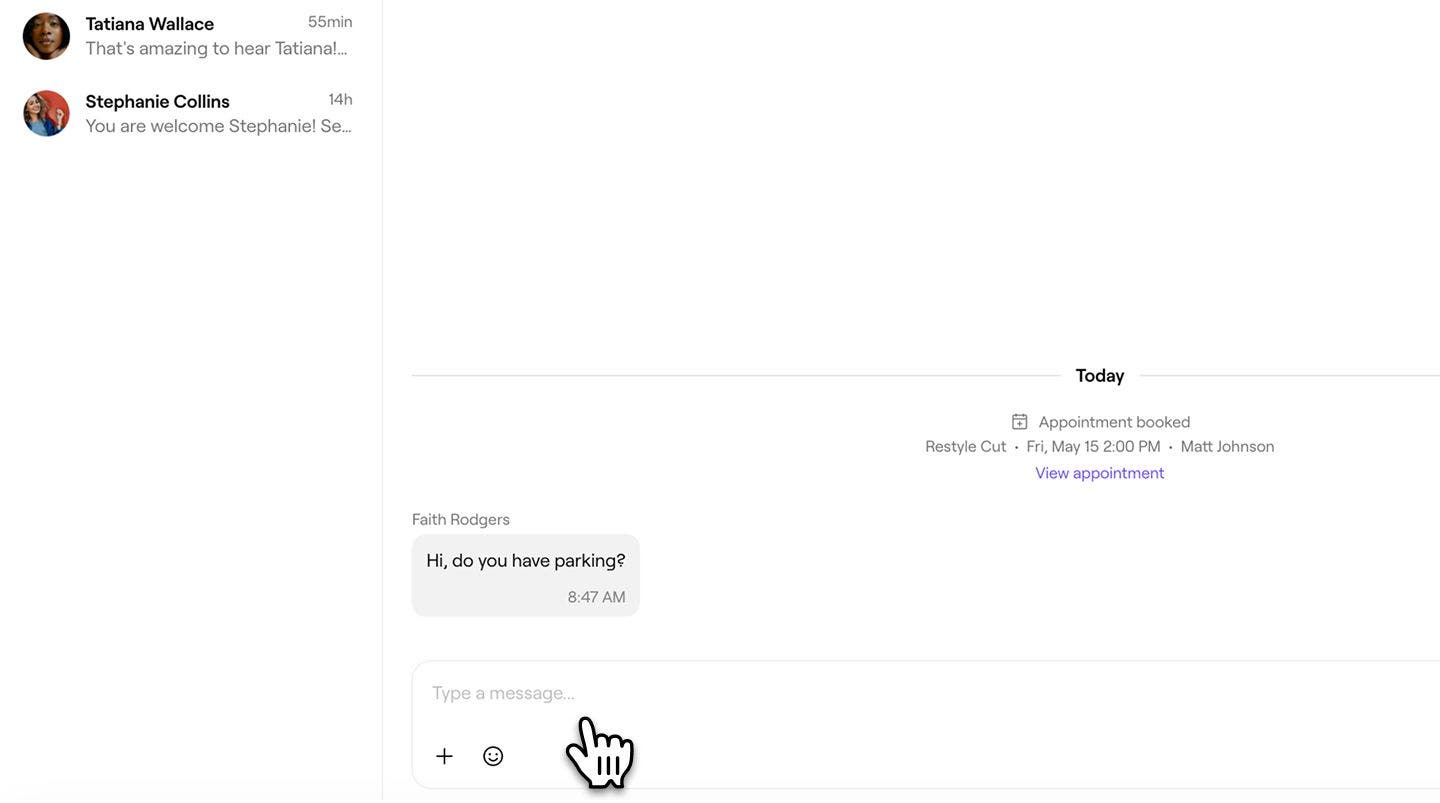
- Type your response in the message area.
- To add a photo, document, or emojis, click on the attachment icons within the message area.
- To add a photo, document, or emojis, click on the attachment icons within the message area.
- Click on the Send button in the message area to deliver your reply.


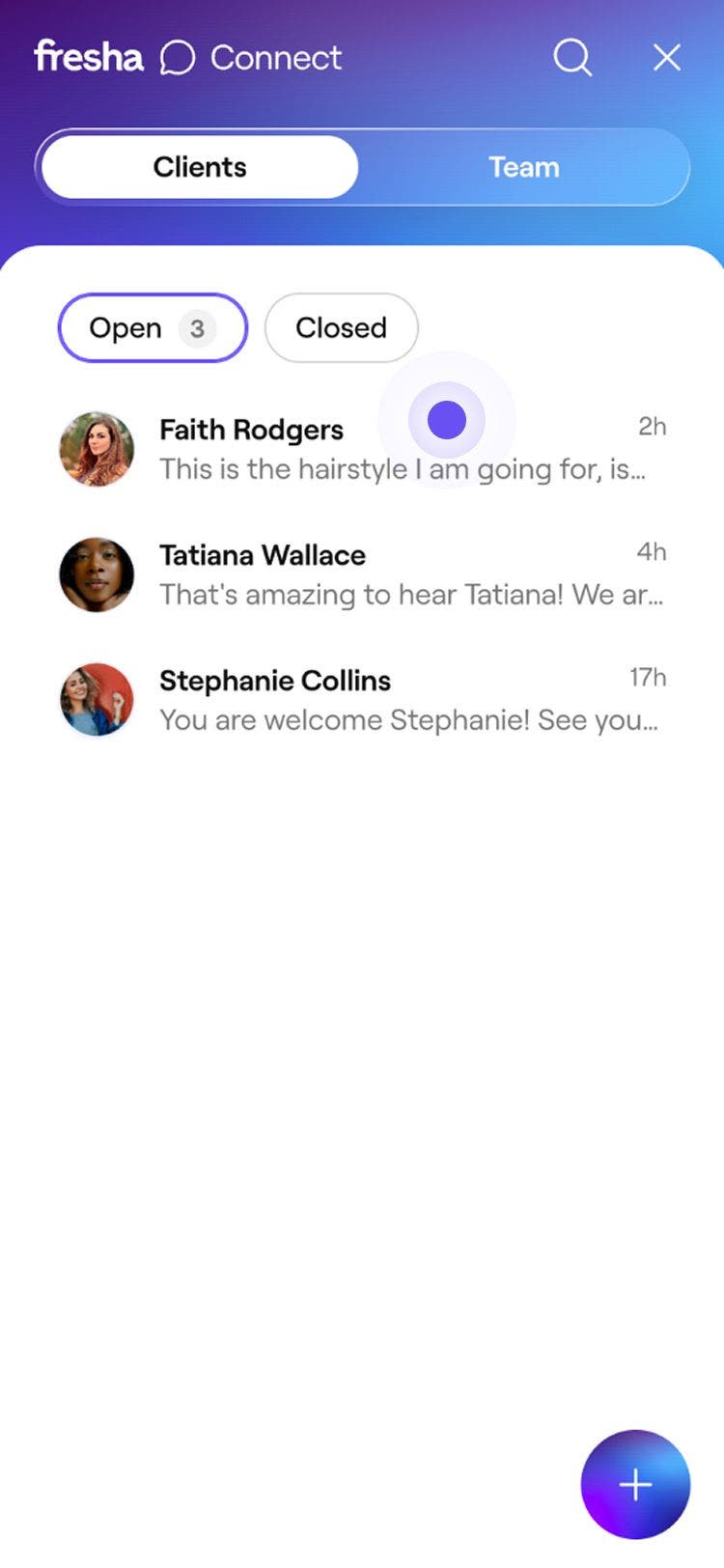
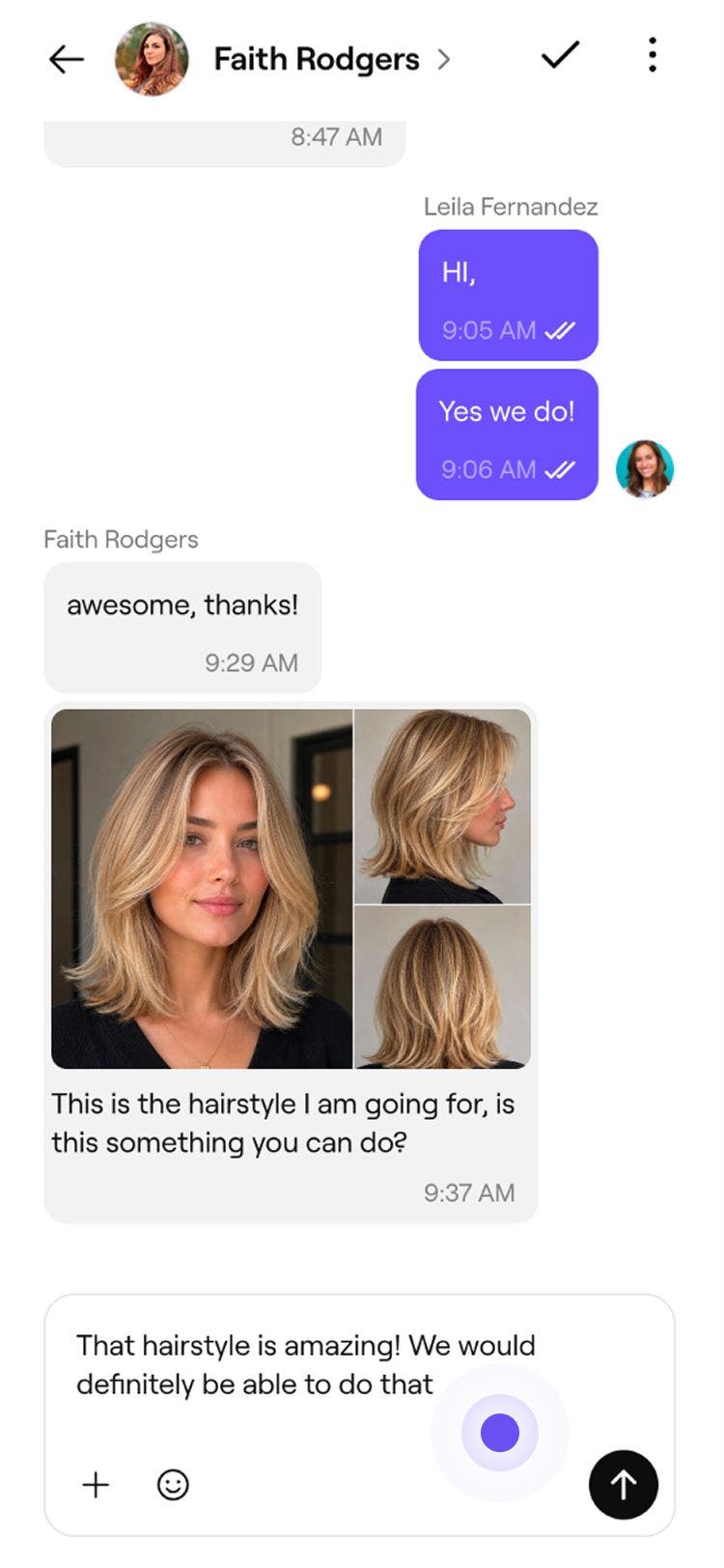
Your reply appears in the chat as sent. The client receives a notification straight away through the Fresha client app and email with a link to view and continue the conversation on Fresha.
Start a new chat with a client
You can start a new chat with a client at any time from your Client messages inbox.
- From the toolbar on the top right of your screen, click on the Messages icon to open Fresha Connect.

- On the left of your screen, click on the New message button (plus icon) at the top of the Client messages inbox.
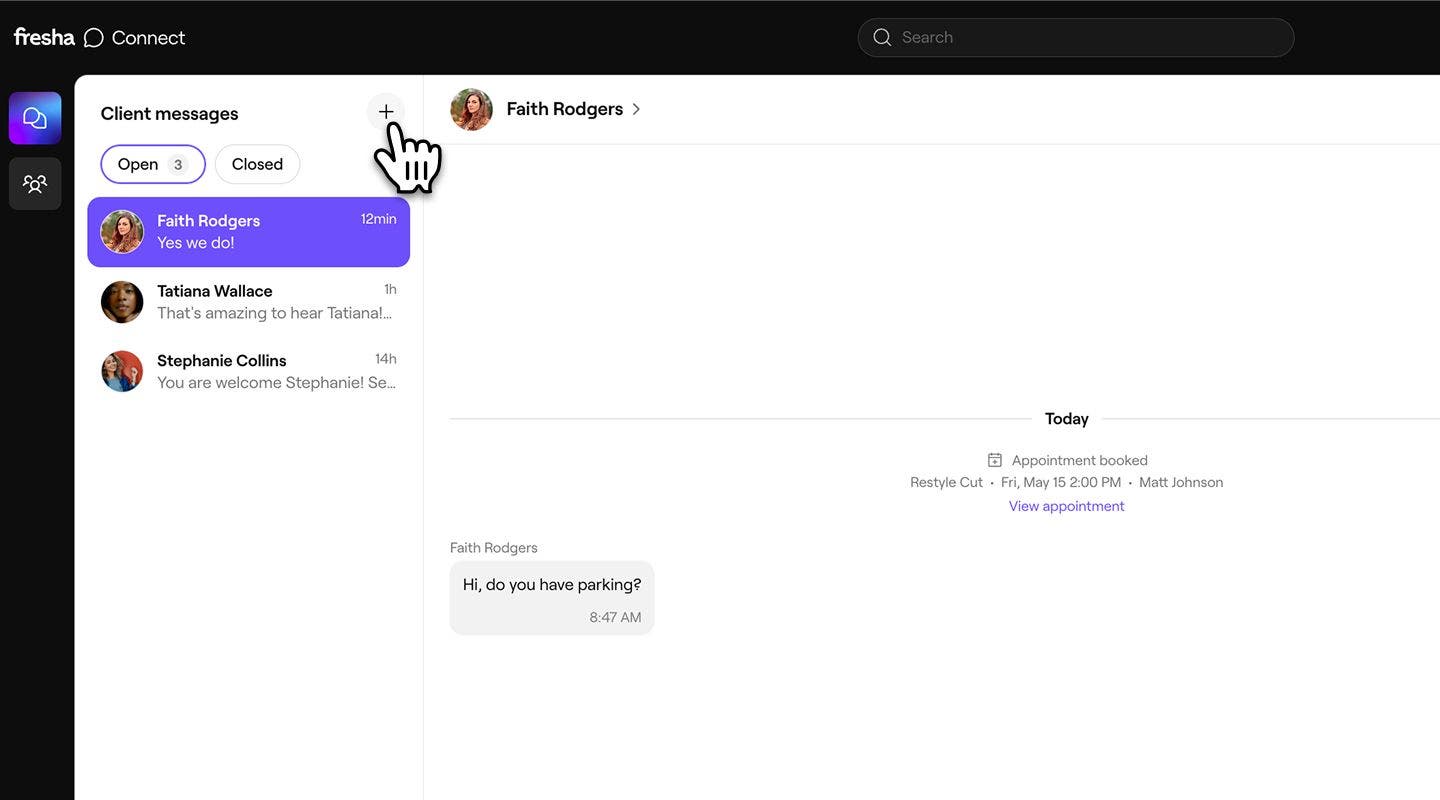
- Use the search bar to find the client you want to message, then select them from the results.

- Type your message in the message area.

- Click on the Send button in the message area to deliver it.


The chat appears in your Client messages inbox, and the client will receive a notification in the Fresha app and email, letting them know they have a new message.
You can also start a message with clients from shortcuts in your workspace. Open the client’s profile or their upcoming appointment, then click Actions under their profile picture and select Messages. This will take you to your Client messages inbox in Fresha Connect, ready for you to send your message.
View and download attachments from client messages
Both you and your clients can attach images and documents to messages, making it easy to share helpful visuals like treatment inspiration or reference photos.
- From your Client messages inbox, open the chat containing the attachment.

- Click on the photo to open it full screen in the image viewer.
- To save a copy, click on the Download button in the top right of the image viewer.
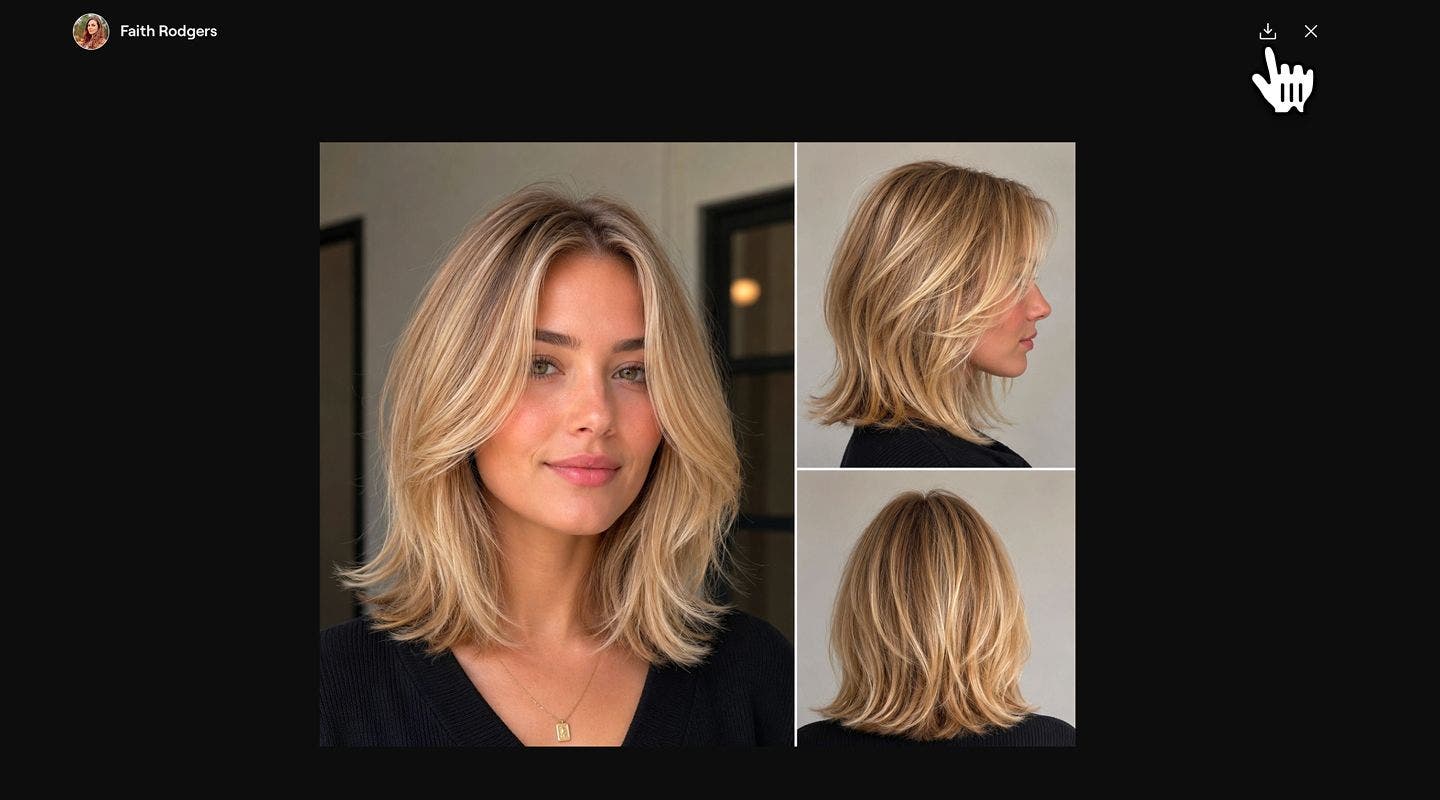

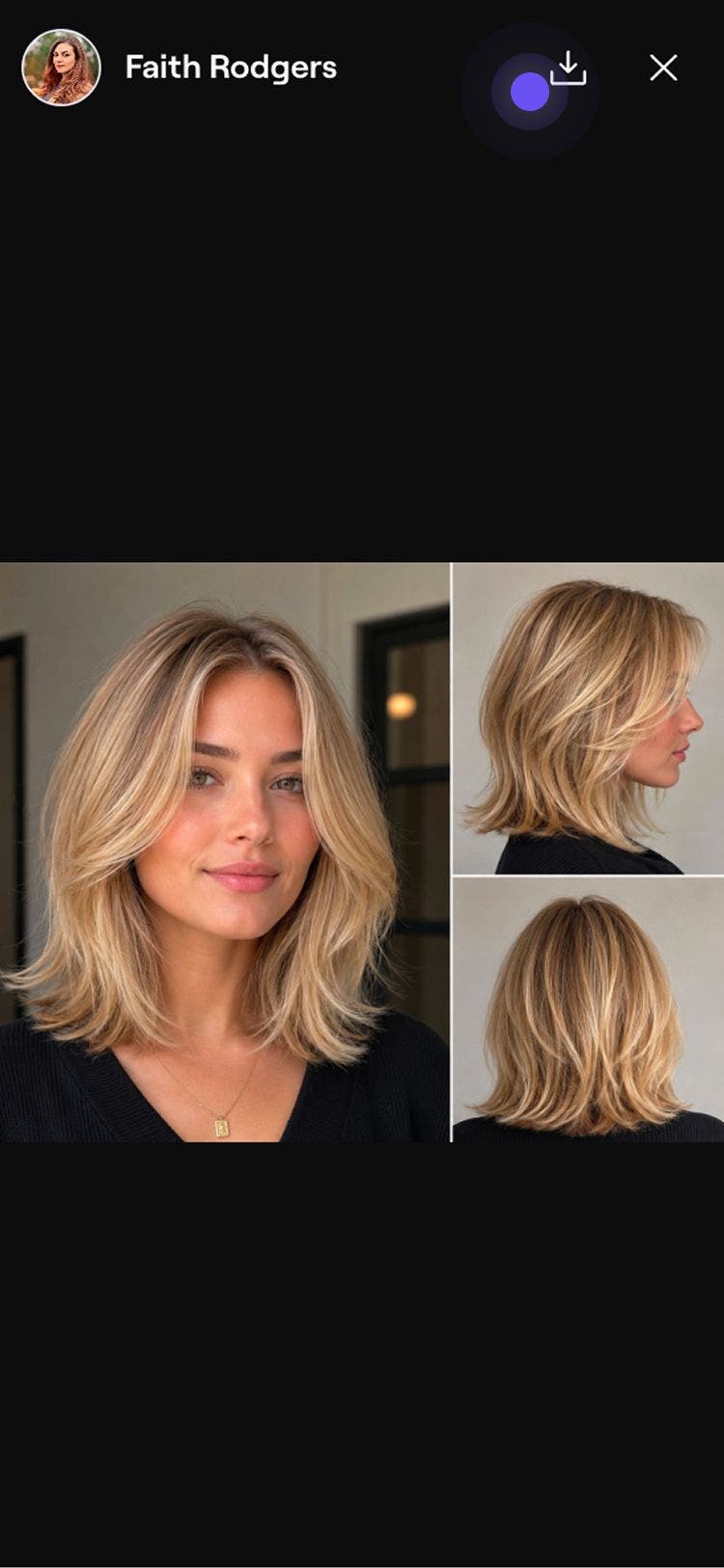
The downloaded images and documents will be saved to your device.
Add an internal note
Internal notes let your team leave a note inside a conversation that only you and your team can see, never your client. You can use them for handover notes, reminders, or anything your team need to know when messaging a client.
- Open the conversation you want to add a note to.
- Next to the message box, click the Plus (+) icon, and click Internal note. The message box will turn yellow, which means you can start typing your note.
- Once you've finished typing your internal note, click on the Send button.
The internal note will then save as a yellow message labeled Internal note, with your name and the time it was added.
FAQs
Your full client chat history stays in Fresha indefinitely, so you can always look back through past conversations.
There are no changes to how your Automated notifications and Blast campaigns work. Client Connect brings a new dedicated place for two-way conversations between you and your clients.
If a client wants to reach out about appointment specific messages, they need to open their appointment in the Fresha client app and message your business from there.
Once you send a message, it stays in the chat as editing or deleting messages is not currently supported. Remember to double-check your reply before sending.
Clients can only start a chat with your business once they have booked an appointment with you.
The Fresha Marketplace and your online booking pages stay focused on helping clients book, so there's no chat option before an appointment is made.
Important activity like new bookings, cancellations, no-shows, and reschedules appear in the chat as updates. They give you and your team quick context on what's happening with the client without needing to switch back to the calendar or client profile.
You can attach images, documents, and emojis from the icons next to the message area. Larger files or unsupported formats may not send, share an alternative link if a file won't upload.
Client Connect chats are one-to-one. To message a group of clients at the same time, use Blast campaigns.
A sent receipt is shown on your messages. One tick means your message has been sent. Two ticks mean it's been delivered to the client. When the ticks turn white, the message has been read.