How clients send you messages
Learn how clients can contact your business, respond to messages, and stay connected through Client Connect.
In this article
About Client Connect
Client Connect is one of the powerful features included in Fresha Connect, bringing two-way messaging between you and your clients directly into Fresha. Clients who have booked an appointment with you can start a conversation, making it easy to ask questions or discuss their booking without needing to search for your contact details.
When a client sends a message, it appears in your Client messages inbox alongside their profile information and recent appointment activity, giving you the full picture to manage conversations efficiently.

How clients start a chat
Only clients that have booked an appointment with you see the messaging option in their Fresha account. From their appointment details, they can open a conversation and send a message straight to your team, all in Fresha.
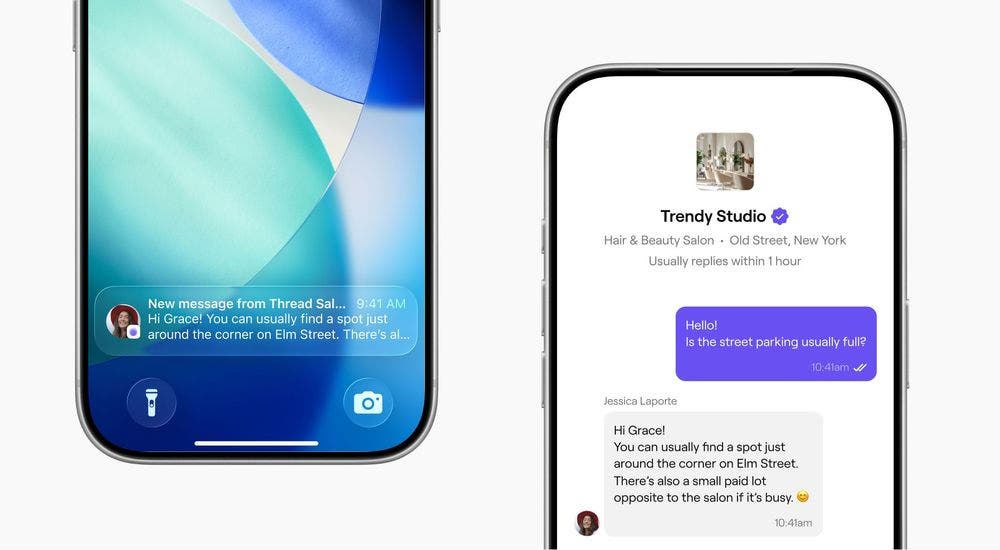
How clients receive and reply to messages
When you send a message or reply, clients are notified instantly through the Fresha app and email with a link to view and continue the conversation on Fresha.
Within the chat, clients can send messages, attach images and react to messages with emojis.
All conversations stay available in Fresha, so both you and your clients can easily refer back to previous messages when needed.
So clients don't miss a message, update client profiles to include a valid phone number and email address.
FAQs
- Access client chats: Allows team members to view all client conversations, including message history and attachments.
- Reply to client chats: Allows team members to send replies and start new conversations with clients.
Yes, you have full control over who can access client messaging in your workspace.
There are two new permission settings:
Team members who already have access to Clients (top-level permission) will automatically have these new permissions enabled, you can adjust this through your Permission settings.
You receive a notification when you get a new message from a client. To make sure you never miss a message, check that your notification settings are enabled.
You can access your inbox anytime by selecting the chat icon from the toolbar at the top of your screen. All client conversations are stored in your client messages inbox under Fresha Connect, making it easy to manage.
Only clients who have booked an appointment can start a conversation with you. This ensures you only receive messages from genuine clients.
At any time, you can start a conversation with anyone in your client list. Clients who receive messages from you have the ability to respond.
There are no changes to how your Automated notifications and Blast campaigns work. Client Connect brings a new dedicated place for two-way conversations between you and your clients.
Yes, you can prevent certain clients from messaging you by setting them as blocked on their client profile.
If you prefer not to use client messaging, you can turn it off anytime under the Clients section in your Workspace settings. You can easily enable this again at any time.
Your full client chat history stays in Fresha indefinitely, so you can always look back through past conversations.
When you close a conversation from your inbox, it moves to the Closed list for you. Your client can still view the full conversation history from the messaging option in their Fresha account. If they send a new message, the conversation automatically returns to the Open list in your inbox with the full history available.
Clients see the full conversation on their side, including any images you attach and emoji reactions from either side. The conversation history is always visible to both you and your client.
Clients can reply from a web browser or simply respond to the chat through the link in the email notification they receive. Either way, their message is automatically added to the conversation in Client Connect.