HomeKnowledge baseFresha academy
Limit online service availability
Back
  1. Knowledge base•
  2. Services•
  3. Limit online service availability

Limit online service availability

In this guide, you will learn how to control when clients can book your services online by setting specific times, days, or dates your services are available.

In this article

  • How service availability limits work
  • Set up a service availability limit
  • Edit or delete service availability limits

How service availability limits work

Service availability limits let you control when a service can be booked online, giving you an extra layer of scheduling control. You can use availability limits to make a service bookable during specific times, such as special promotions, launches, or select days and hours each week. 

A service will only be bookable online if its availability limit overlaps with your team members’ scheduled shifts, assigned locations, and any required resources. For example, if a service is available from 8am but the team member starts at 9am, clients will only be able to book from 9am.

Set up a service availability limit

  1. From the main menu on the left of your screen, go to Catalog.

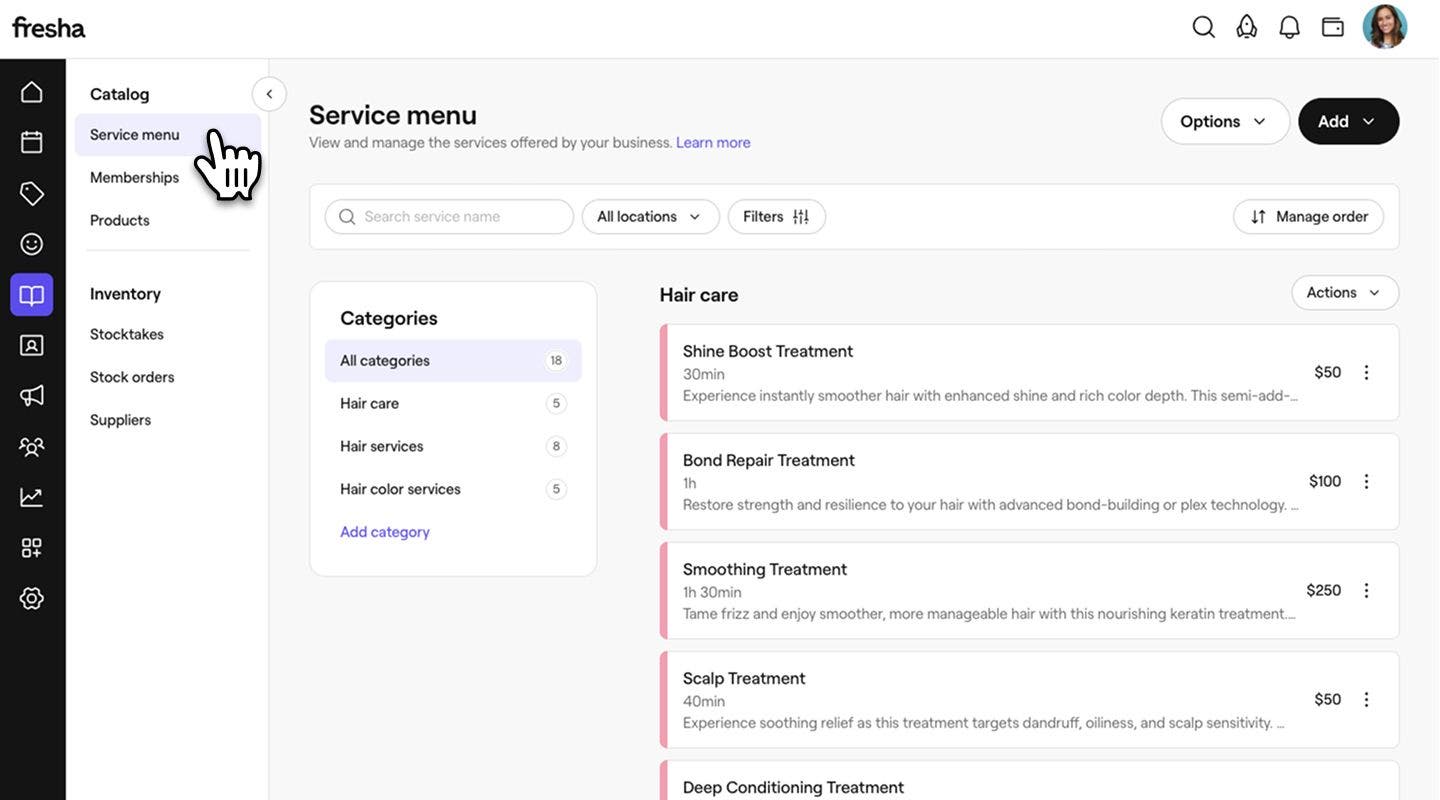
  2. Select Service menu from the left panel, then click on the service you want to edit.
    desktop select service menu.jpg

  3. Select Online booking from the left panel.

    desktop select online booking.jpg

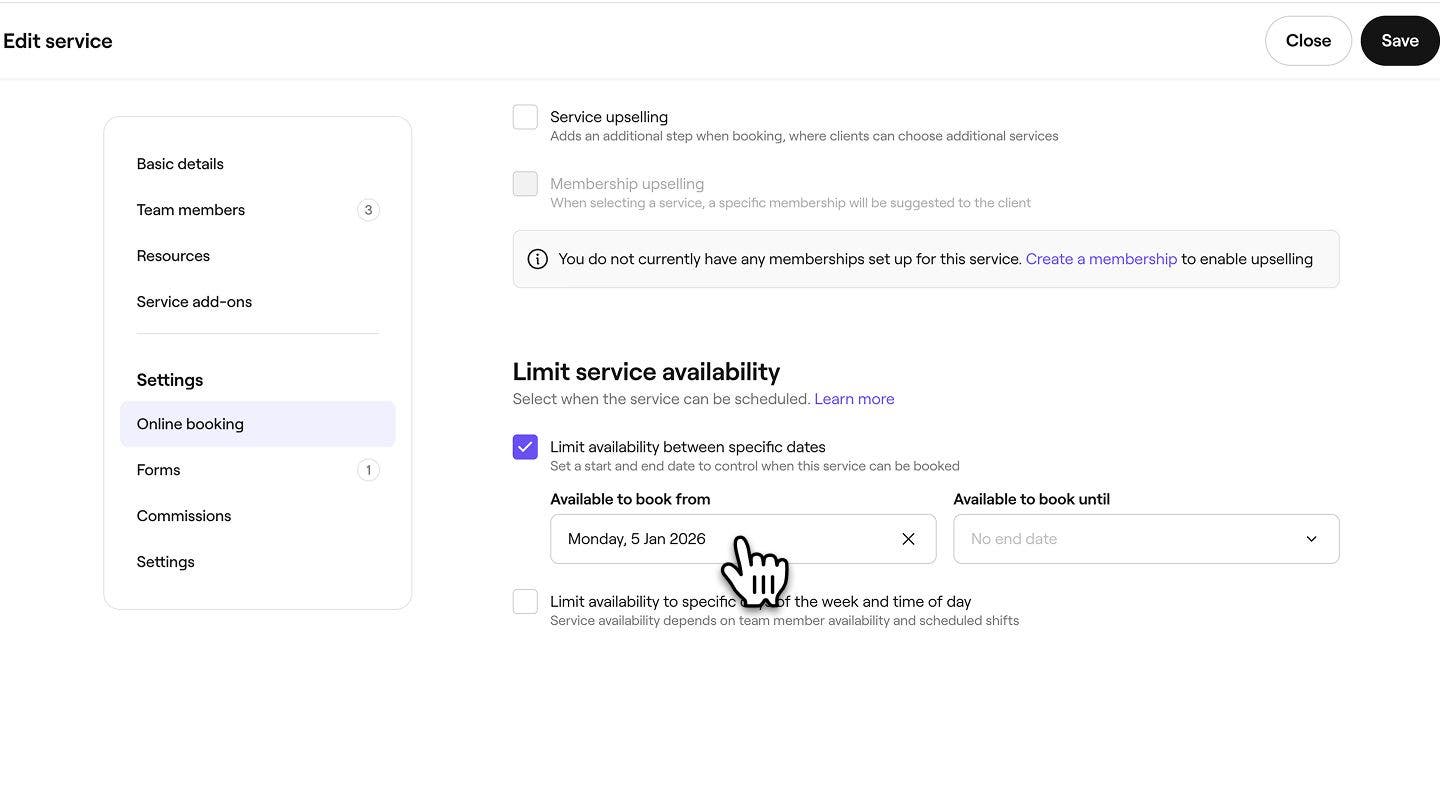
  4. Under Limit service availability, tick the checkbox next to Limit availability between specific dates to set when a service starts or stops being available to book online: 

    • Available to book from: Select a start date for when the service becomes bookable. For example, if you’re launching a new service in the New Year, set the start date to 1 January so clients can start booking from that date onward.
    • Available to book until: Select an end date for when the service stops being available to book. For example, if you’re offering a seasonal service that ends before the new year, set the end date to 31 December so it automatically stops being bookable after that day. If you don’t set an end date, the service will continue to be available to book without limits.
    desktop select date.jpg

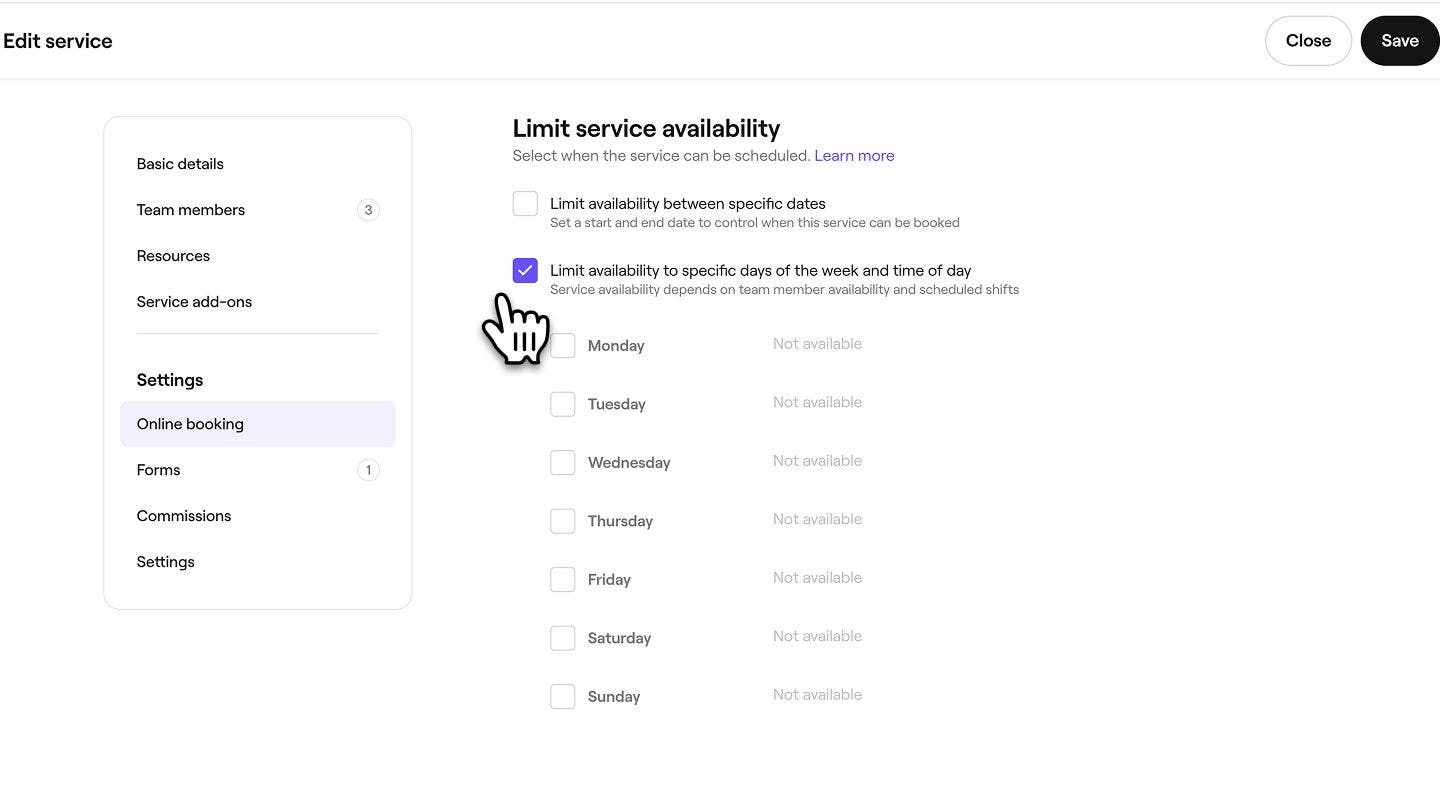
  5. Tick the checkbox next to Limit availability to specific days of the week and time of the day to customize when the service can be scheduled. 
    desktop select limit day-time availability.jpg

  6. Tick the checkbox next to the days the service is available, then set the times it can be scheduled within. You can select specific times or choose the “Start of day” or “End of day” which are determined by your team's scheduled shifts.

    • You can choose to add more scheduling for the day using the Plus icon, or use the Delete icon to remove them.

    desktop select time.jpg

  7. Click on the Save button in the top right to save the service availability limit.

  1. From the main menu at the bottom of your screen, tap on More (grid icon) and then tap Catalog to open more options.

    mobile select catalog.jpg

  2. Tap Service menu to view all of your services.

    mobile select service menu.jpg

  3. Tap the service you want to edit and then tap Edit from the menu at the bottom of your screen to view more details.

    mobile select edit.jpg

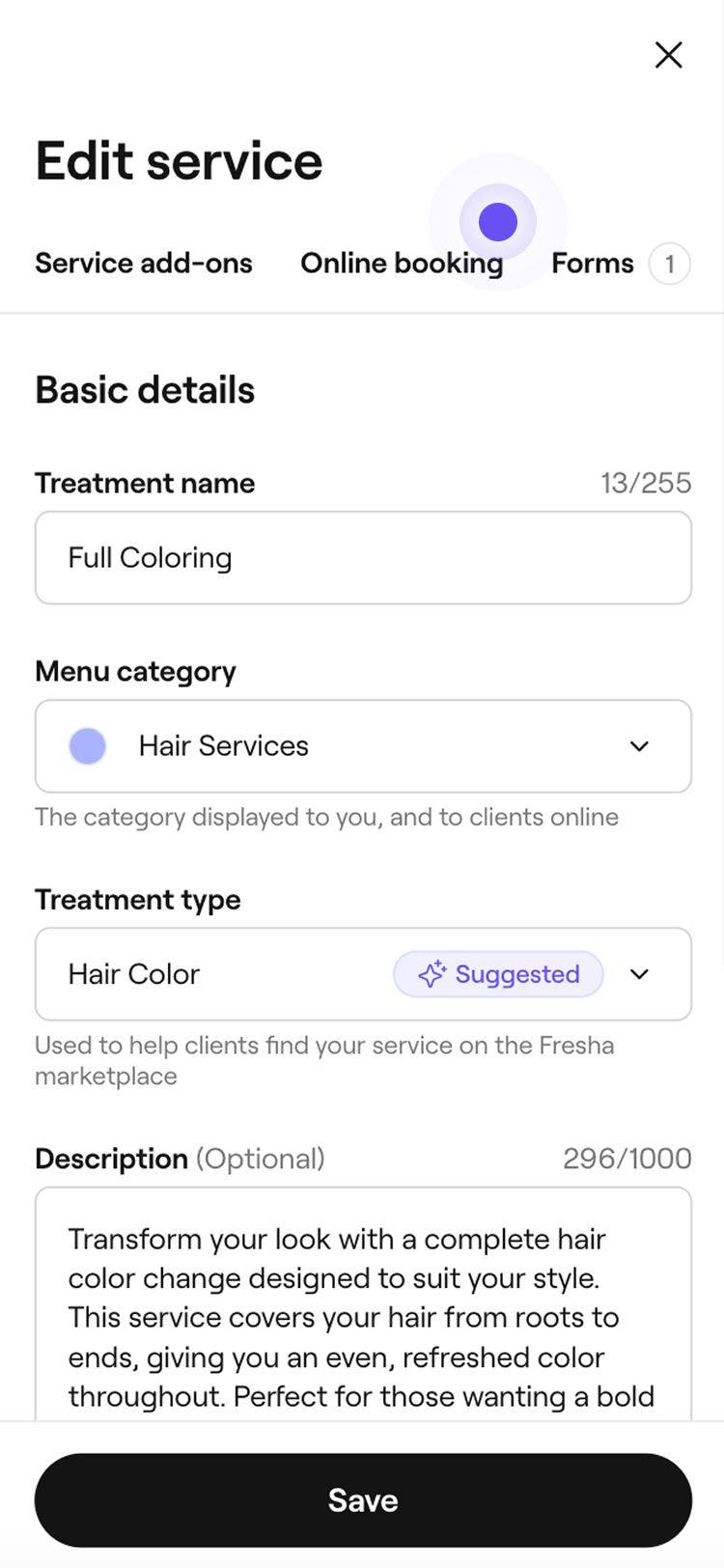
  4. Tap the Online booking tab at the top of your screen.

    mobile select online booking tab.jpg

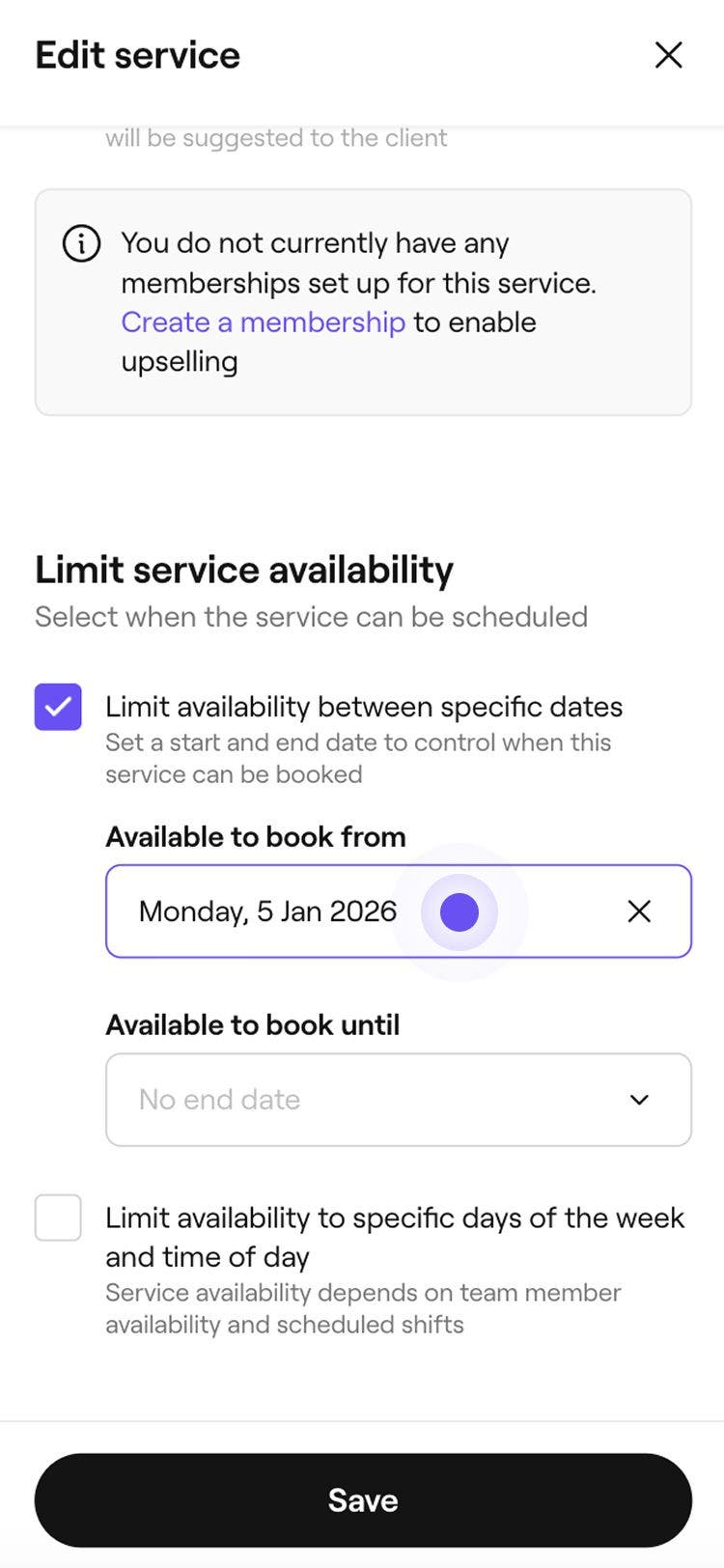
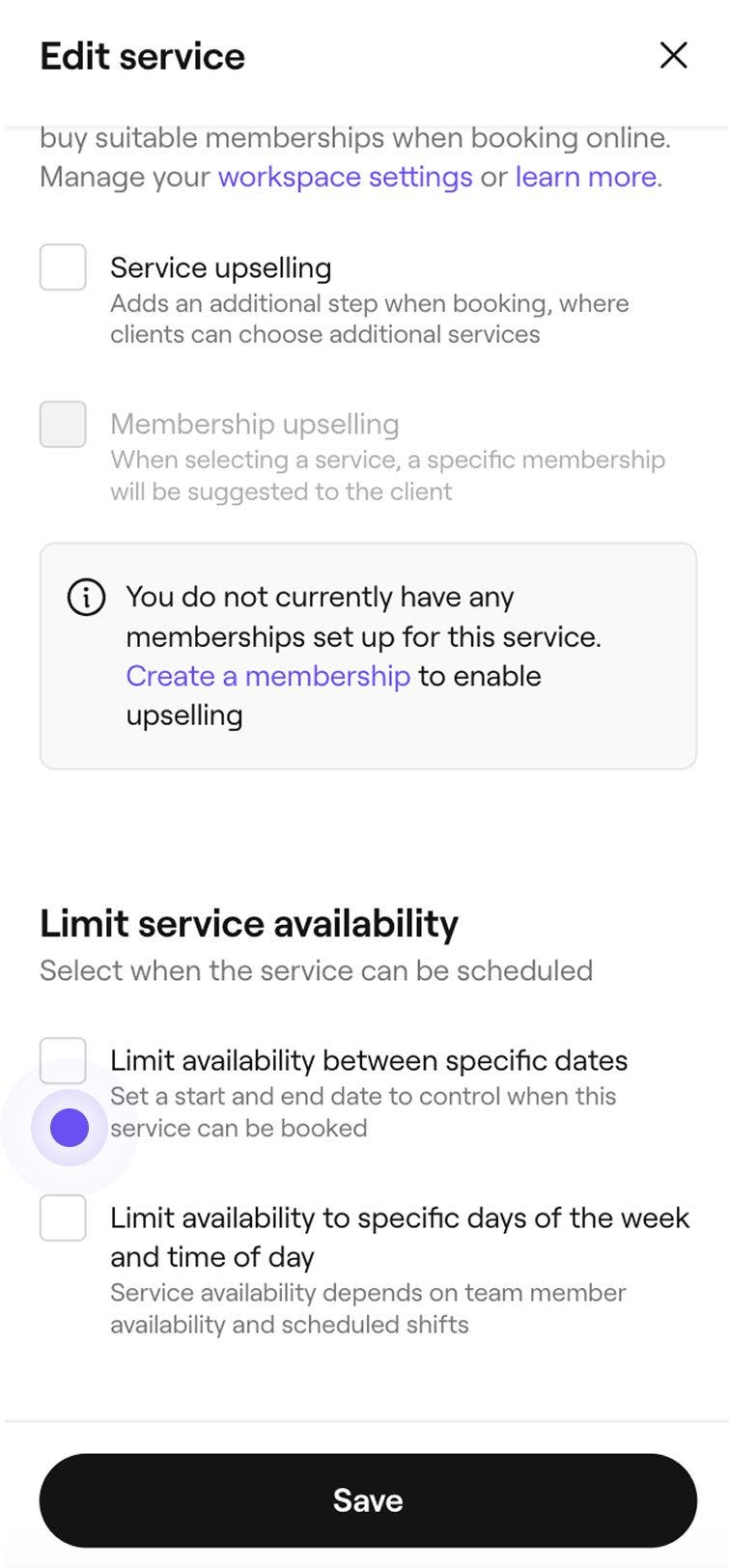
  5. Under Limit service availability, tick the checkbox next to Limit availability between specific dates to set when a service starts or stops being available to book online: 

    • Available to book from: Select a start date for when the service becomes bookable. For example, if you’re launching a new service in the New Year, set the start date to 1 January so clients can start booking from that date onward.
    • Available to book until: Select an end date for when the service stops being available to book. For example, if you’re offering a seasonal service that ends before the new year, set the end date to 31 December so it automatically stops being bookable after that day. If you don’t set an end date, the service will continue to be available to book without limits.

    mobile select date.jpg

  6. Tick the checkbox next to Limit availability to specific days of the week and time of the day to customize when the service can be scheduled. 

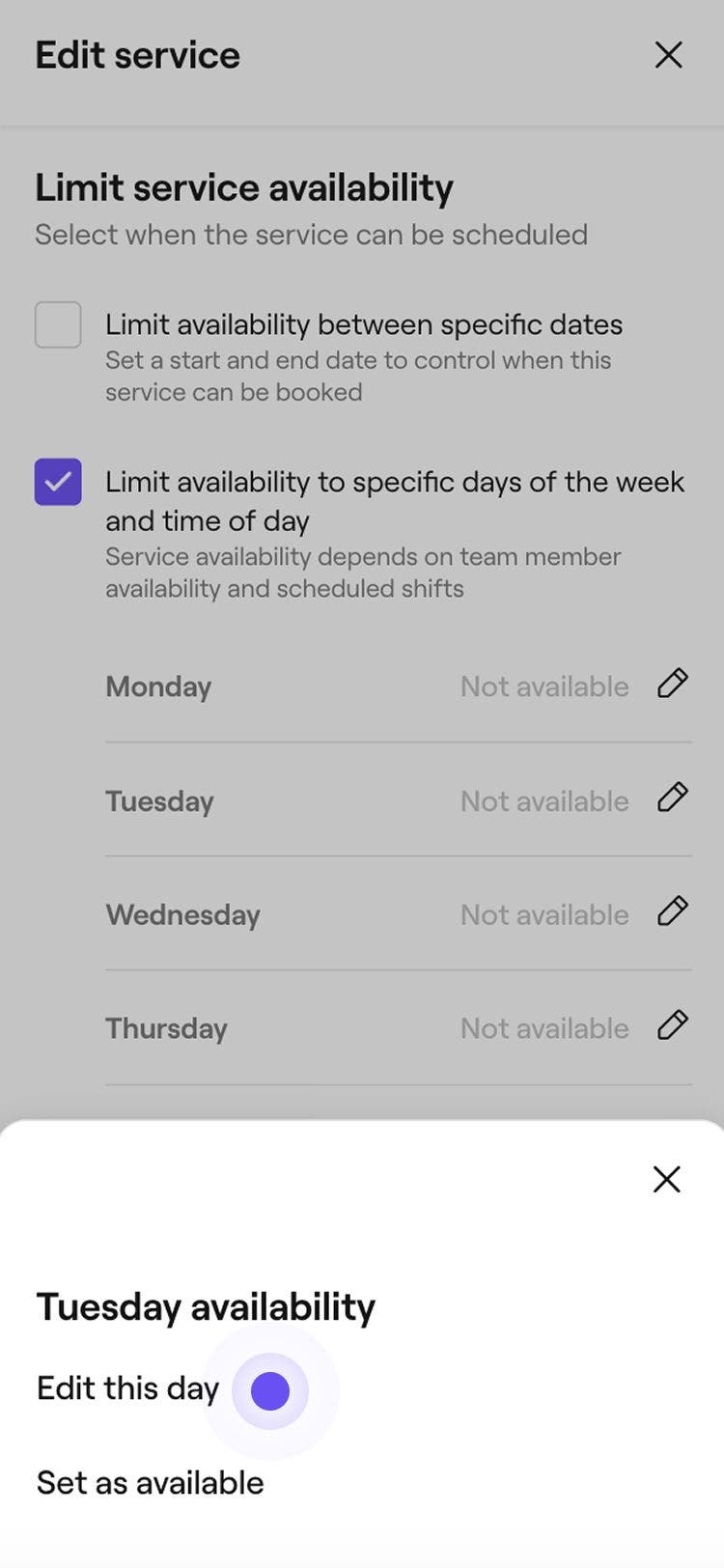
  7. Tap the pencil icon next to the day that you want to edit and then tap Edit this day at the bottom of your screen.

    mobile select edit this day.jpg

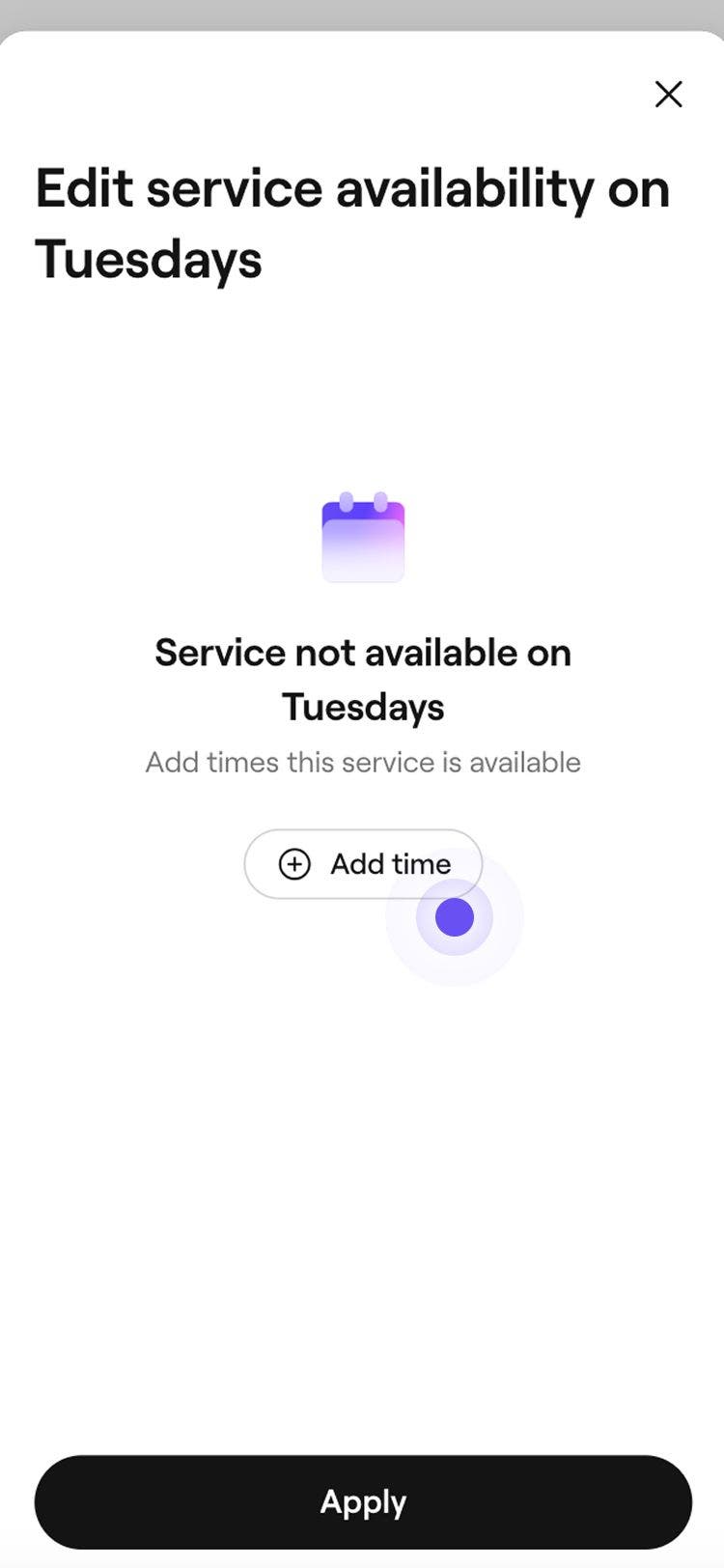
  8. Tap the Add time button to add a time slot for the selected day.

    mobile select add time.jpg

  9. Choose specific times or choose the “Start of day” or “End of day” which are determined by your team's scheduled shifts.

    • You can choose to add more scheduling for the day using the Add time button, or use the Delete icon to remove them.

    mobile add time.jpg

  10. Tap the Apply button to save the updates you made to the selected day.

  11. To make an entire day unavailable, tap the pencil icon and then tap Set as not available.

  12. Tap Save at the bottom of your screen to save your changes.

Once saved, the service will only appear online during the dates, days, and times you’ve set.

Edit or delete service availability limits

  1. From the main menu on the left of your screen, go to Catalog.

  2. Select Service menu from the left panel, then click on the service you want to edit.

    desktop select service menu.jpg

  3. Select Online booking from the left menu panel. 

    desktop select online booking.jpg

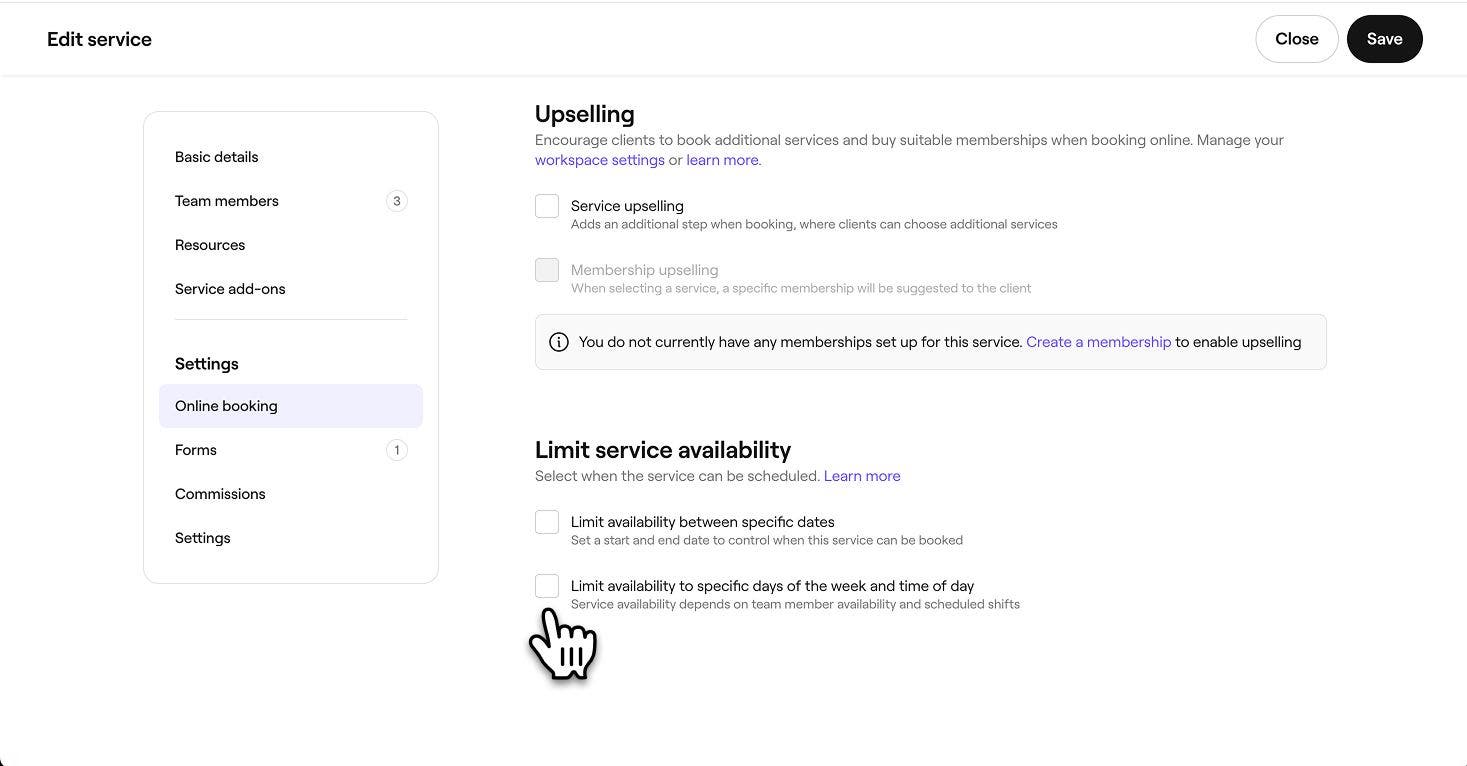
  4. Under Limit service availability, choose one of the following:

    • Edit: Update the service availability limit’s dates, days, or times of the day as needed. 
    • Delete: Permanently remove a service availability limit by unticking the checkboxes next to Limit availability between specific dates and Limit availability to specific days of the week and time of day.
    desktop select one or both options.jpg

  5. Click on the Save button in the top right to save your updates.
  1. From the main menu at the bottom of your screen, tap on More (grid icon) and then tap Catalog to open more options.

    mobile select catalog.jpg

  2. Tap the Service menu to view all configured services.

    mobile select service menu.jpg

  3. Tap the service you want to edit and then tap Edit from the menu at the bottom of your screen to view more details.

    mobile select edit.jpg

  4. Tap the Online booking tab at the top of your screen.

    mobile select online booking tab.jpg

  5. Under Limit service availability:

    • Edit: Edit the service availability limit’s dates, days or times of the day as needed. 
    • Delete: Permanently remove a service availability limit by unticking the checkboxes next to Limit availability between specific dates and Limit availability to specific days of the week and time of day.

    mobile select one or both options.jpg

  6. Tap Save at the bottom of your screen to save your changes.

FAQs

    • Service availability limits are applied at the individual service level and determine when a bundle can be booked. A bundle becomes available when all included services and the team members who perform them are available at the selected time.

      Start of day and End of day are based on the scheduled shift times of the team members who can perform the service. For example, if the service availability is set from the start of the day to 2 p.m., and team schedules begin at 8:30 a.m., the service will be available from 8:30 a.m. until 2 p.m.

      Updates to service availability limits apply only to new bookings. Any existing appointments remain unchanged and will continue as originally scheduled.

      Business closed periods are automatically reflected in online booking. Clients won’t be able to book appointments on days marked as closed, even if the services involved have availability limits set for those days.


Services


Related articles

Was this guide helpful?

Services

Create services

Create and manage your treatment offerings by setting up single services.

Manage service availability

Manage where your services are offered, who can perform them, and which resources they require.

Add images to a service

Inspire bookings by adding service images to your service, so clients can book directly from your service portfolio.

Create service variants

Offer flexible pricing options for your services by creating and managing service variants.

Add extra time to services and appointments

Adjust appointment durations by adding extra time to services, bundles, or individual appointments.

Create service add-ons

Create optional extras linked to specific services that clients can select when booking.

Set advanced pricing and durations

Setting different prices and durations for team members or locations.

Limit online service availability

Control when clients can book your services by setting specific times, days, or dates your services are available.

Bulk edit services

Edit price, duration, and other settings for multiple services at once on Fresha.

Related articles

Manage bookable resources

Create bookable resources for services and learn how to check availability easily.

Create service bundles

Increase bookings with bundles that combine multiple services into one convenient option for clients.

Fresha
Get the app

About Fresha

Careers

Help and support

Blog

Sitemap

For business

For partners

Pricing

Features

Scheduling

Point of sale

Payments

Capital

Marketplace

Support

Status

Legal

Privacy Policy

Terms of service

Terms of use

Find us on social

Facebook
Linkedin
Instagram

© 2026 Fresha.com SV Ltd