Add images to a service
Learn how to upload images of your services to inspire clients to book appointments.
In this article
How service images work
Your service images give clients a true feel for your style and skill, by sharing real results.
Images added to your services display in your service portfolio which appears on your Fresha marketplace profile. This showcases your treatments and allows clients to book directly from each image.
Follow our service portfolio photography guidelines to help capture the best images of your work.
Add images to a service
- From the main menu on the left of your screen, go to Catalog.
- Select Service menu in the left menu panel.

- Click on a service from the service menu to update.
- In the Edit service view, select Portfolio images from the left menu panel.

- Click on the Choose a file button to upload images. Drag and drop each image to change the order of how they are displayed on your profile.
- Click the Save button in the top right to save your changes.

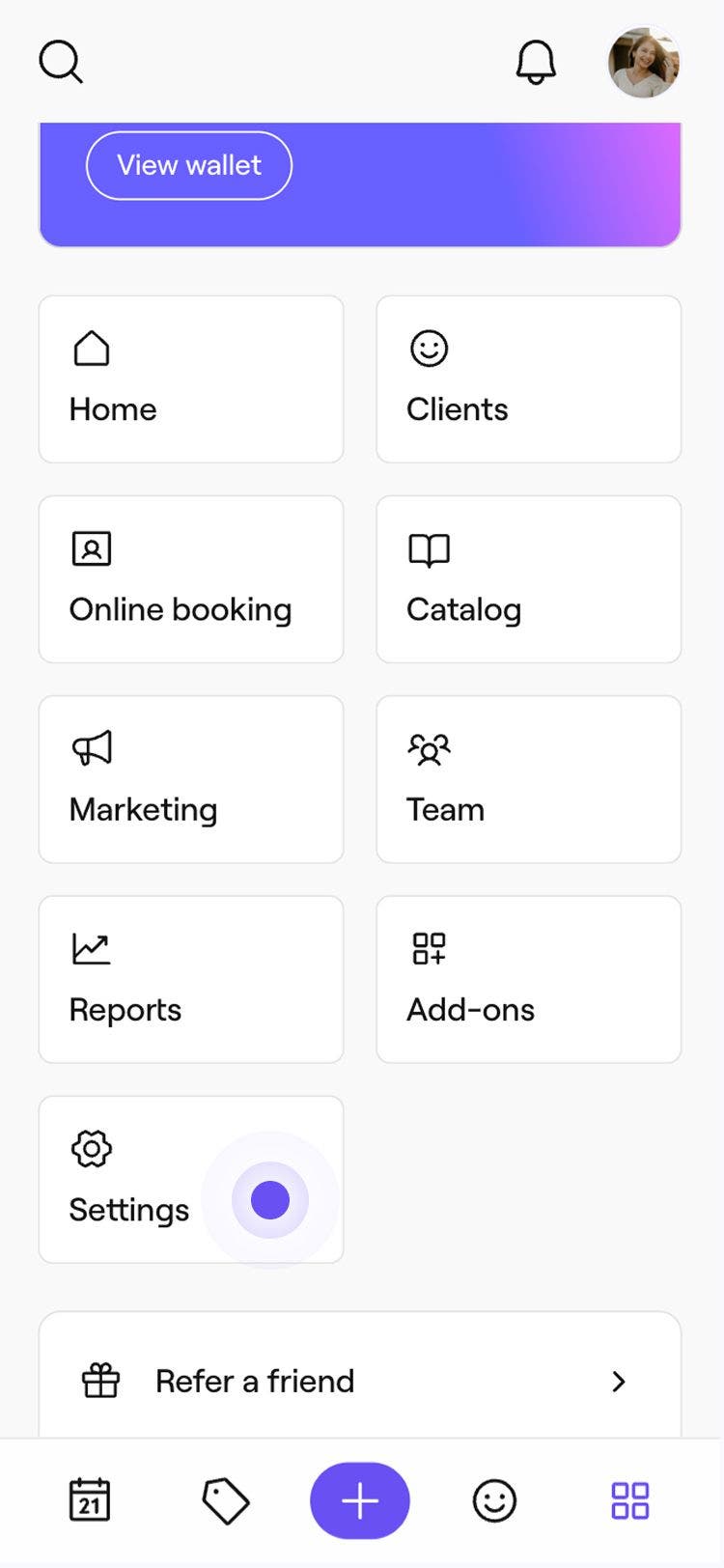
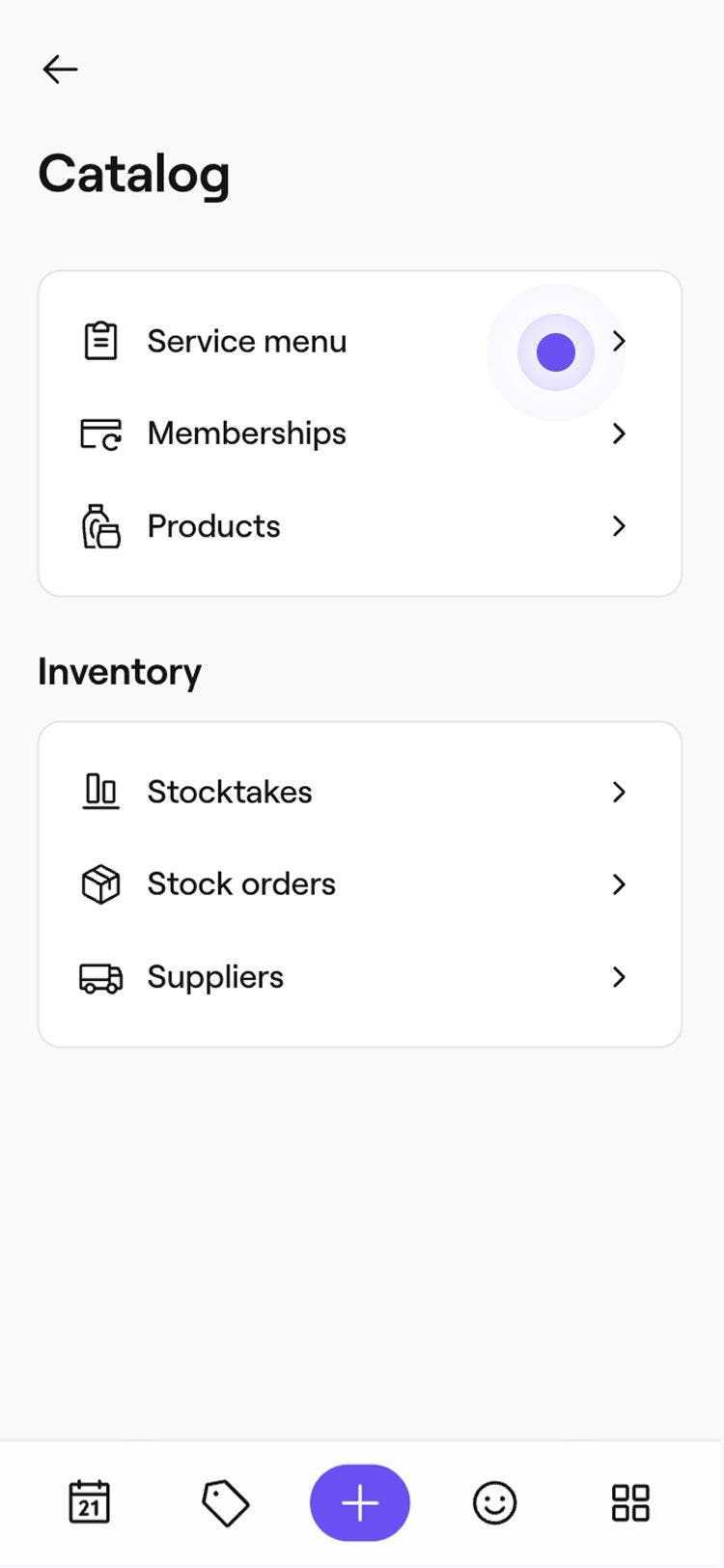
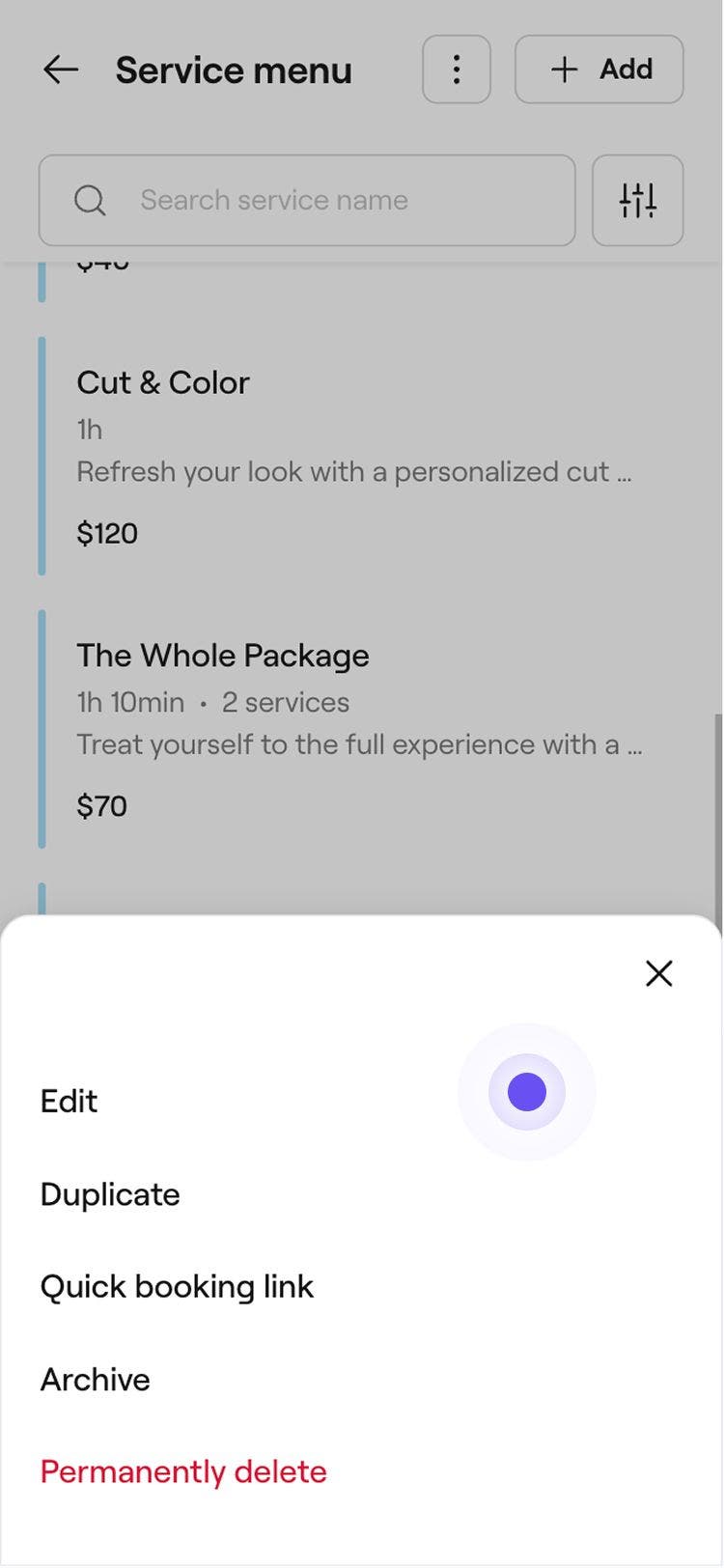


Once you’ve uploaded an image to a service, it will appear to clients in your Marketplace profile and can be previewed when selecting a service.
You can manage all your service images in one place, directly from the Portfolio section of your Marketplace profile.
FAQs
- When browsing your service portfolio, clients can select Book now on any image with a tagged service to book an appointment.
- When booking an appointment, clients can view the tagged image for a service while selecting what they want to book.
Images can only be tagged to one service. For bundles, any images added to the individual services included in the bundle will be displayed in the service portfolio.
To remove an image from a service, open the service and select Portfolio images from the left menu panel. Select the three dots on the image you want to remove, then choose Delete.
Clients can view your service portfolio in two places on your Fresha marketplace profile: