Bulk edit services
Learn how to update price, duration, and other settings for multiple services at once using bulk edit.
In this article
How bulk edit services works
Bulk edit services lets you update price, duration, and other settings for multiple services from one screen, instead of opening each service individually. Every service in your menu appears as a row in an editable table, so you can review and change several details side by side.
Select and edit multiple services
-
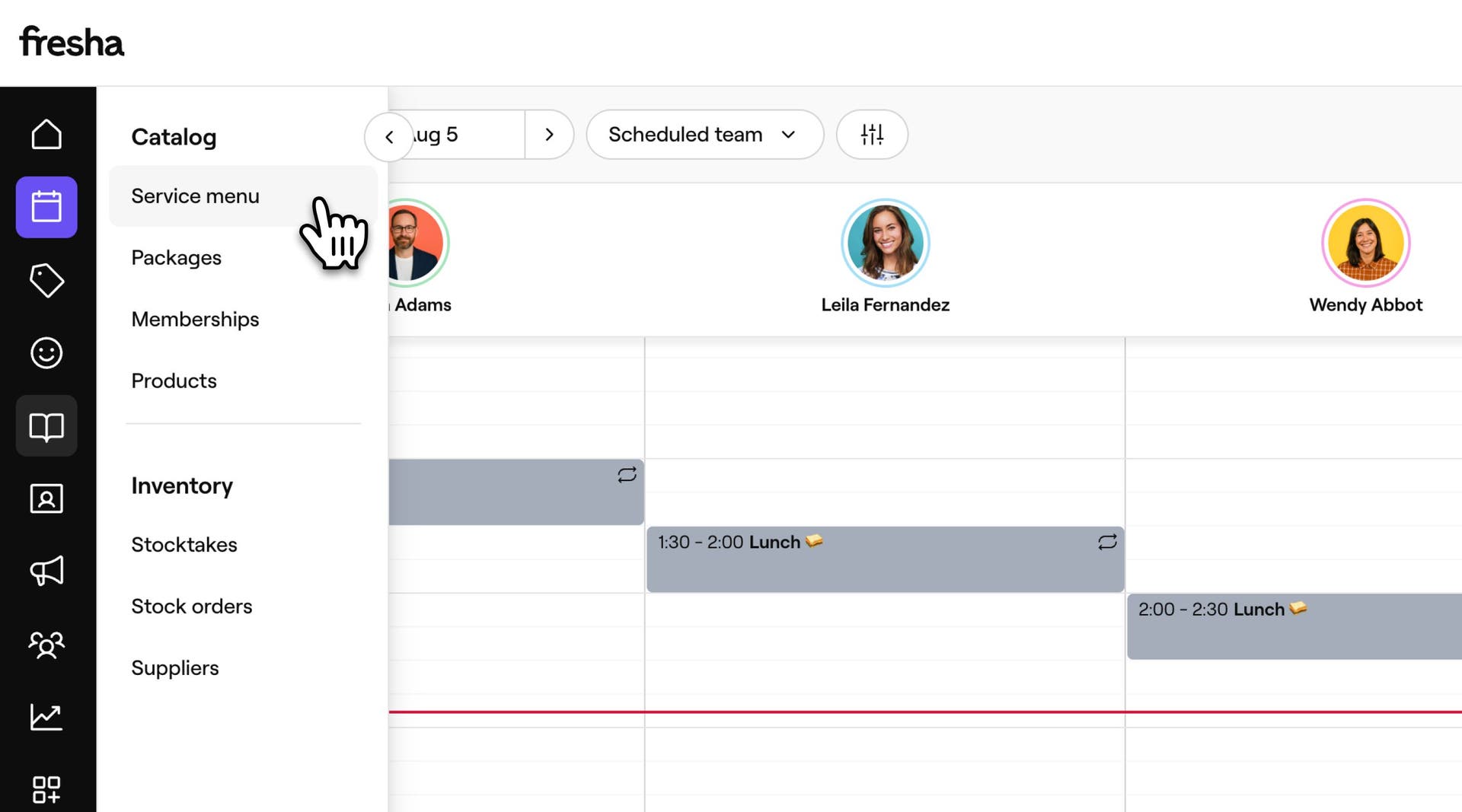
From the main menu on the left of your screen, go to Catalog.
-
Select Service menu from the left menu panel.
-
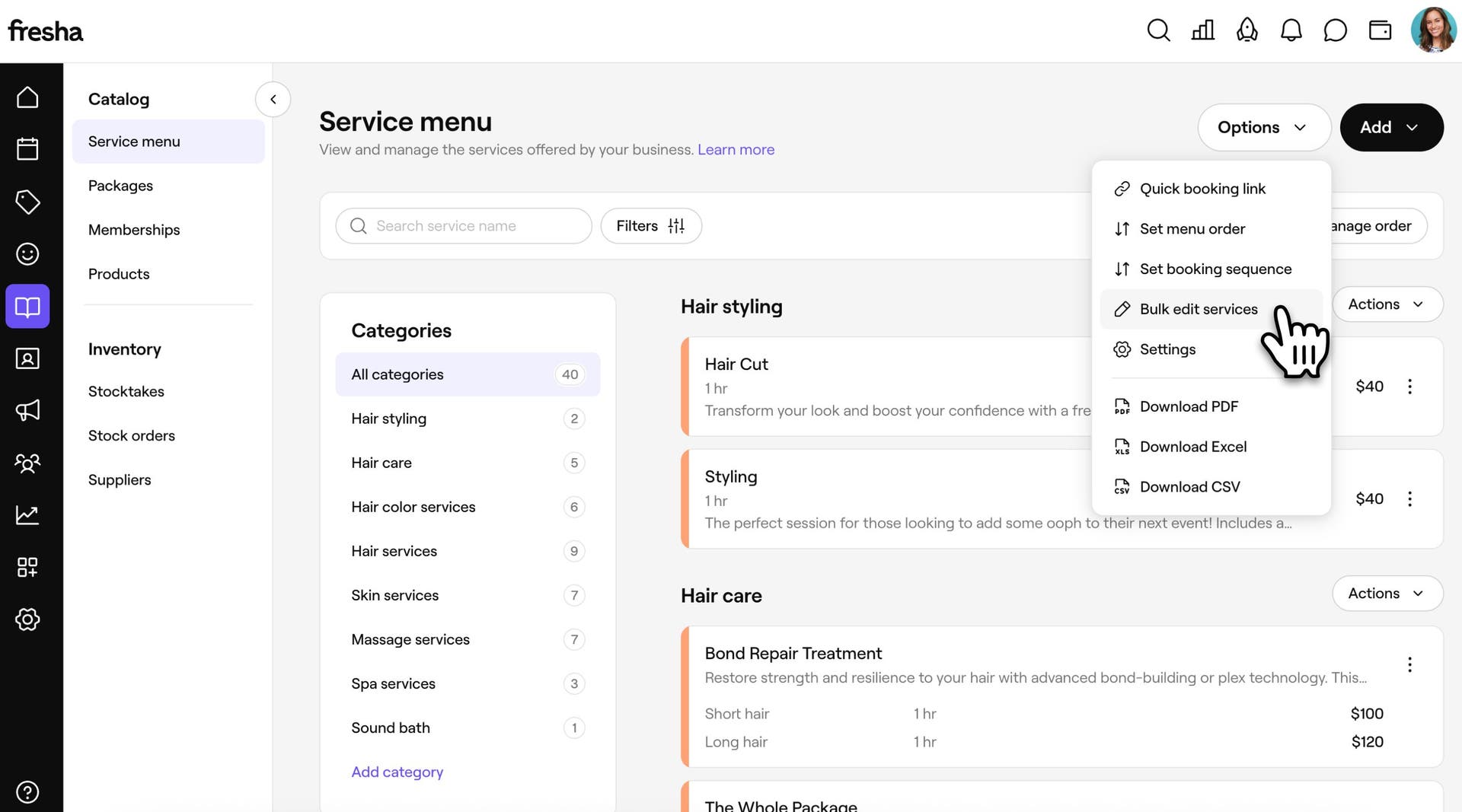
Click on the Options button in the top right, then select Bulk edit services.
-
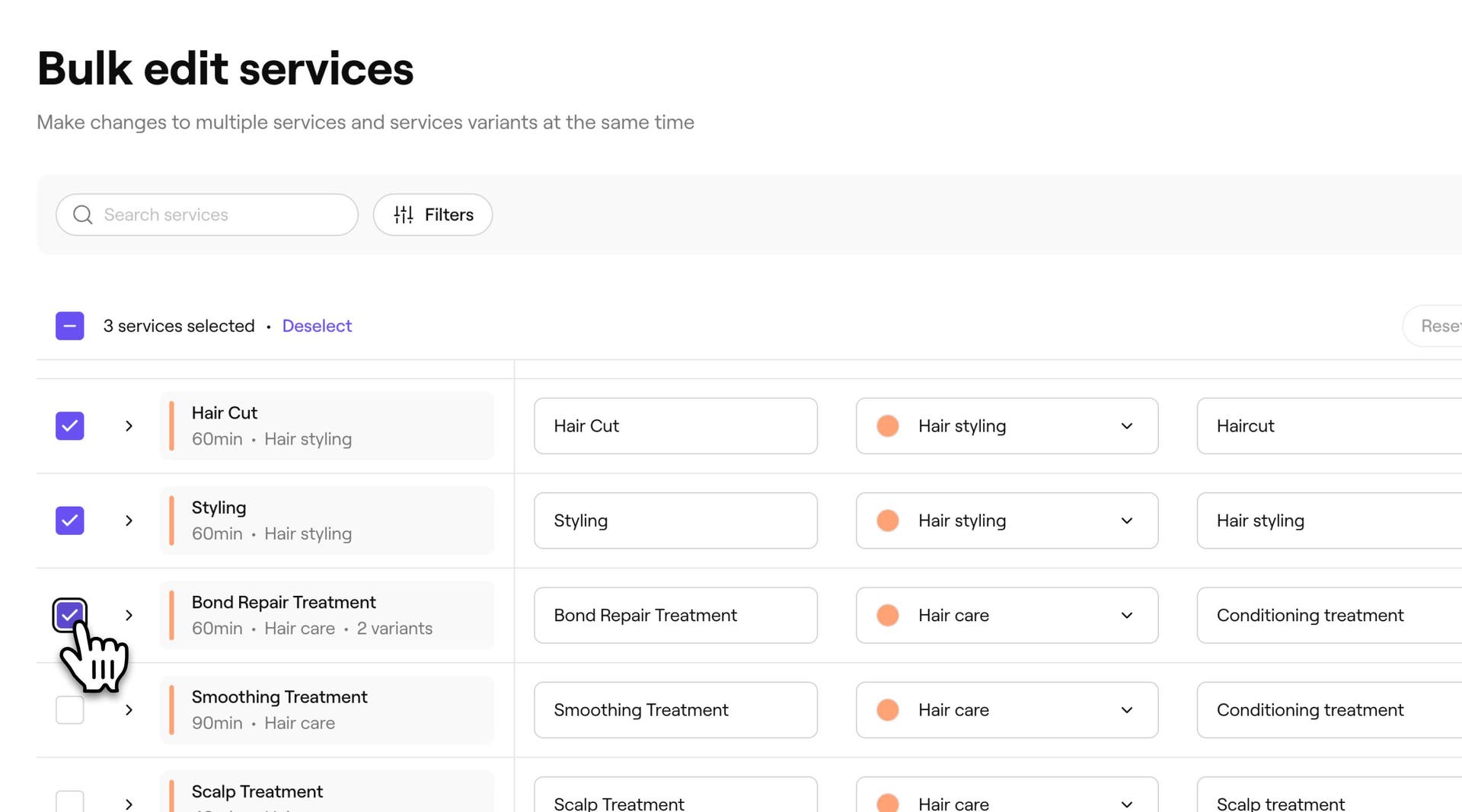
In the Bulk edit services view, tick the checkbox next to each service you want to update.
-
Click Bulk edit and select the field you'd like to edit in the dropdown.

-
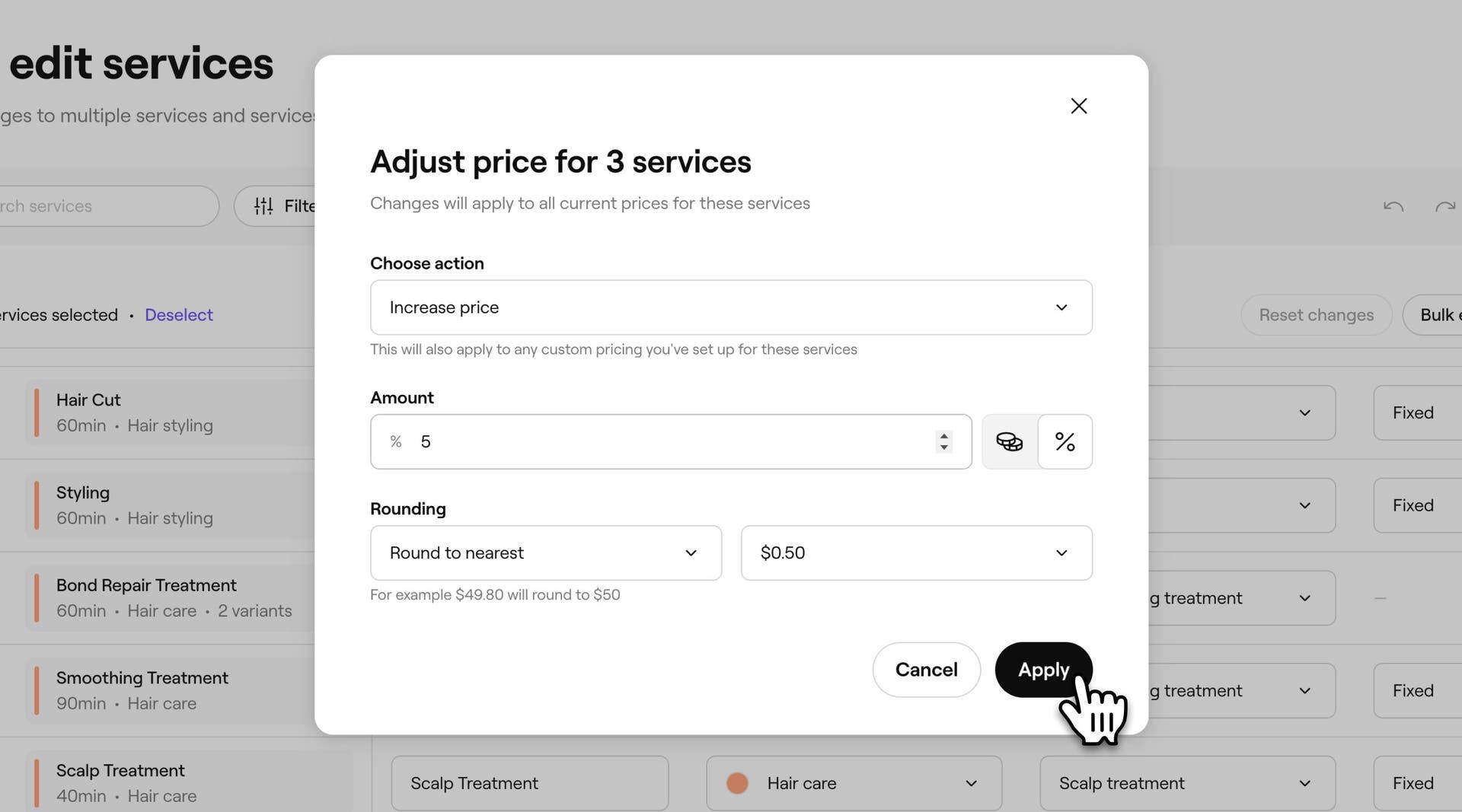
In the pop-up, update the field.
-
Click on the Apply button to update all the selected services at once, or Cancel to discard the change.
Once applied, every service you selected updates with the new details, so you don't need to make the same change one by one.
Filter or search for specific services
- From the main menu on the left of your screen, go to Catalog.
- Select Service menu from the left menu panel.
- Click on the Options button in the top right, then select Bulk edit services.
- Above the table, click on Filters to open the All filters panel.
- Select one or more filters, such as Service category, Location, Team members, Price type, Price, Treatment type, and more to filter your services.
- Click on the Apply button to update the table, or Clear filters to remove them.
Now you'll only see the services that match your search or filters, making it quicker to find and select the ones you want to update.
Customize visible columns
- From the main menu on the left of your screen, go to Catalog.
- Select Service menu from the left menu panel.
- Click on the Options button in the top right, then select Bulk edit services.
- Click on the Settings icon above the table to open Customize columns.
- Tick or untick the checkbox next to each column to show or hide it, and drag to reorder. Click on the Apply button to save your view.
Your table now shows only the columns you want, in the order you prefer, each time you open Bulk edit services.
FAQs
You can bulk edit any service in your Service menu. Each service's variants and location-specific pricing can also be updated, but by expanding that service's row and editing them individually rather than through the checkbox-based multi-service selection.
No. Bulk edit services only changes details like price, duration, and settings for services you already have. To archive or delete a service, use Actions next to the service in your Service menu.