Maximize client reviews with Google Rating Boost
In this guide, you'll learn how to enable Google Rating Boost, to encourage clients who leave positive reviews on Fresha to also post them on your Google profile.
In this article
What is Google Rating Boost
Google Rating Boost is designed to enhance your visibility and credibility on Google by encouraging clients who leave high ratings on Fresha to also share their review on your Google Business Profile. When clients leave a rating for your business on Fresha, an extra step will encourage them to post the same rating on Google.
Before upgrading, make sure the Thank You for Visiting automation is enabled, either via email or text.
Set up your Google Business profile
You must have an active Google Business Profile for each location on Fresha.
- Start by creating your Google Business Profiles if you haven't already.

- Confirm that the name and address of each location on Fresha match those on your Google Business Profiles.
Activate Google Rating Boost
- From the main menu on the left of your screen, go to the Add-ons.
- In the Integrations section, under Google Rating Boost, click on the View button.

- From the sign-up page, click on the Start now button to begin setup.

- In the next step, review your payment method options, including the following:
- Select an existing payment method, or add a new credit/debit card.
- Select the Use wallet balance to have the monthly fee deducted from your wallet balance first before charging your saved payment method. If you have multiple locations, click Change to choose which location’s Wallet balance you want to use by default.
- Click on the Enable button in the top right corner to activate the add-on.

- Next, preview your Google review links to ensure each location is correctly matched to its Google Business Profile. When you're ready, click on the Continue button in the top right corner.

- In the next step, use the dropdown menu to choose the minimum star rating required to send clients a Google review prompt. This setting determines which clients will see the prompt, for example, if you choose 4 stars and above, only clients who rate your business 4 or 5 stars will be encouraged to leave a Google review.
- Once selected, click on the Confirm button in the top right corner to finish setup.

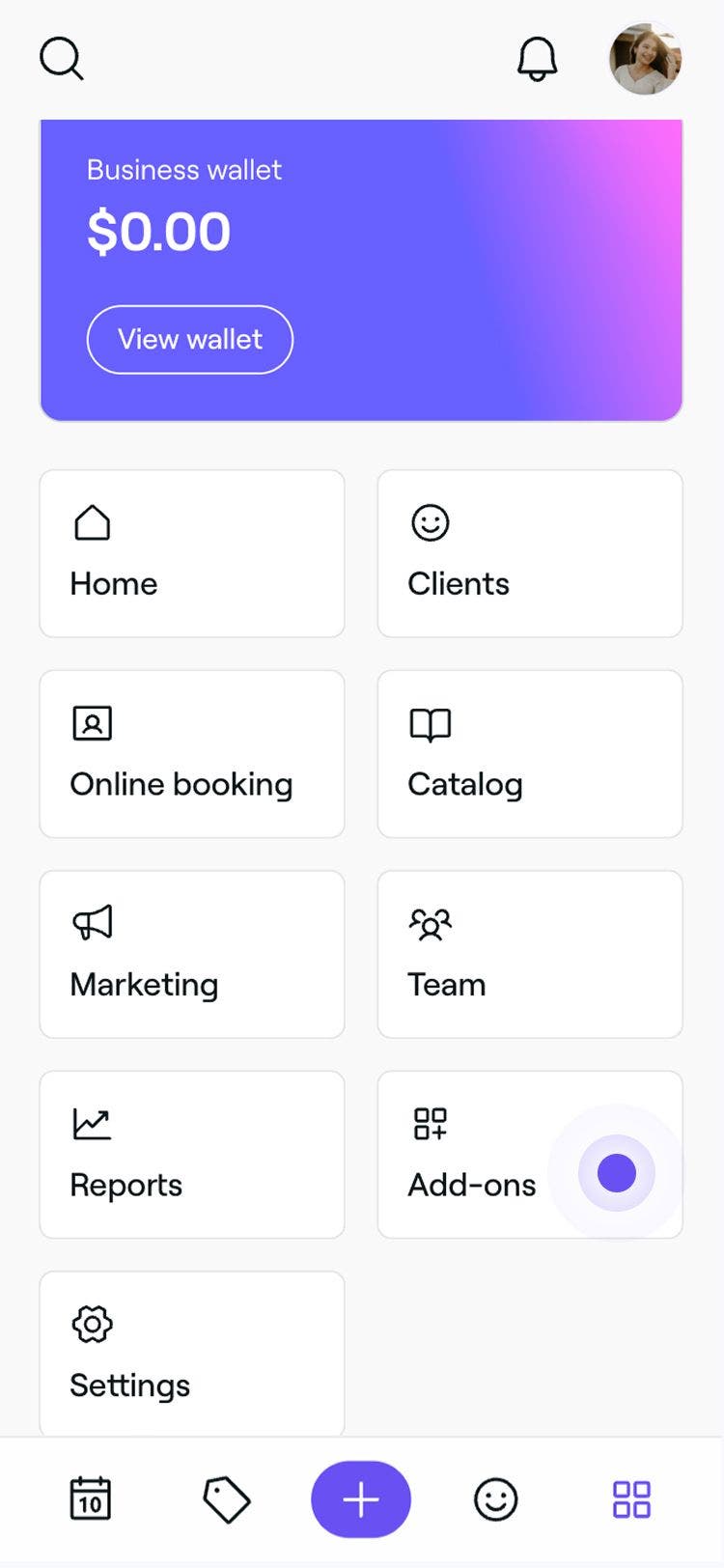

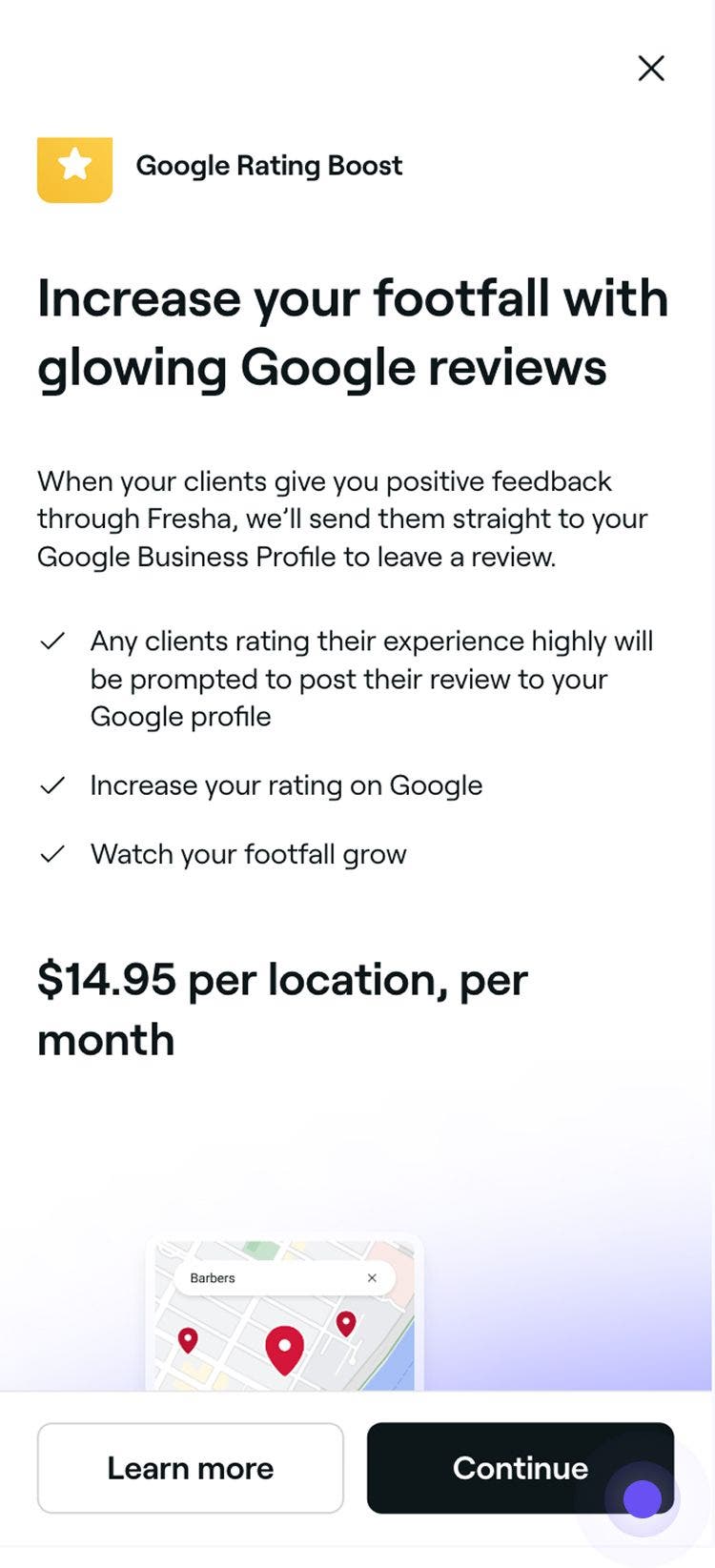


Once enabled, clients who rate your business on or above the review trigger you have set will be prompted to extend their review to Google.
How Google Rating Boost appears to clients
When clients leave a review for your business and their review rating meets or exceeds your review trigger threshold, Google Rating Boost will appear as an extra step for them.
- After a client writes a review for your business, they will see a prompt inviting them to also post their review on Google.
- By selecting the Continue to Google button, the client is redirected to Google and asked to sign in with their personal Google account (if not already signed in).

- Clients can choose to copy their Fresha review text or write a new one for your Google Business Profile. Once ready, the client can click Post to submit their review on Google.

- Clients who haven't yet left a Google review receive a follow-up email inviting them to leave their review there.
Once a client posts their review on both platforms, it will appear publicly on your Fresha marketplace profile and your Google Business Profile.
Disable Google Rating Boost
You can choose to disable your subscription at any time and keep using the until the end of the current billing month, after which your subscription will expire.
- From the main menu on the left of your screen, go to the Add-ons icon.
- In the Integrations section, under Google Rating Boost, click on the View button.

- From the Google Rating Boost summary view, click on the Options button in the top right corner and select Disable add-on.

- Select an option from the drop-down menu under Why are you disabling?

- Click on the Disable now button to confirm.

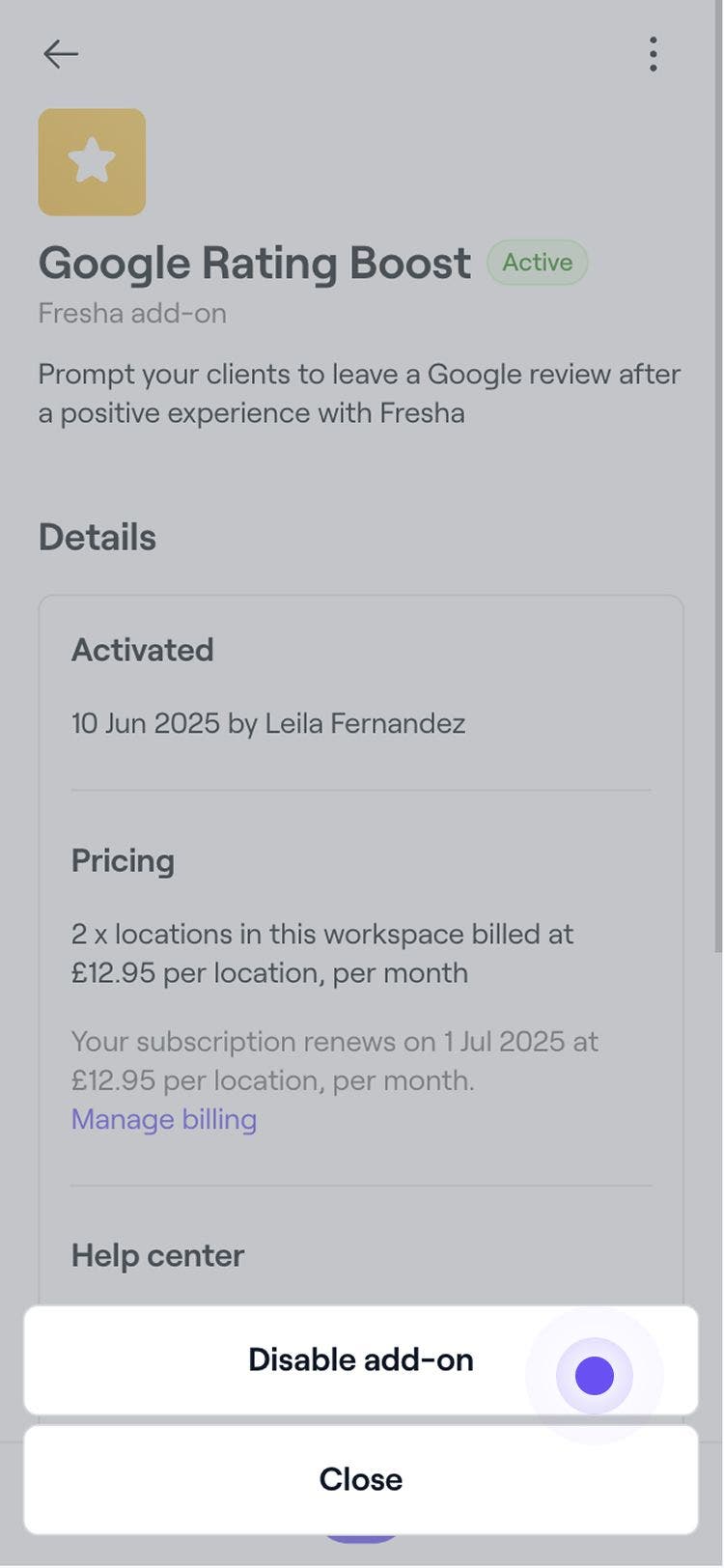

Once disabled, clients will no longer be prompted to share their Fresha reviews on your Google Business Profile. You can renew your subscription at any time by following the same steps.
FAQs
- Client notification messages are enabled.
- The appointment was within the last 24 hours.
- The appointment is not in the future (must be above the red line in the calendar).
- The Fresha review rating meets or exceeds your review trigger threshold.
Google Rating Boost is one of Fresha’s optional paid add-ons. You can find pricing details for all add-ons, including Google Rating Boost, on our pricing page.
Fresha integrates with Google Rating Boost to help you grow your client reviews across both platforms. Fresha does not control any proximity settings applied by Google. According to Google’s Help Centre, clients who meet your rating criteria will be prompted to share their Fresha review on Google once per location, every six months.
No, Google Rating Boost does not support importing existing reviews. The add-on is designed to generate new reviews for your Google profile.
No, we automatically retrieve your Google review link using your business name and address. If not found, you can manually add it by selecting the correct address and saving the link.
Review stats can be found on your Google Business profile. While we track if a client views or clicks the prompt, we can't retrieve reviews for reporting due to Google’s restrictions.
No, reviews generated by the add-on remain on your Google Business Profile even after you unsubscribe.
No, Google Rating Boost only applies to reviews received after activation. Clients who left reviews before activation won't receive a prompt.
Google usually publishes reviews immediately after verification, but it can sometimes take 2-3 days or more.
Clients can leave a Fresha review and be prompted to leave a Google review if:
No, to enable or cancel Google rating boost, you need to log in to your Fresha account using a web browser.
You can adjust your review trigger level anytime by going to Add-ons, selecting Manage under Google Rating Boost, and then clicking View settings to make changes.
If you see an "Action Required" message under the Google review links section, it means we were unable to locate your Google profile page. Please double-check your information and try again.
Fresha connot report how many Google reviews are submitted, as Google manages this data under its own policies.