HomeKnowledge baseFresha academy
Manage your marketplace profile
Back
  1. Knowledge base•
  2. Online presence •
  3. Manage your marketplace profile

Manage your marketplace profile

In this guide you'll learn how to manage your online bookings by updating your information, listing or unlisting your marketplace profile.

In this article

  • Understand how your marketplace profile is performing
  • Edit your marketplace profile
  • List and unlist your marketplace profile

Understand how your marketplace profile is performing

Each marketplace profile includes access to reporting tools that help you track and measure your online booking performance.

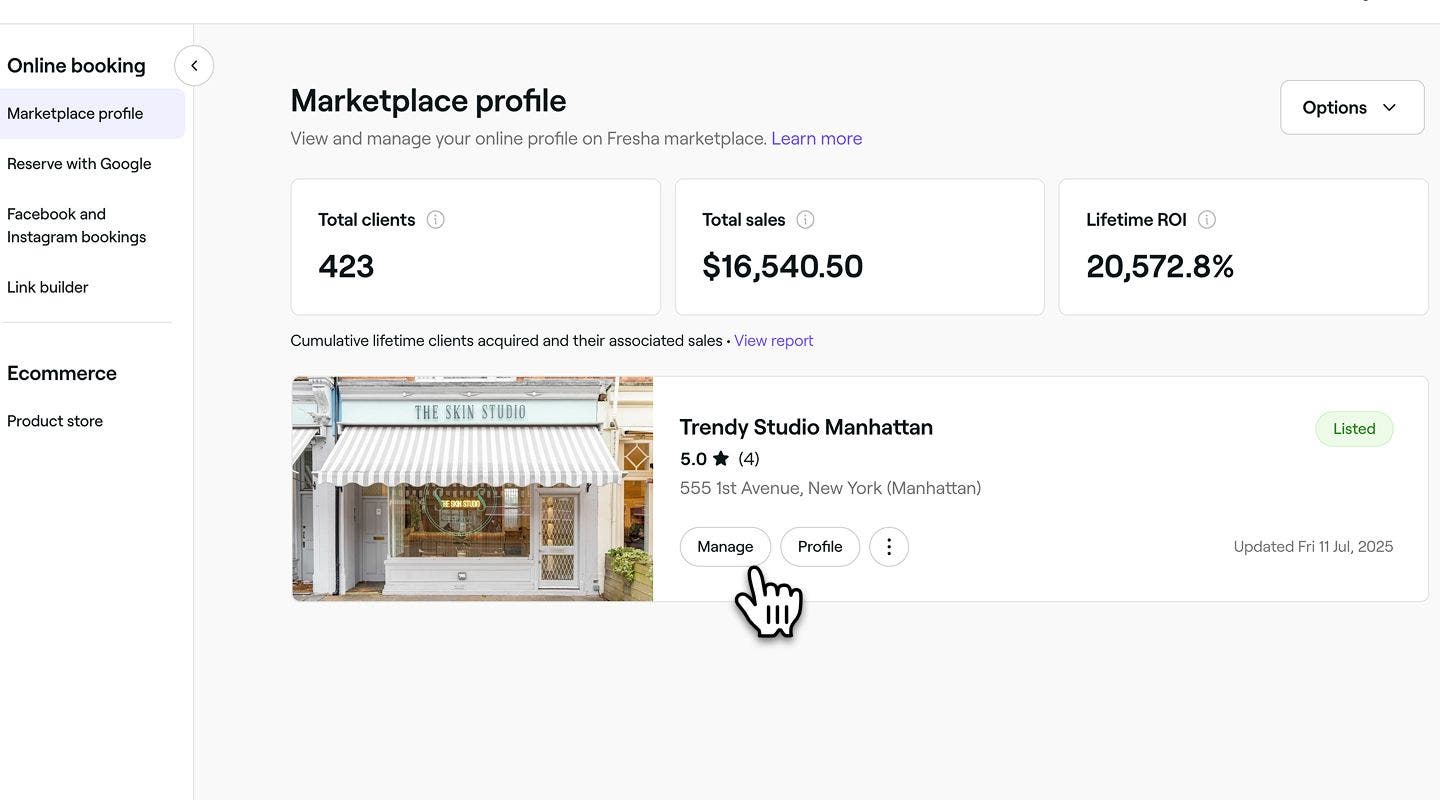
  1. From the main menu on the left of your screen, go to Online booking.
  2. Select Marketplace profile from the left menu panel.
  3. Next to the marketplace listing you want to review, click on the Manage button to open a summary of your profile’s performance.Group 352.jpg
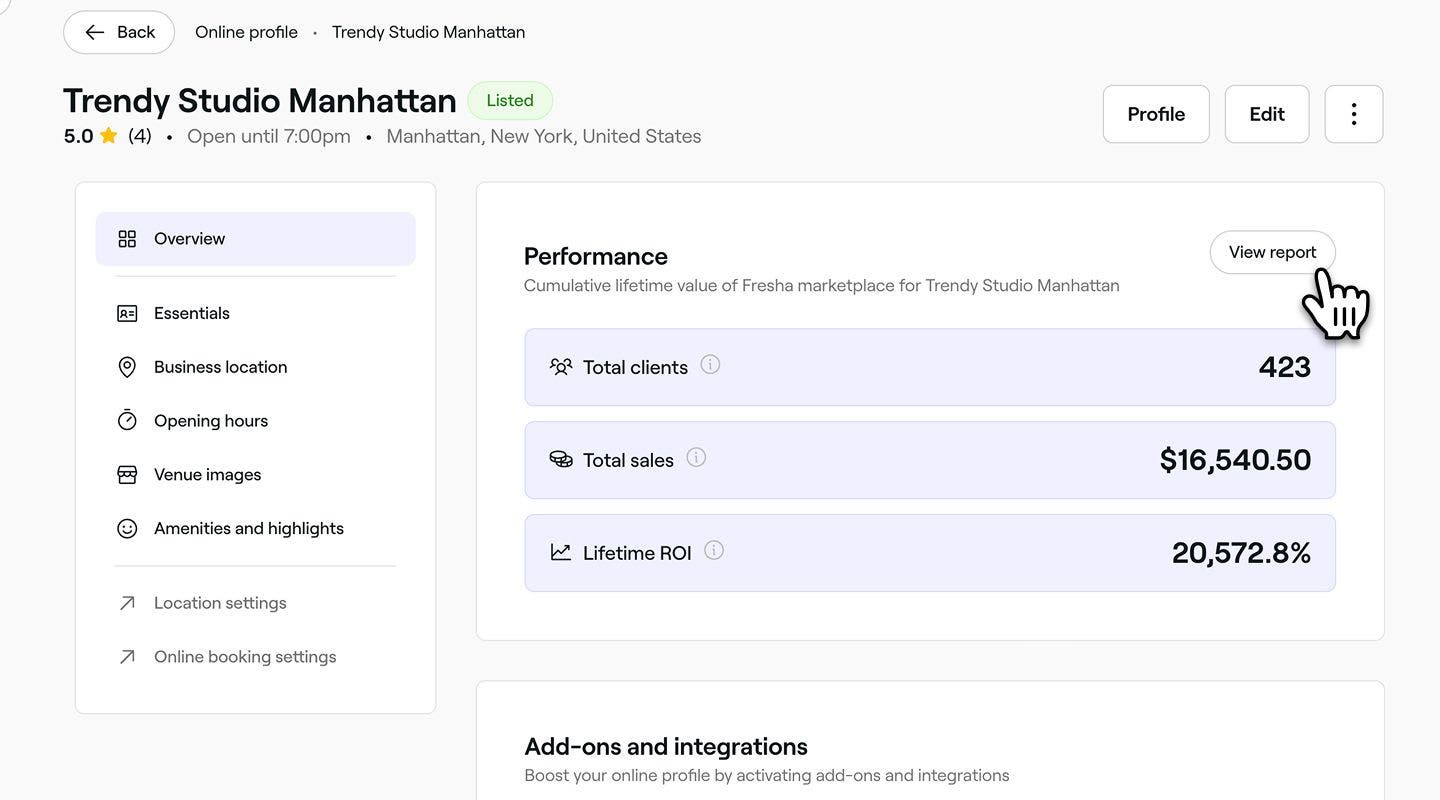
  4. In the Performance section, you’ll see key metrics including the percentage of clients sourced from the marketplace, total sales amount, and lifetime ROI (return on investment).
  5. Under Add-ons and integrations, you can view active integrations or set up new ones.
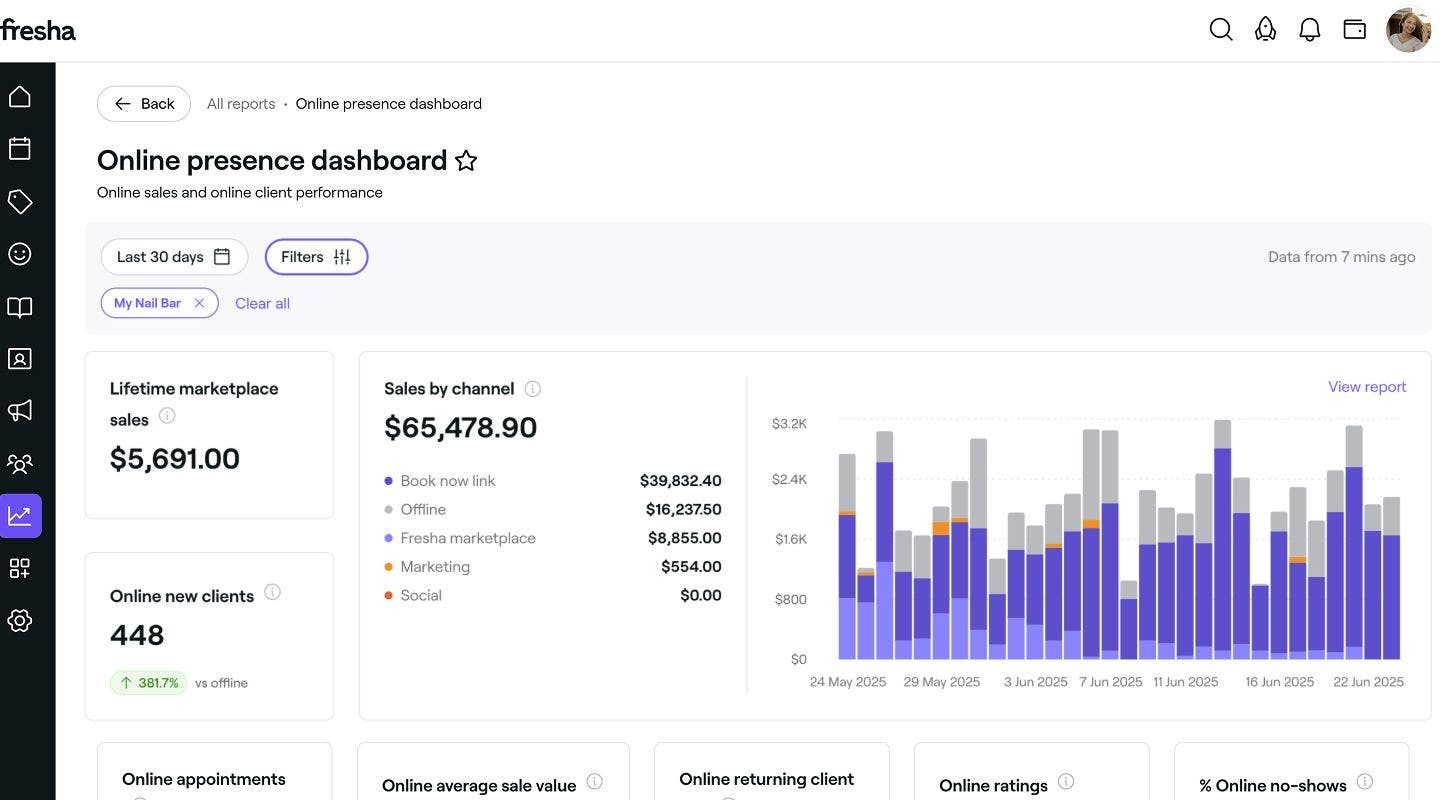
  6. To access more detailed insights, click on the View report button in the Performance section.Group 335.jpg
  7. You’ll be redirected to the Online presence dashboard in Reporting, where you can explore a full overview of your marketplace performance, filtered by the profile you selected.Group 291.jpg
  1. From the main menu along the bottom of your screen, tap on More (grid icon) to view more options.
  2. Open Online booking, and tap on the Marketplace profile tab.Group 113.jpg
  3. Next to the marketplace listing you want to review, tap on the Manage button to open a summary of your profile’s performance.Group 188.jpg
  4. From the menu panel, select the Overview tab to view the performance dashboard for the selected profile.Group 139.jpg
  5. In the Performance section, you’ll see key metrics including the percentage of clients sourced from the marketplace, total sales amount, and lifetime ROI (return on investment).Group 141 (1).jpg
  6. Under Add-ons and integrations, you can view active integrations or set up new ones.Screenshot 2025-06-23 at 16.47.16 1.jpg
  7. To access more detailed insights, tap on the View report button in the Performance section.Group 141.jpg
  8. You’ll be redirected to the Online presence dashboard in Reporting, where you can explore a full overview of your marketplace performance, filtered by the profile you selected.Group 142.jpg

Edit your marketplace profile

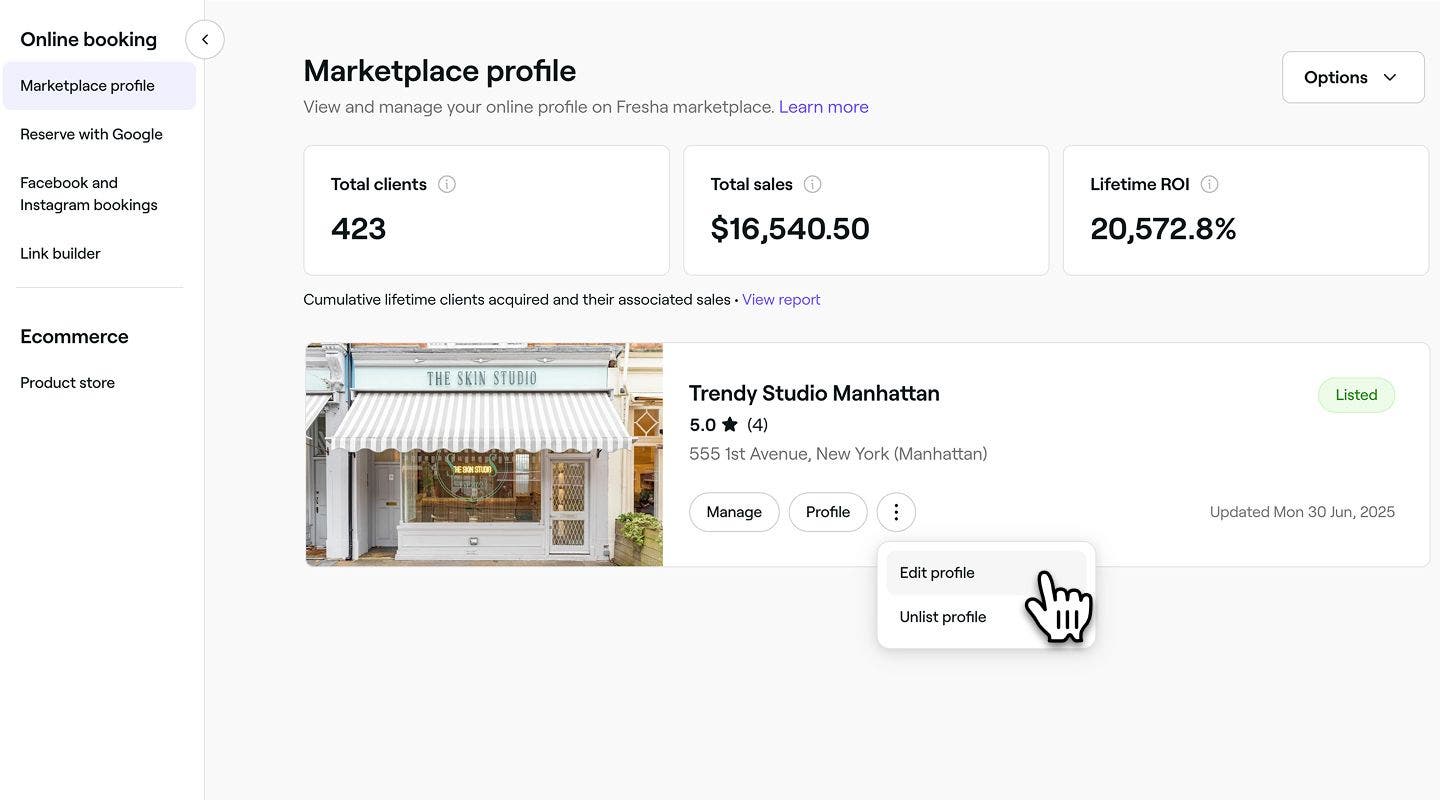
  1. From the main menu on the left of your screen, go to Online booking.
  2. Select Marketplace profile from the left menu panel.
  3. Next to the marketplace listing you want to manage, click on Actions (three dots) and then select Edit profile.Group 333.jpg
  4. Click the Continue button at the top right to move through each step of your online profile and make changes where necessary.
  5. You can edit and update the following sections of your marketplace profile:
    • Essentials: Set the geographic area where your business will appear in searches and where clients will visit for their appointments.
    • Business location: set the geographic area where your business will appear in searches and where clients will visit for their appointments.
    • Opening hours: define your general business hours (separate from individual team scheduled shifts).
    • Venue images: add or update photos to show the layout and appearance of your salon or workspace.
    • Amenities and highlights: select keywords and features unique to your business that help clients filter and find you in marketplace searches.
  6. Once you have made your changes, click on the Save and exit button in the top right corner to update your online profile.
  1. From the main menu along the bottom of your screen, tap on More (grid icon) to view more options.
  2. Open Online booking, and tap on the Marketplace profile tab.Group 113.jpg
  3. Next to the marketplace listing you want to review, tap on the the Actions (three dots) and then select Edit profile from the options panel to update your marketplace profile. Group 192.jpg
  4. Tap on the Continue button at the bottom of your screen to move through each step of your online profile and make changes where necessary.
  5. You can edit and update the following sections of your marketplace profile:
    1. Essentials: Set the geographic area where your business will appear in searches and where clients will visit for their appointments.
    2. Business location: set the geographic area where your business will appear in searches and where clients will visit for their appointments.
    3. Opening hours: define your general business hours (separate from individual team scheduled shifts).
    4. Venue images: add or update photos to show the layout and appearance of your salon or workspace.
    5. Amenities and highlights: select keywords and features unique to your business that help clients filter and find you in marketplace searches.
  6. Once you have made changes, tap on Actions (three dots) in the top right corner to Save and exit to update your online profile.

Once you have updated your marketplace profile, any changes will be immediately updated and visible to clients when booking online.

List and unlist your marketplace profile

Unlisting your profile will disable online bookings and any booking links you have, appointments will need to be manually added to your calendar.

  1. From the main menu on the left of your screen, go to Online booking.
  2. Select Marketplace profile from the left menu panel.
  3. Next to the marketplace listing, select from the following options:
    1. Unlist your profile
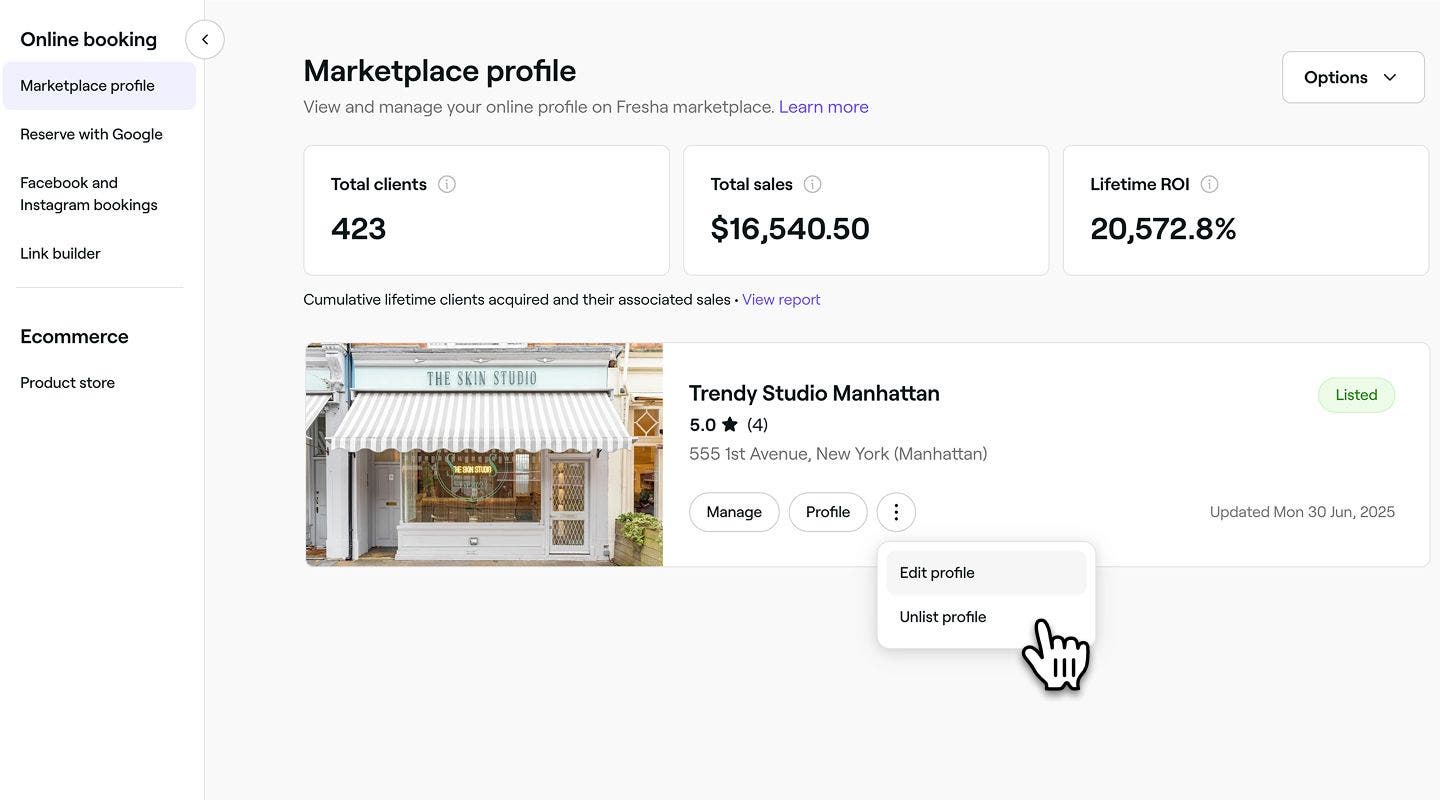
      To remove your online profile from the marketplace and disable online bookings, click Actions (three dots) and select Unlist profile. In the pop-up, confirm your choice by clicking Unlist again.Group 333 (1).jpg
    2. List your profile
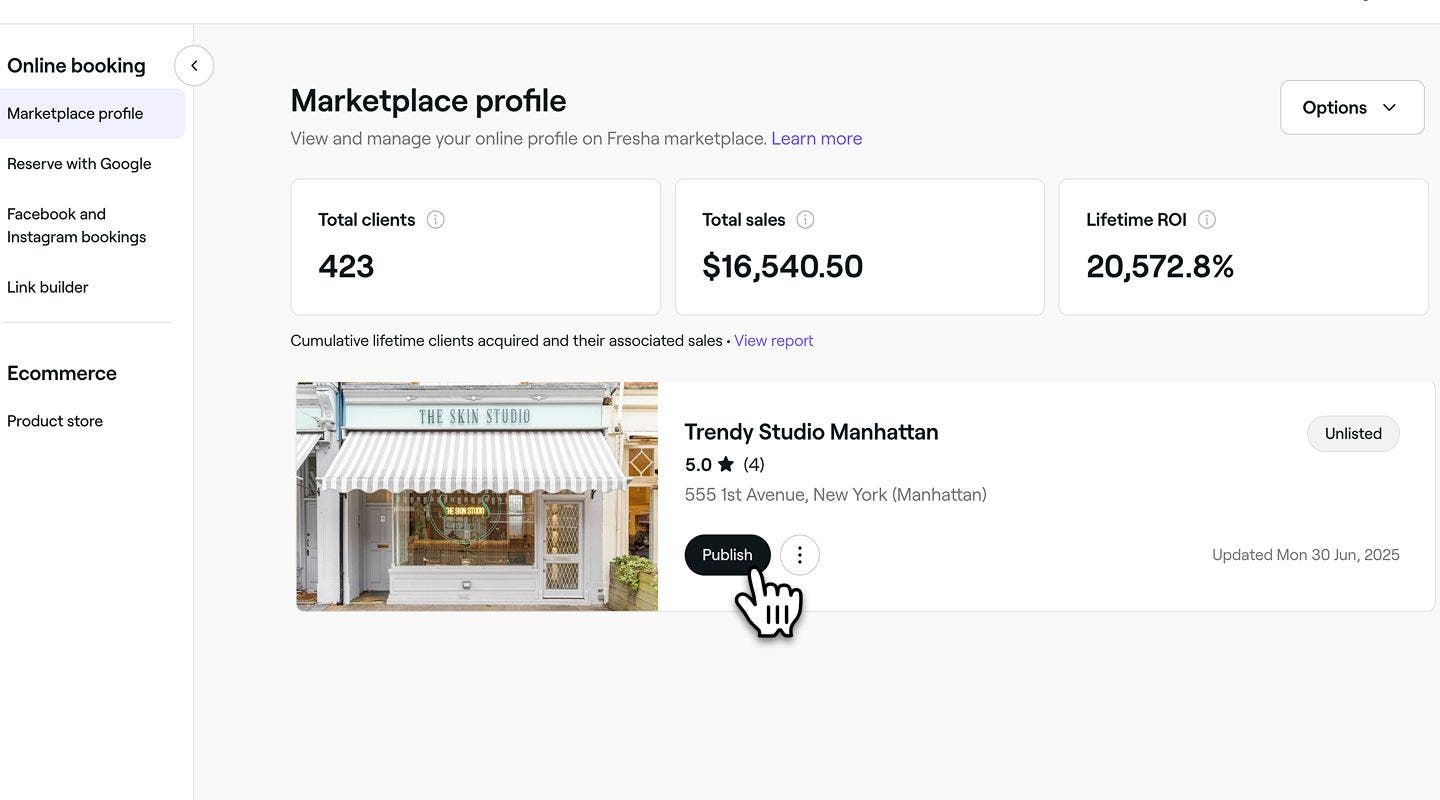
      To list your online profile and enable on online bookings, click on the Publish button. Click the Continue button in the top right corner to review the marketplace details, and then click Enable to list your profile online.Group 336.jpg
  1. From the main menu along the bottom of your screen, tap on More (grid icon) to view more options.
  2. Open Online booking, and tap on the Marketplace profile tab.Group 113.jpg
  3. Next to the marketplace listing, choose from the following options:
    1. Unlist your profile
      To remove your online profile from the marketplace and disable online bookings, tap on the Actions (three dots) and select Unlist profile from the options panel. In the pop-up, confirm your choice by tapping Unlist again.Group 191.jpg
    2. List your profile
      To list your online profile and enable on online bookings, click on the Publish button. Tap on the Continue button at the bottom of your screen to review the marketplace details, and then tap Enable to list your profile onlineGroup 115 (2).jpg

If unlist your online profile, your booking links will become inactive, and clients will no longer be able to find or view your business on the marketplace.

FAQs

    • Unlisting your marketplace profile removes it from the Fresha marketplace, so clients will no longer be able to find your venue or make new bookings online through Fresha. Any existing Book Now buttons and booking links will also stop working.

      To re-enable online bookings and make your business visible to clients again, simply publish your marketplace profile again.

      When you unlist your marketplace profile, you disable online bookings and remove your business from the Fresha marketplace. All existing client reviews and ratings made for your Fresha business are preserved and will be visible again once you re-publish your marketplace profile.


Online profiles


Related articles

Fresha academy courses
Course video preview

Accept online bookings

6 lessons•11 mins

See all courses

Was this guide helpful?

Online profiles

Fresha marketplace overview

Discover how the Fresha marketplace can launch your business online by connecting you with clients seeking beauty and wellness treatments near you.

Create your online profile

Manage your Fresha marketplace profile to attract new clients and showcase your business effectively.

Manage your marketplace profile

Easily manage your marketplace profile by updating business information, listing and unlisting from the Fresha marketplace.

Verify your online profile

Get verified on Fresha to build trust with clients, increase your visibility, and start accepting Fresha gift cards.

Create your service portfolio

Build your service portfolio to showcase your treatments and client results, giving clients a visual way to explore your work before booking.

Related articles

Create your online profile

Manage your Fresha marketplace profile to attract new clients and showcase your business effectively.

Marketplace venue photography guidelines

Make your marketplace profile stand out with high-quality images that attract clients.

Import your existing client list

Transition your business to Fresha by importing your existing client list.

Fresha academy courses
Course video preview

Accept online bookings

6 lessons•11 mins

See all courses
Fresha
Get the app

About Fresha

Careers

Help and support

Blog

Sitemap

For business

For partners

Pricing

Features

Scheduling

Point of sale

Payments

Capital

Marketplace

Support

Status

Legal

Privacy Policy

Terms of service

Terms of use

Find us on social

Facebook
Linkedin
Instagram

© 2026 Fresha.com SV Ltd