Manage Google Analytics tracking
Learn how to connect Google Analytics with Fresha and gain valuable insights into how clients engage with your website, helping you better understand consumer behavior.
In this article
About Google Analytics and Fresha
Google Analytics is a tool that tracks how clients engage with Fresha from your website, capturing events such as page views, button clicks, and appointment bookings.
Operating this integration effectively requires technical knowledge, and prior experience with Google Analytics is helpful for setup and data interpretation.
Before connecting Google Analytics with Fresha:
- Publish your online profile on the Fresha marketplace.
- Create a Google Analytics account (or use an existing one) with a property to track your website data.
You can either use an existing property to monitor traffic from your website to Fresha, or create a new property to track activity directly on your Fresha booking flow. We recommend using the same property for both your website and Fresha, as this gives full visibility of your users’ journey.
To connect, generate a Measurement ID in Google Analytics and add it under the Google Analytics integration in your Fresha account.
Connect your Fresha account to Google Analytics
To begin tracking events from Fresha’s booking flow, copy your tracking ID from Google Analytics and paste it into the Google Analytics Add-on in your Fresha account. You can refer to the Google's Analytics Help Center for guidance on set-up and navigation.
- From your Google Analytics account, open your selected data stream and add "fresha.com" as a recognized domain. You can follow the Google Analytics guide for step-by-step instructions on how to add a domain.
- Once the domain is added, copy your Measurement ID (it begins with G-). Refer to the Google Analytics guide for step-by-step instructions on how to locate your Measurement ID.
- Open your Fresha business account.
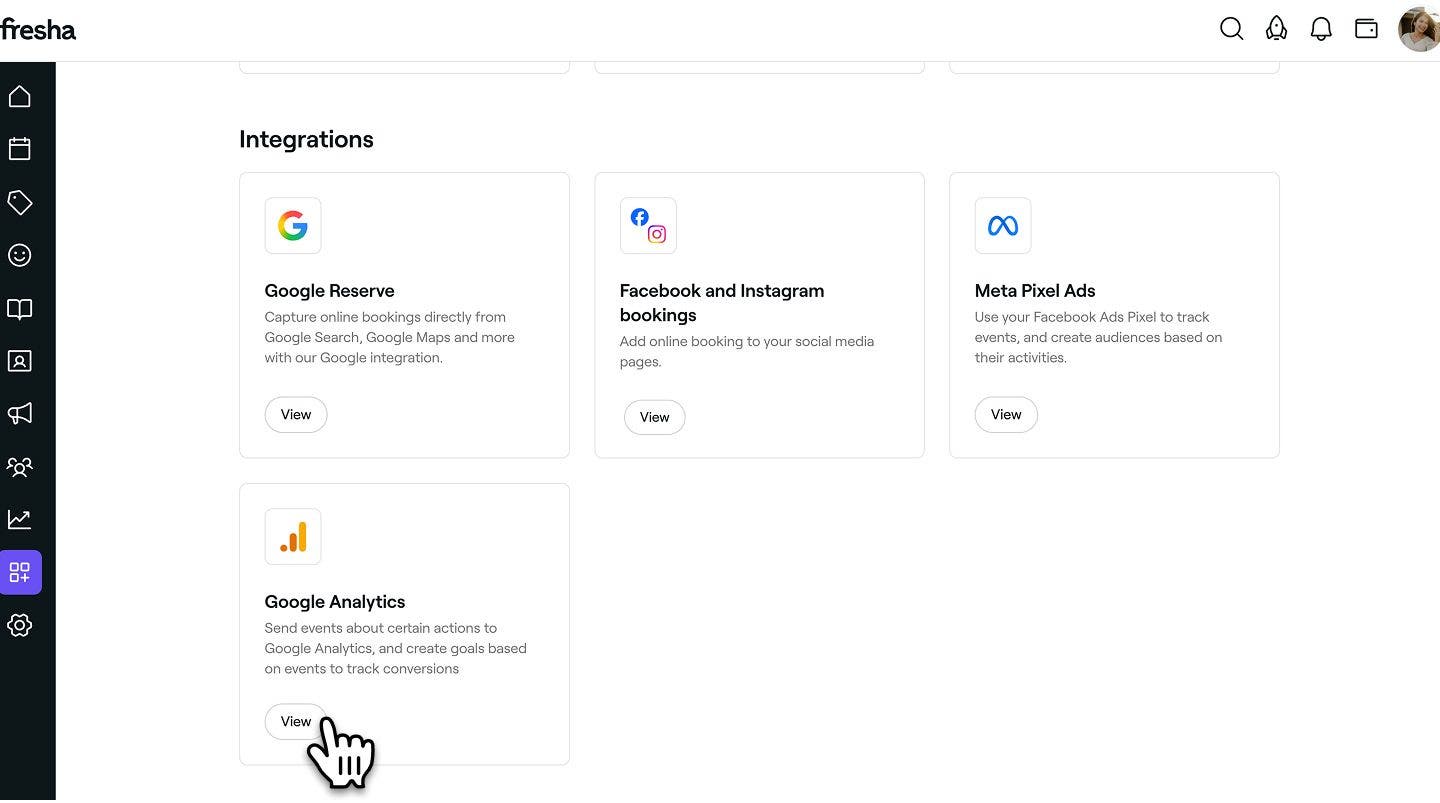
- From the main menu on the left of your screen, go to Add-ons.
- Select the View button under Google Analytics to open the add-on summary view.
- Click on the Set up now button to begin enabling the add-on.

- Paste your copied Measurement ID into the field provided.
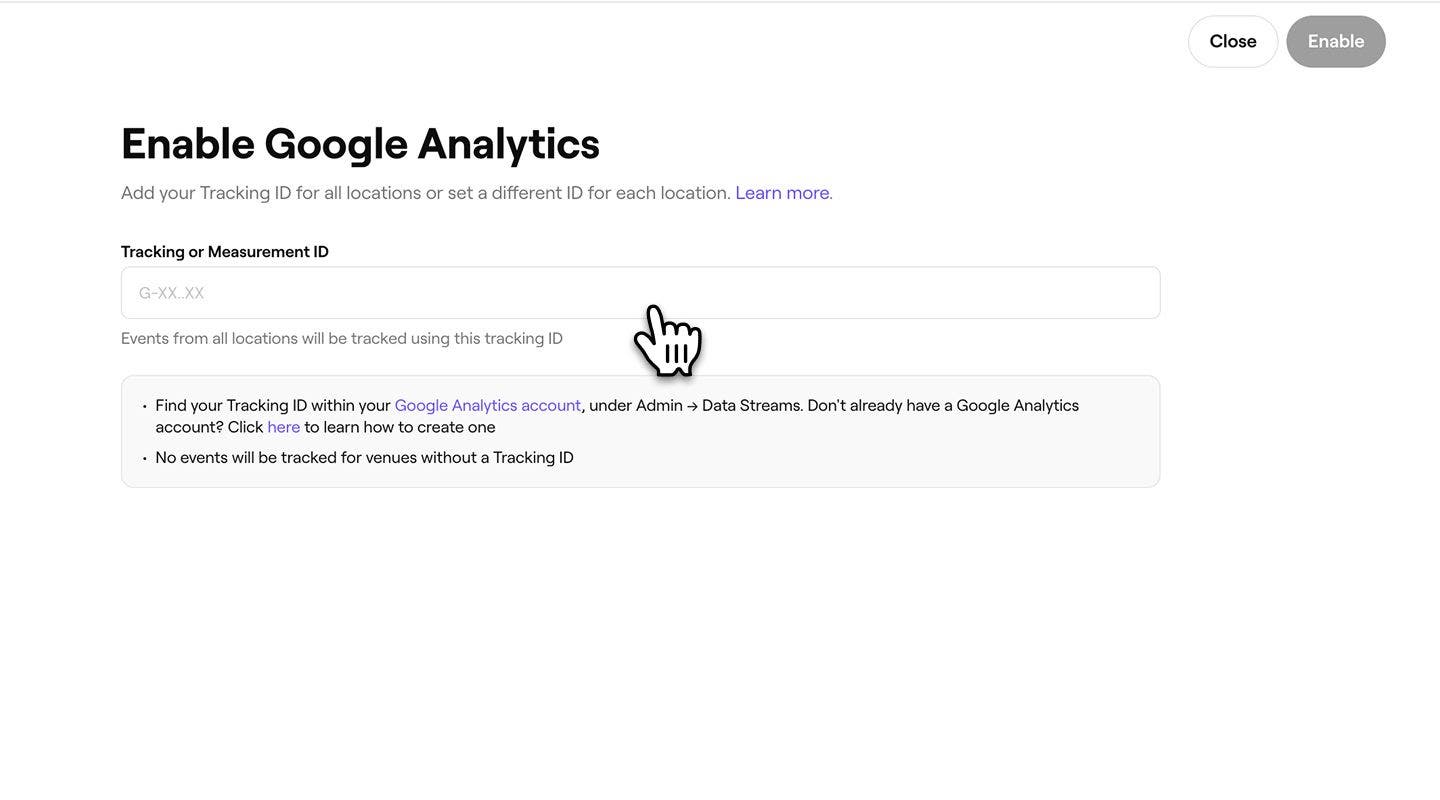
- Click on the Enable button in the top right to connect your Fresha account with Google Analytics.
Once set up, Fresha automatically sends data to Google Analytics, including traffic sources, user demographics, profile views, and bookings.
Bookings made through the Fresha marketplace apps (iOS and Android) cannot be tracked in Google Analytics. Conversion tracking is only supported for bookings made through the Fresha web platform (www.fresha.com).
Connect a Tracking ID per location
If you have multiple locations in your workspace, you can connect a different Tracking ID for each location so that tracking data is sent separately per location.
- When you reach the step to paste your Pixel ID, select the Tracking ID per location tab.
- Paste the Tracking ID into the field for each location.
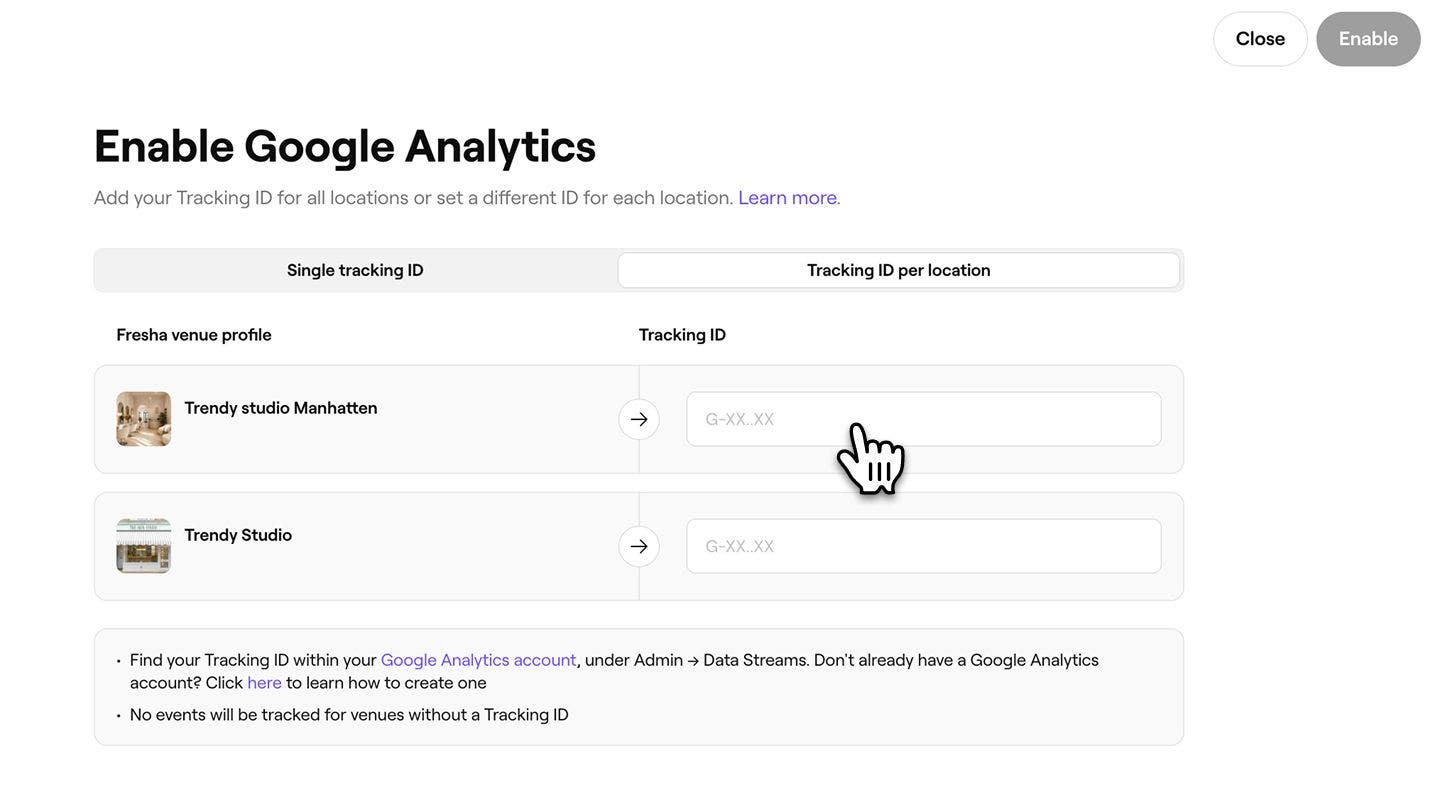
- Click on the Enable button in the top right to connect all locations.
To skip tracking for a specific location, leave its Pixel ID field empty. Only locations with a Pixel ID entered will send tracking data to Meta Business Manager.
Test your Google Analytics integration
Once your integration with Fresha is complete, you can verify that data is being tracked by checking your real-time reports in Google Analytics.
We recommend booking a test appointment as a client to simulate activity. Your actions should appear in the Real-time overview report, confirming that data is being collected correctly.
When booking a test appointment, ensure that your web browser is free from any ad-blocking extensions, as these may affect the website's functionality. We recommend using a clean browser for accurate testing.
Disable Google Analytics in your Fresha account
- From the main menu on the left of your screen, go to Add-ons.
- Under Google Analytics, click on the Actions button and select Disable.
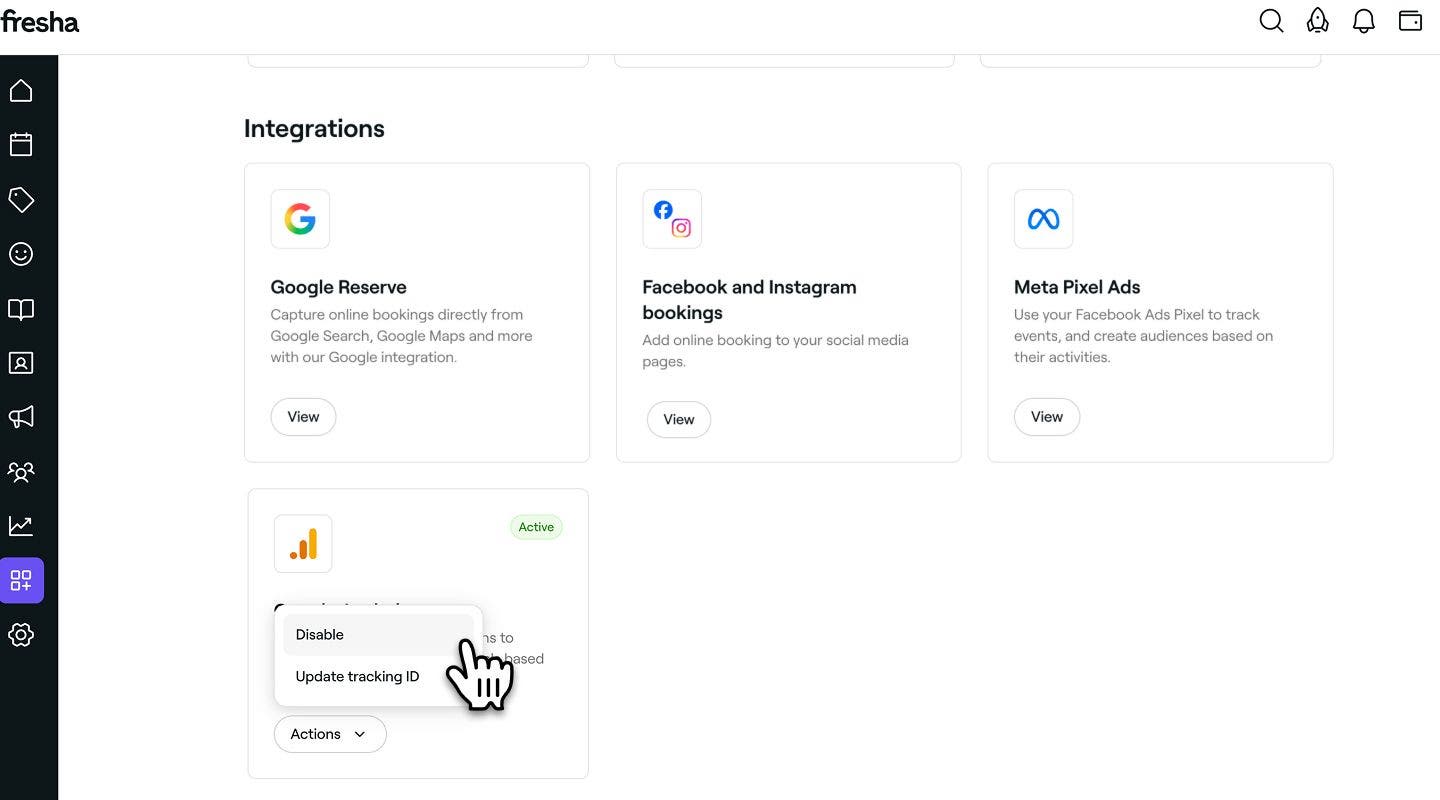
- In the pop-up, click on the Disable now button to confirm your choice.
FAQs
- Page view event: Triggered each time a client visits a step within the Fresha booking flow.
- Appointment event: Triggered when an appointment is completed. This event includes the value of the appointment and is sent as both a custom ‘appointment’ event and an e-commerce purchase event.
- Confirm your data stream setup: Make sure fresha.com is added to your list of domains.
- Verify your Tracking ID: The Measurement ID you enter in Fresha should match the one in your Google Analytics account.
- Allow activation time: Wait at least 48 hours after enabling the add-on, as the integration may take some time to start sending data.
Fresha sends the following events to your Google Analytics tag to help you track client activity in the booking flow:
This integration only tracks activity from the web version of the Fresha Marketplace, not the mobile app.
To ensure Fresha events appear in your Google Analytics page, we recommend checking the following:
Please note that Fresha does not provide support for Google Analytics troubleshooting. For detailed assistance, we recommend visiting the Google Analytics Help Center.
Fresha’s Google Analytics integration is fully compliant with GDPR regulations, as client activity is only shared with Google Analytics when clients give explicit consent to store cookies and track their browsing behaviour.
Because some clients may decline consent, and tracking is not supported on iOS or Android apps, the number of conversions reported in Google Analytics may differ from your actual online bookings. This is expected and considered normal in online conversion tracking.
Fresha is not able to support cross domain tracking or Google and Meta Ads integration. Our integration only uses the provided Google tag or Meta Pixel to send events based on the client journey within Fresha. Any information about previous domains the client visited before arriving on Fresha is removed during this process.