Track Google Ads conversions
Learn how to connect Google Ads tracking to your Fresha account, so you can see which ads are driving bookings and measure the return on your ad spend.
In this article
About Google Ads and Fresha
Google Ads measures what happens after someone clicks your ad, showing whether it led to a booking, a call, or another action you've defined as valuable. Fresha sends completed bookings to Google Ads as conversion events, matched to the conversion action tied to your Conversion ID.
A booking only counts as a conversion if the client clicked your ad and then booked. Bookings that don't come from an ad click aren't counted, even once tracking is connected.
Setting this up requires some familiarity with Google Ads, and prior experience with conversion actions is helpful for setup and interpreting your results.
Before connecting Google Ads with Fresha:
- Publish your online profile on the Fresha marketplace.
- Create a Google Analytics account (or use an existing one)
You can track conversions using an existing conversion action you've already set up for another purpose, or create a new one specifically for your Fresha booking flow. If you create a new one, make sure it's set up as a website conversion action as imported and offline conversion actions don't generate a Conversion ID you can connect to Fresha.
To connect, copy your Conversion ID from Google Ads and add it under the Google Ads integration in your Fresha account.
Connect your Fresha account to Google Ads
To begin tracking conversions from Fresha's booking flow, copy your Conversion ID from Google Ads and paste it into the Google Ads Add-on in your Fresha account. You can refer to Google's guide to Google Ads conversions for guidance on locating your Conversion ID.
- In your Google Ads account, click the Goals icon, then under Conversions, click Summary and select the conversion action you want to track. You can follow Google's guide to Google Ads conversions for step-by-step instructions on finding your conversion action.
- In the Data sources section, click Manage, then select the Use Google Tag Manager tab (the third tab along) to copy your Conversion ID.
- Open your Fresha business account.
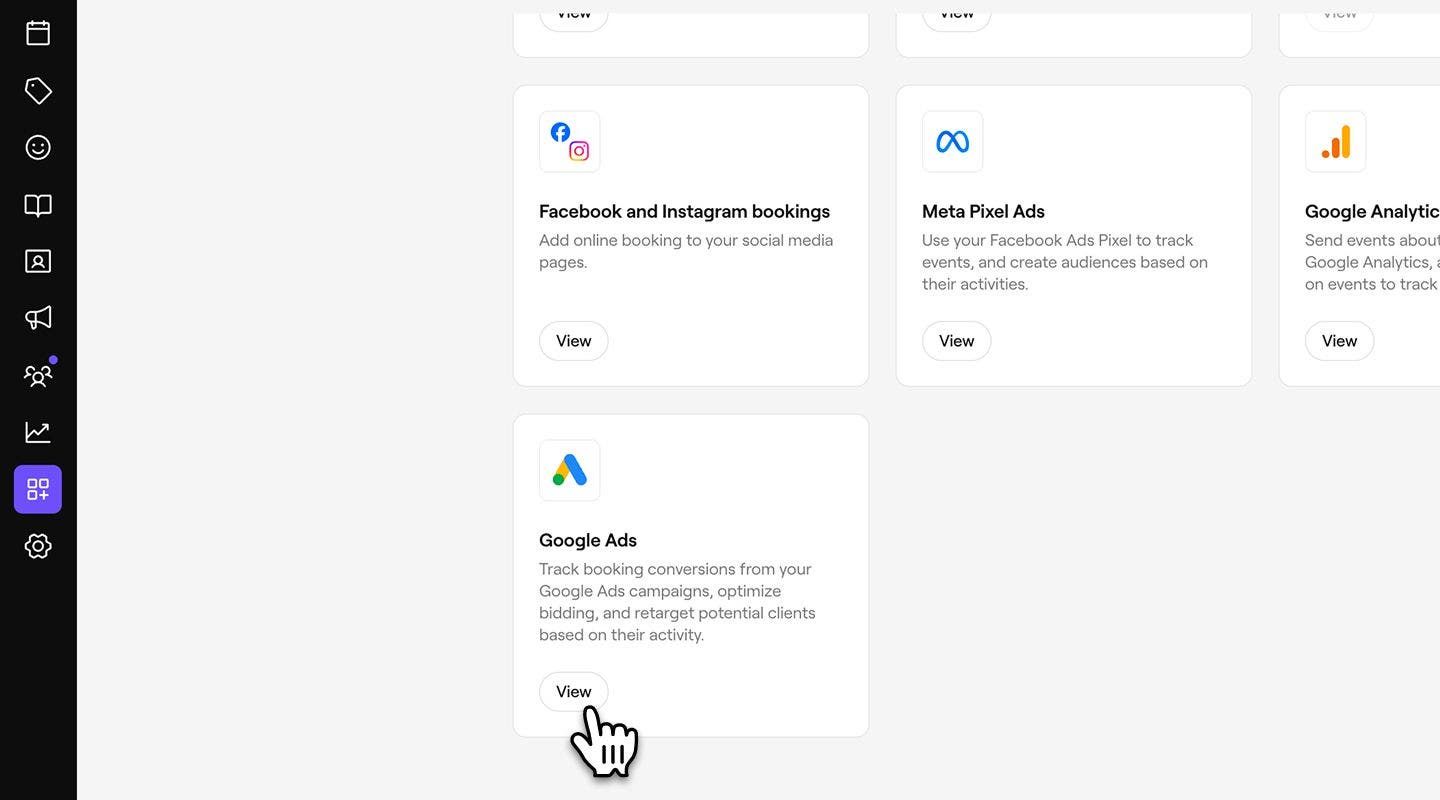
- From the main menu on the left of your screen, go to Add-ons.
- Under Google Ads, click on the View button to open the add-on summary view.
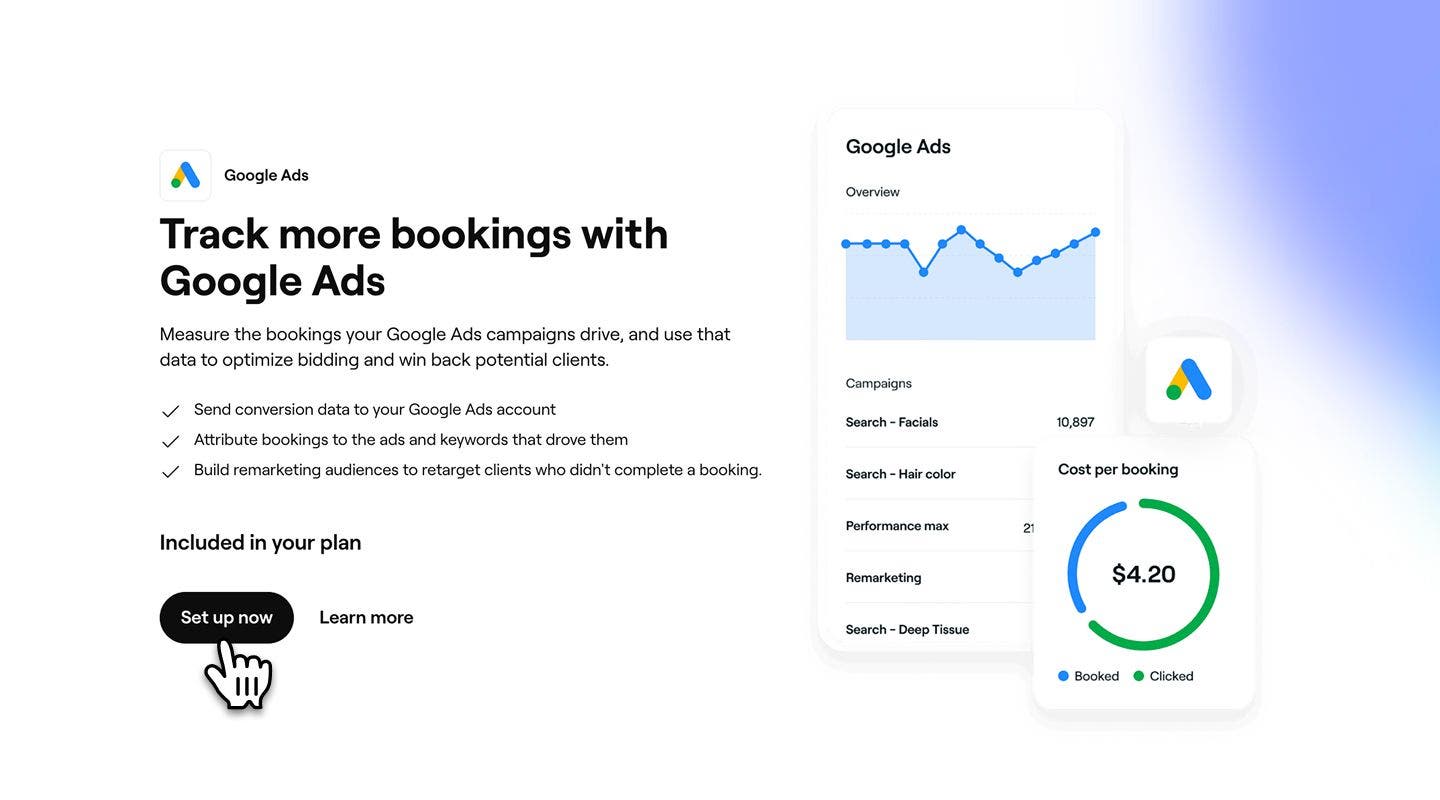
- Select the Set up now button to begin enabling the add-on.
- Paste your copied Conversion ID into the field provided.
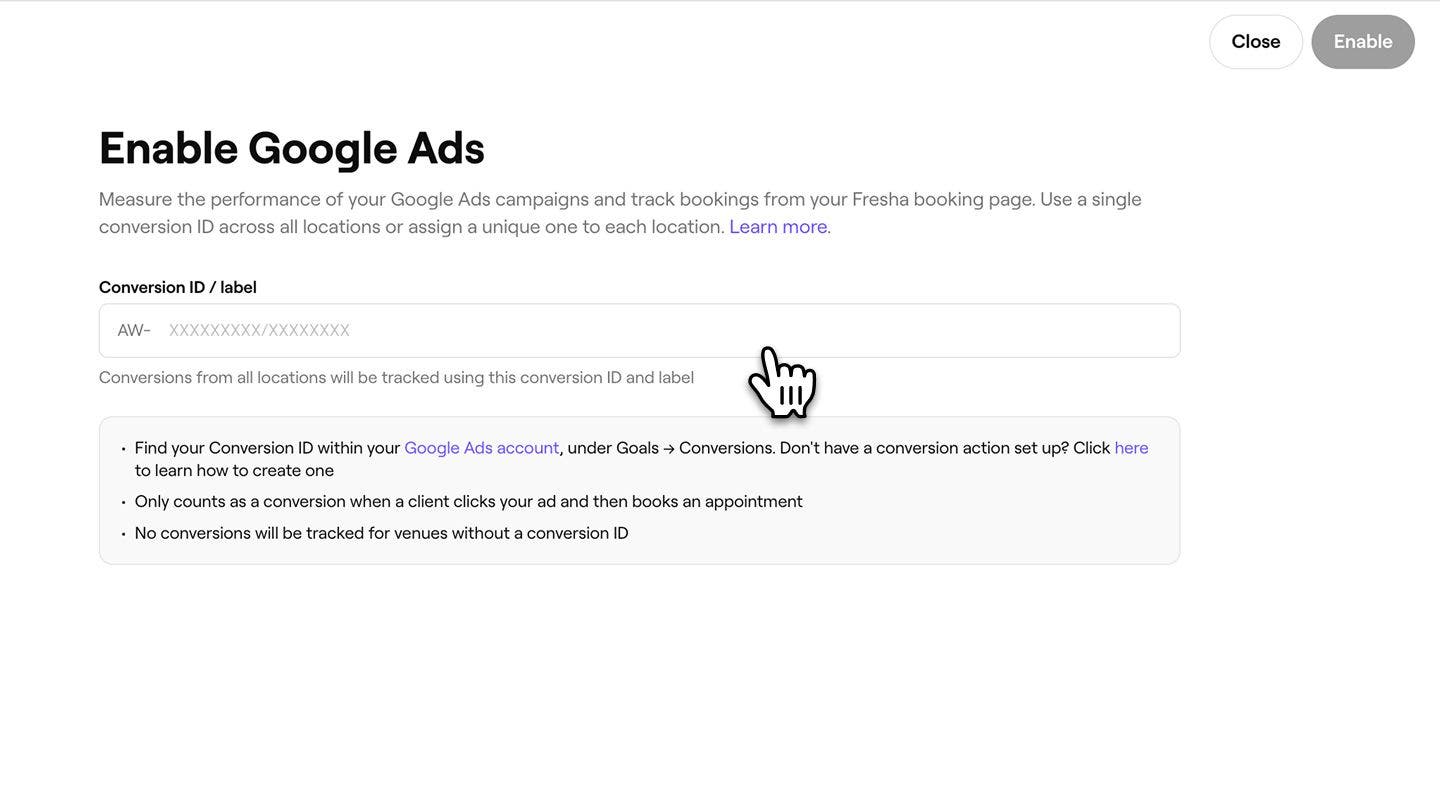
- Click on the Enable button in the top right to connect your Fresha account with Google Ads.
Once enabled, Fresha sends completed bookings to Google Ads under your Conversion ID, so they show up as conversions in your reporting.
Connect a Conversion ID per location
If you have multiple locations in your workspace, you can connect a different Conversion ID for each location so that tracking data is sent separately per location.
- When you reach the step to paste your Conversion ID, select the Conversion ID per location tab.
- Paste the Conversion ID into the field for each location.
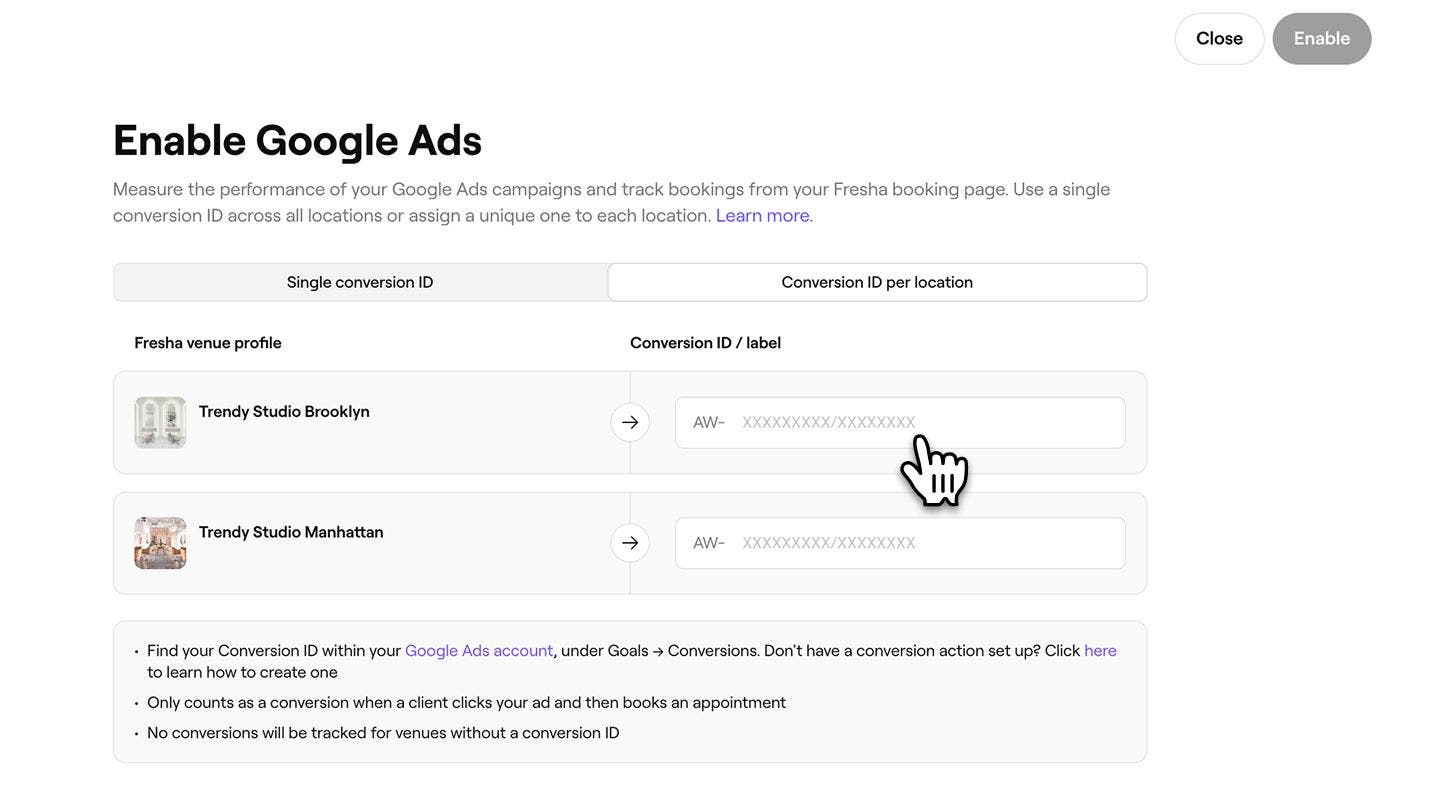
- Click on the Enable button in the top right to connect all locations.
To skip tracking for a specific location, leave its Conversion ID field empty. Only locations with a Conversion ID entered will send data to Google Ads.
Disable Google Ads tracking
- From the main menu on the left of your screen, go to Add-ons.
- Under Google Ads, select the Actions button and select Disable.
- In the pop-up, click on the Disable now button to confirm your choice.
FAQs
Google Ads counts a booking as a conversion when a client clicks your Google Ad and then completes a booking. Conversion reports only include bookings that meet these attribution requirements.
Complete a test booking after clicking your Google Ad, then check your Google Ads conversion reports. Allow some time for the conversion to appear after enabling the integration.