Edit and clear Smart pricing
Learn how to update or deactivate your Smart pricing settings as demand shifts, keeping you in control of your pricing strategy over time.
About Smart pricing settings
Once Smart pricing is set up, you can update your pricing rules, temporarily pause automatic price adjustments, or permanently remove Smart pricing altogether. This gives you the flexibility to adapt your pricing strategy as demand changes, seasonal trends shift, or your business priorities evolve.
Edit Smart pricing
- From the main menu on the left of your screen, go to Marketing.
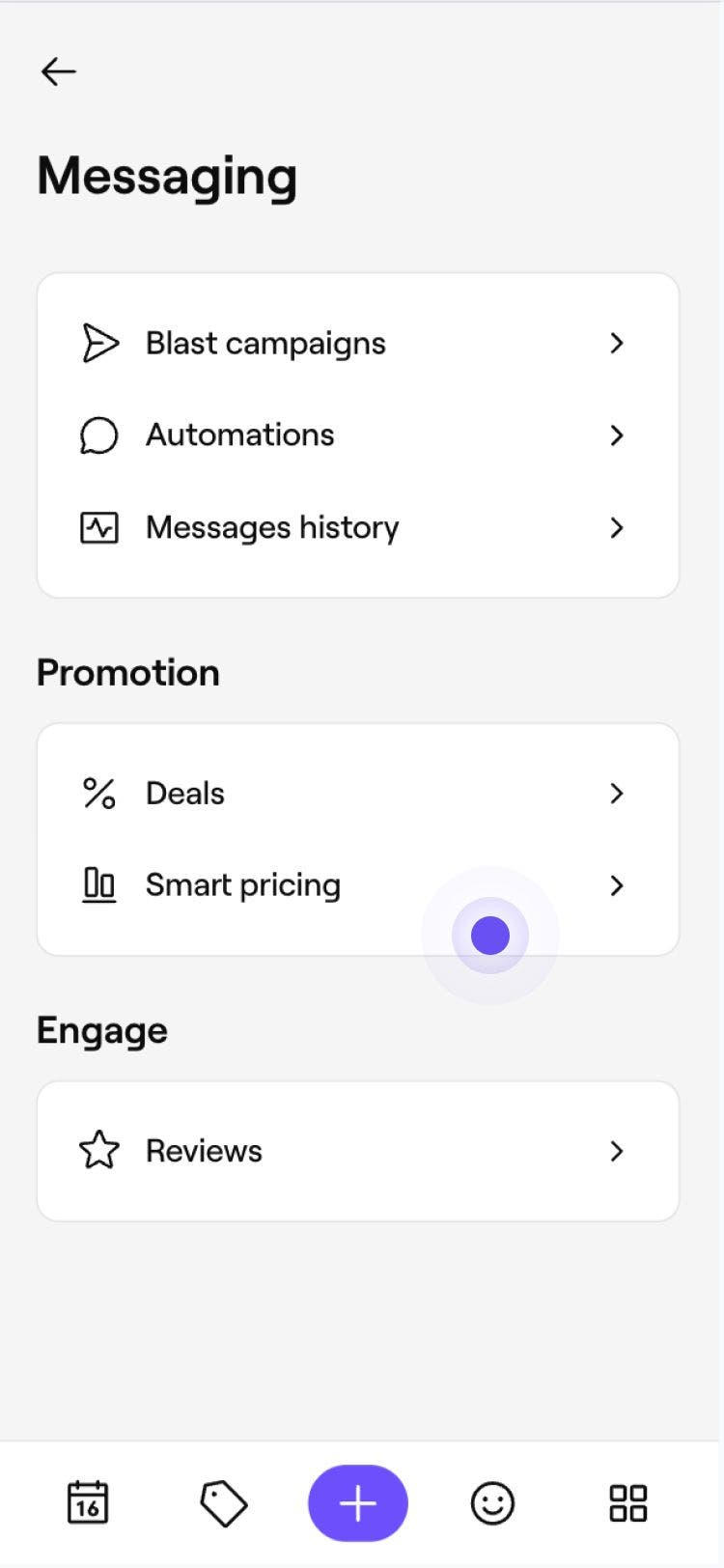
- Select Smart pricing to open the overview page.

- Next to your Smart pricing rules, click on Actions and select Edit.

- Re-select team members who can be booked under Smart pricing and click Next step.

- Adjust services available under Smart pricing by clicking Edit and click Next step.

- Update your Smart pricing rules by adjusting when Smart pricing applies and how much service prices increase or decrease.

- Click Update setup to apply your changes.



Your Smart Pricing rules have been updated. Any changes you have made will apply to new bookings going forward and won't affect existing appointments.
You can edit Smart pricing for multiple locations simultaneously by clicking Options in the top right corner and selecting Edit all locations.
Pause or clear Smart pricing
-
From the main menu on the left of your screen, go to Marketing.
-
Select Smart pricing to open the overview page.
-
Next to the location you want to update, click on Actions and choose one of the following:
- Pause: Temporarily turn off Smart pricing while keeping your rules saved. Click Pause in the pop-up box to confirm. To start using Smart pricing again, follow the same steps and select Unpause.
- Clear: Remove Smart Pricing and return services to their standard pricing. Click Clear in the pop-up box to confirm. If you want to use Smart pricing again in the future, you can create a new setup at any time.
Your Smart pricing has been updated. Future bookings will follow your new settings, while existing appointments remain unchanged.
FAQs
If smart pricing is set up, your online service prices will automatically adjust. For off-peak pricing, time slots will show the reduced price (e.g., ‘50% off £10 £5’). For surge pricing, the time slots will show the increased price (e.g., a service usually £5 will appear as '£7.50' with a 50% increase).
You can see if an appointment has been booked with smart pricing by accessing the appointment and clicking on the service details. Under the price, it will state if a smart pricing increase or decrease has been applied, along with the value (e.g., 50% smart price increase).
If a client reschedules to a time slot without smart pricing, the smart pricing will be removed from the service.
Smart pricing is designed for online bookings so it doesn’t automatically apply when you create an appointment directly in the calendar.
While Smart pricing is designed to automatically update for online bookings, you can manually apply Smart pricing to appointments booked in-store. If the appointment falls within a Smart pricing interval, an option will show beneath the services added to apply Smart pricing changes.