Enable Smart pricing
Learn how to automatically adjust your prices based on demand, helping you maximize revenue during busy periods and encourage bookings when business is quieter.
In this article
About Smart pricing
Smart pricing automatically adjusts your online service prices during specific days and times you set. This lets you charge more for appointments when demand is high and attract more bookings when your business is quieter. Choose the services, team members, and locations Smart pricing applies to, then create pricing rules that fit your schedule.
Smart pricing works in two ways:
- Surge pricing: Increases prices during peak periods to maximize value.
- Off-peak pricing: Reduces prices during quiet periods to boost bookings.
Once set up, clients automatically see the adjusted service prices when booking online.
Enable Smart pricing
-
From the main menu on the left of your screen, go to Marketing.
-
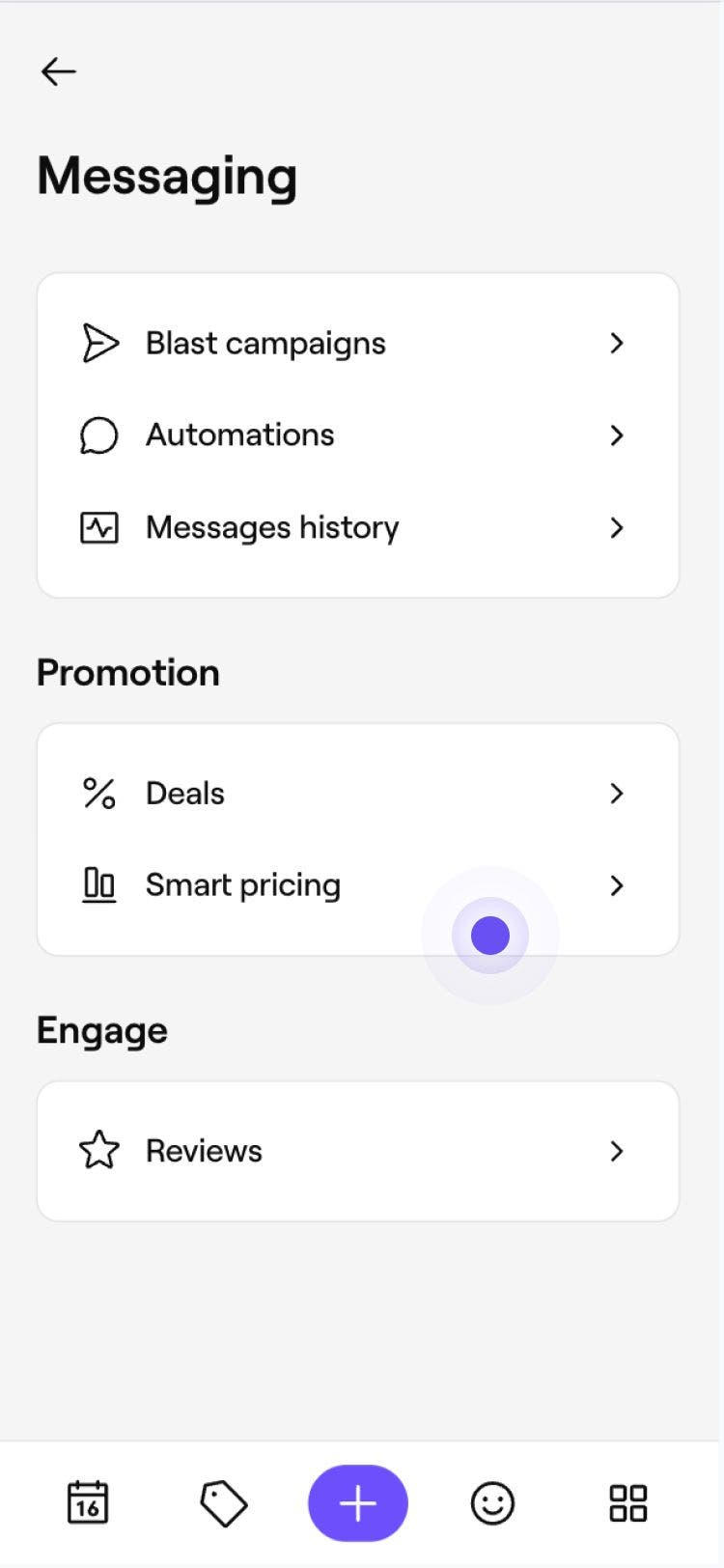
Select Smart pricing and then click Start now.
-
Choose which team members can be booked under Smart pricing and then click Next Step.

-
Choose the services you want Smart pricing to apply to by clicking Edit and then click Next Step.

-
Customize your Smart pricing rules by adding the following details:
- Day: Select the days Smart pricing applies.
- Time intervals: Set when Smart pricing is active in the day. To add more intervals, click Add hours, ensuring they don't overlap.
- Price change: Choose whether the price increases or decreases in the intervals you have set.
- Change by: Select how much to adjust the service price by, using a percentage or fixed amount.

-
Click Finish setup to enable Smart pricing.



Smart pricing is now Active. When booking online, clients will automatically see the adjusted prices of eligible services during the days and times you've selected.
FAQs
- For off-peak pricing, the relevant time slots will appear showing the reduced price and value.
- For surge pricing, the relevant time slots will appear at the increased price. For example, a service that is usually £5, will appear as '£7.50' if you have set a 50% increase.
If you have smart pricing set up, your online service prices will automatically adjust and show as follows:
You can see whether an appointment has been booked with Smart pricing by accessing the appointment and clicking on the service to view more details.
Under the price, it will state if a smart pricing increase or decrease has been applied, along with the value. For example, for 50% smart price increase.
You can only add a discount on services with smart pricing where the price has been increased. Access the Appointment, click on the Service, and use the Discount dropdown to apply a discount, then click Apply.
Smart pricing can be applied in time periods as short as five minutes. If you need different pricing throughout the day, you can create additional time intervals to match your schedule.
Yes, you can update your Smart pricing rules at any time, including the services, team members, locations, days, times, and price changes they apply to. Once updated, changes apply immediately to new bookings going forward. Appointments booked under your old Smart pricing rules won’t be affected..
If you reschedule an appointment to a different date or time, the Smart pricing applied to the original booking will remain. If needed, you can remove Smart pricing from the appointment manually.
If an appointment is cancelled and booked again, Smart pricing only applies based on the new appointment time. If a Smart pricing rule is available, the Smart price can be used. Otherwise, the regular service price will apply.
Smart pricing applies during your working hours only. You can enter times outside these hours during setup, but they take effect only when they overlap with your working hours.
Yes, team members with access to the Manage Smart pricing permission in Settings can enable, change or cancel Smart pricing.
Yes, Smart pricing can be set-up per location. If you have multiple locations, you can create rules for them during the initial setup or choose to enable Smart pricing for an additional location later. To do this, go to the Smart pricing overview page and click Set up smart pricing next to the location you want to enable.
You can also manage all locations at once by clicking Options in the top right to edit, pause, or clear Smart pricing across every location.