Schedule Blast campaigns
Learn how to schedule blast campaigns in advance so you can plan promotions ahead of time and reach clients when it matters most.
In this article
Schedule a Blast campaign
Scheduling happens as part of creating a Blast campaign
-
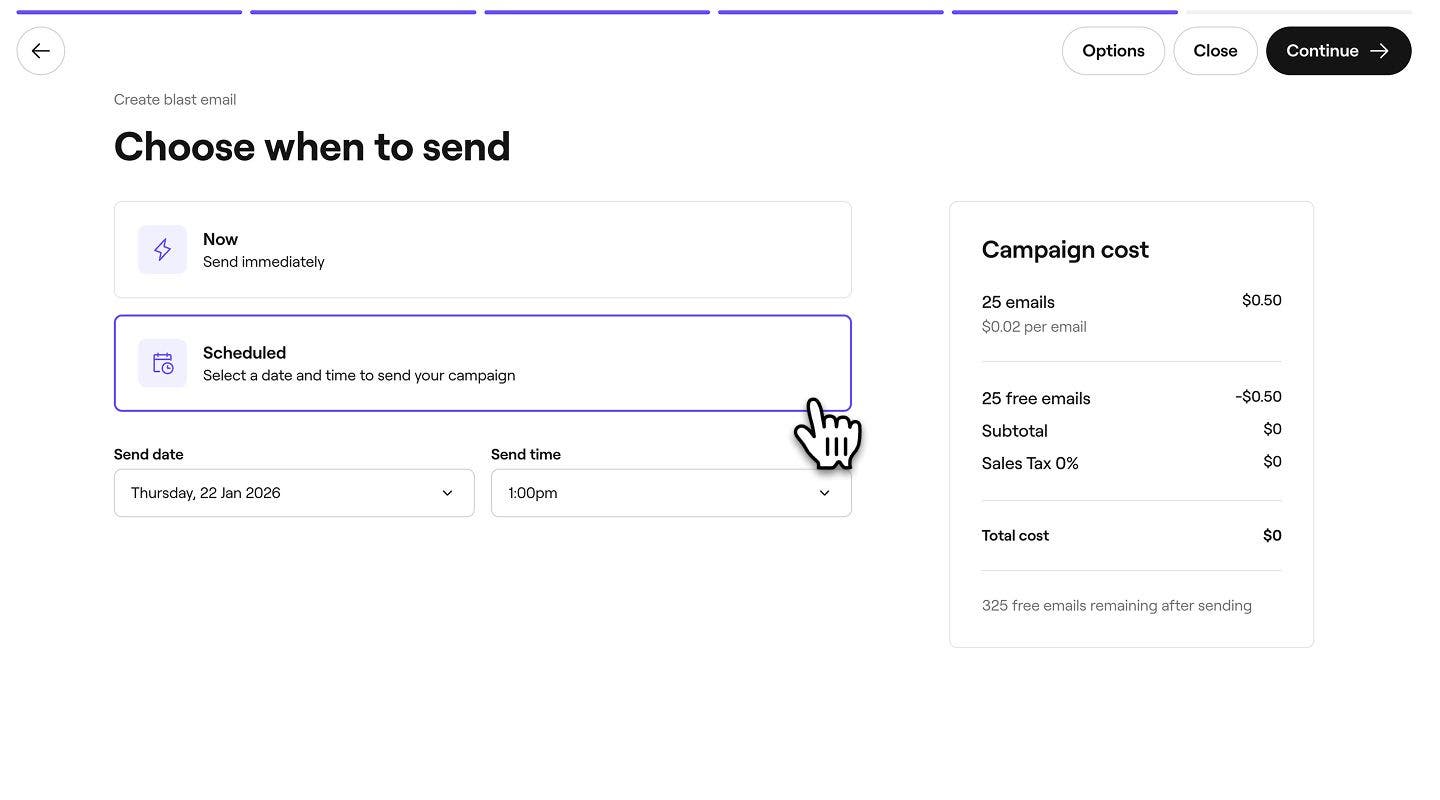
After choosing which clients to send your campaign to when creating a Blast campaign, select when to send your message:
- Now: Send immediately after setup.
- Scheduled: Send on a future date and time.
-
Choose Scheduled to pick your date and time and click Continue.
-
Review the total campaign cost and your selected payment method, then click Schedule to launch your campaign.

Once launched, your campaign will appear in your Blast campaigns list as Scheduled. Before campaigns are sent out, they go through a review process. If your campaign is still under review at its scheduled time, it will be sent immediately after it’s approved.
Cancel a scheduled Blast campaign
- From the main menu on the left of your screen, go to Marketing.
- In the left menu panel, select Blast campaigns to open your list of campaigns.

- Next to the scheduled campaign you want to cancel, click on Actions (three dots) and select Cancel from the list.

- In the pop-up box, select Confirm to cancel the scheduled send.


The campaign returns to your list as a draft, and any fees are refunded to the original payment method.
FAQs
Yes, to make changes to a scheduled blast campaign, first cancel it by clicking on Actions (three dots) next to the campaign and select Cancel.
The campaign is returned to Draft status where you can click on Actions (three dots) and click Edit to update the content, audience, send date or time. Once finished with your changes, schedule the campaign again.
Every email blast campaign is reviewed against Fresha's guidelines, usually within 12 hours. If your campaign is still under review at its scheduled send time, it will be automatically sent as soon as the review is complete.