HomeKnowledge baseFresha academy
Target clients with Blast campaigns
Back
  1. Knowledge base•
  2. Marketing•
  3. Target clients with Blast campaigns

Target clients with Blast campaigns

Learn how to target the right clients at the right time when sending a Blast campaign. Use audience filters and Custom client segments to maximize campaign performance.

In this article

  • About targeting your clients
  • Create Custom segments for Blast campaigns

About targeting your clients

When setting up a Blast campaign, target specific groups of clients based on their relationship with your business to ensure your campaign reaches the clients most likely to engage with it. Choose between:

  • Standard client groups: Pre-defined audiences based on common client attributes and behaviours. For example, highlight premium services to high-spending clients.
  • Custom client segments: Create your own audience using criteria most relevant to you, allowing you to target clients based on your own combination of conditions. For example, clients who have purchased a particular service but not returned in the last 3 months.

Create Custom segments for Blast campaigns

  1. After customizing your campaign, begin creating an audience segment by selecting Custom at the top of the screen.After customizing your campaign in Fresha, begin creating an audience segment by selecting Custom at the top of the screen..jpg
  2. Under Custom client segments, click on the Add new button to create a new segment.Under Custom client segments, click on the Add new button to create a new segment in Fresha..jpg
  3. Build your audience by creating rules based on client behaviour and activity. Use the dropdown menus to define the conditions clients must meet to be included in the segment. Then click Continue.
    1. If needed, click Add condition to add additional criteria to the same rule or Add rule to create a new set of conditions.Build your audience in Fresha by creating rules based on client behaviour and activity. Use the dropdown menus to define the conditions clients must meet to be included in the segment. Then click Continue..jpg
  4. Enter a name for the segment then click Save to create your segment.
    1. To display the segment as a badge on eligible client profiles, tick the Display as badge on client profile checkbox, then enter a Badge name and choose a color. Enter a name for the segment then click Save to create your segment in Fresha..jpg
  5. Your new segment will be automatically selected. Click Continue.Your new segment will be automatically selected in Fresha. Click Continue..jpg
  6. Choose whether to send the email Now or set it as Scheduled, then click Continue.
    1. When scheduling a blast campaign, select the time and date.
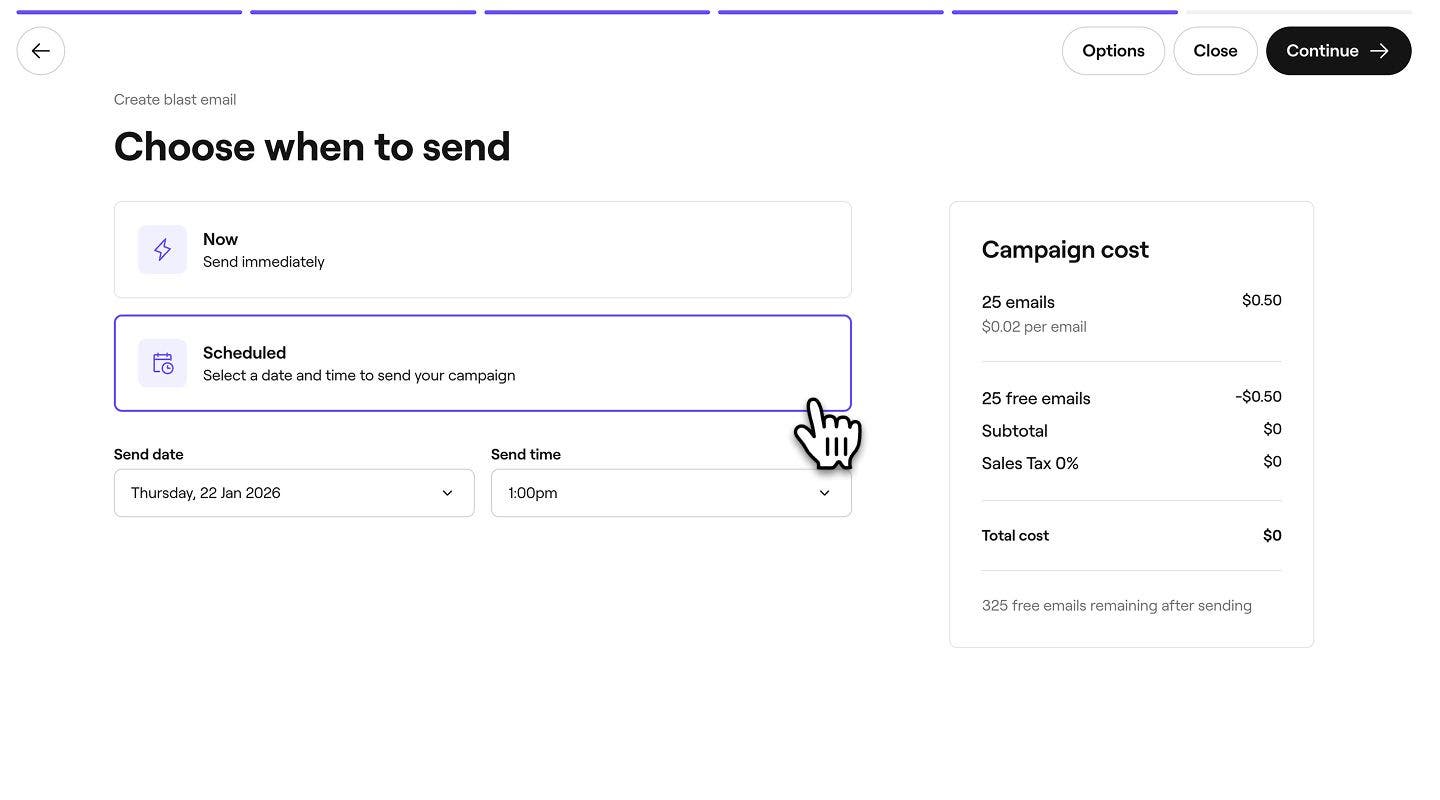
  7. Review the total campaign cost and your selected payment method, then click Send now or Schedule to launch your campaign.
  1. After customizing your campaign, begin creating an audience segment by selecting Custom at the top of the screen.After customizing your campaign in Fresha, begin creating an audience segment on mobile by selecting Custom at the top of the screen..jpg
  2. Under Custom client segments, tap on the Add new button to create a new segment.Under Custom client segments, tap on the Add new button to create a new segment in Fresha..jpg
  3. Build your audience by creating rules based on client behaviour and activity. Use the dropdown menus to define the conditions clients must meet to be included in the segment. Then tap Continue.
    1. If needed, tap Add condition to add additional criteria to the same rule or Add rule to create a new set of conditions.Build your audience in Fresha by creating rules based on client behaviour and activity. Use the dropdown menus to define the conditions clients must meet to be included in the segment. Then tap Continue..jpg
  4. Enter a name for the segment then tap Save to create your segment.
    1. To display the segment as a badge on eligible client profiles, tick the Display as badge on client profile checkbox, then enter a Badge name and choose a color. Enter a name for the segment then tap Save to create your segment in Fresha..jpg
  5. Your new segment will be automatically selected. Tap Continue.Your new segment will be automatically selected in Fresha. Tap Continue..jpg
  6. Choose whether to send the email Now or set it as Scheduled, then tap Continue.
    1. When scheduling a blast campaign, select the time and date.
  7. Review the total campaign cost and your selected payment method, then tap Send now or Schedule to launch your campaign.

Your campaign will be sent to your new client segment and the segment will be saved for future use.

Blast campaigns


Related articles

Was this guide helpful?

Blast campaigns

Blast campaigns overview

Create and manage targeted campaigns on Fresha to engage clients effectively.

Create email Blast campaigns

Craft and launch effective email campaigns that drive client engagement and boost sales.

Design custom emails

Create eye-catching and effective email campaigns effortlessly with using a customizable email builder.

Create text message Blast campaigns

Create effective text campaigns to deliver quick updates and special offers directly to clients.

Schedule Blast campaigns

Schedule campaigns in advance to reach the right clients at the right moment.

Review Blast campaign performance

Monitor your blast campaigns by tracking their performance and impact on bookings and sales.

Resend Blast campaigns

Resend messages to recipients who haven’t seen your communication yet to expand reach.

Target clients with Blast campaigns

Refine your audience when sending Blast campaigns with segments for better engagement and boosted performance.

Related articles

Create email Blast campaigns

Craft and launch effective email campaigns that drive client engagement and boost sales.

Create text message Blast campaigns

Create effective text campaigns to deliver quick updates and special offers directly to clients.

Review Blast campaign performance

Monitor your blast campaigns by tracking their performance and impact on bookings and sales.

Fresha
Get the app

About Fresha

Careers

Help and support

Blog

Sitemap

For business

For partners

Pricing

Features

Scheduling

Point of sale

Payments

Capital

Marketplace

Support

Status

Legal

Privacy Policy

Terms of service

Terms of use

Find us on social

Facebook
Linkedin
Instagram

© 2026 Fresha.com SV Ltd