Create text message Blast campaigns
Learn how to create and send text message campaigns to instantly share offers, updates, and last-minute availability with your clients.
About text message Blast campaigns
Text message Blast campaigns let you send one-time marketing messages to selected groups of clients to promote special offers, share time-sensitive updates, and fill appointment gaps.
Built directly into your workspace, text message Blast campaigns work alongside your services, deals, and client groups, so you can manage your marketing from one place. Write your message, choose who receives it, and decide whether to send it immediately or schedule it for later.
Create a text message Blast campaign
-
From the main menu on the left of your screen, go to Marketing.
-
Select Blast campaigns from the left menu panel.

-
In the top right, click on the Add button and select Text message from the channel options.

-
Choose your text message type and click Continue:
- Quick update: Send clients business updates. Personalize your message and add a link to promote services, memberships, or gift cards.
- Special offer: Send a discount to drive bookings. Pair your message with a deal for selected services.

-
Under Campaign details in the left panel, enter a campaign name.
- This is for internal labeling and won't be visible to clients.

- This is for internal labeling and won't be visible to clients.
-
Under Text write your message and include your business name so clients know who it’s from.
- Click the mention icon (@) to add client details and Enhance to write your content with AI.

-
Enter the relevant details for your selected message type, then click Continue:
- Quick Update: Under Link, add a link for clients to tap. Use a Fresha or email campaign link to track clicks after your campaign is sent. Select Link preview to see how the link will open for clients.

- Special Offer: Under Discount, enter a discount amount. Set any client usage limits and validity dates, and select the services the offer applies to.

- Quick Update: Under Link, add a link for clients to tap. Use a Fresha or email campaign link to track clicks after your campaign is sent. Select Link preview to see how the link will open for clients.
-
Select which clients receive your text message and click Continue:
- All clients: Send to your entire client list.
- Standard client groups: Send to a specific group of clients determined by existing groupings.
- Custom client segments: Send to clients based on unique groupings that you have created using client segments. You can add a new custom client segment when sending a blast email by clicking Add new.

-
Choose whether to send the text message Now or set it as Scheduled and click Continue.
- When scheduling a blast campaign, select the time and date.
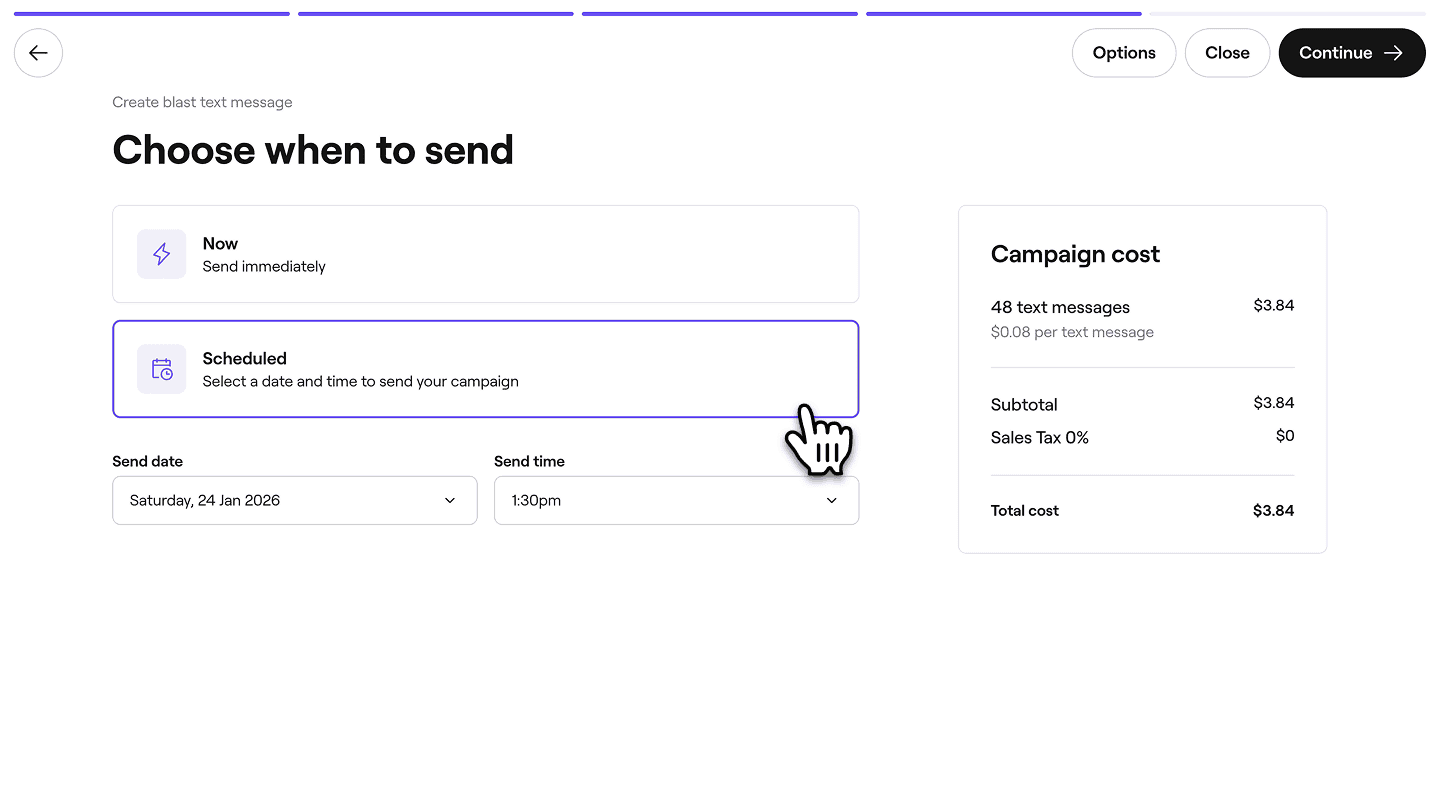
- When scheduling a blast campaign, select the time and date.
-
Review the total campaign cost and select a payment method. Click on the Send now or Schedule button in the top right to launch your campaign.


Once launched, it will appear in your Blast campaigns list as either Scheduled or Sent depending on your setup. All campaigns go through a review process, during which they will show as Pending.
You can also send both email and text message campaigns at the same time by selecting Multichannel when setting up a campaign.
FAQs
Text message blast campaigns are sent as no-reply messages, so any replies won't reach you. If you want clients to take action, include a booking link or your contact details in the message itself.