In this article
How manual payment methods work
Manual payment methods let you record payments taken outside of Fresha, such as a bank transfer. Your workspace already includes default payment options like Cash and Fresha Terminal, and you can add additional manual payment methods to offer clients more payment options.
These new methods are designed for tracking and reporting only, helping you keep accurate records of all payments received.
You can view a full breakdown by payment type in the Payments summary report.
Add a manual payment method
- From the menu on the left of your screen, go to Settings.

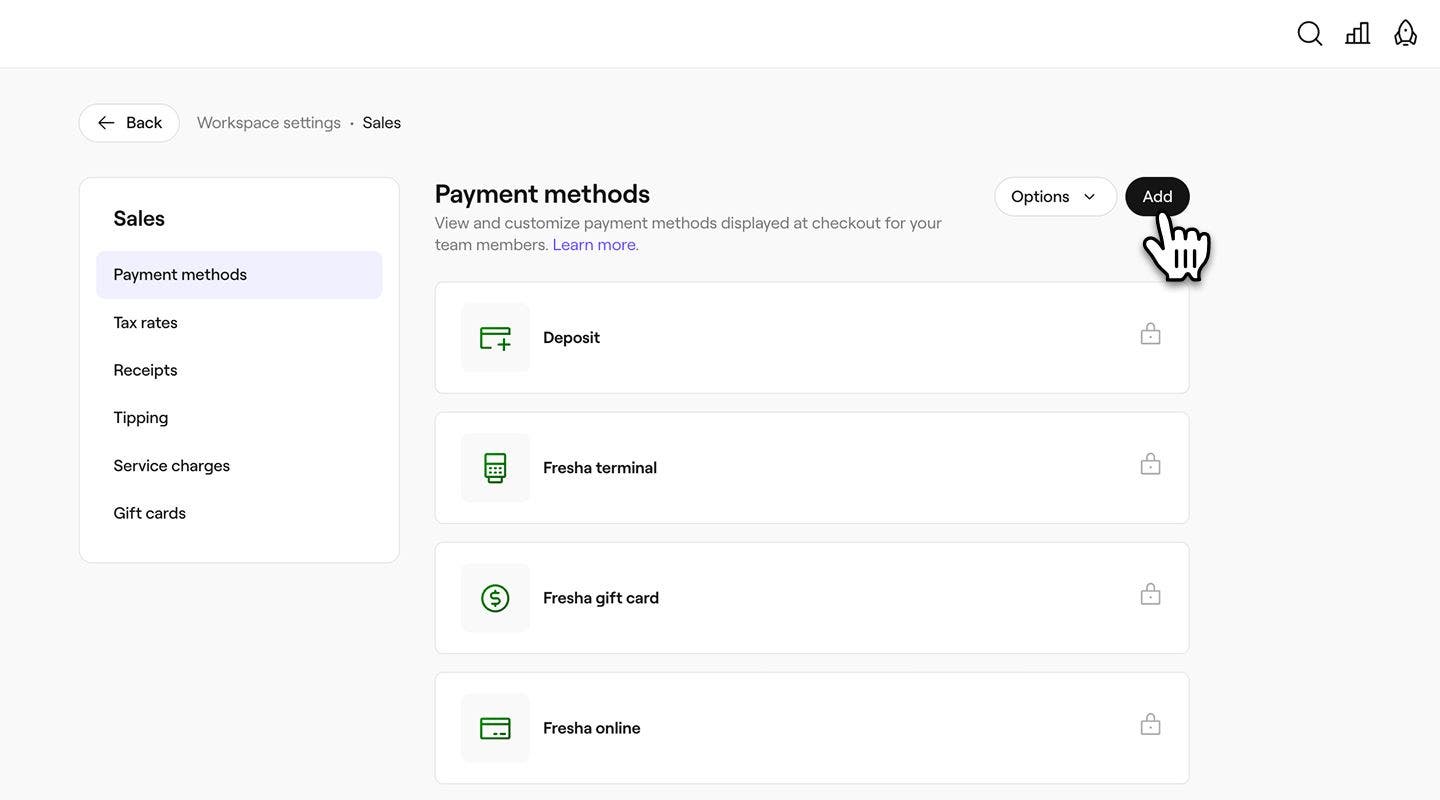
- Click on the Sales category to manage your Payment methods.

- Select the Add button in the top right to create a new payment method.
- In the Payment method view, enter a payment method name.

- Click on the Save button in the top right to add the method.
Once added, the payment type will immediately appear as an option on the final checkout page when taking payments in-store.
To allow team members to accept cash payments, enable Use cash as a payment method in your permission settings.
Edit or delete a manual payment method
- Open Payment methods from your Sales workspace settings.
- Select Actions next to a manual payment method, and choose one of the following:
- Edit: Update the name of the manual payment.
- Delete: Permanently remove the payment method from the list of payment options at checkout.

Rearrange the order of manual payment methods
-
Open Payment methods from your Sales workspace settings.
-
Click on the Options button in the top right and select Change order.

-
Drag and drop the manual payment methods in the order you’d like them to appear at checkout.

-
Click on the Save button in the top right to apply the changes.
Once saved, the updated order of the manual payment methods is shown at checkout.
You can also select Actions next to a manual payment method, and choose Move up or Move down to change the order they appear at checkout.
FAQs
Locked payment methods, such as Cash or Fresha terminal, are default options provided by Fresha and are kept in place for system consistency. These methods are marked with a padlock icon to help you identify them easily.