HomeKnowledge baseFresha academy
Create your online profile
Back
  1. Knowledge base•
  2. Online presence •
  3. Create your online profile

Create your online profile

Learn how to launch your business on the marketplace and start accepting online bookings by creating and publishing your online profile.

In this article

  • Enable online bookings
  • Once you're live on the marketplace

Enable online bookings

Set up and publish your online profile to make your business bookable through the Fresha marketplace.

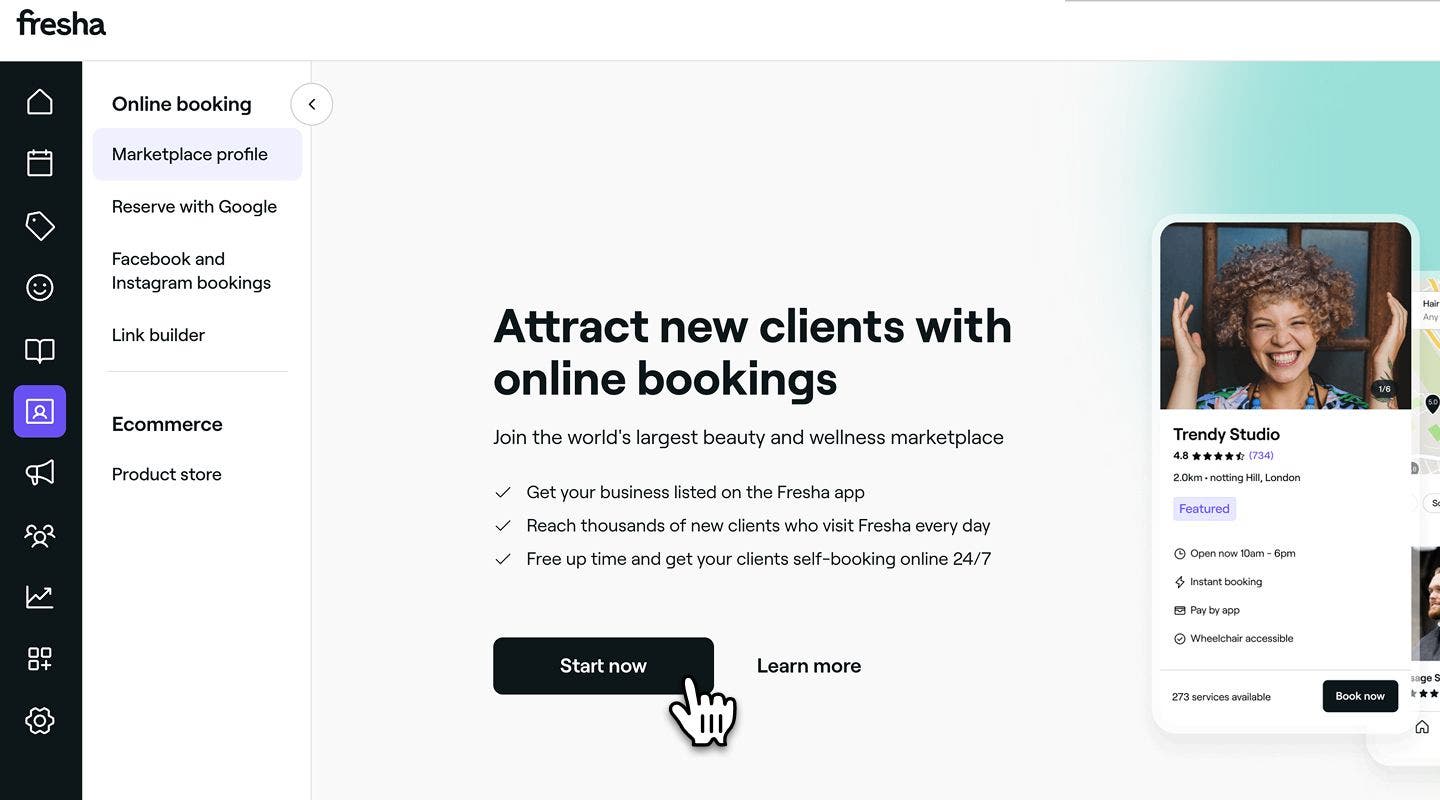
  1. From the main menu on the left of your screen, go to Online booking.
  2. Select Marketplace profile from the left menu panel.
  3. Click on the Start now button to begin setting up your Marketplace profile. Group 283.jpg
  4. In the top right corner, click on the Continue button to proceed to the next step.
  5. On the next page, add your venue essentials, such as your business display name, phone number and email, so clients can easily contact you. Once you've entered the details, click on the Continue button to proceed to the next step.Group 200.jpg
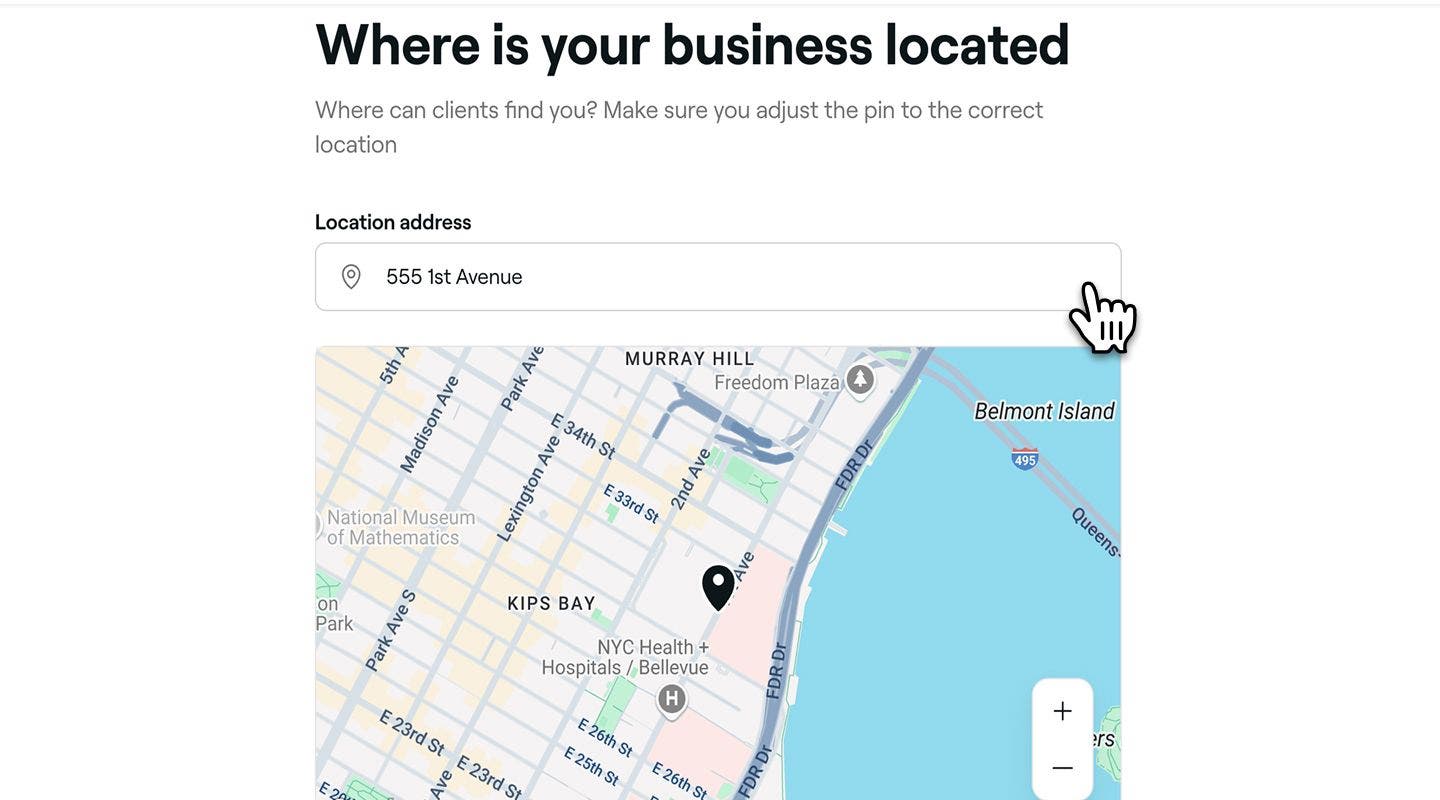
  6. From the next page, set your location address and adjust the map pin to accurately reflect your business location. Then click on the Continue button to proceed to the next step.
  7. Add an optional Getting there note with instructions for clients to follow. For example, “The access code to parking is 1234”. Group 201.jpg
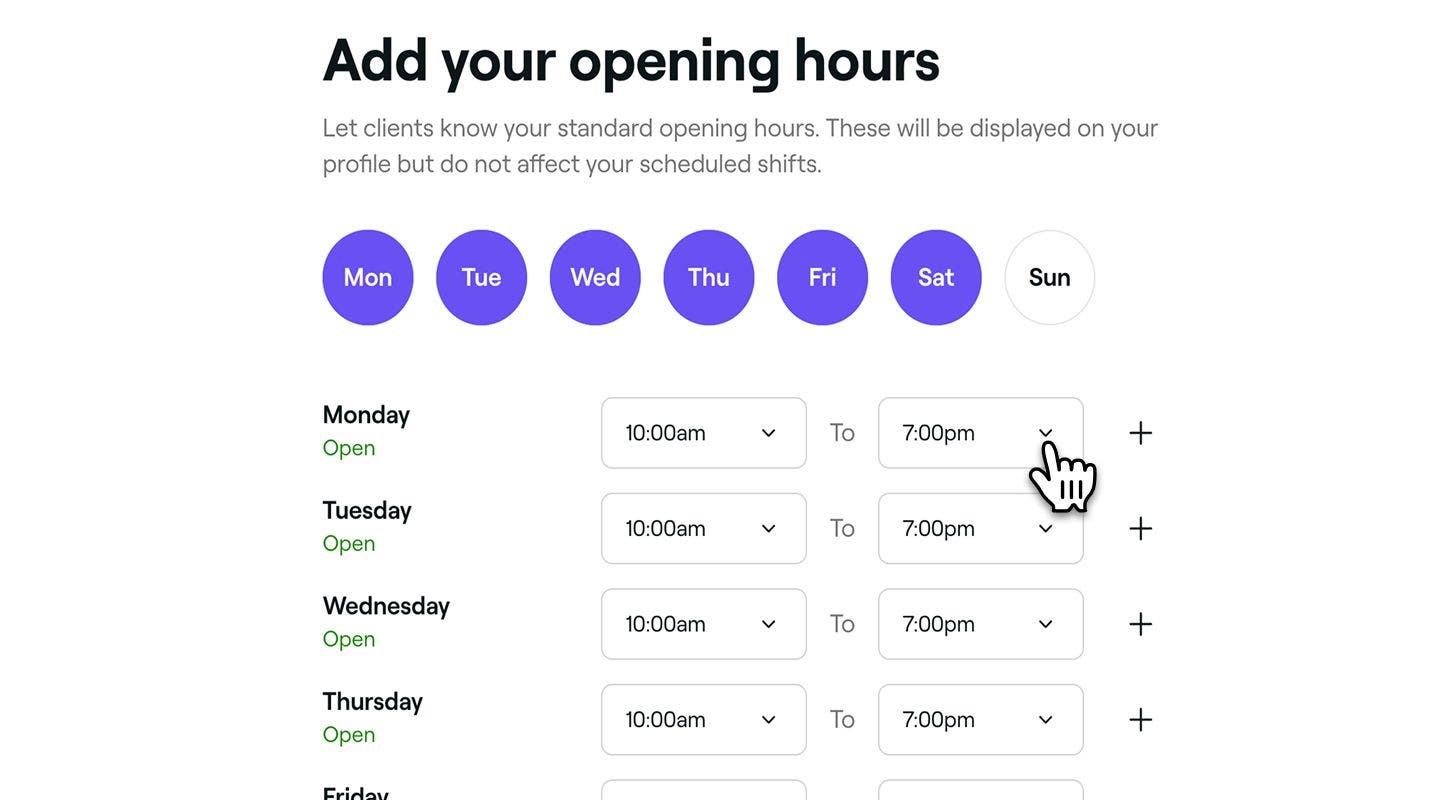
  8. On the next page, set your business opening hours by selecting times from the dropdown menu and click on the Continue button to proceed to the next step. These hours will appear on your public profile but won’t impact your team’s scheduled shifts.Group 202.jpg
  9. Review the photography guidelines and select the Continue button to upload your venue images. 
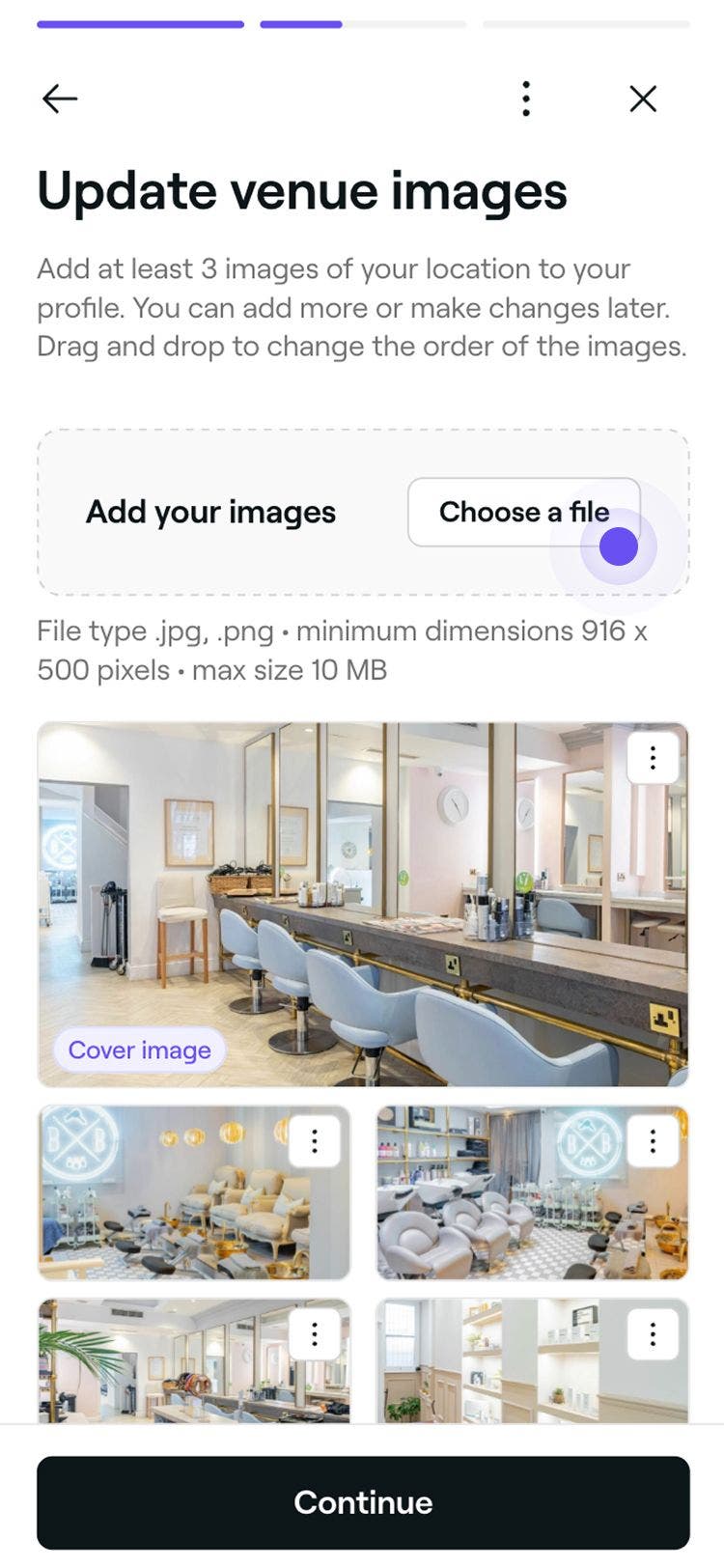
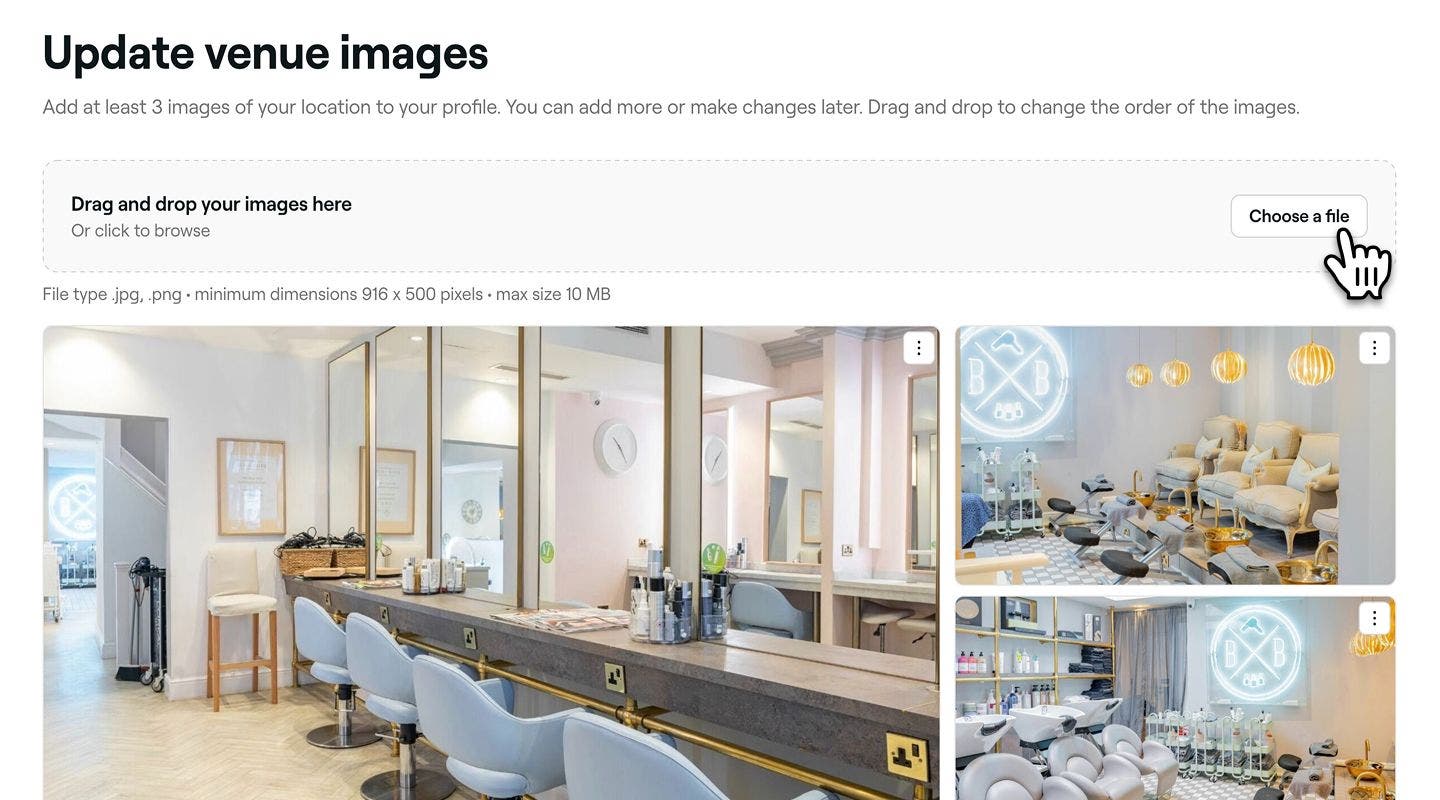
  10. From the uploading page, click on the Choose a file button to upload images of your location.  Drag and drop each image to change the order of how they are displayed on your profile. You can add and replace any images at any time. Once you have uploaded a minimum of three venue images, click on the Continue button to proceed to the next step. Group 203 (1).jpg
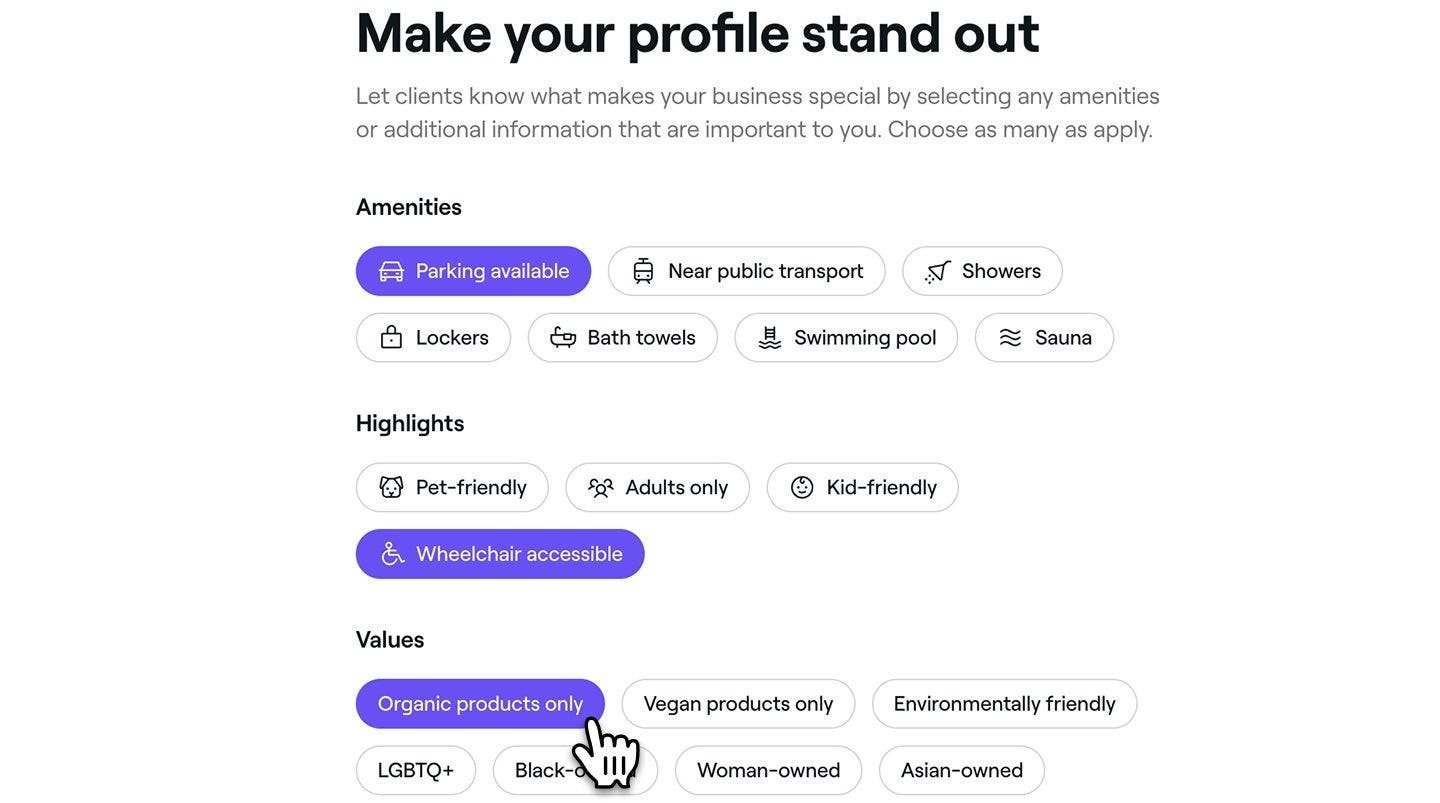
  11. Select all applicable Amenities, Highlights, or Values that represent your business, then click Continue to move to the next step. These will be featured on your profile for clients to see. Group 206.jpg
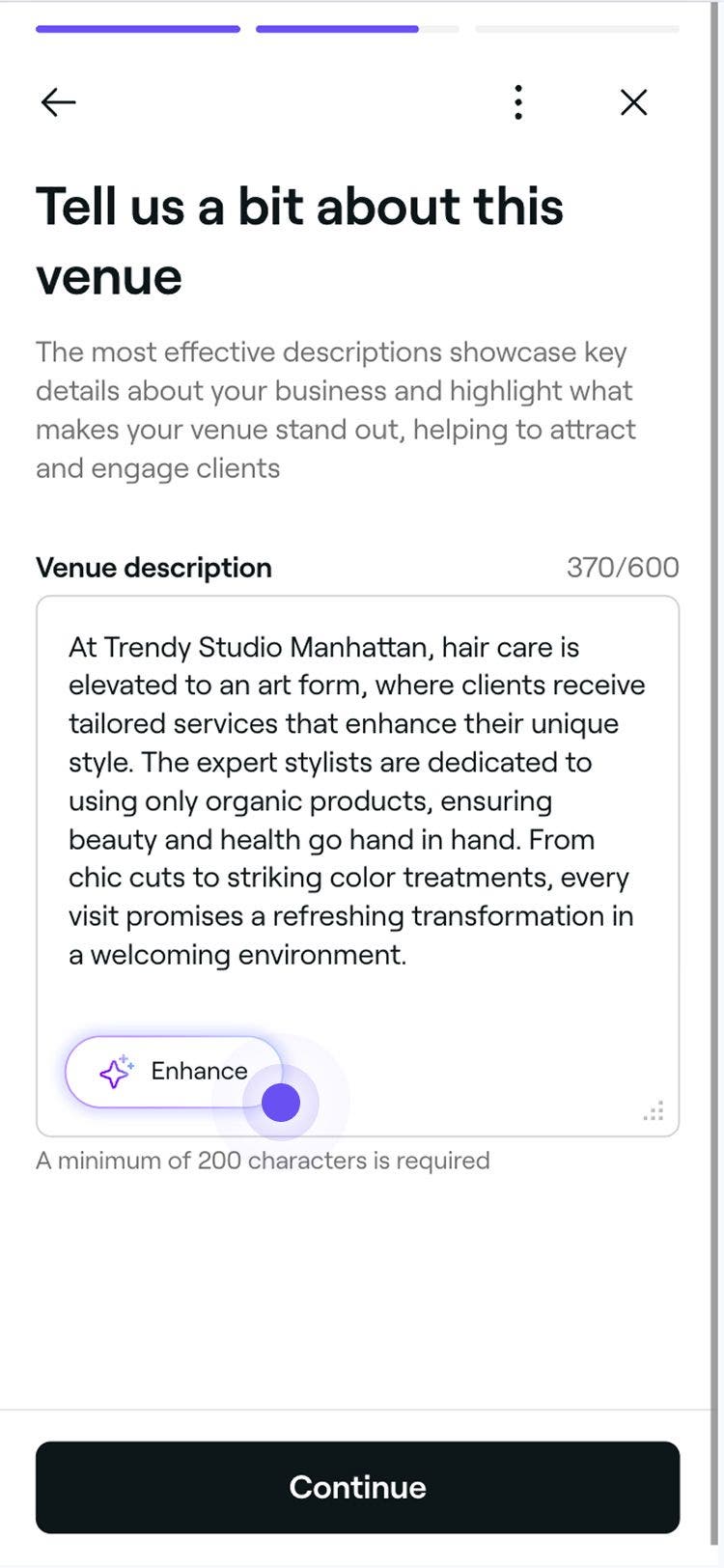
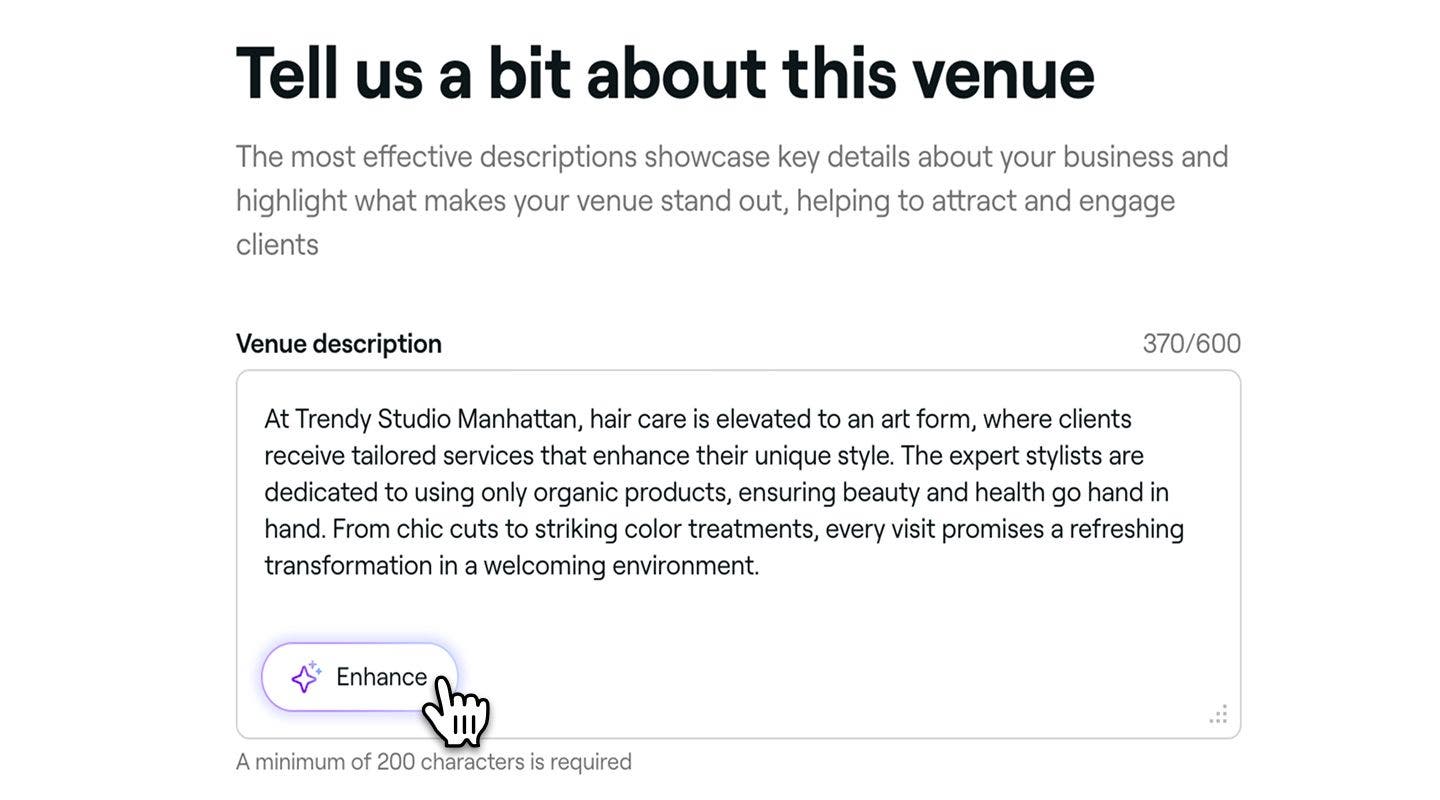
  12. On the next page, add a business description that highlights what your venue offers and what makes it unique, refer to our writing standards for creating a strong business description. Then, click on the Continue button to proceed to the next step. You can also click on the Enhance button to generate an AI-powered version based on your existing details. Group 207.jpg
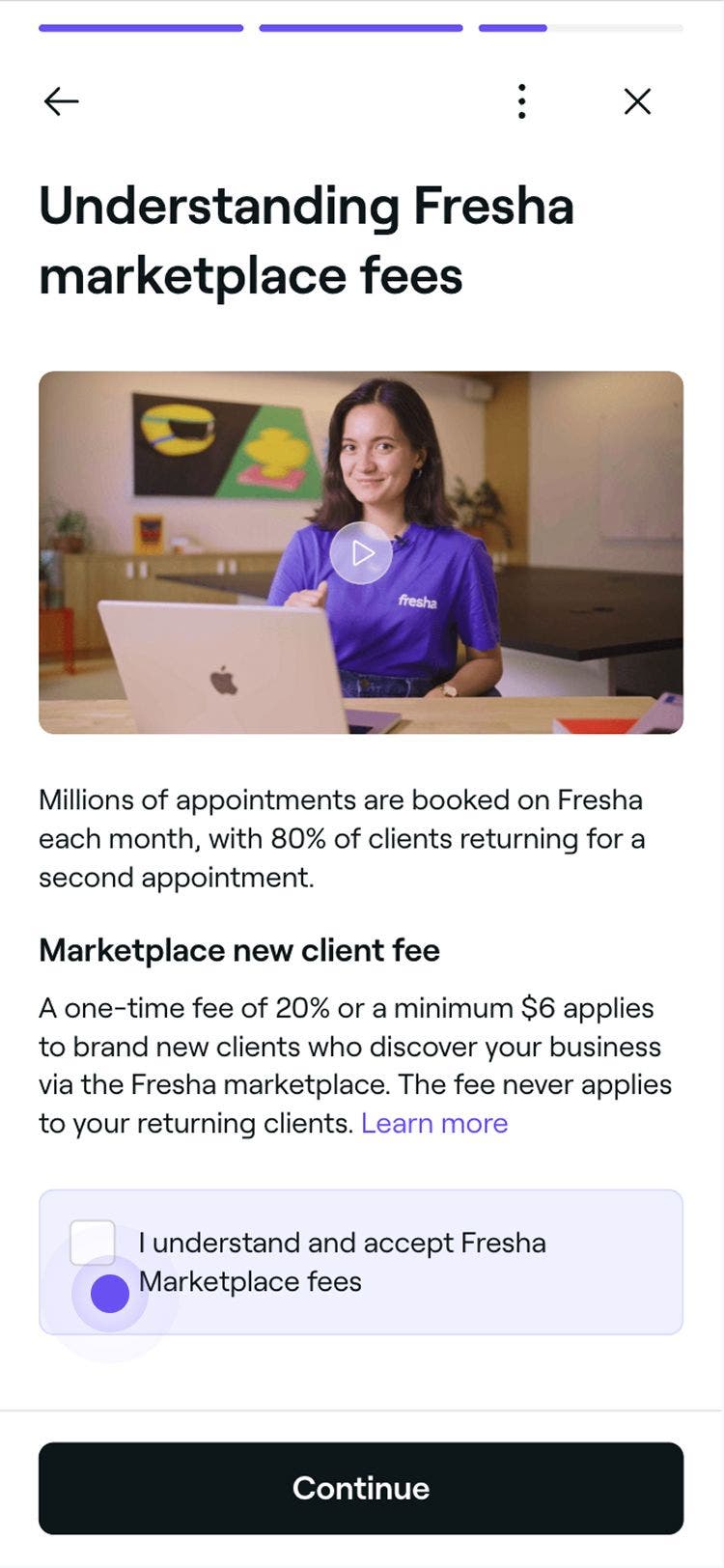
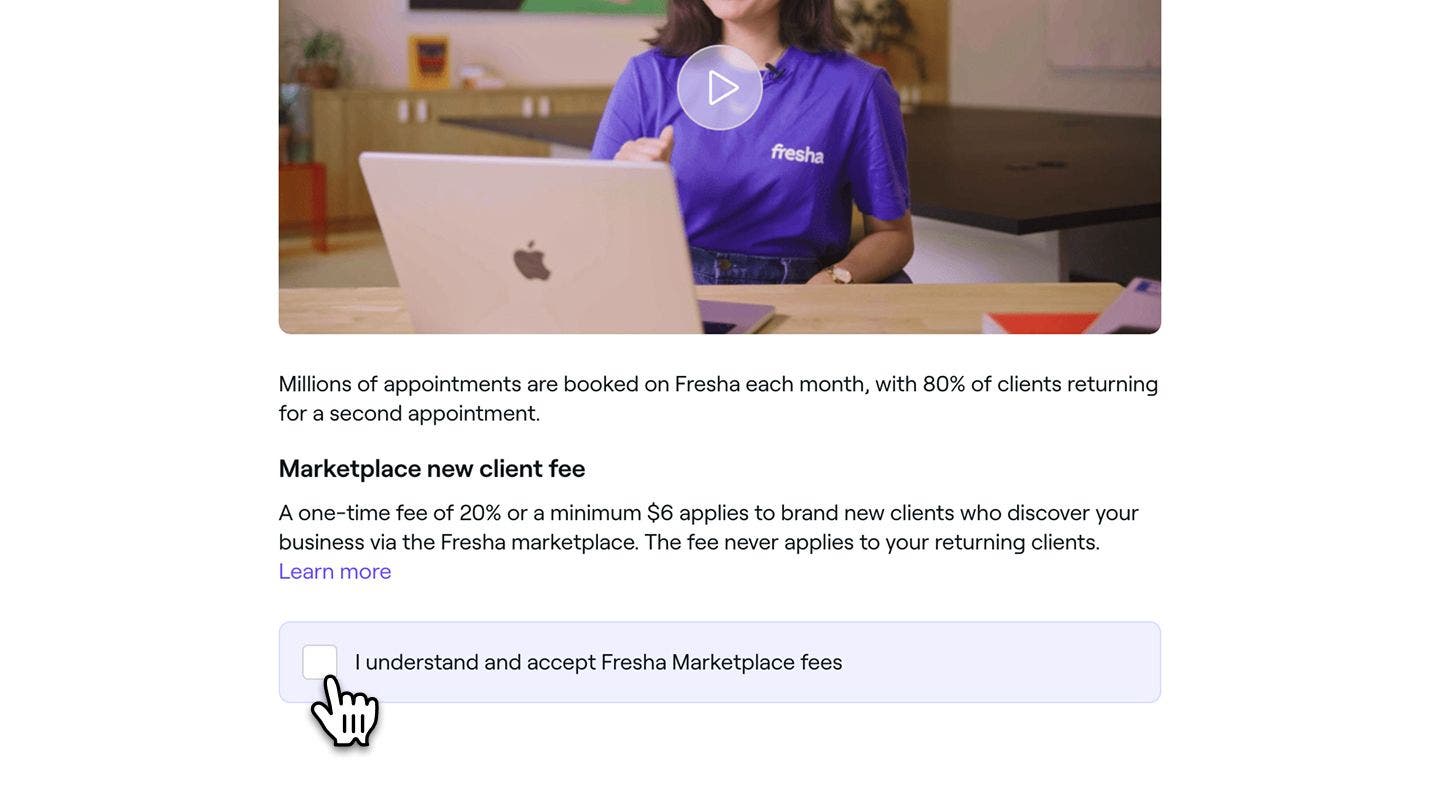
  13. Next, review how Fresha marketplace fees work by reading the terms and watching the short video, then tick the checkbox to confirm before clicking Continue to move to the final step. Group 286.jpg
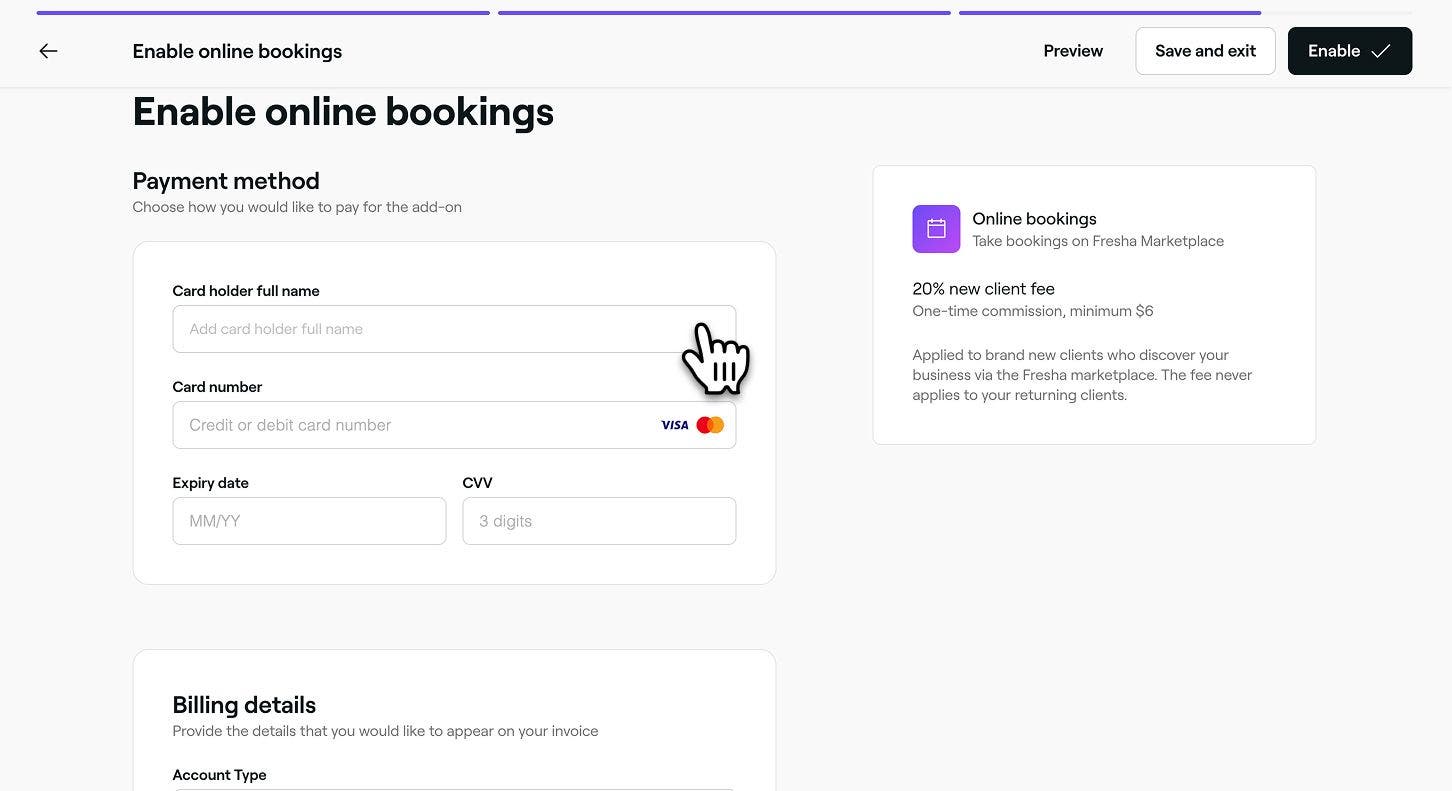
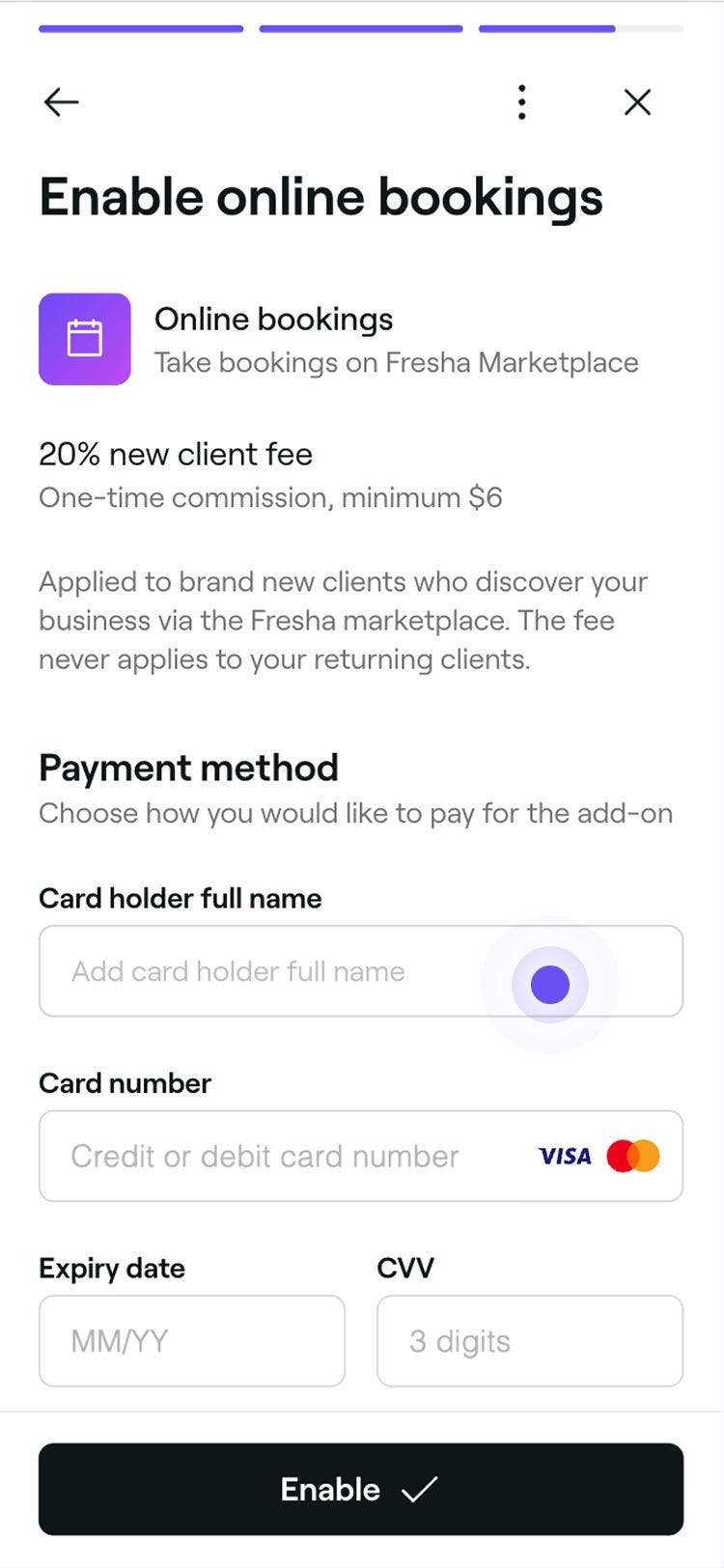
  14. To enable online bookings, add your payment method and billing details.Group 288.jpg
  15. Once verified, click on the Enable button to publish your Marketplace profile and become discoverable online through Fresha.
  1. From the main menu along the bottom of your screen, tap on More (grid icon) to open more options.
  2. Open Online booking, and tap on the Marketplace profile tab.Group 113.jpg
  3. Tap on the Start now button at the bottom of your screen to begin setting up your Marketplace profile. Group 112.jpg
  4. Tap on the Continue button at the bottom to proceed to the next step.
  5. On the next page, enter your venue essentials, including your business display name, phone number, and email address, so clients can get in touch with you. Once completed, tap on the Continue button at the bottom of your screen to proceed to the next step.Group 111.jpg
  6. From the next page, select your business location and move the map pin to accurately reflect where your venue is based. You can also add an optional Getting there note with extra instructions for clients. For example, “The access code to parking is 1234”.Group 110.jpg
  7. Once your business location is mapped, tap on the Continue button at the bottom of your screen to proceed to the next step.
  8. On the next page, set your standard business opening hours by choosing times from the dropdown menu. These hours will be shown on your public profile but won’t affect your team’s scheduled shifts.Group 109.jpg
  9. Once your business hours have been set, tap on the Continue button at the bottom of your screen to proceed to the next step.
  10. After reviewing our venue guidelines page, tap on the Continue button to upload your venue images.
  11. From the image upload page, tap on the Choose a file button to upload images of your location. You can add and replace any images at any time. Drag and drop each image to change the order of how they are displayed on your profile.Group 108.jpg
  12. Once you have uploaded a minumum of 3 venue images, tap on the Continue button at the bottom of your screen to proceed to the next step.
  13. Next, you have the option to select any amenities, highlights, or values that apply to your business, these will appear on your profile for clients to seeGroup 107.jpg
  14. Tap on the Continue button at the bottom of your screen to proceed to the next step.
  15. On the following page, write a business description to highlight your services and what makes your venue unique. You can also tap on the Enhance button to generate an AI-powered version based on your existing details.Group 105.jpg
  16. Once your business description has been created, tap on the Continue button at the bottom of your screen to proceed to the next step.
  17. Before activating your profile for online booking, review the terms for enabling online bookings and watch the short video explaining Fresha marketplace fees. Once familairised, check the tickbox at the bottom of the page to indicate that you have read and accept Fresha marketplace fees.Group 135.jpg
  18. Tap on the Continue button at the bottom of your screen to proceed to the final step.
  19. To complete your online profile setup, enter your payment method and billing details.Group 136.jpg
  20. Once verified, tap on the Enable button at the bottom of your screen to publish your Marketplace profile and become discoverable online through Fresha.

Once your online profile is live, your business can start accepting online bookings.

Once you're live on the marketplace

As soon as your online profile has been created and listed on the marketplace, we recommend the following steps to maximize your success:

  • Ensure that your client list has been imported to prevent any unnecessary Marketplace new client fees.
  • Create a Blast campaign to let your clients know they can now book with you online.
  • Set up Facebook and Instagram bookings to capture appointments through social media.
  • Add a book button to your website for direct scheduling.
  • Enable Google Reserve to boost your visibility across Google search and Maps.
  • Set up your service porfolio to showcase photos of your best work, turning inspiration into bookings.

FAQs

    • You can disable online bookings at any time by opening your Marketplace profile in your Fresha account, clicking Options (three dots), and selecting Unlist profile. 

      Once your profile is unlisted from the Fresha marketplace, clients will no longer be able to book appointments online, and your Book Now buttons and booking links will stop working. You can publish your marketplace profile at any time to start accepting online bookings again.

      When setting up your marketplace profile, you can save your progress at any time and return to it later by clicking Save and exit in the top right corner of set-up page. For example, you might start your profile setup now and complete it once you have venue images ready. 

      You can edit your marketplace profile at any time, and it will only be published live on our Fresha marketplace once all setup stages are complete and you click Publish.

      Online booking is free on all Fresha plans. To publish your profile on the Fresha marketplace, you’ll need to add a card on file, which is only used to cover any fees you may incur.
      Once your profile is published on our Fresha marketplace, you can accept unlimited online bookings.

      Depending on your location, businesses may be required by law to provide a valid contact number. Fresha also requires a valid business contact number to be added and kept on file.

      Your contact number may be shown to clients in certain situations. For example, if a client tries to cancel an appointment outside your cancellation window and your payment policy is set to Capture card details, they are prompted to contact your business directly.


Online profiles


Related articles

Fresha academy courses
Course video preview

Accept online bookings

6 lessons•11 mins

See all courses

Was this guide helpful?

Online profiles

Fresha marketplace overview

Discover how the Fresha marketplace can launch your business online by connecting you with clients seeking beauty and wellness treatments near you.

Create your online profile

Manage your Fresha marketplace profile to attract new clients and showcase your business effectively.

Manage your marketplace profile

Easily manage your marketplace profile by updating business information, listing and unlisting from the Fresha marketplace.

Verify your online profile

Get verified on Fresha to build trust with clients, increase your visibility, and start accepting Fresha gift cards.

Create your service portfolio

Build your service portfolio to showcase your treatments and client results, giving clients a visual way to explore your work before booking.

Related articles

Import your existing client list

Transition your business to Fresha by importing your existing client list.

Marketplace new client fees

The Marketplace New Client Fee is a one-time charge per new client from the marketplace.

Create direct links

Create, share, and update links to promote targeted areas for your business

Fresha academy courses
Course video preview

Accept online bookings

6 lessons•11 mins

See all courses
Fresha
Get the app

About Fresha

Careers

Help and support

Blog

Sitemap

For business

For partners

Pricing

Features

Scheduling

Point of sale

Payments

Capital

Marketplace

Support

Status

Legal

Privacy Policy

Terms of service

Terms of use

Find us on social

Facebook
Linkedin
Instagram

© 2026 Fresha.com SV Ltd