Learn how clients book appointments online
In this guide, you'll see an overview of the clients' booking journey, and see how your marketplace setup shapes the way clients interact with and book your business.
In this article
How clients can book appointments online
Clients can discover and book with your business in a variety of ways. New and returning clients can browse your services, check availability, and book appointments directly through your Fresha online profile in any of the following ways:
Booking an appointment online
-
The booking journey begins with clients selecting their desired treatment from your service list. Clients can choose multiple services to include in a single appointment.

-
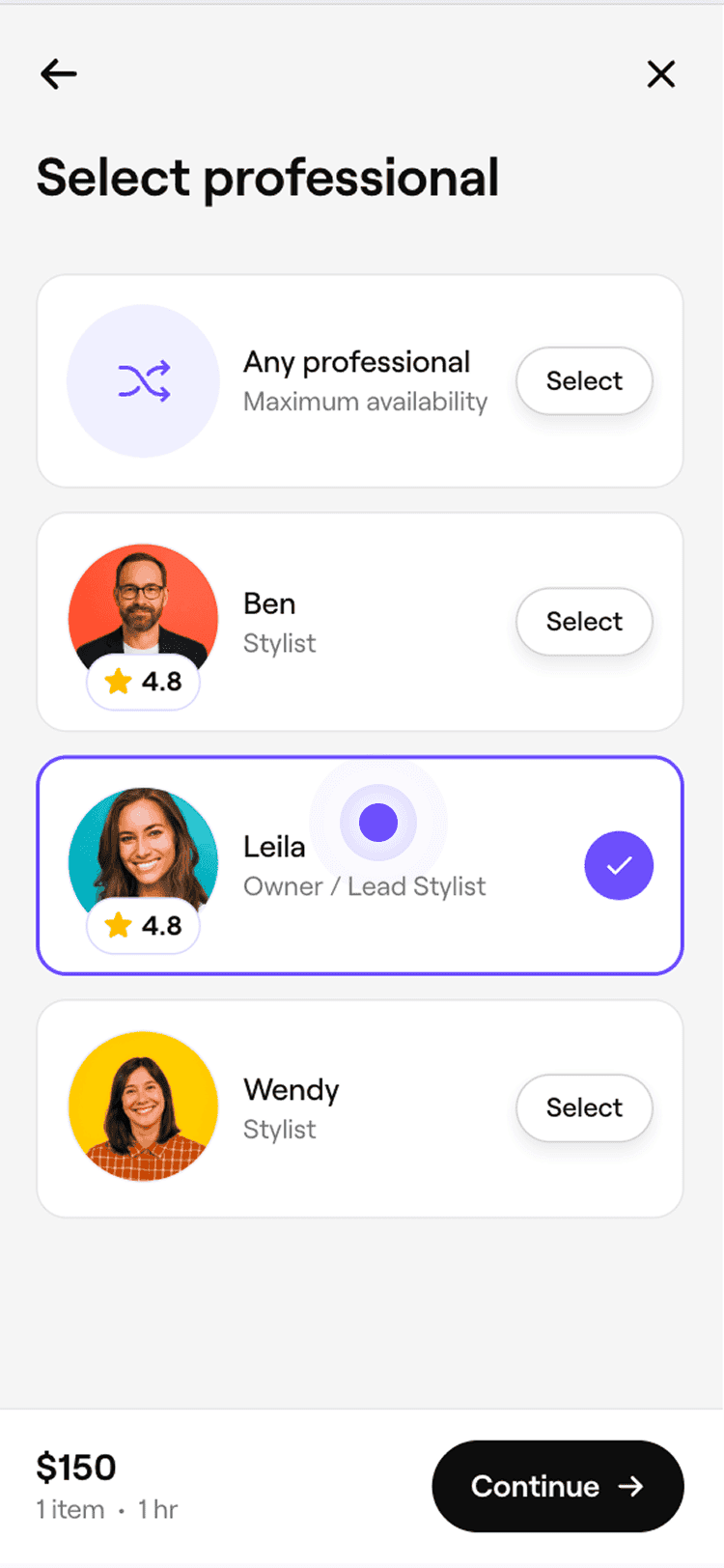
Depending on your online availability settings, clients will next be able to pre-select a specialist to perform their treatment. If multiple services are booked, they also have the option to select a different professional for each service.
-
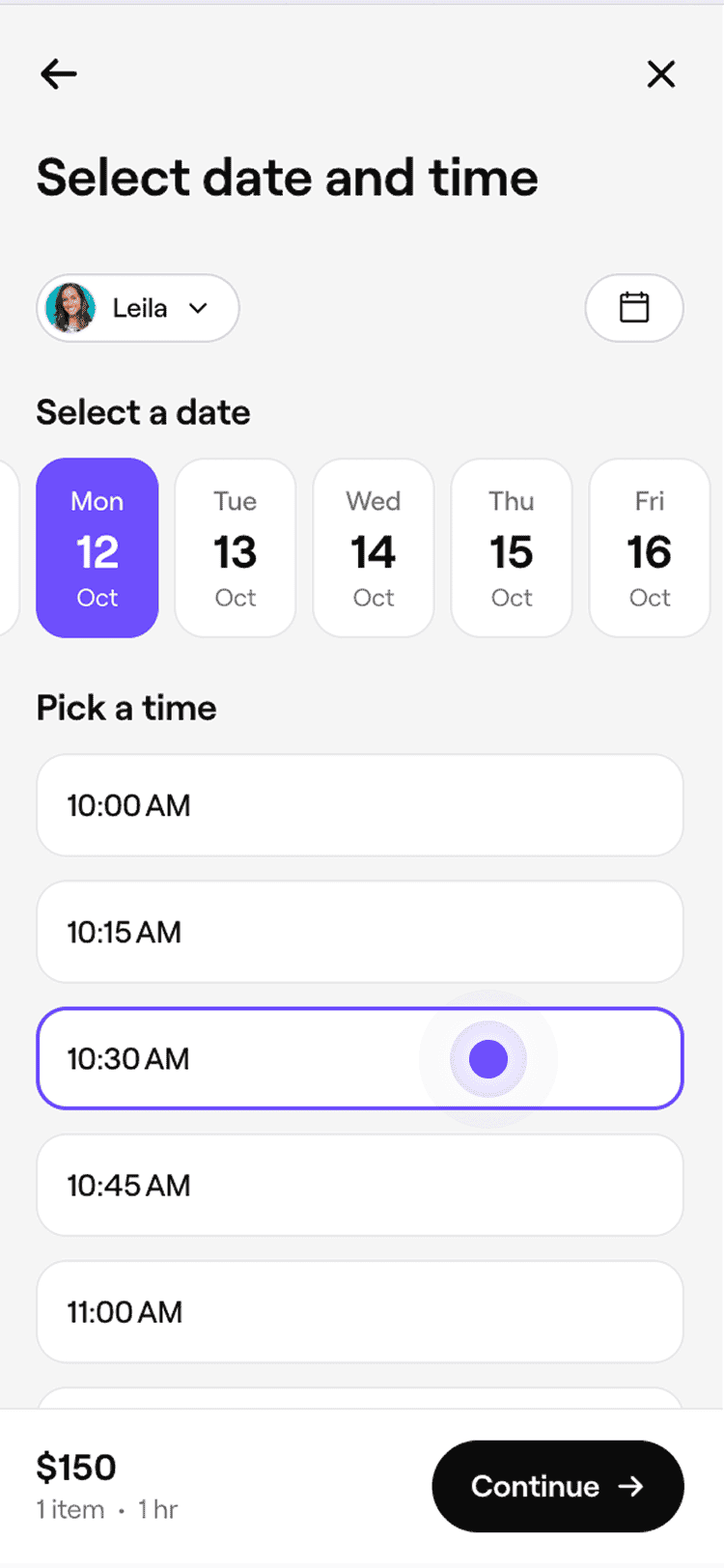
Clients can see your real-time availability based on your calendar and scheduled shifts, and choose the date and time that works best for them.
-
In the final step, clients review all booking details, including:
- Selected services, date, and time.
- Assigned team member(s), if chosen.
- Total price of the service.
- Important information about your business.
- An option to leave a note for your team.
-
If your business has appointment protection enabled, such as capture card details or requiring an upfront payment, clients will need to provide this information to secure their appointment.

-
Once the client confirms their appointment, they’ll receive a notification with the booking details.

Leaving a review
Based on your Automation settings, you can enable Thank You for Visiting messages to be sent to clients via email and text. These messages are triggered as soon as the appointment is checked out in your calendar and will prompt clients to leave a star-rating based on their experience.
- Clients can view their past appointments in their Fresha client account and can rate their experience with your business.

- Clients are able to leave a written review to be published on your marketplace profile.

Clients can leave or delete a review at any time after their appointment. They also have up to 30 days to edit their review after posting. Your business can respond to reviews whenever you choose, and we recommend replying regularly to strengthen client relationships and show that you value their feedback.
FAQs
- Security and trust: Verified accounts help reduce no-shows, spam, and fraudulent bookings.
- Client management: Each booking is linked to a client’s history, allowing you to send confirmations, reminders, and marketing campaigns with confidence.
- Seamless rebooking: Clients can easily manage, reschedule, or rebook appointments anytime through their account.
- As the business: your reply will appear under your venue name.
- As a team member: your reply will appear under the individual team member name. This is typically used when they carried out the appointment or are mentioned in the review.
Clients need to create or log in to a Fresha client account to book and confirm an appointment online.
While anyone can browse your services and view availability without signing in, bookings must be tied to a verified client profile. This helps keep the appointments secure and ensures a reliable experience for both you and your clients.
Here’s why a Fresha client account is required:
If a client doesn’t want to register, you can still book them manually from your calendar by adding their name and mobile number.
For each online booking you recieve through Fresha, you can see how the client booked their appointment, by opening the Appointments tab in the platform and filtering the Channel column. The channel filter shows the site or platform the client used to book, for example, Facebook, Instagram, and more.
For an overall view of where your clients are booking from, use the Client Insights report report to track booking sources across your business.
You can view all appointment updates sent to your clients in Messages history. Click Marketing in the main menu on the left, then select Messages history under Messaging to see every notification, including the date and time it was sent.
To view notifications for a single appointment, open the appointment from your calendar, click on Actions (three dots), and select View appointment activity. The activity log shows the time the appointment was booked, any status changes, and all related notifications with timestamps.
When clients leave a review for your business on Fresha, you can respond to your reviews from the Marketing section of the platform, by opening the Reviews tab and replying to the feedback.
You can respond to your client reviews in two ways:You can choose to respond to reviews publicly or privately. Public responses can be viewed on your marketplace profile.