Get bookings from Google Search and Maps
Boost your visibility to potential clients. Learn how to enable Reserve with Google to allow clients to book your services directly through Google.

In this article
Why use Reserve with Google
Reserve with Google lets your business appear in Google Search and Maps with direct booking buttons. Google’s official integration with Fresha allows bookings made through Google to be sent straight to your Fresha calendar, ensuring real-time availability and a seamless experience for your clients.
Before enabling Reserve with Google, you will need to:
- Register your business with Google, ensuring that the business name and location address listed on your Google business profile are an exact match of the details you’ve entered on Fresha.
- Publish your Marketplace profile to enable Reserve with Google through Fresha.
Booking using Reserve with Google
For the Book button to appear on your Google business profile, both your Google and Fresha business profile must meet all the following criteria:
- Set up bookings through Fresha using these steps.
- Your Google business profile must comply with Google's guidelines.
- Your business name and location address on Fresha must match exactly with your Google business profile.
- Your Fresha profile must be listed on the Fresha Marketplace. Unlisted profiles will not have a Book button.
- Ensure your team members have scheduled shifts within the next 30 days.
- The service menu must display the actual price (services should not be set to free or have a value of 0).
- Do not include emojis, pricing, or durations in service names or descriptions.
- Your business must be within the beauty and wellness industry. If your business is outside of this (e.g. if you select 'Other' as a business type) it will not be listed on the Fresha Marketplace and no Book button will appear on your Google business profile.
Any changes made to your service prices on Fresha may take up to 24 hours to update on Google.
Enable Reserve with Google
- From the main menu on the left of your screen, go to Add-ons.
- Under Google Reserve click on the View button to open the add-on summary.
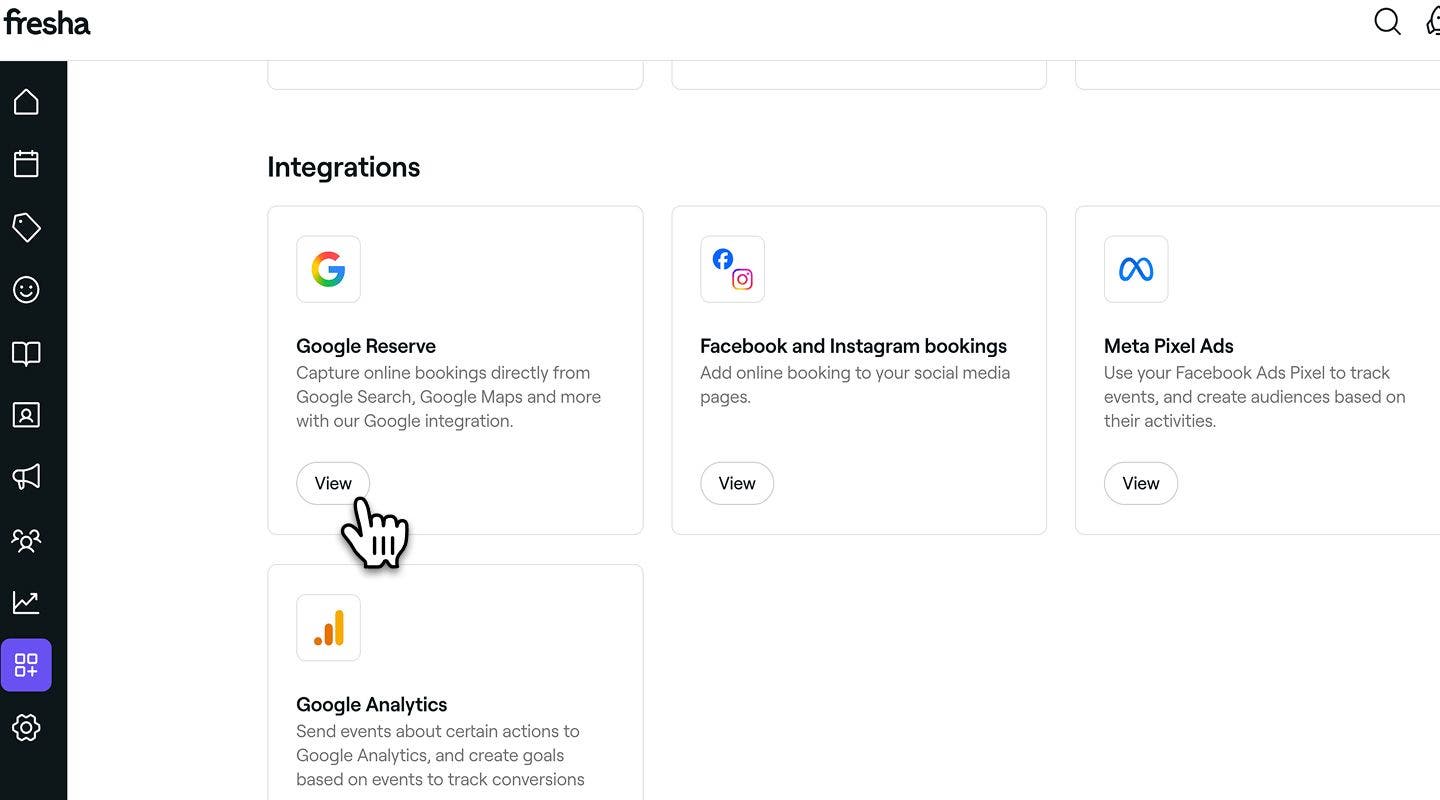
- On the summary page, review the add-on’s features and pricing, then click Start now to activate it for your account.
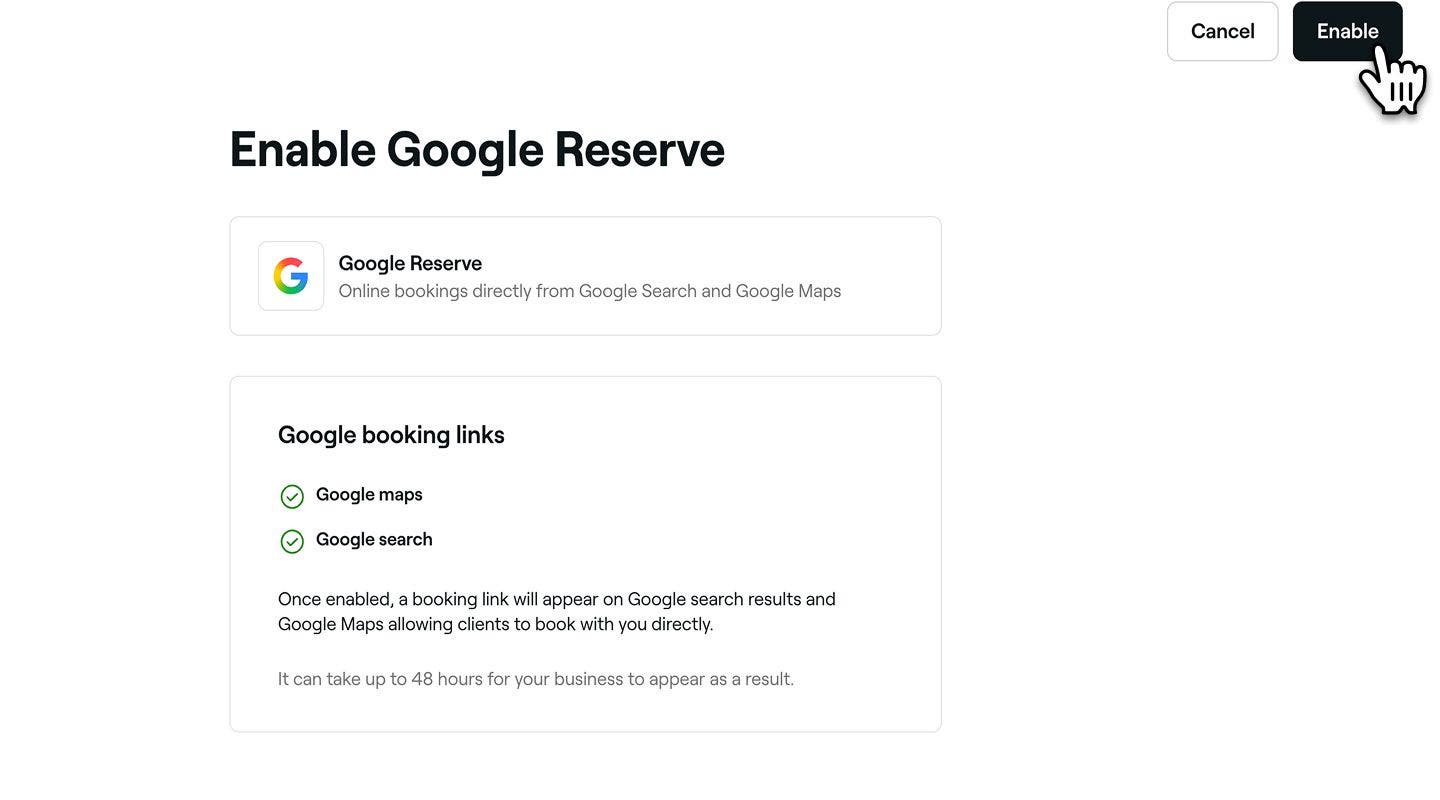
- Click on the Enable button in the top right corner to enable the add-on.
- Once enabled, you will see a confirmation notification appear.
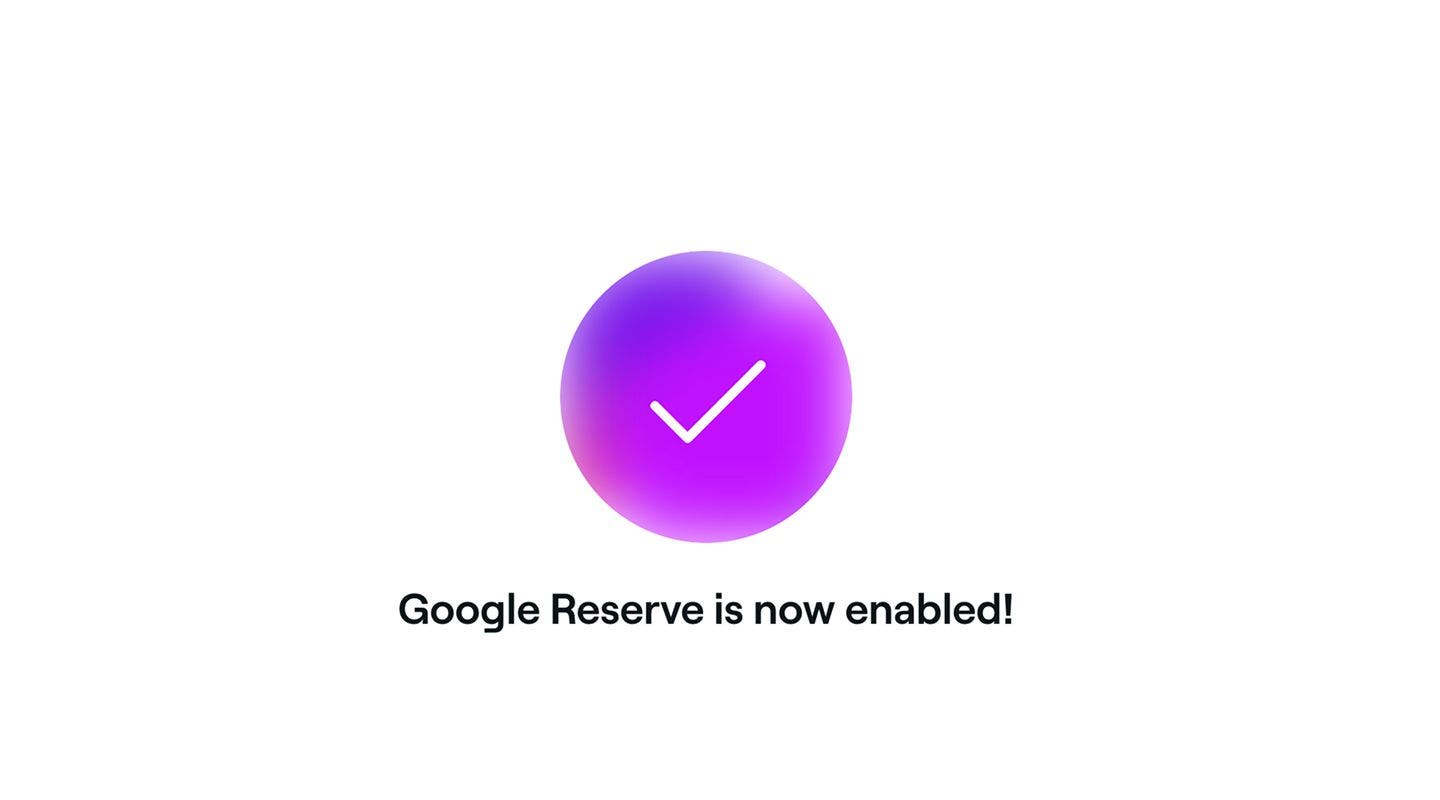
Once you have enabled Reserve with Google, it can take up to 48 hours to appear on Google.
Disable Reserve with Google
- From the main menu on the left of your screen, go to Add-ons.
- Under Google Reserve, click on the Actions button and select Disable.
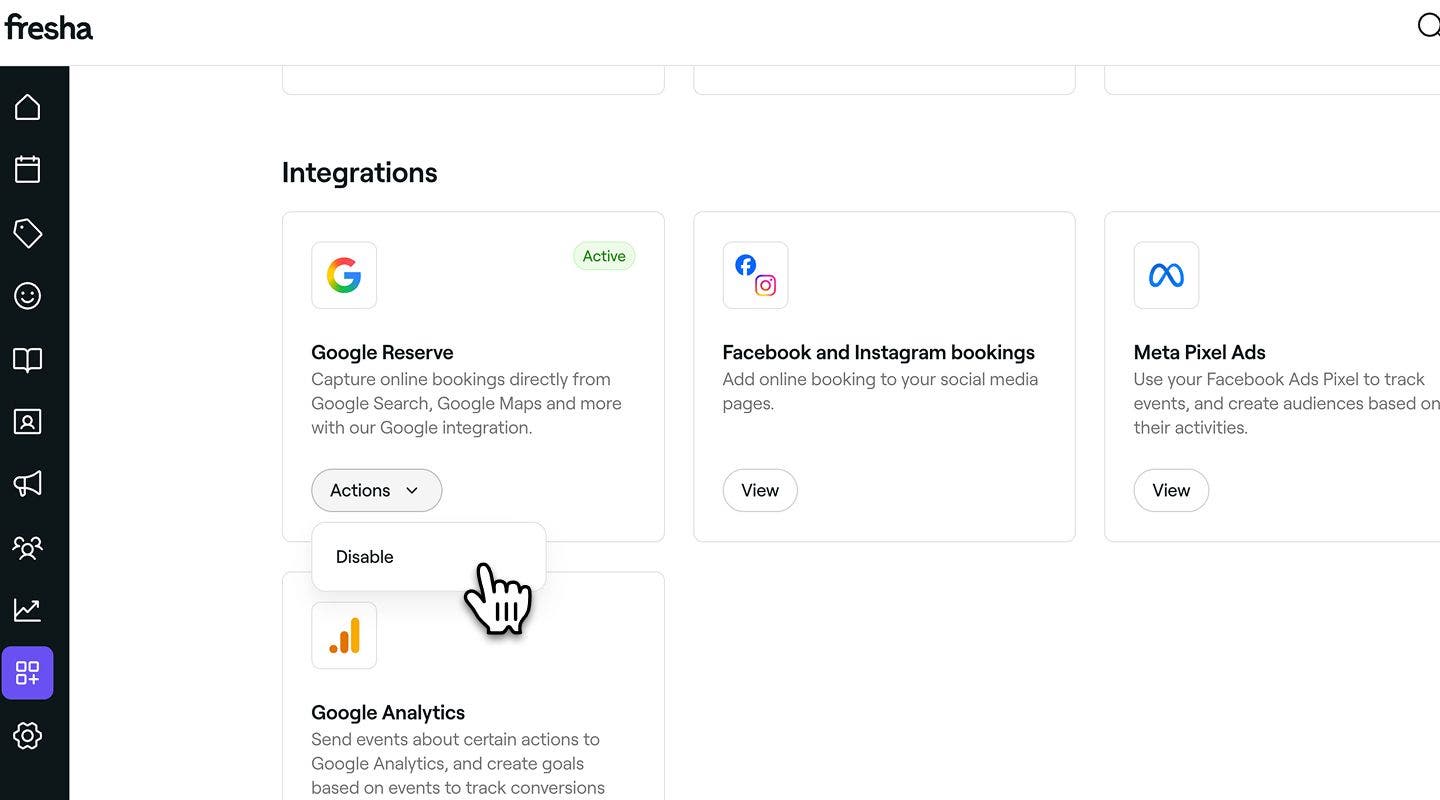
- From the pop-up, click on the Disable now button to confirm.
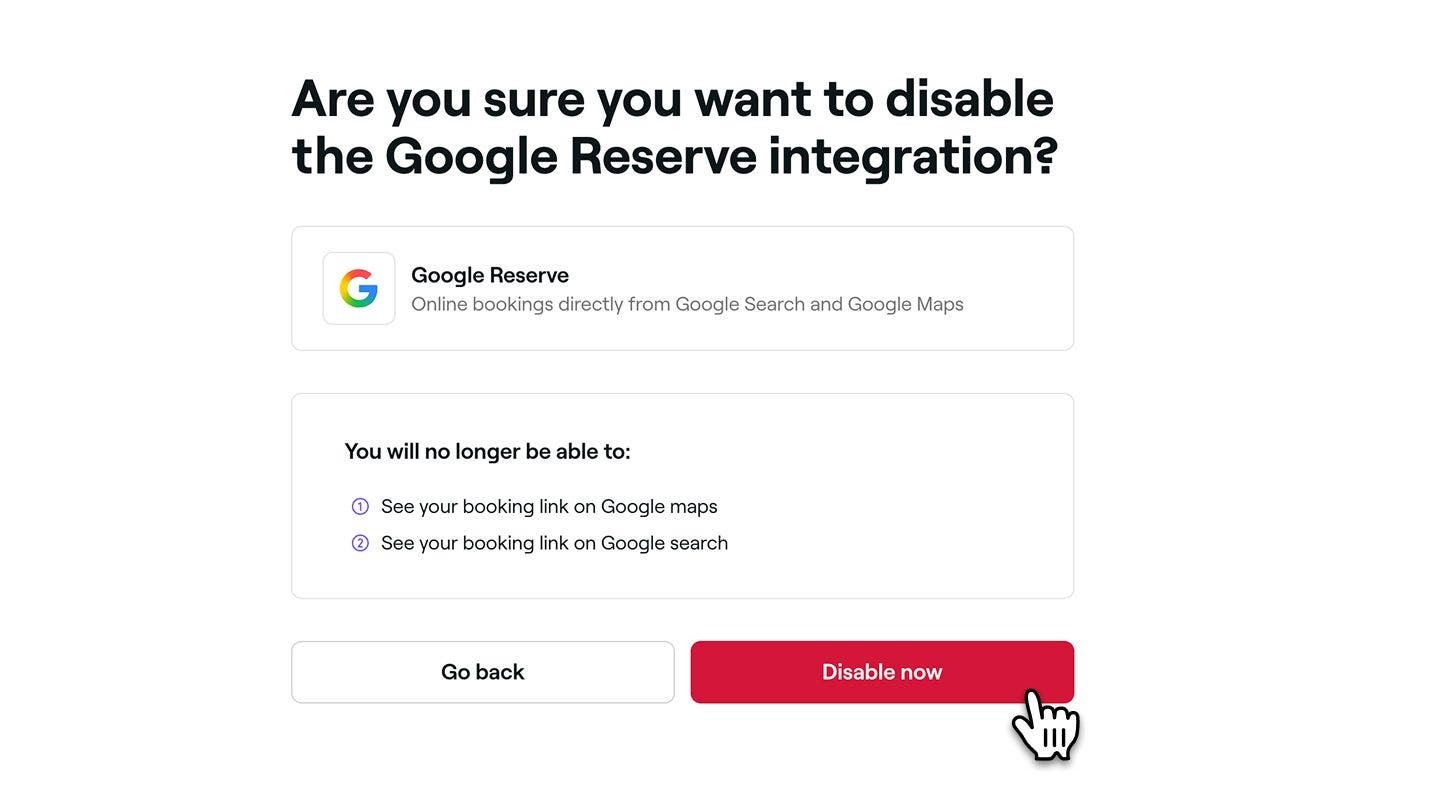
Once deactivated, your business will be removed from Google search and Google Maps results within 48 hours, and the direct booking link will be taken down.
FAQs
- Google Business Profile compliance – Your profile must follow Google's guidelines.
- Matching details – Your business name and address on Fresha must exactly match your Google Business Profile.
- Listed profile – Your Fresha profile Fresha profile must be listed on the Fresha marketplace. Unlisted profiles will not display a Book button.
- Team availability – Team members must have scheduled shifts within the next 30 days.
- Service pricing – All services must display a valid price (no free services or value of 0).
- Service naming – Service names and descriptions must not include emojis, prices, or durations.
- Industry requirement – Your business must be in the beauty and wellness industry. Profiles outside this category (e.g., “Other” as business type) will not appear on the Fresha marketplace and no Book button will display on Google.
You can use your Online presence dashboard to see where your online bookings are coming from. For an individual booking, open the appointment from your appointments list to see how it was booked.
When enabling Reserve with Google, the book button should appear within 48 hours if your Google and Fresha profiles meet all of the following criteria:
If you still don’t see your business book button in Google after 48 hours, please contact us for support.
Reserve with Google is available to partners worldwide. You can view the full list of supported countries on their policies page.
You can have Reserve with Google and Book Now buttons enabled at the same time with Fresha. Both integrations work seamlessly together, and one won’t affect the other.
We recommend exploring all of Fresha’s features (such as Book now buttons on social media and your business website) to connect with clients across online platforms, helping you reach a wider audience and encourage more people to book with you.When enabling Reserve with Google, you can link one Fresha location to a single Google Business Profile. If you have multiple locations in Fresha and want each linked to Google, you’ll need a separate Google Business Profile for every location.
If your Google profile was previously connected to another booking software provider, the Book button may still link to that provider. To resolve this, remove the existing integration from your Google Business Profile.
Once removed, and if your Fresha profile meets all eligibility requirements, the Reserve with Google integration will be set up automatically within 48 hours.