HomeKnowledge baseFresha academy
Set up and manage Client loyalty referrals
Back
  1. Knowledge base•
  2. Clients•
  3. Set up and manage Client loyalty referrals

Set up and manage Client loyalty referrals

In this guide, you’ll learn how to set up client loyalty referrals, including creating rewards for clients who refer friends and for the friends they invite.

In this article

  • How loyalty referrals work
  • Enable client loyalty referrals
  • Manage client loyalty referral settings
  • Manage rewards for your clients and the referred friend

How loyalty referrals work

Loyalty referrals help you grow your client list by rewarding existing clients when they refer friends to your business. You can also create rewards for the referred friends, giving them an extra incentive to book with you for the first time. You can use loyalty referrals on its own or alongside Loyalty points and tiers to create a more engaging loyalty program. 

Referral rewards for both the referring client and the referred friend are set up for you by default. You can customize these rewards to suit your business goals. Clients can earn multiple rewards for referring friends, while each referred friend receives a single reward on their first booking.

Enable client loyalty referrals

  1. From the main menu on the left of your screen, go to Clients. 
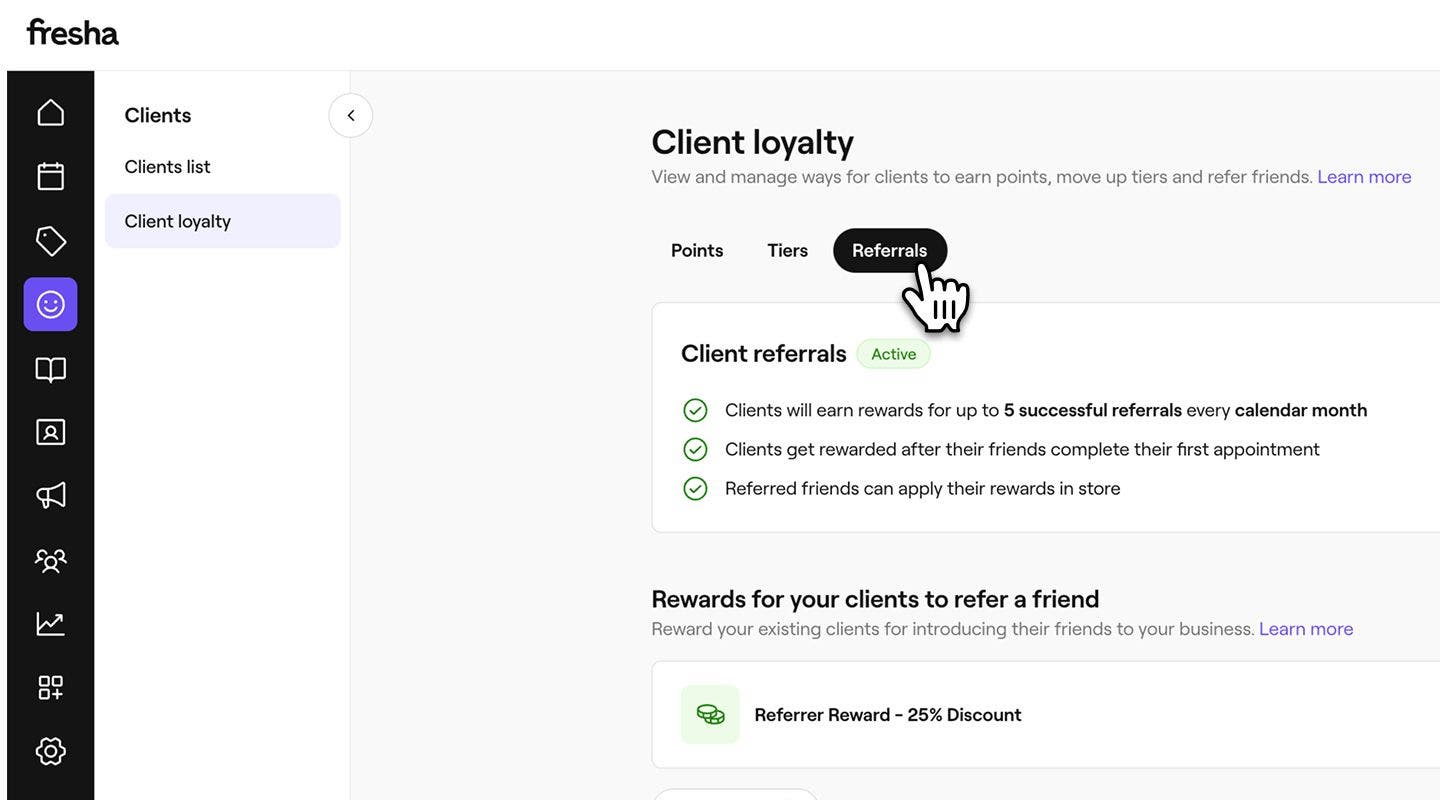
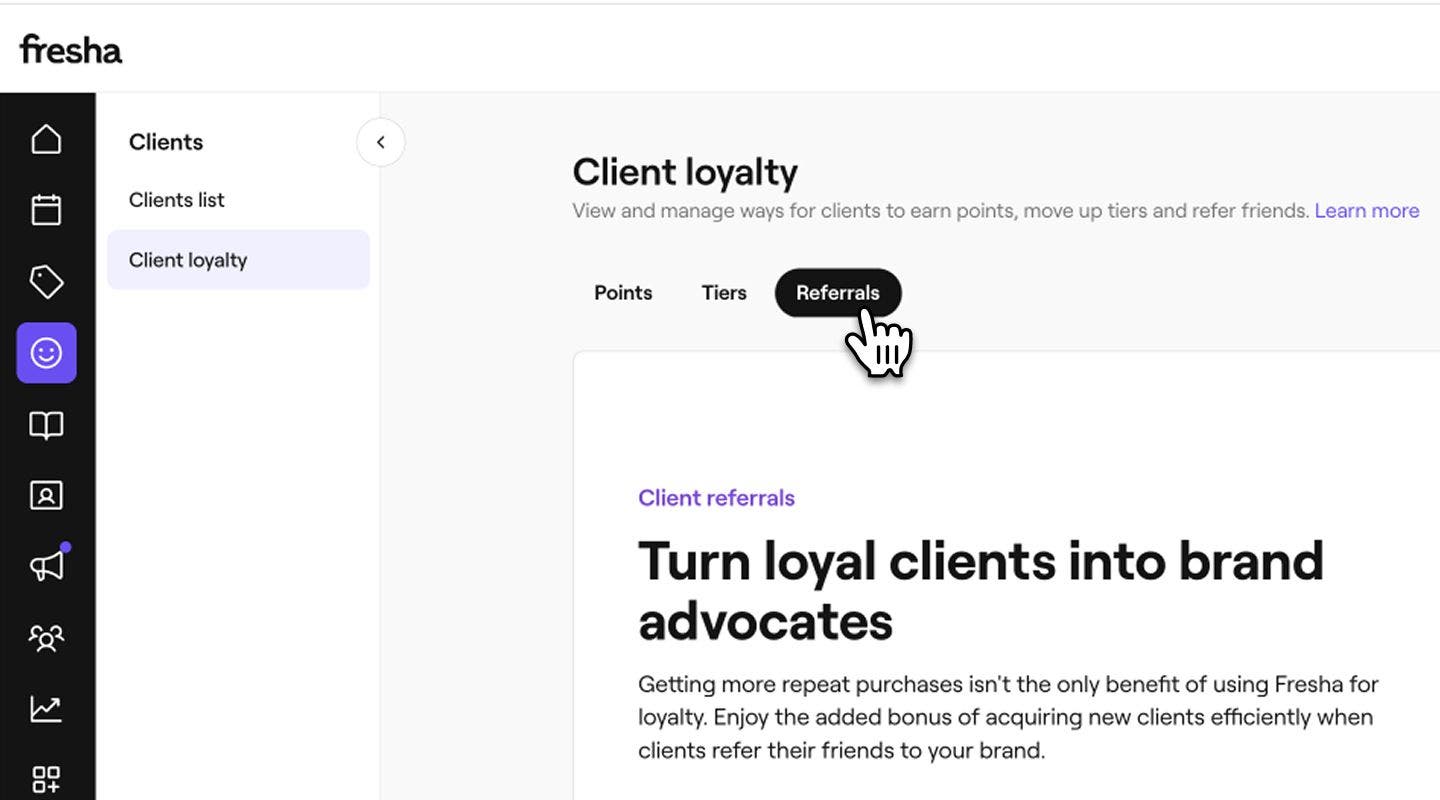
  2. In the left menu panel, select Client Loyalty, and then click on the Referrals tab at the top to set up your referral settings. 
    Enable_referrals_web_2.jpg
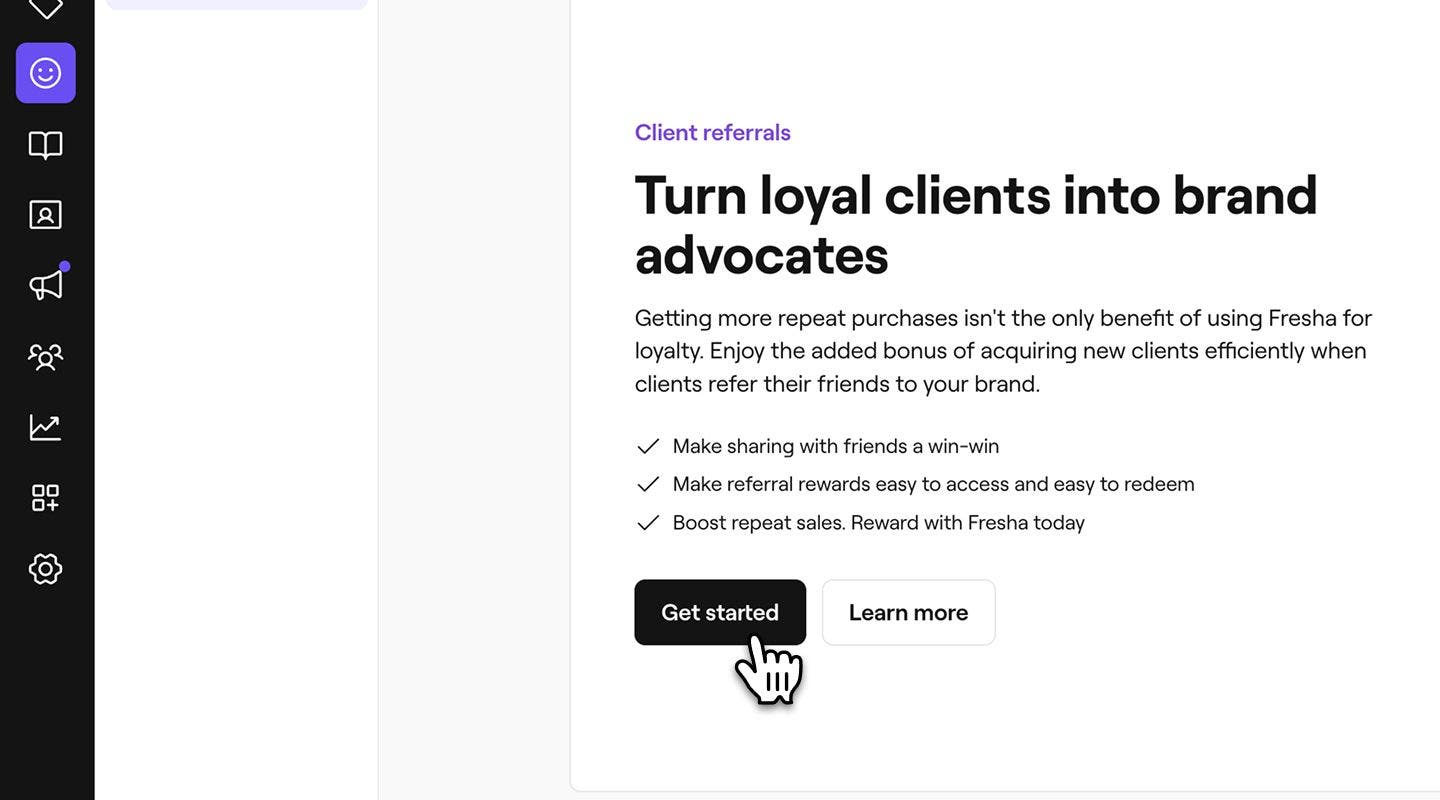
  3. Click on the Get started button to build your referral program. 
    Enable_referrals_web_3.jpg
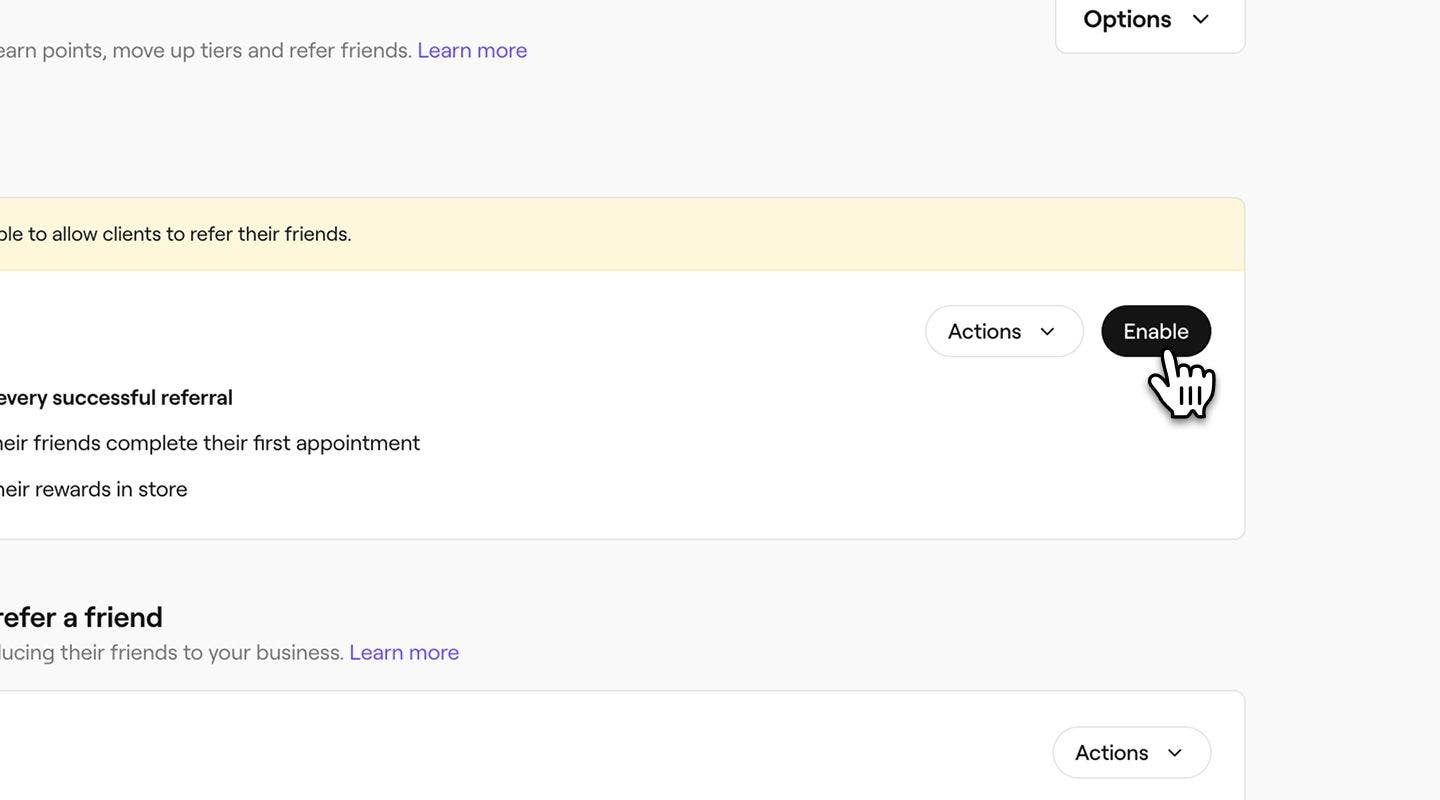
  4. To start using Client loyalty referrals, click on the Enable button next to Client referrals.
    Enable_referrals_web_4.jpg
  1. From the main menu at the bottom of your screen, tap on More (grid icon) and open Clients.
    Mobile_more options Fresha.jpg

  2. Select Client Loyalty and tap on the Referrals tab at the top to view and manage your referral settings.
    Enable_referrals_mob_2.jpg

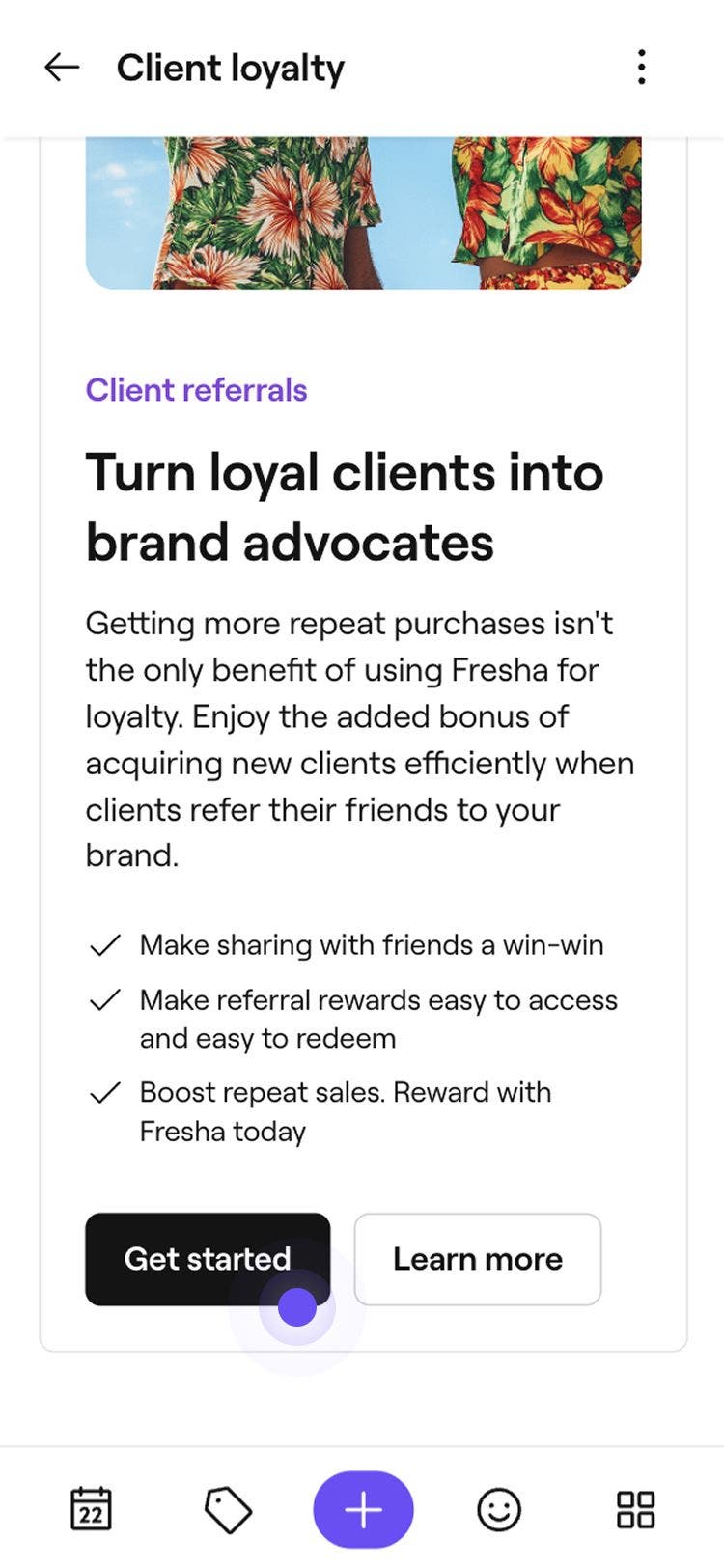
  3. Tap on the Get started button to build your referral program. 

    Enable_referrals_mob_3.jpg

  4. To start using Client loyalty referrals, tap on the Enable button next to Client referrals.
    Enable_referrals_mob_4.jpg

Once enabled, your clients can start sharing their referral link. They’ll earn rewards when a friend completes their first appointment, and their friends will receive theirs as soon as they book. To disable referrals, click on the  Actions button, select  Disable, then confirm in the pop-up.

Manage client loyalty referral settings

  1. Open Referrals from Client loyalty.
    manage_Settings_web_1.jpg
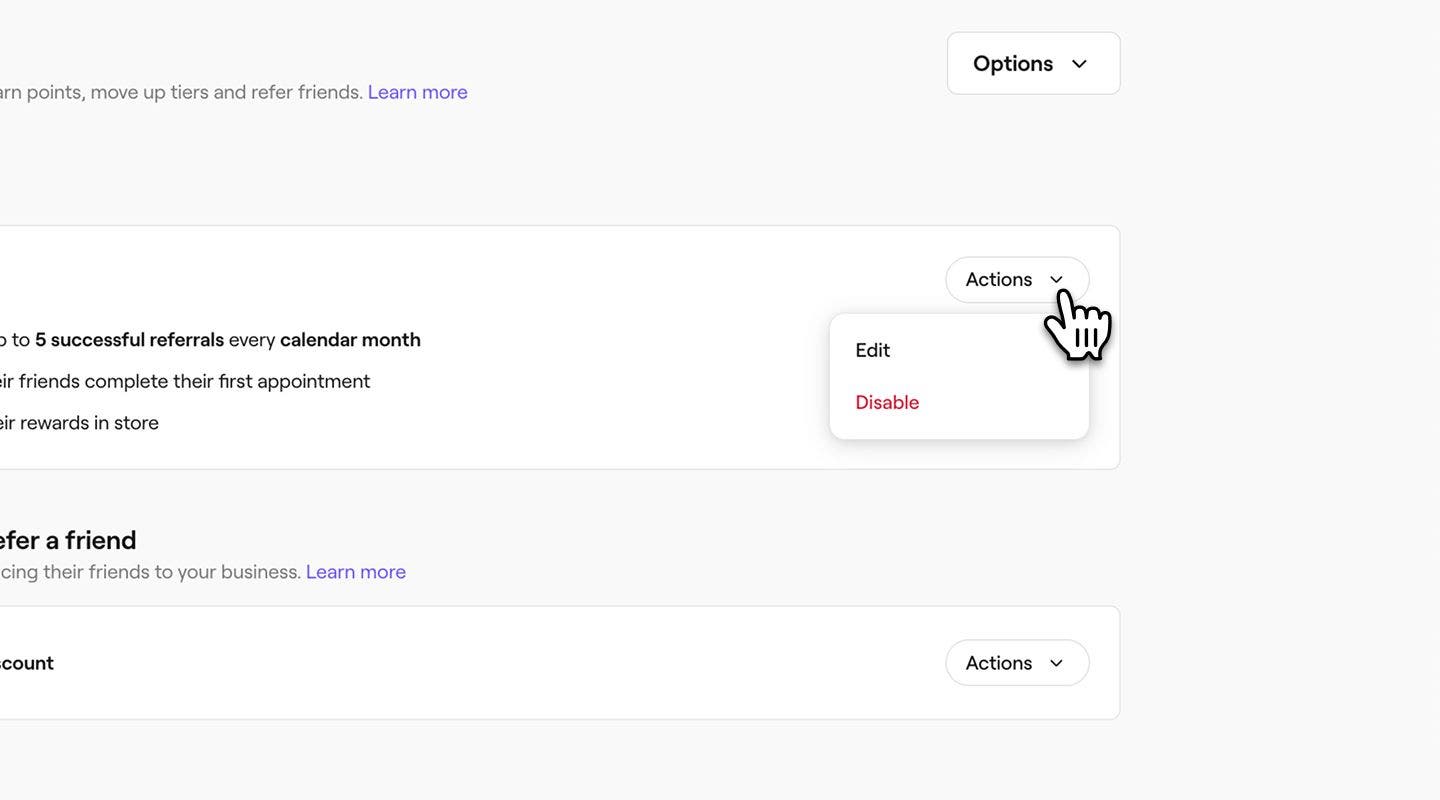
  2. Next to Client referrals, click on the Actions button and select one of the following options:
    1. Edit: Update whether clients can earn rewards for unlimited referrals, or set a limit (For example, 5 per month). If a limit is set, clients can still refer friends after reaching it, but won’t earn additional rewards. 
    2. Disable: Turn off Loyalty referrals. Clients will no longer be able to share their referral link or earn rewards for referring friends. Click on the Disable button in the pop-up to confirm.
      manage_Settings_web_2.jpg
  1. Open Referrals from Client loyalty.
    manage_Settings_mob_1.jpg
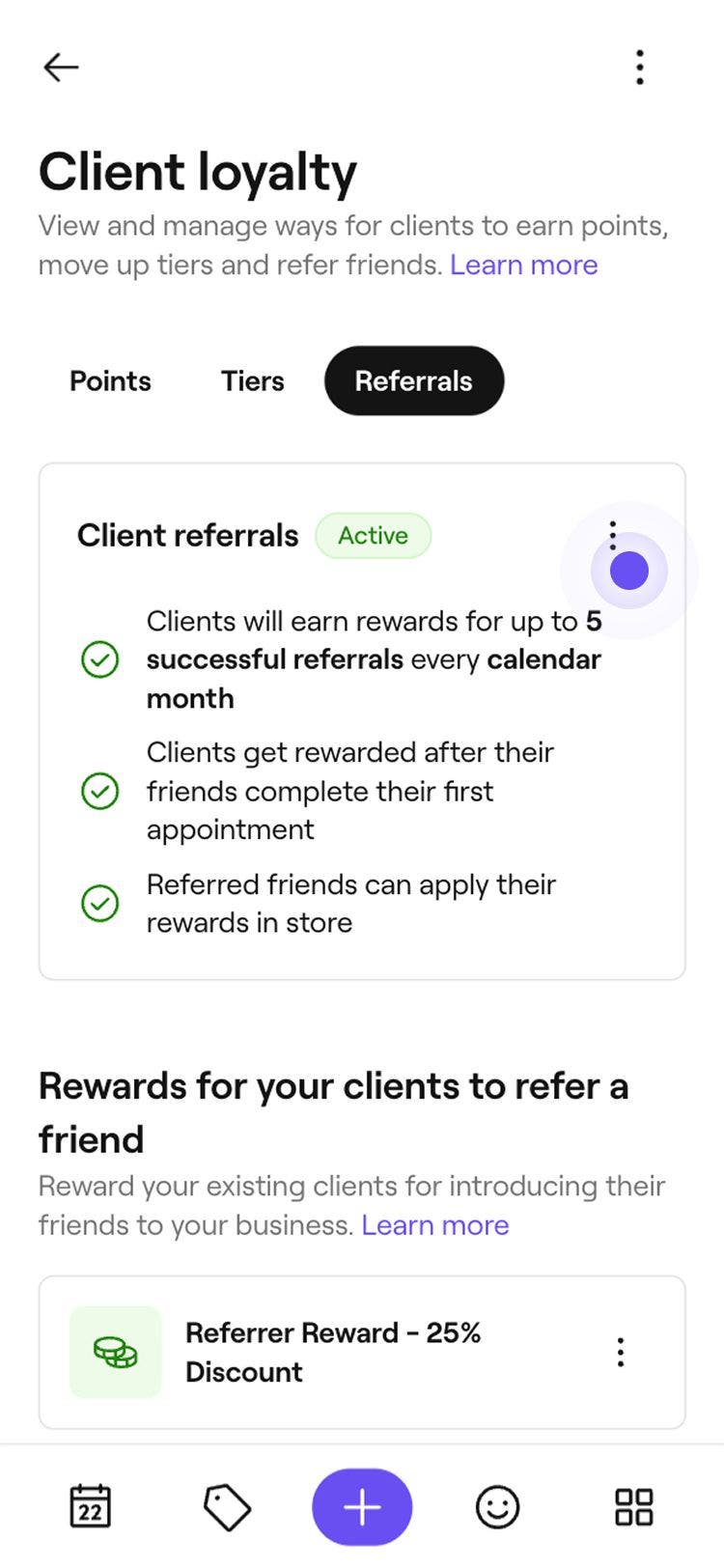
  2. Next to Client referrals, tap on Actions (three dots) and select one of the following options:
    1. Edit: Update whether clients can earn rewards for unlimited referrals, or set a limit, for example, 5 per month. If a limit is set, clients can still refer friends after reaching it, but won’t earn additional rewards. 
    2. Disable: Turn off Loyalty referrals. Clients will no longer be able to share their referral link or earn rewards for referring friends. Tap on the Disable button in the pop-up to confirm.
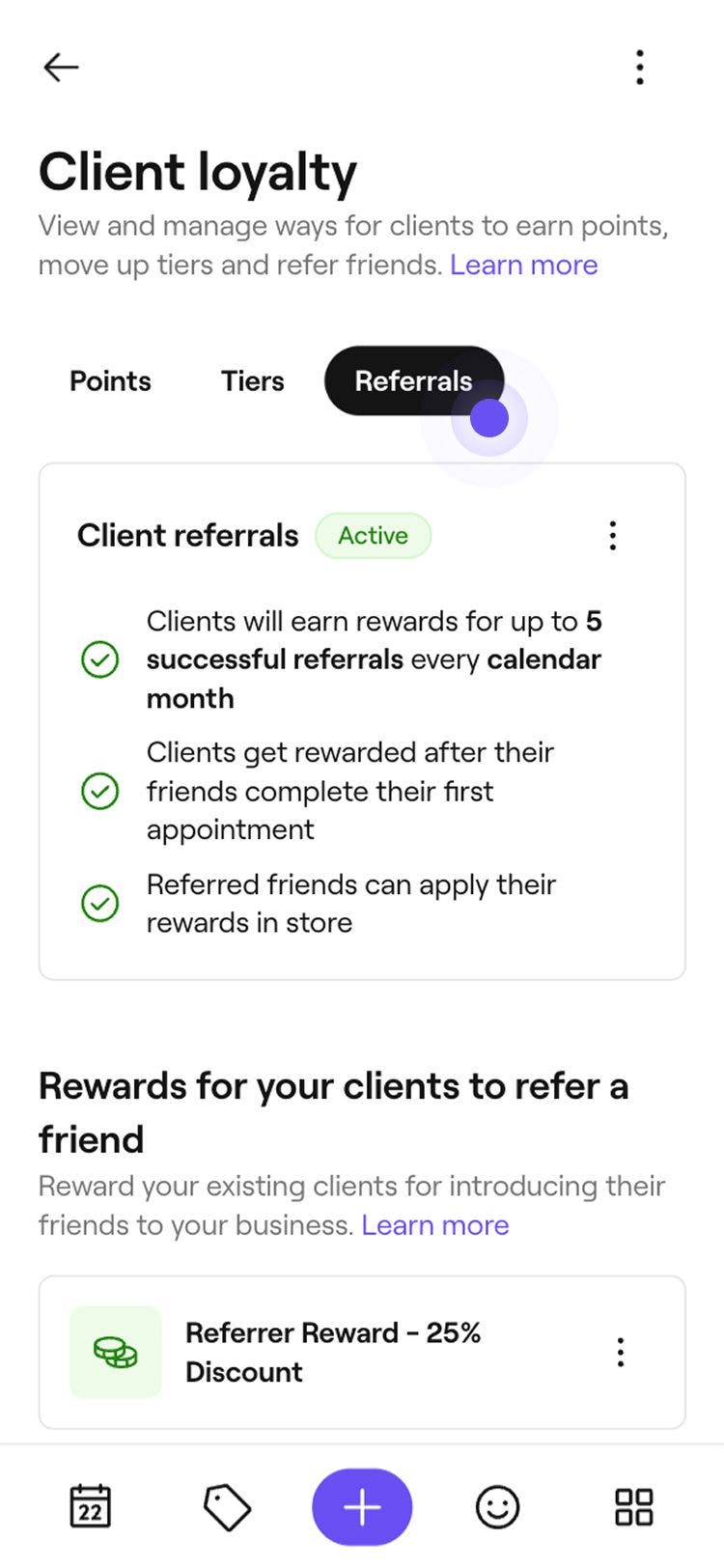
      manage_Settings_mob_2.jpg

If you disable referrals, referral links will no longer be valid and won’t generate rewards. Existing clients will lose access to their referral links, but any rewards already earned will remain available to use.

Manage rewards for your clients and the referred friend

  1. Open Referrals from Client loyalty.
    manage_Settings_web_1.jpg
  2. Next to the reward for your client or the referred friend, click on the Actions button and select one of the following options:
    1. Edit: Update the individual reward settings. 
    2. Change reward type: Choose a different reward type from the options.
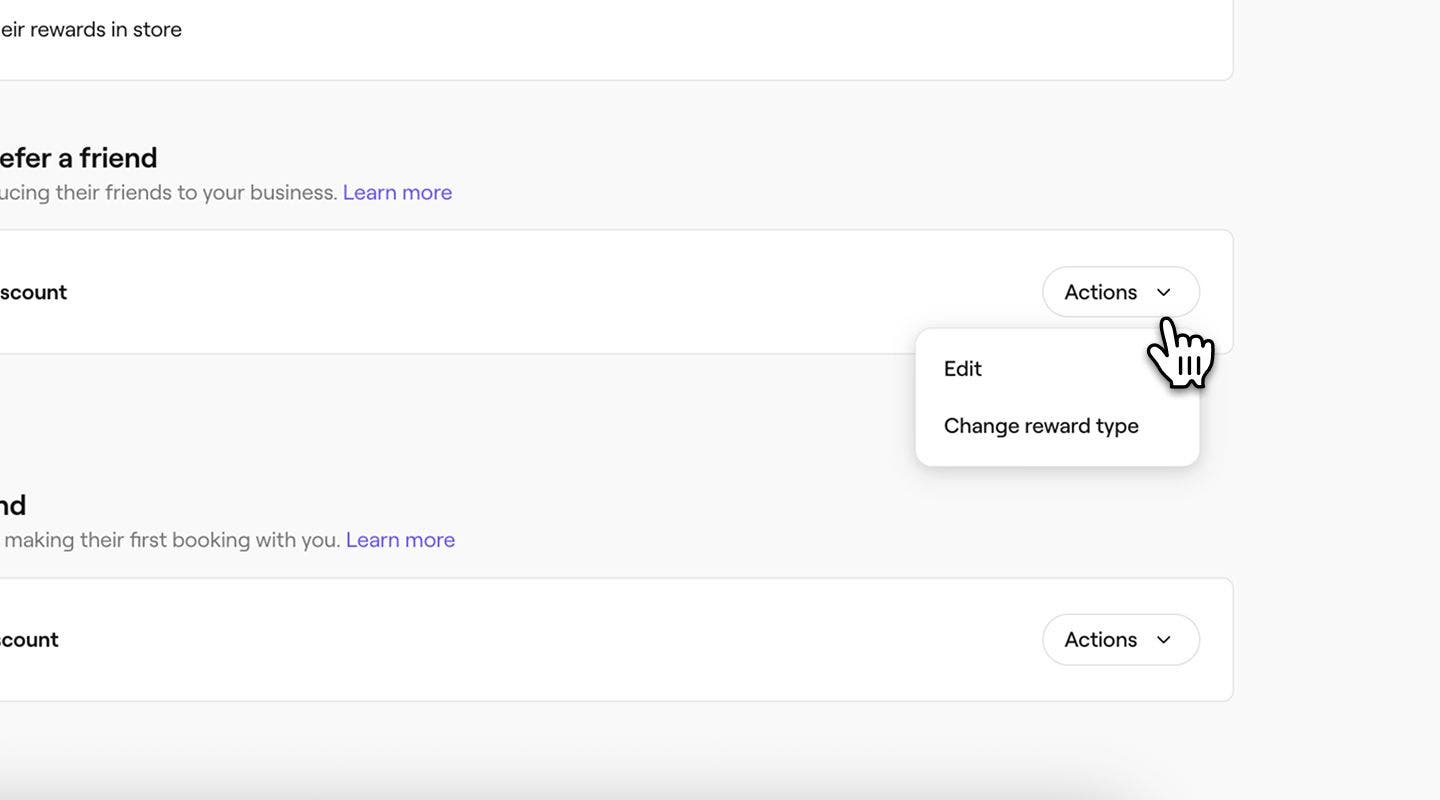
      Manage_rewards_Web_2.jpg
  1. Open Referrals from Client loyalty.
    manage_Settings_mob_1.jpg
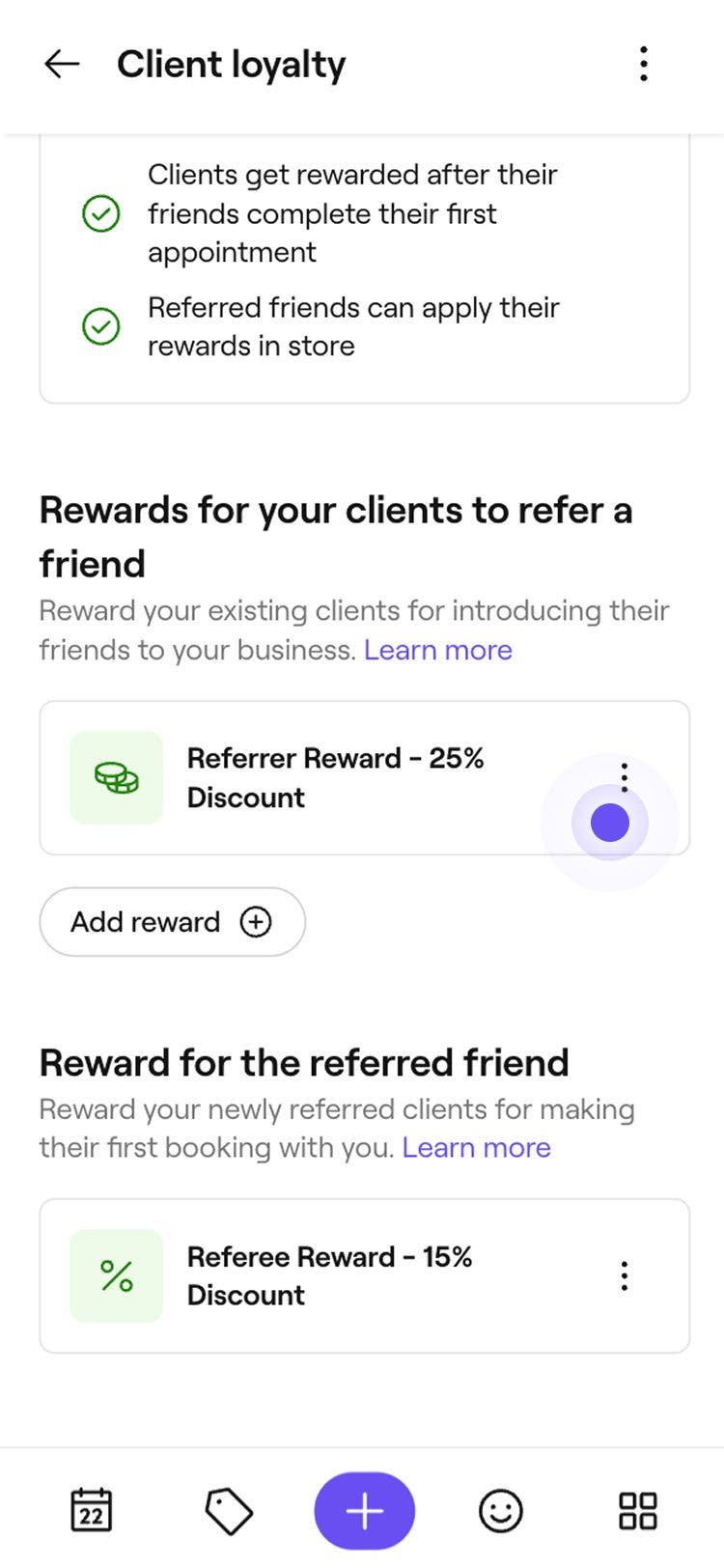
  2. Next to the reward for your client or the referred friend, tap on  Actions (three dots) and select one of the following options:
    1. Edit: Update the individual reward settings. 
    2. Change reward type: Choose different reward type from the options to reward your clients and the friends they referred with.
      Manage_rewards_mob_2.jpg

To add another reward for your existing clients, select the Add reward button under Rewards for your clients to refer a friend.

FAQs

    • A referral limit is the maximum number of rewards a client can earn for referring friends. Once the limit is reached, clients can continue referring friends, but no additional rewards are given.

      Marketplace New Client Fees are not applied when a new client books their first appointment using a referral link. If the client has already booked with your business, they are not considered a referral, and Marketplace fees may still apply depending on their client source.

      A client receives a reward once the referred friend has completed their first appointment. If the client has already reached their referral limit, no additional rewards are applied.


Client loyalty

Was this guide helpful?

Client loyalty

Client Loyalty overview

Reward clients with points and tiers to encourage repeat bookings and increase loyalty.

Understand how clients engage with your loyalty program

See how clients manage points, tiers, and rewards in their accounts.

Enable Client Loyalty

Select eligible items, apply your theme, and add terms and conditions for clients.

Set up and manage Client loyalty points

Enable points, set earning rules, and create rewards clients can claim with their points.

Set up and manage Client loyalty tiers

Create custom tiers, set goals, and add rewards and perks clients can unlock.

Set up and manage Client loyalty referrals

Grow your client list by rewarding clients for referring friends.

Create client loyalty rewards

Set up rewards that clients can unlock with points or tiers.

Apply rewards at checkout

Use existing rewards or claim new ones with client points at checkout.

Adjust a client’s rewards, points and tiers

Adjust points, change tiers and add or remove rewards from a client’s profile.

Fresha
Get the app

About Fresha

Careers

Help and support

Blog

Sitemap

For business

For partners

Pricing

Features

Scheduling

Point of sale

Payments

Capital

Marketplace

Support

Status

Legal

Privacy Policy

Terms of service

Terms of use

Find us on social

Facebook
Linkedin
Instagram

© 2026 Fresha.com SV Ltd