Understand how clients engage with your loyalty program
In this guide, you’ll learn how clients can track their loyalty progress, claim rewards, and refer friends.
In this article
How Client Loyalty works for clients
Once Client Loyalty is enabled for your business, both new and existing clients will be automatically enrolled in your loyalty program based on your setup. As they earn points, move through the loyalty tiers, or refer friends, they can easily track their progress and claim rewards directly from their Fresha account.
How clients can view their loyalty rewards
- When signed in to the Fresha marketplace app, clients can view their available rewards, including those from your business, on the home page under Your rewards.

- Clients can tap on a reward to open its details, including any terms and conditions, then tap on the Book now button to schedule an appointment.

Your client will be taken to your venue's booking page, where they can book an appointment and apply the rewards at the confirmation step. Or, you can apply it at checkout in-store.
Clients can also view a list of their available rewards in their wallet under Use your rewards.
Clients can also view a list of their available rewards in their wallet under Use your rewards.
How clients spend loyalty points
- From the main menu at the bottom of their screen, clients tap on the Profile icon and select View wallet.
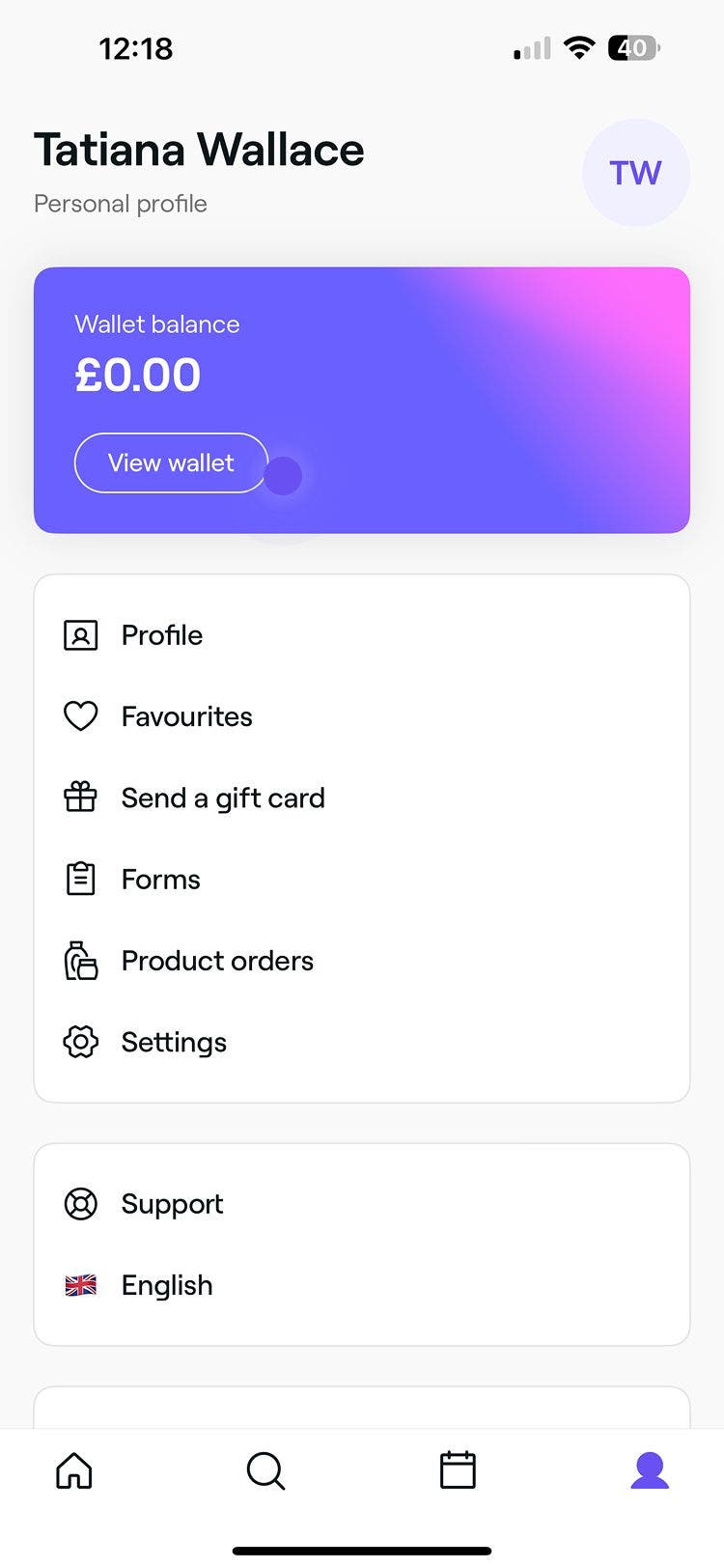
- Under Loyalty rewards, they tap View next to your venue to open a summary of their available rewards, points balance, and current tier.
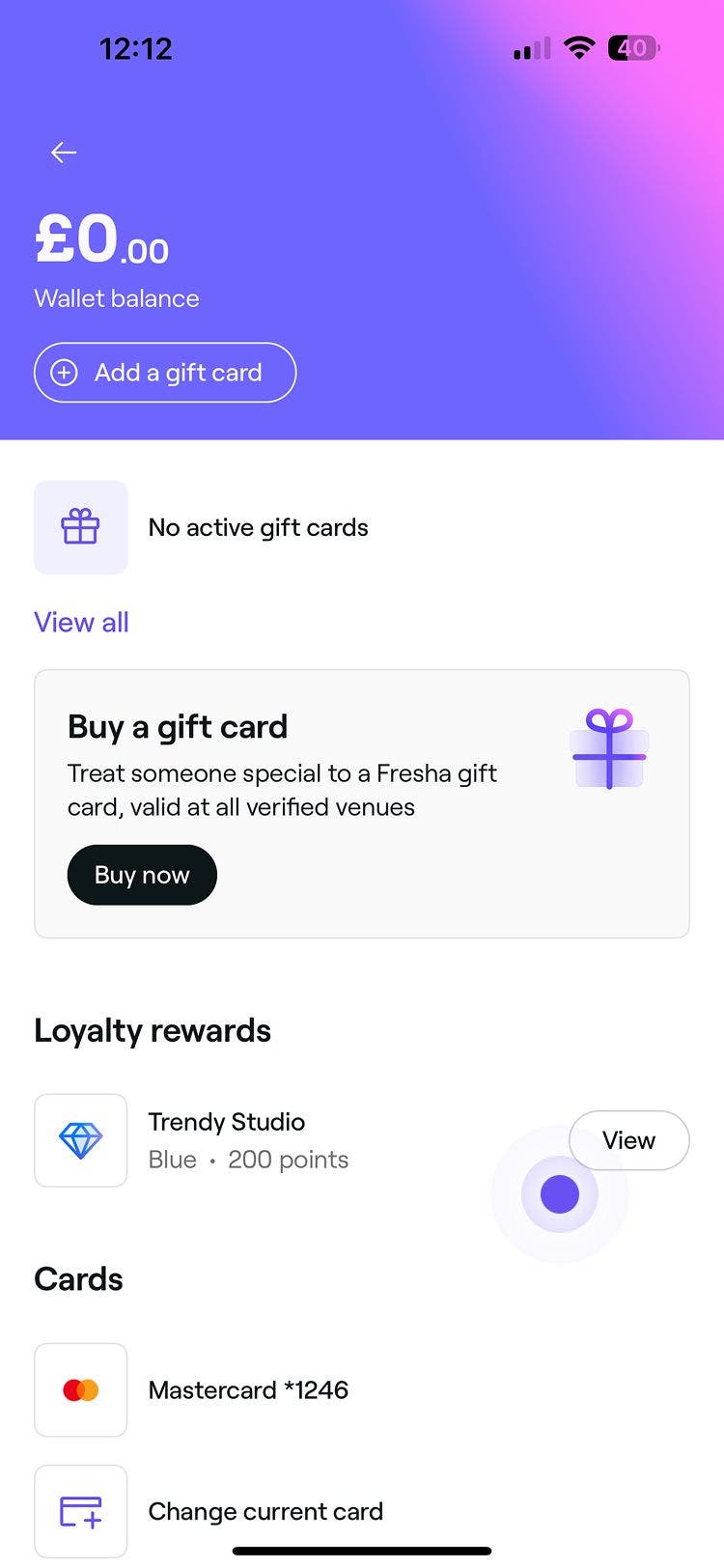
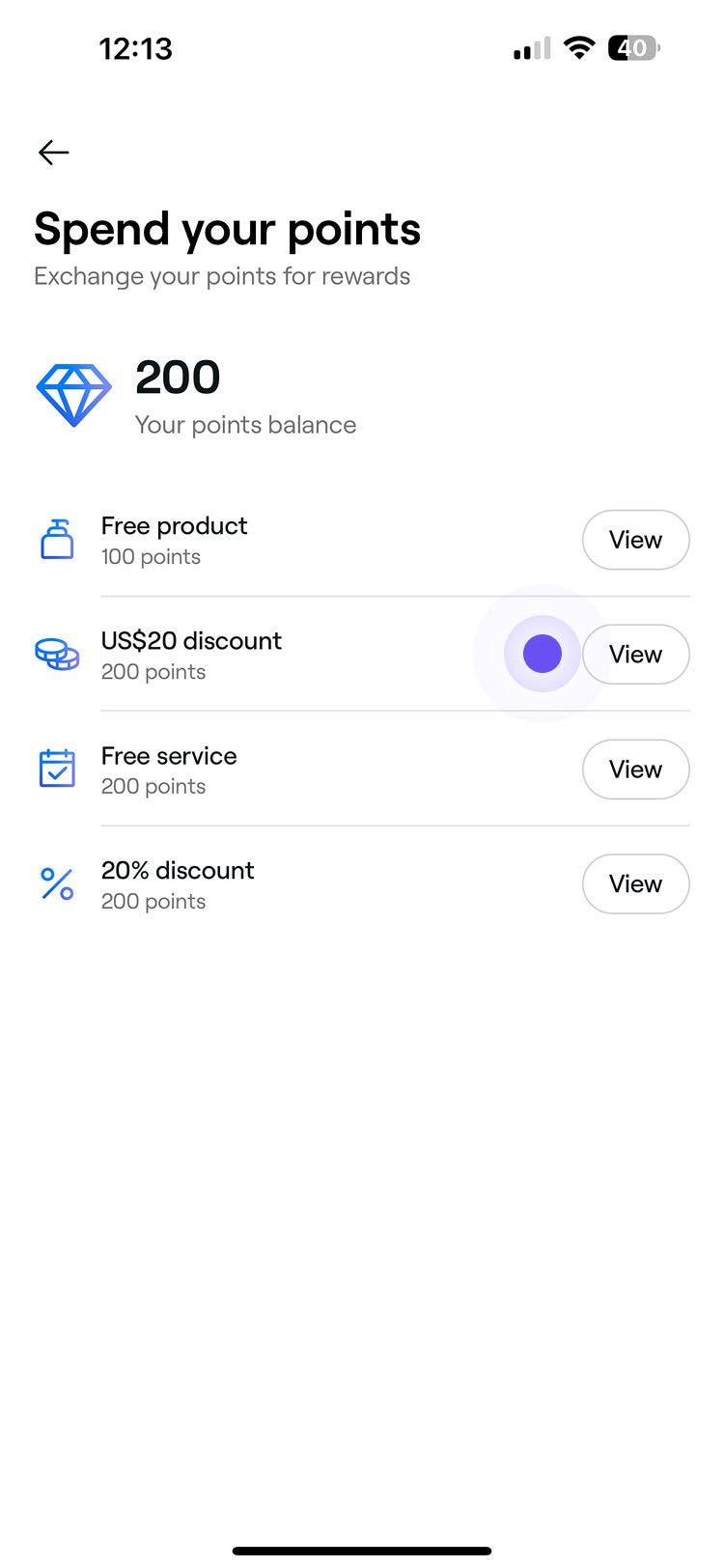
- Under Your points balance, they’ll select Spend your points.

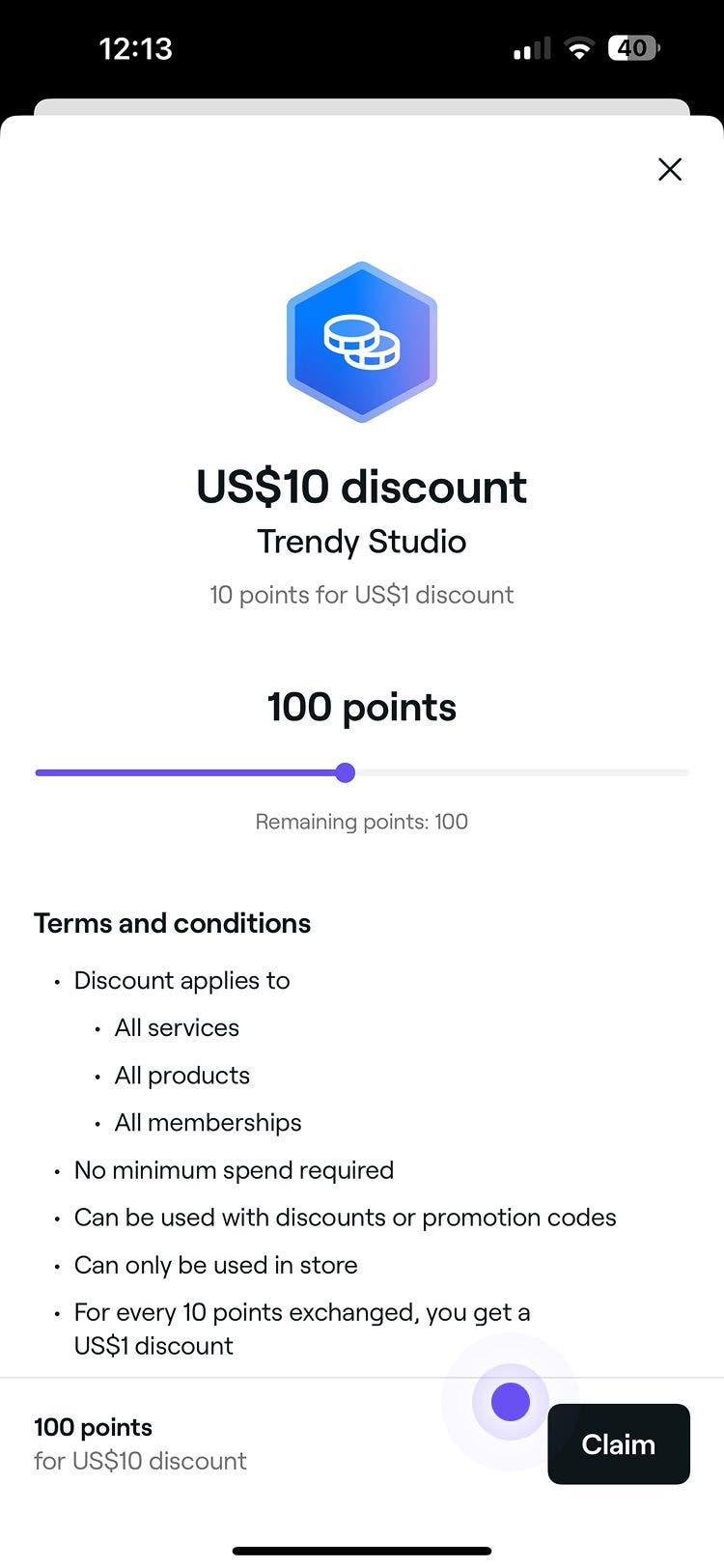
- They tap on View next to the reward they want to claim to review the reward's full terms and conditions.
- They can tap on the Claim button at the bottom to exchange their points for the selected reward.
- Your client will then be taken to your venue’s booking page, where they can select an appointment. At the confirmation step, the client then taps on the Apply loyalty rewards banner to see their available rewards.
- In the pop-up, the client then selects the reward they would like to apply to this booking.
- Once they’ve selected their reward, they can go ahead to confirm the appointment.
Once claimed, the reward can be used immediately or saved for later under Use your rewards.
How clients check their loyalty tiers
- From the client's Wallet they’ll see a list of venues where they are currently enrolled in a client loyalty program, under Loyalty rewards.
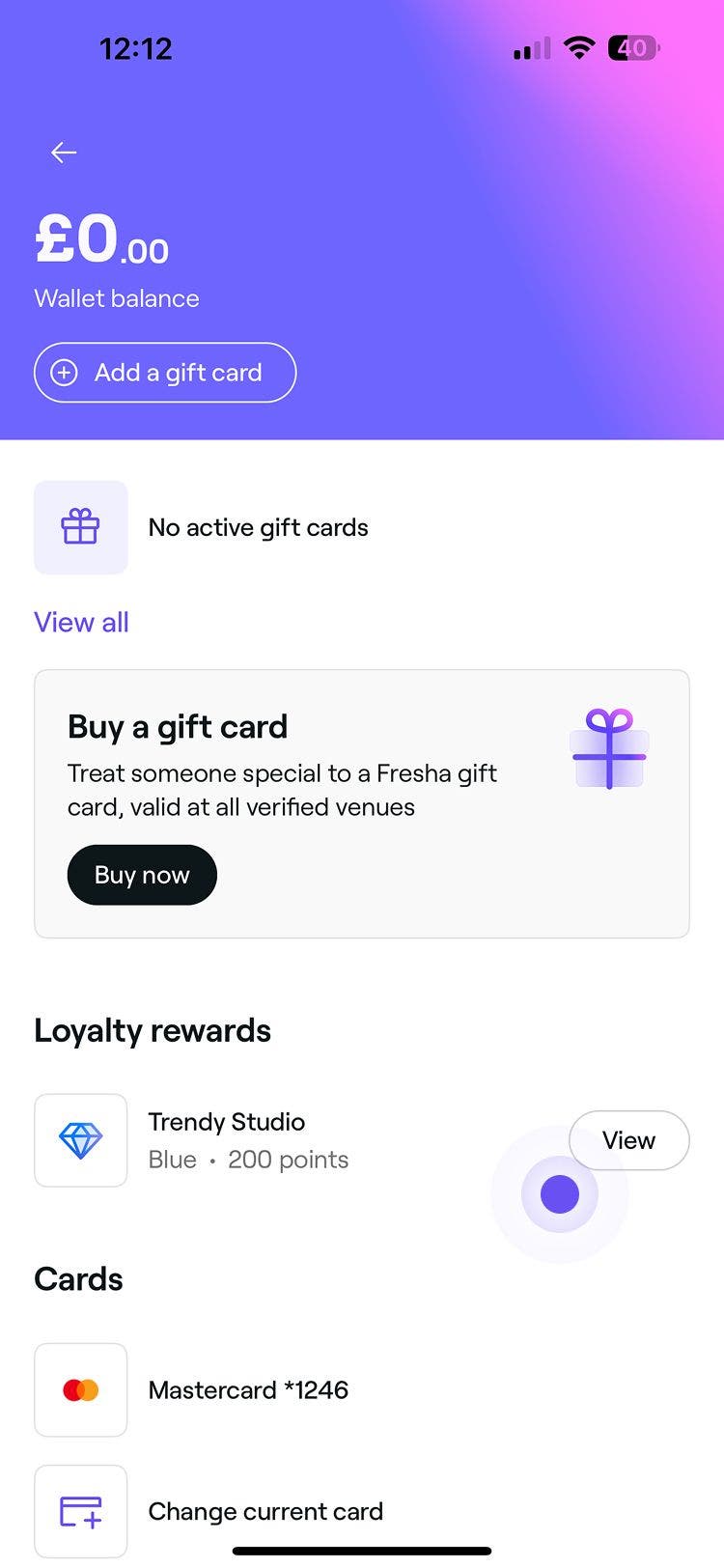
- Next to your venue, they can tap on the View button to open a summary of their available rewards, points balance, and current tier.

- Under Your current tier, they’ll see when they joined, along with the number of points or the amount they need to spend to reach the next tier.
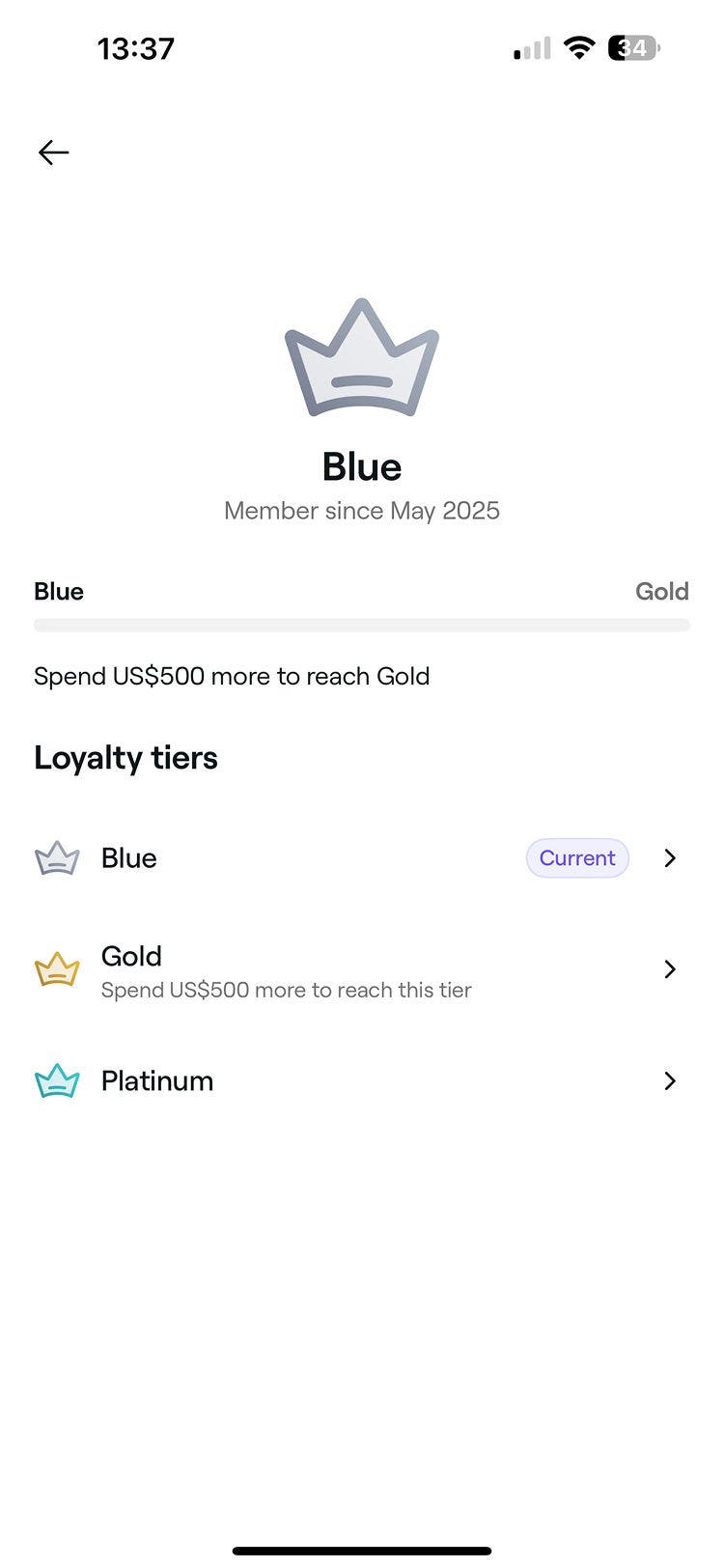
- They can also tap on each tier to see the spend required or points to qualify, tier-specific rewards (for example, discounts and free services), and extra perks.

If your client has opted into marketing notifications, they will receive a notification when their tier status changes.
How clients check their loyalty activity
- From the main menu at the bottom of their screen, clients tap on the Profile icon and select View wallet.
- Under Loyalty rewards, they tap View next to your venue to open a summary of their available rewards, points balance, and current tier.
- Clients can tap the Activity tab to open their loyalty activity log.
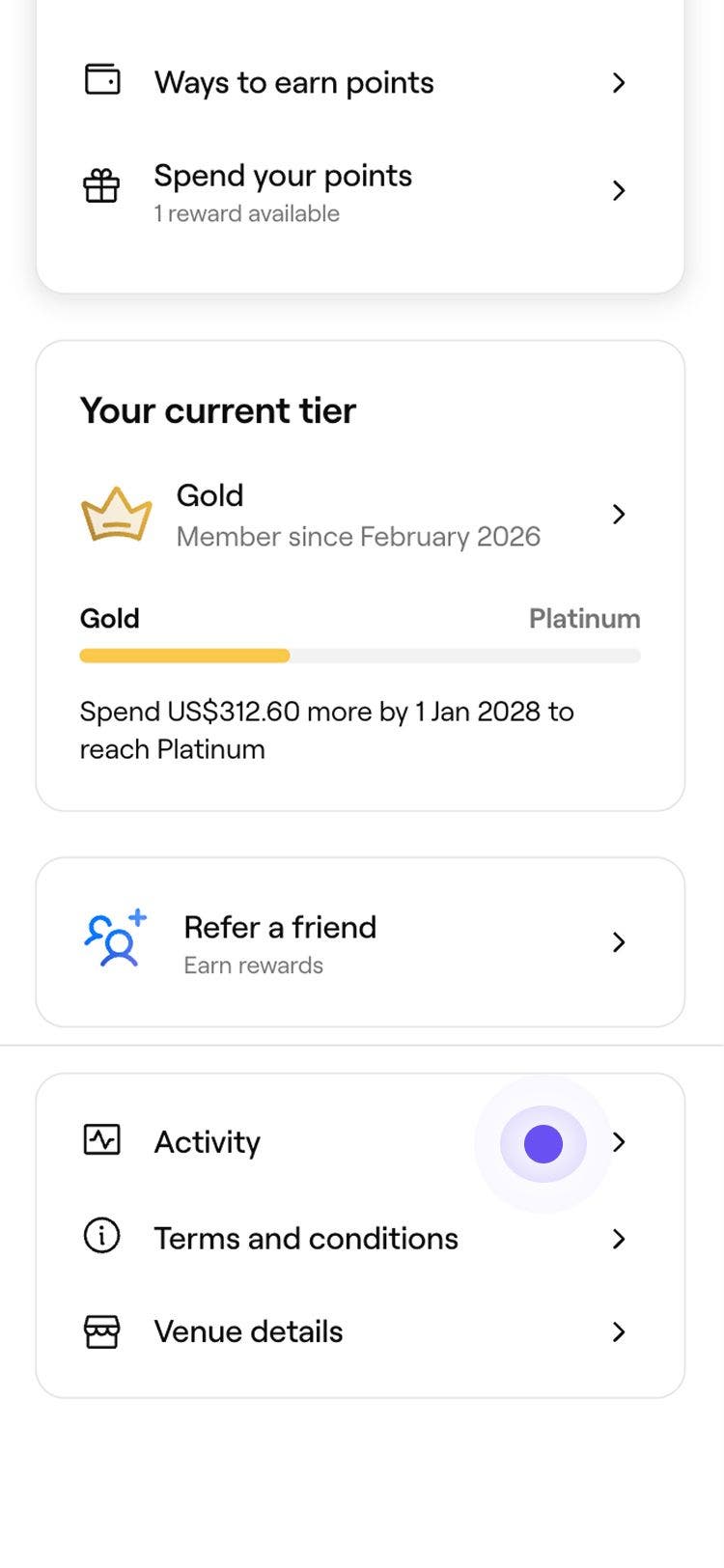
- This displays a complete history of their loyalty activity with your venue.

- To filter their activity, clients can tap the filter icon in the top right of their device and choose between:
- Points
- Tiers
- Referrals
- Rewards

How clients can refer their friends
- From the client's wallet, they’ll see a list of venues where they are currently enrolled in a loyalty program, under Loyalty rewards.
- Next to your venue, they can tap on the View button to open a summary of your rewards program.

- To refer a friend, clients can tap Refer a friend to see the offer for both themselves and their friend.

- They can tap on the Invite button to share their link via a messaging app or copy their unique code to send directly to friends.
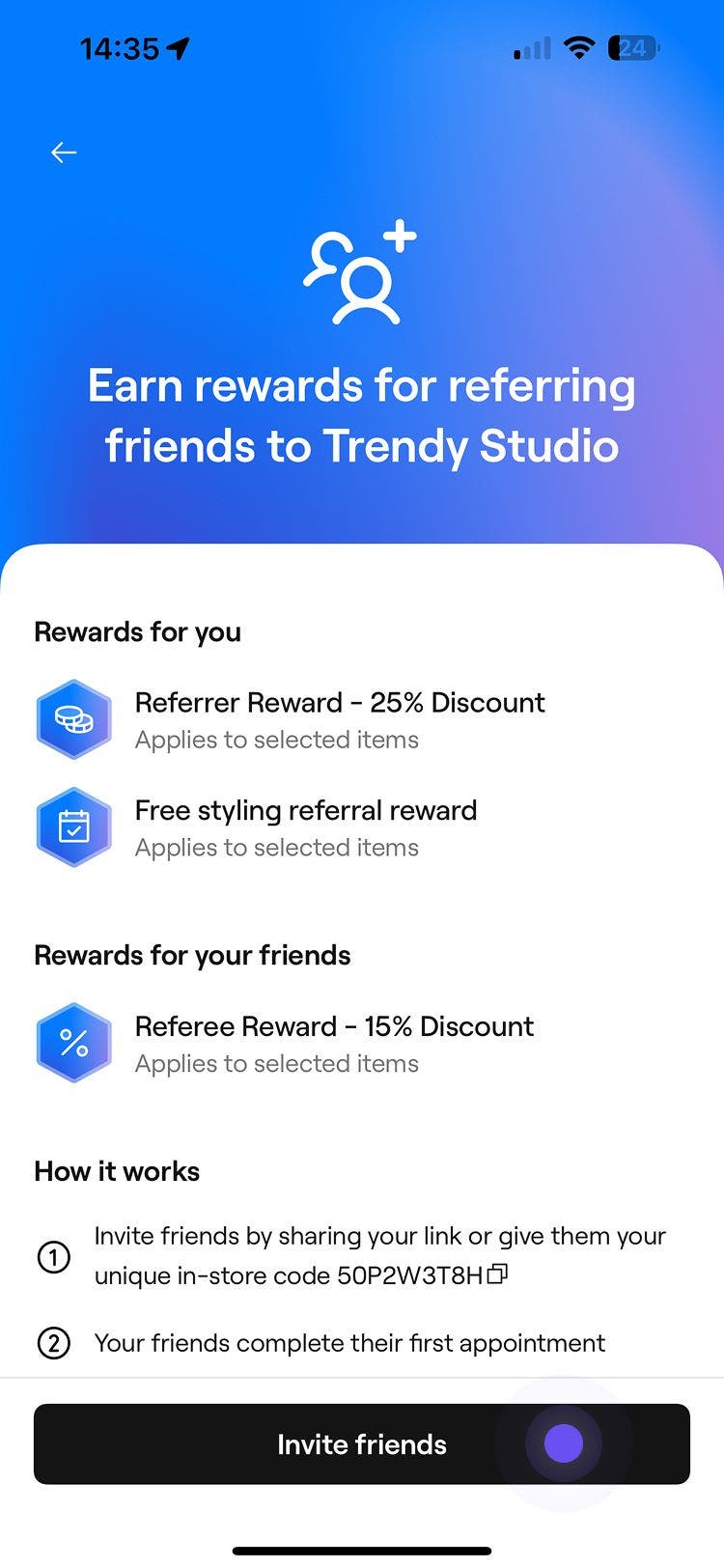
When a friend books using the referral link, they will receive their reward. Your existing clients will receive their rewards after their friend completes their appointment.
How clients access your loyalty terms and conditions
- From the client's Wallet they’ll see a list of venues where they are currently enrolled in a client loyalty program under Loyalty rewards.
- Next to your venue, they can tap View to open a summary of their available rewards, points balance, current tier, and referral link.

- They can select Terms and Conditions to view the details of your loyalty program, including any exclusions that may apply.

FAQs
Clients can’t cancel the points they’ve used to claim a reward, but you have full control to make adjustments as needed. You can manually update the client’s points balance, tier status, or rewards directly from their client profile.