HomeKnowledge baseFresha academy
Create client loyalty rewards
Back
  1. Knowledge base•
  2. Clients•
  3. Create client loyalty rewards

Create client loyalty rewards

In this guide, you'll learn how to set up rewards that clients can unlock with points or tiers.

In this article

  • How do client loyalty rewards work
  • Create an amount discount
  • Create a percentage reward
  • Create a free service reward
  • Create a free product reward

How do client loyalty rewards work

Rewards are designed to help strengthen loyalty and encourage repeat visits by recognising and rewarding client engagement. Clients can receive rewards by spending points, moving through tiers, or referring their friends. 

There are four types of rewards clients can receive:

  • Amount discount: A fixed rate discount, such as $5 or $10 off.
  • Percentage discount: A percentage rate discount, for example, 10% off.
  • Free service: A complimentary service offered to clients.
  • Free product: A product given to clients for free.

Create an amount discount

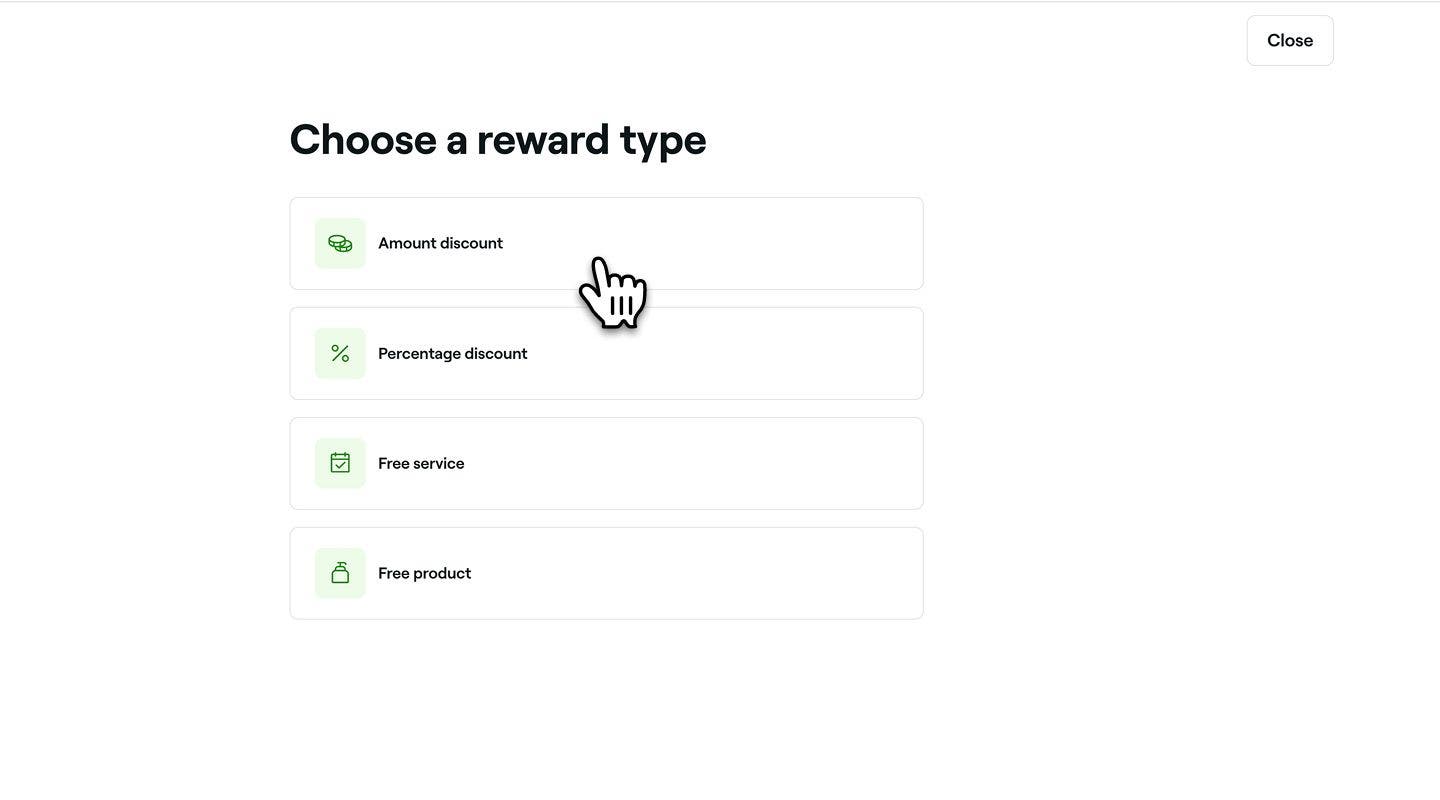
  1. In the Reward type step, select Amount discount to open the reward settings.
    amount_discount_award_web_1.jpg

  2. In the Amount discount reward view, set up the Point redemption method or Discount type, depending on where you are adding the reward from:

    1. Loyalty points: Choose whether clients redeem points with a fixed amount or in increments. If using increments, set the minimum and maximum point thresholds. Then, specify how many points are required to receive the discount. 
      amount_discount_reward_web_2.jpg
    2. Loyalty tiers: Select whether the discount is Single use only or Unlimited use.
      amount_discount_web_2_2.jpg
       
  3. When adding a discount reward in Loyalty tiers or referrals, under Discount value, enter the discount amount the client will receive. 
    amount_discount_web_3.jpg

  4. Tick the check box to set a custom reward name that clients will see when using their rewards. 
    amount_discount_web_4.jpg

  5. Click on Edit next to Services, Products, or Memberships, tick the items to include, then click Apply. 
    amount_discount_web_5.jpg

  6. Under Redemption limits, tick the check boxes next to each limit to set a minimum spend, expiration time frame, and whether the discount can be used with other offers or restricted to in-store redemption.
    amount_discount_award_web_5.jpg

  7. Click on the Add button in the top right to save the amount discount reward.

  1. In the Reward type step, select Amount discount to open the reward settings.
    amount_reward_1.jpg
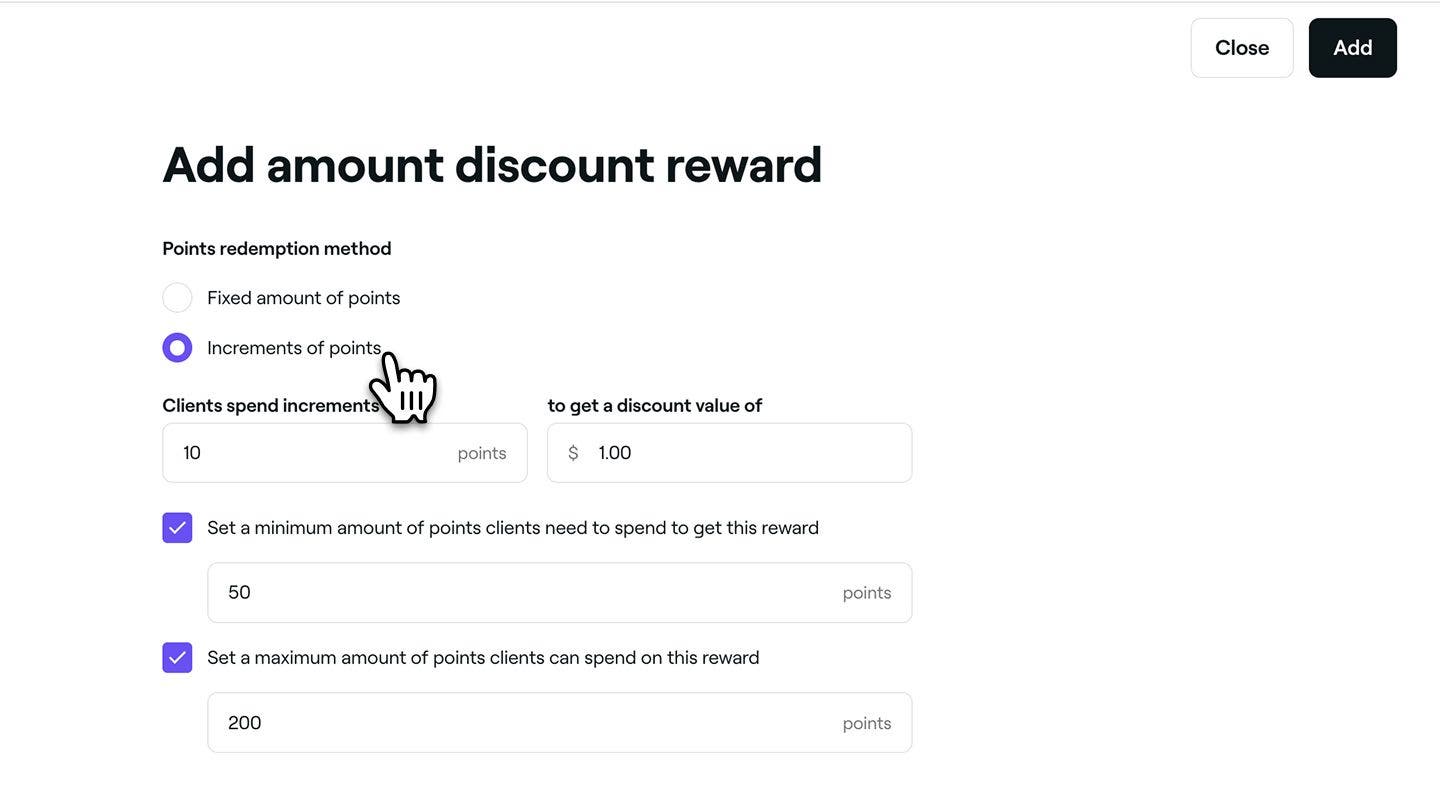
  2. In the Amount discount reward view, set up the Point redemption method or Discount type, depending on where you are adding the reward from:
    1. Loyalty points: Choose whether clients redeem points with a fixed amount or in increments. If using increments, set the minimum and maximum point thresholds. Then, specify how many points are required to receive the discount.
      amount_discount_reward_mob_2.jpg
    2. Loyalty tiers:  Select whether the discount is Single use only or Unlimited use.
      amount_reward_mob_2_2.jpg
  3. When adding a discount reward in Loyalty tiers or referrals, under Discount value, enter the discount amount the client will receive. 
    amount_reward_mob_3.jpg
  4. Tick the check box to set a custom reward name that clients will see when using their rewards. 
    amount_reward_mob_4.jpg
  5. Tap on Edit next to Services, Products, or Memberships, tick the items to include, then click Apply. 
    amount_reward_mob_5.jpg
  6. Under Redemption limits, tick the check boxes next to each limit to set a minimum spend, expiration time frame, and whether the discount can be used with other offers or restricted to in-store redemption.
    amount_discount_award_mob_5.jpg
  7. Tap on the Add button at the bottom to save the amount discount reward.

Create a percentage reward

  1. In the Reward type step, select Percentage discount to open the reward settings. 
    percentage_discount_reward_web_1.jpg
  2. In the percentage discount view, set up the Client spend or Discount type, depending on where you are adding the reward from:
    1. Loyalty points: Specify how many points are required to receive the percentage discount. For example, spending 100 points gives a 10% discount.
      percentage_reward_web_2_1.jpg
    2. Loyalty tiers: Select whether the discount is Single use only or Unlimited use.
      percentage_reward_web_2_2.jpg
  3. When adding a percentage reward in Loyalty tiers or referrals, under Discount value, enter the discount amount the client will receive. 
    percentage_reward_web_3.jpg
  4. Tick the check box to set a custom reward name that clients will see when using their rewards. 
    percentage_reward_web_4.jpg
  5. Click on Edit next to Services, Products, or Memberships, tick the items to include, then click Apply. 
    percentage_reward_web_5.jpg
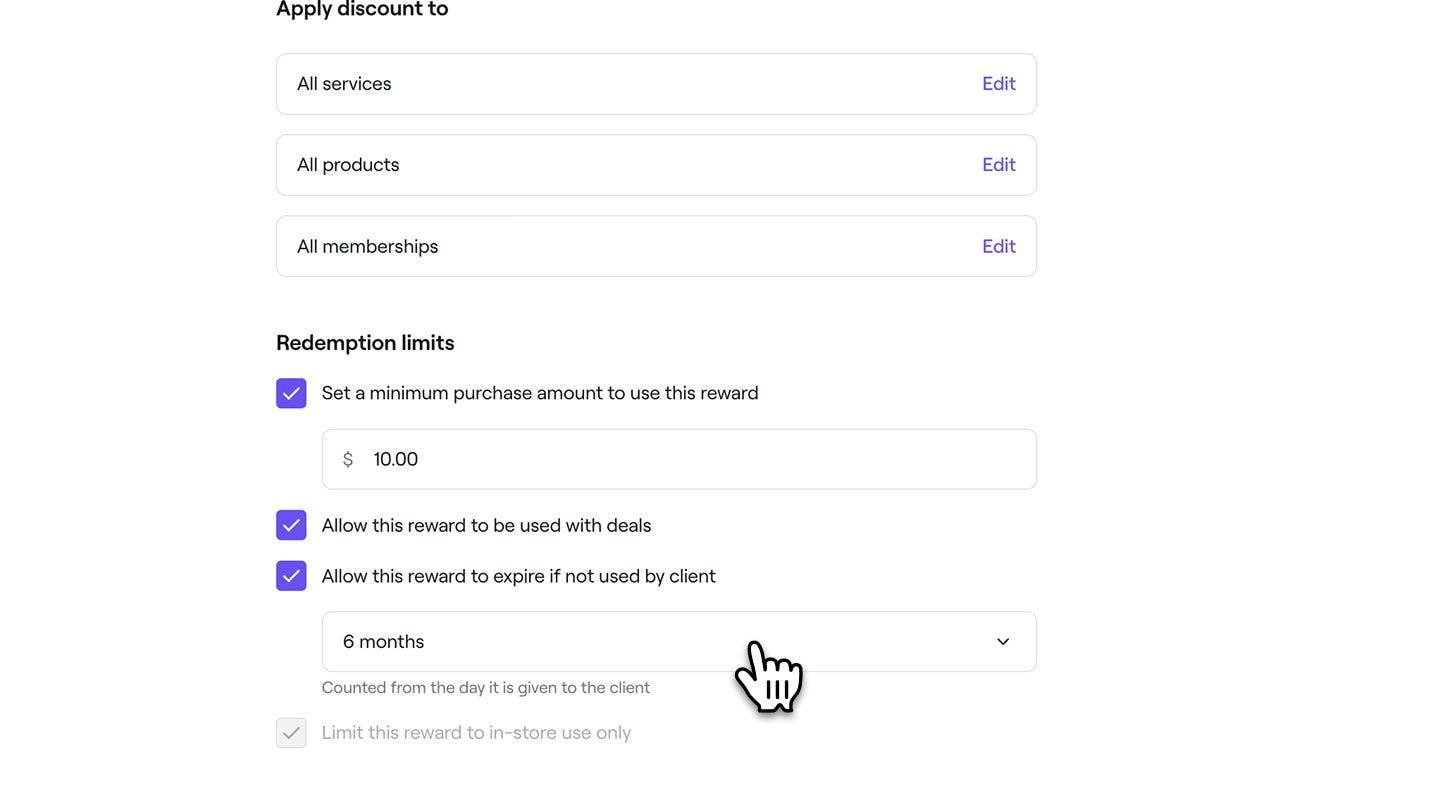
  6. Under Redemption limits, tick the check boxes next to each limit to set a minimum spend, expiration time frame, and whether the discount can be used with other offers or restricted to in-store redemption.
    percentage_discount_reward_web_5.jpg
  7. Click on the Add button in the top right to save the percentage discount reward.
  1. In the Reward type step, select Percentage discount to open the reward settings. 
    percentage_discount_reward_mob_1.jpg
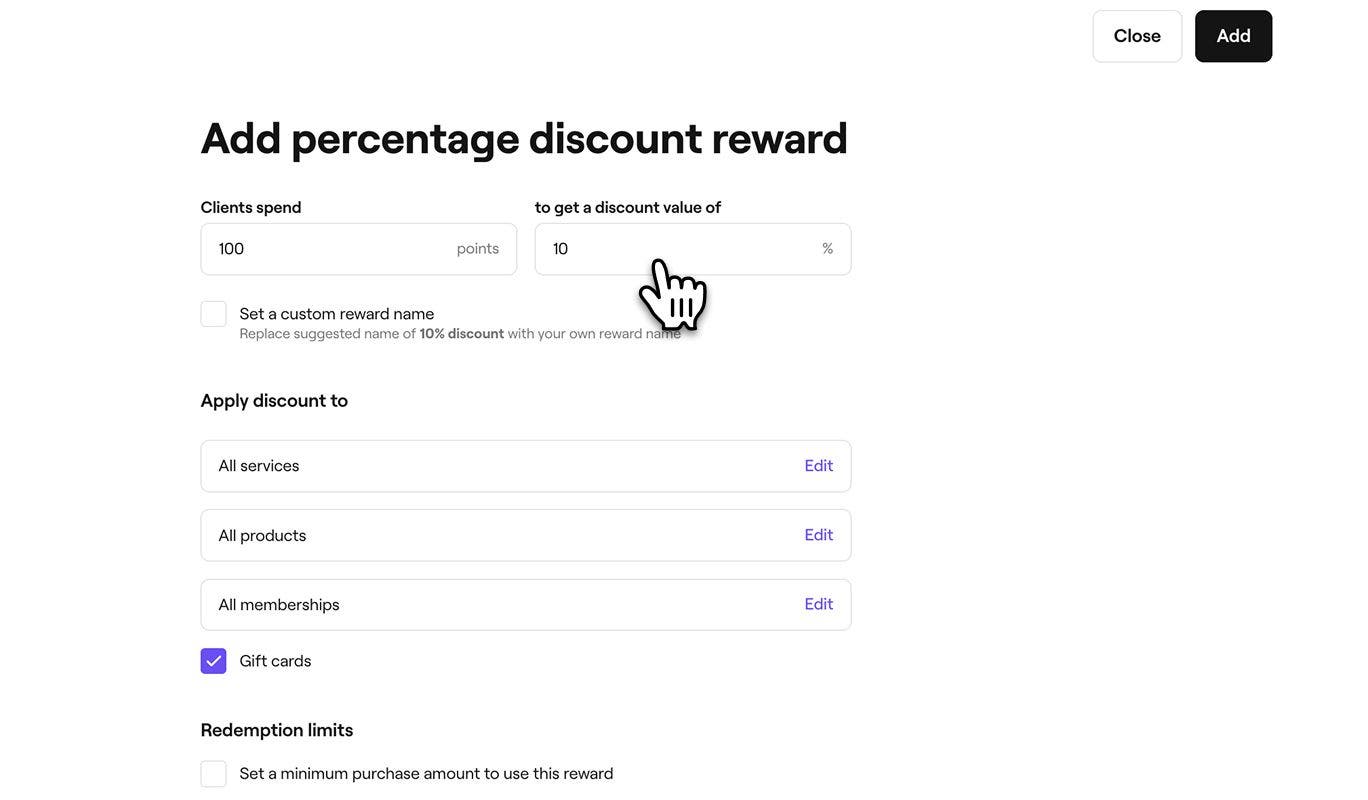
  2. In the percentage discount view, set up the Client spend or Discount type, depending on where you are adding the reward from:
    1. Loyalty points: Specify how many points are required to receive the percentage discount. For example, spending 100 points gives a 10% discount.
      percenatge_discount_mob_2_1.jpg
    2. Loyalty tiers: Select whether the discount is Single use only or Unlimited use.
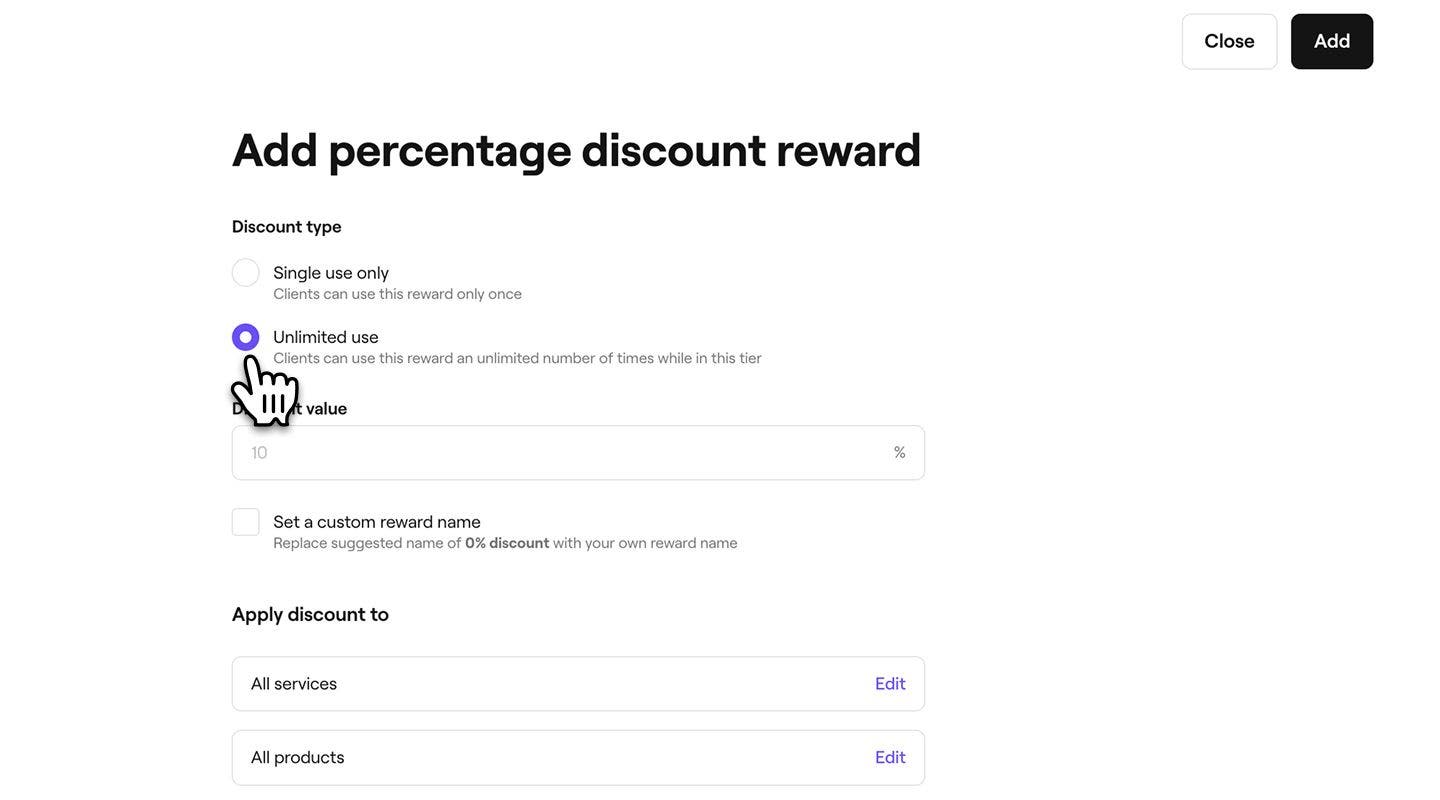
      percenatge_discount_mob_2_2.jpg
  3. When adding a percentage reward in Loyalty tiers or referrals, under Discount value, enter the discount amount the client will receive. 
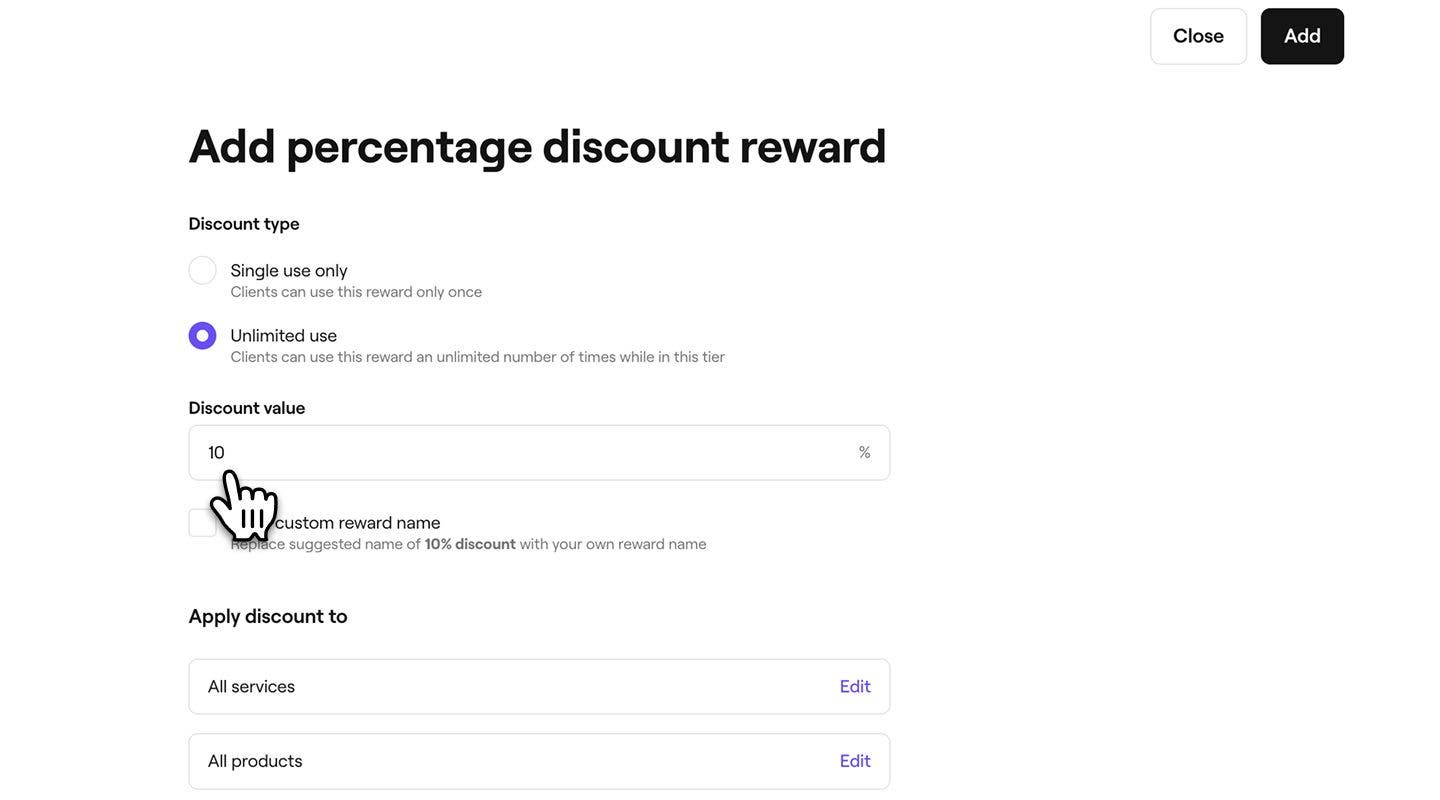
    percenatge_discount_mob_3.jpg
  4. Tick the check box to set a custom reward name that clients will see when using their rewards. 
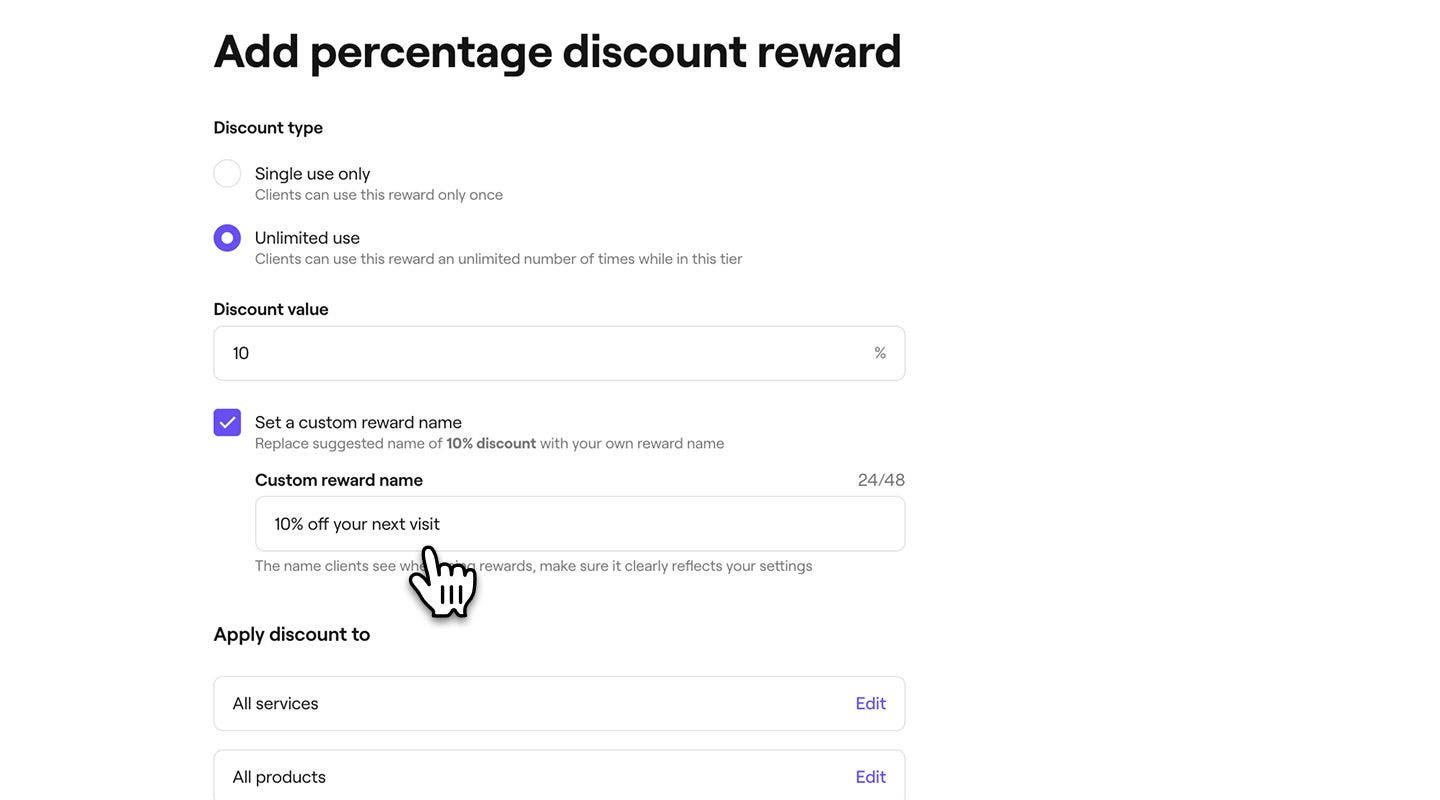
    percenatge_discount_mob_4.jpg
  5. Tap on Edit next to Services, Products, or Memberships, tick the items to include, then click Apply. 
     
  6. Undepercenatge_discount_mob_5.jpgr Redemption limits, tick the check boxes next to each limit to set a minimum spend, expiration time frame, and whether the discount can be used with other offers or restricted to in-store redemption.
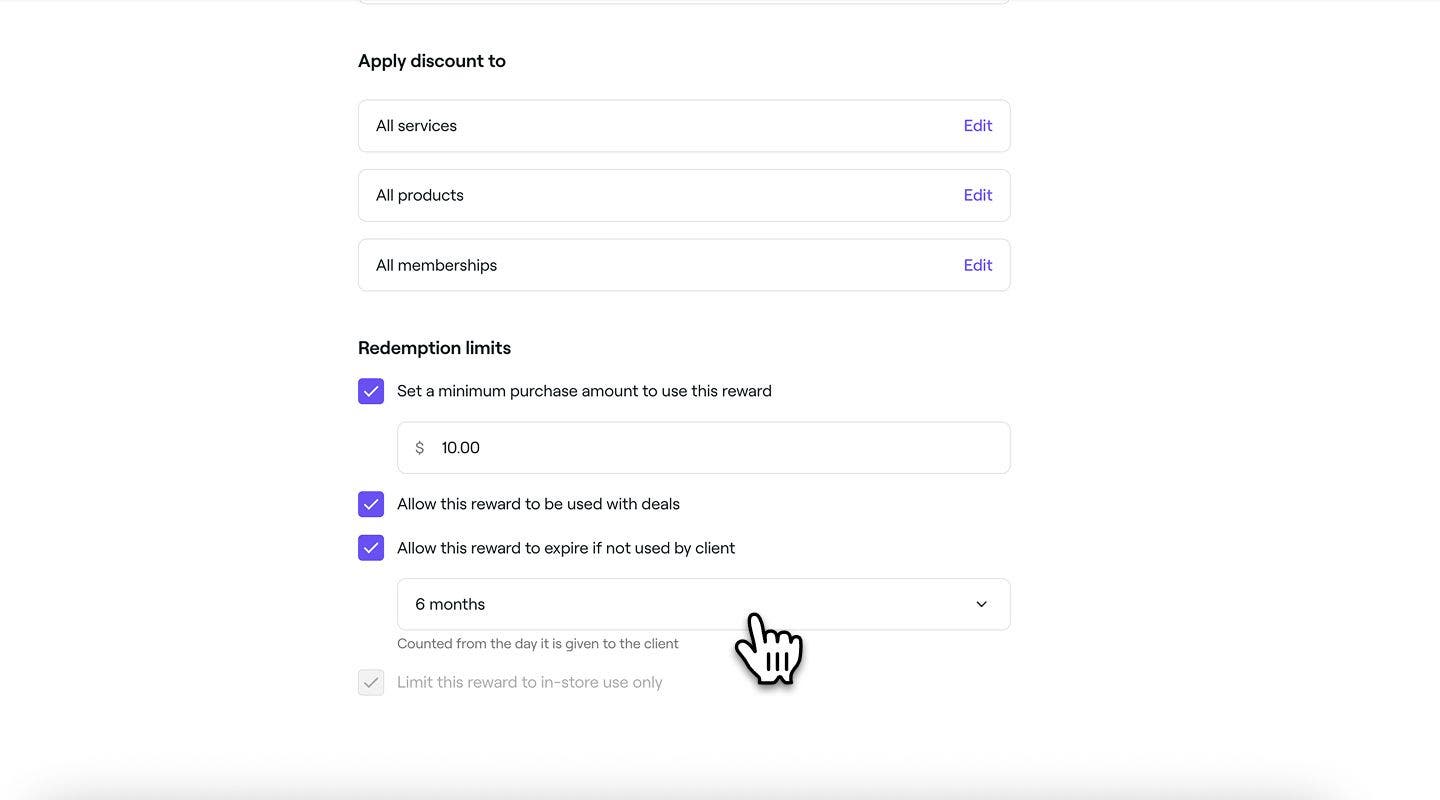
    percentage_discount_reward_mob_5.jpg
  7. Tap on the Add button at the bottom to save the percentage discount reward.

The percentage discount reward will be available for clients to redeem using points, unlock through loyalty tiers, or view in their wallet if added manually.

Create a free service reward

  1. In the Reward type step, select Free service to open the reward settings.
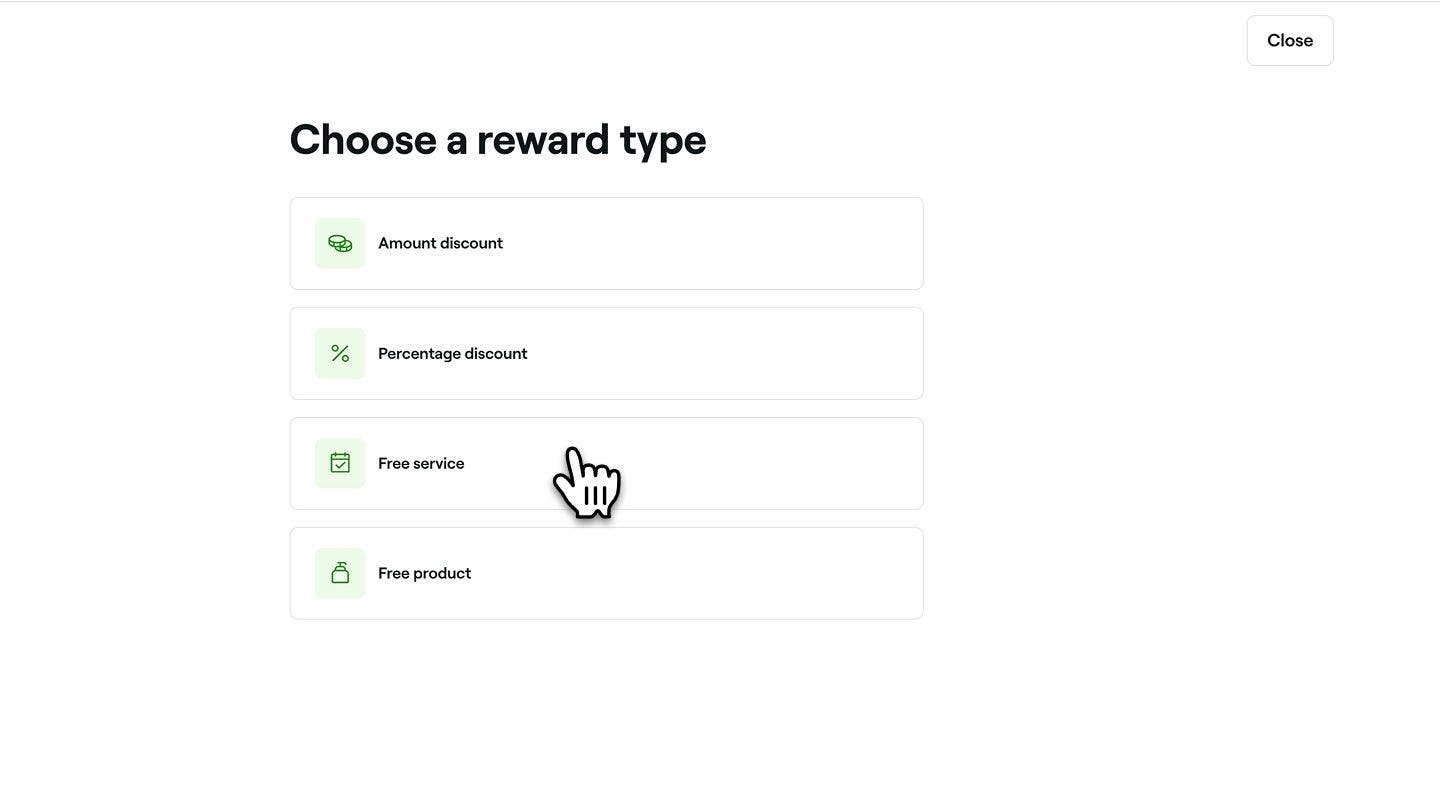
    free_service_reward_web_1.jpg
  2. Under Selected services, click on Edit next to Services, tick the items to include, then click Apply.
    free_service_web_2.jpg
  3. If you are adding a free product reward for Loyalty points, you can enter how many points clients must spend to claim the free service.
    free_service_web_3.jpg
  4. Tick the check box to set a custom reward name that clients will see when using their rewards. 
    free_service_web_4.jpg
  5. Under Redemption limits use the tick checkboxes to set limits like minimum spend, expiry timeframe, or restrict to in-store redemption.
    free_service_web_5.jpg
  6. Click on the Add button in the top right to save the free service reward.
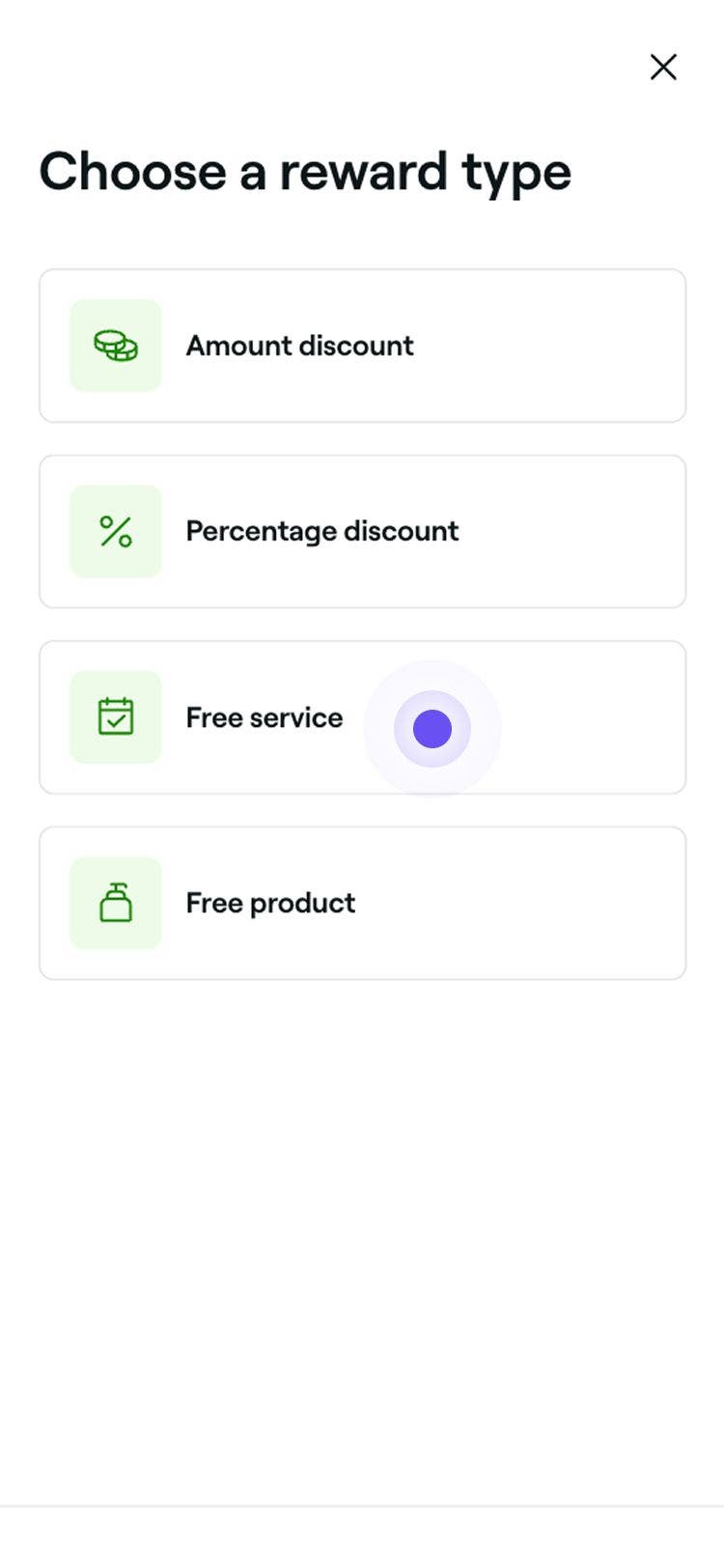
  1. In the Reward type step, select Free service to open the reward settings.   

    free_service_reward_mob_1.jpg

  2. Under Selected services tap on Edit next to Services, tick the items to include, then tap Apply.
    free_service_mob_2.jpg

  3. If you are adding a free product reward for loyalty points, you can enter how many points clients must spend to claim the free service.
    free_service_mob_3.jpg

  4. Tick the check box to set a custom reward name that clients will see when using their rewards. 
    free_service_mob_4.jpg

  5. Under Redemption limits use the tick checkboxes to set limits like minimum spend, expiry timeframe, or restrict to in-store redemption.
    free_service_mob_5.jpg

  6. Tap on the Add button at the bottom to save the free service reward.

The free service reward will be available for clients to redeem using points or unlock through loyalty tiers.

Create a free product reward

  1. In the Reward type step, select Free product to open the reward settings.
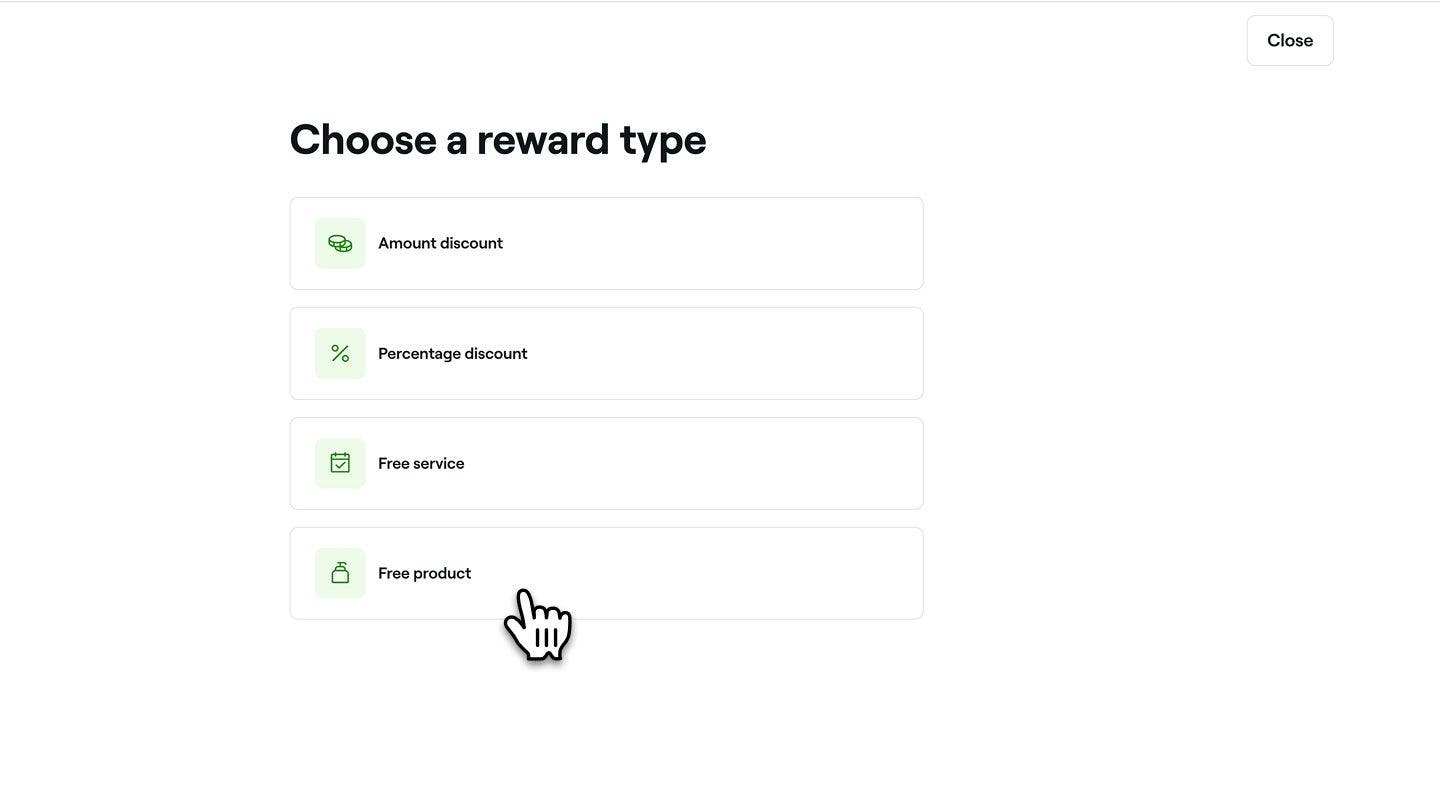
    free_product_reward_web_1.jpg
  2. Under Selected products, click on Edit next to Products, tick the items to include, then click Apply.
    free_product_web_2.jpg
  3. If you are adding a free product reward for Loyalty points, you can enter how many points clients must spend to claim the free product.
    free_product_web_3.jpg
  4. Tick the check box to set a custom reward name that clients will see when using their rewards. 
    free_product_web_4.jpg
  5. Under Redemption limits, use the tick checkboxes to set limits like minimum spend, expiry timeframe, or restrict to in-store redemption.
    free_product_web_5.jpg
  6. Click on the Add button in the top right to save the free product reward.
  1. In the Reward type step, select Free product to open the reward settings.
    free_product_reward_mob_1.jpg
  2. Under Selected products, tap on  Edit next to Products, tick the items to include, then select Apply.
    free_service_mob_2.jpg
  3. If you are adding a free product reward for loyalty points, you can enter how many points clients must spend to claim the free product.
    free_service_mob_3.jpg
  4. Tick the check box to set a custom reward name that clients will see when using their rewards. 
    free_service_mob_4.jpg
  5. Under Redemption limits, use the tick checkboxes to set limits like minimum spend, expiry timeframe, or restrict to in-store redemption.
    free_service_mob_5.jpg
  6. Tap on the Add button at the bottom to save the free product reward.

The free product reward will be available for clients to redeem using points or unlock through loyalty tiers.

Client loyalty

Fresha academy courses
Course video preview

Reward loyal clients

8 lessons•20 mins

See all courses

Was this guide helpful?

Client loyalty

Client Loyalty overview

Reward clients with points and tiers to encourage repeat bookings and increase loyalty.

Understand how clients engage with your loyalty program

See how clients manage points, tiers, and rewards in their accounts.

Enable Client Loyalty

Select eligible items, apply your theme, and add terms and conditions for clients.

Set up and manage Client loyalty points

Enable points, set earning rules, and create rewards clients can claim with their points.

Set up and manage Client loyalty tiers

Create custom tiers, set goals, and add rewards and perks clients can unlock.

Set up and manage Client loyalty referrals

Grow your client list by rewarding clients for referring friends.

Create client loyalty rewards

Set up rewards that clients can unlock with points or tiers.

Apply rewards at checkout

Use existing rewards or claim new ones with client points at checkout.

Adjust a client’s rewards, points and tiers

Adjust points, change tiers and add or remove rewards from a client’s profile.

Fresha academy courses
Course video preview

Reward loyal clients

8 lessons•20 mins

See all courses
Fresha
Get the app

About Fresha

Careers

Help and support

Blog

Sitemap

For business

For partners

Pricing

Features

Scheduling

Point of sale

Payments

Capital

Marketplace

Support

Status

Legal

Privacy Policy

Terms of service

Terms of use

Find us on social

Facebook
Linkedin
Instagram

© 2026 Fresha.com SV Ltd