HomeKnowledge baseFresha academy
Archive and delete items in your service menu
Back
  1. Knowledge base•
  2. Services•
  3. Archive and delete items in your service menu

Archive and delete items in your service menu

Learn how to permanently delete services, bundles, and categories or archive them if you plan to use them later.

In this article

  • Archive or delete services and bundles
  • Unarchive items in your service menu

Archive or delete services and bundles

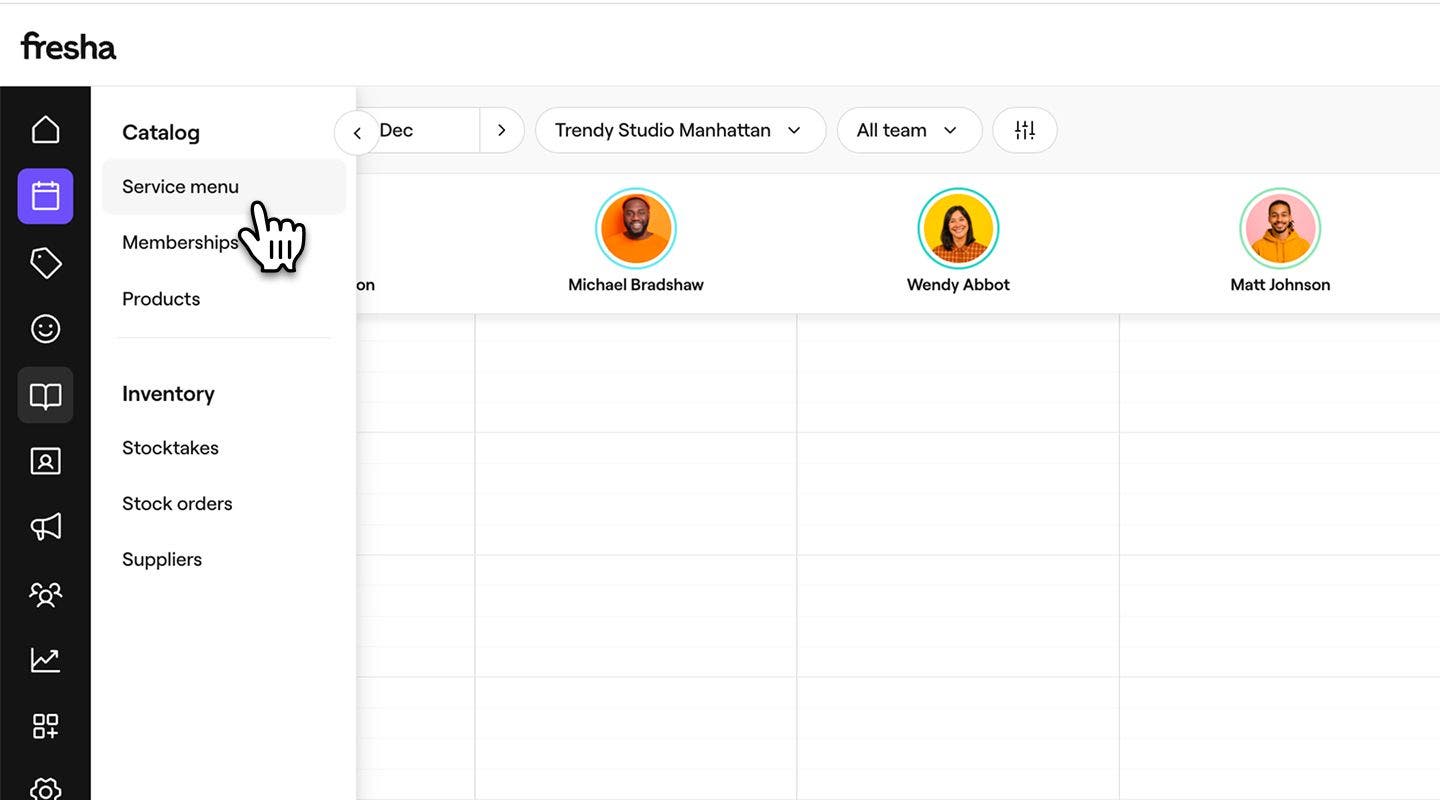
  1. From the main menu on the left of your screen, go to Catalog. 
  2. Select Service menu from the left menu panel. 
    archive_web_2.jpg
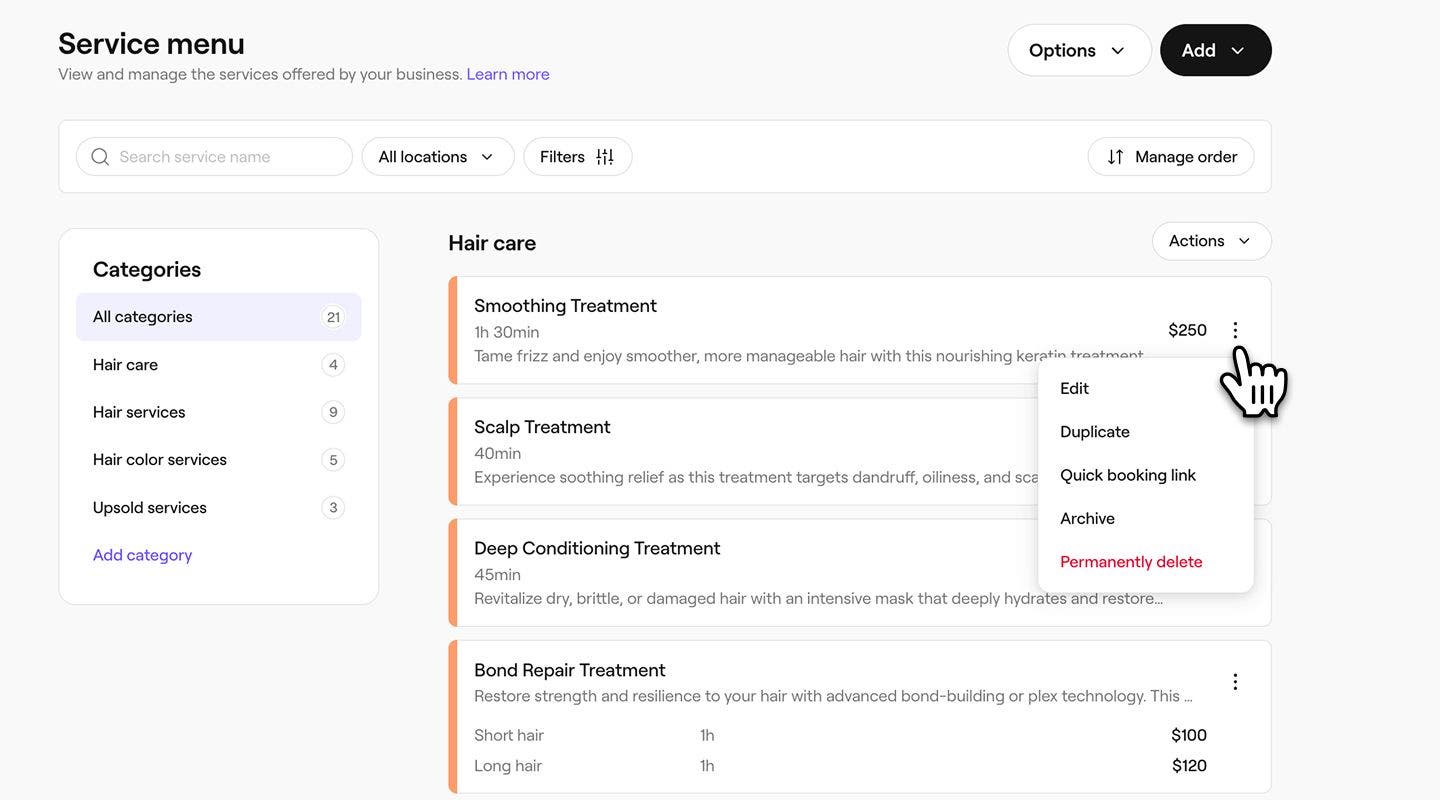
  3. Next to a service or bundle, click on Actions (three dots) and select one of the following options:
    1. Archive: Remove the category from your menu without deleting it permanently.
    2. Permanently delete: Remove the category from your service menu entirely.
      archive_web_3.jpg
  1. From the main menu at the bottom of your screen, tap on More (grid icon) and open Catalog.
  2. Select Service menu from the menu. 
  3. Tap a service and select one of the following options:
    1. Archive: Remove the category from your menu without deleting it permanently.
    2. Permanently delete: Remove the category from your service menu entirely.

Services that haven't been booked in the last year will be automatically archived.

Unarchive items in your service menu

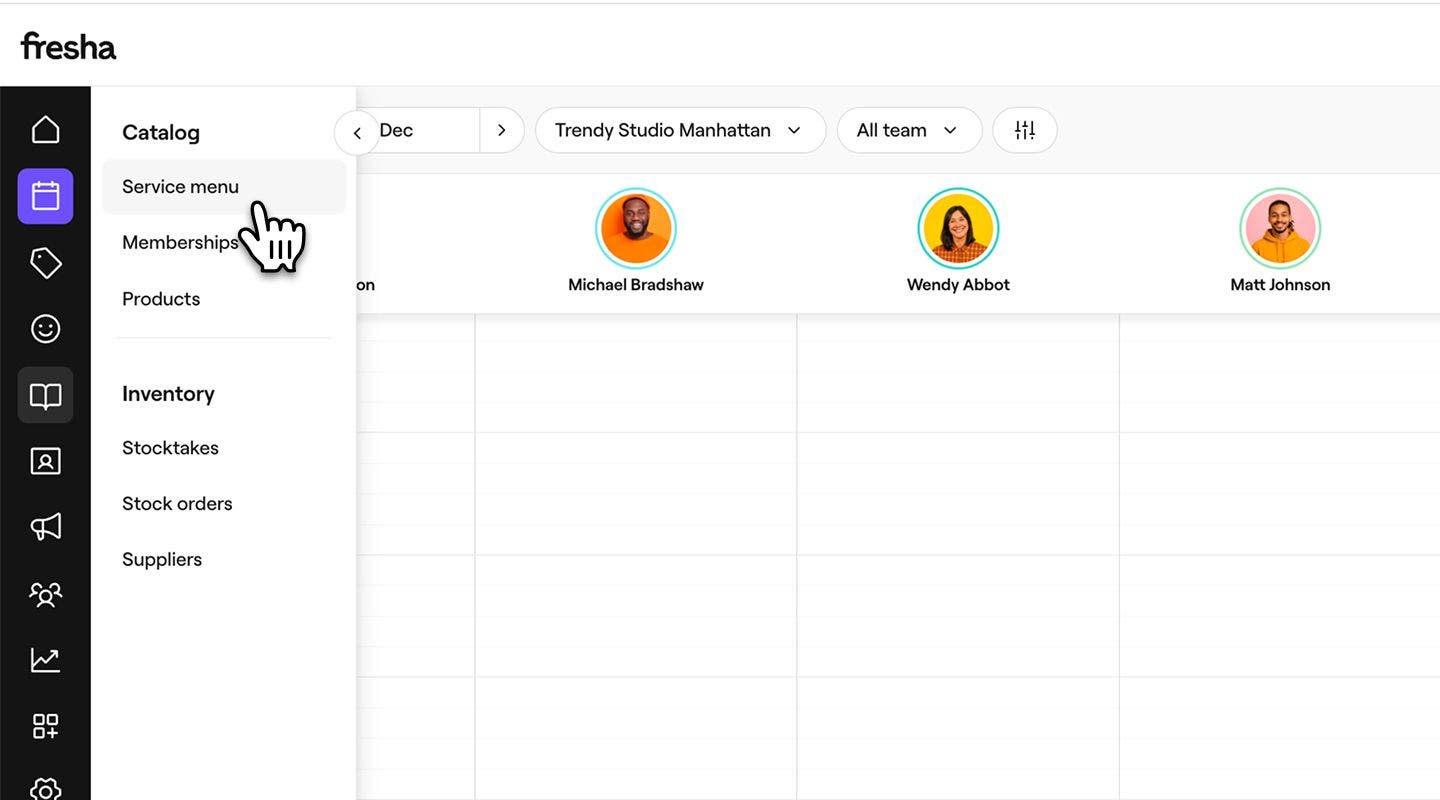
  1. From the main menu on the left of your screen, go to Catalog. 
  2. Select Service menu from the left menu panel. 
    unarchive_web_2.jpg
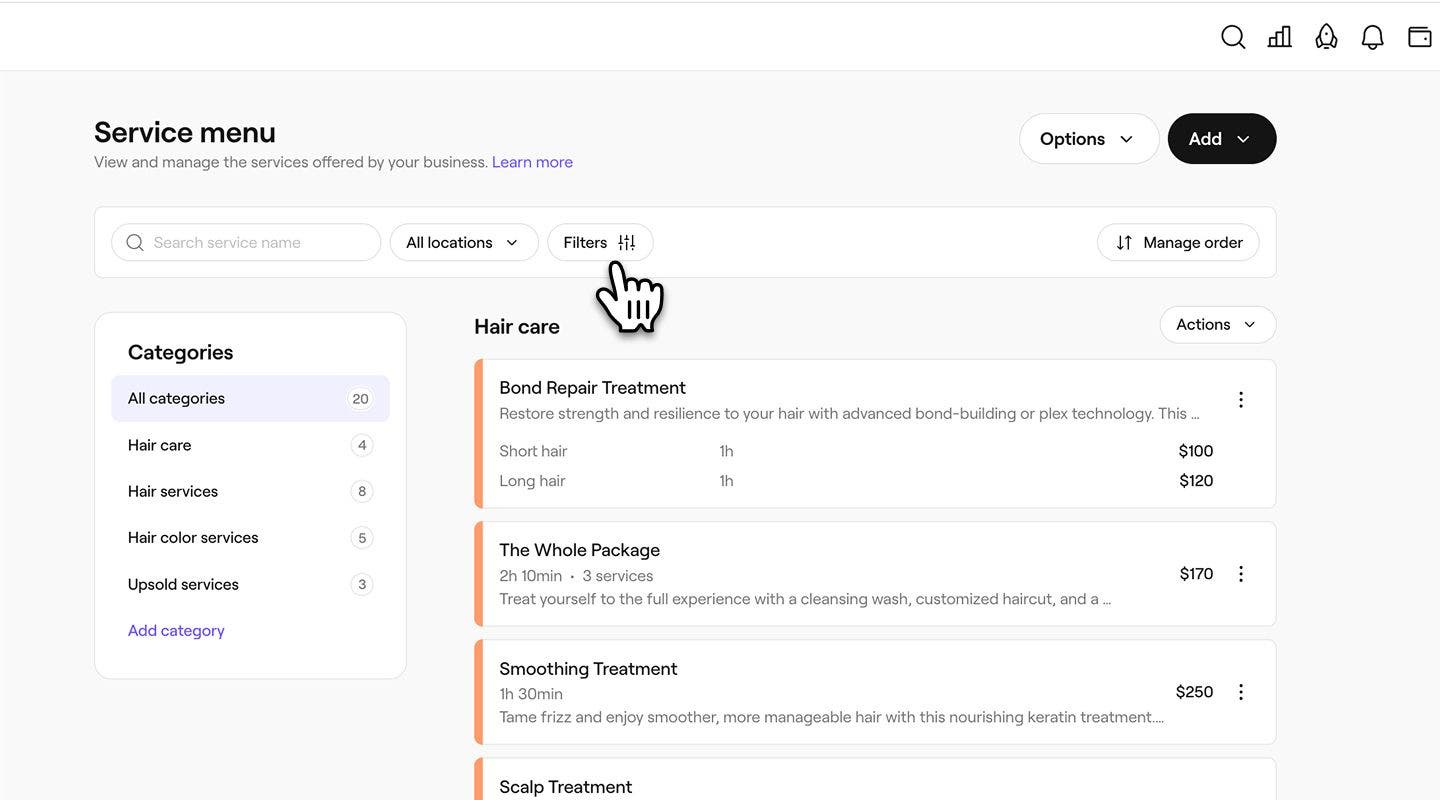
  3. Above the service menu, click on the Filters button in the toolbar.
    unarchive_web_3.jpg
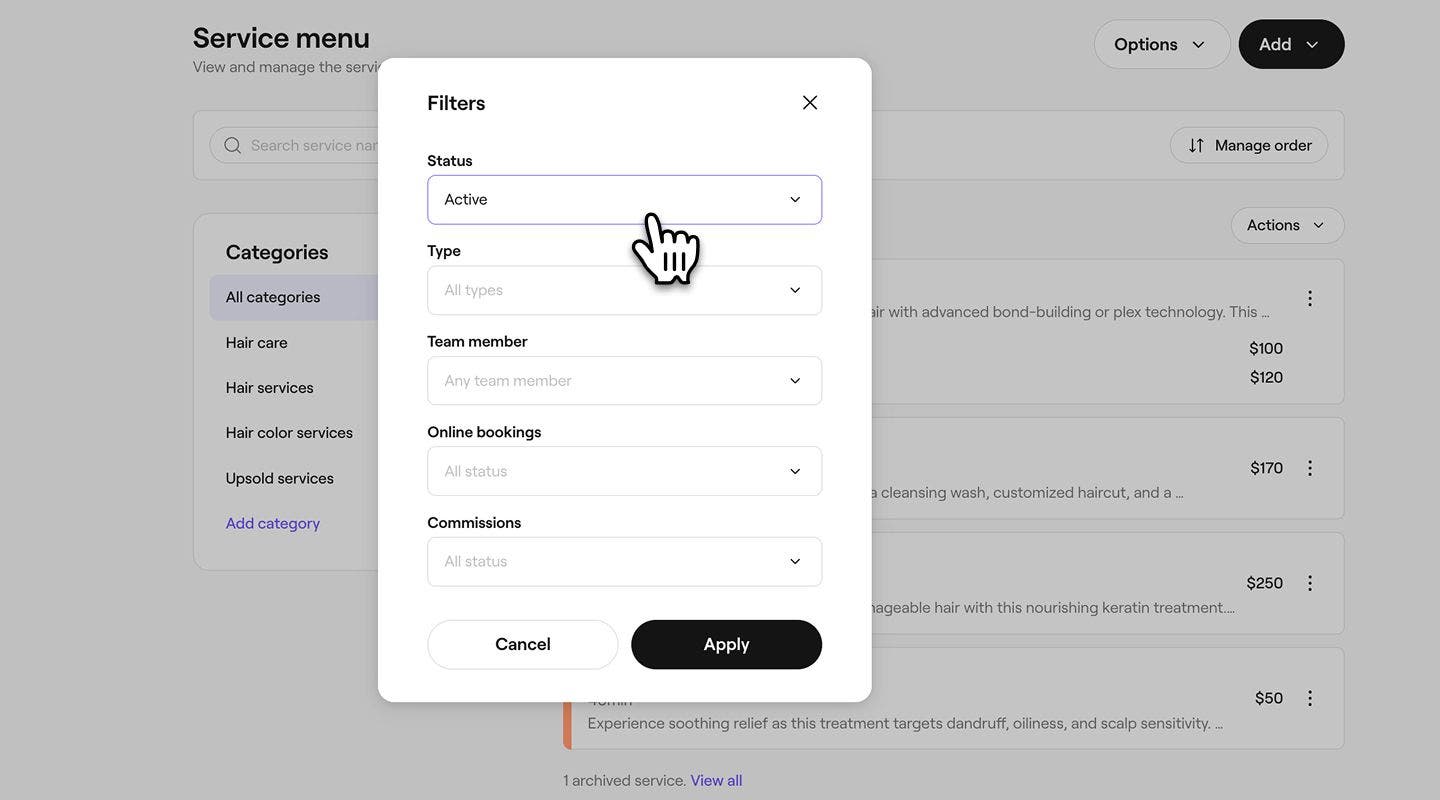
  4. In the filters pop-up, click on the drop-down under Status and select Archived. 
    unarchive_web_4.jpg
  5. Click on the Apply button at the bottom of the pop-up.
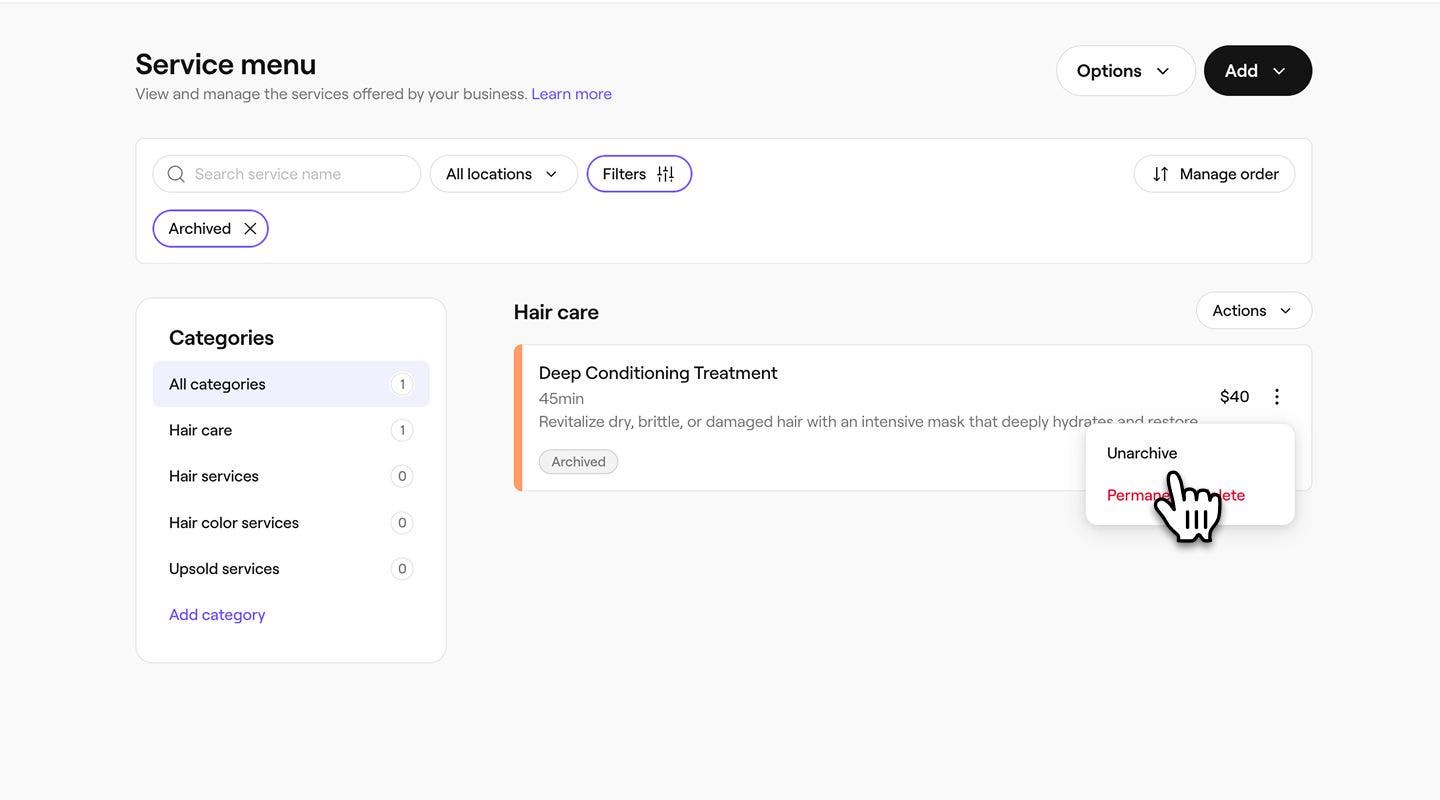
  6. Next to the archived service, bundle, or category, click on the Actions button, then select Unarchive.
    unarchive_web_6.jpg
  7. In the pop-up, click on the Unarchive button to confirm.
  1. From the main menu at the bottom of your screen, tap on More (grid icon) and open Catalog.
  2. Select Service menu to see your list of treatments.
  3. Above the service menu, click on the Filters button in the toolbar.
  4. In the pop-up, tap on the drop-down under Status and select Archived. 
  5. Tap on the Apply button at the bottom of the pop-up.
  6. archived service, bundle, or category, tap on  Actions (three dots), then select Unarchive.
  7. In the pop-up, tap on the Unarchive button to confirm.

Once unarchived, the item will appear again in your service menu, ready to be booked.

FAQs

    • Existing appointments will not be affected by archiving or deleting services. Any appointments that were scheduled before the service was archived or deleted will still be honored and appear in your appointment calendar.

      A service needs to be removed from the bundle before it can be archived or deleted in your menu. When a bundle is archived or deleted, only the bundle is hidden, and its individual services remain active.


Service menu


Related articles

Was this guide helpful?

Service menu

Create service bundles

Increase bookings with bundles that combine multiple services into one convenient option for clients.

Manage service categories

Organize your services into categories to make it easier for clients to browse and book.

Set services to book in sequence

Ensure your services are booked and delivered in the correct order with a service booking sequence.

Order your service menu

Organize your service menu to make it easier for clients to view and book services online.

Best practices for creating your service menu

Create a clear, professional service menu that improves your Marketplace visibility and helps clients easily understand and book your treatments.

Archive and delete items in your service menu

Keep your service menu up to date by archiving or deleting services and bundles.

Export your service menu

Export your service menu from Fresha for easy record keeping.

Related articles

Create services

Create and manage your treatment offerings by setting up single services.

Create service bundles

Increase bookings with bundles that combine multiple services into one convenient option for clients.

Set services to book in sequence

Ensure your services are booked and delivered in the correct order with a service booking sequence.

Fresha
Get the app

About Fresha

Careers

Help and support

Blog

Sitemap

For business

For partners

Pricing

Features

Scheduling

Point of sale

Payments

Capital

Marketplace

Support

Status

Legal

Privacy Policy

Terms of service

Terms of use

Find us on social

Facebook
Linkedin
Instagram

© 2026 Fresha.com SV Ltd