Set services to book in sequence
Learn how to organise the order of your services during booking to ensure treatments are scheduled in the correct order.
In this article
How service sequencing works
Service sequencing lets you set the order that related treatments must be scheduled in, so appointments follow the correct flow.
When a client books multiple services online, the services in your sequence will always be scheduled in the order you’ve set, no matter what order the client selects them in. Any services that aren’t part of the sequence will be added separately, based on the order the client chooses.
To manage how services appear when clients are browsing your service menu, update your service menu order.
Set a booking sequence
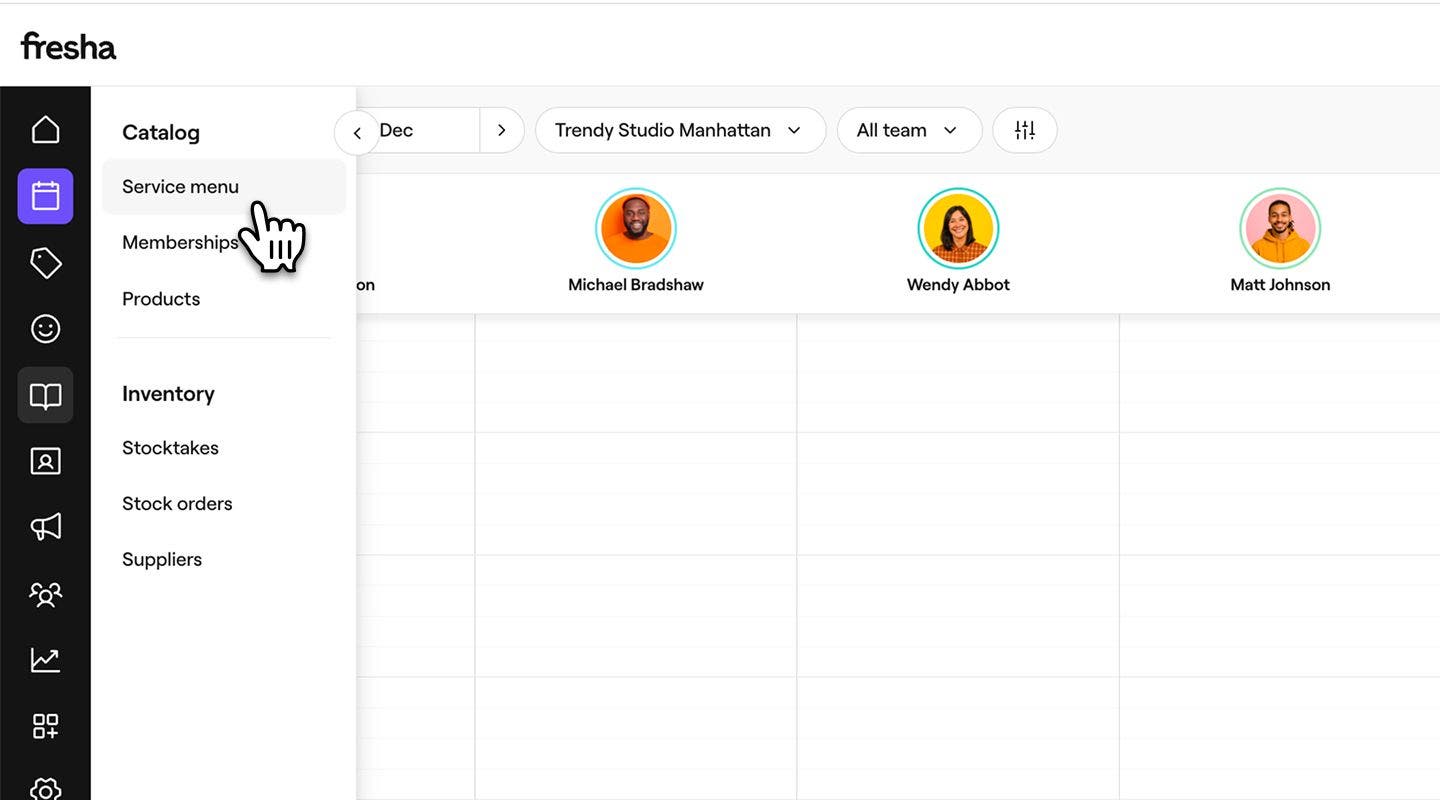
- From the main menu on the left of your screen, go to Catalog.
- Select Service menu from the left menu panel.
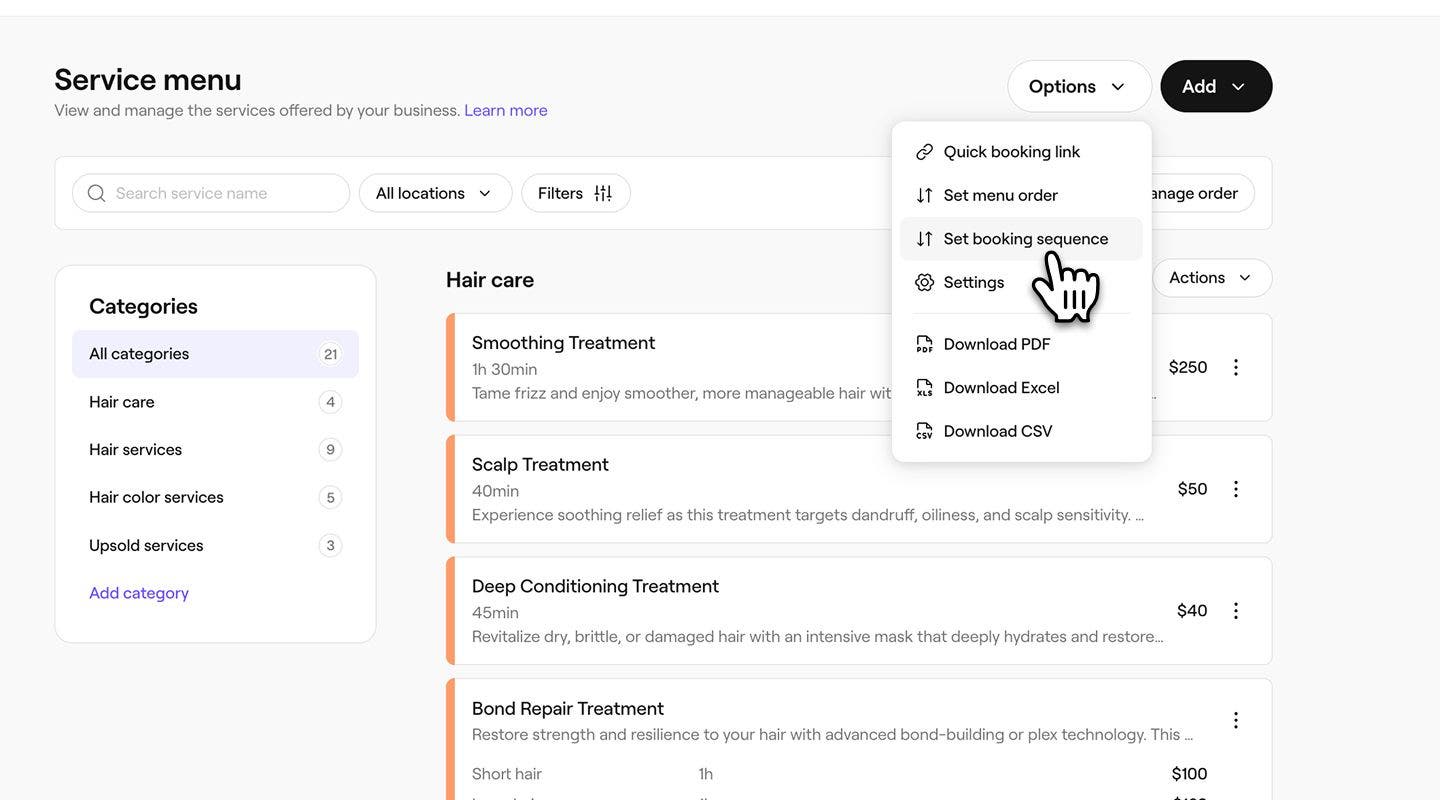
- Click on the Options button in the top right, then select Set booking sequence.
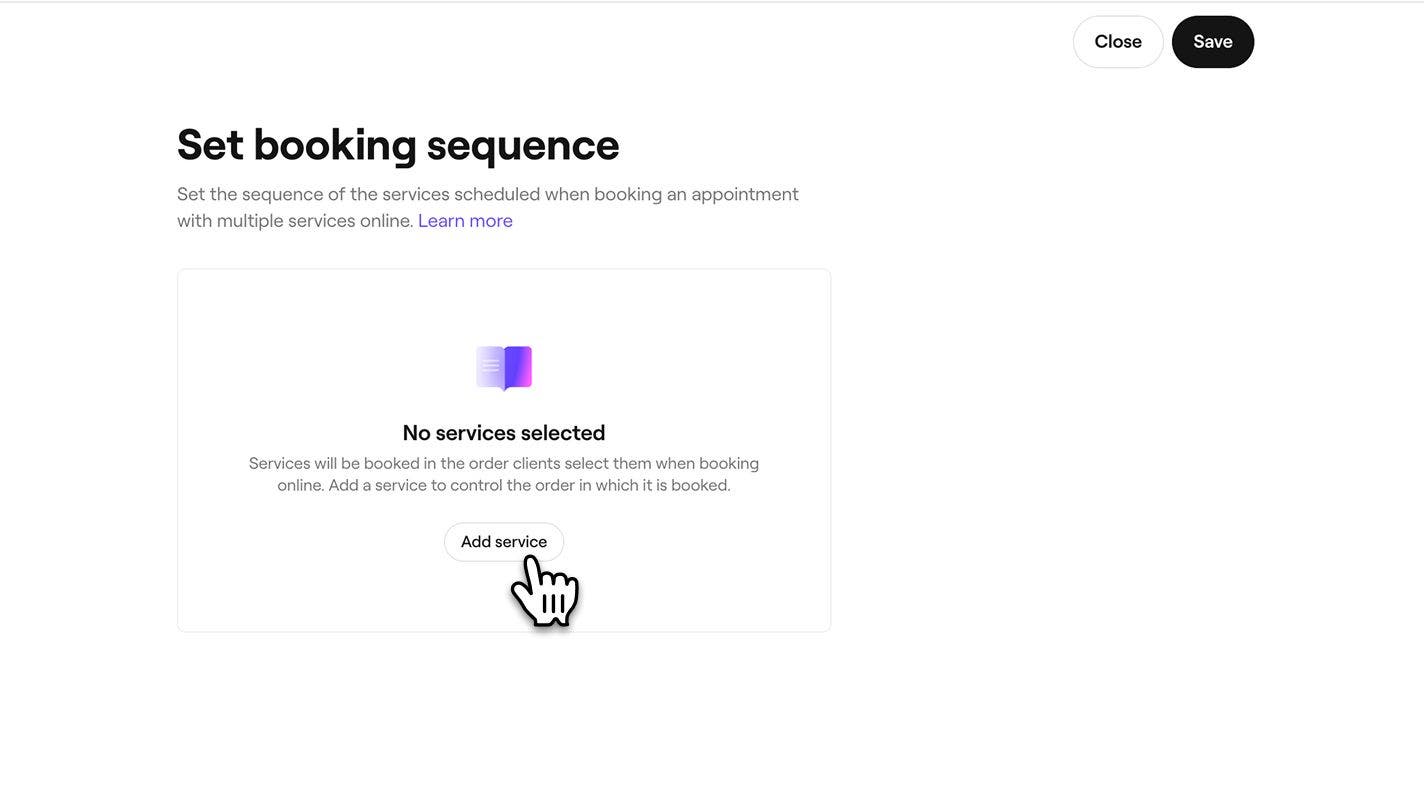
- In the Set booking sequence view, select the Add service button to start building your sequence.
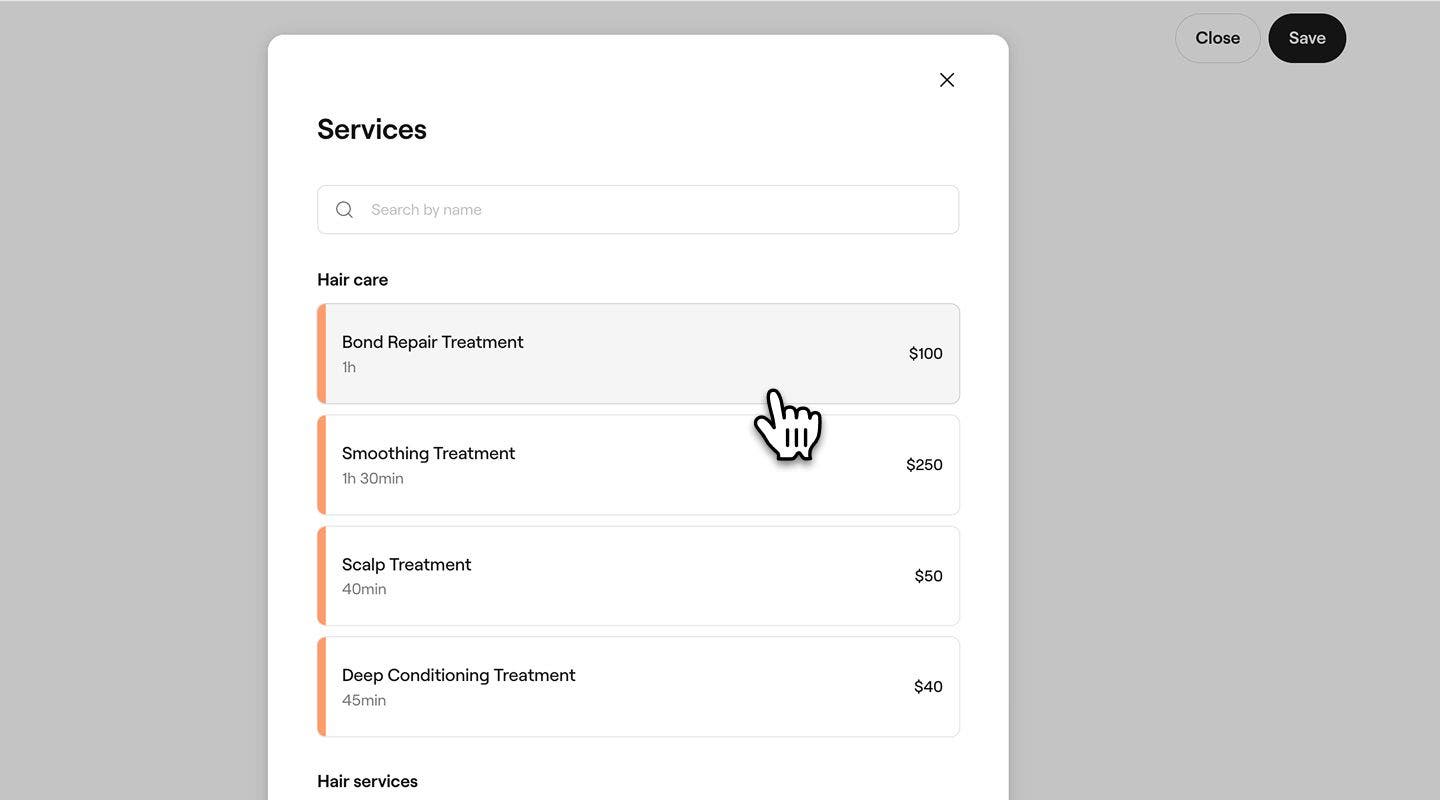
- In the Services pop-up, select a service to add.
- To add another service to the sequence, click on the Add button in the Set booking sequence view.
- You can also drag and drop services to rearrange the order.
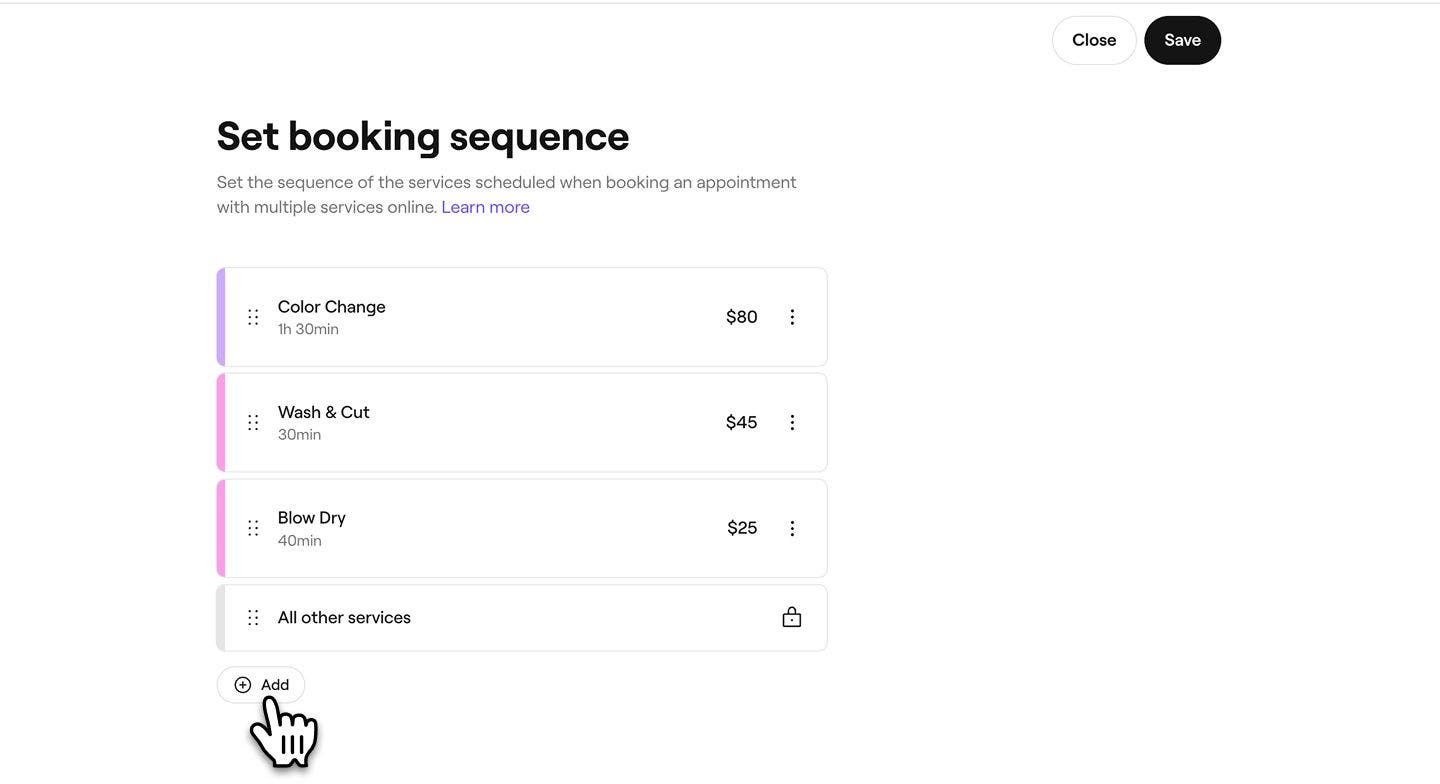
- Click on the Save button in the top right to apply the sequence.
After saving, your updated sequence will be used each time clients schedule these services in one booking.
To remove services in your booking sequence, select Actions (three dots) next to a service in the booking sequence view.
FAQs
Your service sequence and your bundle order work independently. A bundle keeps the service order you set when creating it, and you can choose where the full bundle appears within your wider service sequence.