Manage service categories
Learn how to organise your services using categories to help clients browse more easily.
How service categories work
Service categories group related treatments together so your menu is organised, giving clients an easier way to explore what you offer.
You can use categories when creating a single service or bundle to separate different types of treatments, highlight key service areas, or build a menu structure that suits your workflow and team.
Create a new service category
- From the main menu on the left of your screen, go to Catalog.
- Select Service menu from the left menu panel.

- Click on the Add button in the top right, then select Category.
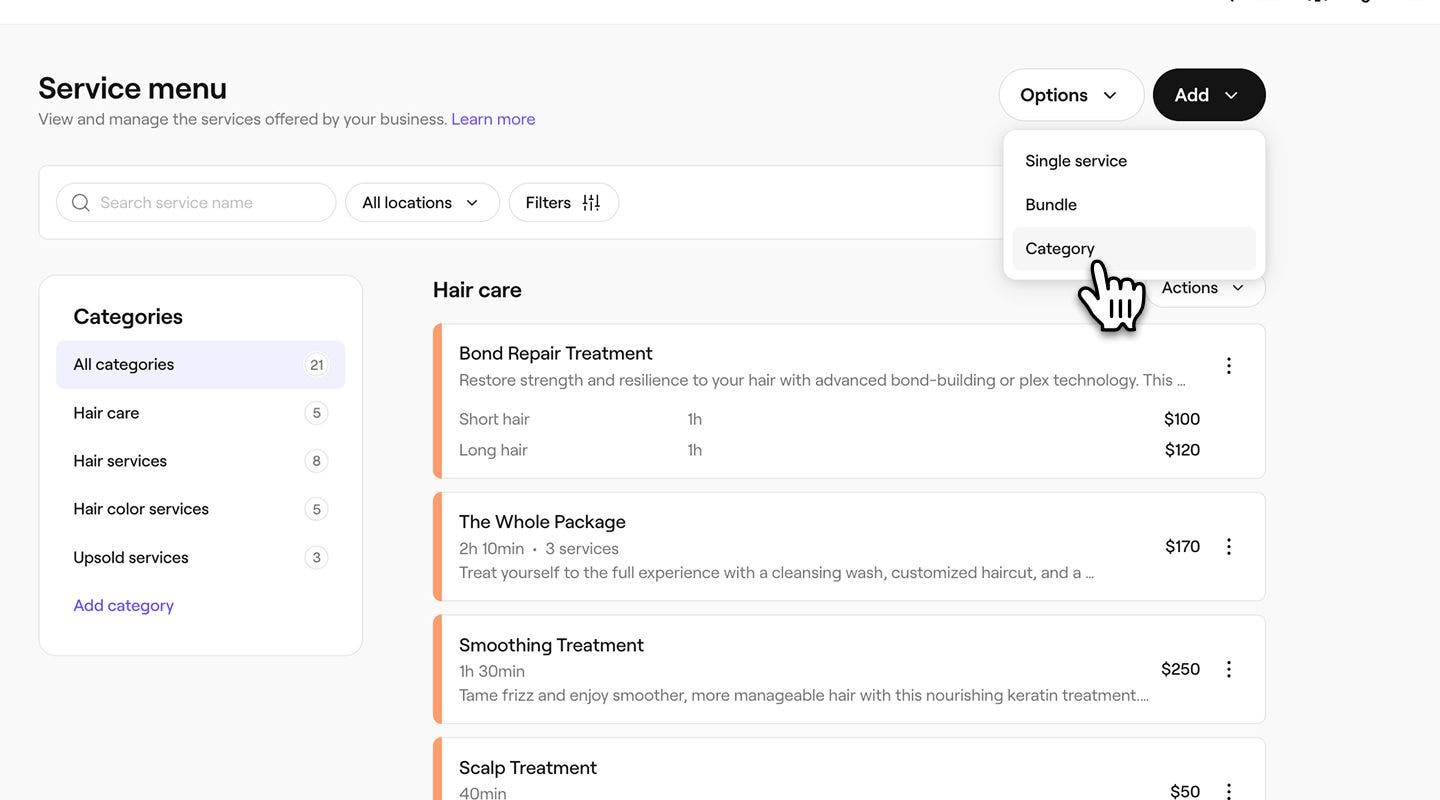
- In the Add category pop-up, enter the following details:
- Category name: The name that appears in your service menu and to clients when booking, helping you organise your treatments clearly.
- Appointment color: Choose a color to visually identify services in this category.
- Description: Add a short summary that helps clients understand what types of services are included in this category. Click on Generate with AI to create a suggested description.

- Click on the Add button at the bottom to create the category.
Once the category has been created, it will appear in your service menu, and will be visible to clients when booking online. You can also rearrange the order in which your categories appear to clients.
Manage service categories
- To manage a service category, select the Actions button next to the category and choose one of the following options:
- Edit: Update the category details with any changes. Click on the Save button in the top right.
- Add service: Create a new service directly within this category.
- Add bundle: Create a new service bundle that will be grouped under this category.
- Archive: Remove the category from your menu without deleting it permanently.
- Permanently delete: Remove the service from your service menu entirely.

FAQs
Archiving or deleting a category also removes the services and bundles that are grouped within it.